Deploy a smart contract with SmartPy
Estimated time: 30 minutes
This tutorial covers writing and deploying a simple smart contract with the SmartPy programming language. SmartPy has syntax similar to Python, but you don't need any experience with Python or SmartPy to do this tutorial.
- If you are more familiar with OCaml, try Deploy a smart contract with CameLIGO.
- If you are more familiar with JavaScript, try Deploy a smart contract with JsLIGO.
- To learn the Archetype language, try Deploy a smart contract with Archetype.
SmartPy is a high-level programming language that you can use to write smart contracts for the Tezos blockchain. It abstracts away the complexity of using Michelson (the smart contract language directly available on-chain) to make it easier to write smart contracts on Tezos.
In this tutorial, you will learn how to:
- Create a wallet to manage an account containing cryptocurrency tokens
- Get free tez tokens (the native cryptocurrency token on Tezos) from a faucet
- Code a contract in SmartPy, including:
- Creating a contract in the online IDE
- Defining the storage for the contract
- Defining entrypoints in the contract
- Deploy (or originate) the contract to Tezos and set its starting storage value
- Look up the current state of the contract
- Call the contract
What is a smart contract?
A smart contract is a computer program that is stored on a blockchain and runs on a blockchain. Because the blockchain is spread across many computer nodes, you don't have to think about where to host the program or worry whether a computer will run it or not. Responsibility for running the contract is distributed across all of the nodes in the Tezos system, so when you deploy a smart contract, you can be confident that it will be available and unmodified when someone wants to run it.
A smart contract has these parts:
- Persistent storage, data that the contract can read and write
- One or more entrypoints, which are a kind of function that clients can call, like endpoints in an API or functions or methods in many programming languages
- A Tezos account that can store tokens (technically, the contract is itself a type of Tezos account, but you can think of it as a program with a Tezos account)
Tutorial contract
The contract that you deploy in this tutorial stores a single integer. It provides entrypoints that clients can call to change the value of that integer:
- The
incremententrypoint accepts an integer as a parameter and adds that integer to the value in storage - The
decremententrypoint accepts an integer as a parameter and subtracts that integer from the value in storage - The
resetentrypoint takes no parameters and resets the value in storage to 0
After you deploy the contract, you or any other user can call it from various sources, including web applications, other contracts, and the Octez command-line client. However, no one can prevent it from running or tamper with its code or its storage.
Creating and funding a wallet
To deploy and work with the contract, you need a wallet and some tez tokens.
-
Install a Tezos-compatible wallet. Which wallet you install is up to you and whether you want to install a wallet on your computer, in a browser extension, or as a mobile app. For options, see Installing and funding a wallet
-
Switch the wallet to use the Shadownet testnet instead of Tezos Mainnet. Shadownet is a network for testing Tezos applications where tokens are free so you don't have to spend real currency to work with your applications.
For example, for the Temple browser wallet:
-
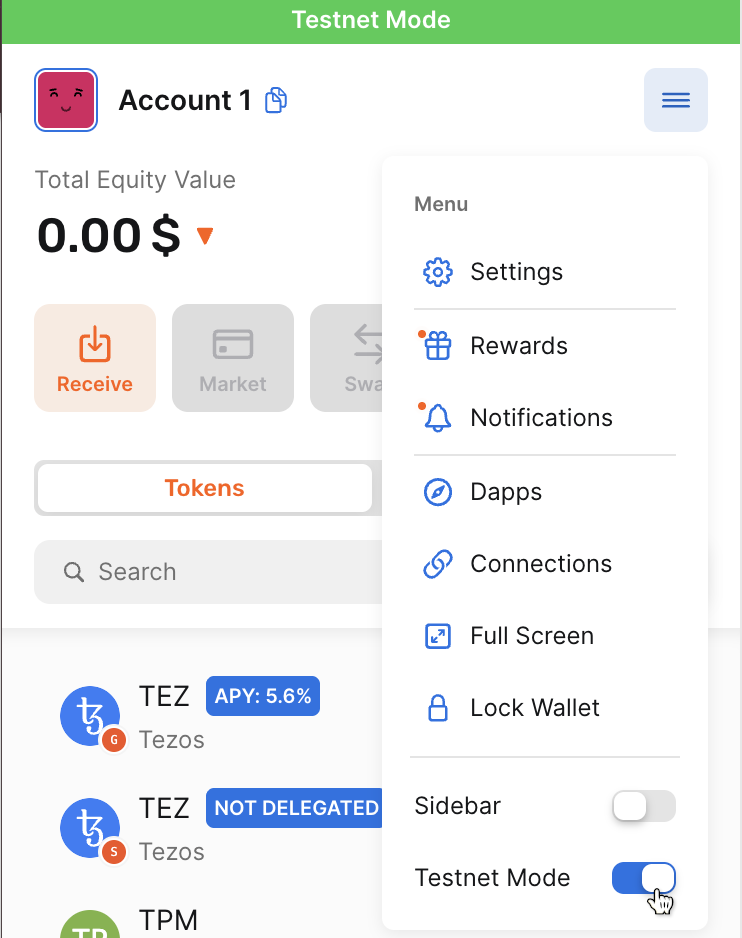
Expand the menu at top right and then turn on Testnet mode, as in this picture:
-
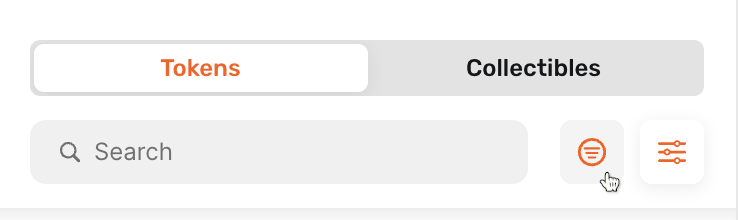
Above the list of tokens, click the display options button:
-
Under Filter by network, expand All Networks.
-
Select Shadownet:
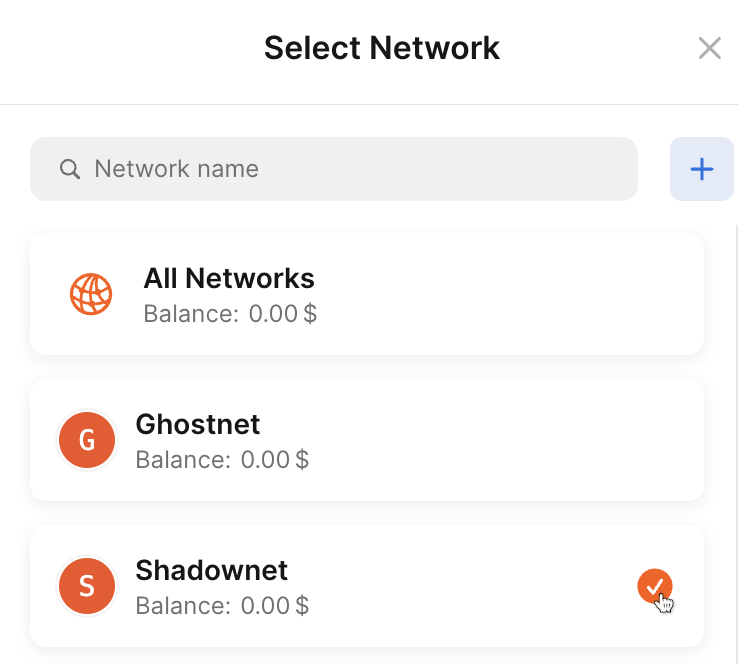
Now Temple shows your token balances on the Shadownet test network.
-
-
From your wallet, get the address of your account, which starts with
tz1. This is the address that applications use to work with your wallet. -
Go to the Shadownet faucet page at https://faucet.shadownet.teztnets.com.
-
On the faucet page, connect your wallet, or paste your wallet address into the input field labeled "Fund any address" and click the button for the amount of tez to add to your wallet. 20 tez is enough to work with the tutorial contract, and you can return to the faucet later if you need more tez.
Depending on the amount you requested, it may take a few seconds or minutes for the faucet to send the tokens and for those tokens to appear in your wallet.
You can use the faucet as much as you need to get tokens on the testnet, but those tokens are worthless and cannot be used on Mainnet.
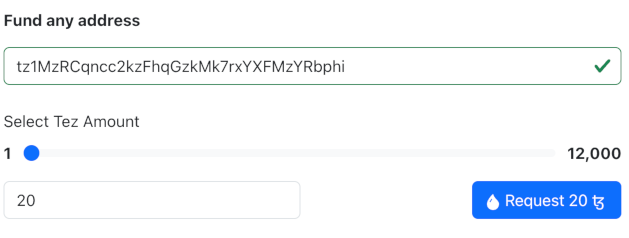
Now you have an account and funds that you can use to work with Tezos.
Creating the contract
The contract that you will create has these basic parts:
-
A function that initializes the contract and sets the starting value for its storage.
-
Functions called entrypoints that run code when clients call the contract.
-
Automated tests that verify that the contract works as expected.
Follow these steps to create the code for the contract:
-
Open the SmartPy online IDE at https://smartpy.io/ide. You can work with SmartPy code in any IDE, but this online IDE keeps you from having to install software on your computer, and it also simplifies the process of deploying contracts.
-
In the code editor, add this line of code to import SmartPy:
import smartpy as sp -
Add this code that creates the entrypoints:
@sp.module
def main():
    class Counter(sp.Contract):
        def __init__(self, value: int):
            self.data.storedValue = value

        @sp.entrypoint
        def increment(self, params):
            self.data.storedValue += params.value

        @sp.entrypoint
        def decrement(self, params):
            self.data.storedValue -= params.value

        @sp.entrypoint
        def reset(self):
            self.data.storedValue = 0
Indentation is significant in Python, so make sure that your indentation matches this code.
The first two lines create a SmartPy module, which indicates that the code is SmartPy instead of ordinary Python.
Then the code creates a class named Counter, which represents the smart contract. The contract has an
__init__function, which runs when the contract is deployed. In this case, the function sets the initial value of the storage to a parameter that you pass when you deploy the contract. This storage value is an integer, but the storage can be another primitive type such as a string or timestamp, or a complex data type that contains multiple values. For more information on contract data types, see Data types. -
Add this code, which creates automated tests:
# Automated tests that run on simulation
@sp.add_test()
def test():
    scenario = sp.test_scenario("StoreValue")
    c1 = main.Counter(12)
    scenario.h1("Counting")
    scenario += c1
    c1.increment(value=15)
    scenario.p("Some computation").show(c1.data.storedValue)
    c1.decrement(value=25)
    scenario.verify(c1.data.storedValue == 2)
    c1.reset()
    scenario.verify(c1.data.storedValue == 0)
When you run the SmartPy file, SmartPy runs a simulation in which it tests and compiles the contract. In this case, the tests verify that the increment, decrement and reset endpoints work. For more information about SmartPy and tests, see the SmartPy documentation.
The SmartPy online IDE looks like this:
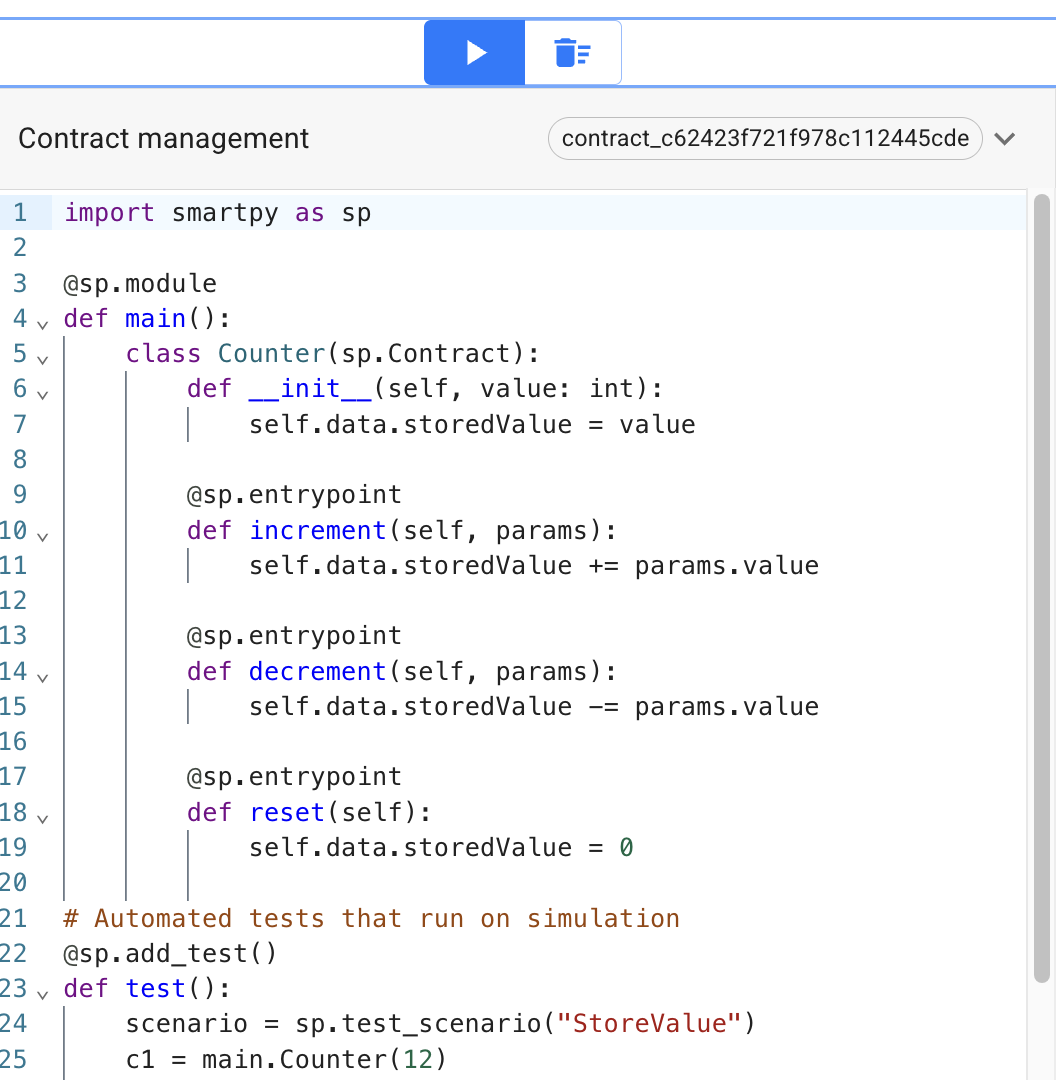
The complete contract looks like this:
import smartpy as sp

@sp.module
def main():
    class Counter(sp.Contract):
        def __init__(self, value: int):
            self.data.storedValue = value

        @sp.entrypoint
        def increment(self, params):
            self.data.storedValue += params.value

        @sp.entrypoint
        def decrement(self, params):
            self.data.storedValue -= params.value

        @sp.entrypoint
        def reset(self):
            self.data.storedValue = 0

# Automated tests that run on simulation
@sp.add_test()
def test():
    scenario = sp.test_scenario("StoreValue")
    c1 = main.Counter(12)
    scenario.h1("Counting")
    scenario += c1
    c1.increment(value=15)
    scenario.p("Some computation").show(c1.data.storedValue)
    c1.decrement(value=25)
    scenario.verify(c1.data.storedValue == 2)
    c1.reset()
    scenario.verify(c1.data.storedValue == 0)
Testing and compiling the contract
Before you can deploy the contract to Tezos, you must run it in the IDE, which automatically compiles it to Michelson, the base language of Tezos contracts. Then, the IDE also automatically runs the tests.
-
Compile the contract and run the tests by clicking the Run Code button:

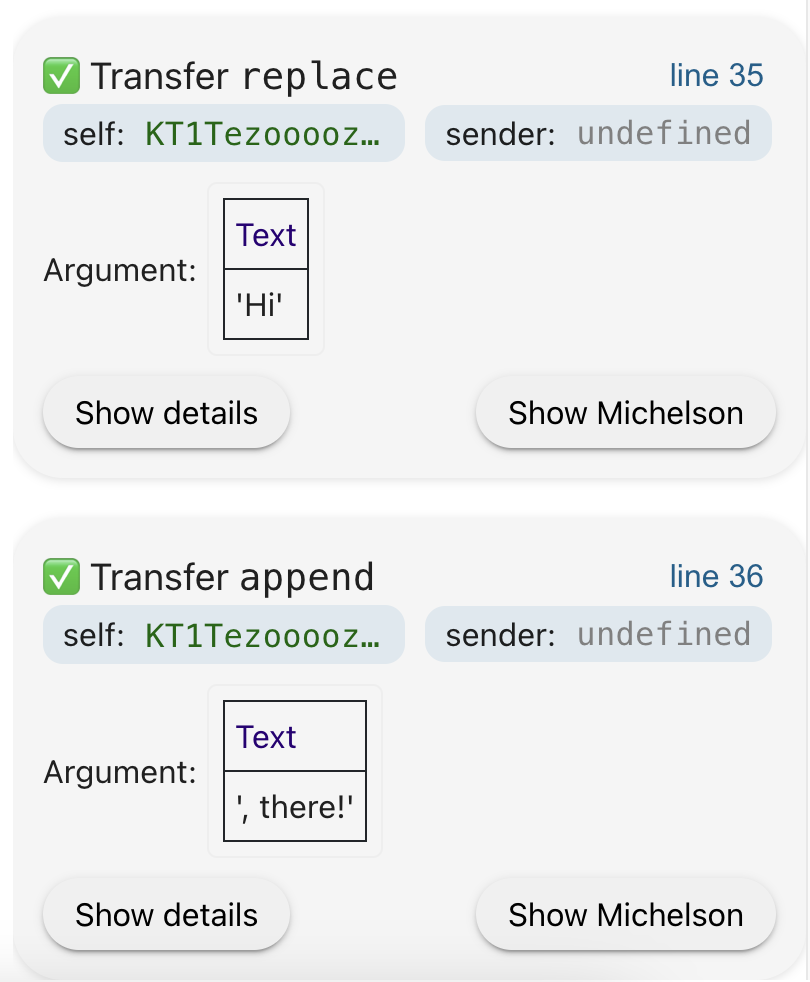
The right-hand pane of the online IDE shows the results of the simulation, compilation, and testing process. The first step is simulating the deployment (origination) of the contract. The simulation assigns the contract a temporary address and shows the initial state of its storage:
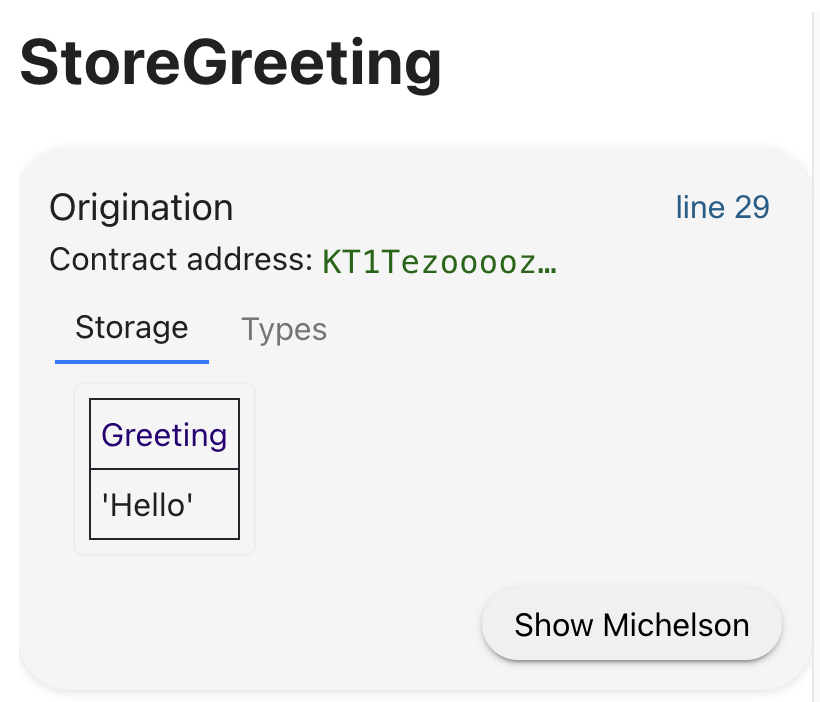
Then, the simulation runs the test cases and shows the results of each call to an entrypoint:
Deploying (originating) to the testnet
Deploying a contract to the network is called "originating." Originating the contract requires a small amount of Tezos tokens as a fee.
-
Under the origination step, click Deploy contract.
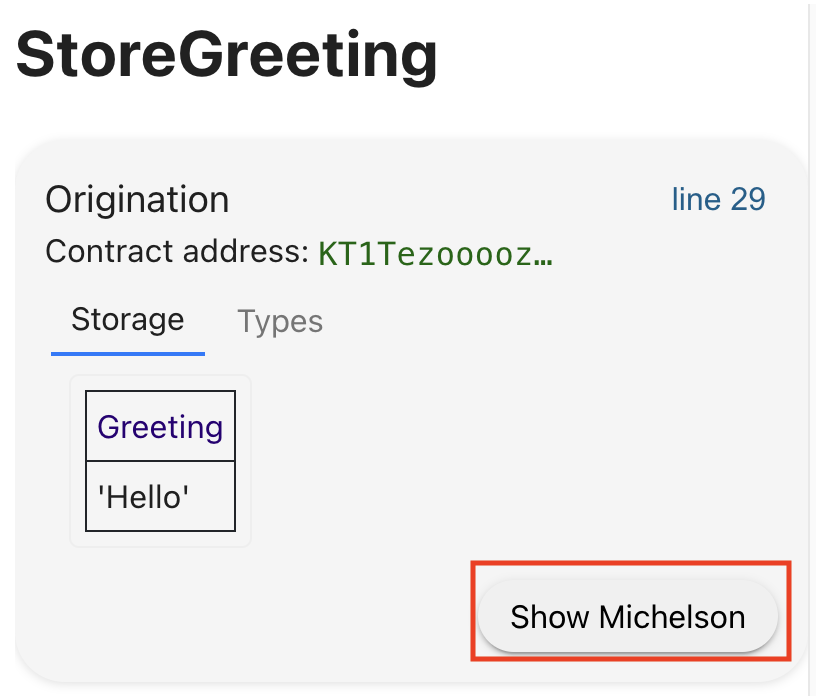
The IDE shows the compiled Michelson code of the contract, which is the language that smart contracts use on Tezos:
parameter (or (int %decrement) (or (int %increment) (unit %reset)));
storage   int;
code
  {
    UNPAIR;     # @parameter : @storage
    IF_LEFT
      {
        SWAP;       # @storage : @parameter%decrement
        # == decrement ==
        # self.data.storedValue -= params.value # @storage : @parameter%decrement
        SUB;        # int
      }
      {
        IF_LEFT
          {
            # == increment ==
            # self.data.storedValue += params.value # @parameter%increment : @storage
            ADD;        # int
          }
          {
            DROP 2;     #
            # == reset ==
            # self.data.storedValue = 0 #
            PUSH int 0; # int
          }; # int
      }; # int
    NIL operation; # list operation : int
    PAIR;       # pair (list operation) int
}; -
Below the Michelson code, click Continue.
-
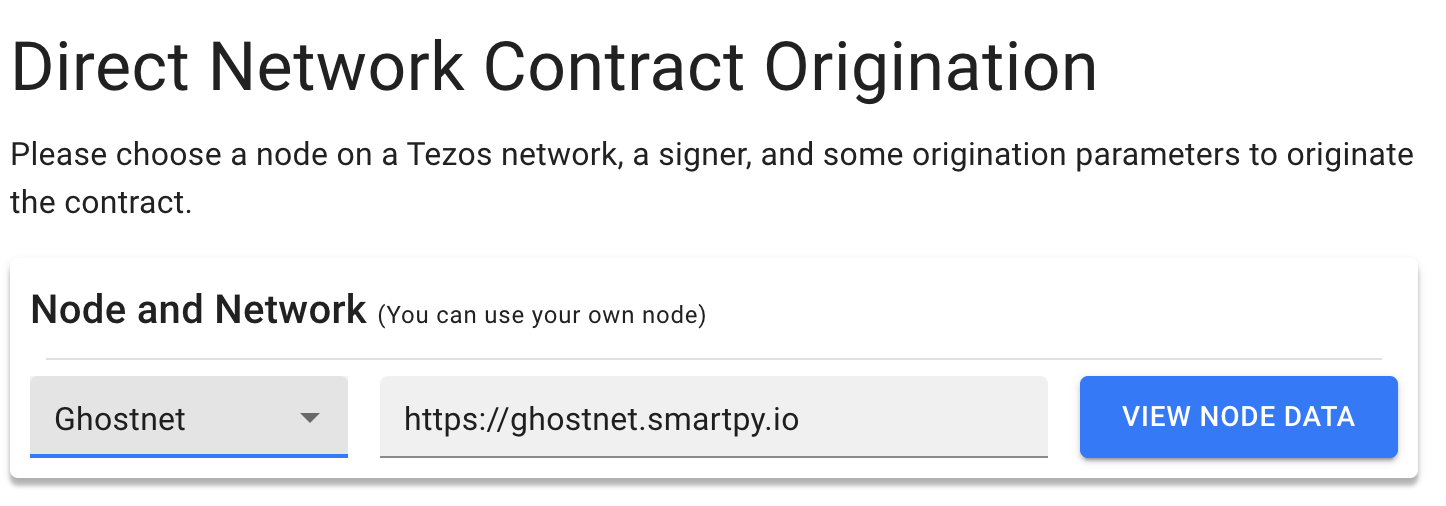
In the new window, under "Node and Network," select the Shadownet testnet and accept the default RPC node, as in this picture:
-
Under "Wallet," click Select Account.
-
In the pop-up window, connect your wallet. For most wallets, use the octez.connect (or Beacon) tab.
-
When your wallet is connected, click Validate.
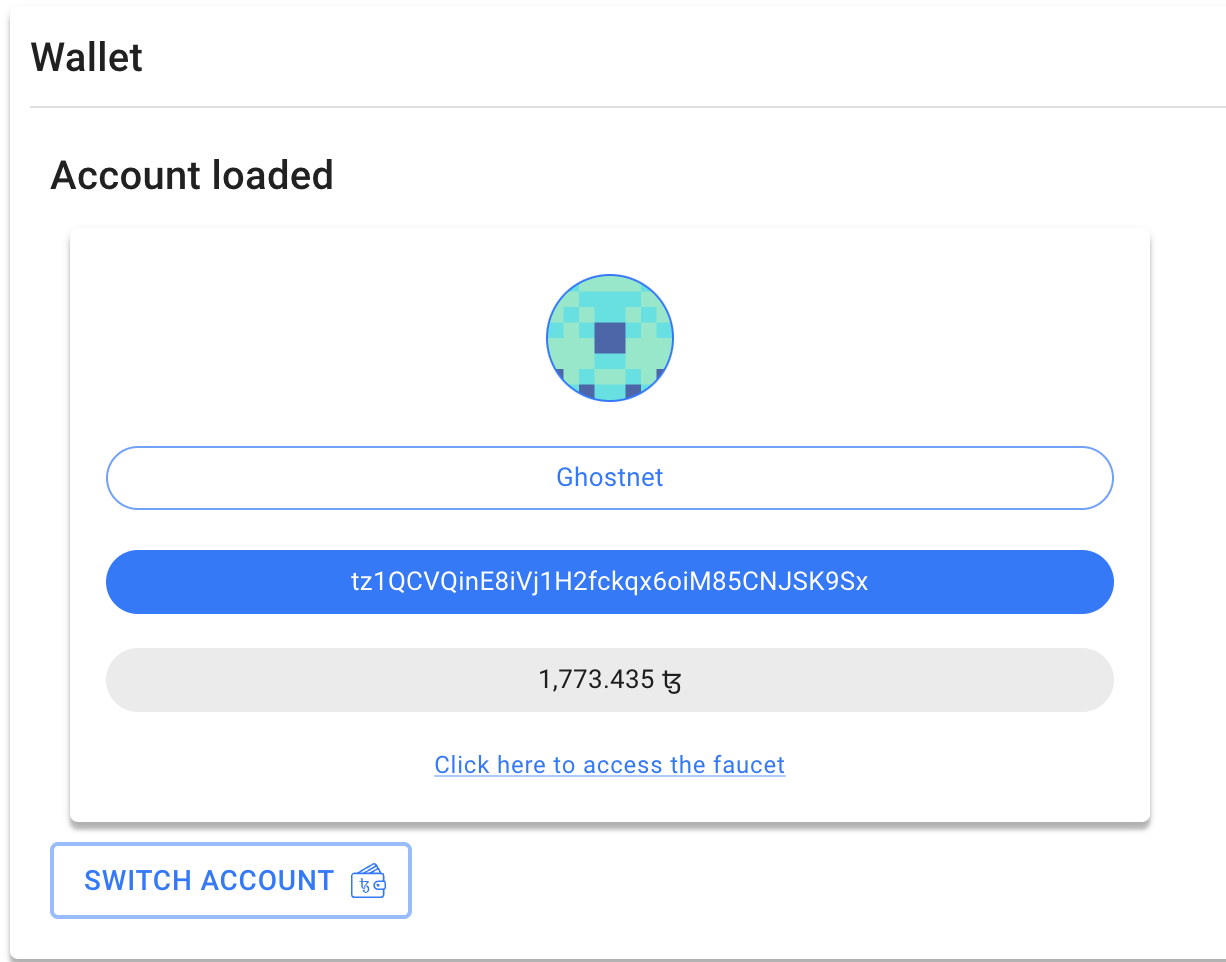
The Origination page shows your wallet information:
-
Under "Contract Origination Parameters," click Estimate cost. The Fee field shows the estimated cost to deploy the contract in tez.
-
At the bottom of the page, click Deploy Contract.
-
In the pop-up window, click Accept.
-
Approve the transaction in your wallet app.
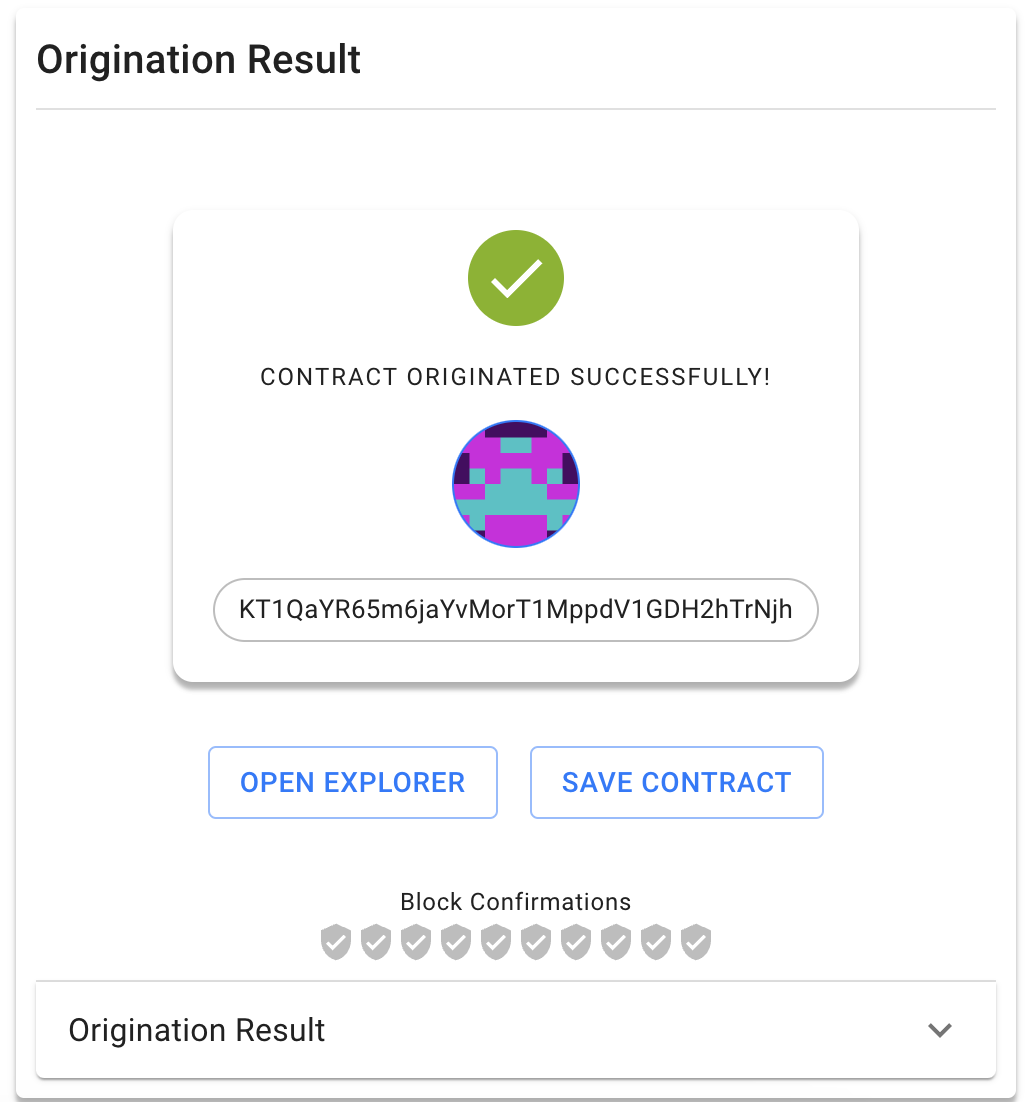
The "Result" section shows information about the deployed contract, including its address:
-
Copy the contract address, which starts with
KT1.noteBe sure to save the contract address because it is not shown in the SmartPy online IDE again.
If you close the window and forget the address, you can look up your account address in a block explorer; the block explorer shows your recent transactions, including smart contracts that you deployed.
-
Open the contract in the block explorer Better Call Dev:
-
Click Open explorer.
The IDE shows information about the contract and links to popular block explorers.
-
Click Explore with Better Call Dev.
You can also go directly to https://better-call.dev/ in a new browser tab and search for the contract by its address.
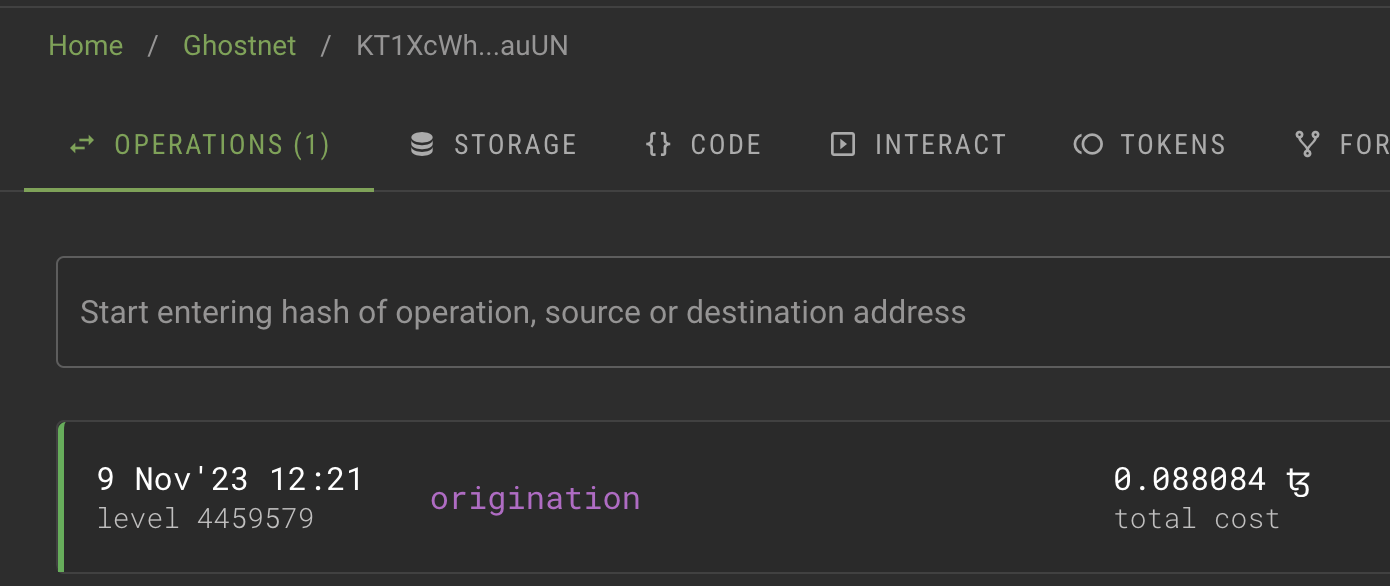
The block explorer shows information about the contract, including recent transactions and the current state of its storage:
-
-
Try calling one of the entrypoints:
-
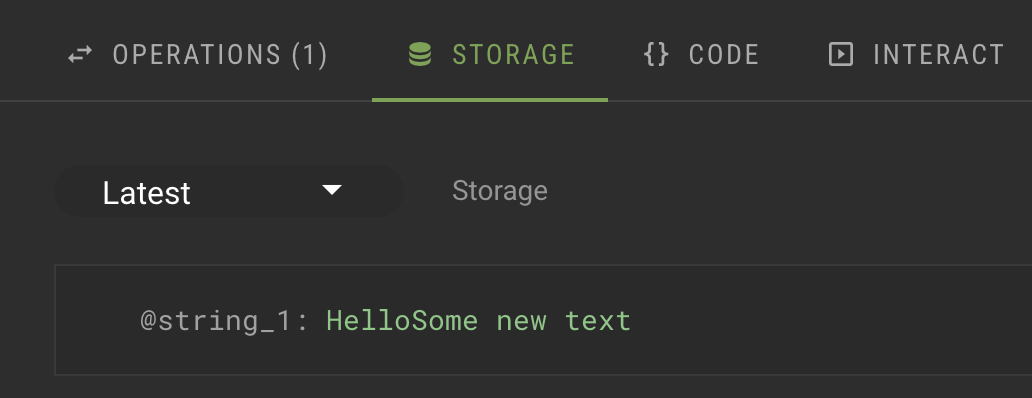
Go to the Storage tab and check the current state of the storage. If you just originated the contract, the storage is
12because that's the value set in the smart contract code. -
Go to the Interact tab. This tab shows the entrypoints in the contract and lets you use them.
-
For the
decremententrypoint, in the Parameters section, put some number in the field, as shown in this image: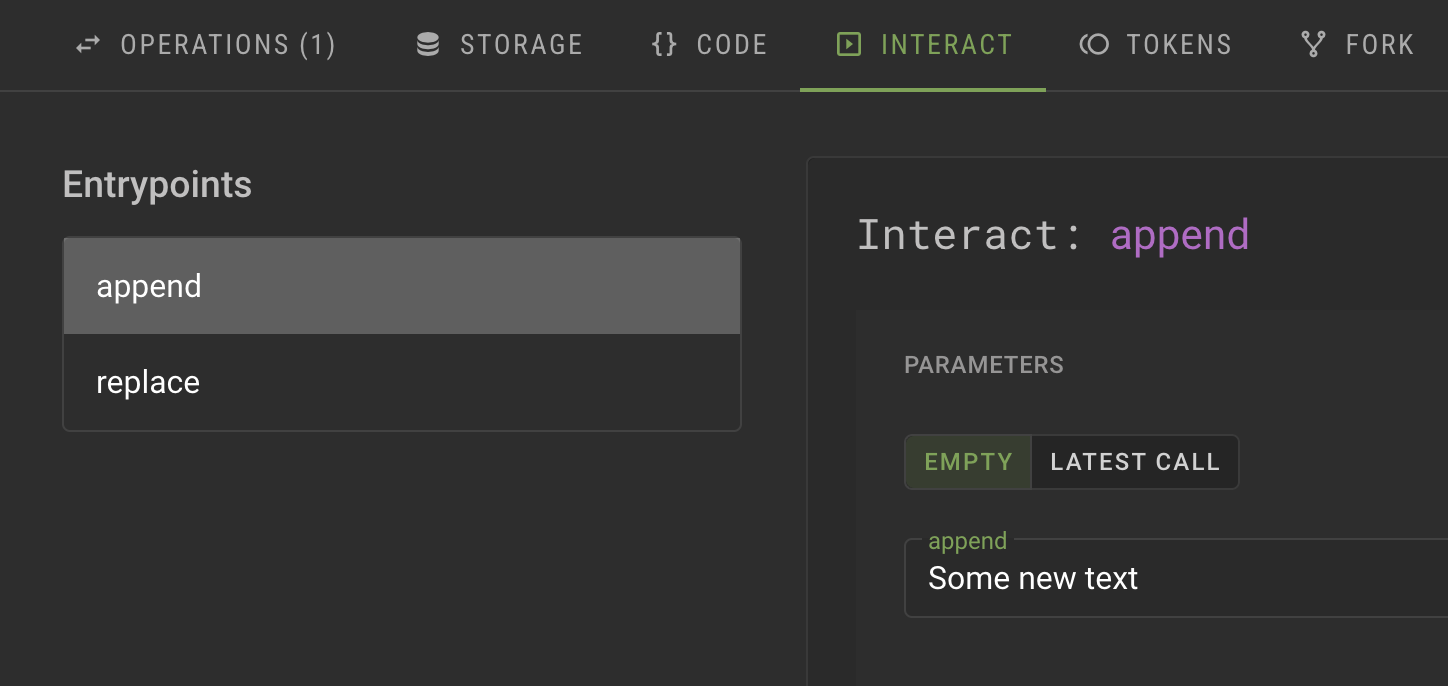
-
Click Execute and then click Wallet.
-
Select your wallet and connect it to the application.
-
Confirm the transaction in your wallet.
-
Wait for a success message that says "The transaction has successfully been broadcasted to the network."
-
Go back to the Storage tab and see that the number that you put in the parameter has been subtracted from the contract storage, as in this picture:
-
Summary
Now the contract is running on the Tezos blockchain. You or any other user can call it from any source that can send transactions to Tezos, including Octez, dApps, and other contracts.
If you want to continue working with this contract, here are some ideas:
- Change permissions for the contract so only your account can call its entrypoints
- Add your own entrypoints and originate a new contract; note that you cannot update the existing contract after it is deployed
- Create a dApp to call the contract from a web application, similar to the dApp that you create in the tutorial Build a simple web application