Wallets
Wallets are tools that manage accounts on blockchains like Tezos. Accounts hold and use tokens such as tez, the native token of Tezos. The primary purpose of wallets is to store an account's private key securely and encrypt (or "sign") transactions with that key without exposing the key.
Most wallets can do other tasks, including:
- Showing the token balances that an account holds, such as cryptocurrencies (DeFi tokens) and non-fungible tokens (NFTs)
- Providing information on the value of tokens
- Buying, selling, and exchanging tokens
- Showing the transaction history of an account
- Batching multiple transactions to save on transaction fees
Tezos wallets
Many wallets are compatible with Tezos. They are available as standalone programs, as mobile applications, as web browser extensions, as online federated identity accounts, or as pieces of hardware. Which one you use depends on what platform you want to use your wallet on and what features you want.
These are some wallets that you can use with Tezos:
- Temple mobile application and browser extension
- Umami standalone application for Windows, MacOS, and Linux
- Kukai federated identity application, which uses accounts linked to other accounts such as email or social media accounts
- Trust mobile application and browser extension
- Airgap standalone and mobile applications
- Ledger hardware wallets
The MetaMask wallet supports Tezos, but only its browser extension, and only on Mainnet.
To set up MetaMask for Tezos, see Choosing a wallet.
For more information about using wallets with Tezos, see Installing and funding a wallet.
Setting up a wallet
Each wallet application works differently, but in most cases setting up a wallet follows these general steps:
-
You download and install the wallet application or browser extension.
-
The wallet prompts you to set a password.
-
The wallet generates a Tezos account.
-
The wallet gives you a backup code, usually a series of words, which you can use to restore the account if there is a problem with the wallet or the hardware that runs it.
importantYou must save the backup code so you can restore your account if your device is lost. See Backing up a wallet.
-
The wallet shows the address of the new account. Most wallets can generate multiple accounts if you need more than one.
Now you can use the wallet to work with tokens and dApps.
Backing up a wallet
You must back up your wallet's seed phrase, backup code, or private key so you can restore your account if you lose access to the wallet. If you lose this backup information, you could lose access to your funds permanently. No one can reset your account or restore access to an account after the information for that account is lost.
Wallets provide backup information when you set them up. In most cases, you can retrieve that backup information later if you didn't back it up the first time or want to back it up again. However, in some cases, the wallet does not provide backup information after you have set it up. In this case, if you lose the backup information, you must create a new account, back that account up, and transfer all funds from the original account to the new one.
Backing up a wallet is required regardless of whether the wallet is on a mobile device, a browser extension, a standalone program, or a hardware device.
Here are some tips for backing up wallets:
-
Store your backup information offline, written on paper, in a secure location. If you store the information digitally, you may lose access to it when a device fails or you forget a password. Digital devices may also be compromised if they are connected to the Internet.
-
Never share your backup information with anyone. If someone obtains it, they can fully access your account and funds.
-
Regularly verify that you can still access the backup information and ensure that you understand how to restore your wallet from it.
Backup information can come in different formats, including:
- A seed phrase of a series of words in a specific order
- The private key of the account, a single string that usually begins with
edskfor Tezos accounts or0xfor EVM and Etherlink accounts - A digital file
The wallet backup information is different from the password or other authentication that you use to access the wallet.
Most wallets provide backup information where they store account settings. Check the wallet documentation for how to back them up. For example, here are hints for backing up a few wallets (the list is non-exhaustive and focuses mostly on browser extension wallets):
-
Ledger hardware wallets provide the backup information when you set them up and do not provide backup information later. For more information, see I lost my 24-word Secret Recovery Phrase in the Ledger documentation.
-
For Metamask, see How to reveal your Secret Recovery Phrase.
-
For the Temple browser extension wallet, see How to Reveal the Seed Phrase in the Temple Wallet.
-
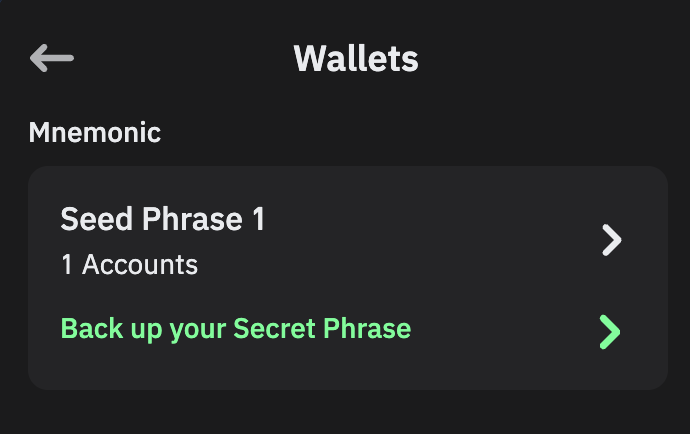
For the Trust browser extension wallet, click Settings > Manage Wallets > Back Up Your Secret Phrase:
-
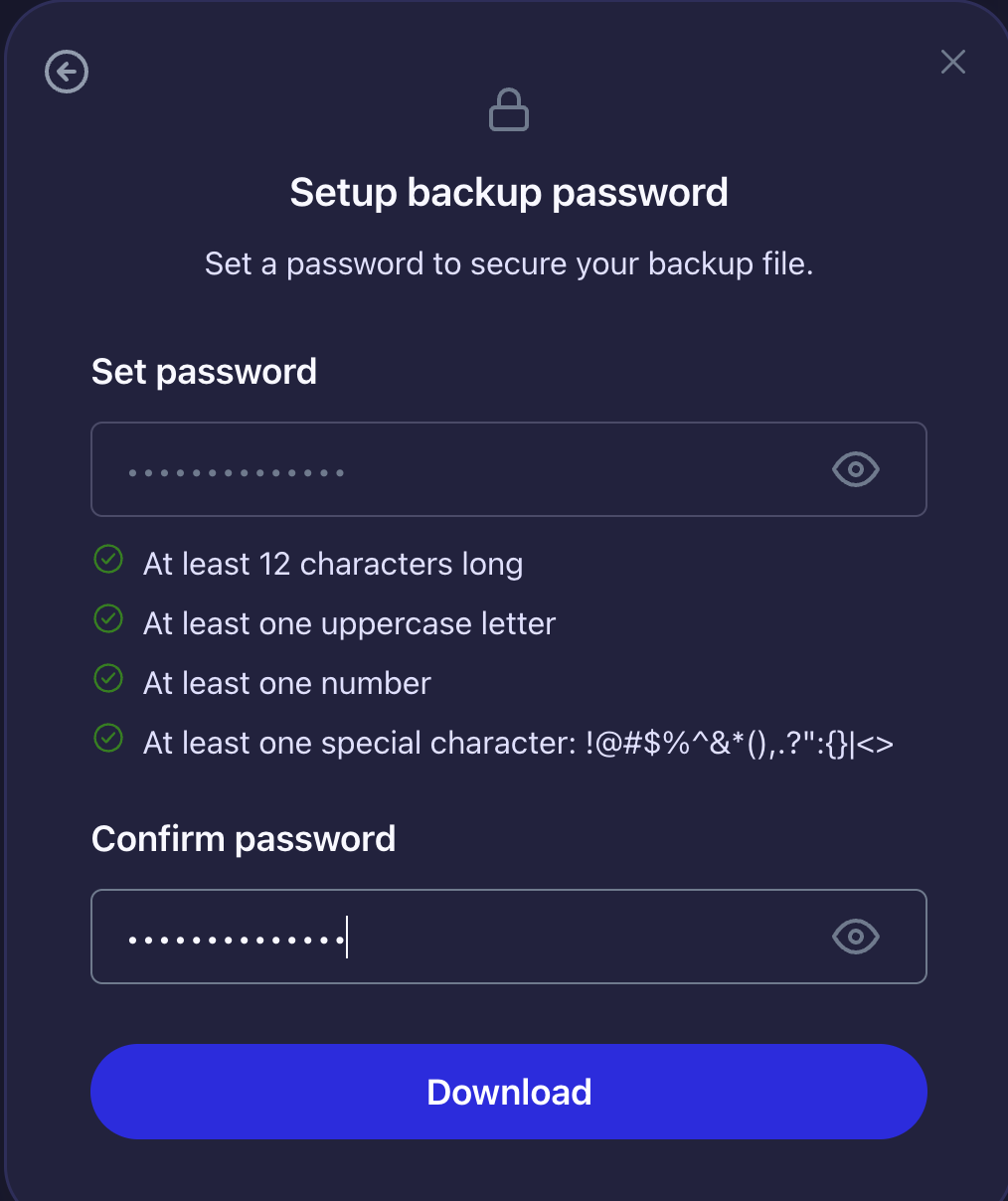
For the Umami web wallet, click Settings > Save backup and follow the steps to save an encrypted backup file to your computer. This file is encrypted with a password, so you must also keep the password in a safe place.
-
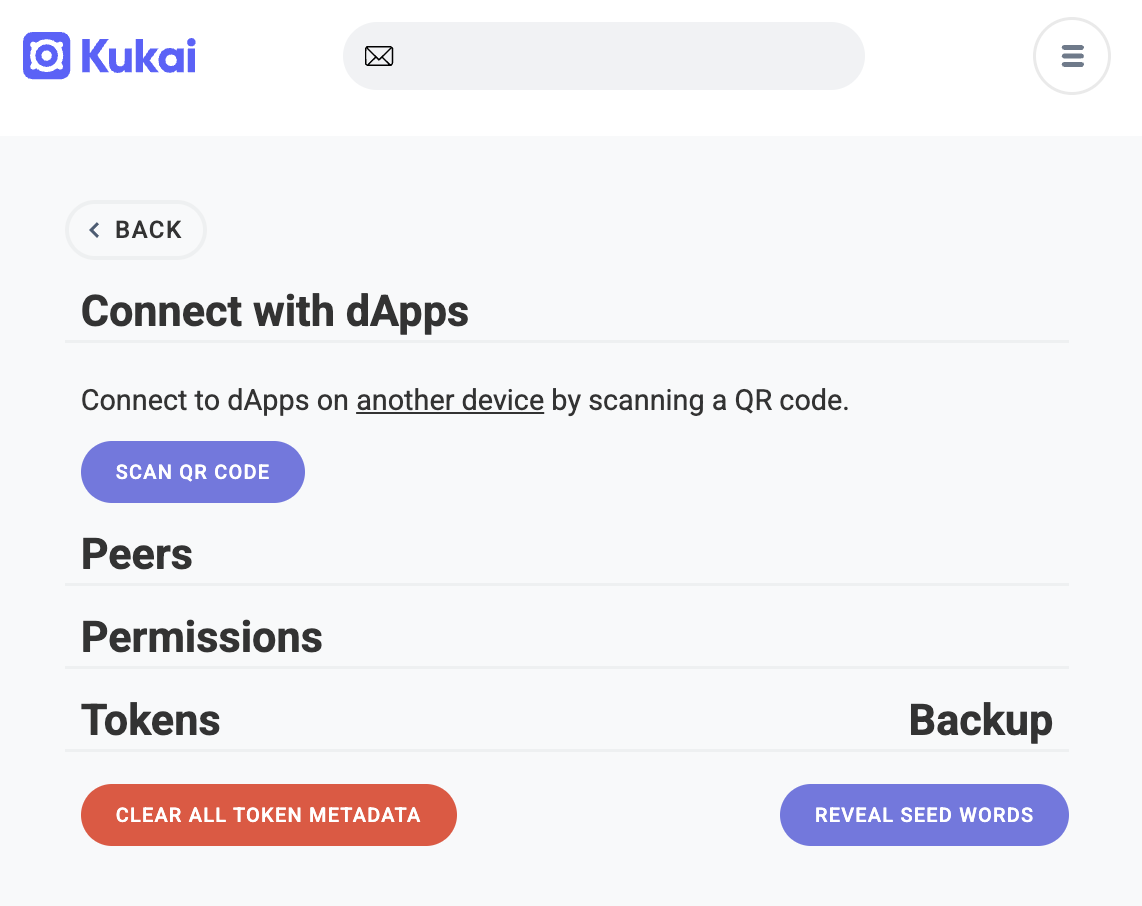
For the Kukai browser wallet, click Settings > Reveal seed words.
For other wallets, see the documentation for the wallet or its settings.
Transferring tokens
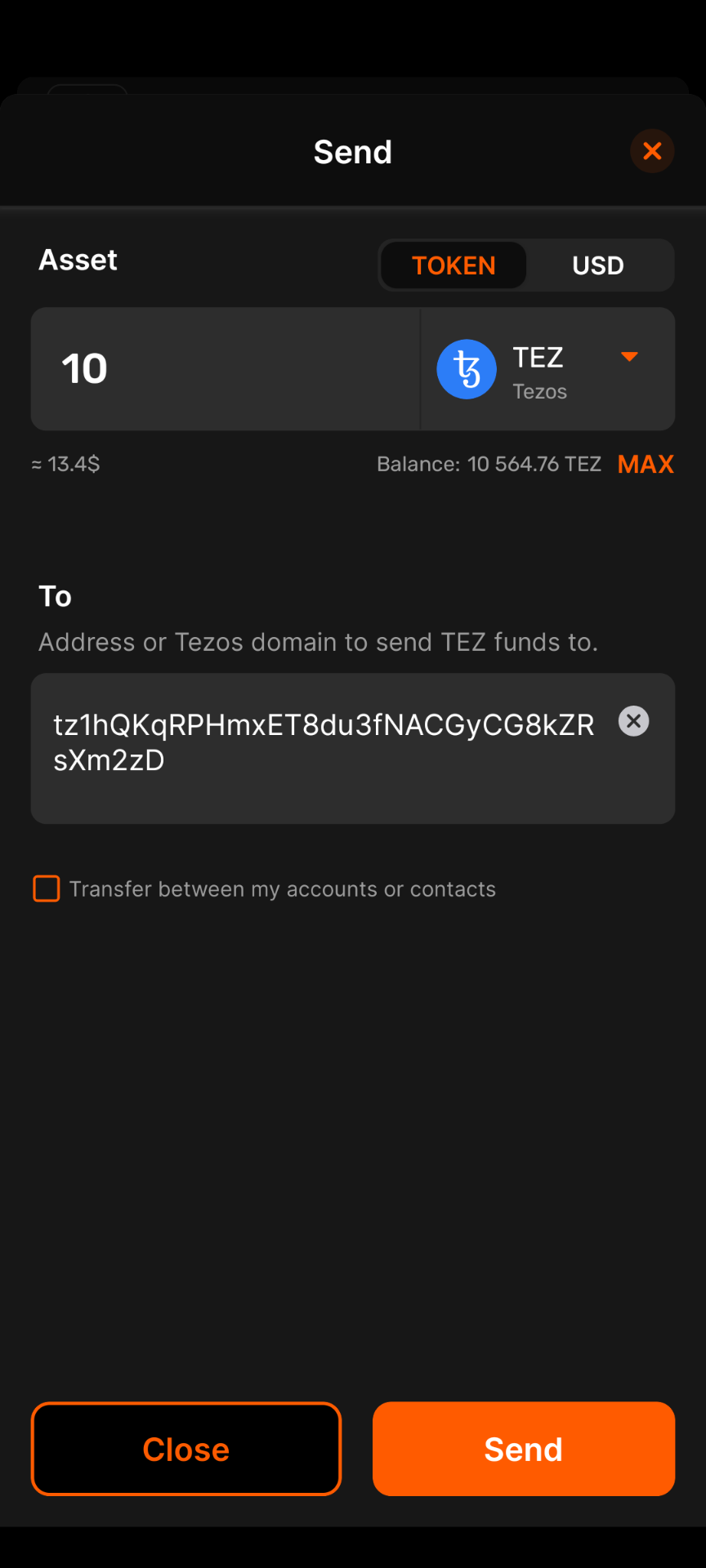
Most wallets allow you to transfer tokens directly in the wallet application. In most cases, all you need to do is click Send, select the token and amount to send, and enter the address of the target account.
For example, this is what a simple transfer of 10 tez looks like in the Temple wallet mobile application:
Connecting a wallet to an application
You can work within the wallet itself to see your tokens and account history. You can also use it to make transactions, including sending tokens to other accounts.
Another primary use of a wallet is to connect to and use decentralized applications (dApps). These applications typically provide a web application user interface and use Tezos for background tasks such as user authentication, data storage, and payment processing. You must connect your wallet to the application, like logging in to a web site, before it can access your account information. Then, when the application wants to send a transaction to Tezos on your behalf, it sends the transaction to your wallet application for you to approve. If you approve the transaction, the wallet signs it with your private key and submits it to Tezos.
For an example of a dApp and how you interact with it in your wallet, see Staking.
After you approve the transaction, you can see it in your wallet's history.
Examine transactions thoroughly before approving them. Malicious dApps may send misleading transactions, and transactions cannot be reversed after you sign them.