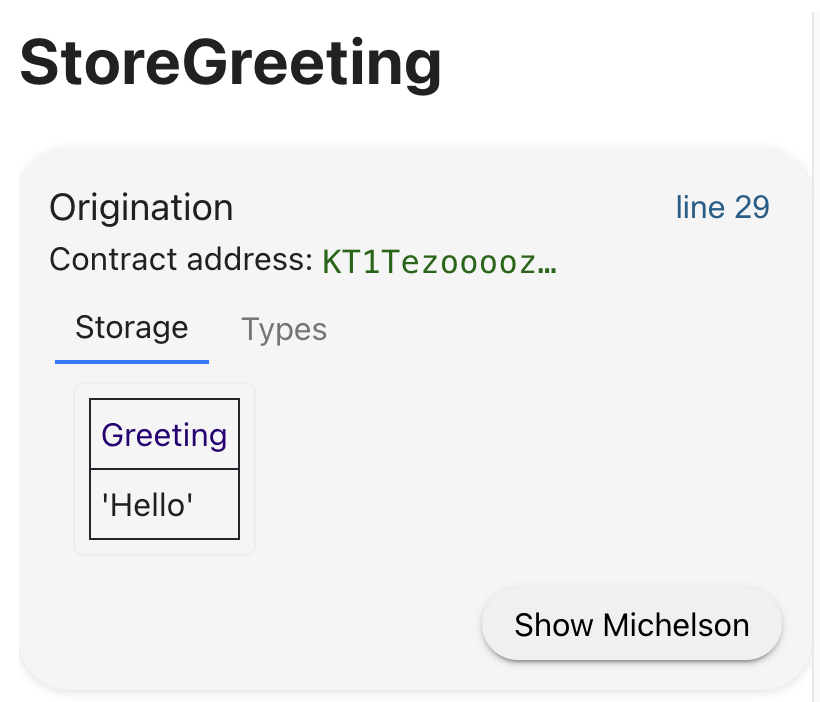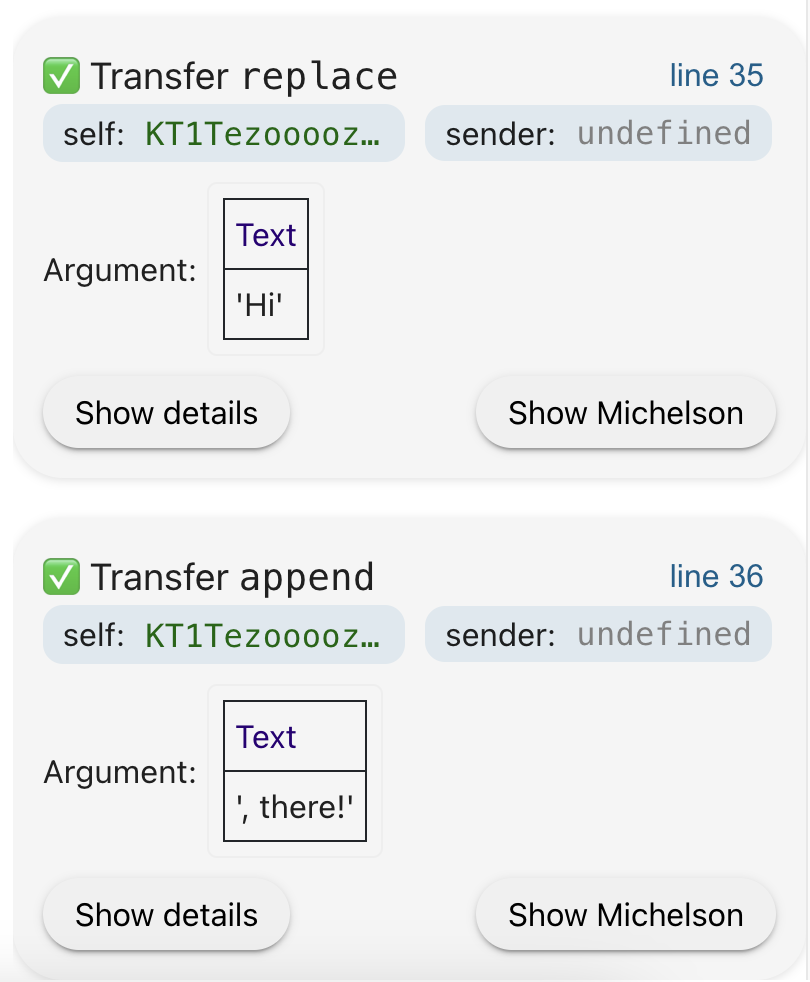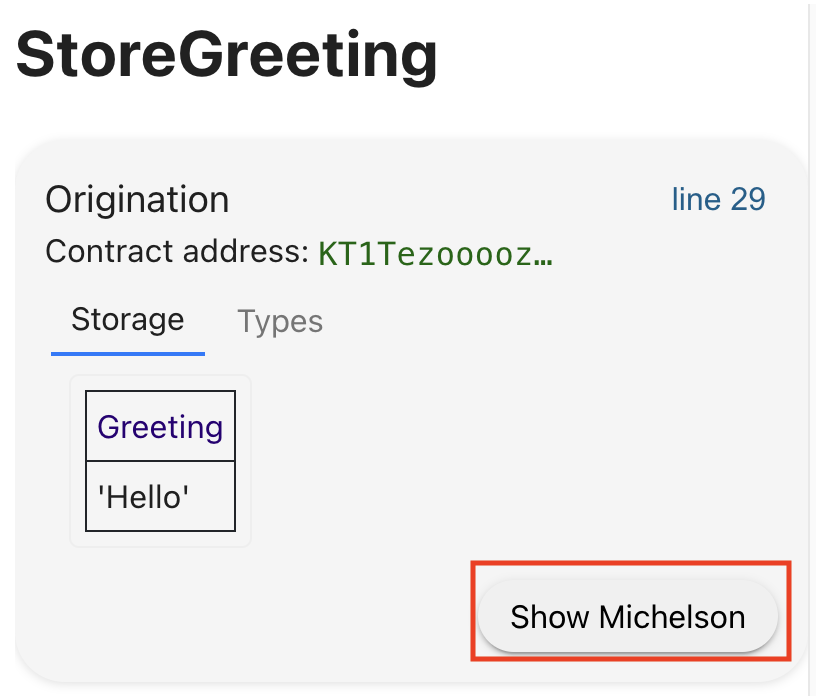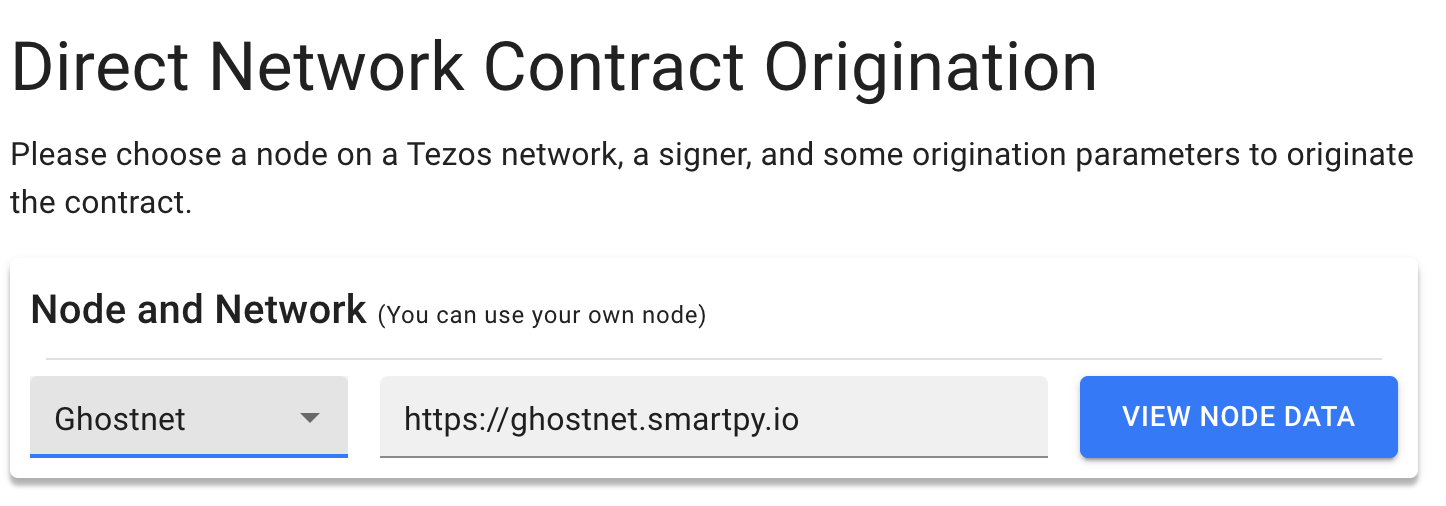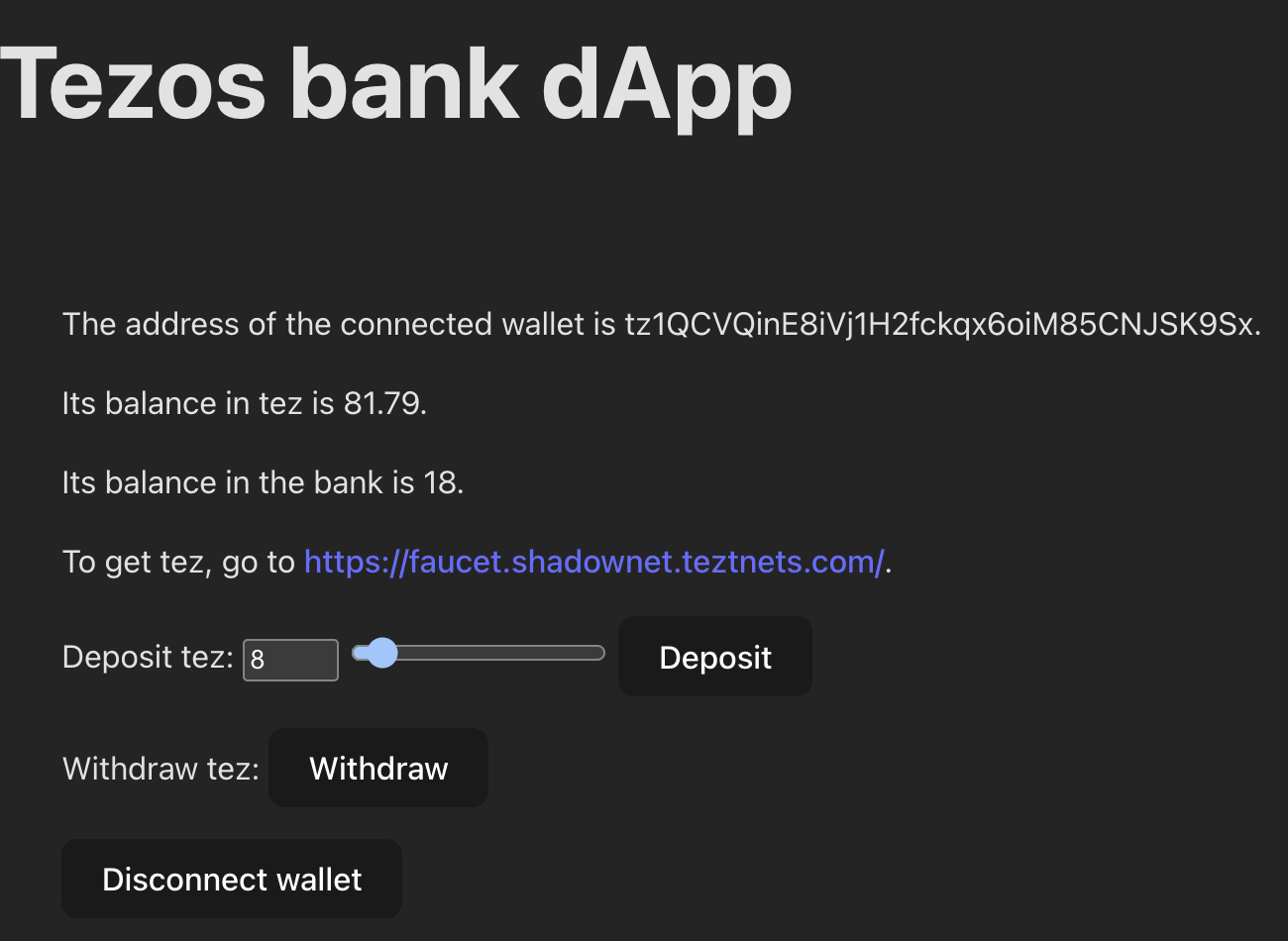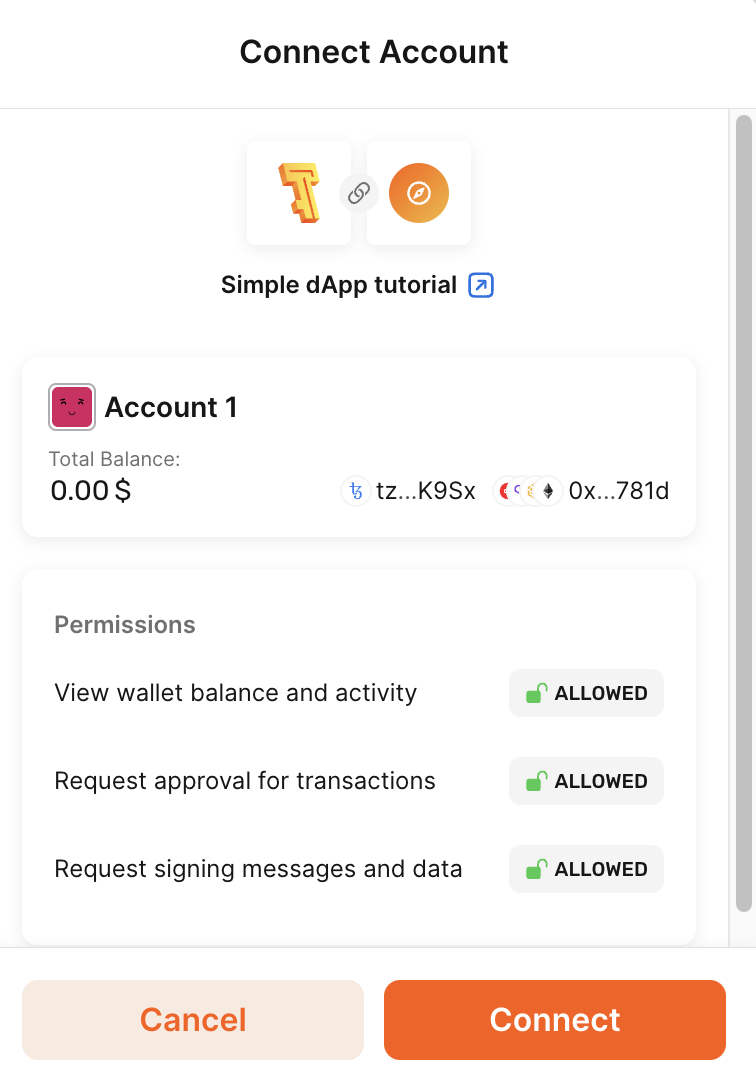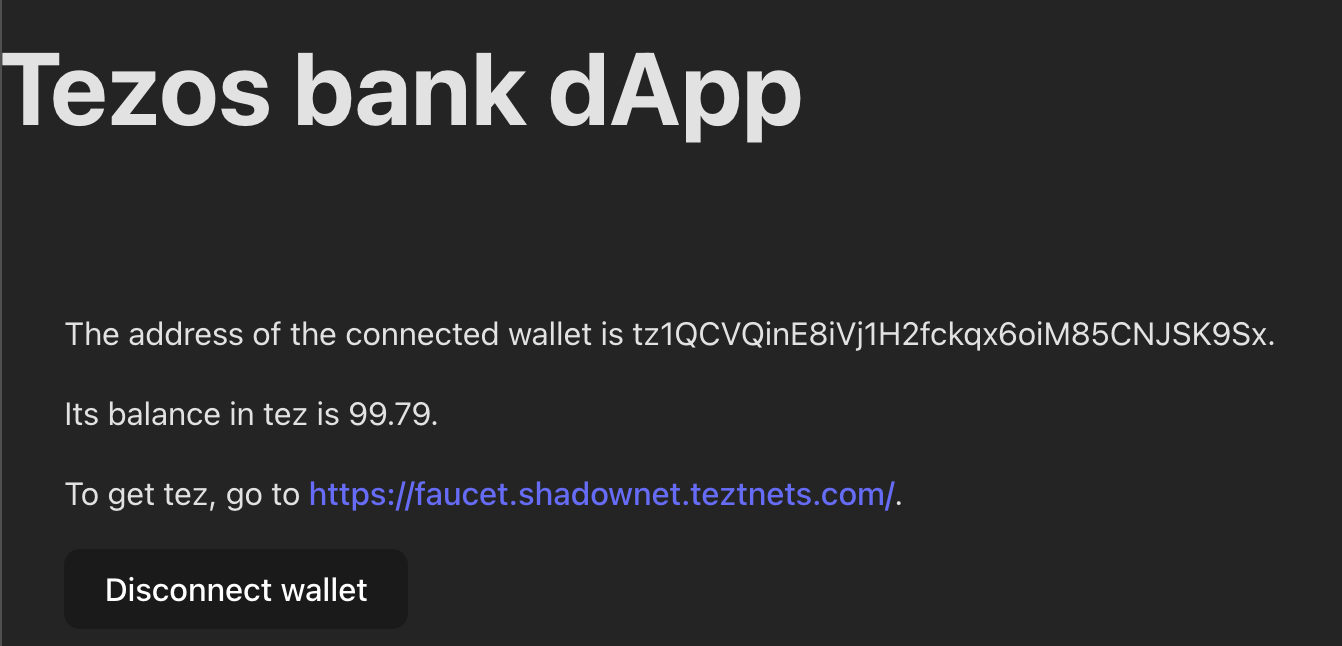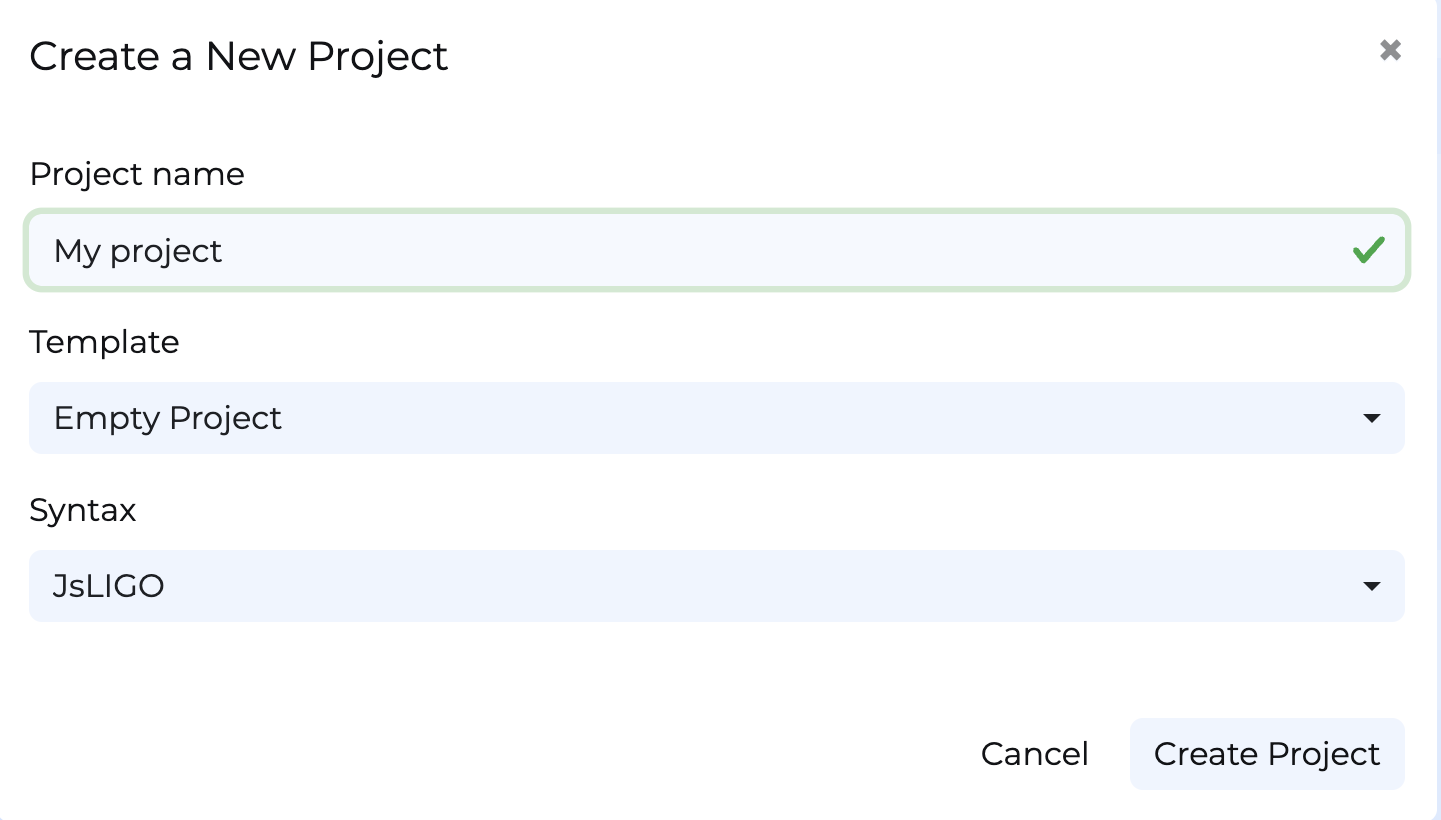
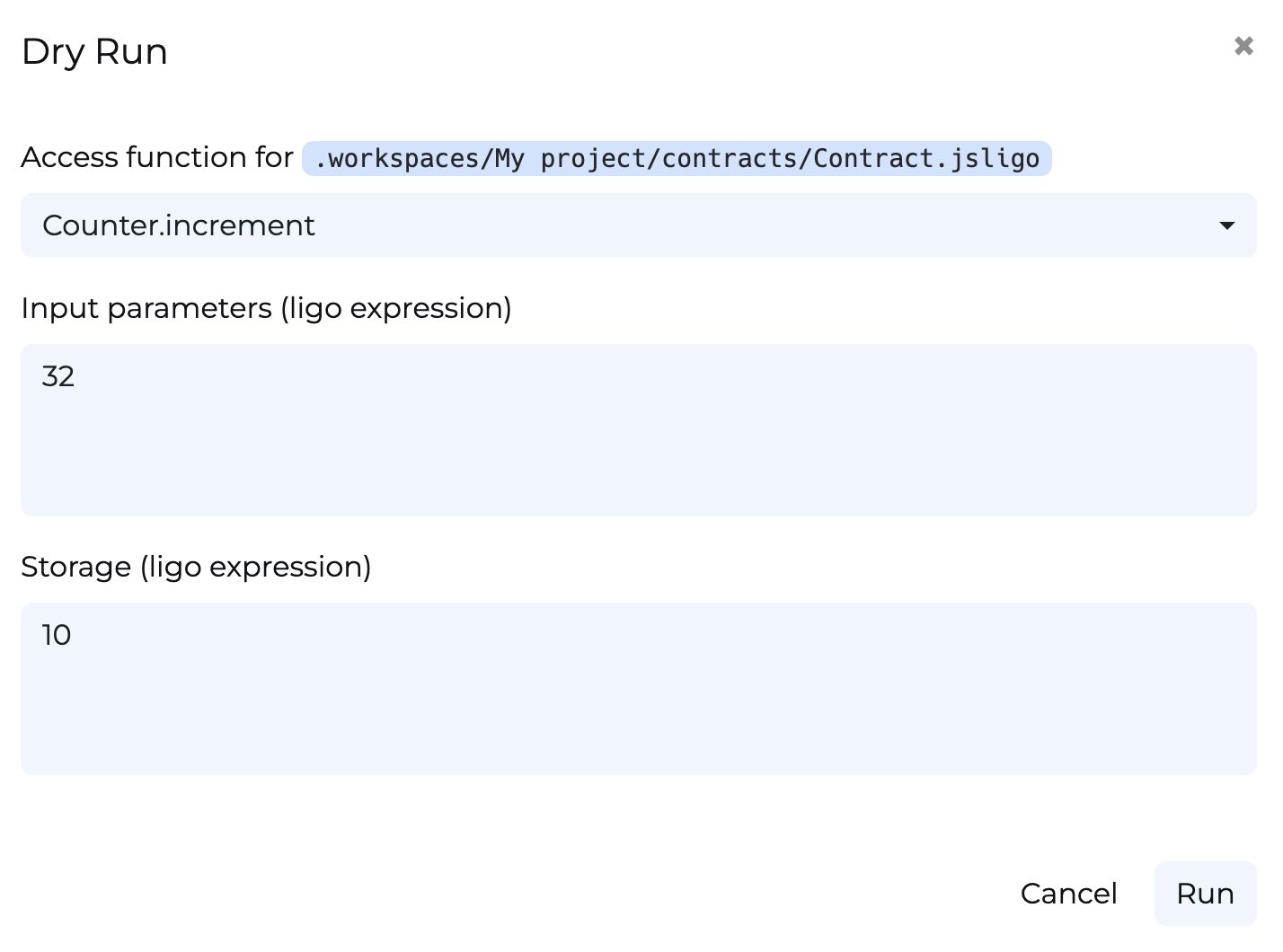
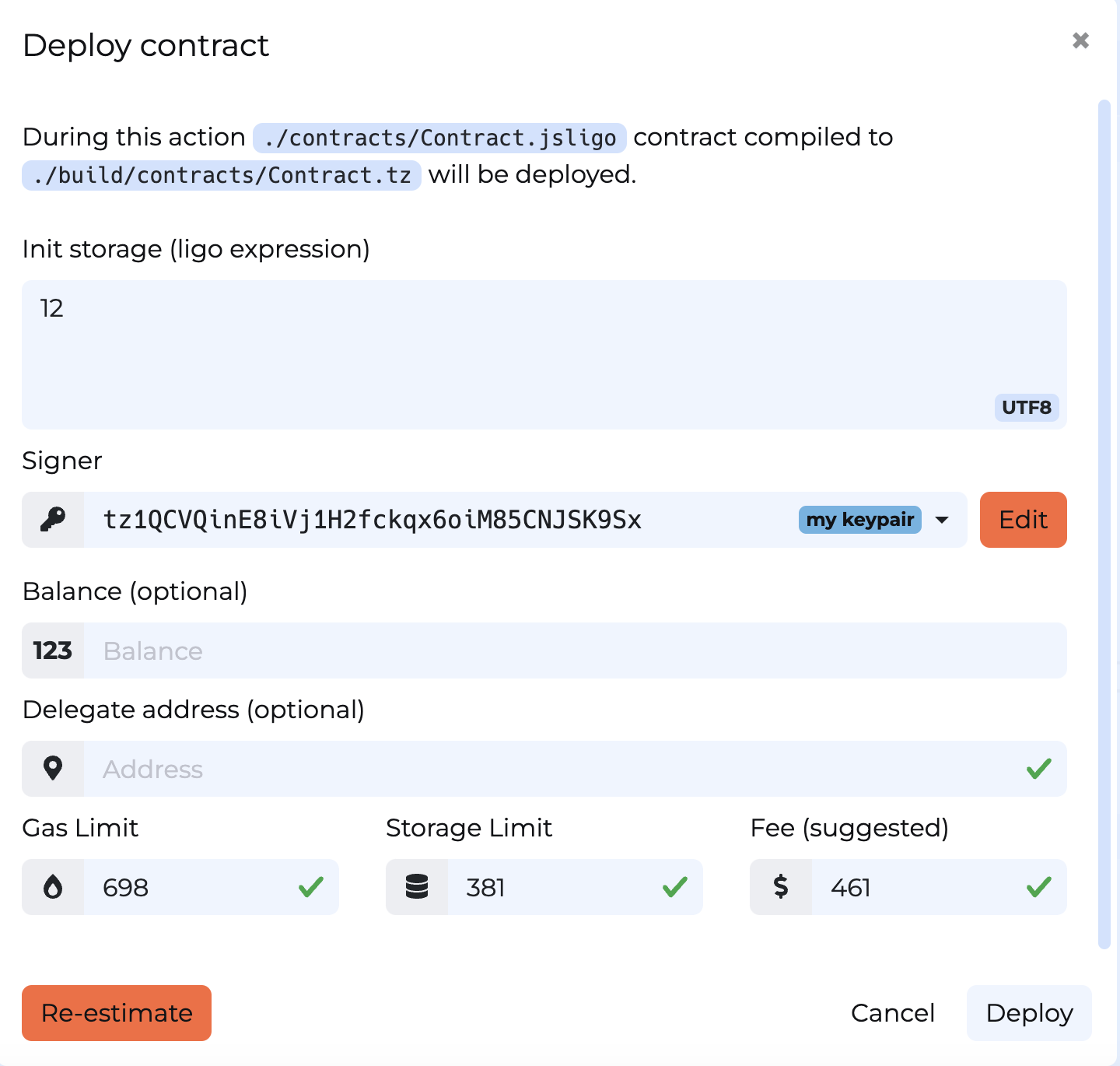
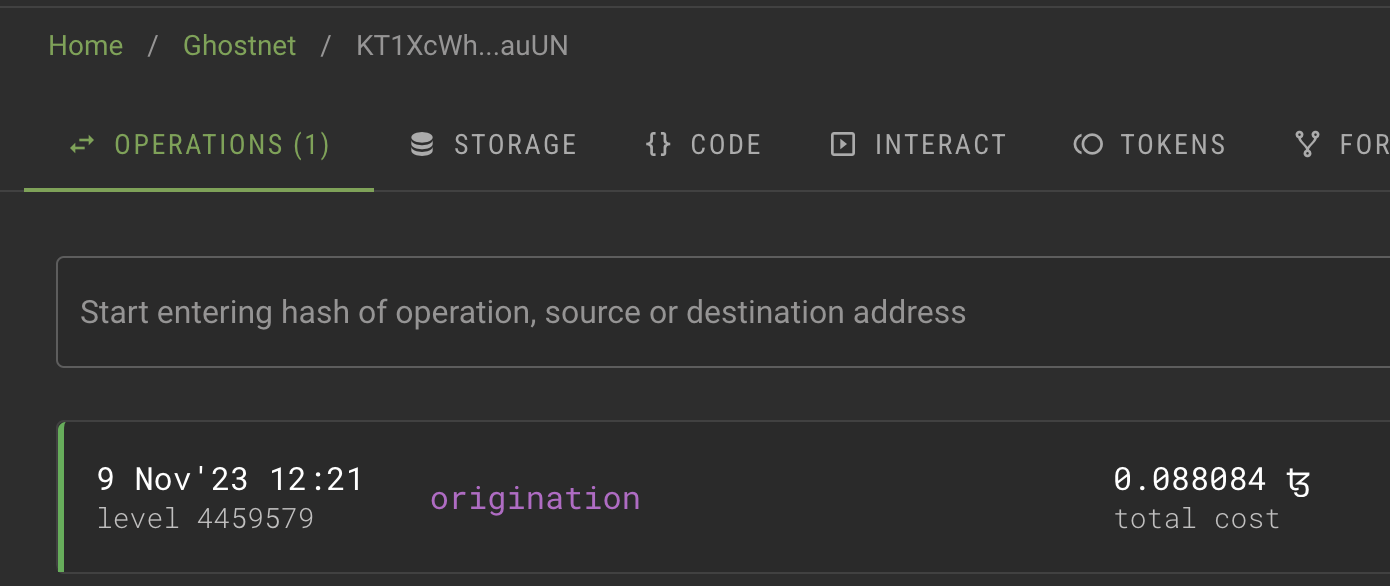
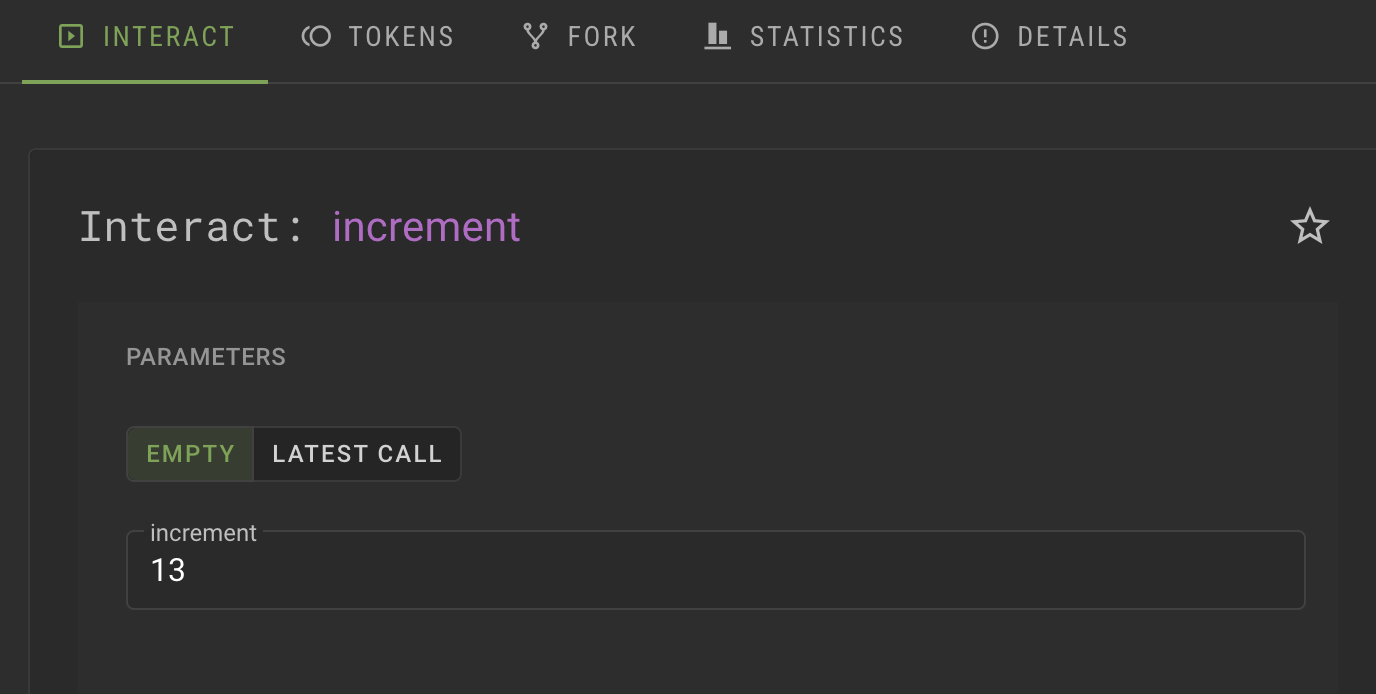
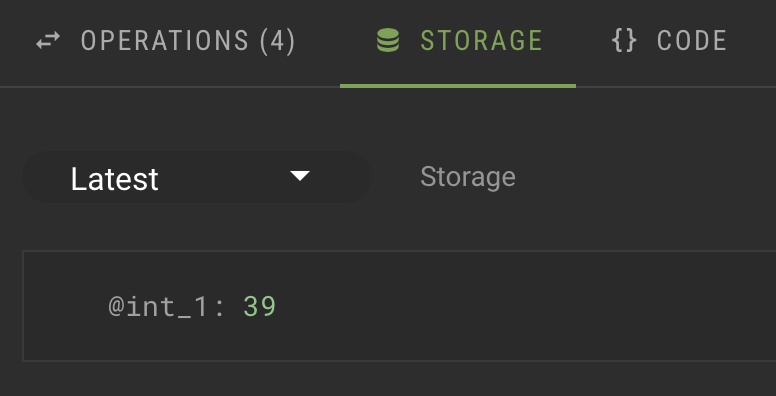
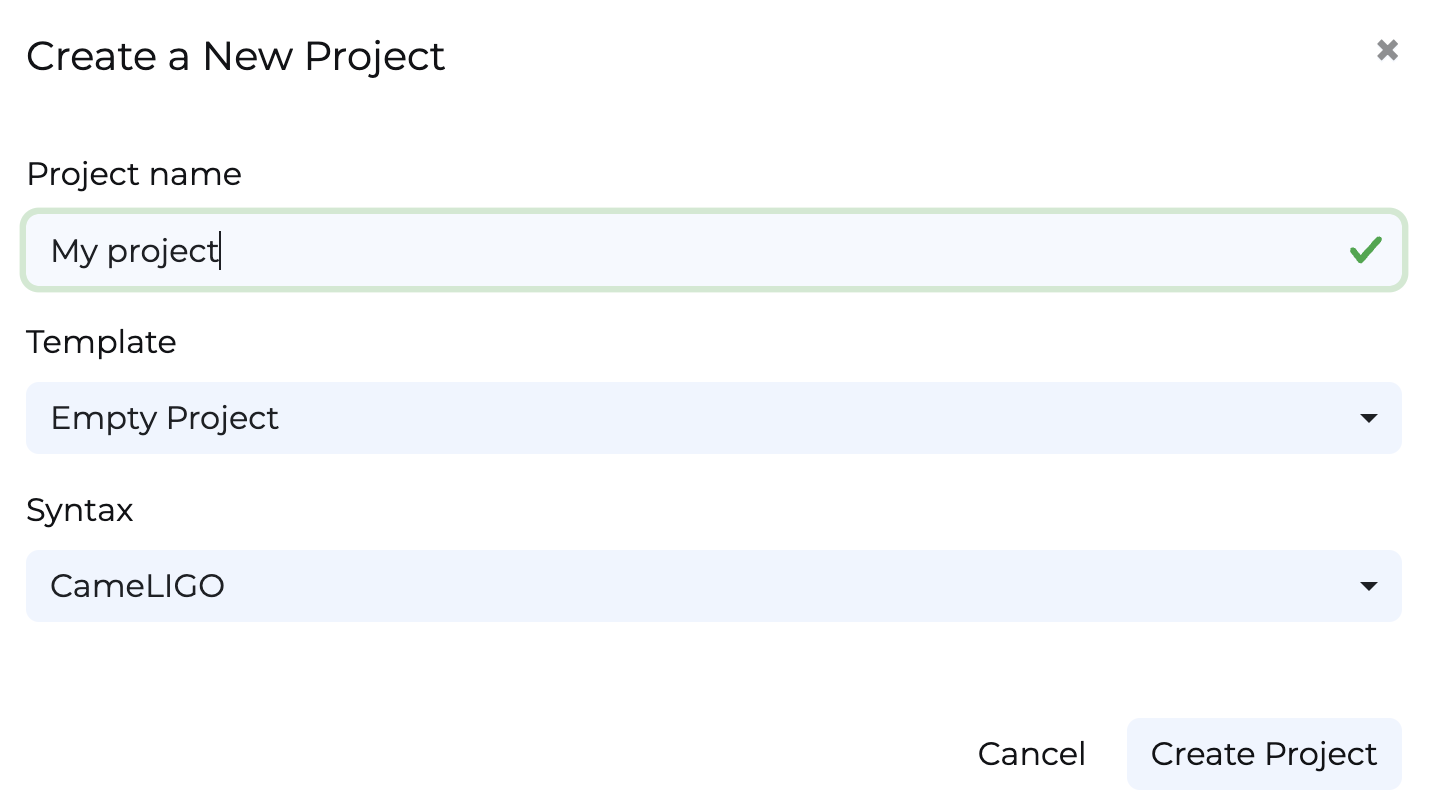
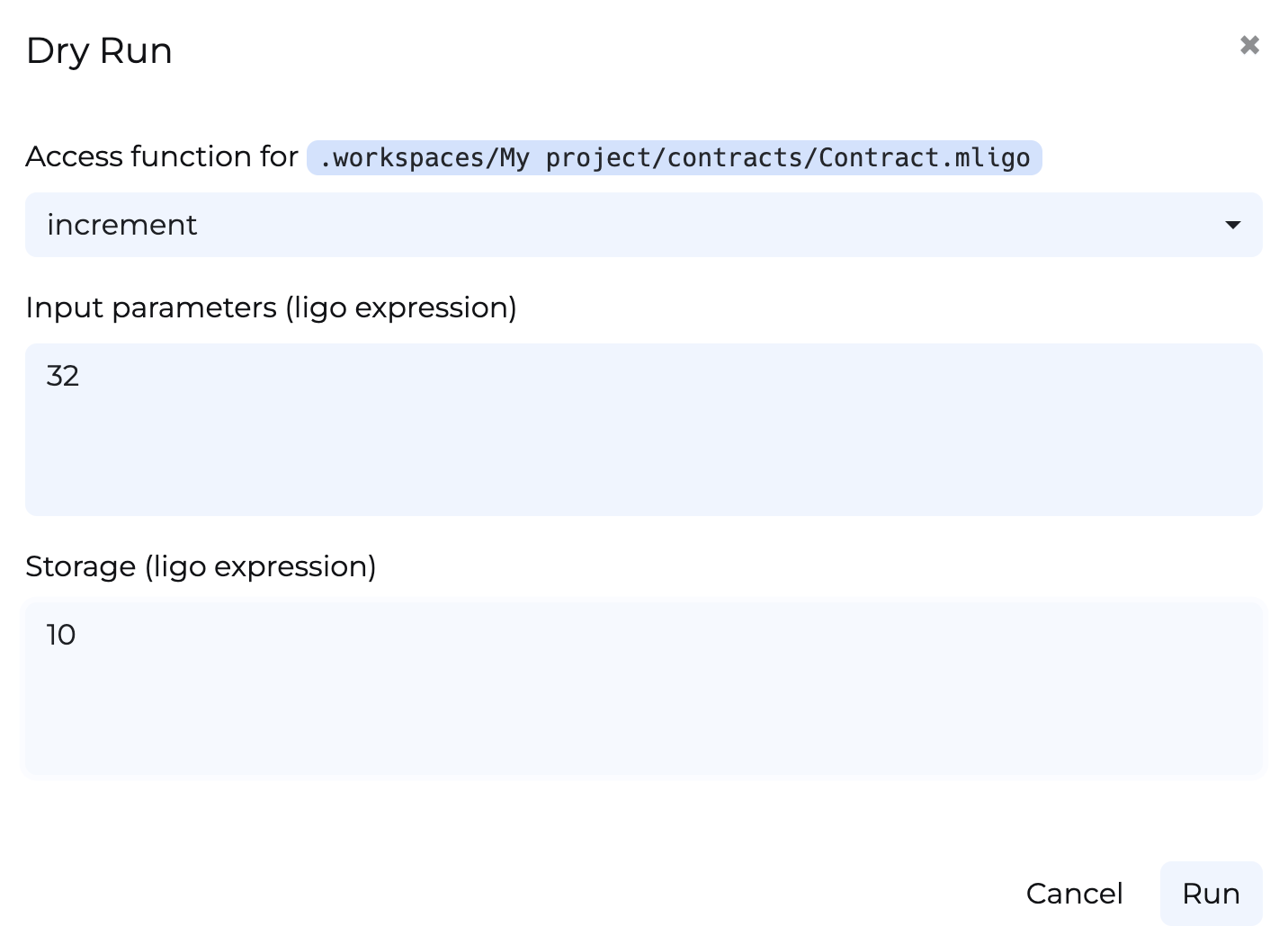
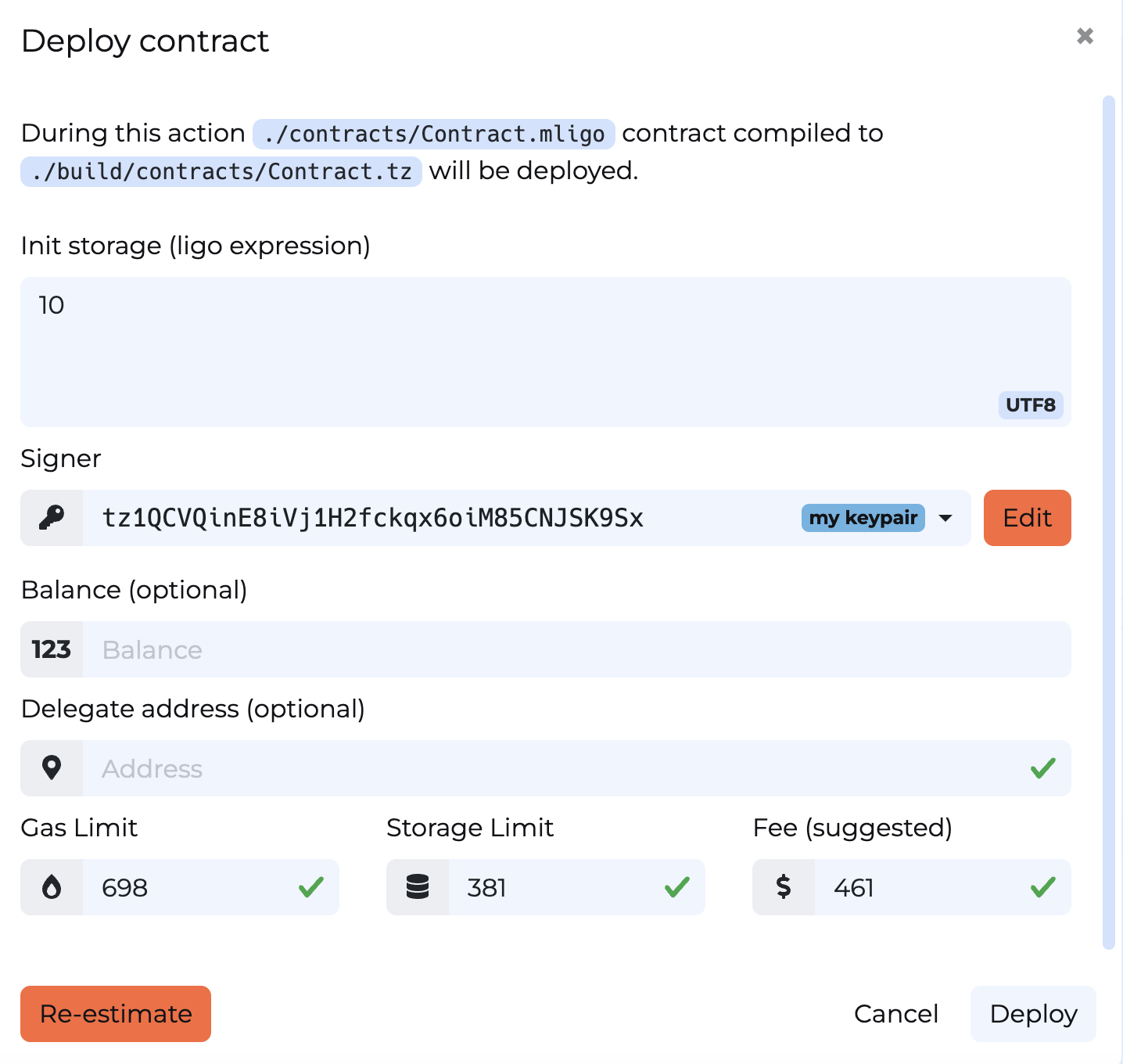
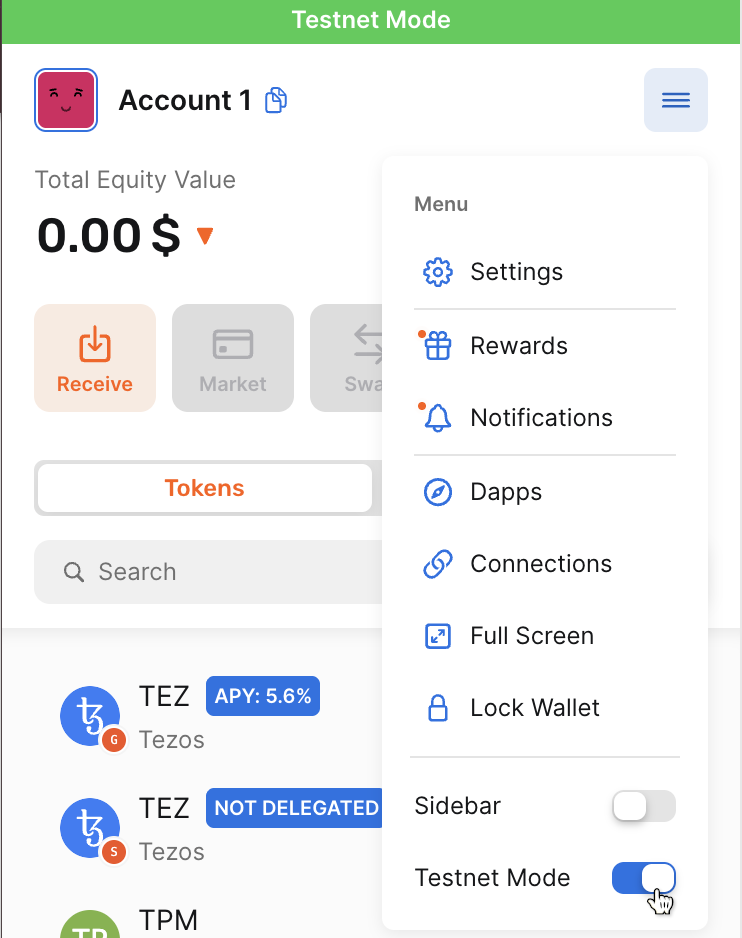
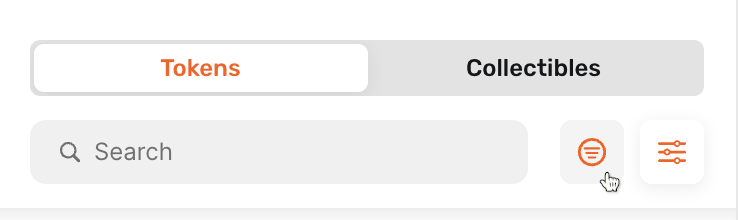
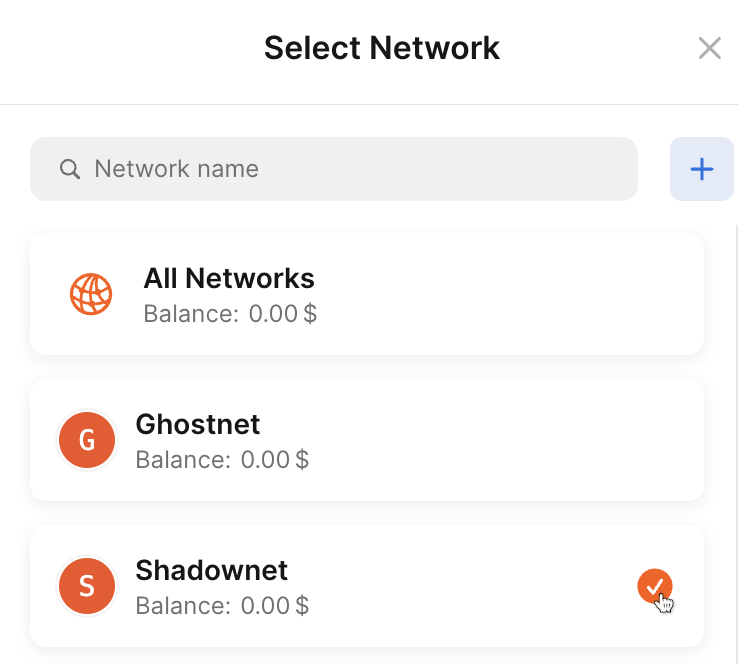
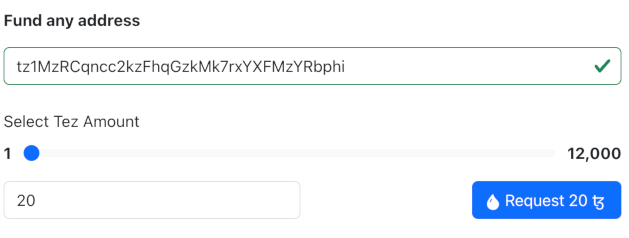
# Tutorials These tutorials can help you get started developing different kinds of applications on Tezos in as little as 30 minutes. import TutorialCard from '@site/src/components/TutorialCard'; import TutorialCardContainer from '@site/src/components/TutorialCardContainer'; ## Beginner These tutorials are intended for developers who are starting work with Tezos: ## Intermediate These tutorials contain multiple parts and are intended for developers with some application development experience: ## Advanced These tutorials are intended for developers who are familiar with Tezos and want to get into more powerful applications: # Deploy a smart contract This tutorial covers deploying a smart contract to Tezos. It covers how to: * Connect to a testnet * Create a wallet * Get tokens from a faucet * Code a contract, including: * Defining the storage for the contract * Defining entrypoints in the contract * Writing code to run when the entrypoints are called * Deploy (or originate) the contract to Tezos and set its starting storage value * Look up the current state of the contract * Call the contract This tutorial has different versions for different programming languages. You can run the tutorial with the version of the language you are most familiar with or want to learn. You do not need an experience in these languages to run the tutorial. * To use SmartPy, a language similar to Python, see [Deploy a smart contract with SmartPy](/tutorials/smart-contract/smartpy) * To use JsLIGO, a language similar to JavaScript and TypeScript, see [Deploy a smart contract with JsLIGO](/tutorials/smart-contract/jsligo) * To use CameLIGO, a language similar to OCaml, see [Deploy a smart contract with CameLIGO](/tutorials/smart-contract/cameligo) * To learn the Archetype language, try [Deploy a smart contract with Archetype](/tutorials/smart-contract/archetype). # Deploy a smart contract with JsLIGO import WalletSetup from '@site/docs/conrefs/smart-contract-tutorial-wallet-setup.md'; Estimated time: 30 minutes This tutorial covers writing and deploying a simple smart contract with the LIGO programming language. Specifically, this tutorial uses the JsLIGO version of LIGO, which has syntax similar to JavaScript, but you don't need any experience with JavaScript or LIGO to do this tutorial. * If you are more familiar with Python, try [Deploy a smart contract with SmartPy](/tutorials/smart-contract/smartpy). * If you are more familiar with OCaml, try [Deploy a smart contract with CameLIGO](/tutorials/smart-contract/cameligo). * To learn the Archetype language, try [Deploy a smart contract with Archetype](/tutorials/smart-contract/archetype). LIGO is a high-level programming language that you can use to write smart contracts for the Tezos blockchain. It abstracts away the complexity of using Michelson (the smart contract language directly available on-chain) to make it easier to write smart contracts on Tezos. In this tutorial, you will learn how to: * Create a wallet to store cryptocurrency tokens * Get free tez tokens (the native cryptocurrency token on Tezos) from a faucet * Code a contract in LIGO, including: * Defining the storage for the contract * Defining entrypoints in the contract * Writing code to run when the entrypoints are called * Deploy (or originate) the contract to Tezos and set its starting storage value * Look up the current state of the contract * Call the contract ## What is a smart contract? A smart contract is a computer program that is stored on a blockchain and runs on a blockchain. Because the blockchain is spread across many computer nodes, you don't have to think about where to host the program or worry whether a computer will run it or not. Responsibility for running the contract is distributed across all of the nodes in the Tezos system, so when you deploy a smart contract, you can be confident that it will be available and unmodified when someone wants to run it. A smart contract has these parts: * Persistent storage, data that the contract can read and write * One or more entrypoints, which are a kind of function that clients can call, like endpoints in an API or functions or methods in many programming languages * A Tezos account that can store tokens (technically, the contract is itself a type of Tezos account, but you can think of it as a program with a Tezos account) ## Tutorial contract The contract that you deploy in this tutorial stores a single integer. It provides entrypoints that clients can call to change the value of that integer: * The `increment` entrypoint accepts an integer as a parameter and adds that integer to the value in storage * The `decrement` entrypoint accepts an integer as a parameter and subtracts that integer from the value in storage * The `reset` entrypoint takes no parameters and resets the value in storage to 0 After you deploy the contract, you or any other user can call it from various sources, including web applications, other contracts, and the Octez command-line client. However, no one can prevent it from running or tamper with its code or its storage. ## Creating the contract The contract that you will create has these basic parts: * A type that describes the contract's storage, in this case an integer. The storage can be a primitive type such as an integer, string, or timestamp, or a complex data type that contains multiple values. For more information on contract data types, see [Data types](/smart-contracts/data-types). * Functions called entrypoints that run code when clients call the contract. * A type that describes the return value of the entrypoints. Follow these steps to create the code for the contract: 1. Open the LIGO online IDE at https://ide.ligolang.org/. You can work with LIGO code in any IDE, but this online IDE keeps you from having to install software on your computer, and it also simplifies the process of deploying contracts. 2. At the top right of the page, in the **Network** menu, select Custom, as shown in this picture: :::warning You must *not* select the default Tezos Testnet because it will point you to Ghostnet, which is a legacy test network, soon to be decommissioned. A future release of LIGO will retarget this default choice to Shadownet. ::: ![Selecting Custom in the list of networks](/img/tutorials/ligo-online-ide-select-custom.png) Then in the newly opened window "Custom network" click on "New connection", and in the newly opened subwindow "New Custom Network Connection" fill in `Shadownet` for the Name and `https://rpc.shadownet.teztnets.com` for the Url of node rpc, as shown in this picture: ![Defining Shadownet as a custom network](/img/tutorials/ligo-online-ide-define-shadownet.png) then click on "Check network" to update the Network info, then click on "Add network". Back in window "Custom network", click on "Connect", and you're now connected to the Shadownet testnet. Note that you only have to add Shadownet once, because the next times it will appear as a choice in the "Network" menu, in the "Others" section, as shown in this picture: ![Selecting Shadownet in the list of networks](/img/tutorials/ligo-online-ide-select-shadownet.png) 3. Connect a wallet to the IDE: 1. At the top right of the page, click the **Keypair Manager** button. 2. In the Keypair Manager window, import the account that you created earlier or create and fund a new account to use with the IDE. * To import the account that you created earlier, export the private key from your wallet app, click **Import** in the Keypair Manager window, and paste the private key. Now you can use your account in the IDE. * To create an account to use with the IDE, click **Create** in the Keypair Manager window, give the new keypair a name, and click **Create**. Then, copy the address of the keypair and get tez from the faucet as you did in [Creating and funding a wallet](#creating-and-funding-a-wallet). 4. In the IDE, create a project from the empty template and select the JsLIGO syntax, as shown in this picture: Creating a project The IDE creates a project and a contract file named `Contract.jsligo`. 5. In the contract file, create a namespace named `Counter` to hold the code for the contract: ```jsligo namespace Counter { } ``` 6. Inside the namespace, create a TypeScript type to set the storage type to an integer: ```jsligo type storage = int; ``` 7. Add this code to define the return type for the entrypoints. Tezos entrypoints return two values: a list of other operations to call and the new value of the contract's storage. ```jsligo type returnValue = [list, storage]; ``` 8. Add the code for the increment and decrement entrypoints: ```jsligo // Increment entrypoint @entry const increment = (delta : int, store : storage) : returnValue => [list([]), store + delta]; // Decrement entrypoint @entry const decrement = (delta : int, store : storage) : returnValue => [list([]), store - delta]; ``` These functions begin with the `@entry` annotation to indicate that they are entrypoints. They accept two parameters: the change in the storage value (an integer) and the current value of the storage (in the `storage` type that you created earlier in the code). They return a value of the type `returnValue` that you created in the previous step. Each function returns an empty list of other operations to call and the new value of the storage. 9. Add this code for the reset entrypoint: ```jsligo // Reset entrypoint @entry const reset = (_p : unit, _s : storage) : returnValue => [list([]), 0]; ``` This function is similar to the others, but it does not take the current value of the storage into account. It always returns an empty list of operations and 0. The complete contract code looks like this: ```jsligo namespace Counter { type storage = int; type returnValue = [list, storage]; // Increment entrypoint @entry const increment = (delta : int, store : storage) : returnValue => [list([]), store + delta]; // Decrement entrypoint @entry const decrement = (delta : int, store : storage) : returnValue => [list([]), store - delta]; // Reset entrypoint @entry const reset = (_p : unit, _s : storage) : returnValue => [list([]), 0]; } ``` ## Testing and compiling the contract Before you can deploy the contract to Tezos, you must compile it to Michelson, the base language of Tezos contracts. 1. Set the compiler to target the namespace to compile in your code: 1. On the left side of the page, under **Actions**, click **Project Settings**. 2. On the Project Settings tab, in the **Module name** field, set the module name to `Counter`. 3. Close the Project Settings tab. 2. Test the contract by passing parameters and the storage value to the LIGO `dry-run` command: 1. On the left side of the page, under **Actions**, click **Dry Run**. 2. In the Dry Run window, select the `Increment` entrypoint, set the input parameter to `32` and the storage to `10`. The Dry Run window looks like this: The Dry Run window, showing the entrypoint to run, the parameter to pass, and the value of the storage 3. Click **Run**. At the bottom of the window, the Result field shows the response `(LIST_EMPTY(), 42)`. This response means that the contract did not call any other contracts, so the list of operations is empty. Then it shows the new value of the storage. You can test the decrement function in the same way. If you see any errors, make sure that the code of your contract matches the code in the previous section. 4. Test the `Reset` entrypoint in the same way, but pass `unit` as the input parameter and any integer in the storage field. The `Reset` entrypoint takes no parameters, but technically it accepts the value `unit`, which means no parameter. The Result field shows the response `(LIST_EMPTY(), 0)`, which means that the storage value is now 0. 3. On the left side of the page, under **Actions**, click **Compile**, and in the Compile window, click **Compile** again. If the compilation succeeds, the IDE prints the compiled code to the terminal and saves it to the file `build/contracts/Contract.tz`. You can see the code by expanding your project on the left side of the page, under `.workspaces`, and double-clicking `Contract.tz`. If you see error messages, verify that your contract code matches the code in the previous section. Now you can deploy the contract. ## Deploying (originating) to the testnet Deploying a contract to the network is called "originating." Originating the contract requires a small amount of Tezos tokens as a fee. 1. On the left side of the page, under **Actions**, click **Deploy**. You may see a warning that the initial storage is not set. You can ignore this warning because you can set the initial storage now. 2. In the Deploy contract window, in the **Init storage** field, set the initial value for the contract's storage to an integer. 3. In the **Signer** field, make sure your account is selected. 4. Click **Estimate**. The window shows the estimated fees to deploy the contract, as in this picture: The estimate of the fees to deploy the contract 5. Click **Deploy**. The deployment process can take a few minutes. When the contract is deployed, the Deploy contract window shows the address at the bottom of the window. 6. Copy the address of the deployed contract, which starts with `KT1`. :::warning Copy the contract address now, because it will not be shown again. ::: Now you can call the contract from any Tezos client, including web applications and command-line applications like [The Octez client](/developing/octez-client). ## Calling the contract These steps show you how to inspect the contract with a block explorer, which is a web application that shows information about Tezos. It also allows you to call the contract. 1. Open the block explorer Better Call Dev at this link: https://better-call.dev/ 2. Paste the address of the contract in the search field and press Enter. The block explorer shows information about the contract, including recent transactions and the current state of its storage. The block explorer, showing information about the contract 3. Try calling one of the entrypoints: 1. Go to the **Storage** tab and check the current state of the storage, which should be the integer that you put in the Deploy window. 2. Go to the **Interact** tab. This tab shows the entrypoints in the contract and lets you use them. 3. For the `increment` entrypoint, in the **Parameters** section, put an integer in the field, as shown in this image: Putting in a value for an entrypoint parameter 4. Click **Execute** and then click **Wallet**. 5. Select your wallet and connect it to the application. 6. Confirm the transaction in your wallet. 7. Wait for a success message that says "The transaction has successfully been broadcasted to the network." 8. Go back to the **Storage** tab and see the new value of the storage, as in this picture: Updated storage value ## Summary Now the contract is running on the Tezos blockchain. You or any other user can call it from any source that can send transactions to Tezos, including Octez, dApps, and other contracts. If you want to continue working with this contract, here are some ideas: * Change permissions for the contract so only your account can call its entrypoints * Add your own entrypoints and originate a new contract; note that you cannot update the existing contract after it is deployed * Create a dApp to call the contract from a web application, similar to the dApp that you create in the tutorial [Build a simple web application](/tutorials/build-your-first-app/) # Deploy a smart contract with CameLIGO import WalletSetup from '@site/docs/conrefs/smart-contract-tutorial-wallet-setup.md'; Estimated time: 30 minutes This tutorial covers writing and deploying a simple smart contract with the LIGO programming language. Specifically, this tutorial uses the CameLIGO version of LIGO, which has syntax similar to OCaml, but you don't need any experience with OCaml or LIGO to do this tutorial. * If you are more familiar with JavaScript, try [Deploy a smart contract with JsLIGO](/tutorials/smart-contract/jsligo). * If you are more familiar with Python, try [Deploy a smart contract with SmartPy](/tutorials/smart-contract/smartpy). * To learn the Archetype language, try [Deploy a smart contract with Archetype](/tutorials/smart-contract/archetype). LIGO is a high-level programming language that you can use to write smart contracts for the Tezos blockchain. It abstracts away the complexity of using Michelson (the smart contract language directly available on-chain) to make it easier to write smart contracts on Tezos. In this tutorial, you will learn how to: * Create a wallet to store cryptocurrency tokens * Get free tez tokens (the native cryptocurrency token on Tezos) from a faucet * Code a contract in LIGO, including: * Defining the storage for the contract * Defining entrypoints in the contract * Writing code to run when the entrypoints are called * Deploy (or originate) the contract to Tezos and set its starting storage value * Look up the current state of the contract * Call the contract ## What is a smart contract? A smart contract is a computer program that is stored on a blockchain and runs on a blockchain. Because the blockchain is spread across many computer nodes, you don't have to think about where to host the program or worry whether a computer will run it or not. Responsibility for running the contract is distributed across all of the nodes in the Tezos system, so when you deploy a smart contract, you can be confident that it will be available and unmodified when someone wants to run it. A smart contract has these parts: * Persistent storage, data that the contract can read and write * One or more entrypoints, which are a kind of function that clients can call, like endpoints in an API or functions or methods in many programming languages * A Tezos account that can store tokens (technically, the contract is itself a type of Tezos account, but you can think of it as a program with a Tezos account) ## Tutorial contract The contract that you deploy in this tutorial stores a single integer. It provides entrypoints that clients can call to change the value of that integer: * The `increment` entrypoint accepts an integer as a parameter and adds that integer to the value in storage * The `decrement` entrypoint accepts an integer as a parameter and subtracts that integer from the value in storage * The `reset` entrypoint takes no parameters and resets the value in storage to 0 After you deploy the contract, you or any other user can call it from various sources, including web applications, other contracts, and the Octez command-line client. However, no one can prevent it from running or tamper with its code or its storage. ## Creating the contract The contract that you will create has these basic parts: * A type that describes the contract's storage, in this case an integer. The storage can be a primitive type such as an integer, string, or timestamp, or a complex data type that contains multiple values. For more information on contract data types, see [Data types](/smart-contracts/data-types). * Functions called entrypoints that run code when clients call the contract. * A type that describes the return value of the entrypoints. Follow these steps to create the code for the contract: 1. Open the LIGO online IDE at https://ide.ligolang.org/. You can work with LIGO code in any IDE, but this online IDE keeps you from having to install software on your computer, and it also simplifies the process of deploying contracts. 2. At the top right of the page, in the **Network** menu, select Custom, as shown in this picture: :::warning You must *not* select the default Tezos Testnet because it will point you to Ghostnet, which is a legacy test network, soon to be decommissioned. A future release of LIGO will retarget this default choice to Shadownet. ::: ![Selecting Custom in the list of networks](/img/tutorials/ligo-online-ide-select-custom.png) Then in the newly opened window "Custom network" click on "New connection", and in the newly opened subwindow "New Custom Network Connection" fill in `Shadownet` for the Name and `https://rpc.shadownet.teztnets.com` for the Url of node rpc, as shown in this picture: ![Defining Shadownet as a custom network](/img/tutorials/ligo-online-ide-define-shadownet.png) then click on "Check network" to update the Network info, then click on "Add network". Back in window "Custom network", click on "Connect", and you're now connected to the Shadownet testnet. Note that you only have to add Shadownet once, because the next times it will appear as a choice in the "Network" menu, in the "Others" section, as shown in this picture: ![Selecting Shadownet in the list of networks](/img/tutorials/ligo-online-ide-select-shadownet.png) 3. Connect a wallet to the IDE: 1. At the top right of the page, click the **Keypair Manager** button. 2. In the Keypair Manager window, import the account that you created earlier or create and fund a new account to use with the IDE. * To import the account that you created earlier, export the private key from your wallet app, click **Import** in the Keypair Manager window, and paste the private key. Now you can use your account in the IDE. * To create an account to use with the IDE, click **Create** in the Keypair Manager window, give the new keypair a name, and click **Create**. Then, copy the address of the keypair and get tez from the faucet as you did in [Creating and funding a wallet](#creating-and-funding-a-wallet). 4. In the IDE, create a project from the empty template and select the CameLIGO syntax, as shown in this picture: Creating a project The IDE creates a project and a contract file named `Contract.mligo`. 5. In the contract file, create a type to set the storage type to an integer: ```cameligo type storage = int ``` 6. Add this code to define the return type for the entrypoints. Tezos entrypoints return two values: a list of other operations to call and the new value of the contract's storage. ```cameligo type returnValue = operation list * storage ``` 7. Add the code for the increment and decrement entrypoints: ```cameligo // Increment entrypoint [@entry] let increment (delta : int) (store : storage) : returnValue = [], store + delta // Decrement entrypoint [@entry] let decrement (delta : int) (store : storage) : returnValue = [], store - delta ``` These functions begin with the `@entry` annotation to indicate that they are entrypoints. They accept two parameters: the change in the storage value (an integer) and the current value of the storage (in the `storage` type that you created earlier in the code). They return a value of the type `returnValue` that you created in the previous step. Each function returns an empty list of other operations to call and the new value of the storage. 8. Add this code for the reset entrypoint: ```cameligo // Reset entrypoint [@entry] let reset (() : unit) (_ : storage) : returnValue = [], 0 ``` This function is similar to the others, but it does not take the current value of the storage into account. It always returns an empty list of operations and 0. The complete contract code looks like this: ```cameligo type storage = int type returnValue = operation list * storage // Increment entrypoint [@entry] let increment (delta : int) (store : storage) : returnValue = [], store + delta // Decrement entrypoint [@entry] let decrement (delta : int) (store : storage) : returnValue = [], store - delta // Reset entrypoint [@entry] let reset (() : unit) (_ : storage) : returnValue = [], 0 ``` ## Testing and compiling the contract Before you can deploy the contract to Tezos, you must compile it to Michelson, the base language of Tezos contracts. 1. Set the compiler to target the module to compile in your code: 1. On the left side of the page, under **Actions**, click **Project Settings**. 2. On the Project Settings tab, in the **Module name** field, set the module name to `Counter`. 3. Close the Project Settings tab. 2. Test the contract by passing parameters and the storage value to the LIGO `dry-run` command: 1. On the left side of the page, under **Actions**, click **Dry Run**. 2. In the Dry Run window, select the `Increment` entrypoint, set the input parameter to `32` and the storage to `10`. The Dry Run window looks like this: The Dry Run window, showing the entrypoint to run, the parameter to pass, and the value of the storage 3. Click **Run**. At the bottom of the window, the Result field shows the response `(LIST_EMPTY(), 42)`. This response means that the contract did not call any other contracts, so the list of operations is empty. Then it shows the new value of the storage. You can test the decrement function in the same way. If you see any errors, make sure that the code of your contract matches the code in the previous section. 4. Test the `Reset` entrypoint in the same way, but pass `unit` as the input parameter and any integer in the storage field. The `Reset` entrypoint takes no parameters, but technically it accepts the value `unit`, which means no parameter. The Result field shows the response `(LIST_EMPTY(), 0)`, which means that the storage value is now 0. 3. On the left side of the page, under **Actions**, click **Compile**, and in the Compile window, click **Compile** again. If the compilation succeeds, the IDE prints the compiled code to the terminal and saves it to the file `build/contracts/Contract.tz`. You can see the code by expanding your project on the left side of the page, under `.workspaces`, and double-clicking `Contract.tz`. If you see error messages, verify that your contract code matches the code in the previous section. Now you can deploy the contract. ## Deploying (originating) to the testnet Deploying a contract to the network is called "originating." Originating the contract requires a small amount of Tezos tokens as a fee. 1. On the left side of the page, under **Actions**, click **Deploy**. You may see a warning that the initial storage is not set. You can ignore this warning because you can set the initial storage now. 2. In the Deploy contract window, in the **Init storage** field, set the initial value for the contract's storage to an integer. 3. In the **Signer** field, make sure your account is selected. 4. Click **Estimate**. The window shows the estimated fees to deploy the contract, as in this picture: The estimate of the fees to deploy the contract 5. Click **Deploy**. The deployment process can take a few minutes. When the contract is deployed, the Deploy contract window shows the address at the bottom of the window. 6. Copy the address of the deployed contract, which starts with `KT1`. :::warning Copy the contract address now, because it will not be shown again. ::: Now you can call the contract from any Tezos client, including web applications and command-line applications like [The Octez client](/developing/octez-client). ## Calling the contract These steps show you how to inspect the contract with a block explorer, which is a web application that shows information about Tezos. It also allows you to call the contract. 1. Open the block explorer Better Call Dev at this link: https://better-call.dev/ 2. Paste the address of the contract in the search field and press Enter. The block explorer shows information about the contract, including recent transactions and the current state of its storage. The block explorer, showing information about the contract 3. Try calling one of the entrypoints: 1. Go to the **Storage** tab and check the current state of the storage, which should be the integer that you put in the Deploy window. 2. Go to the **Interact** tab. This tab shows the entrypoints in the contract and lets you use them. 3. For the `increment` entrypoint, in the **Parameters** section, put an integer in the field, as shown in this image: Putting in a value for an entrypoint parameter 4. Click **Execute** and then click **Wallet**. 5. Select your wallet and connect it to the application. 6. Confirm the transaction in your wallet. 7. Wait for a success message that says "The transaction has successfully been broadcasted to the network." 8. Go back to the **Storage** tab and see the new value of the storage, as in this picture: Updated storage value ## Summary Now the contract is running on the Tezos blockchain. You or any other user can call it from any source that can send transactions to Tezos, including Octez, dApps, and other contracts. If you want to continue working with this contract, here are some ideas: * Change permissions for the contract so only your account can call its entrypoints * Add your own entrypoints and originate a new contract; note that you cannot update the existing contract after it is deployed * Create a dApp to call the contract from a web application, similar to the dApp that you create in the tutorial [Build a simple web application](/tutorials/build-your-first-app/) # Deploy a smart contract with SmartPy Estimated time: 30 minutes This tutorial covers writing and deploying a simple smart contract with the SmartPy programming language. SmartPy has syntax similar to Python, but you don't need any experience with Python or SmartPy to do this tutorial. * If you are more familiar with OCaml, try [Deploy a smart contract with CameLIGO](/tutorials/smart-contract/cameligo). * If you are more familiar with JavaScript, try [Deploy a smart contract with JsLIGO](/tutorials/smart-contract/jsligo). * To learn the Archetype language, try [Deploy a smart contract with Archetype](/tutorials/smart-contract/archetype). SmartPy is a high-level programming language that you can use to write smart contracts for the Tezos blockchain. It abstracts away the complexity of using Michelson (the smart contract language directly available on-chain) to make it easier to write smart contracts on Tezos. In this tutorial, you will learn how to: * Create a wallet to manage an account containing cryptocurrency tokens * Get free tez tokens (the native cryptocurrency token on Tezos) from a faucet * Code a contract in SmartPy, including: * Creating a contract in the online IDE * Defining the storage for the contract * Defining entrypoints in the contract * Deploy (or originate) the contract to Tezos and set its starting storage value * Look up the current state of the contract * Call the contract ## What is a smart contract? A smart contract is a computer program that is stored on a blockchain and runs on a blockchain. Because the blockchain is spread across many computer nodes, you don't have to think about where to host the program or worry whether a computer will run it or not. Responsibility for running the contract is distributed across all of the nodes in the Tezos system, so when you deploy a smart contract, you can be confident that it will be available and unmodified when someone wants to run it. A smart contract has these parts: * Persistent storage, data that the contract can read and write * One or more entrypoints, which are a kind of function that clients can call, like endpoints in an API or functions or methods in many programming languages * A Tezos account that can store tokens (technically, the contract is itself a type of Tezos account, but you can think of it as a program with a Tezos account) ## Tutorial contract The contract that you deploy in this tutorial stores a string value. It provides entrypoints that clients can call to change the value of that string: * The `replace` entrypoint accepts a new string as a parameter and stores that string, replacing the existing string. * The `append` entrypoint accepts a new string as a parameter and appends it to the existing string. After you deploy the contract, you or any other user can call it from various sources, including web applications, other contracts, and the Octez command-line client. However, no one can prevent it from running or tamper with its code or its storage. ## Creating and funding a wallet To deploy and work with the contract, you need a wallet and some tez tokens. 1. Install a Tezos-compatible wallet. Which wallet you install is up to you and whether you want to install a wallet on your computer, in a browser extension, or as a mobile app. For options, see [Installing and funding a wallet](/developing/wallet-setup) 2. Switch the wallet to use the Shadownet testnet instead of Tezos Mainnet. Shadownet is a network for testing Tezos applications where tokens are free so you don't have to spend real currency to work with your applications. For example, for the Temple browser wallet: 1. Expand the menu at top right and then turn on **Testnet mode**, as in this picture: Setting testnet mode in Temple 2. Above the list of tokens, click the display options button: Clicking the button to open display options 3. Under **Filter by network**, expand **All Networks**. 4. Select **Shadownet**: Selecting Shadownet in the network settings Now Temple shows your token balances on the Shadownet test network. 3. From your wallet, get the address of your account, which starts with `tz1`. This is the address that applications use to work with your wallet. 4. Go to the Shadownet faucet page at https://faucet.shadownet.teztnets.com. 5. On the faucet page, connect your wallet, or paste your wallet address into the input field labeled "Fund any address" and click the button for the amount of tez to add to your wallet. 20 tez is enough to work with the tutorial contract, and you can return to the faucet later if you need more tez. Depending on the amount you requested, it may take a few seconds or minutes for the faucet to send the tokens and for those tokens to appear in your wallet. You can use the faucet as much as you need to get tokens on the testnet, but those tokens are worthless and cannot be used on Mainnet. ![Funding your wallet using the Shadownet Faucet](/img/tutorials/wallet-funding.png) Now you have an account and funds that you can use to work with Tezos. ## Creating the contract The contract that you will create has these basic parts: * A function that initializes the contract and sets the starting value for its storage. * Functions called entrypoints that run code when clients call the contract. * Automated tests that verify that the contract works as expected. Follow these steps to create the code for the contract: 1. Open the SmartPy online IDE at https://smartpy.io/ide. You can work with SmartPy code in any IDE, but this online IDE keeps you from having to install software on your computer, and it also simplifies the process of deploying contracts. 2. In the code editor, add this line of code to import SmartPy: ```python import smartpy as sp ``` 3. Add this code that creates the entrypoints: ```python @sp.module def main(): class StoreGreeting(sp.Contract): def __init__(self, greeting): # Note the indentation # Initialize the storage with a string passed at deployment time # Cast the greeting parameter to a string sp.cast(greeting, sp.string) self.data.greeting = greeting @sp.entrypoint # Note the indentation def replace(self, params): self.data.greeting = params.text @sp.entrypoint # Note the indentation def append(self, params): self.data.greeting += params.text ``` Indentation is significant in Python, so make sure that your indentation matches this code. The first two lines create a SmartPy module, which indicates that the code is SmartPy instead of ordinary Python. Then the code creates a class named StoreGreeting, which represents the smart contract. The contract has an `__init__` function, which runs when the contract is deployed. In this case, the function sets the initial value of the storage to a parameter that you pass when you deploy the contract. This storage value is a string, but the storage can be another primitive type such as an integer or timestamp, or a complex data type that contains multiple values. For more information on contract data types, see [Data types](/smart-contracts/data-types). 4. Add this code, which creates automated tests: ```python # Automated tests that run on simulation @sp.add_test() def test(): # Initialize the test scenario scenario = sp.test_scenario("StoreGreeting", main) scenario.h1("StoreGreeting") # Initialize the contract and pass the starting value contract = main.StoreGreeting("Hello") scenario += contract # Verify that the value in storage was set correctly scenario.verify(contract.data.greeting == "Hello") # Test the entrypoints and check the new storage value contract.replace(text = "Hi") contract.append(text = ", there!") scenario.verify(contract.data.greeting == "Hi, there!") ``` When you run the SmartPy file, SmartPy runs a simulation in which it tests and compiles the contract. In this case, the tests verify that the replace and append endpoints work. For more information about SmartPy and tests, see the [SmartPy documentation](https://smartpy.tezos.com/). The SmartPy online IDE looks like this: ![The SmartPy online IDE, including the code for the contract](/img/tutorials/smartpy-ide-contract.png) The complete contract looks like this: ```python import smartpy as sp @sp.module def main(): class StoreGreeting(sp.Contract): def __init__(self, greeting): # Note the indentation # Initialize the storage with a string passed at deployment time # Cast the greeting parameter to a string sp.cast(greeting, sp.string) self.data.greeting = greeting @sp.entrypoint # Note the indentation def replace(self, params): self.data.greeting = params.text @sp.entrypoint # Note the indentation def append(self, params): self.data.greeting += params.text # Automated tests that run on simulation @sp.add_test() def test(): # Initialize the test scenario scenario = sp.test_scenario("Test scenario", main) scenario.h1("StoreGreeting") # Initialize the contract and pass the starting value contract = main.StoreGreeting("Hello") scenario += contract # Verify that the value in storage was set correctly scenario.verify(contract.data.greeting == "Hello") # Test the entrypoints and check the new storage value contract.replace(text = "Hi") contract.append(text = ", there!") scenario.verify(contract.data.greeting == "Hi, there!") ``` ## Testing and compiling the contract Before you can deploy the contract to Tezos, you must run it in the IDE, which automatically compiles it to Michelson, the base language of Tezos contracts. Then, the IDE also automatically runs the tests. 1. Compile the contract and run the tests by clicking the **Run Code** button: ![](/img/tutorials/smartpy-ide-run.png) The right-hand pane of the online IDE shows the results of the simulation, compilation, and testing process. The first step is simulating the deployment (origination) of the contract. The simulation assigns the contract a temporary address and shows the initial state of its storage: The originated contract and the initial storage in the SmartPy IDE Then, the simulation runs the test cases and shows the results of each call to an entrypoint: The results of the entrypoint calls ## Deploying (originating) to the testnet Deploying a contract to the network is called "originating." Originating the contract requires a small amount of Tezos tokens as a fee. 1. Under the origination step, click **Deploy contract**. The originated contract, with the Deploy contract button highlighted The IDE shows the compiled Michelson code of the contract, which is the language that smart contracts use on Tezos. 2. Below the Michelson code, click **Continue**. 3. In the new window, under "Node and Network," select the Shadownet testnet and accept the default RPC node, as in this picture: Selecting the Shadownet network and default RPC node 4. Under "Wallet," click **Select Account**. 5. In the pop-up window, connect your wallet. For most wallets, use the octez.connect (or Beacon) tab. 6. When your wallet is connected, click **Validate**. The Origination page shows your wallet information: The successful connection to your wallet on the origination page 7. Under "Contract Origination Parameters," click **Estimate cost**. The Fee field shows the estimated cost to deploy the contract in tez. 8. At the bottom of the page, click **Deploy Contract**. 9. In the pop-up window, click **Accept**. 10. Approve the transaction in your wallet app. The "Result" section shows information about the deployed contract, including its address: Information about the originated contract 11. Copy the contract address, which starts with `KT1`. :::note Be sure to save the contract address because it is not shown in the SmartPy online IDE again. If you close the window and forget the address, you can look up your account address in a block explorer; the block explorer shows your recent transactions, including smart contracts that you deployed. ::: 12. Open the contract in the block explorer Better Call Dev: 1. Click **Open explorer**. The IDE shows information about the contract and links to popular block explorers. 2. Click **Explore with Better Call Dev**. You can also go directly to https://better-call.dev/ in a new browser tab and search for the contract by its address. The block explorer shows information about the contract, including recent transactions and the current state of its storage: The block explorer, showing information about the contract 13. Try calling one of the entrypoints: 1. Go to the **Storage** tab and check the current state of the storage. If you just originated the contract, the storage is "Hello" because that's the value set in the smart contract code. 2. Go to the **Interact** tab. This tab shows the entrypoints in the contract and lets you use them. 3. For the `append` entrypoint, in the **Parameters** section, put some text in the field, as shown in this image: Putting in a value for an entrypoint parameter 4. Click **Execute** and then click **Wallet**. 5. Select your wallet and connect it to the application. 6. Confirm the transaction in your wallet. 7. Wait for a success message that says "The transaction has successfully been broadcasted to the network." 8. Go back to the **Storage** tab and see that the text that you put in the parameter has been added to the contract storage, as in this picture: Updated storage value ## Summary Now the contract is running on the Tezos blockchain. You or any other user can call it from any source that can send transactions to Tezos, including Octez, dApps, and other contracts. If you want to continue working with this contract, here are some ideas: * Change permissions for the contract so only your account can call its entrypoints * Add your own entrypoints and originate a new contract; note that you cannot update the existing contract after it is deployed * Create a dApp to call the contract from a web application, similar to the dApp that you create in the tutorial [Build a simple web application](/tutorials/build-your-first-app/) # Deploy a smart contract with Archetype Estimated time: 30 minutes This tutorial covers writing a smart contract and deploying it to Tezos in the Archetype programming language. It uses the completium-cli command-line tool, which lets you work with Archetype contracts and Tezos from the command line. * If you are more familiar with Python, try [Deploy a smart contract with SmartPy](/tutorials/smart-contract/smartpy). * If you are more familiar with OCaml, try [Deploy a smart contract with CameLIGO](/tutorials/smart-contract/cameligo). * If you are more familiar with JavaScript, try [Deploy a smart contract with JsLIGO](/tutorials/smart-contract/jsligo). In this tutorial, you will learn how to: * Create a wallet to store cryptocurrency tokens * Get free tez tokens (the native cryptocurrency token on Tezos) from a faucet * Code a contract in Archetype, including: * Defining the storage for the contract and its initial value * Defining entrypoints in the contract * Writing code to run when the entrypoints are called * Deploy (or originate) the contract to Tezos * Look up the current state of the contract * Call the contract from the command line ## What is a smart contract? A smart contract is a computer program that is stored on a blockchain and runs on a blockchain. Because the blockchain is spread across many computer nodes, you don't have to think about where to host the program or worry whether a computer will run it or not. Responsibility for running the contract is distributed across all of the nodes in the Tezos system, so when you deploy a smart contract, you can be confident that it will be available and unmodified when someone wants to run it. A smart contract has these parts: * Persistent storage, data that the contract can read and write * One or more entrypoints, which are a kind of function that clients can call, like endpoints in an API or functions or methods in many programming languages * A Tezos account that can store tokens (technically, the contract is itself a type of Tezos account, but you can think of it as a program with a Tezos account) ## The Archetype language Archetype is a high-level language designed specifically for writing Tezos smart contracts. It has features that help you write smart contracts, including: * Clear syntax that maps closely with how smart contracts work * Enhancements that simplify working with storage * Tools that help you verify conditions before running code, such as ensuring that the caller is authorized to run the entrypoint * The ability to set up a contract as a state machine, which gives the contract a state and manages transitions between states * The ability to verify that the contract does what it says it does through the process of formal verification Like the other languages that Tezos accepts, Archetype code is compiled to Michelson to run on the blockchain. For more information about Archetype, see https://archetype-lang.org/. ## Tutorial contract The contract that you deploy in this tutorial stores a single integer. It provides entrypoints that clients can call to change the value of that integer: * The `increment` entrypoint accepts an integer as a parameter and adds that integer to the value in storage * The `decrement` entrypoint accepts an integer as a parameter and subtracts that integer from the value in storage * The `reset` entrypoint takes no parameters and resets the value in storage to 0 After you deploy the contract, you or any other user can call it from various sources, including web applications, other contracts, and the Octez command-line client. However, no one can prevent it from running or tamper with its code or its storage. ## Prerequisites To run this tutorial, you need the completium-cli program: 1. Make sure that NPM is installed by running this command in your command-line terminal: ```bash npm --version ``` If NPM is not installed, install Node.JS on your computer, which includes NPM, from this link: https://nodejs.org/en. 2. Install completium-cli by running this command: ```bash npm install -g @completium/completium-cli ``` You can verify that completium-cli installed by running this command: ```bash completium-cli version ``` If you see a message with the version of completium-cli, it is installed correctly. 3. Initialize completium-cli by running this command: ```bash completium-cli init ``` ## Using a testnet Before you deploy your contract to the main Tezos network (referred to as *Mainnet*), you can deploy it to a testnet. Testnets are useful for testing Tezos operations because testnets provide tokens for free so you can work with them without spending real tokens. Tezos testnets are listed on this site: https://teztnets.com/. The [Shadownet](https://teztnets.com/shadownet-about) testnet is a good choice for testing because it is intended to be long-lived, as opposed to shorter-term testnets that allow people to test new Tezos features. By default, completium-cli uses Shadownet, but these steps verify the network: 1. Verify that completium-cli is set to use Shadownet by running this command: ```bash completium-cli show endpoint ``` The response shows the RPC endpoint that completium-cli is using, which is its access point to the Tezos network. If the response shows `Current network: shadow`, it is using Shadownet. 2. If completium-cli is not using Shadownet, switch to Shadownet by running this command, selecting any endpoint labeled "shadownet," and pressing Enter: ```bash completium-cli switch endpoint ``` ## Creating a local wallet Deploying and using a smart contract costs fees, so you need a local wallet and XTZ tokens. You could use the default accounts that are included in completium-cli, but follow these steps to create your own local wallet on a test network: 1. Run the following command to generate a local wallet, replacing `local_wallet` with a name for your wallet: ```bash completium-cli generate account as local_wallet ``` 2. Switch to the account that you created by running this command, selecting the new account, and pressing Enter: ```bash completium-cli switch account ``` 3. Get the address for the wallet by running this command: ```bash completium-cli show account ``` The result shows the address of the account, which begins with "tz1". You need the wallet address to send funds to the wallet, to deploy the contract, and to send transactions to the contract. 4. Copy the address for the account, which is labeled as the "public key hash" in the response to the previous command. The address starts with "tz1". 5. On the testnets page at https://teztnets.com/, click the faucet link for the Shadownet testnet, which is at https://faucet.shadownet.teztnets.com. 6. On the faucet page, paste your wallet address into the input field labeled "Or fund any address" and click the button for the amount of XTZ to add to your wallet. 1 XTZ is enough for the tutorial. It may take a few minutes for the faucet to send the tokens and for those tokens to appear in your wallet. You can use the faucet as much as you need to get tokens on the testnet, but those tokens are worthless and cannot be used on Mainnet. ![Fund your wallet using the Shadownet Faucet](/img/tutorials/wallet-funding.png) 7. Run this command to check the balance of your wallet: ```bash completium-cli show account ``` If your wallet is set up correctly and the faucet has sent tokens to it, the response includes the balance of your wallet. ## Create the contract The contract that you will create has these basic parts: * A variable that represents the contract's storage, in this case an integer. Contracts can have storage in the form of primitive types such as an integer, string, or timestamp, or a complex data type that contains multiple values. For more information on contract data types, see [Data types](/smart-contracts/data-types). * Internal functions called entrypoints that run code when clients call the contract. Follow these steps to create the code for the contract: 1. Run this command to create the contract file: ```bash touch counter.arl ``` 2. Open the `counter.arl` file in any text editor. 3. At the top of the file, name the contract by putting the name after the `archetype` keyword: ```archetype archetype Counter ``` 4. Define the storage for the contract by adding this line: ```archetype variable value : int = 10 ``` This line creates a variable in the contract's storage with the name "value." It is an integer type and has the initial value of 10. Any variables that you create with the `variable` keyword at the top level of the contract become part of its persistent storage. 5. Add the code for the increment and decrement entrypoints: ```archetype // Increment entrypoint entry increment(delta : int) { value += delta } // Decrement entrypoint entry decrement(delta : int) { value -= delta } ``` These functions begin with the `entry` keyword to indicate that they are entrypoints. They accept one parameter: the change in the storage value, which is an integer named `delta`. One function adds the parameter to the value of the `value` variable and the other subtracts it. 6. Add this code for the reset entrypoint: ```archetype // Reset entrypoint entry reset() { value := 0 } ``` This function is similar to the others, but it does not take a parameter. It always sets the `value` variable to 0. The complete contract code looks like this: ```archetype archetype Counter variable value : int = 0 // Increment entrypoint entry increment(delta : int) { value += delta } // Decrement entrypoint entry decrement(delta : int) { value -= delta } // Reset entrypoint entry reset() { value := 0 } ``` ## Deploying (originating) to the testnet Deploying a contract to the network is called "originating." Originating the contract requires a small amount of Tezos tokens as a fee. 1. Run the following command to originate the smart contract: ```bash completium-cli deploy Counter.arl ``` The command line shows information about the transaction, including the name of the originating account, the target network, and the cost to deploy it. By default, it uses the local alias "Counter" to refer to the contract. 2. Press Y to confirm and deploy the contract. If you see an error that includes the message `contract.counter_in_the_past`, you waited too long before pressing Y. Run the `deploy` command again and promptly press Y to confirm it. 3. Print information about the contract by running this command: ```bash completium-cli show contract Counter ``` The response shows information about the contract, including its address on Shadownet, which starts with "KT1". You can use this information to look up the contract on a block explorer. 4. Verify that the contract deployed successfully by finding it on a block explorer: 1. Open a Tezos block explorer such as [TzKT](https://tzkt.io) or [Better Call Dev](https://better-call.dev/). 2. Set the explorer to Shadownet instead of Mainnet. 3. Paste the contract address, which starts with `KT1`, into the search field and press Enter. 4. Go to the Storage tab to see that the initial value of the storage is 10. 5. Run this command to see the current value of the contract storage: ```bash completium-cli show storage Counter ``` ## Calling the contract Now you can call the contract from any Tezos client, including completium-cli. To increment the current storage by a certain value, call the `increment` entrypoint, as in this example: ```bash completium-cli call Counter --entry increment --arg '{ "int": 5 }' ``` The CLI shows information about the call including the network and transaction fee and prompts you to press `Y` to confirm before it sends the transaction to the network. The "Operation injected" message indicates that the Completium CLI sent the transaction successfully. To decrement the storage, call the `decrement` entrypoint, as in this example: ```bash completium-cli call Counter --entry decrement --arg '{ "int": 2 }' ``` Finally, to reset the current storage to zero, call the `reset` entrypoint, as in this example: ```bash completium-cli call Counter --entry reset ``` Then, you can verify the updated storage on the block explorer or by running the `completium-cli show storage Counter` command. ## Summary Now the contract is running on the Tezos blockchain. You or any other user can call it from any source that can send transactions to Tezos, including command-line clients, dApps, and other contracts. If you want to continue working with this contract, here are some ideas: * Change permissions for the contract so only your account can call its entrypoints * Add your own entrypoints and originate a new contract; note that you cannot update the existing contract after it is deployed * Create a dApp to call the contract from a web application, similar to the dApp that you create in the tutorial [Build a simple web application](/tutorials/build-your-first-app/) # Build a simple web application Estimated time: 1 hour This tutorial shows you how to create a simple web application that uses Tezos. Specifically, this application will be the user-facing web front end for a bank application that accepts deposits and returns withdrawals of test tokens. You will learn: * How to create a web application and import libraries that access Tezos * How to connect to a user's wallet * How to send a transaction to a smart contract on behalf of a user * How to get information from Tezos and show it on a web page ## Prerequisites This tutorial uses JavaScript, so it will be easier if you are familiar with JavaScript. You do not need any familiarity with any of the libraries in the tutorial, including [Taquito](https://tezostaquito.io/), a library that helps developers access Tezos. ## The tutorial application In this tutorial, you build a web application that allows users to send test tokens to a simulated bank on Tezos and withdraw them later. The application looks like this: ![Completed bank application, showing information about the user's wallet and buttons to deposit or withdraw tez](/img/tutorials/bank-app-complete.png) The application connects to a user's cryptocurrency wallet and shows the balance of that wallet in Tezos's native currency, which is referred to as tez, by the ticker symbol XTZ, or the symbol ꜩ. It provides an input field and slider for the user to select an amount of tez to deposit and a button to send the deposit transaction to Tezos. It also provides a button to withdraw the amount from Tezos. The application is based on JavaScript, so it uses several JS-based tools to build and package the application: * **[Node.js](https://nodejs.org/)** (v >= 20) for running the Javascript applications * **[Svelte](https://svelte.dev/)** for the JavaScript framework * **[Vite](https://vitejs.dev/)** (pronounced like *veet*) to bundle the application and provide the libraries to the user's browser To access the user's wallet and run transactions on Tezos, the application uses these libraries: * **[Taquito](https://tezostaquito.io/)** to interact with the Tezos blockchain * **[octez.connect](https://github.com/trilitech/octez.connect/)** to access users' wallets The code for the completed application is in this GitHub repository: https://github.com/trilitech/tutorial-applications/tree/main/bank-tutorial. When you're ready, move to the next section to begin setting up the application. # Part 1: Setting up the application You can access Tezos through any JavaScript framework. This tutorial uses the Svelte framework, and the following steps show you how to start a Svelte application and add the Tezos-related dependencies. ## Setting up the app 1. Run this command to set up a starter Svelte application: ```bash npm create vite@latest bank-tutorial -- --template svelte ``` If asked, answer "no" to the prompts "Use rolldown-vite (Experimental)?" and "Install with npm and start now?" 2. Run these commands to go into the new project and install its dependencies: ```bash cd bank-tutorial npm install ``` 3. Install the Tezos-related dependencies: ```bash npm install @taquito/taquito @taquito/beacon-wallet @tezos-x/octez.connect-types ``` 4. Install the `buffer`, `events`, and `vite-compatible-readable-stream` libraries: ```bash npm install --save-dev buffer events vite-compatible-readable-stream ``` 5. Update the `vite.config.js` file to the following code: ```javascript import { defineConfig, mergeConfig } from "vite"; import path from "path"; import { svelte } from "@sveltejs/vite-plugin-svelte"; export default ({ command }) => { const isBuild = command === "build"; return defineConfig({ plugins: [svelte()], define: { global: {} }, build: { target: "esnext", commonjsOptions: { transformMixedEsModules: true } }, server: { port: 4000 }, resolve: { alias: { "@tezos-x/octez.connect-types": path.resolve( path.resolve(), `./node_modules/@tezos-x/octez.connect-types/dist/${ isBuild ? "esm" : "cjs" }/index.js` ), // polyfills "readable-stream": "vite-compatible-readable-stream", stream: "vite-compatible-readable-stream" } } }); }; ``` This updated file includes these changes to the default Vite configuration: * It sets the `global` object to `{}` so the application can provide the value for this object in the HTML file * It includes the a path to the octez.connect SDK * It provides polyfills for `readable-stream` and `stream` 6. Update the default HTML file `index.html` to the following code: ```html Tezos Bank dApp ``` This updated file sets the `global` variable to `globalThis` and adds a buffer object to the window. The octez.connect SDK requires this configuration to run in a Vite app. 7. Replace the `src/main.js` file with this code: ```javascript import { mount } from 'svelte'; import './app.css' import App from './App.svelte'; const app = mount(App, { target: document.body }); export default app ``` ## Configuring Svelte Svelte files include several different types of code in a single file. The application's files have separate sections for JavaScript, style, and HTML code, as in this example: ```html

``` Svelte components are fully contained, which means that the style and code that you apply inside a component doesn't leak into the other components. Styles and scripts that are shared among components typically go in the `src/styles` and `scripts` or `src/scripts` folders. Follow these steps to set up the `src/App.svelte` file, which is the main component and container for other Svelte components: 1. Replace the default `src/App.svelte` file with this code: ```html
``` You will add code to connect to the user's wallet in the next section. # Part 2: Accessing wallets Accessing the user's wallet is a prerequisite for interacting with the Tezos blockchain. Accessing the wallet allows your app to see the tokens in it and to prompt the user to submit transactions, but it does not give your app direct control over the wallet. Users must still confirm all transactions in their wallet application. Using a wallet application in this way saves you from having to implement payment processing and security in your application. As you see in this section, it takes only a few lines of code to connect to a user's wallet. ## Creating and funding a wallet To use the application, you need a wallet and some tez tokens. 1. Install a Tezos-compatible wallet. Which wallet you install is up to you and whether you want to install a wallet on your computer, in a browser extension, or as a mobile app. If you don't know which one to choose, try the [Temple](https://templewallet.com/) browser extension, because then you can use it in the same browser that you are using to view the web app. For other wallets that support Tezos, see [Wallets](/using/wallets). 2. Switch the wallet to use the Shadownet testnet instead of Tezos Mainnet. Shadownet is a network for testing Tezos applications where tokens are free so you don't have to spend real currency to work with your applications. For example, for the Temple browser wallet: 1. Expand the menu at top right and then turn on **Testnet mode**, as in this picture: Setting testnet mode in Temple 2. Above the list of tokens, click the display options button: Clicking the button to open display options 3. Under **Filter by network**, expand **All Networks**. 4. Select **Shadownet**: Selecting Shadownet in the network settings Now Temple shows your token balances on the Shadownet test network. 3. From your wallet, get the address of your account, which starts with `tz1`. This is the address that applications use to work with your wallet. 4. Go to the Shadownet faucet page at https://faucet.shadownet.teztnets.com/. 5. On the faucet page, paste your wallet address into the input field labeled "Or fund any address" and click the button for the amount of tez to add to your wallet. 20 tez is enough to work with the tutorial application, and you can return to the faucet later if you need more tez. It may take a few minutes for the faucet to send the tokens and for those tokens to appear in your wallet. You can use the faucet as much as you need to get tokens on the testnet, but those tokens are worthless and cannot be used on Mainnet. ![Funding your wallet using the Shadownet Faucet](/img/tutorials/wallet-funding.png) 6. If you created a new account, initialize the account by sending any amount of tez to any other account. Before the new account can use dApps, it must send at least one transaction to Tezos. This first transaction reveals the public key that proves that transactions came from this account. If your account is new, you can send 1 tez to any other account, including your own account, via your wallet application to reveal the account. Now you have an account and funds that you can use in dApps. ## Connecting to the user's wallet In this section, you add code to connect to the user's wallet with the Taquito `TezosToolkit` and octez.connect `BeaconWallet` objects. Taquito accesses Tezos and octez.connect accesses wallets. IMPORTANT: however you design your app, it is essential to use a single instance of the `BeaconWallet` object. It is also highly recommended use a single instance of the `TezosToolkit` object. Creating multiple instances can cause problems in your app and with Taquito in general. This application keeps these objects in the `App.svelte` file because this is the only component in the application. If you add more components, you should move these objects to a separate file to maintain a single instance of them. 1. In the `src/App.svelte` file, add these imports to the `

Tezos bank dApp

{#if wallet}

The address of the connected wallet is {address}.

Its balance in tez is {balance}.

To get tez, go to https://faucet.shadownet.teztnets.com/ .

{:else} {/if}
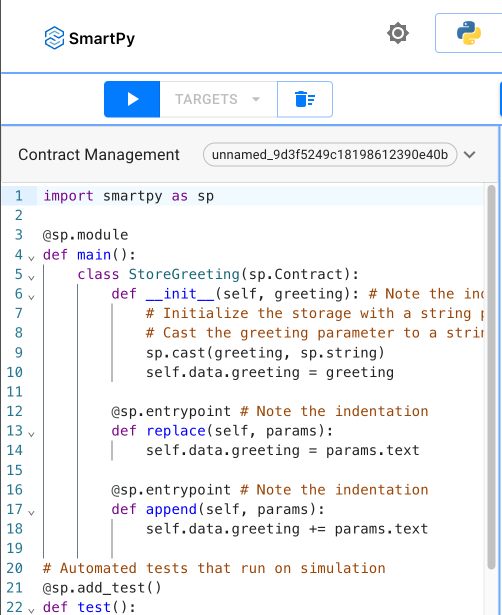
``` ## Using the application To try the application, run `npm run dev` and open the page http://localhost:4000/ in a web browser. Because no wallet is connected, the app shows the "Connect wallet" button, as in this picture: ![The initial page of the bank dApp, showing a title and the button that connects to the user's wallet](/img/tutorials/bank-app-connect-button.png) When you click **Connect wallet**, the `connectWallet` function runs and the octez.connect toolkit opens, showing some of the types of wallets it can connect to (the octez.connect case may be still displayed as "Beacon"): ![The octez.connect wallet connection popup](/img/tutorials/beacon-connect-wallet-options.png) The procedure for connecting each type of wallet is different. For example, if you are using the Temple browser extension, you click **Temple** and then **Connect now**. Then the Temple wallet shows a popup that allows you to confirm that you want to connect your wallet to the application, as in this picture: Connecting to the application in the Temple wallet Then the application runs the `getWalletBalance` function, which gets the wallet's balance in tez tokens. Because the Svelte component's variables changed, the application refreshes automatically and shows the wallet address, balance, and "Disconnect wallet" button: The application showing information about the connected wallet If you click **Disconnect wallet**, the application goes back to its initial state. Now the application can connect to user wallets. In the next section, you add code to use the wallet to get the user's approval to send transactions to Tezos. ## Design considerations Interacting with a wallet in a decentralized application is a new paradigm for many developers and users. Follow these practices to make the process easier for users: * Let users manually connect their wallets instead of prompting users to connect their wallet immediately when the app loads. Getting a wallet pop-up window before the user can see the page is annoying. Also, users may hesitate to connect a wallet before they have had time to look at and trust the application, even though connecting the wallet is harmless. * Provide a prominent button to connect and disconnect wallets. * Put the button in a predictable position, typically at the top right or left corner of the interface. * Use "Connect" as the label for the button. Avoid words like "sync" because they can have different meanings in dApps. * Display the status of the wallet clearly in the UI. You can also add information about the wallet, including token balances and the connected network for the user's convenience, as this tutorial application does. Showing information about the tokens and updating it after transactions allows the user to verify that the application is working properly. * Enable and disable functions of the application based on the status of the wallet connection. For example, if the wallet is not connected, disable buttons for transactions that require a wallet connection. Also, disable transaction buttons while transactions are pending to prevent users from making duplicate transactions. # Part 3: Sending transactions Now that the application can connect to the user's wallet, it can get the user's approval to send transactions to Tezos with that wallet. ## The tutorial smart contract This decentralized application (or dApp) uses a *smart contract* on Tezos, which is a type of program that runs on a blockchain. This contract behaves like an API, because your application calls its entrypoints to run commands. In this case, the smart contract was deployed for the purposes of this tutorial, so it is not a full-featured application. It does two things to simulate a bank: * It accepts deposits of tez tokens that users send and records how many tokens they sent. * It accepts a request to withdraw tez and sends them back to the user's wallet. The contract has two *entrypoints* for these functions, named "deposit" and "withdraw." These entrypoints are like API endpoints or functions in a program: clients can call them and pass parameters to them. However, unlike API endpoints and functions, they do not return a value. ## Steps for sending transactions Sending transactions with Taquito involves these general steps: 1. Create an object that represents the smart contract to call. 2. Disable UI elements related to the transaction to prevent the user from sending duplicate transactions. 3. Create the transaction, including specifying this information: * The entrypoint to call * The parameters to pass * The amount of tez to pass, if any * Maximum amounts for the fees for the transaction 4. Send the transaction to the user's wallet for approval. 5. Wait for the transaction to complete. 6. Update information about the user's wallet and other details in the UI based on the result of the transaction. 7. Enable UI elements that were disabled during the transaction. ## Making a deposit transaction Follow these steps to set up the application to send transactions to the deposit entrypoint: 1. In the `App.svelte` file, add the address of the contract as a constant with the other constants in the `

Tezos bank dApp

{#if wallet}

The address of the connected wallet is {address}.

Its balance in tez is {balance}.

To get tez, go to https://faucet.shadownet.teztnets.com/ .

Deposit tez:

Withdraw tez:

{:else} {/if}
``` # Part 4: Getting information In this section, you improve the user experience of the application by providing information from Tezos on the page. Specifically, you show the amount of tez that the user has stored in the smart contract and that is available to withdraw. Your app can do this because information on Tezos is public, including the code of smart contracts and their data storage. In this case, the contract's storage is a data type called a big-map. It maps account addresses with a number that indicates the amount of tez that address has deposited. Your app can query that amount by getting the contract's storage and looking up the value for the user's account. You can look up the storage manually by going to a block explorer and going to the Storage tab. For example, the [TzKt block explorer](https://shadownet.tzkt.io/KT1HtZfNKVcgPYCTuVPKm3cjEVAC4CKYrfjX) shows the storage for this contract like this: ![The block explorer, showing the storage for the contract in one big-map object](/img/tutorials/bank-app-block-explorer-storage.png) You can expand the big-map object and search for the record that is related to your account address to see how much tez you have deposited (but right now you won't find your address because you have just withdrawn all your balance). ## Accessing the contract storage Your application can use the Taquito library to access the storage for the contract and look up the user's balance in the contract: 1. In the `App.svelte` file, in the ` Create NFTs ``` This updated file sets the `global` variable to `globalThis` and adds a buffer object to the window. The application requires this configuration to use the octez.connect SDK to connect to wallets in a Vite app. 7. In the `src/main.js` file, import the style sheets by replacing the default code of the file with this code: ```javascript import './app.css' import { mount } from 'svelte'; import App from './App.svelte' const app = mount(App, { target: document.body }); export default app ``` This code targets the `body` tag to inject the HTML produced by JavaScript instead of a `div` tag inside the `body` tag as Svelte apps do by default. Your applications can target any tag on the page. ## File structure The structure of the tutorial application looks like this: ``` - src - assets - lib - app.css - App.svelte - main.js - index.html - jsconfig.json - package-lock.json - package.json - svelte.config.js - vite.config.js ``` Here are descriptions for each of these files: * **assets** -> Contains the favicon and other static files such as images for the application. * **lib** -> Contains the components that make up the app interface: * **app.css** -> Contains global styles that apply to the entire app. * **App.svelte** -> The entrypoint of the application, which contains the components that are bundled into the final application. * **main.js** -> Where the JavaScript for the app is bundled before being injected into the HTML file. * **index.html** -> Contains the root element where the Svelte app gets attached. * **jsconfig.json** -> Configuration options for JavaScript. * **package.json** -> Contains metadata about the project like its name, version, and dependencies. * **svelte.config.js** -> Configuration file for the Svelte application. * **vite.config.js** -> Used to customize Vite's behavior, including defining plugins, setting up aliases, and more. ## Configuring the Svelte application Follow these steps to set up the `src/App.svelte` file, which is the container for the other Svelte components: 1. Replace the default `src/App.svelte` file with this content: ```html
``` Svelte files can include several different types of code in a single file. The above template page has separate sections for JavaScript, style, and HTML code. Svelte components are fully contained, which means that the style and JS/TS code that you apply inside a component doesn't leak into the other components of your app. Styles and scripts that are shared among components typically go in the `src/styles` and `scripts` or `src/scripts` folders. 2. In the `App.svelte` file, replace the default `
` section with this code to set up a title for the interface: ```html

Simple NFT dApp

``` You will add elements to the web application interface later. 3. Replace the default ` ``` Later, you can add styles to this section or the shared CSS files. 4. Remove the default JavaScript section and replace it with this code, which imports the libraries and components that the app uses: ```html ``` The imports include these elements: * `BeaconWallet`: This class provides a user interface for connecting to wallets, ensuring that users can securely sign transactions and call smart contracts * `NetworkType`: An enumeration that lists the different types of networks on the Tezos blockchain (including Mainnet and various testnets) * `TezosToolkit`: This is the base class for Taquito, which gives you access to most of its Tezos-related features * `MichelsonMap`: This class represents the Michelson map data type, which Tezos uses to store data, including mapping the ownership and metadata for the NFTs that the application creates * `stringToBytes`: A utility that converts strings to bytes to store in the token metadata 5. In the same ` ``` 5. Open the `vite.config.ts` file and replace it with: ```js import react from '@vitejs/plugin-react-swc'; import path from 'path'; import { defineConfig } from 'vite'; // https://vitejs.dev/config/ export default ({ command }) => { const isBuild = command === 'build'; return defineConfig({ define: {}, plugins: [react()], build: { commonjsOptions: { transformMixedEsModules: true, }, }, resolve: { alias: { // dedupe @tezos-x/octez.connect-sdk // I almost have no idea why it needs `cjs` on dev and `esm` on build, but this is how it works 🤷‍♂️ '@tezos-x/octez.connect-sdk': path.resolve( path.resolve(), `./node_modules/@tezos-x/octez.connect-sdk/dist/${ isBuild ? 'esm' : 'cjs' }/index.js` ), stream: 'stream-browserify', os: 'os-browserify/browser', util: 'util', process: 'process/browser', buffer: 'buffer', crypto: 'crypto-browserify', assert: 'assert', http: 'stream-http', https: 'https-browserify', url: 'url', path: 'path-browserify', }, }, }); }; ``` ### Generate the Typescript classes from Michelson code and run the server Taqueria is able to generate Typescript classes for any frontend application. It takes the definition of your smart contract and generates the contract entrypoint functions, type definitions, etc ... To get typescript classes from Taqueria plugin, on your project root folder run: ```bash taq install @taqueria/plugin-contract-types taq generate types ./app/src ``` 1. Go back to your frontend app and run the dev server. ```bash cd app yarn dev ``` 2. Open your browser at: http://localhost:5173/ Your app should be running. ### Connect / disconnect the wallet Declare two React Button components and display the user's address and balance. 1. Edit **src/App.tsx** file: ```typescript import { NetworkType } from '@tezos-x/octez.connect-types'; import { BeaconWallet } from '@taquito/beacon-wallet'; import { TezosToolkit } from '@taquito/taquito'; import * as api from '@tzkt/sdk-api'; import { useEffect, useState } from 'react'; import './App.css'; import ConnectButton from './ConnectWallet'; import DisconnectButton from './DisconnectWallet'; function App() { api.defaults.baseUrl = 'https://api.ghostnet.tzkt.io'; const [Tezos, setTezos] = useState( new TezosToolkit('https://ghostnet.ecadinfra.com') ); const [wallet, setWallet] = useState( new BeaconWallet({ name: 'Training', preferredNetwork: NetworkType.GHOSTNET, }) ); useEffect(() => { (async () => { const activeAccount = await wallet.client.getActiveAccount(); if (activeAccount) { setUserAddress(activeAccount.address); const balance = await Tezos.tz.getBalance(activeAccount.address); setUserBalance(balance.toNumber()); } })(); }, []); const [userAddress, setUserAddress] = useState(''); const [userBalance, setUserBalance] = useState(0); return (
I am {userAddress} with {userBalance} mutez
); } export default App; ``` 2. Let's create the 2 missing src component files: ```bash touch src/ConnectWallet.tsx touch src/DisconnectWallet.tsx ``` ConnectWallet button creates an instance wallet, gets user permissions via a popup, and then retrieves the current account information. 3. Edit **ConnectWallet.tsx** ```typescript import { NetworkType } from '@tezos-x/octez.connect-sdk'; import { BeaconWallet } from '@taquito/beacon-wallet'; import { TezosToolkit } from '@taquito/taquito'; import { Dispatch, SetStateAction } from 'react'; type ButtonProps = { Tezos: TezosToolkit; setUserAddress: Dispatch>; setUserBalance: Dispatch>; wallet: BeaconWallet; setTezos: Dispatch>; }; const ConnectButton = ({ Tezos, setTezos, setUserAddress, setUserBalance, wallet, }: ButtonProps): JSX.Element => { const connectWallet = async (): Promise => { try { await wallet.requestPermissions({ network: { type: NetworkType.GHOSTNET, rpcUrl: 'https://ghostnet.ecadinfra.com', }, }); // gets user's address const userAddress = await wallet.getPKH(); const balance = await Tezos.tz.getBalance(userAddress); setUserBalance(balance.toNumber()); setUserAddress(userAddress); Tezos.setWalletProvider(wallet); setTezos(Tezos); } catch (error) { console.log(error); } }; return (
); }; export default ConnectButton; ``` 4. Edit **DisconnectWallet.tsx** The button cleans the wallet instance and all linked objects. ```typescript import { BeaconWallet } from '@taquito/beacon-wallet'; import { Dispatch, SetStateAction } from 'react'; interface ButtonProps { wallet: BeaconWallet; setUserAddress: Dispatch>; setUserBalance: Dispatch>; } const DisconnectButton = ({ wallet, setUserAddress, setUserBalance, }: ButtonProps): JSX.Element => { const disconnectWallet = async (): Promise => { setUserAddress(''); setUserBalance(0); console.log('disconnecting wallet'); await wallet.clearActiveAccount(); }; return (
); }; export default DisconnectButton; ``` 5. Save both files, the dev server should refresh the page. As Temple is configured, click on Connect button. On the popup, select your Temple wallet, then your account, and connect. ![The app after you have connected, showing your address and tex balance](/img/tutorials/dapp-logged.png) Your are *logged*. 6. Click on the Disconnect button to test the disconnection, and then reconnect. ### List other poke contracts via an indexer Instead of querying heavily the RPC node to search where are located all other similar contracts and retrieve each address, use an indexer. an indexer is a kind of enriched cache API on top of an RPC node. In this example, the TZKT indexer is used to find other similar contracts. 1. You need to install jq to parse the Taqueria JSON configuration file. [Install jq](https://github.com/stedolan/jq) 2. On `package.json`, change the `dev` command on `scripts` configuration. Prefix it with a `jq` command to create an new environment variable pointing to your last smart contract address on testing env: ```bash "dev": "jq -r '\"VITE_CONTRACT_ADDRESS=\" + last(.tasks[]).output[0].address' ../.taq/testing-state.json > .env && vite", ``` The last deployed contract address on Ghostnet is set now on our frontend. 3. Add a button to fetch all similar contracts like yours, then display the list. Edit **App.tsx** and before the `return` of App function, add this section for the fetch function. ```typescript const [contracts, setContracts] = useState>([]); const fetchContracts = () => { (async () => { setContracts( await api.contractsGetSimilar(import.meta.env.VITE_CONTRACT_ADDRESS, { includeStorage: true, sort: { desc: 'id' }, }) ); })(); }; ``` 4. On the returned **html template** section, after the display of the user balance div `I am {userAddress} with {userBalance} mutez`, append this: ```tsx
{contracts.map((contract) =>
{contract.address}
)}
``` 5. Save your file and restart your server. Now, the start script generates the .env file containing the last deployed contract address. ```bash yarn dev ``` 6. Go to your web browser and click on **Fetch contracts** button. ![](/img/tutorials/dapp-deployedcontracts.png) Congratulations, you are able to list all similar deployed contracts. ### Poke your contract 1. Import the Taqueria-generated types on **app/src/App.tsx**. ```typescript import { PokeGameWalletType } from './pokeGame.types'; ``` 2. Add this new function after the previous fetch function, it calls the entrypoint for poking. ```typescript const poke = async (contract: api.Contract) => { let c: PokeGameWalletType = await Tezos.wallet.at( '' + contract.address ); try { const op = await c.methodsObject.default().send(); await op.confirmation(); alert('Tx done'); } catch (error: any) { console.table(`Error: ${JSON.stringify(error, null, 2)}`); } }; ``` > :warning: Normally, a call to `c.methods.poke()` function is expected by convention, but with an unique entrypoint, Michelson generates a unique `default` entrypoint name instead of having the name of the entrypoint function. Also, be careful because all entrypoints function names are in lowercase, and all parameter types are in uppercase. 3. Replace the line displaying the contract address `{contracts.map((contract) =>
{contract.address}
)}` with the one below, it adds a Poke button. ```html {contracts.map((contract) =>
{contract.address}
)} ``` 4. Save and see the page refreshed, then click on the Poke button. ![](/img/tutorials/dapp-pokecontracts.png) It calls the contract and adds your public address tz1... to the set of traces. 5. Display poke guys To verify that on the page, we can display the list of poke people directly on the page Replace again the html previous line `{contracts ...}` with this one ```html {contracts.map((contract) => )}
addresspeopleaction
{contract.address}{contract.storage.join(", ")}
``` Contracts are displaying their people now ![](/img/tutorials/dapp-table.png) > :information_source: Wait around few second for blockchain confirmation and click on `fetch contracts` to refresh the list :confetti_ball: Congratulations, you have completed this first dapp training ## Summary Now, you can create any smart contract using LIGO and create a complete Dapp via Taqueria/Taquito. In the next section, you will learn how to call a Smart contract from a smart contract using callbacks and also write unit and mutation tests. When you are ready, continue to [Part 2: Inter-contract calls and testing](/tutorials/dapp/part-2). # Part 2: Inter-contract calls and testing Previously, you learned how to create your first dApp. In this second session, you will enhance your skills on: * How to do inter-contract calls. * How to use views. * How to do unit & mutation tests. On the first version of the Poke game, you were able to poke any deployed contract. Now, you will add a new function to store on the trace an additional feedback message coming from another contract. ## Poke and Get Feedback sequence diagram ```mermaid sequenceDiagram Note left of User: Prepare to poke Smartcontract2 though Smartcontract1 User->>Smartcontract1: pokeAndGetFeedback(Smartcontract2) Smartcontract1->>Smartcontract2 : getFeedback() Smartcontract2->>Smartcontract1 : pokeAndGetFeedbackCallback([Tezos.get_self_address(),store.feedback]) Note left of Smartcontract1: store Smartcontract2 address + feedback from Smartcontract2 ``` ## Get the code Get the code from the first session: https://github.com/marigold-dev/training-dapp-1/blob/main/solution ```bash git clone https://github.com/marigold-dev/training-dapp-1.git ``` Reuse the code from the previous smart contract: https://github.com/marigold-dev/training-dapp-1/blob/main/solution/contracts/pokeGame.jsligo Install all libraries locally: ```bash cd solution && npm i && cd app && yarn install && cd .. ``` ## Modify the poke function Change the storage to reflect the changes: * If you poke directly, you must register the contract's owner's address and no feedback. * If you poke and ask to get feedback from another contract, then you register the other contract address and an additional feedback message. Here is the new sequence diagram of the poke function. ```mermaid sequenceDiagram Note left of User: Prepare to poke Smartcontract1 User->>Smartcontract1: poke() Note left of Smartcontract1: store User address + no feedback ``` 1. Edit `./contracts/pokeGame.jsligo` and replace the storage definition with this one: ```jsligo export type pokeMessage = { receiver : address, feedback : string }; export type storage = { pokeTraces : map, feedback : string }; ``` 2. Replace your poke function with these lines: ```jsligo @entry const poke = (_ : unit, store : storage) : return_ => { let feedbackMessage = {receiver : Tezos.get_self_address() ,feedback: ""}; return [ list([]) as list, {...store, pokeTraces : Map.add(Tezos.get_source(), feedbackMessage, store.pokeTraces) }]; }; ``` Explanation: * `...store` do a copy by value of your object. Note: you cannot do an assignment like this `store.pokeTraces=...` in jsLIGO. * `Map.add(...`: Add a key, value entry to a map. For more information about [Map](https://ligo.tezos.com/docs/next/data-types/maps). * `export type storage = {...};` a `Record` type is declared, it is an object structure known in LIGO as a [Record](https://ligo.tezos.com/docs/next/data-types/records). * `Tezos.get_self_address()` is a native function that returns the current contract address running this code. Have a look at [Tezos native functions](https://ligo.tezos.com/docs/next/reference/toplevel-reference). * `feedback: ""`: poking directly does not store feedback. 3. Edit `pokeGame.storageList.jsligo` to change the storage initialization. ```jsligo #import "pokeGame.jsligo" "Contract" const default_storage: Contract.storage = { pokeTraces: Map.empty as map, feedback: "kiss" }; ``` 4. Compile your contract. ```bash TAQ_LIGO_IMAGE=ligolang/ligo:1.6.0 taq compile pokeGame.jsligo ``` Write a second function `pokeAndGetFeedback` involving the call to another contract a bit later, let's do unit testing first! ## Write unit tests 1. Add a new unit test smart-contract file `unit_pokeGame.jsligo`. ```bash taq create contract unit_pokeGame.jsligo ``` > :information_source: Testing documentation can be found [here](https://ligo.tezos.com/docs/next/testing/) 2. Edit the file. ```jsligo #import "./pokeGame.jsligo" "PokeGame" export type main_fn = module_contract; // reset state const _ = Test.reset_state(2 as nat, list([]) as list); const faucet = Test.nth_bootstrap_account(0); const sender1: address = Test.nth_bootstrap_account(1); const _2 = Test.log("Sender 1 has balance : "); const _3 = Test.log(Test.get_balance_of_address(sender1)); const _4 = Test.set_baker(faucet); const _5 = Test.set_source(faucet); export const initial_storage = { pokeTraces: Map.empty as map, feedback: "kiss" }; export const initial_tez = 0mutez; //functions export const _testPoke = ( taddr: typed_address, s: address ): unit => { const contr = Test.to_contract(taddr); const contrAddress = Tezos.address(contr); Test.log("contract deployed with values : "); Test.log(contr); Test.set_source(s); const status = Test.transfer_to_contract(contr, Poke(), 0 as tez); Test.log(status); const store: PokeGame.storage = Test.get_storage(taddr); Test.log(store); //check poke is registered match(Map.find_opt(s, store.pokeTraces)) { when (Some(pokeMessage)): do { assert_with_error( pokeMessage.feedback == "", "feedback " + pokeMessage.feedback + " is not equal to expected " + "(empty)" ); assert_with_error( pokeMessage.receiver == contrAddress, "receiver is not equal" ); } when (None()): assert_with_error(false, "don't find traces") }; }; // TESTS // const testSender1Poke = ( (): unit => { const orig = Test.originate(contract_of(PokeGame), initial_storage, initial_tez); _testPoke(orig.addr, sender1); } )(); ``` Explanations: * `#import "./pokeGame.jsligo" "PokeGame"` to import the source file as a module to call functions and use object definitions. * `export type main_fn` it will be useful later for the mutation tests to point to the main function to call/mutate. * `Test.reset_state ( 2...` this creates two implicit accounts on the test environment. * `Test.nth_bootstrap_account` This returns the nth account from the environment. * `Test.to_contract(taddr)` and `Tezos.address(contr)` are util functions to convert typed addresses, contract, and contract addresses. * `let _testPoke = (s : address) : unit => {...}` declaring function starting with `_` is escaping the test for execution. Use this to factorize tests changing only the parameters of the function for different scenarios. * `Test.set_source` do not forget to set this value for the transaction signer. * `Test.transfer_to_contract(CONTRACT, PARAMS, TEZ_COST)` A transaction to send, it returns an operation. * `Test.get_storage` This is how to retrieve the contract's storage. * `assert_with_error(CONDITION,MESSAGE)` Use assertion for unit testing. * `const testSender1Poke = ...` This test function will be part of the execution report. * `Test.originate_module(MODULE_CONVERTED_TO_CONTRACT,INIT_STORAGE, INIT_BALANCE)` It originates a smart contract into the Test environment. A module is converted to a smart contract. 3. Run the test ```bash TAQ_LIGO_IMAGE=ligolang/ligo:1.6.0 taq test unit_pokeGame.jsligo ``` The output should give you intermediary logs and finally the test results. ```logs ┌──────────────────────┬────────────────────────────────────────────────────────────────────────────────────────────────────────────────────────────────────────────────┐ │ Contract │ Test Results │ ├──────────────────────┼────────────────────────────────────────────────────────────────────────────────────────────────────────────────────────────────────────────────┤ │ unit_pokeGame.jsligo │ "Sender 1 has balance : " │ │ │ 3800000000000mutez │ │ │ "contract deployed with values : " │ │ │ KT1KwMWUjU6jYyLCTWpZAtT634Vai7paUnRN(None) │ │ │ Success (2130n) │ │ │ {feedback = "kiss" ; pokeTraces = [tz1TDZG4vFoA2xutZMYauUnS4HVucnAGQSpZ -> {feedback = "" ; receiver = KT1KwMWUjU6jYyLCTWpZAtT634Vai7paUnRN}]} │ │ │ Everything at the top-level was executed. │ │ │ - testSender1Poke exited with value (). │ │ │ │ │ │ 🎉 All tests passed 🎉 │ └──────────────────────┴────────────────────────────────────────────────────────────────────────────────────────────────────────────────────────────────────────────────┘ ``` ## Do an inter-contract call To keep things simple, 2 versions of the same smart contract are deployed to simulate inter-contract calls and get the feedback message (cf. [sequence diagram](#poke-and-get-feedback-sequence-diagram)). Create a new poke function `PokeAndGetFeedback: (other : address)` with a second part function `PokeAndGetFeedbackCallback: (feedback : returned_feedback)` as a callback. Calling a contract is asynchronous, this is the reason it is done two times. The function to call on the second contract is `GetFeedback: (contract_callback: oracle_param)` and returns a feedback message. > Very often, this kind of contract is named an `Oracle`, because generally its storage is updated by an offchain scheduler and it exposes data to any onchain smart contracts. 1. Edit the file `pokeGame.jsligo`, to define new types: ```jsligo type returned_feedback = [address, string]; //address that gives feedback and a string message type oracle_param = contract; ``` Explanations : * `type returned_feedback = [address, string]` the parameters of an oracle function always start with the address of the contract caller and followed by the return objects. * `type oracle_param = contract` the oracle parameters need to be wrapped inside a typed contract. 2. Write the missing functions, starting with `getFeedback`. Add this new function at the end of the file. ```jsligo @entry const getFeedback = (contract_callback : contract, store : storage): return_ => { let op : operation = Tezos.transaction( [Tezos.get_self_address(),store.feedback], (0 as mutez), contract_callback); return [list([op]) ,store]; }; ``` * `Tezos.transaction(RETURNED_PARAMS,TEZ_COST,CALLBACK_CONTRACT)` the oracle function requires to return the value back to the contract caller that is passed already as first parameter. * `return [list([op]) ,store]` this time, you return a list of operations to execute, there is no need to update the contract storage (but it is a mandatory return object). 3. Add now, the first part of the function `pokeAndGetFeedback`. ```jsligo @entry const pokeAndGetFeedback = (oracleAddress: address, store: storage): return_ => { //Prepares call to oracle let call_to_oracle = (): contract => { return match( Tezos.get_entrypoint_opt("%getFeedback", oracleAddress) as option> ) { when (None()): failwith("NO_ORACLE_FOUND") when (Some(contract)): contract }; }; // Builds transaction let op: operation = Tezos.transaction( ( ( Tezos.self("%pokeAndGetFeedbackCallback") as contract ) ), (0 as mutez), call_to_oracle() ); return [list([op]), store]; }; ``` * `Tezos.get_entrypoint_opt("%getFeedback",oracleAddress)` you require to get the oracle contract address. Then you want to call a specific entrypoint of this contract. The function name is always starting with `%` with always the first letter in lowercase (even if the code is different). * `Tezos.transaction(((Tezos.self("%pokeAndGetFeedbackCallback") as contract)),TEZ_COST,call_to_oracle())` The transaction takes as first param the entrypoint of for the callback that the oracle uses to answer the feedback, the tez cost and the oracle contract you got just above as transaction destination. 4. Write the last missing function `pokeAndGetFeedbackCallback`, receive the feedback and finally store it. ```jsligo @entry const pokeAndGetFeedbackCallback = (feedback : returned_feedback, store : storage) : return_ => { let feedbackMessage = {receiver : feedback[0] ,feedback: feedback[1]}; return [ list([]) as list, {...store, pokeTraces : Map.add(Tezos.get_source(), feedbackMessage , store.pokeTraces) }]; }; ``` * `let feedbackMessage = {receiver : feedback[0] ,feedback: feedback[1]}` prepares the trace including the feedback message and the feedback contract creator. * `{...store,pokeTraces : Map.add(Tezos.get_source(), feedbackMessage , store.pokeTraces) }` add the new trace to the global trace map. 5. Compile the contract. ```bash TAQ_LIGO_IMAGE=ligolang/ligo:1.6.0 taq compile pokeGame.jsligo ``` 6. (Optional) Write a unit test for this new function `pokeAndGetFeedback`. ## Use views instead of inter-contract call As you saw in the previous step, inter-contract calls make the business logic more complex but not only that, thinking about the cost is even worse, as described in [Optimisation](https://ligo.tezos.com/docs/next/tutorials/optimisation/) in the LIGO documentation. In this training, the oracle is providing a read-only storage that can be replaced by a `view` instead of a complex and costly callback. [See the documentation here about onchain views](https://ligo.tezos.com/docs/next/syntax/contracts/views). ```mermaid sequenceDiagram Note left of User: Prepare to poke on Smartcontract1 and get feedback from Smartcontract2 User->>Smartcontract1: pokeAndGetFeedback(Smartcontract2) Smartcontract1-->>Smartcontract2 : feedback() Smartcontract2-->>Smartcontract1 : [Smartcontract2,feedback] Note left of Smartcontract1: store Smartcontract2 address + feedback from Smartcontract2 ``` :warning: **Comment below functions (with `/* */` syntax or // syntax) or just remove it, it is no more useful** :warning: * `pokeAndGetFeedbackCallback` * `getFeedback` 1. Edit function `pokeAndGetFeedback` to call view instead of a transaction. ```jsligo @entry const pokeAndGetFeedback = (oracleAddress: address, store: storage): return_ => { //Read the feedback view let feedbackOpt: option = Tezos.call_view("feedback", unit, oracleAddress); match(feedbackOpt) { when (Some(feedback)): do { let feedbackMessage = { receiver: oracleAddress, feedback: feedback }; return [ list([]) as list, { ...store, pokeTraces: Map.add( Tezos.get_source(), feedbackMessage, store.pokeTraces ) } ]; } when (None()): failwith("Cannot find view feedback on given oracle address") }; }; ``` 2. Declare the view at the end of the file. Do not forget the annotation `@view` ! ```jsligo @view export const feedback = (_: unit, store: storage): string => { return store.feedback }; ``` 3. Compile the contract. ```bash TAQ_LIGO_IMAGE=ligolang/ligo:1.6.0 taq compile pokeGame.jsligo ``` 4. (Optional) Write a unit test for the updated function `pokeAndGetFeedback`. ## Write mutation tests LIGO provides mutation testing through the Test library. Mutation tests are like `testing your tests` to see if your unit test coverage is strong enough. Bugs, or mutants, are automatically inserted into your code. Your tests are run on each mutant. If your tests fail then the mutant is killed. If your tests passed, the mutant survived. The higher the percentage of mutants killed, the more effective your tests are. [Example of mutation features for other languages](https://stryker-mutator.io/docs/mutation-testing-elements/supported-mutators) 1. Create a file `mutation_pokeGame.jsligo`. ```bash taq create contract mutation_pokeGame.jsligo ``` 2. Edit the file. ```jsligo #import "./pokeGame.jsligo" "PokeGame" #import "./unit_pokeGame.jsligo" "PokeGameTest" // reset state const _ = Test.reset_state(2 as nat, list([]) as list); const faucet = Test.nth_bootstrap_account(0); const sender1: address = Test.nth_bootstrap_account(1); const _1 = Test.log("Sender 1 has balance : "); const _2 = Test.log(Test.get_balance_of_address(sender1)); const _3 = Test.set_baker(faucet); const _4 = Test.set_source(faucet); const _tests = ( ta: typed_address, _: michelson_contract, _2: int ): unit => { return PokeGameTest._testPoke(ta, sender1); }; const test_mutation = ( (): unit => { const mutationErrorList = Test.originate_and_mutate_all( contract_of(PokeGame), PokeGameTest.initial_storage, PokeGameTest.initial_tez, _tests ); match(mutationErrorList) { when ([]): unit when ([head, ..._tail]): do { Test.log(head); Test.assert_with_error(false, Test.to_string(head[1])) } }; } )(); ``` Explanation: * `#import `: import your source code that will be mutated and your unit tests. For more information, see [Namespaces](https://ligo.tezos.com/docs/next/syntax/modules?lang=jsligo) in the LIGO documentation. * `const _tests = (ta: typed_address, _: michelson_contract, _: int) : unit => {...`: you need to provide the test suite that will be run by the framework. Just point to the unit test you want to run. * `const test_mutation = (() : unit => {`: this is the definition of the mutations tests. * `Test.originate_module_and_mutate_all(CONTRACT_TO_MUTATE, INIT_STORAGE, INIT_TEZ_COST, UNIT_TEST_TO_RUN)`: This will take the first argument as the source code to mutate and the last argument as unit test suite function to run over. It returns a list of mutations that succeed (if size > 0 then bad test coverage) or an empty list (good, even mutants did not harm your code). 3. Run the test. ```bash TAQ_LIGO_IMAGE=ligolang/ligo:1.6.0 taq test mutation_pokeGame.jsligo ``` Output: ```logs === Error messages for mutation_pokeGame.jsligo === File "contracts/mutation_pokeGame.jsligo", line 43, characters 12-66: 42 | Test.log(head); 43 | Test.assert_with_error(false, Test.to_string(head[1])) 44 | } Test failed with "Mutation at: File "contracts/pokeGame.jsligo", line 52, characters 15-66: 51 | when (None()): 52 | failwith("Cannot find view feedback on given oracle address") 53 | }; Replacing by: "Cannot find view feedback on given oracle addressCannot find view feedback on given oracle address". " Trace: File "contracts/mutation_pokeGame.jsligo", line 43, characters 12-66 , File "contracts/mutation_pokeGame.jsligo", line 43, characters 12-66 , File "contracts/mutation_pokeGame.jsligo", line 28, character 2 to line 47, character 5 === ┌──────────────────────────┬──────────────────────┐ │ Contract │ Test Results │ ├──────────────────────────┼──────────────────────┤ │ mutation_pokeGame.jsligo │ Some tests failed :( │ └──────────────────────────┴──────────────────────┘ ``` Invaders are here. What happened? The mutation has altered a part of the code that is not tested, it was not covered, so the unit test passed. For a short fix, tell the Library to ignore this function for mutants. 4. Go to your source file pokeGame.jsligo, and annotate the function `pokeAndGetFeedback` with `@no_mutation`. ```jsligo @no_mutation @entry const pokeAndGetFeedback ... ``` 5. Run again the mutation tests. ```bash TAQ_LIGO_IMAGE=ligolang/ligo:1.6.0 taq test mutation_pokeGame.jsligo ``` Output ```logs ┌──────────────────────────┬────────────────────────────────────────────────────────────────────────────────────────────────────────────────────────────────────────────────┐ │ Contract │ Test Results │ ├──────────────────────────┼────────────────────────────────────────────────────────────────────────────────────────────────────────────────────────────────────────────────┤ │ mutation_pokeGame.jsligo │ "Sender 1 has balance : " │ │ │ 3800000000000mutez │ │ │ "contract deployed with values : " │ │ │ KT1L8mCbuTJXKq3CDoHDxqfH5aj5sEgAdx9C(None) │ │ │ Success (1330n) │ │ │ {feedback = "kiss" ; pokeTraces = [tz1hkMbkLPkvhxyqsQoBoLPqb1mruSzZx3zy -> {feedback = "" ; receiver = KT1L8mCbuTJXKq3CDoHDxqfH5aj5sEgAdx9C}]} │ │ │ "Sender 1 has balance : " │ │ │ 3800000000000mutez │ │ │ Everything at the top-level was executed. │ │ │ - test_mutation exited with value (). │ │ │ │ │ │ 🎉 All tests passed 🎉 │ └──────────────────────────┴────────────────────────────────────────────────────────────────────────────────────────────────────────────────────────────────────────────────┘ ``` ## Update the frontend 1. Reuse the dApp files from [the previous session](https://github.com/marigold-dev/training-dapp-1/tree/main/solution/app). 2. Redeploy a new version of the smart contract. > Note: You can set `feedback` value to any action other than default `kiss` string (it is more fun for other to discover it). ```bash TAQ_LIGO_IMAGE=ligolang/ligo:1.6.0 taq compile pokeGame.jsligo taq generate types ./app/src taq deploy pokeGame.tz -e "testing" ``` 3. Adapt the frontend application code. Edit `App.tsx`, and add new import. ```typescript import { address } from './type-aliases'; ``` 4. Add a new React variable after `userBalance` definition. ```typescript const [contractToPoke, setContractToPoke] = useState(''); ``` 5. Change the poke function to set entrypoint to `pokeAndGetFeedback`. ```typescript //poke const poke = async ( e: React.FormEvent, contract: api.Contract ) => { e.preventDefault(); let c: PokeGameWalletType = await Tezos.wallet.at('' + contract.address); try { const op = await c.methodsObject .pokeAndGetFeedback(contractToPoke as address) .send(); await op.confirmation(); alert('Tx done'); } catch (error: any) { console.log(error); console.table(`Error: ${JSON.stringify(error, null, 2)}`); } }; ``` 6. Change the display to a table changing `contracts.map...` by: ```html {contracts.map((contract) => )}
addresstrace "contract - feedback - user"action
{contract.address}{(contract.storage !== null && contract.storage.pokeTraces !== null && Object.entries(contract.storage.pokeTraces).length > 0)?Object.keys(contract.storage.pokeTraces).map((k : string)=>contract.storage.pokeTraces[k].receiver+" "+contract.storage.pokeTraces[k].feedback+" "+k+", "):""}
poke(e,contract)}>setContractToPoke(e.currentTarget.value)} placeholder='enter contract address here' />
``` 7. Relaunch the app. ```bash cd app yarn install yarn dev ``` On the listed contract, choose your line and input the address of the contract you will receive feedback. Click on `poke`. ![The dApp page showing the result of the poke action](/img/tutorials/dapp-result.png). This time, the logged user will receive feedback from a targeted contract (as input of the form) via any listed contract (the first column of the table). Refresh manually by clicking on `Fetch` contracts\` button. Poke other developers' contracts to discover their contract hidden feedback when you poke them. ## Summary Now, you can call other contracts, use views, and test your smart contract before deploying it. In the next training, you will learn how to use tickets. When you are ready, continue to [Part 3: Tickets](/tutorials/dapp/part-3). # Part 3: Tickets Previously, you learned how to do inter-contract calls, use views, and do unit testing. In this third session, you will enhance your skills on: * Using tickets. * Don't mess up with `DUP` errors while manipulating tickets. On the second version of the poke game, you were able to poke any contract without constraint. A right to poke via tickets is now mandatory. Tickets are a kind of object that cannot be copied and can hold some trustable information. ## new Poke sequence diagram ```mermaid sequenceDiagram Admin->>Smartcontract : Init(User,1) Note right of Smartcontract : Mint 1 ticket for User Note left of User : Prepare to poke User->>Smartcontract : Poke Note right of Smartcontract : Check available tickets for User Note right of Smartcontract : Store trace and burn 1 ticket Smartcontract-->>User : success User->>Smartcontract : Poke Note right of Smartcontract : Check available tickets for User Smartcontract-->>User : error ``` ## Prerequisites Prerequisites are the same as the first session: https://github.com/marigold-dev/training-dapp-1#memo-prerequisites. Get the code from the session 2 solution [here](https://github.com/marigold-dev/training-dapp-2/tree/main/solution). ## Tickets Tickets came with a Tezos **Edo** upgrade, they are great and often misunderstood. Ticket structure: * Ticketer: (address) the creator contract address. * Value: (any) Can be any type from string to bytes. It holds whatever arbitrary values. * Amount: (nat) quantity of tickets minted. Tickets features: * Not comparable: it makes no sense to compare tickets because tickets of the same type are all equal and can be merged into a single ticket. When ticket types are different then it is no more comparable. * Transferable: you can send a ticket into a Transaction parameter. * Storable: only on smart contract storage for the moment (Note: a new protocol release will enable it for use accounts soon). * Non-dupable: you cannot copy or duplicate a ticket, it is a unique singleton object living in a specific blockchain instance. * Splittable: if the amount is > 2 then you can split the ticket object into 2 objects. * Mergeable: you can merge tickets from the same ticketer and the same type. * Mintable/burnable: anyone can create and destroy tickets. Example of usage: * Authentication and Authorization token: giving a ticket to a user provides you with Authentication. Adding some claims/rules on the ticket provides you with some rights. * Simplified FA1.2/FA2 token: representing crypto token with tickets (mint/burn/split/join), but it does not have all the same properties and does not respect the TZIP standard. * Voting rights: giving 1 ticket that counts for 1 vote on each member. * Wrapped crypto: holding XTZ collateral against a ticket, and redeeming it later. * Many others ... ## Minting Minting is the action of creating a ticket from the void. In general, minting operations are done by administrators of smart contracts or either by an end user. 1. Edit the `./contracts/pokeGame.jsligo` file and add a map of ticket ownership to the default `storage` type. This map keeps a list of consumable tickets for each authorized user. It is used as a burnable right to poke. ```jsligo export type storage = { pokeTraces: map, feedback: string, ticketOwnership: map> //ticket of claims }; ``` To fill this map, add a new administration endpoint. A new entrypoint `Init` is adding x tickets to a specific user. > Note: to simplify, there is no security around this entrypoint, but in Production it should. Tickets are very special objects that cannot be **DUPLICATED**. During compilation to Michelson, using a variable twice, copying a structure holding tickets generates `DUP` command. To avoid our contract failing at runtime, LIGO parses statically our code during compilation time to detect any DUP on tickets. To solve most of the issues, segregate ticket objects from the rest of the storage, or structures containing ticket objects to avoid compilation errors. To do this, just destructure any object until you get tickets isolated. For each function having a storage as parameter, `store` object needs to be destructured to isolate `ticketOwnership` object holding our tickets. Then, don't use anymore the `store` object or it creates a **DUP** error. 2. Add the new `Init` function. ```jsligo @entry const init = ([a, ticketCount]: [address, nat], store: storage): return_ => { const { pokeTraces, feedback, ticketOwnership } = store; if (ticketCount == (0 as nat)) { return [ list([]) as list, { pokeTraces, feedback, ticketOwnership } ] } else { const t: ticket = Option.unopt(Tezos.create_ticket("can_poke", ticketCount)); return [ list([]) as list, { pokeTraces, feedback, ticketOwnership: Map.add(a, t, ticketOwnership) } ] } }; ``` The Init function looks at how many tickets to create from the current caller, and then it is added to the current map. 3. Modify the poke function. ```jsligo @entry const poke = (_: unit, store: storage): return_ => { const { pokeTraces, feedback, ticketOwnership } = store; const [t, tom]: [option>, map>] = Map.get_and_update( Tezos.get_source(), None() as option>, ticketOwnership ); return match(t) { when (None): failwith("User does not have tickets => not allowed") when (Some(_t)): [ list([]) as list, { feedback, pokeTraces: Map.add( Tezos.get_source(), { receiver: Tezos.get_self_address(), feedback: "" }, pokeTraces ), ticketOwnership: tom } ] } }; ``` First, extract an existing optional ticket from the map. If an operation is done directly on the map, even trying to find or get this object in the structure, a DUP Michelson instruction is generated. Use the secure `get_and_update` function from the Map library to extract the item from the map and avoid any copy. > Note: more information about this function, see [Updating maps](https://ligo.tezos.com/docs/next/data-types/maps?lang=jsligo#updating) in the LIGO documentation. In a second step, look at the optional ticket, if it exists, then burn it (destroy it) and add a trace of execution, otherwise fail with an error message. 4. Same for `pokeAndGetFeedback` function, do the same checks and type modifications as below. ```jsligo @no_mutation @entry const pokeAndGetFeedback = (oracleAddress: address, store: storage): return_ => { const { pokeTraces, feedback, ticketOwnership } = store; ignore(feedback); const [t, tom]: [option>, map>] = Map.get_and_update( Tezos.get_source(), None() as option>, ticketOwnership ); let feedbackOpt: option = Tezos.call_view("feedback", unit, oracleAddress); return match(t) { when (None): failwith("User does not have tickets => not allowed") when (Some(_t)): match(feedbackOpt) { when (Some(feedback)): do { let feedbackMessage = { receiver: oracleAddress, feedback: feedback }; return [ list([]) as list, { feedback, pokeTraces: Map.add( Tezos.get_source(), feedbackMessage, pokeTraces ), ticketOwnership: tom } ] } when (None): failwith("Cannot find view feedback on given oracle address") } } }; ``` 5. Update the storage initialization on `pokeGame.storageList.jsligo`. ```jsligo #import "pokeGame.jsligo" "Contract" const default_storage = { pokeTraces: Map.empty as map, feedback: "kiss", ticketOwnership: Map.empty as map< address, ticket > //ticket of claims }; ``` 6. Compile the contract to check for any errors. > Note: don't forget to check that Docker is running for taqueria. ```bash npm i TAQ_LIGO_IMAGE=ligolang/ligo:1.6.0 taq compile pokeGame.jsligo ``` Check on logs that everything is fine. Try to display a DUP error now. 7. Add this line on `poke function` just after the first line of storage destructuration `const { pokeTraces, feedback, ticketOwnership } = store;`. ```jsligo const t2 = Map.find_opt(Tezos.get_source(), ticketOwnership); ``` 8. Compile again. ```bash TAQ_LIGO_IMAGE=ligolang/ligo:1.6.0 taq compile pokeGame.jsligo ``` This time you should see the `DUP` warning generated by the **find** function. ```logs Warning: variable "ticketOwnership" cannot be used more than once. ``` 9. Remove it. ## Test your code Update the unit test files to see if you can still poke. 1. Edit the `./contracts/unit_pokeGame.jsligo` file. ```jsligo #import "./pokeGame.jsligo" "PokeGame" export type main_fn = module_contract; const _ = Test.reset_state(2 as nat, list([]) as list); const faucet = Test.nth_bootstrap_account(0); const sender1: address = Test.nth_bootstrap_account(1); const _1 = Test.log("Sender 1 has balance : "); const _2 = Test.log(Test.get_balance_of_address(sender1)); const _3 = Test.set_baker(faucet); const _4 = Test.set_source(faucet); const initial_storage = { pokeTraces: Map.empty as map, feedback: "kiss", ticketOwnership: Map.empty as map> }; const initial_tez = 0 as tez; export const _testPoke = ( taddr: typed_address, s: address, ticketCount: nat, expectedResult: bool ): unit => { const contr = Test.to_contract(taddr); const contrAddress = Tezos.address(contr); Test.log("contract deployed with values : "); Test.log(contr); Test.set_source(s); const statusInit = Test.transfer_to_contract(contr, Init([sender1, ticketCount]), 0 as tez); Test.log(statusInit); Test.log("*** Check initial ticket is here ***"); Test.log(Test.get_storage(taddr)); const status: test_exec_result = Test.transfer_to_contract(contr, Poke(), 0 as tez); Test.log(status); const store: PokeGame.storage = Test.get_storage(taddr); Test.log(store); return match(status) { when (Fail(tee)): match(tee) { when (Other(msg)): assert_with_error(expectedResult == false, msg) when (Balance_too_low(_record)): assert_with_error(expectedResult == false, "ERROR Balance_too_low") when (Rejected(s)): assert_with_error(expectedResult == false, Test.to_string(s[0])) } when (Success(_n)): match( Map.find_opt( s, (Test.get_storage(taddr) as PokeGame.storage).pokeTraces ) ) { when (Some(pokeMessage)): do { assert_with_error( pokeMessage.feedback == "", "feedback " + pokeMessage.feedback + " is not equal to expected " + "(empty)" ); assert_with_error( pokeMessage.receiver == contrAddress, "receiver is not equal" ) } when (None()): assert_with_error(expectedResult == false, "don't find traces") } } }; const _5 = Test.log("*** Run test to pass ***"); const testSender1Poke = ( (): unit => { const orig = Test.originate(contract_of(PokeGame), initial_storage, initial_tez); _testPoke(orig.addr, sender1, 1 as nat, true) } )(); const _6 = Test.log("*** Run test to fail ***"); const testSender1PokeWithNoTicketsToFail = ( (): unit => { const orig = Test.originate(contract_of(PokeGame), initial_storage, initial_tez); _testPoke(orig.addr, sender1, 0 as nat, false) } )(); ``` * On `Init([sender1, ticketCount])`, initialize the smart contract with some tickets. * On `Fail`, check if you have an error on the test (i.e. the user should be allowed to poke). * On `testSender1Poke`, test with the first user using a preexisting ticket. * On `testSender1PokeWithNoTicketsToFail`, test with the same user again but with no ticket, and an error should be caught. 2. Run the test, and look at the logs to track execution. ```bash TAQ_LIGO_IMAGE=ligolang/ligo:1.6.0 taq test unit_pokeGame.jsligo ``` The first test should be fine. ```logs ┌──────────────────────┬───────────────────────────────────────────────────────────────────────────────────────────────────────────────────────────────────────────────────────────────────────┐ │ Contract │ Test Results │ ├──────────────────────┼───────────────────────────────────────────────────────────────────────────────────────────────────────────────────────────────────────────────────────────────────────┤ │ unit_pokeGame.jsligo │ "Sender 1 has balance : " │ │ │ 3800000000000mutez │ │ │ "*** Run test to pass ***" │ │ │ "contract deployed with values : " │ │ │ KT1HeEVF74BLi3fYCpr1tpkDGmruFBNjMATo(None) │ │ │ Success (1858n) │ │ │ "*** Check initial ticket is here ***" │ │ │ {feedback = "kiss" ; pokeTraces = [] ; ticketOwnership = [tz1hkMbkLPkvhxyqsQoBoLPqb1mruSzZx3zy -> (KT1HeEVF74BLi3fYCpr1tpkDGmruFBNjMATo , ("can_poke" , 1n))]} │ │ │ Success (1024n) │ │ │ {feedback = "kiss" ; pokeTraces = [tz1hkMbkLPkvhxyqsQoBoLPqb1mruSzZx3zy -> {feedback = "" ; receiver = KT1HeEVF74BLi3fYCpr1tpkDGmruFBNjMATo}] ; ticketOwnership = []} │ │ │ "*** Run test to fail ***" │ │ │ "contract deployed with values : " │ │ │ KT1HDbqhYiKs8e3LkNAcT9T2MQgvUdxPtbV5(None) │ │ │ Success (1399n) │ │ │ "*** Check initial ticket is here ***" │ │ │ {feedback = "kiss" ; pokeTraces = [] ; ticketOwnership = []} │ │ │ Fail (Rejected (("User does not have tickets => not allowed" , KT1HDbqhYiKs8e3LkNAcT9T2MQgvUdxPtbV5))) │ │ │ {feedback = "kiss" ; pokeTraces = [] ; ticketOwnership = []} │ │ │ Everything at the top-level was executed. │ │ │ - testSender1Poke exited with value (). │ │ │ - testSender1PokeWithNoTicketsToFail exited with value (). │ │ │ │ │ │ 🎉 All tests passed 🎉 │ └──────────────────────┴───────────────────────────────────────────────────────────────────────────────────────────────────────────────────────────────────────────────────────────────────────┘ ``` 3. Redeploy the smart contract. Let's play with the CLI to compile and deploy. ```bash TAQ_LIGO_IMAGE=ligolang/ligo:1.6.0 taq compile pokeGame.jsligo taq generate types ./app/src taq deploy pokeGame.tz -e testing ``` ```logs ┌─────────────┬──────────────────────────────────────┬──────────┬──────────────────┬────────────────────────────────┐ │ Contract │ Address │ Alias │ Balance In Mutez │ Destination │ ├─────────────┼──────────────────────────────────────┼──────────┼──────────────────┼────────────────────────────────┤ │ pokeGame.tz │ KT1TC1DabCTmdMXuuCxwUmyb51bn2mbeNvbW │ pokeGame │ 0 │ https://ghostnet.ecadinfra.com │ └─────────────┴──────────────────────────────────────┴──────────┴──────────────────┴────────────────────────────────┘ ``` ## Adapt the frontend code 1. Rerun the app and check that you can not use the app anymore without tickets. ```bash cd app yarn dev ``` 2. Connect with any wallet with enough tez, and Poke your contract. ![pokefail](/img/tutorials/dapp-pokefail.png) The Kukai wallet is giving me back the error from the smart contract. ![kukaifail](/img/tutorials/dapp-kukaifail.png) Ok, so let's authorize some minting on my user and try again to poke. 3. Add a new button for minting on a specific contract, and replace the full content of `App.tsx` with: ```typescript import { NetworkType } from '@tezos-x/octez.connect-types'; import { BeaconWallet } from '@taquito/beacon-wallet'; import { TezosToolkit } from '@taquito/taquito'; import * as api from '@tzkt/sdk-api'; import { BigNumber } from 'bignumber.js'; import { useEffect, useState } from 'react'; import './App.css'; import ConnectButton from './ConnectWallet'; import DisconnectButton from './DisconnectWallet'; import { PokeGameWalletType, Storage } from './pokeGame.types'; import { address, nat } from './type-aliases'; function App() { api.defaults.baseUrl = 'https://api.ghostnet.tzkt.io'; const [Tezos, setTezos] = useState( new TezosToolkit('https://ghostnet.ecadinfra.com') ); const [wallet, setWallet] = useState( new BeaconWallet({ name: 'Training', preferredNetwork: NetworkType.GHOSTNET, }) ); const [contracts, setContracts] = useState>([]); const [contractStorages, setContractStorages] = useState< Map >(new Map()); const fetchContracts = () => { (async () => { const tzktcontracts: Array = await api.contractsGetSimilar( import.meta.env.VITE_CONTRACT_ADDRESS, { includeStorage: true, sort: { desc: 'id' }, } ); setContracts(tzktcontracts); const taquitoContracts: Array = await Promise.all( tzktcontracts.map( async (tzktcontract) => (await Tezos.wallet.at( tzktcontract.address! )) as PokeGameWalletType ) ); const map = new Map(); for (const c of taquitoContracts) { const s: Storage = await c.storage(); map.set(c.address, s); } setContractStorages(map); })(); }; useEffect(() => { (async () => { const activeAccount = await wallet.client.getActiveAccount(); if (activeAccount) { setUserAddress(activeAccount.address); const balance = await Tezos.tz.getBalance(activeAccount.address); setUserBalance(balance.toNumber()); } })(); }, []); const [userAddress, setUserAddress] = useState(''); const [userBalance, setUserBalance] = useState(0); const [contractToPoke, setContractToPoke] = useState(''); //poke const poke = async ( e: React.MouseEvent, contract: api.Contract ) => { e.preventDefault(); let c: PokeGameWalletType = await Tezos.wallet.at('' + contract.address); try { const op = await c.methodsObject .pokeAndGetFeedback(contractToPoke as address) .send(); await op.confirmation(); alert('Tx done'); } catch (error: any) { console.log(error); console.table(`Error: ${JSON.stringify(error, null, 2)}`); } }; //mint const mint = async ( e: React.MouseEvent, contract: api.Contract ) => { e.preventDefault(); let c: PokeGameWalletType = await Tezos.wallet.at('' + contract.address); try { console.log('contractToPoke', contractToPoke); const op = await c.methods .init(userAddress as address, new BigNumber(1) as nat) .send(); await op.confirmation(); alert('Tx done'); } catch (error: any) { console.log(error); console.table(`Error: ${JSON.stringify(error, null, 2)}`); } }; return (
I am {userAddress} with {userBalance} mutez

{contracts.map((contract) => ( ))}
address trace "contract - feedback - user" action
{contract.address} {contractStorages.get(contract.address!) !== undefined && contractStorages.get(contract.address!)!.pokeTraces ? Array.from( contractStorages .get(contract.address!)! .pokeTraces.entries() ).map( (e) => e[1].receiver + ' ' + e[1].feedback + ' ' + e[0] + ',' ) : ''} { console.log('e', e.currentTarget.value); setContractToPoke(e.currentTarget.value); }} placeholder="enter contract address here" />
); } export default App; ``` > Note: You maybe have noticed, but the full typed generated Taquito class is used for the storage access now. It improves maintenance in case you contract storage has changed. 4. Refresh the page, now that you have the Mint button. 5. Mint a ticket on this contract. ![mint](/img/tutorials/dapp-mint.png) 6. Wait for the Tx popup confirmation and then try to poke again, it should succeed now. ![success](/img/tutorials/dapp-success.png) 7. Wait for the Tx popup confirmation and try to poke again, you should be out of tickets and it should fail. ![kukaifail](/img/tutorials/dapp-kukaifail.png) Congratulations, you know how to use tickets and avoid DUP errors. > Takeaways: > > * You can go further and improve the code like consuming one 1 ticket quantity at a time and manage it the right way. > * You can also implement different type of Authorization mechanism, not only `can poke` claim. > * You can also try to base your ticket on some duration time like JSON token can do, not using the data field as a string but as bytes and store a timestamp on it. ## Summary Now, you understand tickets. For more information about tickets, see [Tickets](/smart-contracts/data-types/complex-data-types#tickets). In the next training, you will learn how to upgrade smart contracts. When you are ready, continue to [Part 4: Smart contract upgrades](/tutorials/dapp/part-4). # Part 4: Smart contract upgrades # Upgradable Poke game Previously, you learned how to use tickets and don't mess up with it. In this third session, you will enhance your skills on: * Upgrading a smart contract with lambda function code. * Upgrading a smart contract with proxy. As you may know, smart contracts are immutable but in real life, applications are not and evolve. During the past several years, bugs and vulnerabilities in smart contracts caused millions of dollars to get stolen or lost forever. Such cases may even require manual intervention in blockchain operation to recover the funds. Let's see some tricks that allow you to upgrade a contract. # Prerequisites There is nothing more than you need on the first session: https://github.com/marigold-dev/training-dapp-1#memo-prerequisites. Get the code from the session 3 or the solution [here](https://github.com/marigold-dev/training-dapp-3/tree/main/solution). # Upgrades As everyone knows, one feature of blockchain is to keep immutable code on a block. This allows transparency, traceability, and trustlessness. But the application lifecycle implies evolving and upgrading code to fix bugs or bring functionalities. So, how to do it? > https://gitlab.com/tezos/tzip/-/blob/master/proposals/tzip-18/tzip-18.md > Note: All below solutions break in a wait the fact that a smart contract is immutable. **Trust** preservation can be safe enough if the upgrade process has some security and authenticity around it. Like the first time an admin deploys a smart contract, any user should be able to trust the code reading it with free read access, the same should apply to the upgrade process (notification of new code version, admin identification, whitelisted auditor reports, ...). To resume, if you really want to avoid DEVOPS centralization, you are about to create a DAO with a voting process among some selected users/administrators in order to deploy the new version of the smart contract ... but let's simplify and talk here only about classical centralized admin deployment. ## Naive approach One can deploy a new version of the smart contract and do a redirection to the new address on the front end side. Complete flow. ```mermaid sequenceDiagram Admin->>Tezos: originate smart contract A Tezos-->>Admin: contractAddress A User->>frontend: click on %myfunction frontend->>SmartContractA: transaction %myfunction Note right of SmartContractA : executing logic of A Admin->>Tezos: originate smart contract B with A storage as init Tezos-->>Admin: contractAddress B Admin->>frontend: change smart contract address to B User->>frontend: click on %myfunction frontend->>SmartContractB: transaction %myfunction Note right of SmartContractB : executing logic of B ``` | Pros | Cons | | ------------- | ---------------------------------------------------------------------------------------------- | | Easiest to do | Old contract remains active, so do bugs. Need to really get rid off it | | | Need to migrate old storage, can cost a lot of money or even be too big to copy at init time | | | Need to sync/update frontend at each backend migration | | | Lose reference to previous contract address, can lead to issues with other dependent contracts | ## Stored Lambda function This time, the code will be on the storage and being executed at runtime. Init. ```mermaid sequenceDiagram Admin->>Tezos: originate smart contract with a lambda Map on storage, initialized Map.literal(list([["myfunction",""]])) Tezos-->>Admin: contractAddress ``` Interaction. ```mermaid sequenceDiagram User->>SmartContract: transaction %myfunction Note right of SmartContract : Tezos.exec(lambaMap.find_opt(myfunction)) ``` Administration. ```mermaid sequenceDiagram Admin->>SmartContract: transaction(["myfunction",""],0,updateLambdaCode) Note right of SmartContract : Check caller == admin Note right of SmartContract : Map.add("myfunction","",lambaMap) ``` ### Pros/Cons | Pros | Cons | | -------------------------------------------------------------------------------------------------- | ------------------------------------------------------------------------------------------------------------------ | | No more migration of code and storage. Update the lambda function code that is on existing storage | For the storage, all has to be stores as bytes PACKING/UNPACKING it so type checking is lost | | keep same contract address | IDE or tools do not work anymore on lambda code. Michelson does not protect us from some kinds of mistakes anymore | | | Unexpected changes can cause other contract callers to fail, Interface benefits is lost | | | Harder to audit and trace, can lead to really big security nd Trust issues | | | Storing everything as bytes is limited to PACK-able types like nat, string, list, set, map | ### Implementation Change the implementation of the function `pokeAndGetFeedback`. The feedback is now a lambda function on the storage. It is required to: * Add a new entrypoint to change the lambda code. * Update the current entrypoint for calling the lambda. 1. Let's start with adding the lambda function definition of the storage. ```jsligo export type feedbackFunction = (oracleAddress: address) => string; export type storage = { pokeTraces: map, feedback: string, ticketOwnership: map>, //ticket of claims feedbackFunction: feedbackFunction }; ``` Let's make minor changes as you have 1 additional field `feedbackFunction` on storage destructuring. 2. Edit the `PokeAndGetFeedback` function where the lambda `feedbackFunction(..)` is executed ```jsligo @no_mutation @entry const pokeAndGetFeedback = (oracleAddress: address, store: storage): return_ => { const { pokeTraces, feedback, ticketOwnership, feedbackFunction } = store; const [t, tom]: [option>, map>] = Map.get_and_update( Tezos.get_source(), None() as option>, ticketOwnership ); let feedbackMessage = { receiver: oracleAddress, feedback: feedbackFunction(oracleAddress) }; return match(t) { when (None()): failwith("User does not have tickets => not allowed") when (Some(_t)): [ list([]) as list, { feedback, pokeTraces: Map.add(Tezos.get_source(), feedbackMessage, pokeTraces), ticketOwnership: tom, feedbackFunction } ] } }; ``` Notice the line with `feedbackFunction(oracleAddress)` and call the lambda with the address parameter. The first time, the current code is injected to check that it still works, and then, modify the lambda code on the storage. 3. To modify the lambda function code, add an extra admin entrypoint `updateFeedbackFunction`. ```jsligo @entry const updateFeedbackFunction = (newCode: feedbackFunction, store: storage): return_ => { const { pokeTraces, feedback, ticketOwnership, feedbackFunction } = store; ignore(feedbackFunction); return [ list([]), { pokeTraces, feedback, ticketOwnership, feedbackFunction: newCode } ] }; ``` 4. The storage definition is broken, fix all storage missing field warnings on `poke` and `init` functions. ```jsligo @entry const poke = (_: unit, store: storage): return_ => { const { pokeTraces, feedback, ticketOwnership, feedbackFunction } = store; const [t, tom]: [option>, map>] = Map.get_and_update( Tezos.get_source(), None() as option>, ticketOwnership ); return match(t) { when (None()): failwith("User does not have tickets => not allowed") when (Some(_t)): [ list([]) as list, { feedback, pokeTraces: Map.add( Tezos.get_source(), { receiver: Tezos.get_self_address(), feedback: "" }, pokeTraces ), ticketOwnership: tom, feedbackFunction } ] } }; @entry const init = ([a, ticketCount]: [address, nat], store: storage): return_ => { const { pokeTraces, feedback, ticketOwnership, feedbackFunction } = store; if (ticketCount == (0 as nat)) { return [ list([]) as list, { pokeTraces, feedback, ticketOwnership, feedbackFunction } ] } else { const t: ticket = Option.unopt(Tezos.create_ticket("can_poke", ticketCount)); return [ list([]) as list, { pokeTraces, feedback, ticketOwnership: Map.add(a, t, ticketOwnership), feedbackFunction } ] } }; ``` 5. Change the initial storage with the old initial value of the lambda function (i.e. calling a view to get feedback). ```jsligo #import "pokeGame.jsligo" "Contract" const default_storage = { pokeTraces: Map.empty as map, feedback: "kiss", ticketOwnership: Map.empty as map>, //ticket of claims feedbackFunction: ( (oracleAddress: address): string => { return match( Tezos.call_view("feedback", unit, oracleAddress) as option ) { when (Some(feedback)): feedback when (None()): failwith( "Cannot find view feedback on given oracle address" ) }; } ) }; ``` 6. Compile and play with the CLI. ```bash npm i TAQ_LIGO_IMAGE=ligolang/ligo:1.6.0 taq compile pokeGame.jsligo ``` 7. Redeploy to testnet ```bash taq deploy pokeGame.tz -e testing ``` ```logs ┌─────────────┬──────────────────────────────────────┬──────────┬──────────────────┬────────────────────────────────┐ │ Contract │ Address │ Alias │ Balance In Mutez │ Destination │ ├─────────────┼──────────────────────────────────────┼──────────┼──────────────────┼────────────────────────────────┤ │ pokeGame.tz │ KT1VjFawYQ4JeEEAVchqaYK1NmXCENm2ufer │ pokeGame │ 0 │ https://ghostnet.ecadinfra.com │ └─────────────┴──────────────────────────────────────┴──────────┴──────────────────┴────────────────────────────────┘ ``` 8. Test the dApp frontend. Regenerate types and run the frontend. ```bash taq generate types ./app/src cd app yarn dev ``` 9. Run the user sequence on the web page: 1. Mint 1 ticket. 2. wait for confirmation. 3. poke a contract address. 4. wait for confirmation. 5. click on the button to refresh the contract list. So far so good, you have the same result as the previous training. Update the lambda function in the background with the CLI through the new admin entrypoint. Return a fixed string this time, just for demo purposes, and verify that the lambda executed is returning another output. 10. Edit the file `pokeGame.parameterList.jsligo`. ```jsligo #import "pokeGame.jsligo" "Contract" const default_parameter : parameter_of Contract = UpdateFeedbackFunction((_oracleAddress : address) : string => "YEAH!!!"); ``` 11. Compile all and call an init transaction. ```bash TAQ_LIGO_IMAGE=ligolang/ligo:1.6.0 taq compile pokeGame.jsligo taq call pokeGame --param pokeGame.parameter.default_parameter.tz -e testing ``` ```logs ┌────────────────┬──────────────────────────────────────┬─────────────────────────────────────────┬────────────┬────────────────┬────────────────────────────────┐ │ Contract Alias │ Contract Address │ Parameter │ Entrypoint │ Mutez Transfer │ Destination │ ├────────────────┼──────────────────────────────────────┼─────────────────────────────────────────┼────────────┼────────────────┼────────────────────────────────┤ │ pokeGame │ KT1VjFawYQ4JeEEAVchqaYK1NmXCENm2ufer │ (Left { DROP ; PUSH string "YEAH!!!" }) │ default │ 0 │ https://ghostnet.ecadinfra.com │ │ │ │ │ │ │ │ └────────────────┴──────────────────────────────────────┴─────────────────────────────────────────┴────────────┴────────────────┴────────────────────────────────┘ ``` 12. Run the user sequence on the web page: 1. Mint 1 ticket. 2. Wait for confirmation. 3. Poke a contract address. 4. Wait for confirmation. 5. Click on the button to refresh the contract list. You see that the feedback has changed to `YEAH!!!`. 13. Optional: fix the unit tests. ## Proxy pattern The goal is to have a proxy contract maintaining the application lifecycle, it is an enhancement of the previous naive solution. Deploy a completely new smart contract, but this time, the end user is not interacting directly with this contract. Instead, the proxy becomes the default entrypoint and keeps the same facing address. Init ```mermaid sequenceDiagram Admin->>Tezos: originate proxy(admin,[]) Tezos-->>Admin: proxyAddress Admin->>Tezos: originate smart contract(proxyAddress,v1) Tezos-->>Admin: contractV1Address Admin->>Proxy: upgrade([["endpoint",contractV1Address]],{new:contractV1Address}) ``` Interaction ```mermaid sequenceDiagram User->>Proxy: call("endpoint",payloadBytes) Proxy->>SmartContractV1: main("endpoint",payloadBytes) ``` Administration ```mermaid sequenceDiagram Admin->>Proxy: upgrade([["endpoint",contractV2Address]],{old:contractV1Address,new:contractV2Address}) Note right of Proxy : Check caller == admin Note right of Proxy : storage.entrypoints.set["endpoint",contractV2Address] Proxy->>SmartContractV1: main(["changeVersion",{old:contractV1Address,new:contractV2Address}]) Note left of SmartContractV1 : storage.tzip18.contractNext = contractV2Address ``` > Note: 2 location choices for the smart contract storage: > > * At proxy level: storage stays unique and immutable. > * At end-contract level: storage is new at each new version and need to be migrated. ### Pros/Cons | Pros | Cons | | ------------------------------------------------------------------------- | ------------------------------------------------------------------------------------------------------------------------------------------------------- | | Migration is transparent for frontend | smart contract code `Tezos.SENDER` always refers to the proxy, so you need to be careful | | if the storage is unchanged, keep the storage at proxy level without cost | If storage changes, need to migrate storage from old contract to new contract and it costs money and having storage at proxy level is not more possible | | keep same contract address | If a contract interface changed, then re-originate the proxy | | | No all of types are compatible with PACKING/UNPACKING, and type checking is lost | | | IDE or tools do not work anymore on lambda code. Michelson does not protect us from some kinds of mistakes anymore | | | Unexpected changes can cause other contract callers to fail, Interface benefits are lost | | | Harder to audit and trace, can lead to really big security nd Trust issues | | | Storing everything as bytes is limited to PACK-able types like nat, string, list, set, map | ### Implementation #### Rewrite the smart contract to make it generic 1. Rename the file `pokeGame.jsligo` to `pokeGameLambda.jsligo` , as you can have a look on it later. 2. Remove pokeGame.parameterList.jsligo. 3. Get back the original version of `pokeGame.jsligo` from previous training as it is easier to start from here. 4. Create a new file `tzip18.jsligo`. ```bash taq create contract tzip18.jsligo ``` 5. Edit the file. ```jsligo // Tzip 18 types export type tzip18 = { proxy: address, version: nat, contractPrevious: option
, contractNext: option
}; ``` This type is included on all smart contract storages to track the proxy address and the last contract version. It is used to block old smart contract instances to be called and check who can call who. 6. Get back to `pokeGame.jsligo` and import this file on the first line. ```jsligo #import "./tzip18.jsligo" "TZIP18" ``` 7. Add the type to the storage definition. ```jsligo export type storage = { pokeTraces: map, feedback: string, ticketOwnership: map>, //ticket of claims tzip18: TZIP18.tzip18 }; ``` 8. Fix all missing tzip18 fields on the storage structure in the file. ```jsligo const poke = ( _: { entrypointName: string, payload: bytes }, [pokeTraces, feedback, ticketOwnership, tzip18]: [ map, string, map>, TZIP18.tzip18 ] ): return_ => { //extract opt ticket from map const [t, tom]: [option>, map>] = Map.get_and_update( Tezos.get_source(), None() as option>, ticketOwnership ); return match(t) { when (None()): failwith("User does not have tickets => not allowed") when (Some(_t)): [ list([]) as list, { //let t burn feedback, pokeTraces: Map.add( Tezos.get_source(), { receiver: Tezos.get_self_address(), feedback: "" }, pokeTraces ), ticketOwnership: tom, tzip18, } ] }; }; @no_mutation const pokeAndGetFeedback = ( oracleAddress: address, [pokeTraces, feedback, ticketOwnership, tzip18]: [ map, string, map>, TZIP18.tzip18 ] ): return_ => { //extract opt ticket from map const [t, tom]: [option>, map>] = Map.get_and_update( Tezos.get_source(), None() as option>, ticketOwnership ); //Read the feedback view let feedbackOpt: option = Tezos.call_view("getView", "feedback", oracleAddress); return match(t) { when (None()): failwith("User does not have tickets => not allowed") when (Some(_t)): match(feedbackOpt) { when (Some(f)): do { let feedbackMessage = { receiver: oracleAddress, feedback: Option.unopt(Bytes.unpack(f) as option), }; return [ list([]) as list, { feedback, pokeTraces: Map.add( Tezos.get_source(), feedbackMessage, pokeTraces ), ticketOwnership: tom, tzip18, } ] } when (None()): failwith("Cannot find view feedback on given oracle address") } }; }; const init = ( [a, ticketCount]: [address, nat], [pokeTraces, feedback, ticketOwnership, tzip18]: [ map, string, map>, TZIP18.tzip18 ] ): return_ => { return ticketCount == (0 as nat) ? [ list([]) as list, { feedback, pokeTraces, ticketOwnership, tzip18 } ] : [ list([]) as list, { feedback, pokeTraces, ticketOwnership: Map.add( a, Option.unopt(Tezos.create_ticket("can_poke", ticketCount)), ticketOwnership ), tzip18, } ] }; ``` The view call signature is different: * It returns optional bytes. * Calling **getView** generic view exposed by the proxy. * Passing the view named **feedback** (to dispatch to the correct function once you reach the code that will be executed). * Finally, unpack the bytes result and cast it to string. With generic calls, a **unique** dispatch function has to be used and not multiple **@entry**. 9. Write a main function annotated with @entry. The parameter is a string representing the entrypoint name and some generic bytes that are required to be cast later on. In a way, compiler checks are broken, so the code is to be well-written and well-cast as earliest as possible to mitigate risks. ```jsligo @entry export const main = (action: { entrypointName: string, payload: bytes }, store: storage): return_ => { //destructure the storage to avoid DUP const { pokeTraces, feedback, ticketOwnership, tzip18 } = store; const canBeCalled: bool = match(tzip18.contractNext) { when (None()): false // I am the last version, but I cannot be called directly (or is my proxy, see later) when (Some(contract)): do { if (Tezos.get_sender() == contract) { return true; } // I am not the last but a parent contract is calling me else { return false; } } // I am not the last version and a not-parent is trying to call me }; if (Tezos.get_sender() != tzip18.proxy && ! canBeCalled) { return failwith("Only the proxy or contractNext can call this contract"); }; if (action.entrypointName == "Poke") { return poke(action, [pokeTraces, feedback, ticketOwnership, tzip18]); } else { if (action.entrypointName == "PokeAndGetFeedback") { return match(Bytes.unpack(action.payload) as option
) { when (None()): failwith("Cannot find the address parameter for PokeAndGetFeedback") when (Some(other)): pokeAndGetFeedback( other, [pokeTraces, feedback, ticketOwnership, tzip18] ) }; } else { if (action.entrypointName == "Init") { return match(Bytes.unpack(action.payload) as option<[address, nat]>) { when (None()): failwith("Cannot find the address parameter for changeVersion") when (Some(initParam)): init( [initParam[0], initParam[1]], [pokeTraces, feedback, ticketOwnership, tzip18] ) }; } else { if (action.entrypointName == "changeVersion") { return match(Bytes.unpack(action.payload) as option
) { when (None()): failwith("Cannot find the address parameter for changeVersion") when (Some(other)): changeVersion( other, [pokeTraces, feedback, ticketOwnership, tzip18] ) }; } else { return failwith("Non-existant method"); } } } } }; ``` * Start checking that only the proxy contract or the parent of this contract can call the main function. Enable this feature in case the future contract wants to run a migration *script* itself, reading from children's storage (looking at `tzip18.contractPrevious` field ). * With no more variants, the pattern matching is broken, and `if...else` statement has to be used instead. * When a payload is passed, unpack it and cast it with `(Bytes.unpack(action.payload) as option)`. It means the caller and callee agree on the payload structure for each endpoint. 10. Add the last missing function to change the version of this contract and make it obsolete (just before the main function). ```jsligo /** * Function called by a parent contract or administrator to set the current version on an old contract **/ const changeVersion = ( newAddress: address, [pokeTraces, feedback, ticketOwnership, tzip18]: [ map, string, map>, TZIP18.tzip18 ] ): return_ => { return [ list([]) as list, { pokeTraces, feedback, ticketOwnership, tzip18: { ...tzip18, contractNext: Some(newAddress) }, } ] }; ``` 11. Change the view to a generic one and do an `if...else` on `viewName` argument. ```jsligo @view const getView = (viewName: string, store: storage): bytes => { if (viewName == "feedback") { return Bytes.pack(store.feedback); } else return failwith("View " + viewName + " not found on this contract"); }; ``` 12. Change the initial storage. > Note: for the moment, initialize the proxy address to a fake KT1 address because the proxy is not yet deployed. ```jsligo #import "pokeGame.jsligo" "Contract" const default_storage : Contract.storage = { pokeTraces: Map.empty as map, feedback: "kiss", ticketOwnership: Map.empty as map>, //ticket of claims tzip18: { proxy: "KT1LXkvAPGEtdFNfFrTyBEySJvQnKrsPn4vD" as address, version: 1 as nat, contractPrevious: None() as option
, contractNext: None() as option
} }; ``` 13. Compile. ```bash TAQ_LIGO_IMAGE=ligolang/ligo:1.6.0 taq compile pokeGame.jsligo ``` All good. #### Write the unique proxy 1. Create a file `proxy.jsligo`. ```bash taq create contract proxy.jsligo ``` 2. Define the storage and entrypoints on it. ```jsligo export type storage = { governance: address, //admins entrypoints: big_map //interface schema map }; type _return = [list, storage]; ``` The storage: * Holds a /or several admins. * Maintains the interface schema map for all underlying entrypoints. > Note on parameters: use @entry syntax, parameters is 2 functions. > > * **call**: forward any request to the right underlying entrypoint. > * **upgrade**: admin endpoint to update the interface schema map or change smart contract version. 3. Add our missing types just above. ```jsligo export type callContract = { entrypointName: string, payload: bytes }; export type entrypointType = { method: string, addr: address }; export type entrypointOperation = { name: string, isRemoved: bool, entrypoint: option }; export type changeVersion = { oldAddr: address, newAddr: address }; ``` * **callContract**: payload from user executing an entrypoint (name+payloadBytes) * **entrypointType**: payload to be able to call an underlying contract (name+address) * **entrypointOperation**: change the entrypoint interface map (new state of the map) * **changeVersion**: change the smart contract version (old/new addresses) 4. Add the `Call`entrypoint (simple forward). (Before the main function). ```jsligo // the proxy function @entry const callContract = (param: callContract, store: storage): _return => { return match(Big_map.find_opt(param.entrypointName, store.entrypoints)) { when (None): failwith("No entrypoint found") when (Some(entry)): match( Tezos.get_contract_opt(entry.addr) as option> ) { when (None): failwith("No contract found at this address") when (Some(contract)): [ list( [ Tezos.transaction( { entrypointName: entry.method, payload: param.payload }, Tezos.get_amount(), contract ) ] ) as list, store ] } } }; ``` It gets the entrypoint to call and the payload in bytes and just forwards it to the right location. 5. Then, write the `upgrade` entrypoint. (Before the main function). ```jsligo /** * Function for administrators to update entrypoints and change current contract version **/ @entry const upgrade = ( param: [list, option], store: storage ): _return => { if (Tezos.get_sender() != store.governance) { return failwith("Permission denied") }; let [upgraded_ep_list, changeVersionOpt] = param; const update_storage = ( l: list, m: big_map ): big_map => { return match(l) { when ([]): m when ([x, ...xs]): do { let b: big_map = match(x.entrypoint) { when (None): do { if (x.isRemoved == true) { return Big_map.remove(x.name, m) } else { return m } } //mean to remove or unchanged when (Some(_ep)): do { //means to add new or unchanged if (x.isRemoved == false) { return match(x.entrypoint) { when (None): m when (Some(c)): Big_map.update(x.name, Some(c), m) } } else { return m } } }; return update_storage(xs, b) } } }; //update the entrypoint interface map const new_entrypoints: big_map = update_storage(upgraded_ep_list, store.entrypoints); //check if version needs to be changed return match(changeVersionOpt) { when (None): [list([]) as list, { ...store, entrypoints: new_entrypoints }] when (Some(change)): do { let op_change: operation = match( Tezos.get_contract_opt(change.oldAddr) as option> ) { when (None): failwith("No contract found at this address") when (Some(contract)): do { let amt = Tezos.get_amount(); let payload: address = change.newAddr; return Tezos.transaction( { entrypointName: "changeVersion", payload: Bytes.pack(payload) }, amt, contract ) } }; return [ list([op_change]) as list, { ...store, entrypoints: new_entrypoints } ] } } }; ``` * It loops over the new interface schema to update and do so. * If a **changeVersion** is required, it calls the old contract to take the new version configuration (and it disables itself). 6. The last change is to expose any view from the underlying contract and declare it at the end of the file. ```jsligo @view export const getView = (viewName: string, store: storage): bytes => { return match(Big_map.find_opt(viewName, store.entrypoints)) { when (None): failwith("View " + viewName + " not declared on this proxy") when (Some(ep)): Option.unopt( Tezos.call_view("getView", viewName, ep.addr) as option ) } }; ``` * Expose a generic view on the proxy and pass the name of the final function called on the underlying contract (as the smart contract view is not unreachable/hidden by the proxy contract). * Search for an exposed view on the interface schema to retrieve the contract address, then call the view and return the result as an *exposed* view. 7. Compile. ```bash TAQ_LIGO_IMAGE=ligolang/ligo:1.6.0 taq compile proxy.jsligo ``` #### Deployment 1. Edit `proxy.storageList.jsligo` to this below ( **!!! be careful to point the *governance* address to your taq default user account !!!**). ```jsligo const default_storage: Contract.storage = { governance: "tz1VSUr8wwNhLAzempoch5d6hLRiTh8Cjcjb" as address, //admins entrypoints: Big_map.empty as big_map< string, Contract.entrypointType > //interface schema map }; ``` 2. Compile and deploy it. ```bash TAQ_LIGO_IMAGE=ligolang/ligo:1.6.0 taq compile proxy.jsligo taq deploy proxy.tz -e testing ``` ```logs ┌──────────┬──────────────────────────────────────┬───────┬──────────────────┬────────────────────────────────┐ │ Contract │ Address │ Alias │ Balance In Mutez │ Destination │ ├──────────┼──────────────────────────────────────┼───────┼──────────────────┼────────────────────────────────┤ │ proxy.tz │ KT1Ego8vYEa4tPwkJirZfwxgJrqfmTcd8KMU │ proxy │ 0 │ https://ghostnet.ecadinfra.com │ └──────────┴──────────────────────────────────────┴───────┴──────────────────┴────────────────────────────────┘ ``` Keep this **proxy address**, as you need to report it below on `tzip18.proxy` field. 3. Deploy a smart contract V1. ( :warning: Change with the **proxy address** on the file `pokeGame.storageList.jsligo` like here below ). ```jsligo #import "pokeGame.jsligo" "Contract" const default_storage: Contract.storage = { pokeTraces: Map.empty as map, feedback: "kiss", ticketOwnership: Map.empty as map>, //ticket of claims tzip18: { proxy: "KT1Ego8vYEa4tPwkJirZfwxgJrqfmTcd8KMU" as address, version: 1 as nat, contractPrevious: None() as option
, contractNext: None() as option
} }; ``` 4. Deploy the underlying V1 contract. ```bash TAQ_LIGO_IMAGE=ligolang/ligo:1.6.0 taq compile pokeGame.jsligo taq deploy pokeGame.tz -e testing ``` ```logs ┌─────────────┬──────────────────────────────────────┬──────────┬──────────────────┬────────────────────────────────┐ │ Contract │ Address │ Alias │ Balance In Mutez │ Destination │ ├─────────────┼──────────────────────────────────────┼──────────┼──────────────────┼────────────────────────────────┤ │ pokeGame.tz │ KT1FqTZuuJCHz7Fe3J3AdpYgo2CGyhrJ6NAp │ pokeGame │ 0 │ https://ghostnet.ecadinfra.com │ └─────────────┴──────────────────────────────────────┴──────────┴──────────────────┴────────────────────────────────┘ ``` 5. Tell the proxy that there is a first contract deployed with some interface. Edit the parameter file `proxy.parameterList.jsligo` (:warning: Change with the smart contract address on each command line on `addr` fields below). ```jsligo #import "proxy.jsligo" "Contract" const initProxyWithV1: parameter_of Contract = Upgrade( [ list( [ { name: "Poke", isRemoved: false, entrypoint: Some( { method: "Poke", addr: "KT1FqTZuuJCHz7Fe3J3AdpYgo2CGyhrJ6NAp" as address } ) }, { name: "PokeAndGetFeedback", isRemoved: false, entrypoint: Some( { method: "PokeAndGetFeedback", addr: "KT1FqTZuuJCHz7Fe3J3AdpYgo2CGyhrJ6NAp" as address } ) }, { name: "Init", isRemoved: false, entrypoint: Some( { method: "Init", addr: "KT1FqTZuuJCHz7Fe3J3AdpYgo2CGyhrJ6NAp" as address } ) }, { name: "changeVersion", isRemoved: false, entrypoint: Some( { method: "changeVersion", addr: "KT1FqTZuuJCHz7Fe3J3AdpYgo2CGyhrJ6NAp" as address } ) }, { name: "feedback", isRemoved: false, entrypoint: Some( { method: "feedback", addr: "KT1FqTZuuJCHz7Fe3J3AdpYgo2CGyhrJ6NAp" as address } ) } ] ) as list, None() as option ] ); ``` 6. Compile & Call it. ```bash TAQ_LIGO_IMAGE=ligolang/ligo:1.6.0 taq compile proxy.jsligo taq call proxy --param proxy.parameter.initProxyWithV1.tz -e testing ``` Output: ```logs ┌────────────────┬──────────────────────────────────────┬───────────────────────────────────────────────────────────────────────────────────────────────────────┬────────────┬────────────────┬────────────────────────────────┐ │ Contract Alias │ Contract Address │ Parameter │ Entrypoint │ Mutez Transfer │ Destination │ ├────────────────┼──────────────────────────────────────┼───────────────────────────────────────────────────────────────────────────────────────────────────────┼────────────┼────────────────┼────────────────────────────────┤ │ proxy │ KT1Ego8vYEa4tPwkJirZfwxgJrqfmTcd8KMU │ (Left (Pair { Pair "Poke" False (Some (Pair "Poke" "KT1FqTZuuJCHz7Fe3J3AdpYgo2CGyhrJ6NAp")) ; │ default │ 0 │ https://ghostnet.ecadinfra.com │ │ │ │ Pair "PokeAndGetFeedback" │ │ │ │ │ │ │ False │ │ │ │ │ │ │ (Some (Pair "PokeAndGetFeedback" "KT1FqTZuuJCHz7Fe3J3AdpYgo2CGyhrJ6NAp")) ; │ │ │ │ │ │ │ Pair "Init" False (Some (Pair "Init" "KT1FqTZuuJCHz7Fe3J3AdpYgo2CGyhrJ6NAp")) ; │ │ │ │ │ │ │ Pair "changeVersion" │ │ │ │ │ │ │ False │ │ │ │ │ │ │ (Some (Pair "changeVersion" "KT1FqTZuuJCHz7Fe3J3AdpYgo2CGyhrJ6NAp")) ; │ │ │ │ │ │ │ Pair "feedback" False (Some (Pair "feedback" "KT1FqTZuuJCHz7Fe3J3AdpYgo2CGyhrJ6NAp")) } │ │ │ │ │ │ │ None)) │ │ │ │ │ │ │ │ │ │ │ └────────────────┴──────────────────────────────────────┴───────────────────────────────────────────────────────────────────────────────────────────────────────┴────────────┴────────────────┴────────────────────────────────┘ ``` #### Update the frontend 1. Go on the frontend side, recompile all, and generate typescript classes. ```bash TAQ_LIGO_IMAGE=ligolang/ligo:1.6.0 taq compile pokeGame.jsligo TAQ_LIGO_IMAGE=ligolang/ligo:1.6.0 taq compile proxy.jsligo taq generate types ./app/src ``` 2. Change the script to extract the proxy address instead of the contract one, edit `./app/package.json`, and replace the line of script with: ```json "dev": "jq -r -f filter.jq ../.taq/testing-state.json > .env && vite", ``` 3. Where you created a new file `filter.jq` with the below content. ```bash echo '"VITE_CONTRACT_ADDRESS=" + last(.tasks[] | select(.task == "deploy" and .output[0].contract == "proxy.tz").output[0].address)' > ./app/filter.jq ``` 4. Edit `./app/src/App.tsx` and change the contract address, display, etc ... ```typescript import { NetworkType } from '@tezos-x/octez.connect-types'; import { BeaconWallet } from '@taquito/beacon-wallet'; import { PackDataResponse } from '@taquito/rpc'; import { MichelCodecPacker, TezosToolkit } from '@taquito/taquito'; import * as api from '@tzkt/sdk-api'; import { useEffect, useState } from 'react'; import './App.css'; import ConnectButton from './ConnectWallet'; import DisconnectButton from './DisconnectWallet'; import { Storage as ContractStorage, PokeGameWalletType, } from './pokeGame.types'; import { Storage as ProxyStorage, ProxyWalletType } from './proxy.types'; import { address, bytes } from './type-aliases'; function App() { api.defaults.baseUrl = 'https://api.ghostnet.tzkt.io'; const [Tezos, setTezos] = useState( new TezosToolkit('https://ghostnet.ecadinfra.com') ); const [wallet, setWallet] = useState( new BeaconWallet({ name: 'Training', preferredNetwork: NetworkType.GHOSTNET, }) ); const [contracts, setContracts] = useState>([]); const [contractStorages, setContractStorages] = useState< Map >(new Map()); const fetchContracts = () => { (async () => { const tzktcontracts: Array = await api.contractsGetSimilar( import.meta.env.VITE_CONTRACT_ADDRESS, { includeStorage: true, sort: { desc: 'id' }, } ); setContracts(tzktcontracts); const taquitoContracts: Array = await Promise.all( tzktcontracts.map( async (tzktcontract) => (await Tezos.wallet.at(tzktcontract.address!)) as ProxyWalletType ) ); const map = new Map(); for (const c of taquitoContracts) { const s: ProxyStorage = await c.storage(); try { let firstEp: { addr: address; method: string } | undefined = await s.entrypoints.get('Poke'); if (firstEp) { let underlyingContract: PokeGameWalletType = await Tezos.wallet.at('' + firstEp!.addr); map.set(c.address, { ...s, ...(await underlyingContract.storage()), }); } else { console.log( 'proxy is not well configured ... for contract ' + c.address ); continue; } } catch (error) { console.log(error); console.log( 'final contract is not well configured ... for contract ' + c.address ); } } console.log('map', map); setContractStorages(map); })(); }; useEffect(() => { (async () => { const activeAccount = await wallet.client.getActiveAccount(); if (activeAccount) { setUserAddress(activeAccount.address); const balance = await Tezos.tz.getBalance(activeAccount.address); setUserBalance(balance.toNumber()); } })(); }, []); const [userAddress, setUserAddress] = useState(''); const [userBalance, setUserBalance] = useState(0); const [contractToPoke, setContractToPoke] = useState(''); //poke const poke = async ( e: React.MouseEvent, contract: api.Contract ) => { e.preventDefault(); let c: ProxyWalletType = await Tezos.wallet.at('' + contract.address); try { console.log('contractToPoke', contractToPoke); const p = new MichelCodecPacker(); let contractToPokeBytes: PackDataResponse = await p.packData({ data: { string: contractToPoke }, type: { prim: 'address' }, }); console.log('packed', contractToPokeBytes.packed); const op = await c.methods .callContract( 'PokeAndGetFeedback', contractToPokeBytes.packed as bytes ) .send(); await op.confirmation(); alert('Tx done'); } catch (error: any) { console.log(error); console.table(`Error: ${JSON.stringify(error, null, 2)}`); } }; //mint const mint = async ( e: React.MouseEvent, contract: api.Contract ) => { e.preventDefault(); let c: ProxyWalletType = await Tezos.wallet.at('' + contract.address); try { console.log('contractToPoke', contractToPoke); const p = new MichelCodecPacker(); let initBytes: PackDataResponse = await p.packData({ data: { prim: 'Pair', args: [{ string: userAddress }, { int: '1' }], }, type: { prim: 'Pair', args: [{ prim: 'address' }, { prim: 'nat' }] }, }); const op = await c.methods .callContract('Init', initBytes.packed as bytes) .send(); await op.confirmation(); alert('Tx done'); } catch (error: any) { console.log(error); console.table(`Error: ${JSON.stringify(error, null, 2)}`); } }; return (
I am {userAddress} with {userBalance} mutez

{contracts.map((contract) => ( ))}
address trace "contract - feedback - user" action
{contract.address} {contractStorages.get(contract.address!) !== undefined && contractStorages.get(contract.address!)!.pokeTraces ? Array.from( contractStorages .get(contract.address!)! .pokeTraces.entries() ).map( (e) => e[1].receiver + ' ' + e[1].feedback + ' ' + e[0] + ',' ) : ''} { console.log('e', e.currentTarget.value); setContractToPoke(e.currentTarget.value); }} placeholder="enter contract address here" />
); } export default App; ``` * The contract address now is pointing to the new **proxy** address. * Merge the proxy and contract storage into `ProxyStorage&ContractStorage` type definition. Fetching the contracts is appending the storage of the underlying contract to the proxy storage. * The call to expose the entrypoint is altered. As all are generic, now on the proxy side, there are only `await c.methods.callContract("my_entrypoint_name",my_packed_payload_bytes).send()` calls. 5. Run the frontend locally. ```bash cd app yarn dev ``` 6. Do all the same actions as before through the proxy. 1. Login. 2. Refresh the contract list. 3. Mint 1 ticket. 4. Wait for the confirmation popup. 5. Poke. 6. Wait for the confirmation popup. 7. Refresh the contract list. Deploy a new contract V2 and test it again. > Note: Remember that the `storage.feedback` field cannot change on any deployed smart contract because there is no exposed method to update it. > Let's change this value for the new contract instance, and call it `hello`. 7. Edit `pokeGame.storageList.jsligo` and add a new variable to it. Don't forget again to change `proxy` and `contractPrevious` by our values! ```jsligo const storageV2: Contract.storage = { pokeTraces: Map.empty as map, feedback: "hello", ticketOwnership: Map.empty as map>, tzip18: { proxy: "KT1Ego8vYEa4tPwkJirZfwxgJrqfmTcd8KMU" as address, version: 2 as nat, contractPrevious: Some( "KT1FqTZuuJCHz7Fe3J3AdpYgo2CGyhrJ6NAp" as address ) as option
, contractNext: None() as option
, }, }; ``` ```bash TAQ_LIGO_IMAGE=ligolang/ligo:1.6.0 taq compile pokeGame.jsligo taq deploy pokeGame.tz -e testing --storage pokeGame.storage.storageV2.tz ``` ```logs ┌─────────────┬──────────────────────────────────────┬──────────┬──────────────────┬────────────────────────────────┐ │ Contract │ Address │ Alias │ Balance In Mutez │ Destination │ ├─────────────┼──────────────────────────────────────┼──────────┼──────────────────┼────────────────────────────────┤ │ pokeGame.tz │ KT1GFn9rRsMGp1JFthymxCDxQLd2xrWoXXPw │ pokeGame │ 0 │ https://ghostnet.ecadinfra.com │ └─────────────┴──────────────────────────────────────┴──────────┴──────────────────┴────────────────────────────────┘ ``` 8. Tell the proxy that there are new V2 entrypoints and remove the V1 ones. Add a new parameter variable on `proxy.parameterList.jsligo`. Don't forget to change the `addr` values with the new contract address just above. ```jsligo const initProxyWithV2: parameter_of Contract = Upgrade( [ list( [ { name: "Poke", isRemoved: false, entrypoint: Some( { method: "Poke", addr: "KT1GFn9rRsMGp1JFthymxCDxQLd2xrWoXXPw" as address } ) }, { name: "PokeAndGetFeedback", isRemoved: false, entrypoint: Some( { method: "PokeAndGetFeedback", addr: "KT1GFn9rRsMGp1JFthymxCDxQLd2xrWoXXPw" as address } ) }, { name: "Init", isRemoved: false, entrypoint: Some( { method: "Init", addr: "KT1GFn9rRsMGp1JFthymxCDxQLd2xrWoXXPw" as address } ) }, { name: "changeVersion", isRemoved: false, entrypoint: Some( { method: "changeVersion", addr: "KT1GFn9rRsMGp1JFthymxCDxQLd2xrWoXXPw" as address } ) }, { name: "feedback", isRemoved: false, entrypoint: Some( { method: "feedback", addr: "KT1GFn9rRsMGp1JFthymxCDxQLd2xrWoXXPw" as address } ) } ] ) as list, None() as option ] ); ``` 9. Call the proxy to make the changes. ```bash TAQ_LIGO_IMAGE=ligolang/ligo:1.6.0 taq compile proxy.jsligo taq call proxy --param proxy.parameter.initProxyWithV2.tz -e testing ``` 10. Check the logs. ```logs ┌────────────────┬──────────────────────────────────────┬───────────────────────────────────────────────────────────────────────────────────────────────────────┬────────────┬────────────────┬────────────────────────────────┐ │ Contract Alias │ Contract Address │ Parameter │ Entrypoint │ Mutez Transfer │ Destination │ ├────────────────┼──────────────────────────────────────┼───────────────────────────────────────────────────────────────────────────────────────────────────────┼────────────┼────────────────┼────────────────────────────────┤ │ proxy │ KT1Ego8vYEa4tPwkJirZfwxgJrqfmTcd8KMU │ (Left (Pair { Pair "Poke" False (Some (Pair "Poke" "KT1GFn9rRsMGp1JFthymxCDxQLd2xrWoXXPw")) ; │ default │ 0 │ https://ghostnet.ecadinfra.com │ │ │ │ Pair "PokeAndGetFeedback" │ │ │ │ │ │ │ False │ │ │ │ │ │ │ (Some (Pair "PokeAndGetFeedback" "KT1GFn9rRsMGp1JFthymxCDxQLd2xrWoXXPw")) ; │ │ │ │ │ │ │ Pair "Init" False (Some (Pair "Init" "KT1GFn9rRsMGp1JFthymxCDxQLd2xrWoXXPw")) ; │ │ │ │ │ │ │ Pair "changeVersion" │ │ │ │ │ │ │ False │ │ │ │ │ │ │ (Some (Pair "changeVersion" "KT1GFn9rRsMGp1JFthymxCDxQLd2xrWoXXPw")) ; │ │ │ │ │ │ │ Pair "feedback" False (Some (Pair "feedback" "KT1GFn9rRsMGp1JFthymxCDxQLd2xrWoXXPw")) } │ │ │ │ │ │ │ None)) │ │ │ │ │ │ │ │ │ │ │ └────────────────┴──────────────────────────────────────┴───────────────────────────────────────────────────────────────────────────────────────────────────────┴────────────┴────────────────┴────────────────────────────────┘ ``` 11. Back to the web app, test the flow again: 1. Refresh the contract list. 2. Mint 1 ticket. 3. Wait for the confirmation popup. 4. Poke. 5. Wait for the confirmation popup. 6. Refresh the contract list. Now, the proxy is calling the contract V2 and should return `hello` on the traces and no more `kiss`. #### Set the old smart contract as obsolete 1. Add a new parameter on `proxy.parameterList.jsligo` to force the change of version of the old contract (:warning: replace below with your addresses for V1 and V2). ```jsligo const changeVersionV1ToV2: parameter_of Contract = Upgrade( [ list([]) as list, Some( { oldAddr: "KT1FqTZuuJCHz7Fe3J3AdpYgo2CGyhrJ6NAp" as address, newAddr: "KT1GFn9rRsMGp1JFthymxCDxQLd2xrWoXXPw" as address } ) as option ] ); ``` 2. Compile. ```bash TAQ_LIGO_IMAGE=ligolang/ligo:1.6.0 taq compile proxy.jsligo taq call proxy --param proxy.parameter.changeVersionV1ToV2.tz -e testing ``` 3. Check logs. ```logs ┌────────────────┬──────────────────────────────────────┬───────────────────────────────────────────────────────────────────────────────────────────────────────────┬────────────┬────────────────┬────────────────────────────────┐ │ Contract Alias │ Contract Address │ Parameter │ Entrypoint │ Mutez Transfer │ Destination │ ├────────────────┼──────────────────────────────────────┼───────────────────────────────────────────────────────────────────────────────────────────────────────────┼────────────┼────────────────┼────────────────────────────────┤ │ proxy │ KT1Ego8vYEa4tPwkJirZfwxgJrqfmTcd8KMU │ (Left (Pair {} │ default │ 0 │ https://ghostnet.ecadinfra.com │ │ │ │ (Some (Pair "KT1FqTZuuJCHz7Fe3J3AdpYgo2CGyhrJ6NAp" "KT1GFn9rRsMGp1JFthymxCDxQLd2xrWoXXPw")))) │ │ │ │ │ │ │ │ │ │ │ └────────────────┴──────────────────────────────────────┴───────────────────────────────────────────────────────────────────────────────────────────────────────────┴────────────┴────────────────┴────────────────────────────────┘ ``` 4. Check on an indexer that the V1 `storage.tzip18.contractNext` is pointing to the next version address V2: [old V1 contract storage](https://ghostnet.tzkt.io/KT18ceGtUsNtQTk9smxQcaxAswRVkHDDKDgK/storage/). This ends the proxy pattern implementation. The old contract is no longer **runnable** and the proxy is pointing to the last version. ## Alternative: Composability Managing a monolithic smart contract like a microservice can reduce the problem, on the other side it increases complexity and application lifecycle on the OPS side. That's your tradeoff. ## Summary Now, you can upgrade deployed contracts. # Run a Tezos baker in 5 steps Estimated time: 90 minutes plus time to wait for attestation rights if you are setting up a new baker As described in [Nodes](/architecture/nodes), Tezos nodes are peer-to-peer programs that run the Tezos network. Anyone can run a node, and they might do so for many different reasons, including: * Running nodes makes the Tezos network resilient and secure * Public nodes may have rate limits, so running your own node allows you to send unlimited requests to it to get information about Tezos or to send transactions from your dApps * Running a node is part of being a baker and receiving the rewards for baking This tutorial covers setting up a Tezos node as a baker, which includes running these processes: * An Octez node, sometimes referred to as a Tezos node * A baker daemon * A [DAL](/architecture/data-availability-layer) node :::note If you want to use a Ledger hardware wallet to secure your keys, see [Bake using a Ledger device](/tutorials/bake-with-ledger). ::: ## Why is a DAL node needed? The Tezos data availability layer (DAL) is a peer-to-peer network that Tezos Smart Rollups can use to fetch data securely. The DAL is a key component for the scalability and bandwidth of Tezos and it's important for bakers to run DAL nodes along with their layer 1 nodes. When users and dApps submit data to the DAL, bakers use DAL nodes to verify that the data is available. Then the bakers attest that the data is available. Smart Rollup nodes can retrieve the data from DAL nodes only when enough bakers have attested that the data is available. Therefore, the DAL needs bakers who run layer 1 nodes, attesters, and DAL nodes. Starting with the Rio upgrade, 10% of bakers' rewards are tied to their participation in attesting DAL data. ## Do you already run a baker? For current bakers, it's a straightforward process to add a DAL node. If you are familiar with running a node and baker, you can add a DAL node to your existing setup by following the instructions in [Running a DAL attester node](https://octez.tezos.com/docs/shell/dal_run.html). ## Do you need to migrate to `tz4` consensus and companion keys? If you already run a baker and DAL node and want to transition to `tz4` consensus and companion keys, which allow you to participate in aggregated attestations, see [Changing the consensus key or DAL companion key](/tutorials/join-dal-baker/verify-rights#changing-the-consensus-key-or-dal-companion-key). ## Running a baker and DAL node from start to finish This guide covers the process of running a node, baker, and DAL node from start to finish, accessible for Tezos users with no prior experience in baking or running nodes. This guide walks you through how to join Shadownet as a baker and attest the publication of data on the DAL network on Shadownet. The steps for participating on any other network, including Tezos Mainnet, are similar. :::note Attestation rights delay Bakers need attestation rights to attest that data is available on the DAL. Depending on the network, it takes time for bakers to get attestation rights. The delay on Mainnet is about 2 days, so you do setup work, wait 2 days for attestation rights, and verify that your DAL node and baker are working properly. If you don't want to wait that long, you can use Weeklynet, where the delay is about an hour. However, to use Weeklynet, you must use a specific version of the Octez suite. You must also be aware that the network completely resets and moves to a new version of the Octez suite every Wednesday. For information about using Weeklynet, see [Testing on testnets](/developing/testnets). ::: ## Diagram In this guide, you set up the Octez client and several Octez daemons, including a layer 1 node, a baker, and a DAL node. The following diagram shows these daemons with a blue background: ![A diagram of the DAL architecture, with the daemons that you create in this guide highlighted](/img/tutorials/join-dal-baker-overview.png) ## Prerequisites To run the Octez daemons persistently, you need a cloud-based computer or a computer that stays running constantly. For other system requirements, see the documentation for the [latest release of the Octez suite](https://octez.tezos.com/releases/) (search for section "Minimal hardware specifications"). ## Other options for running a baker These instructions are for baking with the Octez suite programs. Other tools can help you set up a baker, but they are not covered in these instructions. Here are some of these tools: * [BakeBuddy and Ledger Nano](https://www.bakebuddy.xyz/): An intuitive plug-and-use method for setting up a node and baker * [Kiln and Ledger Nano](https://gitlab.com/tezos-kiln/kiln): An intuitive plug-and-use method for setting up a node and baker * [Signatory remote signer](https://github.com/ecadlabs/signatory) ## References * For an overview of the DAL, see [Data Availability Layer](/architecture/data-availability-layer). * For technical information about the DAL, see [Data-Availability Layer](https://octez.tezos.com/docs/shell/dal.html) in the Octez documentation. ## Getting started To get started, go to [Step 1: Run an Octez node](/tutorials/join-dal-baker/run-node). # Step 1: Run an Octez node The first thing you need is a Tezos layer 1 node, which is an instance of the `octez-node` program and part of the Octez suite of programs. ## Installing Octez The version of Octez to use depends on the Tezos network that you are using. * For Mainnet or Shadownet, install the most recent release of Octez, including `octez-client`, `octez-node`, `octez-dal-node`, `octez-baker`, and `octez-accuser`: * On MacOS, we provide a [Homebrew](https://brew.sh/) formula to install Octez. First, make sure Homebrew is installed on your system. (If you ever get errors during the steps below, you may need to reinstall Homebrew using its latest official installation script.) Then, run the following commands (replacing, if you want, `octez-user` and `octeztap` with the desired user name and tap name, respectively): ```bash # Download formula: curl -q "https://packages.nomadic-labs.com/homebrew/Formula/octez.rb" -O # Create a local tap: brew tap-new octez-user/octeztap # Move formula to the newly created tap: mv octez.rb $(brew --repository)/Library/Taps/octez-user/homebrew-octeztap/Formula/ # Install formula from tap brew install octez-user/octeztap/octez ``` * On Linux and Windows WSL, download and install the built binaries from the [Octez release page](https://octez.tezos.com/releases/), as in this example for Ubuntu: ```bash wget https://octez.tezos.com/releases/octez-v23.2/binaries/x86_64/octez-v23.2.tar.gz tar xf octez-v23.2.tar.gz sudo cp octez/octez* /usr/local/bin/ ``` Check the dedicated [Octez release page](https://octez.tezos.com/releases/) for other binaries built for other architectures. * For Weeklynet, look up the necessary version of Octez at https://teztnets.com/weeklynet-about and install it with the instructions there. For more installation options, see [Installing Octez](https://octez.tezos.com/docs/introduction/howtoget.html) in the Octez documentation. If you build from source, you can use the `latest-release` branch to work with Shadownet. ## Data directories and configuration file locations The Octez node, DAL node, baker, and some other Octez daemons store data in two places: * A *data directory*, which stores raw information, such as the context (for the Octez node) or the DAL data (for the DAL node). * A *configuration file*, which lists details about the daemon's configuration, such as the network and bootstrap peers that it connects to. By default, the configuration file is stored in the data directory. For example, by default, the Octez node stores its data directory at `$HOME/.tezos-node/` and its configuration file at `$HOME/.tezos-node/config.json`. When you run daemons, you must ensure that each command points the daemon to the correct locations. For example, if you initialize the Octez node with the `config init` command and specify one location and then run it with the `run` command with a different location, the node might not not run as you intend. There are multiple ways to manage these locations: * Use the default locations * Pass the locations in the `--data-dir` and/or `--config-file` arguments in each command that you run * In some cases, you can set environment variables to point to data directory locations You can also set the location of the data directory in the `data-dir` field of the configuration file and use only the `--config-file` argument. Similarly, you can set the location of the data directory with the `--data-dir` argument or environment variable and the daemon stores the configuration file in that directory by default. This table shows the defaults and the ways to set these locations for the main daemons that you use in this tutorial: {
Daemon Data Default Command-line argument Environment variable
Data directory $HOME/.tezos-client --data-dir TEZOS_CLIENT_DIR
Octez client Configuration file $HOME/.tezos-client/config --config-file N/A
Data directory $HOME/.tezos-node --data-dir TEZOS_NODE_DIR
Octez node Configuration file $HOME/.tezos-node/config.json --config-file N/A
Data directory $HOME/.tezos-dal-node --data-dir N/A
Octez DAL node Configuration file $HOME/.tezos-dal-node/config.json --config-file N/A
Data directory $HOME/.tezos-client (Shared with the Octez client) --data-dir TEZOS_CLIENT_DIR
Octez baker Configuration file $HOME/.tezos-client/config (Shared with the Octez client) --config-file N/A
} :::important Throughout this tutorial, make sure that you are consistent with the locations of the configuration file and data directory for each daemon. ::: ## Running the layer 1 node 1. Ensure that the port on which the node listens for connections from peer nodes (by default, 9732) is accessible from outside its system. You may need to adapt your firewall rules or set up network address translation (NAT) to direct external traffic to the node. 2. Initialize the Octez node for the network. For example, to initialize it for Shadownet, run this command: ```bash octez-node config init --network https://teztnets.com/shadownet ``` Remember to be aware of the locations described in [Data directories and configuration file locations](#data-directories-and-configuration-file-locations). 3. Download a rolling snapshot of the network from https://snapshot.tzinit.org based on the instructions on that site. For example, the command to download a Shadownet snapshot from the European servers might look like this: ```bash wget -O snapshot_file https://snapshots.eu.tzinit.org/shadownet/rolling ``` 4. Load the snapshot in the node by running this command: ```bash octez-node snapshot import snapshot_file ``` If you get an error that says that the data directory is invalid, you have selected a data directory that has been used. Delete the files in the directory or use a new directory. 5. Install the Zcash parameters as described [Install Zcash Parameters](https://octez.tezos.com/docs/introduction/howtobuild.html#install-zcash-parameters) in the Octez documentation. 6. Start the node: ``` octez-node run --rpc-addr 127.0.0.1:8732 ``` You can add the argument `--log-output="$HOME/octez-node.log"` to redirect its output in a log file. At first launch, the node generates a fresh identity file used to identify itself on the network. Then it bootstraps the chain, which takes a variable amount of time depending on how many blocks need to be loaded. 7. Make sure the Octez client uses your node by running this command: ```bash octez-client -E http://localhost:8732 config update ``` If you see an error that says "Failed to acquire the protocol version from the node," ensure that your node is running and verify that the host name and port in the `config update` command are correct. 8. Wait for your node to bootstrap by running this command: ```bash octez-client bootstrapped ``` The client waits until it is connected and the node is running at the current level. When it is connected and the node is updated, the command prints the message `Node is bootstrapped`. The time it takes depends on how many blocks the node must retrieve to catch up from the snapshot to the current head block. 9. Optional: Hide the Octez client's network warning message by running this command: ```bash export TEZOS_CLIENT_UNSAFE_DISABLE_DISCLAIMER=y ``` This command suppresses the message that your instance of the Octez client is not using Mainnet. 10. Ensure that the node runs persistently. Look up how to run programs persistently in the documentation for your operating system. You can also refer to [Setting up Octez Services](https://octez.tezos.com/docs/introduction/services.html) in the Octez documentation. For example, if your operating system uses the `systemd` software suite, your service file might look like this example: ```systemd title="/etc/systemd/system/octez-node.service" [Unit] Description=Octez node Wants=network-online.target After=network-online.target [Install] WantedBy=multi-user.target [Service] Type=simple User=tezos ExecStart=octez-node run --rpc-addr 127.0.0.1:8732 --data-dir $HOME/.tezos-node WorkingDirectory=/opt/octez-node Restart=on-failure RestartSec=5 StandardOutput=append:/opt/octez-node.log StandardError=append:/opt/octez-node.log SyslogIdentifier=%n ``` If you name this service file `/etc/systemd/system/octez-node.service`, you can start it by running these commands: ```bash sudo systemctl daemon-reload sudo systemctl start octez-node.service ``` You can stop it by running this command: ```bash sudo systemctl stop octez-node.service ``` The `systemd` software suite uses the `journalctl` program for logging, so you can use it to monitor the node and the other Octez daemons you run. For example, this command prints the log of the Octez node service as it is updated, similar to the `tail -f` command: ```bash journalctl --follow --unit=octez-node.service ``` The `journalctl` program has options that let you search logs during time periods. For example, this command shows log entries between two times: ```bash journalctl --unit=octez-node.service --since "20 minutes ago" --until "60 seconds ago" ``` For more information about logging, see the documentation for the `journalctl` program. 11. Optional: When the node has bootstrapped and caught up with the current head block, you can delete the snapshot file to save space. In the meantime, you can continue the baking infrastructure while the node is bootstrapping. Continue to [Step 2: Set up baker accounts](/tutorials/join-dal-baker/prepare-account). # Step 2: Set up baker accounts In this section you use the Octez client to set up three accounts for your baker: * The baker key itself (also called the manager key) registers as a delegate, manages the baker's stake, participates in governance, and manages so-called auxiliary keys (consensus keys and companion keys). * The consensus key is the key that the baker uses to sign *consensus operations* (preattestations and attestations) and blocks. * The DAL companion key is the key that the DAL node uses to sign DAL data attestations. ## Why set up a consensus key? Using a separate consensus key is not required but it is good security practice, because it enforces separation of concerns. Signing consensus operations incurs no fees, so you can set up a consensus key with no tez. You can generate and use this key on the machine that runs the baker and keep the baker key with your staked tez in a more secure location to reduce risk to your funds. Also, in case you want to run the baker from a new machine, this avoids you having to move your private baker key between machines, which is inherently dangerous. If the consensus key is compromised or lost, you can create a new consensus key and switch the baker to it without changing how your tez is staked and delegated and without moving your delegators and stakers to a new account. This can also avoid transferring or backing up the consensus key. You can store your consensus key in a Key Management System (KMS) or Hardware Security Module (HSM) where no one has access to its private key. Alternatively, you can generate, keep, and use your consensus key on a specialized hardware device called the [Tezos RPI BLS Remote Signer](https://gitlab.com/nomadic-labs/tezos-rpi-bls-signer). In any case, take care to protect the consensus key. The active consensus key can be used to drain the spendable tez balance from the baker key. Also, a compromised consensus key may be misused for double baking, which is punished by slashing funds. For these reasons, you must keep the consensus key secure like all other keys. If your consensus key is compromised (or you suspect it might be), rotate it immediately as described in [Changing the consensus key](/tutorials/join-dal-baker/verify-rights#changing-the-consensus-key-or-dal-companion-key). Because the activation delay for a new consensus key is shorter than the unstaking delay, you can change the consensus key before a malicious user can use the compromised key to drain the staked funds. In general, it is a good practice to rotate consensus keys often, and bakers are advised to systematically rotate consensus keys when performing a substantial unstake operation. Consensus keys also allow you to deploy a replacement baker setup quickly if your main baker setup fails and you cannot access it. For example, if you are traveling when your baker setup fails and you don't have quick access to the physical hardware or signer, you can switch consensus keys and deploy a new server in the cloud to run until you have physical access to the server. For more information about consensus keys, see [Consensus key](https://octez.tezos.com/docs/user/key-management.html#consensus-key) in the Octez documentation. :::note Aggregated attestations Starting with protocol Tallinn, bakers can be more efficient by aggregating attestations from different bakers into a single operation. To take advantage of aggregated attestations, the key that bakers sign attestations with (the consensus key, or if a consensus key is not used, the baker key) must be a `tz4` key, which is generated with the BLS signature scheme. To generate a `tz4` key, pass the argument `-s bls` to the Octez client, as in this code: ```bash octez-client gen keys my_consensus -s bls ``` ::: ## Why set up a DAL companion key? A DAL companion key is required if you are using a `tz4` consensus key. If you are not using a `tz4` consensus key, using a DAL companion key is not required but, like using a consensus key, it allows the DAL node to aggregate attestations to make them more efficient. DAL companion keys must be `tz4` keys, generated with the argument `-s bls`, as in this example: ```bash octez-client gen keys my_companion -s bls ``` The DAL companion key does not need any tez to oprate and cannot drain funds from the baker key. For more information about companion keys, see [Companion key](https://octez.tezos.com/docs/user/key-management.html#companion-key) in the Octez documentation. ## Creating the accounts In this section, you use the Octez client to create these accounts and set them up for baking. 1. Create or import an account in the Octez client to be the baker account (sometimes called the "manager" account). The simplest way to get an account is to use the Octez client to randomly generate an account. This command creates an account and associates it with the `my_baker` alias: ```bash octez-client gen keys my_baker ``` If you do not intend to use a consensus key, pass the `-s bls` argument to generate a `tz4` baker key: ```bash octez-client gen keys my_baker -s bls ``` You can get the address of the generated account with this command: ```bash octez-client show address my_baker ``` You can check the liquid balance of the account with this command: ```bash octez-client get balance for my_baker ``` 2. Ensure your account has at least 6,000 tez to stake, plus a small liquid amount for transaction fees. If you are using a testnet and need more tez, you can get tez from the testnet faucet. For example, if you are using Shadownet, use the Shadownet faucet linked from https://teztnets.com/shadownet-about to send tez to the baker account. Running a baker requires staking at least 6,000 tez, but the more tez it stakes, the more rights it gets and the less time it has to wait to produce blocks and make attestations. However, be aware that getting large amounts of tez from the faucet may take a long time (sometimes more than one hour) to prevent abuse of the faucet. Consequently, some large requests may time out or fail and need to be resubmitted. When the account receives its tez, it owns enough stake to bake but has still no consensus or DAL rights because it has not declared its intention to become a baker. 3. (Recommended) Set up a separate account to be the consensus key. :::note Tezos RPI BLS Remote Signer If you use the [Tezos RPI BLS Remote Signer](https://gitlab.com/nomadic-labs/tezos-rpi-bls-signer): instead of Steps 3 and 4 in the current page, follow the instructions in that repository for generating and importing the auxiliary keys (both the consensus key and the companion key) and resume at Step 5 below. ::: This command creates an account and associates it with the `consensus_key` alias: ```bash octez-client gen keys consensus_key -s bls ``` The consensus key does not need any tez. 4. (Recommended) Set up a separate account to be the DAL companion key. This command creates an account and associates it with the `companion_key` alias: ```bash octez-client gen keys companion_key -s bls ``` The companion key does not need any tez. 5. Register the baker account as a delegate and set its consensus key and DAL companion keys (if you want to use them) by running the following command: ```bash octez-client register key my_baker as delegate --consensus-key consensus_key --companion-key companion_key ``` If you are not using a consensus key and/or a companion key, omit the `--consensus-key` and/or `--companion-key` arguments. 6. Stake at least 6,000 tez with the account, saving a small liquid amount for transaction fees. Staked tez is temporarily frozen and cannot be spent, so you need some unstaked tez to pay transaction fees. Pass the amount to the `stake` command, as in this example: ```bash octez-client stake 6000 for my_baker ``` You can check how much you have staked by running this command: ```bash octez-client get staked balance for my_baker ``` You can also check the full balance of the account (staked + non-staked) with this command: ```bash octez-client get full balance for my_baker ``` Now the baker account has staked enough tez to earn the right to make attestations, including attestations that data is available on the DAL. If you set up a consensus key, that key is authorized to sign consensus operations on behalf of the baker account. However, the accounts do not receive these rights until a certain amount of time has passed. While you wait for attestation rights, continue to [Step 3: Run an Octez DAL node](/tutorials/join-dal-baker/run-dal-node). # Step 3: Run an Octez DAL node The DAL node is responsible for temporarily storing data and providing it to bakers and Smart Rollups. As described in [Run a Tezos baker in 5 steps](/tutorials/join-dal-baker), 10% of baker rewards are tied to their participation in attesting DAL data. Follow these steps to run the DAL node: 1. Ensure that the port on which the DAL node listens for connections from peer nodes (by default, 11732) is accessible from outside its system. You might need to adapt your firewall rules or set up network address translation (NAT) to direct external traffic to the DAL node. For more information, see [Running a DAL attester node](https://octez.tezos.com/docs/shell/dal_run.html) in the Octez documentation. 2. Initialize the DAL node by running its `config init` command, passing: * The address of your `octez-node` instance in the `--endpoint` argument (replace `localhost` with the URL of the Octez node) * Your baker's key address **(not the consensus key or DAL companion key)**, in the `--attester-profiles` argument, replacing `` with the key ```bash octez-dal-node config init --endpoint http://localhost:8732 --attester-profiles= ``` :::note For ``, you cannot use the `my_baker` alias from the Octez client as in the previous section, so you must specify the baker's key address (not its consensus key or DAL companion key) explicitly. ::: Remember to be aware of the locations described in [Data directories and configuration file locations](/tutorials/join-dal-baker/run-node#data-directories-and-configuration-file-locations). 3. Start the DAL node by running this command: ```bash octez-dal-node run ``` You can append `>>"$HOME/octez-dal-node.log" 2>&1` to redirect its output in a log file. This, too, may take some time to launch the first time because it needs to generate a new identity file, this time for the DAL network. :::note If you need to change the address or port that the DAL node listens for connections to other nodes on, pass the `--public-addr` argument. By default, it listens on port 11732 on all available network interfaces, equivalent to `--public-addr 0.0.0.0:11732`. ::: 4. Verify that the DAL node is connected to the DAL network. For this, you can run the following command: ```bash curl http://localhost:10732/p2p/points/info ``` where `10732` is the default port on which the DAL node serves RPC calls. :::note * You can override the address and the port at which the RPC server of the DAL node can be reached with the `--rpc-addr` argument. * You can replace `localhost` with the hostname where the DAL node runs, if you are on a different host. ::: The response lists the network connections that the DAL node has, as in this example: ```json [ { "point": "46.137.127.32:11732", "info": { "trusted": true, "state": { "event_kind": "running", "p2p_peer_id": "idrpUzezw7VJ4NU6phQYuxh88RiU1t" }, "p2p_peer_id": "idrpUzezw7VJ4NU6phQYuxh88RiU1t", "last_established_connection": [ "idrpUzezw7VJ4NU6phQYuxh88RiU1t", "2024-10-24T15:02:31.549-00:00" ], "last_seen": [ "idrpUzezw7VJ4NU6phQYuxh88RiU1t", "2024-10-24T15:02:31.549-00:00" ] } }, { "point": "52.31.26.230:11732", "info": { "trusted": true, "state": { "event_kind": "running", "p2p_peer_id": "idqrcQybXbKwWk42bn1XjeZ33xgduC" }, "p2p_peer_id": "idqrcQybXbKwWk42bn1XjeZ33xgduC", "last_established_connection": [ "idqrcQybXbKwWk42bn1XjeZ33xgduC", "2024-10-24T15:02:31.666-00:00" ], "last_seen": [ "idqrcQybXbKwWk42bn1XjeZ33xgduC", "2024-10-24T15:02:31.666-00:00" ] } } ] ``` It may take a few minutes for the node to connect to the DAL network. You can also verify that the DAL node is connected by viewing its log. When the node is bootstrapped it logs messages that look like this: ``` Aug 12 17:44:19.985: started tracking layer 1's node Aug 12 17:44:24.418: layer 1 node's block at level 7538687, round 0 is final Aug 12 17:44:29.328: layer 1 node's block at level 7538688, round 0 is final ``` The DAL node waits for blocks to be finalized, so this log lags 2 blocks behind the layer 1 node's log. Now the DAL node is connected to the DAL network but it is not yet receiving data. 5. Ensure that the DAL node runs persistently. Look up how to run programs persistently in the documentation for your operating system. You can also refer to [Setting up Octez Services](https://octez.tezos.com/docs/introduction/services.html) in the Octez documentation. For example, if your operating system uses the `systemd` software suite, your service file might look like this example: ```systemd [Unit] Description=Octez DAL node Wants=network-online.target After=network-online.target Requires=octez-node.service [Install] WantedBy=multi-user.target RequiredBy=octez-baker.service [Service] Type=simple User=tezos ExecStart=/usr/bin/octez-dal-node run --data-dir $HOME/.tezos-dal-node WorkingDirectory=$HOME/.tezos-dal-node Restart=on-failure RestartSec=5 StandardOutput=append:/opt/octez-dal-node.log StandardError=append:/opt/octez-dal-node.log SyslogIdentifier=%n ``` Now that you have a DAL node running, you can start a baking daemon that uses that DAL node. Continue to [Step 4: Run an Octez baking daemon](/tutorials/join-dal-baker/run-baker). # Step 4: Run an Octez baking daemon Now that you have a layer 1 node and a DAL node, you can run a baking daemon that can create blocks and attests to DAL data. If you already have a baking daemon, you can restart it to connect to the DAL node. :::warning Run one baker per account Be sure to run only one baking daemon per Tezos account. If you run more than one, you risk double-baking or double-attesting and being slashed. ::: :::note Single baker and accuser executables Versions of the Octez suite prior to version 23 provided separate baker binaries for each protocol. Starting in version 23, releases of Octez include a single baker binary named `octez-baker` and a single accuser binary named `octez-accuser` that can be used with any supported protocol, including the current protocol and sometimes a proposed or voted upcoming protocol. Therefore, you no longer need to switch baker and accuser daemons when the protocol changes or run separate daemons for the current protocol and an upcoming protocol. The `octez-baker` and `octez-accuser` daemons are aware of protocol changes and switch to new protocols automatically. Instead, you update them when new versions of the Octez suite become available, just like the other components of the Octez suite. ::: 1. Optional: Set up a remote signer to secure the keys that the baker uses as described in [Signer](https://octez.tezos.com/docs/user/key-management.html#signer) in the Octez documentation. 2. Run a baking daemon with the following arguments: * Use the consensus key, not the baker key, if you are using a consensus key * Include the DAL companion key if you are using it * Pass the URL to your DAL node with the `--dal-node` argument * Pass the `--liquidity-baking-toggle-vote` argument; for more information, see [Liquidity baking](https://octez.tezos.com/docs/active/liquidity_baking.html) in the Octez documentation For example: ```bash octez-baker run with local node "$HOME/.tezos-node" consensus_key companion_key --liquidity-baking-toggle-vote pass --dal-node http://127.0.0.1:10732 ``` You can append `>>"$HOME/octez-baker.log" 2>&1` to redirect its output in a log file. Remember to be aware of the locations described in [Data directories and configuration file locations](/tutorials/join-dal-baker/run-node#data-directories-and-configuration-file-locations). 3. Ensure that the baker runs persistently. Look up how to run programs persistently in the documentation for your operating system. For example, if your operating system uses the `systemd` software suite, your service file might look like this example, which uses `consensus_key` and `companion_key` as the names of the consensus key and DAL companion key: ```systemd title="/etc/systemd/system/octez-baker.service" [Unit] Description=Octez baker Wants=network-online.target After=network-online.target Requires=octez-node.service [Install] WantedBy=multi-user.target [Service] Type=simple User=tezos ExecStart=octez-baker run with local node "$HOME/.tezos-node" consensus_key companion_key --liquidity-baking-toggle-vote pass --dal-node http://127.0.0.1:10732 WorkingDirectory=/opt/octez-baker Restart=on-failure RestartSec=5 StandardOutput=append:/opt/octez-baker.log StandardError=append:/opt/octez-baker.log SyslogIdentifier=%n ``` If you name this service file `/etc/systemd/system/octez-baker.service`, you can start it by running these commands: ```bash sudo systemctl daemon-reload sudo systemctl start octez-baker.service ``` You can stop it by running this command: ```bash sudo systemctl stop octez-baker.service ``` 4. Verify that the baker is connected to the DAL network by running this command: ```bash curl http://localhost:10732/p2p/gossipsub/topics ``` This command prints information about the DAL data that this baker is assigned to attest. In particular, it prints a list of *topics*, which are information feeds that DAL participants can subscribe to. Each topic identifies a specific baker, a slot, and a list of shards that the baker must attest for that slot. The baker daemon automatically asks the DAL node to subscribe to the topics that provide these shards. The DAL node provides the shards and the baker attests that the shards are available. The command returns all of the topics that the baker is subscribed to in the format `{"slot_index":,"pkh":"
"}` where `index` varies between `0` included and the number of slot indexes excluded. :::note DAL nodes share shards and information about them over a peer-to-peer pub/sub network built on the Gossipsub P2P protocol. As layer 1 assigns shards to the bakers, the Gossipsub network manages topics that DAL nodes can subscribe to. For example, if a user submits data to slot 1, the network creates a list of topics: a topic to identify the slot 1 shards assigned to baker A, a topic to identify the slot 1 shards assigned to baker B, and so on for all the bakers that are assigned shards from slot 1. ::: 5. Verify that the baker is attesting DAL data. The easiest way is to check a block explorer that shows information about bakers and their rewards. For example, the block explorer https://tzkt.io shows DAL attestation rewards as separate rewards from ordinary consensus attestation rewards, as in this picture: The TZKT block explorer, showing rewards for DAL attestation If you see that rewards are missed, as in this picture, verify that your baker and DAL node are running and that you are using a DAL companion key: The TZKT block explorer, showing missing rewards for DAL attestation Another way to verify that the baker is attesting DAL data, you can look at the baker logs to see if it injects the expected operations. At each level, the baker is expected to do a subset of these operations: * Receive a block proposal (log message: "received new proposal ... at level ..., round ...") * Inject a preattestation for it (log message: "injected preattestation ... for my_baker (
) for level ..., round ...") * Receive a block (log message: "received new head ... at level ..., round ...") * Inject a consensus attestation for it (log message: "injected attestation ... for my_baker (
) for level ..., round ...") * Attach a DAL attestation to it, indicating which of the shards assigned to the baker have been seen on the DAL network (log message: "ready to attach DAL attestation for level ..., round ..., with bitset ... for my_baker (
) to attest slots published at level ...") ## Backing up and restoring the baker The Octez baking daemon stores persistent operational data in the Octez client's data directory, notably consensus high-water marks and [random seed nonces](https://octez.tezos.com/docs/active/randomness_generation.html). If you want to back up the baker or move it to another machine and restore it, you must copy the nonce file or files from the Octez client's data directory to the equivalent directory on the new machine. These nonce files are named `net_stateful_nonces` and `net_nonces`, where `` is the ID of the network, such as `netXdQprcVkpaWU_stateful_nonces` for Mainnet or `NetXsqzbfFenS_stateful_nonces` for Shadownet. All deployments have the `net_stateful_nonces` file but only legacy baking deployments running versions of Octez prior to 20.0rc1 have the `net_nonces` file. After you have moved the nonce files to the new machine and verified that the baker runs normally for one cycle, you can remove the legacy `net_nonces` file. ## Upgrading the baker and accuser Beginning with Octez version 23.0, upgrading the baker and accuser is just like upgrading the node or any other part of the Octez suite. When a new version of Octez becomes available, you can install the new version of Octez or replace the installed binaries on your system, restart them, and verify that they run correctly. ## Waiting for attestation rights If you are setting up a new baker, you must wait until it receives attestation rights before it can bake blocks or attest to DAL data. The delay to receive attestation rights is a number of cycles determined by the value of the `consensus_rights_delay` constant. You must wait until the end of the current cycle and then for this number of cycles to pass before the baker receives attestation rights. You can check the time remaining in the current cycle on most block explorers. For example, you can go to https://tzkt.io/ and click the network indicator at the top left of the page, as in this picture: The TZKT block explorer, showing information about the current cycle At the end of the current cycle, baking rights for a future cycle are calculated and should include rights for your baker. You can see when your baker will receive attestation rights by checking block explorers after the end of the cycle in which you staked your tez. For example, [TzKT](https://tzkt.io/) has a "Schedule" page that shows baker performance in the recent past and their projected rights in the near future. The following screencap shows the schedule for a new baker. In this case, the baker has attestation rights for two cycles at the times specified in the schedule. The TZKT block explorer Schedules page, showing attestation rights The delay on Mainnet is about 2 days because a cycle is about 1 day and consensus rights are calculated 2 cycles in advance (as set by the `consensus_rights_delay` constant). Block drift and the remaining time in the current cycle can add to this delay. You can calculate the approximate time that it takes a new baker to receive attestation rights with this formula, where `remaining_current_cycle` is the time remaining in the current cycle and the other values are protocol constants: ``` remaining_current_cycle + (consensus_rights_delay * blocks_per_cycle * minimal_block_delay) ``` To get a protocol constant, make sure that your Octez client is connected to the correct network and then call the `/chains/main/blocks/head/context/constants` RPC endpoint. For example, this command gets the `consensus_rights_delay` constant: ```bash octez-client rpc get /chains/main/blocks/head/context/constants | jq .consensus_rights_delay ``` After the delay has passed, **the baker log** (not the Octez node log, neither the DAL node log) should contain lines that look like this: * Consensus pre-attestations: `injected preattestation ...` * Consensus attestations: `injected attestation ...` * Attach DAL attestations: `ready to attach DAL attestation ...` These lines log the attestations that the baker makes. If the baker does not have attestation rights, the log contains lines that start with `The following delegates have no attesting rights at level ...`. :::note Even though the baker binary is using the consensus key, the attestations refer to the main baker key. In spite of this, the baking daemon does not need access to the baker key. You can see the keys that the baker uses in its log. When the baker injects a preattestation with a consensus key, the log shows that it used a consensus key on behalf of the main baker key, as in this example: ```log Aug 22 12:52:40.033 NOTICE │ received new forge event: Aug 22 12:52:40.033 NOTICE │ preattestation ready for delegate consensus_key (tz1gZBk9vtND5ykBmgBkhjPvUfZGD58yvX2R) Aug 22 12:52:40.033 NOTICE │ on behalf of tz1QCVQinE8iVj1H2fckqx6oiM85CNJSK9Sx at level 3961560 (round 0) Aug 22 12:52:40.047 NOTICE │ injected preattestation ooE8gUSRYxnKhQUFuzZf2TtpseGdxCmP54YZq3CEShwUn9vB8Bp Aug 22 12:52:40.047 NOTICE │ for consensus_key (tz1gZBk9vtND5ykBmgBkhjPvUfZGD58yvX2R) Aug 22 12:52:40.047 NOTICE │ on behalf of tz1TGKSrZrBpND3PELJ43nVdyadoeiM1WMzb for level 3961560, round Aug 22 12:52:40.047 NOTICE │ 0 ``` ::: After the attestation delay, whether or not you have attestation rights, proceed to [Step 5: Verifications](/tutorials/join-dal-baker/verify-rights). ## Optional: Run an accuser The accuser is a daemon that monitors blocks and looks for problems, such as bakers who double-sign blocks or inject multiple attestations. If it finds a problem, it posts a denunciation operation, which leads to penalizing the misbehaving baker. You don't have to run an accuser, but if you do, you can receive as a reward part of the penalties of the denounced baker. For example, if your operating system uses the `systemd` software suite, the attester service file might look like this example: ```systemd title="/etc/systemd/system/octez-accuser.service" [Unit] Description=Octez accuser Wants=network-online.target After=network-online.target Requires=octez-node.service [Install] WantedBy=multi-user.target [Service] Type=simple User=tezos ExecStart=octez-accuser run WorkingDirectory=/opt/octez-accuser Restart=on-failure RestartSec=5 StandardOutput=append:/opt/octez-accuser.log StandardError=append:/opt/octez-accuser.log SyslogIdentifier=%n ``` # Step 5: Verifications After the delay that you calculated in [Step 4: Run an Octez baking daemon](/tutorials/join-dal-baker/run-baker), follow these instructions to verify the activity or diagnose and fix issues. 1. Record the address of your baker account (not the consensus account) in an environment variable so you can use it for commands that cannot get addresses by their Octez client aliases: ```bash MY_BAKER="$(octez-client show address my_baker | head -n 1 | cut -d ' ' -f 2)" ``` 2. Run these commands to get the (consensus) attestation rights for the baker in the current cycle: 1. Get the current cycle by running this command: ```bash octez-client rpc get /chains/main/blocks/head | jq | grep '"cycle"' ``` 2. Use the current cycle as the `` parameter in this command. Beware, this command may take several minutes to finish if the list of rights is long: ```bash octez-client rpc get "/chains/main/blocks/head/helpers/attestation_rights?delegate=$MY_BAKER&cycle=" ``` When the baker has attestation rights, the command returns information about them, as in this example: ```json [ { "level": 9484, "delegates": [ { "delegate": "tz1QCVQinE8iVj1H2fckqx6oiM85CNJSK9Sx", "first_slot": 280, "attestation_power": 58, "consensus_key": "tz4RiYrFLkAvwix6GBuEwzKf1zk7XH85qNxu" } ] } ... ] ``` If the command returns an empty array (`[]`), the baker has no rights in the specified cycle. * Check to see if you will receive rights two cycles in the future, using commands similar to those above for the current cycle. You can see who will receive rights no farther than two cycles in the future. This number of cycles is set by the `consensus_rights_delay` network parameter. If this returns a list of future attestation rights for your account, you must wait for that cycle to arrive. * Otherwise, make sure that your node and baker are running. * Verify that the staked balance of your baker account is at least 6,000 tez by running the command `octez-client get staked balance for my_baker`. If the response is less than 6,000 tez, you have not staked enough. Ensure that you are registered as a delegate and stake more tez, retaining a small amount for transaction fees. If necessary you can get more from the faucet. * Check to see if you are active and re-register as a delegate if necessary: 1. Run this command to see if your account is marked as inactive: ```bash octez-client rpc get /chains/main/blocks/head/context/delegates/$MY_BAKER/deactivated ``` Baker accounts are deactivated when the baker is offline for a certain time. 2. If the value for the `deactivated` field is `true`, re-register as a baker by running this command: ```bash octez-client register key my_baker as delegate ``` Note that you do not need to specify the consensus key to reactivate your baker key unless you want to change the consensus key. If you include your current consensus key, the command fails. When the next cycle starts, Tezos calculates attestation rights for two cycles in the future and includes your baker. You can find when the next cycle will start by running these commands: 1. Find the last level of the current cycle by running this command: ```bash octez-client rpc get "/chains/main/blocks/head/helpers/levels_in_current_cycle" ``` ``` 1. Pass the last level of the cycle as the `` parameter in this command: ``` ```` ```bash octez-client rpc get "/chains/main/blocks/head/helpers/attestation_rights?level=" | grep '"estimated_time"' ``` The response shows the estimated time when the cycle will end. ```` You can also find when the next cycle will start by going to a block explorer such as https://shadownet.tzkt.io. For example, this drop-down shows that the next cycle starts in 2 hours: The TZKT block explorer, showing information about the current cycle 3. When your baker receives attestation rights as determined by the `/chains/main/blocks/head/helpers/attestation_rights` RPC call, run this command to get the shards that are assigned to your DAL node for the next block: ```bash octez-client rpc get "/chains/main/blocks/head/context/dal/shards?delegates=$MY_BAKER" ``` The response includes your account's address and a list of shards, as in this example: ```json [ { "delegate": "tz1QCVQinE8iVj1H2fckqx6oiM85CNJSK9Sx", "indexes": [ 25, 27, 67, 73, 158, 494 ] } ] ``` These shards are pieces of data that the baker is assigned to attest. Note that you have to potentially execute the command above during many block levels in order to find a block where you have some shards assigned. There is currently no simple command line to get all your DAL rights for a whole cycle, but you can call it in a loop for future levels until you see some shards. First, get the current level: ```bash octez-client rpc get /chains/main/blocks/head | jq '.header.level' ``` and pass it as the `` parameter in this command: ```bash l=; while true; echo $l; do octez-client rpc get "/chains/main/blocks/head/context/dal/shards?delegates=$MY_BAKER&level=$l"; l=$((l+1)); done ``` If the DAL is active, you should see shards assigned for at least some levels but not necessarily every level. 4. Verify the baker's activity on the Explorus block explorer by going to the Consensus Ops page at https://explorus.io/consensus_ops, selecting Shadownet, and searching for your baker account address (only the first few characters). For example, this screenshot shows consensus operations that include DAL attestations, indicated by a number in the "DAL attestation bitset" column. ![DAL consensus operations, showing DAL consensus operations](/img/tutorials/dal-explorus-consensus-ops.png) If there is no DAL attestation, the block explorer shows a document icon with an X in it: ![](/img/tutorials/dal-explorus-no-attestation-icon.png). This icon can appear before the bakers complete attestations and then turn into a binary number when they attest. If you see the rights, you will see the attestations in the baker's log when scheduled. Now you have a complete DAL baking setup. Your baker is attesting to the availability of DAL data and the DAL node is sharing it to Smart Rollups across the network. If you don't see DAL attestation rights: * Verify that your DAL node is connected to the network by following the instructions in [Troubleshooting](https://octez.tezos.com/docs/shell/dal_run.html#troubleshooting) in the Octez documentation. ## Changing the consensus key or DAL companion key If you need to change the consensus key or DAL companion key that the baker daemon uses, such as if you are not using a `tz4` consensus key and want to take advantage of aggregated attestations as described in [Why set up a consensus key?](/tutorials/join-dal-baker/prepare-account#why-set-up-a-consensus-key) and [Why set up a DAL companion key?](/tutorials/join-dal-baker/prepare-account#why-set-up-a-dal-companion-key), you can change them without changing the baker key. The new keys take effect after the same attestation delay that you had to wait for your baker to receive attestation rights when you first set it up: ``` remaining_current_cycle + (consensus_rights_delay * blocks_per_cycle * minimal_block_delay) ``` Follow these steps to change the keys: 1. Generate a new consensus key or DAL companion key with the `octez-client gen keys -s bls` command or import a private key into the instance of the Octez client on the same machine as the baking daemon. 2. Set the new key with the `octez-client set consensus key for` or `octez-client set companion key for` command. For example, to set the consensus key, run this command, with the address or alias of the new consensus key as the `` placeholder: ```bash octez-client set consensus key for my_baker to ``` Similarly, to set the DAL companion key, run this command, with the address or alias of the new DAL companion key as the `` placeholder: ```bash octez-client set companion key for my_baker to ``` 3. Wait for the change to take effect. During this time you can leave the baking daemon running with the old consensus key. 4. When the new key is active, stop the baking daemon and restart it with the new key. To revoke the consensus key, set the consensus key to the baker key, as in this command: ```bash octez-client set consensus key for my_baker to my_baker ``` You cannot revoke the DAL companion key; you can only change it to a new DAL companion key. Consensus keys can transfer the liquid (unstaked) tez from the baker key to any other account with the `drain delegate` command, as in this example: ```bash octez-client drain delegate my_baker to consensus_key with consensus_key ``` The TzKt block explorer shows a baker's consensus key and DAL companion key, along with pending changes to them, on the **Secondary keys** tab: The TZKT block explorer, showing information about a baker's current keys and a pending change to its DAL companion key ## Unstaking your tez and receiving your baking rewards If you leave the baker running, you can see rewards accrue by running the command `octez-client get staked balance for my_baker`. This amount starts at the amount that you originally staked and increases with your baking rewards. You can unstake your tez and withdraw your stake and any baking rewards with the `octez-client unstake` command. For example, this command unstakes 6,000 tez: ```bash octez-client unstake 6000 for my_baker ``` You can substitute "everything" for the amount of tez to unstake everything. Then, after the same delay of `consensus_rights_delay` cycles, an automated system finalizes the unstake request. If this system misses your unstake request or is not running, you can finalize the unstake request yourself by running this command: ```bash octez-client finalize unstake for my_baker ``` Then you can do whatever you want with the tez, including sending it back to the faucet for someone else to use. The Shadownet faucet's address is `tz1a4GT7THHaGDiTxgXoatDWcZfJ5j29z5RC`, so you can send funds back with this command: ```bash octez-client transfer 6000 from my_baker to tz1a4GT7THHaGDiTxgXoatDWcZfJ5j29z5RC ``` For a summary, see [Conclusion](/tutorials/join-dal-baker/conclusion). # Conclusion In this guide you have gone through all the steps needed to participate as a baker and DAL node. The steps for participating on any other network, including Tezos Mainnet, are similar, but other networks have different parameters. For example, the attestation delay on Mainnet is 2 weeks. You could further improve the setup by defining system services so that the daemons are automatically launched when the machine starts. You could also plug a monitoring solution such as the Prometheus + Grafana combo; a Grafana dashboard template for DAL nodes is available in Grafazos. The interactions between your baker and the chain can be observed on the Explorus block explorer which is aware of the DAL and can in particular display which DAL slots are being used at each level. # Bake using a Ledger device Estimated time: 1 hour in addition to time setting up the the baker as covered in \[Run a Tezos baker in 5 steps]0(/tutorials/join-dal-baker) ## What is a Ledger device? A Ledger device is a physical wallet provided by [Ledger](https://www.ledger.com). Its main purpose is to store the holder's private keys without ever disclosing them. Ledger devices support many blockchains by installing applications, such as an application to manage Tezos accounts and keys and an application to allow a Tezos baker to use keys on the Ledger. ## Why use a Ledger device to bake? The baker daemon must have constant access to the baker's private key so that it can sign consensus operations and blocks. If a malicious entity manages to get access to this private key, it will also gain access to the baker's funds. Keeping your private key on a Ledger device and only interacting with an application dedicated to baking would prevent any direct access to your private key. ## Setting up your Ledger to launch a baker signing with Ledger Follow this tutorial before setting up your baker with the tutorial [Run a Tezos baker in 5 steps](/tutorials/join-dal-baker). This tutorial will tell you when to switch to that tutorial and what changes to make so the baker you set up will use the accounts on your Ledger device. In this tutorial, we'll look at: * how to install the Tezos baking application on your Ledger device * how to configure your Ledger device so that the [Ledger baking application of Tezos](https://github.com/trilitech/ledger-app-tezos-baking) works properly * how to use an external signer (`octez-signer`) while running your baker for enhanced protection ## Prerequisites * A Ledger device: Nano S, Nano S+, Nano X, Stax or Flex * A computer or cloud VM that can run without interruptions, because the baker program must run persistently * The latest version of the Octez suite, including the `octez-signer` program :::note Note that a PIN input will be required after a power failure. To ensure a truly persistent system, please use a [UPS](https://wikipedia.org/wiki/Uninterruptible_power_supply). ::: # Install the Ledger baking application of Tezos [`Tezos Baking`](https://github.com/trilitech/ledger-app-tezos-baking) is the application developed to bake on Tezos using your Ledger device. It allows you to sign block and consensus operations while keeping your private keys secure in the Ledger hardware. Some of its additional features are: 1. HWM tracking to avoid double baking 2. Restricted signing permission, i.e. it only allows signing baking related operations. You can not approve signing of funds transfer using baking app on Ledger. ## Download `Ledger Live` To download the Tezos baking application, you first need to download `Ledger Live`. [`Ledger Live`](https://www.ledger.com/ledger-live) is the application provided by Ledger to allow you to download the various applications compatible with your Ledger device. ## Download `Tezos Baking` Once you have downloaded `Ledger Live`, launch it. The Tezos baking application is only available when developer mode is activated. To activate it, go to settings and, in the `Experimental features` tab, activate `Developer mode`. With developer mode enabled, the Tezos baking application is now accessible. Click on `My Ledger`. If you have not already done so, connect your Ledger device to the USB port and authorize the secure connection to `Ledger Live` on your Ledger device. Search for the `Tezos Baking` application and click on `Install`. ![Install the Ledger Tezos Baking application from Ledger Live](/img/tutorials/bake-with-ledger/install-ledger-tezos-baking-app.gif) ## Download `Tezos Wallet (XTZ)` To be able to sign the operations needed to set up your baker, you also need the `Tezos Wallet (XTZ)` application. [`Tezos Wallet (XTZ)`](https://github.com/trilitech/ledger-app-tezos-wallet) is the application developed to sign Tezos operations using your Ledger device. Find and install the `Tezos Wallet (XTZ)` application. # Set up your ledger ## Disable PIN lock The Tezos baking application allows you to bake securely without interruption. However, you will need to disable auto PIN lock feature in the Ledger to avoid getting locked out of the Ledger. Otherwise the Ledger device will lock itself and baking app will not work. :::note Warning Disabling the automatic lock on your Ledger device poses a risk that if any other app except baking-app is left open on your device, someone could get access to your funds by using that Ledger if left unattended. The Tezos baking application is extremely secure and it only allows you to sign baking-related transactions and requires a PIN code to exit the application. However, remember to **reactivate the automatic lock on your Ledger device if you stop using the Tezos baking application on this device**. ::: Go to the settings of your Ledger device and search for the automatic PIN lock option, then deactivate it. * For **NanoS, NanoS+ and NanoX** devices: Go to `Settings` > `Security` > `PIN lock`, then select `No PIN lock` (`Off` for **NanoS**). * For **Stax and Flex** devices: Go to `Settings` > `Lock screen` > `Auto-lock`, then disable `Auto-lock`. ## Charging & Battery Saver Considerations Since your baker runs continuously, it is **strongly recommended to keep your Ledger device constantly powered** to prevent it from running out of battery. On **NanoX, Stax, and Flex** devices, a battery saver setting allows your Ledger to automatically power off after a period of inactivity to preserve battery life. However, since the Baking app requires the device to remain active at all times, it is **highly recommended to disable this option**. * For **NanoX** devices: Go to `Settings` > `General` > `Battery Saver`, then select `Never power off`. * For **Stax and Flex** devices: Go to `Settings` > `Battery` > `Auto Power-Off`, then disable `Auto Power-Off`. ## Screen saver In order to preserve the performance and integrity of your Ledger device, it is **strongly recommended** to activate the screen saver of your Ledger device. Go to the settings of your Ledger device and look for the screen saver option, then activate it for a value that suits you. * For **NanoS, NanoS+ and NanoX** devices: Go to `Settings` > `Security` > `Screen saver`. * For **Stax and Flex** devices there is no screen saver as of writing this article (Jan 25). ## HWM option :::note Warning HWM (High Watermark) protection exists in the Ledger `Tezos Baking` application to avoid double-baking, double-attesting or double-preattesting at the level. The HWM is stored in NVRAM (Non-volatile Random Access Memory), after every signature, by the `Tezos Baking` application (that is on each pre-attestation, attestation, but also while signing blocks). The NVRAM on Ledger has limited read/write lifetime, thus frequent updates of NVRAM leads to NVRAM burn. To resolve this, an **optional** setting called HWM (ENABLE/DISABLE) is added to the Ledger `Tezos Baking` application (since v 2.4.7). When disabled, it allows storing HWM on RAM instead of NVRAM during the signature of operations. This increases the speed/performance of the Ledger `Tezos Baking` application and extends the lifetime of Ledger devices. The last HWM value on the Ledger’s RAM is written to NVRAM at the time of exiting the Ledger `Tezos Baking` application for persistent storage. In case of an abrupt interruption of the Ledger `Tezos Baking` application, e.g. caused by an abrupt power off of the Ledger device, the current HWM value may not be updated to the device’s NVRAM. Thus, it’s important to reset the value of the HWM on the Ledger device to the highest HWM value signed by the baker, before resuming baking. (See [Setup the Ledger high watermark (HWM)](/tutorials/bake-with-ledger/run-baker#setup-the-ledger-high-watermark-hwm) to setup the HWM) ::: For additional protection from double-baking, this tutorial demonstrates the use of an external signer (`octez-signer`), which keeps track of HWM and prevents double baking. It's recommended to use this external signer when you disable the HWM feature on your Ledger device. # Set up your Ledger baker key with octez-signer It’s recommended to use a separate machine to run the remote signer. For simplicity, in this tutorial, we assume a setup where the Ledger device is connected to the same machine running the baker binary. On the same machine, the following commands can be used to set up the baker key with `octez-signer`. ## Import a key from your Ledger device to the `octez-signer` context Let's start by importing a key from your Ledger device for `octez-signer`. Connect your Ledger device with a USB cable and open the `Tezos Baking` application. To see the available keys, run: ```bash octez-signer list connected ledgers ``` Output: ```console ## Ledger `masculine-pig-stupendous-dugong` Found a Tezos Baking 2.4.7 (git-description: "v2.4.7-70-g3195b4d2") application running on Ledger Nano S Plus at [1-1.4.6:1.0]. To use keys at BIP32 path m/44'/1729'/0'/0' (default Tezos key path), use one of: octez-client import secret key ledger_username "ledger://masculine-pig-stupendous-dugong/ed25519/0h/0h" octez-client import secret key ledger_username "ledger://masculine-pig-stupendous-dugong/secp256k1/0h/0h" octez-client import secret key ledger_username "ledger://masculine-pig-stupendous-dugong/P-256/0h/0h" octez-client import secret key ledger_username "ledger://masculine-pig-stupendous-dugong/bip25519/0h/0h" ``` Key's URIs are of the form `ledger:///[/]` where: * `` is the identifier of the ledger. * `` is the signing curve * `` is a BIP32 path anchored at m/44h/1729h. The ledger does not yet support non-hardened paths, so each node of the path must be hardened. :::note Signing curve The `secp256k1` and `P-256` signature schemes (resp. `tz2` and `tz3`) have the best signature performance with the `Tezos Baking` application. ::: Choose one of the URIs shown, modifying the BIP32 path as you like, then import it using `octez-signer`: ```bash octez-signer import secret key my_ledger_key "ledger://masculine-pig-stupendous-dugong/secp256k1/0h/0h" ``` On your Ledger device, you should see a screen sequence similar to: ![Ledger Key Review](/img/tutorials/bake-with-ledger/pkh-review.png) If the public key hash displayed on your Ledger is equal to the address displayed in the command output, you can approve. Output: ```console Please validate (and write down) the public key hash displayed on the Ledger, it should be equal to `tz...`: Tezos address added: tz... ``` ## Authorise the baker key in the `Tezos Baking` application For your security, the `Tezos Baking` application only allows one key to be used for signing. So you need to specify which key you want to bake with: ```bash octez-signer setup ledger to bake for my_ledger_key ``` On your Ledger device, you should see a screen sequence similar to: ![Ledger Setup Review](/img/tutorials/bake-with-ledger/setup-review.png) If the information displayed on your Ledger is similar to the information displayed in the command output, you can approve. Output: ```console Setting up the ledger: * Main chain ID: 'Unspecified' -> NetXdQprcVkpaWU * Main chain High Watermark: 0 (round: 0) -> 0 (round: 0) * Test chain High Watermark: 0 (round: 0) -> 0 (round: 0) Authorized baking for address: tz... Corresponding full public key: ..pk... ``` ## Link `octez-signer` to `octez-client` Now that your baker key on `octez-signer` is linked to your Ledger device, `octez-signer` will be in charge of signing using your Ledger device. Let's launch `octez-signer`: ```bash octez-signer launch socket signer -a localhost ``` > The default port is `7732`. To be able to sign from `octez-client` and from the baker binaries, you have to link your remote signer for `octez-client`. In a new terminal, run: ```bash octez-client -R 'tcp://localhost:7732' config update ``` This way, the key stored in the context of your `octez-signer` will be accessible by remote from the `octez-client` context. # Running a baker signing using a Ledger baker key Now that the Ledger baker key is set up, you can follow the steps of [Run a Tezos baker in 5 steps](/tutorials/join-dal-baker). However, some steps will differ. ## Set up a baker account Complete the [Step 1: Run an Octez node](/tutorials/join-dal-baker/run-node) of the tutorial, and make following changes in [Step 2: Set up a baker account](/tutorials/join-dal-baker/prepare-account). You can use your Ledger key as your main baker key or you could use Ledger key as consensus key. * To **use the Ledger key as your main baker key**, import it from the `octez-signer` remote with the following command: ```bash octez-client import secret key my_baker remote:tz... ``` > Replace the `tz...` with the public key hash of your Ledger baker key. Run and sign the following operations to set up your baker. You will need to use the `Tezos Wallet (XTZ)` application. Quit the `Tezos Baking` application and open the `Tezos Wallet (XTZ)` application. Then set up your baker. ```bash octez-client import secret key my_baker remote:tz... octez-client register key my_baker as delegate octez-client stake 6000 for my_baker ``` Your baker account is now set up and ready to bake using the Ledger. * If you **want to use your Ledger key as a consensus key**, import it from the `octez-signer` remote with the following command: ```bash octez-client import secret key consensus_key remote:tz... ``` > Replace the `tz...` with the public key hash of your Ledger baker key. With Ledger key imported as consensus key, you will need to generate/set up your baker key separately. You can then continue to set up your baker account. See the following commands: ```bash octez-client gen keys my_baker octez-client register key my_baker as delegate with consensus key consensus_key octez-client stake 6000 for my_baker ``` By registering your baker as a delegate with the ledger key as the consensus key, the baker daemon will sign using the Ledger. ## Before running the Octez baking daemon Complete [Step 3: Run an Octez DAL node](/tutorials/join-dal-baker/run-dal-node). For the [Step 4: Run an Octez baking daemon](/tutorials/join-dal-baker/run-baker), make following changes to setup `octez-signer` and `Tezos Baking` application. ### Setup the Ledger high watermark (HWM) For security reasons, always reset HWM to the highest possible block value before starting to bake. The highest block can be obtained from [Tzkt](https://www.tzkt.io/blocks?expand=1). Then, use that block value as the level in the following command. Go back to the `Tezos Baking` application and run: ```bash octez-signer set ledger high watermark for my_ledger_key to ``` On your Ledger device, you should see a screen sequence similar to: ![Ledger Setup Review](/img/tutorials/bake-with-ledger/set-hwm-review.png) Check that the HWM is the one you supplied, then you can approve. Output: ```console ledger://masculine-pig-stupendous-dugong/secp256k1/0h/0h has now high water mark: 42 (round: 0) ``` :::note Alternatively, the HWM can be set up from the setup command: ```bash octez-signer setup ledger to bake for my_ledger_key --main-hwm ``` ::: ### Set up additional checks for `octez-signer` `octez-signer` also has the ability to enable various checks. Stop the previously launched `octez-signer` TCP socket and restart it with the following command: ```bash octez-signer launch socket signer -M 0x11,0x12,0x13 -W -a localhost ``` > The `-M 0x11,0x12,0x13` option is used to only request consensus operations and blocks to be signed. > The `-W` tag is used to activate the HWM check. :::note Warning The `-W` tag is required if you have chosen to disable the `High Watermark` option in the `Tezos Baking` application. ::: ## Security verifications Everything is ready, you can now finish the tutorial [Run a Tezos baker in 5 steps](/tutorials/join-dal-baker). The baking daemon will send the data to be signed to `octez-signer` which will send it to your Ledger device, which will sign them. Once the baking daemon has started, you can check on your Ledger device that the HWM is evolving in accordance with the blocks signed by your Ledger baker key. The `octez-signer` also stores the HWM for the blocks it has signed. You can find them in a file named `Net..._highwatermarks` in the `.tezos-client` folder. > `Net...` being the chain-id of the chain in which you bake. Open the file and check that the HWMs evolve in accordance with the blocks signed by your Ledger baker key: ```bash cat .tezos-client/NetXnHfVqm9iesp_highwatermarks ``` ```json { "blocks": [ { "delegate": "tz...", "highwatermark": { "round": 0, "level": 107095 } } ], "preattestations": [ { "delegate": "tz...", "highwatermark": { "round": 0, "level": 107096 } } ], "attestations": [ { "delegate": "tz...", "highwatermark": { "round": 0, "level": 107096 } } ] } ``` Now the baking daemon is running and using the Ledger to sign consensus (baking) operations. You can leave the baker running and check on it by looking at the block numbers at the end of the `.tezos-client/NetXnHfVqm9iesp_highwatermarks` file. # Deploy a Smart Rollup Estimated time: 90 minutes This tutorial covers how to deploy a Smart Rollup in a Tezos sandbox. To run this tutorial, you should have a basic understanding of how Tezos works and the ability to use the command-line terminal on your computer. In this tutorial, you will learn: * What a Smart Rollup is and how they help scale Tezos * How information passes between Tezos and Smart Rollups * How to respond to messages from Tezos in a Smart Rollup ## What is a Smart Rollup? Smart Rollups are processing units that run outside the Tezos network but communicate with Tezos on a regular basis. These processing units can run arbitrarily large amounts of code without waiting for Tezos baking nodes to run and verify that code. Smart Rollups use Tezos for information and transactions but can run large applications at their own speed, independently of the Tezos baking system. In this way, Smart Rollups allow Tezos to scale to support large, complex applications without slowing Tezos itself or incurring large transaction and storage fees. The processing that runs on Tezos itself via smart contracts is referred to as *layer 1* and the processing that Smart Rollups run is referred to as *layer 2*. To learn about running code in smart contracts, see the tutorial [Deploy a smart contract](/tutorials/smart-contract). Rollups also have an outbox, which consists of calls to smart contracts on layer 1. These calls are how rollups send messages back to layer 1. Smart Rollups can run any kind of applications that they want, such as: * Financial applications that use information and transactions from Tezos * Gaming applications that manipulate assets and keep them in sync with Tezos * Applications that run complex logic on NFTs or other types of tokens * Applications that communicate with other blockchains Smart Rollups power expansions of the Tezos ecosystem, including [Etherlink](https://www.etherlink.com/). Smart Rollups maintain consensus by publishing the hash of their state to Tezos, which other nodes can use to verify the rollup's behavior. The specific way that rollups publish their states and maintain consensus is beyond the scope of this tutorial. For more information about rollups and their consensus mechanism, see [Smart Optimistic Rollups](/architecture/smart-rollups). This diagram shows a Smart Rollup interacting with layer 1 by receiving a message, running processing based on that message, and sending a transaction to layer 1: ![Diagram that shows the flow of messages in Smart Rollups](/img/tutorials/smart-rollup-overview.png) Smart Rollups stay in sync with Tezos by passing messages to Tezos and receiving messages from Tezos and other rollups. Each Tezos block contains a global rollups inbox that contains messages from Tezos layer 1 to all rollups. Anyone can add a message to this inbox and all messages are visible to all rollups. Rollups receive this inbox, filter it to the messages that they are interested in, and act on them accordingly. ## Smart Rollup analogy Businesses talk about *horizontal scaling* versus *vertical scaling*. If a business is growing and its employees are being overworked, the business could use vertical scaling to hire more employees or use better tools to improve the productivity of each employee. Scaling Tezos in this way would mean using more processing power to process each new block, which would increase the cost to run baking nodes. Also, if the business hires more employees, the amount of communication between employees increases because, for example, they have to make sure that they are working in the same way and not doing duplicate jobs. By contrast, Smart Rollups behave like horizontal scaling. In horizontal scaling, businesses create specialized teams that work on different portions of the workload. These teams can work independently of other teams and take advantage of efficiencies of being focused on a specific task. They also need to communicate less with other teams, which speeds up their work. Smart Rollups are like separate horizontally scaled teams, with Tezos layer 1 as the source of communication between teams. ## Prerequisites To run this tutorial, make sure that the following tools are installed: * [Docker](https://www.docker.com/) * Rust The application in this tutorial uses Rust because of its support for WebAssembly (WASM), the language that Smart Rollups use to communicate. Rollups can use any language that has WASM compilation support. To install Rust via the `rustup` command, run this command: ```bash curl --proto '=https' --tlsv1.2 -sSf https://sh.rustup.rs | sh ``` You can see other ways of installing Rust at https://www.rust-lang.org. * Clang and LLVM Clang and LLVM are required for compilation to WebAssembly. Version 11 or later of Clang is required. Here are instructions for installing the appropriate tools on different operating systems: **MacOS** ```bash brew install llvm export CC="$(brew --prefix llvm)/bin/clang" ``` In some cases for MacOS you may need to update your `PATH` environment variable to include LLVM by running this command: ```bash echo 'export PATH="/opt/homebrew/opt/llvm/bin:$PATH"' >> ~/.zshrc ``` **Ubuntu** ```bash sudo apt-get install clang-11 export CC=clang-11 ``` **Fedora** ```bash dnf install clang export CC=clang ``` **Arch Linux** ```bash pacman -S clang export CC=clang ``` The `export CC` command sets Clang as the default C/C++ compiler. After you run these commands, run `$CC --version` to verify that you have version 11 or greater installed. Also, ensure that your version of Clang `wasm32` target with by running the command `$CC -print-targets | grep wasm32` and verifying that the results include `wasm32`. * AR (macOS only) To compile to WebAssembly on macOS, you need to use the LLVM archiver. If you used Homebrew to install LLVM, you can configure it to use the archiver by running this command: ```bash export AR="$(brew --prefix llvm)/bin/llvm-ar" ``` * WebAssembly Toolkit The [WebAssembly Toolkit (`wabt`)](https://github.com/WebAssembly/wabt) provides tooling for reducing (or *stripping*) the size of WebAssembly binaries (with the `wasm-strip` command) and conversion utilities between the textual and binary representations of WebAssembly (including the `wat2wasm` and `wasm2wat` commands). Most distributions ship a `wabt` package, which you can install with the appropriate command for your operating system: **MacOS** ```bash brew install wabt ``` **Ubuntu** ```bash sudo apt install wabt ``` **Fedora** ```bash dnf install wabt ``` **Arch Linux** ```bash pacman -S wabt ``` To verify that `wabt` is installed, run the command `wasm-strip --version` and verify that the version is at least 1.0.31. If not, you can download this version directly and extract its files: https://github.com/WebAssembly/wabt/releases/tag/1.0.31. Then, whenever you have to use `wasm-strip`, you can use `/bin/wasm-strip` instead. ## Tutorial application Despite the number of command-line tools needed, the code for the core of the rollup itself is relatively simple. This core is called the *kernel* and is responsible for accepting messages from layer 1 and sending messages to layer 1. The code for the tutorial application is here: https://gitlab.com/trili/hello-world-kernel. The code for the kernel is in the `src/lib.rs` file. It is written in the Rust programming language and looks like this: ```rust use tezos_smart_rollup::inbox::InboxMessage; use tezos_smart_rollup::kernel_entry; use tezos_smart_rollup::michelson::MichelsonBytes; use tezos_smart_rollup::prelude::*; kernel_entry!(hello_kernel); fn handle_message(host: &mut impl Runtime, msg: impl AsRef<[u8]>) { if let Some((_, msg)) = InboxMessage::::parse(msg.as_ref()).ok() { debug_msg!(host, "Got message: {:?}\n", msg); } } pub fn hello_kernel(host: &mut impl Runtime) { debug_msg!(host, "Hello, kernel!\n"); while let Some(msg) = host.read_input().unwrap() { handle_message(host, msg); } } ``` This example kernel has these major parts: 1. It imports resources that allow it to access and decode messages from layer 1. 2. It runs the Rust macro `kernel_entry!` to set the main function for the kernel. 3. It declares the `handle_message` function, which accepts, decodes, and processes messages from layer 1. In this case, the function decodes the message (which is sent as a sequence of bytes) and prints it to the log. The function could call any other logic that the application needs to run. 4. It declares the `hello_kernel` function, which is the main function for the kernel. It runs each time the kernel receives messages from layer 1, prints a logging message each time it is called, and runs the `handle_message` function on each message. You don't need to access the other files in the application directly, but here are descriptions of them: * `src/lib.rs`: The Rust code for the kernel * `Cargo.toml`: The dependencies for the build process * `rustup-toolchain.toml`: The required Rust version * `sandbox_node.sh`: A script that sets up a Tezos sandbox for testing the rollup The tutorial repository also includes two files that represent example message inboxes in layer 1 blocks: * `empty_input.json`: An empty rollup message inbox * `two_inputs.json`: A rollup message inbox with two messages When you're ready, move to [Part 1: Running the kernel in debug mode](/tutorials/smart-rollup/debug). # Part 1: Running the kernel in debug mode To set up the application for the tutorial, you must configure Rust to build the kernel. Then you can run the kernel in debug mode to see how it works. Before you begin, make sure that you have installed the prerequisites in [Deploy a Smart Rollup](/tutorials/smart-rollup#prerequisites). ## Downloading and building the kernel Follow these steps to get the kernel code and build it: 1. Clone the repository with the kernel code and go into its directory: ```bash git clone https://gitlab.com/trili/hello-world-kernel.git cd hello-world-kernel/ ``` 2. Configure Rust to build WebAssembly applications: 1. Verify that you have Rust version 1.73.0 or later installed by running `rustc --version`. 2. If you have a version of Rust later than 1.73.0, use the `rustup override` command to use version 1.73.0: ```bash rustup override set 1.73.0 ``` 3. Add WASM as a compilation target for Rust by running this command: ```bash rustup target add wasm32-unknown-unknown ``` 3. Build the kernel by running this command: ```bash cargo build --target wasm32-unknown-unknown ``` If the kernel builds correctly, the terminal shows a message that looks like "Finished dev \[unoptimized + debuginfo] target(s) in 15s." The compiled kernel files are in the `target/wasm32-unknown-unknown/debug` folder. In particular, the compiled kernel itself is in the `hello_world_kernel.wasm` file. Now the kernel is compiled into a single file that nodes can run. ## Debugging the kernel Octez provides an executable named `octez-smart-rollup-wasm-debugger` that runs Smart Rollups in debug mode to make it easier to test and observe them. Later, you will deploy the rollup to the sandbox, but running it in debug mode first verifies that it built correctly. This executable is not provided in Octez releases or Docker containers, so you must set up the Octez source code and run it from there. 1. Install the opam package manager as described in its documentation: https://opam.ocaml.org/doc/Install.html. 2. In a directory outside the `hello-world-kernel` directory, clone the Octez repository by running this command: ```bash git clone https://gitlab.com/tezos/tezos.git ``` 3. Go into the `tezos` directory: ```bash cd tezos ``` 4. Run this command to install the necessary dependencies: ```bash make build-dev-deps ``` 5. From the `tezos` directory, run this command to start the Smart Rollup in debug mode and pass an empty message inbox to it, changing `` to the path to the `hello-world-kernel` directory: ```bash dune exec src/bin_wasm_debugger/main_wasm_debugger.exe -- \ --kernel /target/wasm32-unknown-unknown/debug/hello_world_kernel.wasm \ --inputs /empty_input.json ``` The command prompt changes to show that you are in debugging mode, which steps through commands. If you see an error, make sure that the kernel built properly and that the paths in the command are correct. 6. At the debugging prompt, run this command to send the message inbox to the kernel: ```bash step inbox ``` The response shows the logging information for the kernel, including these parts: * The message "Hello, kernel" from the `hello_kernel` function * The message "Got message: Internal(StartOfLevel)," which represents the start of the message inbox * The message "Got message: Internal(InfoPerLevel(InfoPerLevel ...," which provides the hash and timestamp of the previous block * The message "Got message: Internal(EndOfLevel)," which represents the end of the message inbox 7. Press Ctrl + C to end debugging mode. Now you know that the kernel works. In the next section, you optimize the kernel to be small enough to be deployed. Continue to [Part 2: Optimizing the kernel](/tutorials/smart-rollup/optimize). # Part 2: Optimizing the kernel To originate the kernel on Tezos, it must fit within the maximum size for a layer 1 operation (32KB). In these steps, you reduce the size of the kernel: 1. From the `hello-world-kernel` directory, run this command to print the current size of the kernel: ```bash du -h target/wasm32-unknown-unknown/debug/hello_world_kernel.wasm ``` Because you ran it in debug mode, the size of the compiled kernel and its dependencies may be 18MB or more, which is too large to originate. 2. Create a release build of the kernel: ```bash cargo build --release --target wasm32-unknown-unknown ``` The release build of the kernel is in the `target/wasm32-unknown-unknown/release/` directory. 3. Check the size of the release build of the kernel: ```bash du -h target/wasm32-unknown-unknown/release/hello_world_kernel.wasm ``` The release build is significantly smaller, but still too large. 4. Run the `wasm-strip` command to reduce the size of the kernel: ```bash wasm-strip target/wasm32-unknown-unknown/release/hello_world_kernel.wasm ``` This command removes WebAssembly code that is not necessary to run Smart Rollups. 5. Run the `du` command again to see the new size of the kernel: ```bash du -h target/wasm32-unknown-unknown/release/hello_world_kernel.wasm ``` The size of the kernel is smaller now. To get the kernel running with an even smaller size, you can use the installer kernel, which includes only enough information to install your original kernel. To do this, your kernel is split up and stored in separate files called preimages. When the installer kernel runs, it requests these files and reconstructs the original kernel. 6. Install the installer kernel tool: ```bash cargo install tezos-smart-rollup-installer ``` 7. Run this command to create an installer kernel: ```bash smart-rollup-installer get-reveal-installer \ --upgrade-to target/wasm32-unknown-unknown/release/hello_world_kernel.wasm \ --output hello_world_kernel_installer.wasm --preimages-dir preimages/ ``` This command creates the following files: * `hello_world_kernel_installer.wasm`: The installer kernel * `preimages/`: A directory that contains the preimages that allow nodes to restore the original kernel code When a node runs the installer kernel, it retrieves the preimages through the reveal data channel, a channel that Smart Rollups use to request data from outside of layer 1. For more information about the reveal data channel, see [Reveal data channel](https://octez.tezos.com/docs/active/smart_rollups.html#reveal-data-channel). 8. Verify the size of the installer kernel by running this command: ```bash du -h hello_world_kernel_installer.wasm ``` Now the kernel is small enough to originate on layer 1. 9. As you did in the previous section, from the root of the Octez repository, run the installer kernel in debug mode by running this command, changing `` to the path to the `hello-world-kernel` directory: ```bash dune exec src/bin_wasm_debugger/main_wasm_debugger.exe -- \ --kernel /hello_world_kernel_installer.wasm \ --preimage-dir /preimages \ --inputs /empty_input.json ``` Note that this command uses the installer kernel and provides the location of the preimages in the `--preimage-dir` argument. Then you can use the `step inbox` command to simulate receiving the inbox from layer 1, as you did in the previous section. You can see the hello world kernel messages in the log, which shows that the upgrade from the installer kernel to the full kernel was successful. 10. Press Ctrl + C to end the debugging session. 11. From the `hello-world-kernel` directory, create a hexadecimal version of the installer kernel by running this command: ```bash smart-rollup-installer get-reveal-installer \ --upgrade-to target/wasm32-unknown-unknown/release/hello_world_kernel.wasm \ --output hello_world_kernel_installer.hex --preimages-dir preimages/ ``` In the next section, you set up a sandbox environment to deploy this kernel. Continue to [Part 3: Deploying (originating) to a sandbox](/tutorials/smart-rollup/sandbox). # Part 3: Deploying (originating) to a sandbox Tezos provides a Docker image that contains the Octez client, which allows you to interact with Tezos from the command line. In this section, you use this image to run a sandbox Tezos environment to deploy the Smart Rollup to. ## Setting up the sandbox The `hello-world-kernel` repository includes a script that configures the Octez sandbox environment for the Smart Rollup, including importing bootstrap keys and setting up bakers. It's better to run this script in a Docker container to avoid interfering with your local environment. 1. Make sure that Docker desktop is running. 2. Pull the most recent Tezos Docker image, which contains the most recent version of Octez: ```bash docker pull tezos/tezos:latest ``` 3. Make sure that you are in the `hello-world-kernel` folder, at the same level as the `Cargo.toml` and `sandbox_node.sh` files. 4. Run this command to start the Docker image, open a command-line terminal in that image, and mount the `hello-world-kernel` folder in it: ```bash docker run -it --rm --volume $(pwd):/home/tezos/hello-world-kernel --entrypoint /bin/sh --name octez-container tezos/tezos:latest ``` Your command-line prompt changes to indicate that it is now inside the running Docker container. This image includes the Octez command-line client and other Tezos tools. It also uses the docker `--volume` argument to mount the contents of the `hello-world-kernel` folder in the container so you can use those files within the container. 5. Verify that the container has the necessary tools by running these commands: ```bash octez-node --version octez-smart-rollup-node --version octez-client --version ``` Each of these commands should print a version number. The specific version number is not important as long as you retrieved the latest image with the `docker pull tezos/tezos:master` command. Don't close this terminal window or exit the Docker terminal session, because Docker will close the container. If you accidentally close the container, you can run the `docker run ...` command again to open a new one. Now the application is built and you have an environment that you can debug it in. For the rest of the tutorial, you must be aware of whether you are running commands inside or outside of the Docker container. The container has Octez but not Rust, so you run Rust commands outside of the container and Octez commands inside the container. ## Deploying the Smart Rollup to the sandbox Deploying (originating) a Smart Rollup is similar to deploying smart contracts. Instead of running the `octez-client originate contract` command, you run the `octez-client originate smart rollup` command. This command creates an address for the Smart Rollup and stores a small amount of data about it on layer 1. 1. In the Docker container, in the `hello-world-kernel` folder, run this command to start the sandbox: ```bash cd hello-world-kernel ./sandbox_node.sh ``` This command starts a Tezos testing environment, including a baking node running in sandbox mode and a group of test accounts. The console shows repeated messages that show that the node is baking blocks. For more information about sandbox mode, see [Sandboxed mode](https://octez.tezos.com/docs/user/sandbox.html). If you see an error that says "Unable to connect to the node," you can ignore it because it happens only once while the node is starting. 2. Leave that terminal instance running for the rest of the tutorial. 3. Open a new terminal window. 4. In the new terminal window, enter the Docker container by running this command: ```bash docker exec -it octez-container /bin/sh ``` Now the second terminal window is running inside the container just like the first one. 5. In the new terminal window, go to the folder with the Smart Rollup code: ```bash cd hello-world-kernel ``` 6. In the second terminal window, run this command to verify that the sandbox is running with the correct protocol: ```bash octez-client rpc get /chains/main/blocks/head/metadata | grep protocol ``` The response shows the protocol that the sandbox is running with the alpha protocol, which is the current development version of the Tezos protocol. The response looks like this example: ``` { "protocol": "ProtoALphaALphaALphaALphaALphaALphaALphaALphaDdp3zK", "next_protocol": "ProtoALphaALphaALphaALphaALphaALphaALphaALphaDdp3zK", ``` If you don't see a message that looks like this one, check for errors in the first terminal window. Now the sandbox is running in the Docker container and you can use it to test the rollup. 7. Run this command to deploy the installer kernel to the Tezos sandbox: ```bash octez-client originate smart rollup \ "test_smart_rollup" from "bootstrap1" \ of kind wasm_2_0_0 of type bytes \ with kernel file:hello_world_kernel_installer.hex --burn-cap 3 ``` If you need to open a new terminal window within the Docker container, run the command `docker exec -it octez-container /bin/sh`. Like the command to originate a smart contract, this command uses the `--burn-cap` argument to allow the transaction to take fees from the account. Also like deploying a smart contract, the response in the terminal shows information about the transaction and the address of the originated Smart Rollup, which starts with `sr1`. Now layer 1 is aware of the Smart Rollup and nodes can run the kernel. Continue to [Part 4: Running and interacting with the Smart Rollup node](/tutorials/smart-rollup/run) to start a Smart Rollup node and interact with the kernel. # Part 4: Running and interacting with the Smart Rollup node Now that the Smart Rollup is originated on layer 1 in the sandbox, anyone can run a Smart Rollup node for it. Smart Rollup nodes are similar to baking nodes, but they run the Smart Rollup kernel instead of baking Tezos blocks. In these steps, you start a Smart Rollup node, but note that anyone can run a node based on your kernel, including people who want to verify the its behavior. ## Running a Smart Rollup node 1. In the Docker container, in the `hello-world-kernel` directory, copy the contents of the `preimages` folder to a folder that the rollup node can access by running these commands: ```bash mkdir -p ~/.tezos-rollup-node/wasm_2_0_0 cp preimages/* ~/.tezos-rollup-node/wasm_2_0_0/ ``` 2. Still in the Docker container, start the Smart Rollup node: ```bash octez-smart-rollup-node run operator for "test_smart_rollup" \ with operators "bootstrap2" --data-dir ~/.tezos-rollup-node/ \ --log-kernel-debug --log-kernel-debug-file hello_kernel.debug ``` Now the node is running and writing to the log file `hello_kernel.debug`. Leave this command running in the terminal window just like you left the first terminal window running the Tezos sandbox. ## Interacting with the Smart Rollup node Now you can add messages to the inbox and see the Smart Rollup node receive and respond to them. 1. Open a third terminal window and enter the Docker container again: ```bash docker exec -it octez-container /bin/sh ``` 2. In the container, go to the `hello_world_kernel` folder. 3. Print the contents of the log file: ```bash tail -f hello_kernel.debug ``` Now, each time a block is baked, the Smart Rollup node prints the contents of the messages in the Smart Rollup inbox, as in this example: ``` # Hello, kernel! # Got message: Internal(StartOfLevel) # Got message: Internal(InfoPerLevel(InfoPerLevel { predecessor_timestamp: 2023-06-07T15:31:09Z, predecessor: BlockHash("BLQucC2rFyNhoeW4tuh1zS1g6H6ukzs2DQDUYArWNALGr6g2Jdq") })) # Got message: Internal(EndOfLevel) ``` 4. Stop the command by pressing Ctrl + C. 5. Run this command to watch for external messages to the rollup: ```bash tail -f hello_kernel.debug | grep External ``` No output appears at first because the rollup has not received any messages aside from the internal messages that indicate the beginning and end of the inbox. Leave this command running. 6. Open a fourth terminal window, enter the Docker container with the command `docker exec -it octez-container /bin/sh`, and go to the `hello_world_kernel` folder. 7. In this fourth terminal window, run this command to simulate adding a message to the Smart Rollup inbox: ```bash octez-client send smart rollup message '[ "test" ]' from "bootstrap3" ``` 8. Go back to the third terminal window. This window shows the message that you sent in the fourth window, which it received in binary format, with the numbers representing the letters in "test." ``` Got message: External([116, 101, 115, 116]) ``` Now you can send messages to this rollup via Tezos layer 1 and act on them in the rollup code. ## Next steps To continue your work with Smart Rollups, you can you can explore examples from the [kernel gallery](https://gitlab.com/tezos/kernel-gallery/-/tree/main/) or create your own. ## References * [Smart Rollup documentation](https://octez.tezos.com/docs/active/smart_rollups.html) * [Smart Rollup kernel SDK](https://gitlab.com/tezos/tezos/-/tree/master/src/kernel_sdk) * [Smart Rollup kernel examples](https://gitlab.com/tezos/kernel-gallery/-/tree/main/) * [Tezos Smart Rollups resources](https://airtable.com/shrvwpb63rhHMiDg9/tbl2GNV1AZL4dkGgq) * [Tezos testnets](https://teztnets.com/) * [Originating the installer kernel](https://tezos.stackexchange.com/questions/4784/how-to-originating-a-smart-rollup-with-an-installer-kernel/5794#5794) * [Docker documentation](https://docs.docker.com/get-started/) # Build an NFT marketplace Estimated time: 3 hours :::warning This tutorial is currently broken, because it depends on Taqueria, which has not been updated for the latest version of LIGO. As soon as that issue is fixed, the tutorial will be made available again, on the Shadownet testnet. ::: This tutorial guides you through creating a web application that allows users to buy and sell tokens of different types. You will use the Taqueria platform to manage smart contracts and a distributed web application (dApp) to handle the backend and frontend of the project. You will learn: * What kinds of tokens Tezos supports * What token standards are * How to create contracts that are based on existing templates for token standards * How to store token metadata in distributed storage with IPFS * How to handle token transfers and other operations * How to list tokens for sale and accept payments from buyers ## Prerequisites 1. Optional: If you haven't worked with Tezos NFTs before, consider doing the tutorial [Create NFTs from a web application](/tutorials/create-nfts) first. 2. Set up an account with Pinata if you don't have one already and get an API key and API secret. For information about setting up a Pinata account, see [Storing data and files with IPFS](/developing/ipfs). 3. Make sure that you have installed these tools: * [Node.JS and NPM](https://nodejs.org/en/download/): Node.js version 22.12.0 or later and NPM are required to install the web application's dependencies * [Taqueria](https://taqueria.io/), version 0.78.0 or later: Taqueria is a platform that makes it easier to develop and test dApps * [Docker](https://docs.docker.com/engine/install/): Docker is required to run Taqueria * [jq](https://stedolan.github.io/jq/download/): Some commands use the `jq` program to extract JSON data * [`yarn`](https://yarnpkg.com/): The frontend application uses yarn to build and run (see this article for details about [differences between `npm` and `yarn`](https://www.geeksforgeeks.org/difference-between-npm-and-yarn/)) * Any Tezos-compatible wallet, such as [Temple wallet](https://templewallet.com/); see [Installing and funding a wallet](/developing/wallet-setup) 4. Optionally, you can install [`VS Code`](https://code.visualstudio.com/download) to edit your application code in and the [LIGO VS Code extension](https://marketplace.visualstudio.com/items?itemName=ligolang-publish.ligo-vscode) for LIGO editing features such as code highlighting and completion. Taqueria also provides a [Taqueria VS Code extension](https://marketplace.visualstudio.com/items?itemName=ecadlabs.taqueria-vscode) that helps visualize your project and run tasks. 5. Optional: If this is your first time using Taqueria, you may want to run through [this Taqueria training](https://github.com/marigold-dev/training-dapp-1) first. ## What are FA2 tokens? If you've gone through the tutorial [Create NFTs from a web application](/tutorials/create-nfts) you know that NFTs are blockchain tokens that represent unique assets, usually created under the FA2 token standard. However, the Tezos FA2 token standard allows you to create multiple types of tokens, and even more than one kind of token within the same smart contract. When you create tokens, it's important to follow one of the token standards because then tools like wallets and block explorers can automatically work with those tokens. For more information about Tezos token standards, see [Token standards](/architecture/tokens). In this tutorial, you use the LIGO template for FA2 tokens to create these types of tokens: | Token template | Number of token types | Number of tokens of each type | | -------------- | --------------------- | ----------------------------- | | NFT | Any number | 1 | | Single-asset | 1 | Any number | | Multi-asset | Any number | Any number | When you create your own applications, you can choose the token type that is appropriate for your use case. ## What is IPFS? In most cases, developers don't store token metadata such as image files directly on Tezos. Instead, they configure decentralized storage for the NFT data and put only the link to that data on Tezos itself. The InterPlanetary File System (IPFS) is a protocol and peer-to-peer network for storing and sharing data in a distributed file system. IPFS uses content-addressable storage to uniquely identify each file in a global namespace connecting all computing devices. In this tutorial, you use [Pinata](https://www.pinata.cloud/)'s free developer plan to store your NFT metadata on IPFS and reference it on Tezos, demonstrating a scalable and cost-effective solution for handling NFT data. ## Tutorial application This tutorial was originally created by Marigold, which hosts versions of the tutorial application after each part of the tutorial: * [Part 1](https://github.com/marigold-dev/training-nft-1) * [Part 2](https://github.com/marigold-dev/training-nft-2) * [Part 3](https://github.com/marigold-dev/training-nft-3) * [Part 4](https://github.com/marigold-dev/training-nft-4) The completed application at the end of the tutorial is a marketplace where administrator users can list wine bottles for sale by entering information about them and uploading a photo. The application creates tokens based on this information and the site allows other users to buy the tokens that represent wine bottles. ![The complete application, showing wine bottles for sale](/img/tutorials/nftfactory.png) This application is made up of a smart contract that handles the tokens and a frontend web application that handles the user interface and sends transactions to the backend. As you work through the tutorial, you will use different smart contracts and upgrade the web application to work with them. When you're ready, go to [Part 1: Minting tokens](/tutorials/build-an-nft-marketplace/part-1) to begin. # Part 1: Minting tokens To start working with the application, you create a Taqueria project and use it to deploy an FA2 contract. Then you set up a web application to mint NFTs by calling the contract's mint endpoint and uploading an image and metadata to IPFS. :::note Before you begin, make sure that you have installed the tools in the [Prerequisites](/tutorials/build-an-nft-marketplace#prerequisites) section. ::: ## Creating a Taqueria project Taqueria manages the project structure and keeps it up to date. For example, when you deploy a new smart contract, Taqueria automatically updates the web app to send transactions to that new smart contract. Follow these steps to set up a Taqueria project: 1. On the command-line terminal, run these commands to set up a Taqueria project and install the LIGO and Taquito plugins: ```bash taq init nft-marketplace cd nft-marketplace taq install @taqueria/plugin-ligo taq install @taqueria/plugin-taquito ``` 2. Install the `ligo/fa` library, which provides templates for creating FA2 tokens: ```bash echo '{ "name": "app", "dependencies": { "@ligo/fa": "^1.4.2" } }' >> ligo.json TAQ_LIGO_IMAGE=ligolang/ligo:1.10.0 taq ligo --command "install @ligo/fa" ``` This command can take some time because it downloads and installs the `@ligo/fa` package. 3. Run one of these commands to accept or decline LIGO's analytics policy: * `ligo analytics accept` to send analytics data to LIGO * `ligo analytics deny` to not send analytics data to LIGO ## Creating an FA2 contract from a template The `ligo/fa` library provides a template that saves you from having to implement all of the FA2 standard yourself. Follow these steps to create a contract that is based on the template and implements the required endpoints: 1. Create a contract to manage your NFTs: ```bash taq create contract nft.jsligo ``` 2. Open the `contracts/nft.jsligo` file in any text editor and replace the default code with this code: ```jsligo #import "@ligo/fa/lib/fa2/nft/extendable_nft.impl.jsligo" "FA2Impl" /* ERROR MAP FOR UI DISPLAY or TESTS const errorMap : map = Map.literal(list([ ["0", "Enter a positive and not null amount"], ["1", "Operation not allowed, you need to be administrator"], ["2", "You cannot sell more than your current balance"], ["3", "Cannot find the offer you entered for buying"], ["4", "You entered a quantity to buy than is more than the offer quantity"], ["5", "Not enough funds, you need to pay at least quantity * offer price to get the tokens"], ["6", "Cannot find the contract relative to implicit address"], ])); */ export type Extension = { administrators: set
}; export type storage = FA2Impl.storage; // extension administrators type ret = [list, storage]; ``` The first line of this code imports the FA2 template as the `FA2Impl` object. Then, the code defines error messages for the contract. The code defines a type for the contract storage, which contains these values: * `administrators`: A list of accounts that are authorized to mint NFTs * `ledger`: The ledger that keeps track of token ownership * `metadata`: The metadata for the contract itself, based on the TZIP-16 standard for contract metadata * `token_metadata`: The metadata for the tokens, based on the TZIP-12 standard for token metadata * `operators`: Information about *operators*, accounts that are authorized to transfer tokens on behalf of the owners The code also defines the type for the value that entrypoints return: a list of operations and the new value of the storage. 3. Add code to implement the required `transfer`, `balance_of`, and `update_operators` entrypoints: ```jsligo @entry const transfer = (p: FA2Impl.TZIP12.transfer, s: storage): ret => { const ret2: [list, storage] = FA2Impl.transfer(p, s); return [ ret2[0], { ...s, ledger: ret2[1].ledger, metadata: ret2[1].metadata, token_metadata: ret2[1].token_metadata, operators: ret2[1].operators, } ] }; @entry const balance_of = (p: FA2Impl.TZIP12.balance_of, s: storage): ret => { const ret2: [list, storage] = FA2Impl.balance_of(p, s); return [ ret2[0], { ...s, ledger: ret2[1].ledger, metadata: ret2[1].metadata, token_metadata: ret2[1].token_metadata, operators: ret2[1].operators, } ] }; @entry const update_operators = (p: FA2Impl.TZIP12.update_operators, s: storage): ret => { const ret2: [list, storage] = FA2Impl.update_operators(p, s); return [ ret2[0], { ...s, ledger: ret2[1].ledger, metadata: ret2[1].metadata, token_metadata: ret2[1].token_metadata, operators: ret2[1].operators, } ] }; ``` You will add other entrypoints later, but these are the three entrypoints that every FA2 contract must have. Because these required entrypoints must have specific parameters, the code re-uses types from the `FA2Impl` object for those parameters. For example, the `FA2Impl.TZIP12.transfer` type represents the parameters for transferring tokens, including a source account and a list of target accounts, token types, and amounts. * The `transfer` entrypoint accepts information about the tokens to transfer. This implementation uses the `FA2Impl.NFT.transfer` function from the template to avoid having to re-implement what happens when tokens are transferred. * The `balance_of` entrypoint sends information about an owner's token balance to another contract. This implementation re-uses the `FA2Impl.NFT.balance_of` function. * The `update_operators` entrypoint updates the operators for a specified account. This implementation re-uses the `FA2Impl.NFT.update_operators` function. 4. After those entrypoints, add code for the `mint` entrypoint: ```jsligo @entry const mint = ( [token_id, name, description, symbol, ipfsUrl]: [ nat, bytes, bytes, bytes, bytes ], s: storage ): ret => { if (! Set.mem(Tezos.get_sender(), s.extension.administrators)) return failwith( "1" ); const token_info: map = Map.literal( list( [ ["name", name], ["description", description], ["interfaces", (bytes `["TZIP-12"]`)], ["artifactUri", ipfsUrl], ["displayUri", ipfsUrl], ["thumbnailUri", ipfsUrl], ["symbol", symbol], ["decimals", (bytes `0`)] ] ) ) as map; return [ list([]) as list, { ...s, ledger: Big_map.add(token_id, Tezos.get_sender(), s.ledger) as FA2Impl.ledger, token_metadata: Big_map.add( token_id, { token_id: token_id, token_info: token_info }, s.token_metadata ), operators: Big_map.empty as FA2Impl.operators, } ] }; ``` The FA2 standard does not require a mint entrypoint, but you can add one if you want to allow the contract to create more tokens after it is originated. If you don't include a mint entrypoint or a way to create tokens, you must initialize the storage with all of the token information when you originate the contract. This mint entrypoint accepts a name, description, symbol, and IPFS URL to an image. It also accepts an ID number for the token, which the front end will manage; you could also set up the contract to remember the ID number for the next token. First, this code verifies that the transaction sender is one of the administrators. Then it creates a token metadata object with information from the parameters and adds it to the `token_metadata` big-map in the storage. Note that the `decimals` metadata field is set to 0 because the token is an NFT and therefore doesn't need any decimal places in its quantity. Note that there is no built-in way to get the number of tokens in the contract code; the Bigmap does not have a function such as `keys()` or `length()`. If you want to keep track of the number of tokens, you must add an element in the storage and increment it when tokens are created or destroyed. You can also get the number of tokens by analyzing the contract's storage from an off-chain application. 5. Save the contract and compile it by running this command: ```bash TAQ_LIGO_IMAGE=ligolang/ligo:1.10.0 taq compile nft.jsligo ``` Taqueria compiles the contract to the file `artifacts/nft.tz`. It also creates the file `nft.storageList.jsligo`, which contains the starting value of the contract storage. :::note This command shows deprecation warnings that start with "In a future version." These warnings refer to files in the FA2 library; you can safely ignore them. ::: 6. Open the file `contracts/nft.storageList.jsligo` and replace it with this code: ```jsligo #import "nft.jsligo" "Contract" #import "@ligo/fa/lib/fa2/nft/extendable_nft.impl.jsligo" "FA2Impl" const default_storage: Contract.storage = { extension: { administrators: Set.literal( list(["tz1VSUr8wwNhLAzempoch5d6hLRiTh8Cjcjb" as address]) ) as set
}, ledger: Big_map.empty as FA2Impl.ledger, metadata: Big_map.literal( list( [ ["", bytes `tezos-storage:data`], [ "data", bytes `{ "name":"FA2 NFT Marketplace", "description":"Example of FA2 implementation", "version":"0.0.1", "license":{"name":"MIT"}, "authors":["Marigold"], "homepage":"https://marigold.dev", "source":{ "tools":["Ligo"], "location":"https://github.com/ligolang/contract-catalogue/tree/main/lib/fa2"}, "interfaces":["TZIP-012"], "errors": [], "views": [] }` ] ] ) ) as FA2Impl.TZIP16.metadata, token_metadata: Big_map.empty as FA2Impl.TZIP12.tokenMetadata, operators: Big_map.empty as FA2Impl.operators, }; ``` This code sets the initial value of the storage. In this case, the storage includes metadata about the contract and empty Bigmaps for the ledger, token metadata, and operators. It sets the test account Alice as the administrator, which is the only account that can mint tokens. 7. Optional: Add your address as an administrator or replace Alice's address with your own. Note that only the addresses in the `administrators` list will be able to create tokens. 8. Compile the contract: ```bash TAQ_LIGO_IMAGE=ligolang/ligo:1.10.0 taq compile nft.jsligo ``` 9. Use one of these options to set up a Shadownet account to use to deploy (originate) the contract: * To use your account, open the `.taq/config.local.testing.json` file and add your public key, address, and private key, so the file looks like this: ```json { "networkName": "shadownet", "accounts": { "taqOperatorAccount": { "publicKey": "edpkvGfYw3LyB1UcCahKQk4rF2tvbMUk8GFiTuMjL75uGXrpvKXhjn", "publicKeyHash": "tz1VSUr8wwNhLAzempoch5d6hLRiTh8Cjcjb", "privateKey": "edsk3QoqBuvdamxouPhin7swCvkQNgq4jP5KZPbwWNnwdZpSpJiEbq" } } } ``` Then make sure that the account has tez on Shadownet. Use the faucet at https://faucet.shadownet.teztnets.com to get tez if you need it. **OR** * To let Taqueria generate an account for you, follow these steps: 1. Run the command `taq deploy nft.tz -e "testing"`, which will fail because you do not have an account configured in Taqueria. The response includes the address of an account that Taqueria generated for you and added to the `.taq/config.local.testing.json` file automatically. 2. Fund the account from the faucet at https://faucet.shadownet.teztnets.com. 10. Compile and deploy the contract to Shadownet by running this command: ```bash taq deploy nft.tz -e "testing" ``` Taqueria deploys the contract to Shadownet and prints the address of the contract, as in this image: ![The output of the deployment command](/img/tutorials/taqueria-contract-deploy-result.png) If you see an error that says "No initial storage file was found for nft.tz," make sure that you compiled the contract after updating the storage file. Now the backend application is ready and you can start on the frontend application. ## Creating the frontend application To save time, this tutorial provides a starter Vite/React application for the frontend. 1. In your Taqueria project, create a folder named `app` that is at the same level as the `contracts` folder. 2. In a folder outside of your Taqueria project, clone the source material and completed project files by running this command: ```bash git clone https://github.com/trilitech/tutorial-applications.git ``` This repository has a folder named `nft-marketplace` that includes the starter application and the completed applications for each part of this tutorial, which you can refer to later. 3. From the repository, copy the contents of the `nft-marketplace/frontend-starter/` folder to the `app` folder. For information about how this starter application was created, see the "Dapp" section of this tutorial: https://github.com/marigold-dev/training-dapp-1#construction_worker-dapp. 4. From the root of your Taqueria project, run these commands to generate TypeScript types for the application: ```bash taq install @taqueria/plugin-contract-types taq generate types ./app/src ``` 5. **IF YOU ARE ON A MAC**, edit the default `dev` script in the `app/package.json` file to look like this: ```json { "scripts": { "dev": "if test -f .env; then sed -i '' \"s/\\(VITE_CONTRACT_ADDRESS *= *\\).*/\\1$(jq -r 'last(.tasks[]).output[0].address' ../.taq/testing-state.json)/\" .env ; else jq -r '\"VITE_CONTRACT_ADDRESS=\" + last(.tasks[]).output[0].address' ../.taq/testing-state.json > .env ; fi && vite" } } ``` This is required on Mac computers because the `sed` command behaves differently than on Unix computers. 6. Run these commands to install the dependencies for the application and start it: ```bash cd app yarn && yarn dev ``` 7. In the file `app/.env`, set the variables `VITE_PINATA_API_KEY` and `VITE_PINATA_API_SECRET` to your Pinata API key and API secret. For information about setting up a Pinata account, see [Storing data and files with IPFS](/developing/ipfs). 8. In the file `app/.env`, add this line: ```bash VITE_TEZOS_NODE=https://rpc.shadownet.teztnets.com ``` The file looks like this, with your contract addresses and Pinata information in the variables: ```bash VITE_CONTRACT_ADDRESS=KT1HZzcAJRqANWWCt23yBdZ7T7DByLYkws44 VITE_PINATA_API_KEY=abc123 VITE_PINATA_API_SECRET=def456 VITE_TEZOS_NODE=https://rpc.shadownet.teztnets.com ``` 9. Open the application in a web browser at http://localhost:5173. This application contains basic navigation and the ability to connect to wallets. For a tutorial that includes connecting to wallets, see [Build a simple web application](/tutorials/build-your-first-app). The application shows a blank landing page that looks like this: ![The starter NFT marketplace application is showing no NFTs and a button to connect to wallets](/img/tutorials/nft-marketplace-starter.png) ## Adding a mint page The mint page uses a form that accepts information and an image and sends a transaction to the mint entrypoint: 1. Open the file `app/src/MintPage.tsx`. 2. Replace the return value of the function (the `` tag) with the following code: ```html {storage ? ( ) : ( "" )}
Mint a new collection {pictureUrl ? ( ) : ( "" )}
Mint your wine collection {nftContractTokenMetadataMap.size != 0 ? ( "//TODO" ) : ( No NFTs yet. Click "Connect wallet" and mint an NFT. )}
``` You may see errors in your IDE for missing code and imports that you will add later. This code shows an HTML form if the connected wallet is an administrator. The form includes fields for a new NFT, including a button to upload an image. 3. Inside the `MintPage` function, immediately before the `return` statement, add this [Formik](https://formik.org/) form to manage the form: ```typescript const validationSchema = yup.object({ name: yup.string().required('Name is required'), description: yup.string().required('Description is required'), symbol: yup.string().required('Symbol is required'), }); const formik = useFormik({ initialValues: { name: '', description: '', token_id: 0, symbol: 'WINE', } as TZIP21TokenMetadata, validationSchema: validationSchema, onSubmit: (values) => { mint(values); }, }); ``` 4. After this code, add state variables for the image and its URL: ```typescript const [pictureUrl, setPictureUrl] = useState(''); const [file, setFile] = useState(null); ``` 5. Add this code to manage a drawer that appears to show the form: ```typescript //open mint drawer if admin const [formOpen, setFormOpen] = useState(false); useEffect(() => { if (storage && storage.extension.indexOf(userAddress! as address) < 0) setFormOpen(false); else setFormOpen(true); }, [userAddress]); const toggleDrawer = (open: boolean) => (event: React.KeyboardEvent | React.MouseEvent) => { if ( event.type === 'keydown' && ((event as React.KeyboardEvent).key === 'Tab' || (event as React.KeyboardEvent).key === 'Shift') ) { return; } setFormOpen(open); }; ``` 6. Add this `mint` function: ```typescript const { enqueueSnackbar } = useSnackbar(); const mint = async (newTokenDefinition: TZIP21TokenMetadata) => { try { //IPFS if (file) { const formData = new FormData(); formData.append('file', file); const requestHeaders: HeadersInit = new Headers(); requestHeaders.set( 'pinata_api_key', `${import.meta.env.VITE_PINATA_API_KEY}` ); requestHeaders.set( 'pinata_secret_api_key', `${import.meta.env.VITE_PINATA_API_SECRET}` ); const resFile = await fetch( 'https://api.pinata.cloud/pinning/pinFileToIPFS', { method: 'post', body: formData, headers: requestHeaders, } ); const responseJson = await resFile.json(); console.log('responseJson', responseJson); const thumbnailUri = `ipfs://${responseJson.IpfsHash}`; setPictureUrl( `https://gateway.pinata.cloud/ipfs/${responseJson.IpfsHash}` ); const op = await nftContract!.methods .mint( new BigNumber(newTokenDefinition.token_id) as nat, char2Bytes(newTokenDefinition.name!) as bytes, char2Bytes(newTokenDefinition.description!) as bytes, char2Bytes(newTokenDefinition.symbol!) as bytes, char2Bytes(thumbnailUri) as bytes ) .send(); //close directly the form setFormOpen(false); enqueueSnackbar( 'Wine collection is minting ... it will be ready on next block, wait for the confirmation message before minting another collection', { variant: 'info' } ); await op.confirmation(2); enqueueSnackbar('Wine collection minted', { variant: 'success' }); refreshUserContextOnPageReload(); //force all app to refresh the context } } catch (error) { console.table(`Error: ${JSON.stringify(error, null, 2)}`); let tibe: TransactionInvalidBeaconError = new TransactionInvalidBeaconError(error); enqueueSnackbar(tibe.data_message, { variant: 'error', autoHideDuration: 10000, }); } }; ``` This function accepts the data that the user puts in the form. It uploads the image to IPFS via Pinata and gets the IPFS hash, which identifies the published file and allows clients to request it later. Then it calls the contract's `mint` entrypoint and passes the NFT data as bytes, as the TZIP-12 standard requires for NFT metadata. 7. Add code to set the ID for the next NFT based on the number of tokens currently in the contract: ```typescript useEffect(() => { (async () => { if (nftContractTokenMetadataMap && nftContractTokenMetadataMap.size > 0) { formik.setFieldValue('token_id', nftContractTokenMetadataMap.size); } })(); }, [nftContractTokenMetadataMap?.size]); ``` 8. Replace the imports at the top of the file with these imports: ```typescript import { AddCircleOutlined, Close } from '@mui/icons-material'; import OpenWithIcon from '@mui/icons-material/OpenWith'; import { Box, Button, Stack, SwipeableDrawer, TextField, Toolbar, useMediaQuery, } from '@mui/material'; import Paper from '@mui/material/Paper'; import Typography from '@mui/material/Typography'; import { useFormik } from 'formik'; import React, { useEffect, useState } from 'react'; import * as yup from 'yup'; import { TZIP21TokenMetadata, UserContext, UserContextType } from './App'; import { useSnackbar } from 'notistack'; import { BigNumber } from 'bignumber.js'; import { address, bytes, nat } from './type-aliases'; import { char2Bytes } from '@taquito/utils'; import { TransactionInvalidBeaconError } from './TransactionInvalidBeaconError'; ``` 9. Save the file. Now the form has a working mint page. In the next section, you use it to mint NFTs. ## Minting NFTs Mint at least one NFT so you can see it in the site and contract: 1. Open the site by going to http://localhost:5173 in your web browser. If the site isn't running, go to the `app` folder and run `yarn dev`. 2. Connect the administrator's wallet to the application. The app goes to the `/mint` page, which looks like this: ![The mint page shows the form to create tokens](/img/tutorials/nft-marketplace-1-mint-form.png) If the app does not go directly to the mint page, click "Mine wine connection" on the left side of the page. 3. Enter information about a bottle of wine. For example, you can use this information: * `name`: Saint Emilion - Franc la Rose * `symbol`: SEMIL * `description`: Grand cru 2007 4. Upload a picture to represent a bottle of wine. You can use the file at https://github.com/trilitech/tutorial-applications/tree/main/nft-marketplace/winebottle.png or use one of your own. 5. Click **Mint**. 6. Approve the transaction in your wallet and wait for it to complete. ![Waiting for confirmation that the NFT was minted](/img/tutorials/nft-marketplace-1-minting.png) When the NFT has been minted, the application updates the UI but it does not have code to show the NFTs yet. You can see the NFT by getting the contract address, which starts with `KT1`, from the `config.local.testing.json` file or `app/.env` file and looking it up in a block explorer. For example, this is how https://shadownet.tzkt.io/ shows the tokens in the contract, on the "Tokens" tab. Because the contract is FA2-compatible, the block explorer automatically shows information about the tokens: ![The TzKT block explorer is showing the token in the contract](/img/tutorials/nft-marketplace-1-tzkt-token.png) Now the application can mint NFTs. In the next section, you display the NFTs on a catalog page. ## Displaying tokens Follow these steps to show the tokens that you have minted: 1. In the `app/src/MintPage.tsx` file, replace the `"//TODO"` comment with this code: ```typescript {Array.from(nftContractTokenMetadataMap!.entries()).map( ([token_id, token]) => ( {'ID : ' + token_id} {'Symbol : ' + token.symbol} {'Description : ' + token.description} ) )} Next } backButton={ } /> ``` This code gets data from the contract storage and shows it on the UI. 2. Add these constants in the `MintPage` function: ```typescript const [activeStep, setActiveStep] = React.useState(0); const handleNext = () => { setActiveStep((prevActiveStep) => prevActiveStep + 1); }; const handleBack = () => { setActiveStep((prevActiveStep) => prevActiveStep - 1); }; const handleStepChange = (step: number) => { setActiveStep(step); }; ``` 3. Replace the imports at the top of the file with these imports: ```typescript import SwipeableViews from 'react-swipeable-views'; import OpenWithIcon from '@mui/icons-material/OpenWith'; import { Box, Button, CardHeader, CardMedia, MobileStepper, Stack, SwipeableDrawer, TextField, Toolbar, useMediaQuery, } from '@mui/material'; import Card from '@mui/material/Card'; import CardContent from '@mui/material/CardContent'; import { AddCircleOutlined, Close, KeyboardArrowLeft, KeyboardArrowRight, } from '@mui/icons-material'; import Paper from '@mui/material/Paper'; import Typography from '@mui/material/Typography'; import { useFormik } from 'formik'; import React, { useEffect, useState } from 'react'; import * as yup from 'yup'; import { TZIP21TokenMetadata, UserContext, UserContextType } from './App'; import { useSnackbar } from 'notistack'; import { BigNumber } from 'bignumber.js'; import { address, bytes, nat } from './type-aliases'; import { char2Bytes } from '@taquito/utils'; import { TransactionInvalidBeaconError } from './TransactionInvalidBeaconError'; ``` 4. Open the web page in the browser again and see that the NFT you created is shown, as in this picture: ![The mint page showing one existing NFT](/img/tutorials/nft-marketplace-1-collection.png) For the complete content of the mint page, see the completed part 1 app at https://github.com/trilitech/tutorial-applications/tree/main/nft-marketplace/part-1. ## Summary Now you can create FA2-compatible NFTs with the `@ligo/fa` library and show them on a web page. In the next section, you add the buy and sell functions to the smart contract and update the frontend application to allow these actions. When you are ready, continue to [Part 2: Buying and selling tokens](/tutorials/build-an-nft-marketplace/part-2). # Part 2: Buying and selling tokens In this section, you give users the ability to list a bottle for sale and buy bottles that are listed for sale. You can continue from your code from part 1 or download the completed app from the end of part 1 here: https://github.com/trilitech/tutorial-applications/tree/main/nft-marketplace/part-1. If you start from the completed version, run these commands to install dependencies for the web application: ```bash npm i cd ./app yarn install cd .. ``` ## Updating the smart contract To allow users to buy and sell tokens, the contract must have entrypoints that allow users to offer a token for sale and to buy a token that is offered for sale. The contract storage must store the tokens that are offered for sale and their prices. 1. Update the contract storage to store the tokens that are offered for sale: 1. In the `contracts/nft.jsligo` file, before the definition of the `storage` and `Extension` types, add a type that represents a token that is offered for sale: ```jsligo export type offer = { owner : address, price : nat }; ``` 2. Add a map named `offers` that maps token IDs to their offer prices to the `Extension` type. Now the `Extension` type looks like this: ```jsligo export type Extension = { administrators: set
, offers: map, //user sells an offer }; ``` 3. In the `contracts/nft.storageList.jsligo` file, add an empty map for the offers as a field of the `extension` object by adding this code: ```jsligo offers: Map.empty as map ``` Now the `nft.storageList.jsligo` file looks like this, with your address in the `administrators` list: ```jsligo #import "nft.jsligo" "Contract" #import "@ligo/fa/lib/fa2/nft/extendable_nft.impl.jsligo" "FA2Impl" const default_storage: Contract.storage = { extension: { administrators: Set.literal( list(["tz1VSUr8wwNhLAzempoch5d6hLRiTh8Cjcjb" as address]) ) as set
, offers: Map.empty as map }, ledger: Big_map.empty as FA2Impl.ledger, metadata: Big_map.literal( list( [ ["", bytes `tezos-storage:data`], [ "data", bytes `{ "name":"FA2 NFT Marketplace", "description":"Example of FA2 implementation", "version":"0.0.1", "license":{"name":"MIT"}, "authors":["Marigold"], "homepage":"https://marigold.dev", "source":{ "tools":["Ligo"], "location":"https://github.com/ligolang/contract-catalogue/tree/main/lib/fa2"}, "interfaces":["TZIP-012"], "errors": [], "views": [] }` ] ] ) ) as FA2Impl.TZIP16.metadata, token_metadata: Big_map.empty as FA2Impl.TZIP12.tokenMetadata, operators: Big_map.empty as FA2Impl.operators, }; ``` ``` ``` 2. As you did in the previous step, make sure that the administrators in the `nft.storageList.jsligo` file includes an address that you can use to mint tokens. 3. In the `contracts/nft.jsligo` file, add a `sell` entrypoint that creates an offer for a token that the sender owns: ```jsligo @entry const sell = ([token_id, price]: [nat, nat], s: storage): ret => { //check balance of seller const sellerBalance = FA2Impl.get_balance([Tezos.get_source(), token_id], s); if (sellerBalance != (1 as nat)) return failwith("2"); //need to allow the contract itself to be an operator on behalf of the seller const newOperators = FA2Impl.add_operator( s.operators, Tezos.get_source(), Tezos.get_self_address(), token_id ); //DECISION CHOICE: if offer already exists, we just override it return [ list([]) as list, { ...s, extension: { ...s.extension, offers: Map.add( token_id, { owner: Tezos.get_source(), price: price }, s.extension.offers ) }, operators: newOperators } ] }; ``` This function accepts the ID of the token and the selling price as parameters. It verifies that the transaction sender owns the token. Then it adds the contract itself as an operator of the token, which allows it to transfer the token without getting permission from the seller later. Finally, it adds the offer and updated operators to the storage. 4. Add a `buy` entrypoint: ```jsligo @entry const buy = ([token_id, seller]: [nat, address], s: storage): ret => { //search for the offer return match(Map.find_opt(token_id, s.extension.offers)) { when (None()): failwith("3") when (Some(offer)): do { //check if amount have been paid enough if (Tezos.get_amount() < offer.price * (1 as mutez)) return failwith( "5" ); // prepare transfer of XTZ to seller const op = Tezos.transaction( unit, offer.price * (1 as mutez), Tezos.get_contract_with_error(seller, "6") ); //transfer tokens from seller to buyer const ledger = FA2Impl.transfer_token_from_user_to_user( s.ledger, token_id, seller, Tezos.get_source() ); //remove offer return [ list([op]) as list, { ...s, ledger: ledger, extension: { ...s.extension, offers: Map.update(token_id, None(), s.extension.offers), } } ] } } }; ``` This entrypoint accepts the token ID and seller as parameters. It retrieves the offer from storage and verifies that the transaction sender sent enough tez to satisfy the offer price. Then it transfers the token to the buyer, transfers the sale price to the seller, and removes the offer from storage. 5. Compile and deploy the new contract: ```bash TAQ_LIGO_IMAGE=ligolang/ligo:1.10.0 taq compile nft.jsligo taq deploy nft.tz -e "testing" ``` 6. Generate the TypeScript classes from the contract: ```bash taq generate types ./app/src ``` ## Adding a selling page to the web application 1. Stop the web application if it is running. 2. Start the server: ```bash cd ./app yarn dev ``` 3. On the mint page in the `app/src/MintPage.tsx` file, fix all **extension** relative errors by replacing `storage.extension` with `storage.extension.administrators` in each occurrence. 4. Similarly, replace `storage!.extension` with `storage!.extension.administrators`. 5. Open the sale page in the `app/src/OffersPage.tsx` file and replace it with this code: ```typescript import { InfoOutlined } from '@mui/icons-material'; import SellIcon from '@mui/icons-material/Sell'; import * as api from '@tzkt/sdk-api'; import { Box, Button, Card, CardActions, CardContent, CardHeader, CardMedia, ImageList, InputAdornment, Pagination, TextField, Tooltip, Typography, useMediaQuery, } from '@mui/material'; import Paper from '@mui/material/Paper'; import BigNumber from 'bignumber.js'; import { useFormik } from 'formik'; import { useSnackbar } from 'notistack'; import React, { Fragment, useEffect, useState } from 'react'; import * as yup from 'yup'; import { UserContext, UserContextType } from './App'; import ConnectButton from './ConnectWallet'; import { TransactionInvalidBeaconError } from './TransactionInvalidBeaconError'; import { address, nat } from './type-aliases'; const itemPerPage: number = 6; const validationSchema = yup.object({ price: yup .number() .required('Price is required') .positive('ERROR: The number must be greater than 0!'), }); type Offer = { owner: address; price: nat; }; export default function OffersPage() { api.defaults.baseUrl = 'https://api.shadownet.tzkt.io'; const [selectedTokenId, setSelectedTokenId] = React.useState(0); const [currentPageIndex, setCurrentPageIndex] = useState(1); let [offersTokenIDMap, setOffersTokenIDMap] = React.useState< Map >(new Map()); let [ownerTokenIds, setOwnerTokenIds] = React.useState>( new Set() ); const { nftContract, nftContractTokenMetadataMap, userAddress, storage, refreshUserContextOnPageReload, Tezos, setUserAddress, setUserBalance, wallet, } = React.useContext(UserContext) as UserContextType; const { enqueueSnackbar } = useSnackbar(); const formik = useFormik({ initialValues: { price: 0, }, validationSchema: validationSchema, onSubmit: (values) => { console.log('onSubmit: (values)', values, selectedTokenId); sell(selectedTokenId, values.price); }, }); const initPage = async () => { if (storage) { console.log('context is not empty, init page now'); ownerTokenIds = new Set(); offersTokenIDMap = new Map(); const token_metadataBigMapId = ( storage.token_metadata as unknown as { id: BigNumber } ).id.toNumber(); const token_ids = await api.bigMapsGetKeys(token_metadataBigMapId, { micheline: 'Json', active: true, }); await Promise.all( token_ids.map(async (token_idKey) => { const token_idNat = new BigNumber(token_idKey.key) as nat; let owner = await storage.ledger.get(token_idNat); if (owner === userAddress) { ownerTokenIds.add(token_idKey.key); const ownerOffers = await storage.extension.offers.get( token_idNat ); if (ownerOffers) offersTokenIDMap.set(token_idKey.key, ownerOffers); console.log( 'found for ' + owner + ' on token_id ' + token_idKey.key + ' with balance ' + 1 ); } else { console.log('skip to next token id'); } }) ); setOwnerTokenIds(new Set(ownerTokenIds)); //force refresh setOffersTokenIDMap(new Map(offersTokenIDMap)); //force refresh } else { console.log('context is empty, wait for parent and retry ...'); } }; useEffect(() => { (async () => { console.log('after a storage changed'); await initPage(); })(); }, [storage]); useEffect(() => { (async () => { console.log('on Page init'); await initPage(); })(); }, []); const sell = async (token_id: number, price: number) => { try { const op = await nftContract?.methods .sell( BigNumber(token_id) as nat, BigNumber(price * 1000000) as nat //to mutez ) .send(); await op?.confirmation(2); enqueueSnackbar( 'Wine collection (token_id=' + token_id + ') offer for ' + 1 + ' units at price of ' + price + ' XTZ', { variant: 'success' } ); refreshUserContextOnPageReload(); //force all app to refresh the context } catch (error) { console.table(`Error: ${JSON.stringify(error, null, 2)}`); let tibe: TransactionInvalidBeaconError = new TransactionInvalidBeaconError(error); enqueueSnackbar(tibe.data_message, { variant: 'error', autoHideDuration: 10000, }); } }; const isDesktop = useMediaQuery('(min-width:1100px)'); const isTablet = useMediaQuery('(min-width:600px)'); return ( Sell my bottles {ownerTokenIds && ownerTokenIds.size != 0 ? ( setCurrentPageIndex(value)} count={Math.ceil( Array.from(ownerTokenIds.entries()).length / itemPerPage )} showFirstButton showLastButton /> {Array.from(ownerTokenIds.entries()) .filter((_, index) => index >= currentPageIndex * itemPerPage - itemPerPage && index < currentPageIndex * itemPerPage ? true : false ) .map(([token_id]) => ( {' '} {'ID : ' + token_id.toString()}{' '} {'Description : ' + nftContractTokenMetadataMap.get(token_id) ?.description} } > } title={nftContractTokenMetadataMap.get(token_id)?.name} /> {offersTokenIDMap.get(token_id) ? 'Traded : ' + 1 + ' (price : ' + offersTokenIDMap .get(token_id) ?.price.dividedBy(1000000) + ' Tz)' : ''} {!userAddress ? ( ) : (
{ setSelectedTokenId(Number(token_id)); formik.handleSubmit(values); }} > ), }} />
)}
))}{' '}
) : ( Sorry, you don't own any bottles, buy or mint some first )}
); } ``` This page shows the bottles that the connected account owns and allows the user to select bottles for sale. When the user selects bottles and adds a sale price, the page calls the `sell` entrypoint with this code: ```typescript nftContract?.methods .sell(BigNumber(token_id) as nat, BigNumber(price * 1000000) as nat) .send(); ``` This code multiplies the price by 1,000,000 because the UI shows prices in tez but the contract records prices in mutez. Then the contract creates an offer for the selected token. 6. As you did in the previous part, connect an administrator's wallet to the application and create at least one NFT. The new contract that you deployed in this section has no NFTs to start with. 7. Offer a bottle for sale: 1. Open the application and click **Trading > Sell bottles**. The sale page opens and shows the bottles that you own, as in this picture: ![The Sell bottle page shows the bottles that you can offer for sale](/img/tutorials/nft-marketplace-2-sell.png) 2. Set the price for a bottle and then click **Sell**. 3. Approve the transaction in your wallet and wait for the page to refresh. When the page refreshes, the bottle updates to show "Traded" and the offer price, as in this picture: ![The bottle marked available for sale](/img/tutorials/nft-markeplace-2-traded-bottle.png) ## Add a catalog and sales page In this section, you add a catalog page to show the bottles that are on sale and allow users to buy them. 1. Open the file `app/src/WineCataloguePage.tsx` and replace it with this code: ```typescript import { InfoOutlined } from '@mui/icons-material'; import ShoppingCartIcon from '@mui/icons-material/ShoppingCart'; import { Box, Button, Card, CardActions, CardContent, CardHeader, CardMedia, ImageList, Pagination, Tooltip, useMediaQuery, } from '@mui/material'; import Paper from '@mui/material/Paper'; import Typography from '@mui/material/Typography'; import BigNumber from 'bignumber.js'; import { useFormik } from 'formik'; import { useSnackbar } from 'notistack'; import React, { Fragment, useState } from 'react'; import * as yup from 'yup'; import { UserContext, UserContextType } from './App'; import ConnectButton from './ConnectWallet'; import { TransactionInvalidBeaconError } from './TransactionInvalidBeaconError'; import { address, nat } from './type-aliases'; const itemPerPage: number = 6; type OfferEntry = [nat, Offer]; type Offer = { owner: address; price: nat; }; const validationSchema = yup.object({}); export default function WineCataloguePage() { const { Tezos, nftContractTokenMetadataMap, setUserAddress, setUserBalance, wallet, userAddress, nftContract, refreshUserContextOnPageReload, storage, } = React.useContext(UserContext) as UserContextType; const [selectedOfferEntry, setSelectedOfferEntry] = React.useState(null); const formik = useFormik({ initialValues: { quantity: 1, }, validationSchema: validationSchema, onSubmit: (values) => { console.log('onSubmit: (values)', values, selectedOfferEntry); buy(selectedOfferEntry!); }, }); const { enqueueSnackbar } = useSnackbar(); const [currentPageIndex, setCurrentPageIndex] = useState(1); const buy = async (selectedOfferEntry: OfferEntry) => { try { const op = await nftContract?.methods .buy( BigNumber(selectedOfferEntry[0]) as nat, selectedOfferEntry[1].owner ) .send({ amount: selectedOfferEntry[1].price.toNumber(), mutez: true, }); await op?.confirmation(2); enqueueSnackbar( 'Bought ' + 1 + ' unit of Wine collection (token_id:' + selectedOfferEntry[0] + ')', { variant: 'success', } ); refreshUserContextOnPageReload(); //force all app to refresh the context } catch (error) { console.table(`Error: ${JSON.stringify(error, null, 2)}`); let tibe: TransactionInvalidBeaconError = new TransactionInvalidBeaconError(error); enqueueSnackbar(tibe.data_message, { variant: 'error', autoHideDuration: 10000, }); } }; const isDesktop = useMediaQuery('(min-width:1100px)'); const isTablet = useMediaQuery('(min-width:600px)'); return ( Wine catalogue {storage?.extension.offers && storage?.extension.offers.size != 0 ? ( setCurrentPageIndex(value)} count={Math.ceil( Array.from(storage?.extension.offers.entries()).length / itemPerPage )} showFirstButton showLastButton /> {Array.from(storage?.extension.offers.entries()) .filter((_, index) => index >= currentPageIndex * itemPerPage - itemPerPage && index < currentPageIndex * itemPerPage ? true : false ) .map(([token_id, offer]) => ( {' '} {'ID : ' + token_id.toString()}{' '} {'Description : ' + nftContractTokenMetadataMap.get( token_id.toString() )?.description} {'Seller : ' + offer.owner}{' '} } > } title={ nftContractTokenMetadataMap.get(token_id.toString()) ?.name } /> {' '} {'Price : ' + offer.price.dividedBy(1000000) + ' XTZ'} {!userAddress ? ( ) : (
{ setSelectedOfferEntry([token_id, offer]); formik.handleSubmit(values); }} >
)}
))}
) : ( There are no NFTs for sale. Mint some and offer them for sale. )}
); } ``` 2. Disconnect your administrator account from the application and connect with a different account that has enough tez to buy a bottle. 3. In the web application, click **Trading > Wine catalogue**. The page looks like this: ![The catalog page shows one bottle for sale](/img/tutorials/nft-marketplace-2-buy.png) 4. Buy a bottle by clicking **Buy** and confirming the transaction in your wallet. 5. When the transaction completes, click **Trading > Sell bottles** and see that you own the bottle and that you can offer it for sale. ## Troubleshooting If the application does not behave as you expect, try these troubleshooting steps: 1. Compare your application to the completed application at https://github.com/trilitech/tutorial-applications/tree/main/nft-marketplace/part-2. 2. Make sure that your address is listed as the administrator in the `contracts/nft.storageList.jsligo` file. 3. Run these commands to redeploy the contract and update the web application with information about it: ``` TAQ_LIGO_IMAGE=ligolang/ligo:1.10.0 taq compile nft.jsligo taq deploy nft.tz -e "testing" taq generate types ./app/src cd app yarn dev ``` 4. Verify that the address of the deployed contract in the `app/.env` file is correct. ## Summary Now you and other users can buy and sell NFTs from the marketplace dApp. In the next part, you create a different type of token, called a single-asset token. Instead of creating multiple token types with a quantity of exactly 1 as with the NFTs in this part, you create a single token type with any quantity you want. For the complete content of the contract and web app at the end of this part, see the completed part 2 app at https://github.com/trilitech/tutorial-applications/tree/main/nft-marketplace/part-2. To continue, go to [Part 3: Managing tokens with quantities](/tutorials/build-an-nft-marketplace/part-3). # Part 3: Managing tokens with quantities Because only one of each NFT can exist, they are not the right token type to represent wine bottles, which have a type and a quantity of bottles of that type. So in this part, you change the application to use a single-asset template, which lets you create a single token ID with a quantity that you define. Of course, a wine store has many different bottles of wine with different quantities, so in the next part, you use a multi-asset template to represent bottles in that situation. You can continue from your code from part 2 or start from the completed version here: https://github.com/trilitech/tutorial-applications/tree/main/nft-marketplace/part-2. If you start from the completed version, run these commands to install dependencies for the web application: ```bash npm i cd ./app yarn install cd .. ``` ## Updating the smart contract To use the single-asset template, you must change the code that your smart contract imports from the NFT template to the single-asset template: 1. In the `contracts/nft.jsligo` file, change the first line to this code: ```jsligo #import "@ligo/fa/lib/fa2/asset/extendable_single_asset.impl.jsligo" "FA2Impl" ``` 2. Change the offer type to store a quantity and a price, as in this code: ```jsligo export type offer = { quantity: nat, price: nat }; ``` 3. Change the **offers** BigMap in the `Extension` field: ```jsligo export type Extension = { administrators: set
, offers: map, //user sells an offer }; ``` Now the **offers** value is indexed on the address of the seller instead of the token ID because there is only one token ID. 4. Replace the `mint` entrypoint with this code: ```jsligo @entry const mint = ( [quantity, name, description, symbol, ipfsUrl]: [ nat, bytes, bytes, bytes, bytes ], s: storage ): ret => { if (quantity <= (0 as nat)) return failwith("0"); if (! Set.mem(Tezos.get_sender(), s.extension.administrators)) return failwith("1"); const token_info: map = Map.literal( list( [ ["name", name], ["description", description], ["interfaces", (bytes `["TZIP-12"]`)], ["artifactUri", ipfsUrl], ["displayUri", ipfsUrl], ["thumbnailUri", ipfsUrl], ["symbol", symbol], ["decimals", (bytes `0`)] ] ) ) as map; return [ list([]) as list, { ...s, ledger: Big_map.literal(list([[Tezos.get_sender(), quantity as nat]])) as FA2Impl.ledger, token_metadata: Big_map.add( 0 as nat, { token_id: 0 as nat, token_info: token_info }, s.token_metadata ), operators: Big_map.empty as FA2Impl.operators, } ] }; ``` This updated entrypoint accepts a parameter for the number of tokens to mint. 5. Replace the `sell` entrypoint with this code: ```jsligo @entry const sell = ([quantity, price]: [nat, nat], s: storage): ret => { //check balance of seller const sellerBalance = FA2Impl.get_amount_for_owner(s)(Tezos.get_source()); if (quantity > sellerBalance) return failwith("2"); //need to allow the contract itself to be an operator on behalf of the seller const newOperators = FA2Impl.add_operator( s.operators, Tezos.get_source(), Tezos.get_self_address() ); //DECISION CHOICE: if offer already exists, we just override it return [ list([]) as list, { ...s, extension: { ...s.extension, offers: Map.add( Tezos.get_source(), { quantity: quantity, price: price }, s.extension.offers ) }, operators: newOperators } ] }; ``` This updated entrypoint accepts a quantity to offer for sale instead of a token ID. It also overrides any existing offers for the token. 6. Replace the `buy` entrypoint with this code: ```jsligo @entry const buy = ([quantity, seller]: [nat, address], s: storage): ret => { //search for the offer return match(Map.find_opt(seller, s.extension.offers)) { when (None()): failwith("3") when (Some(offer)): do { //check if quantity is enough if (quantity > offer.quantity) return failwith("4"); //check if amount have been paid enough if (Tezos.get_amount() < (offer.price * quantity) * (1 as mutez)) return failwith( "5" ); // prepare transfer of XTZ to seller const op = Tezos.transaction( unit, (offer.price * quantity) * (1 as mutez), Tezos.get_contract_with_error(seller, "6") ); //transfer tokens from seller to buyer let ledger = FA2Impl.decrease_token_amount_for_user(s.ledger, seller, quantity); ledger = FA2Impl.increase_token_amount_for_user( ledger, Tezos.get_source(), quantity ); //update new offer const newOffer = { ...offer, quantity: abs(offer.quantity - quantity) }; return [ list([op]) as list, { ...s, extension: { ...s.extension, offers: Map.update(seller, Some(newOffer), s.extension.offers) }, ledger: ledger, } ] } } }; ``` This updated entrypoint accepts the number of tokens to buy, verifies that the quantity is less than or equal to the quantity offered for sale, verifies the sale price, and updates the offer. It allows a buyer to buy the full amount of tokens for sale or fewer than the offered amount. 7. Replace the content of the `contracts/nft.storageList.jsligo` file with this code: ```jsligo #import "nft.jsligo" "Contract" #import "@ligo/fa/lib/fa2/asset/extendable_single_asset.impl.jsligo" "FA2Impl" const default_storage: Contract.storage = { extension: { administrators: Set.literal( list(["tz1VSUr8wwNhLAzempoch5d6hLRiTh8Cjcjb" as address]) ) as set
, offers: Map.empty as map, }, ledger: Big_map.empty as FA2Impl.ledger, metadata: Big_map.literal( list( [ ["", bytes `tezos-storage:data`], [ "data", bytes `{ "name":"FA2 NFT Marketplace", "description":"Example of FA2 implementation", "version":"0.0.1", "license":{"name":"MIT"}, "authors":["Marigold"], "homepage":"https://marigold.dev", "source":{ "tools":["Ligo"], "location":"https://github.com/ligolang/contract-catalogue/tree/main/lib/fa2"}, "interfaces":["TZIP-012"], "errors": [], "views": [] }` ] ] ) ) as FA2Impl.TZIP16.metadata, token_metadata: Big_map.empty as FA2Impl.TZIP12.tokenMetadata, operators: Big_map.empty as FA2Impl.operators, }; ``` 8. As in the previous parts, update the administrators to include addresses that you have access to. 9. Compile and deploy the new contract: ```bash TAQ_LIGO_IMAGE=ligolang/ligo:1.10.0 taq compile nft.jsligo taq deploy nft.tz -e "testing" ``` ## Updating the frontend 1. Generate the TypeScript classes and start the server: ```bash taq generate types ./app/src cd ./app yarn dev ``` 2. In the file `app/src/App.tsx`, replace the function `refreshUserContextOnPageReload` with this code: ```typescript const refreshUserContextOnPageReload = async () => { console.log("refreshUserContext"); //CONTRACT try { let c = await Tezos.contract.at(nftContractAddress, tzip12); console.log("nftContractAddress", nftContractAddress); let nftContract: NftWalletType = await Tezos.wallet.at( nftContractAddress ); const storage = (await nftContract.storage()) as Storage; try { let tokenMetadata: TZIP21TokenMetadata = (await c .tzip12() .getTokenMetadata(0)) as TZIP21TokenMetadata; nftContractTokenMetadataMap.set("0", tokenMetadata); setnftContractTokenMetadataMap(new Map(nftContractTokenMetadataMap)); //new Map to force refresh } catch (error) { console.log("error refreshing nftContractTokenMetadataMap: "); } setNftContract(nftContract); setStorage(storage); } catch (error) { console.log("error refreshing nft contract: ", error); } //USER const activeAccount = await wallet.client.getActiveAccount(); if (activeAccount) { setUserAddress(activeAccount.address); const balance = await Tezos.tz.getBalance(activeAccount.address); setUserBalance(balance.toNumber()); } console.log("refreshUserContext ended."); }; ``` This update shows information about the single-asset token correctly in the UI. 3. Replace the content of the `app/src/MintPage.tsx` file with this code: ```typescript import OpenWithIcon from "@mui/icons-material/OpenWith"; import { Button, CardHeader, CardMedia, MobileStepper, Stack, SwipeableDrawer, TextField, Toolbar, useMediaQuery, } from "@mui/material"; import Box from "@mui/material/Box"; import Card from "@mui/material/Card"; import CardContent from "@mui/material/CardContent"; import Paper from "@mui/material/Paper"; import Typography from "@mui/material/Typography"; import { BigNumber } from "bignumber.js"; import { useSnackbar } from "notistack"; import React, { useEffect, useState } from "react"; import { TZIP21TokenMetadata, UserContext, UserContextType } from "./App"; import { TransactionInvalidBeaconError } from "./TransactionInvalidBeaconError"; import { AddCircleOutlined, Close, KeyboardArrowLeft, KeyboardArrowRight, } from "@mui/icons-material"; import { char2Bytes } from "@taquito/utils"; import { useFormik } from "formik"; import SwipeableViews from "react-swipeable-views"; import * as yup from "yup"; import { address, bytes, nat } from "./type-aliases"; export default function MintPage() { const { userAddress, storage, nftContract, refreshUserContextOnPageReload, nftContractTokenMetadataMap, } = React.useContext(UserContext) as UserContextType; const { enqueueSnackbar } = useSnackbar(); const [pictureUrl, setPictureUrl] = useState(""); const [file, setFile] = useState(null); const [activeStep, setActiveStep] = React.useState(0); const handleNext = () => { setActiveStep((prevActiveStep) => prevActiveStep + 1); }; const handleBack = () => { setActiveStep((prevActiveStep) => prevActiveStep - 1); }; const handleStepChange = (step: number) => { setActiveStep(step); }; const validationSchema = yup.object({ name: yup.string().required("Name is required"), description: yup.string().required("Description is required"), symbol: yup.string().required("Symbol is required"), quantity: yup .number() .required("Quantity is required") .positive("ERROR: The number must be greater than 0!"), }); const formik = useFormik({ initialValues: { name: "", description: "", token_id: 0, symbol: "WINE", quantity: 1, } as TZIP21TokenMetadata & { quantity: number }, validationSchema: validationSchema, onSubmit: (values) => { mint(values); }, }); //open mint drawer if admin useEffect(() => { if ( storage && storage!.extension.administrators.indexOf(userAddress! as address) < 0 ) setFormOpen(false); else setFormOpen(true); }, [userAddress]); const mint = async ( newTokenDefinition: TZIP21TokenMetadata & { quantity: number } ) => { try { //IPFS if (file) { const formData = new FormData(); formData.append("file", file); const requestHeaders: HeadersInit = new Headers(); requestHeaders.set( "pinata_api_key", `${import.meta.env.VITE_PINATA_API_KEY}` ); requestHeaders.set( "pinata_secret_api_key", `${import.meta.env.VITE_PINATA_API_SECRET}` ); const resFile = await fetch( "https://api.pinata.cloud/pinning/pinFileToIPFS", { method: "post", body: formData, headers: requestHeaders, } ); const responseJson = await resFile.json(); console.log("responseJson", responseJson); const thumbnailUri = `ipfs://${responseJson.IpfsHash}`; setPictureUrl( `https://gateway.pinata.cloud/ipfs/${responseJson.IpfsHash}` ); const op = await nftContract!.methods .mint( new BigNumber(newTokenDefinition.quantity) as nat, char2Bytes(newTokenDefinition.name!) as bytes, char2Bytes(newTokenDefinition.description!) as bytes, char2Bytes(newTokenDefinition.symbol!) as bytes, char2Bytes(thumbnailUri) as bytes ) .send(); //close directly the form setFormOpen(false); enqueueSnackbar( "Wine collection is minting ... it will be ready on next block, wait for the confirmation message before minting another collection", { variant: "info" } ); await op.confirmation(2); enqueueSnackbar("Wine collection minted", { variant: "success" }); refreshUserContextOnPageReload(); //force all app to refresh the context } } catch (error) { console.table(`Error: ${JSON.stringify(error, null, 2)}`); let tibe: TransactionInvalidBeaconError = new TransactionInvalidBeaconError(error); enqueueSnackbar(tibe.data_message, { variant: "error", autoHideDuration: 10000, }); } }; const [formOpen, setFormOpen] = useState(false); const toggleDrawer = (open: boolean) => (event: React.KeyboardEvent | React.MouseEvent) => { if ( event.type === "keydown" && ((event as React.KeyboardEvent).key === "Tab" || (event as React.KeyboardEvent).key === "Shift") ) { return; } setFormOpen(open); }; const isTablet = useMediaQuery("(min-width:600px)"); return ( {storage ? ( ) : ( "" )}
Mint a new collection {pictureUrl ? ( ) : ( "" )}
Mint your wine collection {nftContractTokenMetadataMap.size != 0 ? ( {Array.from(nftContractTokenMetadataMap!.entries()).map( ([token_id, token]) => ( {"ID : " + token_id} {"Symbol : " + token.symbol} {"Description : " + token.description} ) )} Next } backButton={ } /> ) : ( No NFTs yet. Click "Connect wallet" and mint an NFT. )}
); } ``` This update changes the mint function to add a quantity field and remove the token ID field. 4. Replace the content of the `app/src/OffersPage.tsx` file with this code: ```typescript import { InfoOutlined } from "@mui/icons-material"; import SellIcon from "@mui/icons-material/Sell"; import * as api from "@tzkt/sdk-api"; import { Box, Button, Card, CardActions, CardContent, CardHeader, CardMedia, ImageList, InputAdornment, Pagination, TextField, Tooltip, Typography, useMediaQuery, } from "@mui/material"; import Paper from "@mui/material/Paper"; import BigNumber from "bignumber.js"; import { useFormik } from "formik"; import { useSnackbar } from "notistack"; import React, { Fragment, useEffect, useState } from "react"; import * as yup from "yup"; import { UserContext, UserContextType } from "./App"; import ConnectButton from "./ConnectWallet"; import { TransactionInvalidBeaconError } from "./TransactionInvalidBeaconError"; import { address, nat } from "./type-aliases"; const itemPerPage: number = 6; const validationSchema = yup.object({ price: yup .number() .required("Price is required") .positive("ERROR: The number must be greater than 0!"), quantity: yup .number() .required("Quantity is required") .positive("ERROR: The number must be greater than 0!"), }); type Offer = { price: nat; quantity: nat; }; export default function OffersPage() { api.defaults.baseUrl = "https://api.shadownet.tzkt.io"; const [selectedTokenId, setSelectedTokenId] = React.useState(0); const [currentPageIndex, setCurrentPageIndex] = useState(1); let [ownerOffers, setOwnerOffers] = React.useState(null); let [ownerBalance, setOwnerBalance] = React.useState(0); const { nftContract, nftContractTokenMetadataMap, userAddress, storage, refreshUserContextOnPageReload, Tezos, setUserAddress, setUserBalance, wallet, } = React.useContext(UserContext) as UserContextType; const { enqueueSnackbar } = useSnackbar(); const formik = useFormik({ initialValues: { price: 0, quantity: 1, }, validationSchema: validationSchema, onSubmit: (values) => { console.log("onSubmit: (values)", values, selectedTokenId); sell(selectedTokenId, values.quantity, values.price); }, }); const initPage = async () => { if (storage) { console.log("context is not empty, init page now"); const ledgerBigMapId = ( storage.ledger as unknown as { id: BigNumber } ).id.toNumber(); const ownersKeys = await api.bigMapsGetKeys(ledgerBigMapId, { micheline: "Json", active: true, }); await Promise.all( ownersKeys.map(async (ownerKey) => { if (ownerKey.key === userAddress) { const ownerBalance = await storage.ledger.get( userAddress as address ); setOwnerBalance(ownerBalance.toNumber()); const ownerOffers = await storage.extension.offers.get( userAddress as address ); if (ownerOffers && ownerOffers.quantity != BigNumber(0)) setOwnerOffers(ownerOffers!); console.log( "found for " + ownerKey.key + " on token_id " + 0 + " with balance " + ownerBalance ); } else { console.log("skip to next owner"); } }) ); } else { console.log("context is empty, wait for parent and retry ..."); } }; useEffect(() => { (async () => { console.log("after a storage changed"); await initPage(); })(); }, [storage]); useEffect(() => { (async () => { console.log("on Page init"); await initPage(); })(); }, []); const sell = async (token_id: number, quantity: number, price: number) => { try { const op = await nftContract?.methods .sell( BigNumber(quantity) as nat, BigNumber(price * 1000000) as nat //to mutez ) .send(); await op?.confirmation(2); enqueueSnackbar( "Wine collection (token_id=" + token_id + ") offer for " + quantity + " units at price of " + price + " XTZ", { variant: "success" } ); refreshUserContextOnPageReload(); //force all app to refresh the context } catch (error) { console.table(`Error: ${JSON.stringify(error, null, 2)}`); let tibe: TransactionInvalidBeaconError = new TransactionInvalidBeaconError(error); enqueueSnackbar(tibe.data_message, { variant: "error", autoHideDuration: 10000, }); } }; const isDesktop = useMediaQuery("(min-width:1100px)"); const isTablet = useMediaQuery("(min-width:600px)"); return ( Sell my bottles {ownerBalance != 0 ? ( setCurrentPageIndex(value)} count={Math.ceil(1 / itemPerPage)} showFirstButton showLastButton /> {"ID : " + 0} {"Description : " + nftContractTokenMetadataMap.get("0")?.description} } > } title={nftContractTokenMetadataMap.get("0")?.name} /> {"Owned : " + ownerBalance} {ownerOffers ? "Traded : " + ownerOffers?.quantity + " (price : " + ownerOffers?.price.dividedBy(1000000) + " Tz/b)" : ""} {!userAddress ? ( ) : (
{ setSelectedTokenId(0); formik.handleSubmit(values); }} > ), }} />
)}
) : ( Sorry, you don't own any bottles, buy or mint some first )}
); } ``` This update changes the offers page to allow owners to specify the number of tokens to offer for sale. 5. Replace the content of the `app/src/WineCataloguePage.tsx` with this code: ```typescript import { InfoOutlined } from "@mui/icons-material"; import ShoppingCartIcon from "@mui/icons-material/ShoppingCart"; import { Button, Card, CardActions, CardContent, CardHeader, CardMedia, ImageList, InputAdornment, Pagination, TextField, Tooltip, Typography, useMediaQuery, } from "@mui/material"; import Box from "@mui/material/Box"; import Paper from "@mui/material/Paper"; import BigNumber from "bignumber.js"; import { useFormik } from "formik"; import { useSnackbar } from "notistack"; import React, { Fragment, useState } from "react"; import * as yup from "yup"; import { UserContext, UserContextType } from "./App"; import ConnectButton from "./ConnectWallet"; import { TransactionInvalidBeaconError } from "./TransactionInvalidBeaconError"; import { address, nat } from "./type-aliases"; const itemPerPage: number = 6; type OfferEntry = [address, Offer]; type Offer = { price: nat; quantity: nat; }; const validationSchema = yup.object({ quantity: yup .number() .required("Quantity is required") .positive("ERROR: The number must be greater than 0!"), }); export default function WineCataloguePage() { const { Tezos, nftContractTokenMetadataMap, setUserAddress, setUserBalance, wallet, userAddress, nftContract, refreshUserContextOnPageReload, storage, } = React.useContext(UserContext) as UserContextType; const [selectedOfferEntry, setSelectedOfferEntry] = React.useState(null); const formik = useFormik({ initialValues: { quantity: 1, }, validationSchema: validationSchema, onSubmit: (values) => { console.log("onSubmit: (values)", values, selectedOfferEntry); buy(values.quantity, selectedOfferEntry!); }, }); const { enqueueSnackbar } = useSnackbar(); const [currentPageIndex, setCurrentPageIndex] = useState(1); const buy = async (quantity: number, selectedOfferEntry: OfferEntry) => { try { const op = await nftContract?.methods .buy(BigNumber(quantity) as nat, selectedOfferEntry[0]) .send({ amount: quantity * selectedOfferEntry[1].price.toNumber(), mutez: true, }); await op?.confirmation(2); enqueueSnackbar( "Bought " + quantity + " unit of Wine collection (token_id:" + selectedOfferEntry[0][1] + ")", { variant: "success", } ); refreshUserContextOnPageReload(); //force all app to refresh the context } catch (error) { console.table(`Error: ${JSON.stringify(error, null, 2)}`); let tibe: TransactionInvalidBeaconError = new TransactionInvalidBeaconError(error); enqueueSnackbar(tibe.data_message, { variant: "error", autoHideDuration: 10000, }); } }; const isDesktop = useMediaQuery("(min-width:1100px)"); const isTablet = useMediaQuery("(min-width:600px)"); return ( Wine catalogue {storage?.extension.offers && storage?.extension.offers.size != 0 ? ( setCurrentPageIndex(value)} count={Math.ceil( Array.from(storage?.extension.offers.entries()).filter( ([_, offer]) => offer.quantity.isGreaterThan(0) ).length / itemPerPage )} showFirstButton showLastButton /> {Array.from(storage?.extension.offers.entries()) .filter(([_, offer]) => offer.quantity.isGreaterThan(0)) .filter((_, index) => index >= currentPageIndex * itemPerPage - itemPerPage && index < currentPageIndex * itemPerPage ? true : false ) .map(([owner, offer]) => ( {"ID : " + 0} {"Description : " + nftContractTokenMetadataMap.get("0") ?.description} {"Seller : " + owner} } > } title={nftContractTokenMetadataMap.get("0")?.name} /> {"Price : " + offer.price.dividedBy(1000000) + " XTZ/bottle"} {"Available units : " + offer.quantity} {!userAddress ? ( ) : (
{ setSelectedOfferEntry([owner, offer]); formik.handleSubmit(values); }} > ), }} /> )}
))}
) : ( There are no NFTs for sale. Mint some and offer them for sale. )}
); } ``` Like the other files, this update removes the token ID and adds the quantity field. 6. Restart the frontend application. 7. As you did in the previous part, connect the administrator's wallet to the application. 8. Create a token and specify a quantity to mint. For example, you can use this information: * `name`: Saint Emilion - Franc la Rose * `symbol`: SEMIL * `description`: Grand cru 2007 * `quantity`: 1000 ![The minting page, showing the creation of 1000 tokens](/img/tutorials/nft-marketplace-3-minting.png) When you approve the transaction in your wallet and the transaction completes, the page refreshes automatically and shows the new token. 9. Click **Trading > Sell bottles**, set the quantity to offer and the price per token, as shown in this picture: ![Setting the price and quantity for the offer](/img/tutorials/nft-marketplace-3-offer.png) 10. Click **Sell** and approve the transaction in your wallet. 11. When the transaction completes, connect with a different account, click **Trading > Wine catalogue**, and buy some bottles of wine, as shown in this picture: ![Buying bottles of wine](/img/tutorials/nft-marketplace-3-buy.png) 12. When the transaction completes, you can see that the different account owns the tokens and can offer them for sale for a different price. You can also get the address of the contract from the `.taq/config.local.testing.json` file or `app/.env` file and look up the contract in a block explorer. Because the contract is still FA2 compliant, the block explorer shows the token holders and the quantity of the tokens they have, such as in this picture from the [tzkt.io](https://shadownet.tzkt.io/) block explorer: ![The block explorer, showing the accounts that own the token](/img/tutorials/nft-marketplace-3-token-holders.png) ## Summary Now you can manage tokens that have a quantity, but the app can manage only one type of token. For the complete content of the contract and web app at the end of this part, see the completed part 3 app at https://github.com/trilitech/tutorial-applications/tree/main/nft-marketplace/part-3. In the next part, you update the application to create a multi-asset contract that can handle multiple types of tokens with different quantities. To continue, go to [Part 4: Handling multi-asset tokens](/tutorials/build-an-nft-marketplace/part-4). # Part 4: Handling multi-asset tokens Because a wine store can have many bottles of many different types, the appropriate template to use is the multi-asset template. With this template, you can create as many token types as you need and set a different quantity for each type. You can continue from your code from part 3 or start from the completed version here: https://github.com/trilitech/tutorial-applications/tree/main/nft-marketplace/part-3. If you start from the completed version, run these commands to install dependencies for the web application: ```bash npm i cd ./app yarn install cd .. ``` ## Updating the smart contract To use the multi-asset template, you must change the code that your smart contract imports from the NFT template to the multi-asset template: 1. In the `contracts/nft.jsligo` file, change the first line to this code: ```jsligo #import "@ligo/fa/lib/fa2/asset/extendable_multi_asset.impl.jsligo" "FA2Impl" ``` 2. In the storage, change the `offers` value to `map<[address, nat], offer>`. The storage type looks like this: ```jsligo export type Extension = { administrators: set
, offers: map<[address, nat], offer>, //user sells an offer for a token_id }; ``` Now the `offers` map is indexed on the address of the seller and the ID of the token for sale. 3. Replace the `mint` entrypoint with this code: ```jsligo @entry const mint = ( [token_id, quantity, name, description, symbol, ipfsUrl]: [ nat, nat, bytes, bytes, bytes, bytes ], s: storage ): ret => { if (quantity <= (0 as nat)) return failwith("0"); if (! Set.mem(Tezos.get_sender(), s.extension.administrators)) return failwith( "1" ); const token_info: map = Map.literal( list( [ ["name", name], ["description", description], ["interfaces", (bytes `["TZIP-12"]`)], ["artifactUri", ipfsUrl], ["displayUri", ipfsUrl], ["thumbnailUri", ipfsUrl], ["symbol", symbol], ["decimals", (bytes `0`)] ] ) ) as map; return [ list([]) as list, { ...s, ledger: Big_map.add( [Tezos.get_sender(), token_id], quantity as nat, s.ledger ) as FA2Impl.ledger, token_metadata: Big_map.add( token_id, { token_id: token_id, token_info: token_info }, s.token_metadata ), operators: Big_map.empty as FA2Impl.operators } ] }; ``` This updated mint entrypoint accepts both a token ID and a quantity and mints the specified number of that token. 4. Replace the `sell` entrypoint with this code: ```jsligo @entry const sell = ([token_id, quantity, price]: [nat, nat, nat], s: storage): ret => { //check balance of seller const sellerBalance = FA2Impl.get_for_user([s.ledger, Tezos.get_source(), token_id]); if (quantity > sellerBalance) return failwith("2"); //need to allow the contract itself to be an operator on behalf of the seller const newOperators = FA2Impl.add_operator( [s.operators, Tezos.get_source(), Tezos.get_self_address(), token_id] ); //DECISION CHOICE: if offer already exists, we just override it return [ list([]) as list, { ...s, extension: { ...s.extension, offers: Map.add( [Tezos.get_source(), token_id], { quantity: quantity, price: price }, s.extension.offers ) }, operators: newOperators } ] }; ``` Like the mint entrypoint, this entrypoint now accepts a token ID and quantity as parameters. 5. Replace the `buy` entrypoint with this code: ```jsligo @entry const buy = ([token_id, quantity, seller]: [nat, nat, address], s: storage): ret => { //search for the offer return match(Map.find_opt([seller, token_id], s.extension.offers)) { when (None()): failwith("3") when (Some(offer)): do { //check if amount have been paid enough if (Tezos.get_amount() < offer.price * (1 as mutez)) return failwith( "5" ); // prepare transfer of XTZ to seller const op = Tezos.transaction( unit, offer.price * (1 as mutez), Tezos.get_contract_with_error(seller, "6") ); //transfer tokens from seller to buyer let ledger = FA2Impl.decrease_token_amount_for_user( [s.ledger, seller, token_id, quantity] ); ledger = FA2Impl.increase_token_amount_for_user( [ledger, Tezos.get_source(), token_id, quantity] ); //update new offer const newOffer = { ...offer, quantity: abs(offer.quantity - quantity) }; return [ list([op]) as list, { ...s, extension: { ...s.extension, offers: Map.update( [seller, token_id], Some(newOffer), s.extension.offers ) }, ledger: ledger } ] } } }; ``` 6. Update the `contracts/nft.storageList.jsligo` with this code: ```jsligo #import "nft.jsligo" "Contract" #import "@ligo/fa/lib/fa2/asset/extendable_multi_asset.impl.jsligo" "FA2Impl" const default_storage: Contract.storage = { extension: { administrators: Set.literal( list(["tz1QCVQinE8iVj1H2fckqx6oiM85CNJSK9Sx" as address]) ) as set
, offers: Map.empty as map<[address, nat], Contract.offer> }, ledger: Big_map.empty as FA2Impl.ledger, metadata: Big_map.literal( list( [ ["", bytes `tezos-storage:data`], [ "data", bytes `{ "name":"FA2 NFT Marketplace", "description":"Example of FA2 implementation", "version":"0.0.1", "license":{"name":"MIT"}, "authors":["Marigold"], "homepage":"https://marigold.dev", "source":{ "tools":["Ligo"], "location":"https://github.com/ligolang/contract-catalogue/tree/main/lib/fa2"}, "interfaces":["TZIP-012"], "errors": [], "views": [] }` ] ] ) ) as FA2Impl.TZIP16.metadata, token_metadata: Big_map.empty as FA2Impl.TZIP12.tokenMetadata, operators: Big_map.empty as FA2Impl.operators, }; ``` 7. As in the previous parts, update the administrators to include addresses that you have access to. 8. Compile and deploy the new contract: ```bash TAQ_LIGO_IMAGE=ligolang/ligo:1.10.0 taq compile nft.jsligo taq deploy nft.tz -e "testing" ``` ## Updating the frontend Now that the contract handles both token IDs and quantities, you must update the frontend in the same way: 1. Generate the TypeScript classes and start the server: ```bash taq generate types ./app/src cd ./app yarn dev ``` 2. In the file `app/src/App.tsx`, replace the function `refreshUserContextOnPageReload` with this code: ```typescript const refreshUserContextOnPageReload = async () => { console.log('refreshUserContext'); //CONTRACT try { let c = await Tezos.contract.at(nftContractAddress, tzip12); console.log('nftContractAddress', nftContractAddress); let nftContract: NftWalletType = await Tezos.wallet.at( nftContractAddress ); const storage = (await nftContract.storage()) as Storage; const token_metadataBigMapId = ( storage.token_metadata as unknown as { id: BigNumber } ).id.toNumber(); const token_ids = await api.bigMapsGetKeys(token_metadataBigMapId, { micheline: 'Json', active: true, }); await Promise.all( token_ids.map(async (token_idKey) => { const key: string = token_idKey.key; let tokenMetadata: TZIP21TokenMetadata = (await c .tzip12() .getTokenMetadata(Number(key))) as TZIP21TokenMetadata; nftContractTokenMetadataMap.set(key, tokenMetadata); }) ); setnftContractTokenMetadataMap(new Map(nftContractTokenMetadataMap)); //new Map to force refresh setNftContract(nftContract); setStorage(storage); } catch (error) { console.log('error refreshing nft contract: ', error); } //USER const activeAccount = await wallet.client.getActiveAccount(); if (activeAccount) { setUserAddress(activeAccount.address); const balance = await Tezos.tz.getBalance(activeAccount.address); setUserBalance(balance.toNumber()); } console.log('refreshUserContext ended.'); }; ``` This function now retrieves all of the tokens in the contract. 3. Replace the content of the `app/src/MintPage.tsx` file with this code: ```typescript import { AddCircleOutlined, Close, KeyboardArrowLeft, KeyboardArrowRight, } from '@mui/icons-material'; import OpenWithIcon from '@mui/icons-material/OpenWith'; import { Box, Button, CardHeader, CardMedia, MobileStepper, Stack, SwipeableDrawer, TextField, Toolbar, useMediaQuery, } from '@mui/material'; import Card from '@mui/material/Card'; import CardContent from '@mui/material/CardContent'; import Paper from '@mui/material/Paper'; import Typography from '@mui/material/Typography'; import { char2Bytes } from '@taquito/utils'; import { BigNumber } from 'bignumber.js'; import { useFormik } from 'formik'; import { useSnackbar } from 'notistack'; import React, { useEffect, useState } from 'react'; import SwipeableViews from 'react-swipeable-views'; import * as yup from 'yup'; import { TZIP21TokenMetadata, UserContext, UserContextType } from './App'; import { TransactionInvalidBeaconError } from './TransactionInvalidBeaconError'; import { address, bytes, nat } from './type-aliases'; export default function MintPage() { const { userAddress, nftContract, refreshUserContextOnPageReload, nftContractTokenMetadataMap, storage, } = React.useContext(UserContext) as UserContextType; const { enqueueSnackbar } = useSnackbar(); const [pictureUrl, setPictureUrl] = useState(''); const [file, setFile] = useState(null); const [activeStep, setActiveStep] = React.useState(0); const handleNext = () => { setActiveStep((prevActiveStep) => prevActiveStep + 1); }; const handleBack = () => { setActiveStep((prevActiveStep) => prevActiveStep - 1); }; const handleStepChange = (step: number) => { setActiveStep(step); }; const validationSchema = yup.object({ name: yup.string().required('Name is required'), description: yup.string().required('Description is required'), symbol: yup.string().required('Symbol is required'), quantity: yup .number() .required('Quantity is required') .positive('ERROR: The number must be greater than 0!'), }); const formik = useFormik({ initialValues: { name: '', description: '', token_id: 0, symbol: 'WINE', quantity: 1, } as TZIP21TokenMetadata & { quantity: number }, validationSchema: validationSchema, onSubmit: (values) => { mint(values); }, }); //open mint drawer if admin useEffect(() => { if ( storage && storage!.extension.administrators.indexOf(userAddress! as address) < 0 ) setFormOpen(false); else setFormOpen(true); }, [userAddress]); useEffect(() => { (async () => { if ( nftContractTokenMetadataMap && nftContractTokenMetadataMap.size > 0 ) { formik.setFieldValue('token_id', nftContractTokenMetadataMap.size); } })(); }, [nftContractTokenMetadataMap?.size]); const mint = async ( newTokenDefinition: TZIP21TokenMetadata & { quantity: number } ) => { try { //IPFS if (file) { const formData = new FormData(); formData.append('file', file); const requestHeaders: HeadersInit = new Headers(); requestHeaders.set( 'pinata_api_key', `${import.meta.env.VITE_PINATA_API_KEY}` ); requestHeaders.set( 'pinata_secret_api_key', `${import.meta.env.VITE_PINATA_API_SECRET}` ); const resFile = await fetch( 'https://api.pinata.cloud/pinning/pinFileToIPFS', { method: 'post', body: formData, headers: requestHeaders, } ); const responseJson = await resFile.json(); console.log('responseJson', responseJson); const thumbnailUri = `ipfs://${responseJson.IpfsHash}`; setPictureUrl( `https://gateway.pinata.cloud/ipfs/${responseJson.IpfsHash}` ); const op = await nftContract!.methods .mint( new BigNumber(newTokenDefinition.token_id) as nat, new BigNumber(newTokenDefinition.quantity) as nat, char2Bytes(newTokenDefinition.name!) as bytes, char2Bytes(newTokenDefinition.description!) as bytes, char2Bytes(newTokenDefinition.symbol!) as bytes, char2Bytes(thumbnailUri) as bytes ) .send(); //close directly the form setFormOpen(false); enqueueSnackbar( 'Wine collection is minting ... it will be ready on next block, wait for the confirmation message before minting another collection', { variant: 'info' } ); await op.confirmation(2); enqueueSnackbar('Wine collection minted', { variant: 'success' }); refreshUserContextOnPageReload(); //force all app to refresh the context } } catch (error) { console.table(`Error: ${JSON.stringify(error, null, 2)}`); let tibe: TransactionInvalidBeaconError = new TransactionInvalidBeaconError(error); enqueueSnackbar(tibe.data_message, { variant: 'error', autoHideDuration: 10000, }); } }; const [formOpen, setFormOpen] = useState(false); const toggleDrawer = (open: boolean) => (event: React.KeyboardEvent | React.MouseEvent) => { if ( event.type === 'keydown' && ((event as React.KeyboardEvent).key === 'Tab' || (event as React.KeyboardEvent).key === 'Shift') ) { return; } setFormOpen(open); }; const isTablet = useMediaQuery('(min-width:600px)'); return ( {storage ? ( ) : ( '' )}
Mint a new collection {pictureUrl ? ( ) : ( '' )}
Mint your wine collection {nftContractTokenMetadataMap.size != 0 ? ( {Array.from(nftContractTokenMetadataMap!.entries()).map( ([token_id, token]) => ( {'ID : ' + token_id} {'Symbol : ' + token.symbol} {'Description : ' + token.description} ) )} Next } backButton={ } /> ) : ( No NFTs yet. Click "Connect wallet" and mint an NFT. )}
); } ``` 4. Replace the content of the `app/src/OffersPage.tsx` file with this code: ```typescript import { InfoOutlined } from '@mui/icons-material'; import SellIcon from '@mui/icons-material/Sell'; import * as api from '@tzkt/sdk-api'; import { Box, Button, Card, CardActions, CardContent, CardHeader, CardMedia, ImageList, InputAdornment, Pagination, TextField, Tooltip, Typography, useMediaQuery, } from '@mui/material'; import Paper from '@mui/material/Paper'; import BigNumber from 'bignumber.js'; import { useFormik } from 'formik'; import { useSnackbar } from 'notistack'; import React, { Fragment, useEffect, useState } from 'react'; import * as yup from 'yup'; import { UserContext, UserContextType } from './App'; import ConnectButton from './ConnectWallet'; import { TransactionInvalidBeaconError } from './TransactionInvalidBeaconError'; import { address, nat } from './type-aliases'; const itemPerPage: number = 6; const validationSchema = yup.object({ price: yup .number() .required('Price is required') .positive('ERROR: The number must be greater than 0!'), quantity: yup .number() .required('Quantity is required') .positive('ERROR: The number must be greater than 0!'), }); type Offer = { price: nat; quantity: nat; }; export default function OffersPage() { api.defaults.baseUrl = 'https://api.shadownet.tzkt.io'; const [selectedTokenId, setSelectedTokenId] = React.useState(0); const [currentPageIndex, setCurrentPageIndex] = useState(1); let [offersTokenIDMap, setOffersTokenIDMap] = React.useState< Map >(new Map()); let [ledgerTokenIDMap, setLedgerTokenIDMap] = React.useState< Map >(new Map()); const { nftContract, nftContractTokenMetadataMap, userAddress, storage, refreshUserContextOnPageReload, Tezos, setUserAddress, setUserBalance, wallet, } = React.useContext(UserContext) as UserContextType; const { enqueueSnackbar } = useSnackbar(); const formik = useFormik({ initialValues: { price: 0, quantity: 1, }, validationSchema: validationSchema, onSubmit: (values) => { console.log('onSubmit: (values)', values, selectedTokenId); sell(selectedTokenId, values.quantity, values.price); }, }); const initPage = async () => { if (storage) { console.log('context is not empty, init page now'); ledgerTokenIDMap = new Map(); offersTokenIDMap = new Map(); const ledgerBigMapId = ( storage.ledger as unknown as { id: BigNumber } ).id.toNumber(); const owner_token_ids = await api.bigMapsGetKeys(ledgerBigMapId, { micheline: 'Json', active: true, }); await Promise.all( owner_token_ids.map(async (owner_token_idKey) => { const key: { address: string; nat: string } = owner_token_idKey.key; if (key.address === userAddress) { const ownerBalance = await storage.ledger.get({ 0: userAddress as address, 1: BigNumber(key.nat) as nat, }); if (ownerBalance.toNumber() !== 0) ledgerTokenIDMap.set(Number(key.nat), ownerBalance); const ownerOffers = await storage.extension.offers.get({ 0: userAddress as address, 1: BigNumber(key.nat) as nat, }); if (ownerOffers && ownerOffers.quantity.toNumber() !== 0) offersTokenIDMap.set(Number(key.nat), ownerOffers); console.log( 'found for ' + key.address + ' on token_id ' + key.nat + ' with balance ' + ownerBalance ); } else { console.log('skip to next owner'); } }) ); setLedgerTokenIDMap(new Map(ledgerTokenIDMap)); //force refresh setOffersTokenIDMap(new Map(offersTokenIDMap)); //force refresh console.log('ledgerTokenIDMap', ledgerTokenIDMap); } else { console.log('context is empty, wait for parent and retry ...'); } }; useEffect(() => { (async () => { console.log('after a storage changed'); await initPage(); })(); }, [storage]); useEffect(() => { (async () => { console.log('on Page init'); await initPage(); })(); }, []); const sell = async (token_id: number, quantity: number, price: number) => { try { const op = await nftContract?.methods .sell( BigNumber(token_id) as nat, BigNumber(quantity) as nat, BigNumber(price * 1000000) as nat //to mutez ) .send(); await op?.confirmation(2); enqueueSnackbar( 'Wine collection (token_id=' + token_id + ') offer for ' + quantity + ' units at price of ' + price + ' XTZ', { variant: 'success' } ); refreshUserContextOnPageReload(); //force all app to refresh the context } catch (error) { console.table(`Error: ${JSON.stringify(error, null, 2)}`); let tibe: TransactionInvalidBeaconError = new TransactionInvalidBeaconError(error); enqueueSnackbar(tibe.data_message, { variant: 'error', autoHideDuration: 10000, }); } }; const isDesktop = useMediaQuery('(min-width:1100px)'); const isTablet = useMediaQuery('(min-width:600px)'); return ( Sell my bottles {ledgerTokenIDMap && ledgerTokenIDMap.size != 0 ? ( setCurrentPageIndex(value)} count={Math.ceil( Array.from(ledgerTokenIDMap.entries()).length / itemPerPage )} showFirstButton showLastButton /> {Array.from(ledgerTokenIDMap.entries()) .filter((_, index) => index >= currentPageIndex * itemPerPage - itemPerPage && index < currentPageIndex * itemPerPage ? true : false ) .map(([token_id, balance]) => ( {' '} {'ID : ' + token_id.toString()}{' '} {'Description : ' + nftContractTokenMetadataMap.get( token_id.toString() )?.description} } > } title={ nftContractTokenMetadataMap.get(token_id.toString()) ?.name } /> {'Owned : ' + balance.toNumber()} {offersTokenIDMap.get(token_id) ? 'Traded : ' + offersTokenIDMap.get(token_id)?.quantity + ' (price : ' + offersTokenIDMap .get(token_id) ?.price.dividedBy(1000000) + ' Tz/b)' : ''} {!userAddress ? ( ) : (
{ setSelectedTokenId(token_id); formik.handleSubmit(values); }} > ), }} />
)}
))}{' '}
) : ( Sorry, you don't own any bottles, buy or mint some first )}
); } ``` 5. Replace the content of the `app/src/WineCataloguePage.tsx` file with this code: ```typescript import { InfoOutlined } from '@mui/icons-material'; import ShoppingCartIcon from '@mui/icons-material/ShoppingCart'; import { Box, Button, Card, CardActions, CardContent, CardHeader, CardMedia, ImageList, InputAdornment, Pagination, TextField, Tooltip, useMediaQuery, } from '@mui/material'; import Paper from '@mui/material/Paper'; import Typography from '@mui/material/Typography'; import BigNumber from 'bignumber.js'; import { useFormik } from 'formik'; import { useSnackbar } from 'notistack'; import React, { Fragment, useState } from 'react'; import * as yup from 'yup'; import { UserContext, UserContextType } from './App'; import ConnectButton from './ConnectWallet'; import { TransactionInvalidBeaconError } from './TransactionInvalidBeaconError'; import { address, nat } from './type-aliases'; const itemPerPage: number = 6; type OfferEntry = [{ 0: address; 1: nat }, Offer]; type Offer = { price: nat; quantity: nat; }; const validationSchema = yup.object({ quantity: yup .number() .required('Quantity is required') .positive('ERROR: The number must be greater than 0!'), }); export default function WineCataloguePage() { const { Tezos, nftContractTokenMetadataMap, setUserAddress, setUserBalance, wallet, userAddress, nftContract, refreshUserContextOnPageReload, storage, } = React.useContext(UserContext) as UserContextType; const [selectedOfferEntry, setSelectedOfferEntry] = React.useState(null); const formik = useFormik({ initialValues: { quantity: 1, }, validationSchema: validationSchema, onSubmit: (values) => { console.log('onSubmit: (values)', values, selectedOfferEntry); buy(values.quantity, selectedOfferEntry!); }, }); const { enqueueSnackbar } = useSnackbar(); const [currentPageIndex, setCurrentPageIndex] = useState(1); const buy = async (quantity: number, selectedOfferEntry: OfferEntry) => { try { const op = await nftContract?.methods .buy( selectedOfferEntry[0][1], BigNumber(quantity) as nat, selectedOfferEntry[0][0] ) .send({ amount: quantity * selectedOfferEntry[1].price.toNumber(), mutez: true, }); await op?.confirmation(2); enqueueSnackbar( 'Bought ' + quantity + ' unit of Wine collection (token_id:' + selectedOfferEntry[0][1] + ')', { variant: 'success', } ); refreshUserContextOnPageReload(); //force all app to refresh the context } catch (error) { console.table(`Error: ${JSON.stringify(error, null, 2)}`); let tibe: TransactionInvalidBeaconError = new TransactionInvalidBeaconError(error); enqueueSnackbar(tibe.data_message, { variant: 'error', autoHideDuration: 10000, }); } }; const isDesktop = useMediaQuery('(min-width:1100px)'); const isTablet = useMediaQuery('(min-width:600px)'); return ( Wine catalogue {storage?.extension.offers && storage?.extension.offers.size != 0 ? ( setCurrentPageIndex(value)} count={Math.ceil( Array.from(storage?.extension.offers.entries()).filter( ([_, offer]) => offer.quantity.isGreaterThan(0) ).length / itemPerPage )} showFirstButton showLastButton /> {Array.from(storage?.extension.offers.entries()) .filter(([_, offer]) => offer.quantity.isGreaterThan(0)) .filter((_, index) => index >= currentPageIndex * itemPerPage - itemPerPage && index < currentPageIndex * itemPerPage ? true : false ) .map(([key, offer]) => ( {' '} {'ID : ' + key[1].toString()}{' '} {'Description : ' + nftContractTokenMetadataMap.get( key[1].toString() )?.description} {'Seller : ' + key[0]} } > } title={ nftContractTokenMetadataMap.get(key[1].toString())?.name } /> {' '} {'Price : ' + offer.price.dividedBy(1000000) + ' XTZ/bottle'} {'Available units : ' + offer.quantity} {!userAddress ? ( ) : (
{ setSelectedOfferEntry([key, offer]); formik.handleSubmit(values); }} > ), }} /> )}
))}
) : ( There are no NFTs for sale. Mint some and offer them for sale. )}
); } ``` ## Working with the completed application Now you can create, buy, and sell bottles of wine as in the applications in the previous parts. For example, if you connect an administrator account you can create types of wine with quantities and offer them for sale. Then you can connect a different account and buy bottles from the available different types, as in this picture: ![Buying bottles from the available different types](/img/tutorials/nft-marketplace-4-buy.png) ## Summary Now you can create token collections from the different templates that are available in the `@ligo/fa` library, including NFTs, single-asset tokens, and multi-asset tokens. You can create web applications that manage token transactions and show information about tokens. For the complete content of the contract and web app at the end of the tutorial, see the completed part 4 app at https://github.com/trilitech/tutorial-applications/tree/main/nft-marketplace/part-4. If you want to continue with the application, you can extend the contract or application. Here are some ideas: * Create an online marketplace for a different kind of token, like flowers, candy, or cars * Change how tokens behave, like sending a royalty to the marketplace as a sales fee when they are transferred * Add error checking for the application to prevent it from sending invalid transactions * Add new features to the marketplace, such as a shopping cart that lets people buy more than one kind of bottle at a time # Staking and baking with native multisig accounts Estimated time: 2 hours The Seoul protocol introduced native [multisig user accounts](https://octez.tezos.com/docs/alpha/native_multisig.html) to address two common limitations of user accounts: * The entire security of the account usually relies on a single secret key. If this key is compromised, an attacker can gain full control of the account. * The model is not well-suited for organizations or shared accounts, because it does not allow multiple users to manage the account collectively. The usual solution to turn around these common limitations is to use multisig contracts, which are supported in Tezos by a [built-in multisig contract](https://octez.tezos.com/docs/user/multisig.html) or user-created multisig contracts. However, smart contracts cannot stake Tez and they cannot become a baker. Native multisig accounts allow groups of users to collectively stake funds or bake (including participating in governance, managing funds, and staking and unstaking). They also allow a single user to increase the security of their accounts by spreading authority over multiple keys. These native multisig accounts rely on on BLS keys (tz4 addresses), which have been extended with new features. Multisig user accounts support two different multi-signature schemes: * Signature aggregation (aka N-of-N scheme): All N participants to the multisig account must sign every operation for it to be valid. * Threshold signature (M-of-N scheme): A threshold number of M participants out of the total of N members is required to sign each operation. In either case, there must be at least 2 participants (N >= 2) and at least 2 of them must be required to sign an operation (M >= 2). This tutorial includes two scenarios that show how you can use native multisig accounts. Both scenarios are quite involved and are not intended for daily use by end users. Rather, they are recommended for developers of tools such as staking or baking applications and wallets, desiring to add features related to native multisig accounts. 1. [Registering a baker with a multisig manager key](/tutorials/native-multisig/multisig-baking), using signature aggregation (N-of-N). 2. [Staking by several users](/tutorials/native-multisig/multisig-staking) using threshold signature (M-of-N). These scenarios use the Octez client CLI commands on a testnet. They store the keys unencrypted in the Octez client’s configuration; in production use you should store the keys in an encrypted format. The complete reference for the CLI commands and RPC endpoints associated with this feature is available at [Native multisig accounts](https://octez.tezos.com/docs/alpha/native_multisig.html). Beyond the flagship use cases presented here, multisig accounts may constitute the starting point of fruitful discussions leading to other new exciting applications for the Tezos blockchain. # Part 1: Baking using an aggregated multisig (N-of-N) account This tutorial walks you through setting up a multisig account to use to stake tez and become a baker. It uses a multisig account with signature aggregation (N-of-N scheme), in which all 3 of the 3 participants must approve of operations taken on behalf of the multisig account. These accounts can be controlled by multiple people sharing control of the account or by a single person who wants the additional security of spreading control of the account over multiple keys. For more information about staking, see [Staking](/using/staking). For simplicity, the multisig account uses a separate consensus key for the baker's consensus operations, which allows the baker to sign blocks and attestations without needing the signatures of the participants. In principle, it would be possible to use a multisig account as the consensus key, but doing so is impractical because bakers sign consensus operations frequently and signing transactions for multisig accounts takes time. This is why the Octez tooling does not support using a multisig account as a consensus key. For more information about baking and consensus keys, see [Run a Tezos baker in 5 steps](/tutorials/join-dal-baker). For the purposes of the tutorial, imagine that three users, Alice, Bob, and Charlie want to use a multisig account to bake together. The tutorial follows these general steps that Alice, Bob, and Charlie must do: 1. Creating the multisig account based on their existing `tz4` accounts 2. Revealing the account and registering it as a delegate 3. Staking with the account Each operation for the account (in this case including revealing, registering as a delegate, staking, and any transfers or smart contract calls) must be signed by all 3 participants. For this reason, each operation involves these sub-steps: 1. One participant generates the unsigned operation and shares it with the others. 2. The participants sign the operation and share their signatures. 3. One participant combines the participant signatures into a single signature. 4. That participant signs the operation and submits it to the Tezos network. For the purposes of the tutorial, the "participants" are different accounts on your local machine, stored in the Octez client's local wallet. In a real situation you can use accounts that are hosted on different systems and managed by different wallets. If you have any trouble with the commands on this page, see the [Troubleshooting](#troubleshooting) section. ## Prerequisites Before you begin, make sure that you have version 23 or later of the Octez client and `octez-codec` program installed. See [Installing the Octez client](/developing/octez-client/installing). ## Setting up the multisig account To create a multisig account with signature aggregation, you use two or more existing `tz4` accounts to create a multisig with their aggregated keys. You cannot change the accounts after the multisig account has been created. 1. If you don't have three `tz4` accounts already, create them as usual with the `octez-client gen keys` command, but include the `-s bls` argument to use the BLS signature scheme and create accounts that start with `tz4`. For example, this command creates an account named `alice`: ```bash octez-client gen keys alice -s bls ``` 2. Get the addresses (public key hashes) and public keys of each participant account with the `show address` command: ```bash octez-client show address alice ``` 3. Get the proof of possession (PoP) for each account with the `create bls proof` command, as in this example: ```bash octez-client create bls proof for alice ``` This proof is also generated when the account is revealed, and you can see it in the metadata for the reveal operation. This proof is part of how the accounts provide a public certificate witnessing the shared possession of the tz4 account’s secret key. :::note Two kinds of proofs of possession are used in multisig accounts that use signature aggregation: * PoPs for individual accounts, which are generated with the `create bls proof` command and are used to create the aggregated multisig account in the next step. * PoP fragments of the multisig account, which are generated with the `create bls proof for ... --override-public-key` command. Later, you use these fragments to create the PoP for the multisig account. ::: 4. Aggregate the accounts into the multisig account by passing the public keys and proofs for the participant accounts. This example uses placeholders such as `` and `` for the public key and PoP for each account: ```bash octez-client aggregate bls public keys '[ { "public_key": "", "proof": "" }, { "public_key": "", "proof": "" }, { "public_key": "", "proof": "" } ]' ``` The response includes the public key and address (public key hash) of the multisig account: ```json { "public_key": "", "public_key_hash": "" } ``` 5. Optional: For convenience, add the multisig account to the Octez client with a local alias such as `multisig_aggregate`, using the address from the previous command: ```bash octez-client add address multisig_aggregate ``` 6. Create the aggregated proof of possession (PoP) for the multisig account by combining proof fragments from the participants: 1. Create a proof fragment from each participant account by passing the multisig account's public key to the `create bls proof` command, as in this example: ```bash octez-client create bls proof for alice --override-public-key ``` The response is the fragment of the multisig account's PoP from that participant. 2. Combine the proof fragments into the PoP for the multisig account by passing them to the `aggregate bls proofs` command, as in this example: ```bash octez-client aggregate bls proofs '{ "public_key": "", "proofs": [ "", "", "" ] }' ``` The result is the aggregated proof of possession for the multisig account. The order of the PoPs in this command is not important. 3. Record the PoP because you will need it later. It is represented later by the placeholder ``. :::note The proof of possession in the response is a feature introduced in protocol S that is related to an underlying change in the usage of BLS in the Tezos protocol necessary to implement both these features and aggregated attestations. For more information, start at [tz4: BLS](https://octez.tezos.com/docs/active/accounts.html#tz4-bls) in the Octez and protocol documentation. ::: Now you have a single account controlled by three accounts, none of which can control it independently. In the next section, you use these participant accounts reveal the account and register it as a delegate so it can get baking rights. ## Revealing the account and registering as a delegate Multisig accounts must be revealed and delegated to stake, just like other accounts. However, the process is different, because (as explained at the top of this page) running any operation with the multisig account involves signing the operation with each of the participants. In this section you sign an operation to reveal the account and register as a delegate. 1. Set your installation of the Octez client to use a test network. For example, to use the Shadownet testnet RPC endpoint at https://rpc.shadownet.teztnets.com, run this command: ```bash octez-client -E https://rpc.shadownet.teztnets.com config update ``` For more information about test networks and other RPC endpoints, see [Testing on testnets](/developing/testnets). 2. From the faucet for the testnet, send at least 6,005 tez to the multisig account's address. The account must have some tez to be revealed and to pay for transaction fees on top of the 6,000 tez that you will stake later. 3. Get the counter of the multisig account by running this command, where `` is the address of the multisig account: ```bash octez-client rpc get chains/main/blocks/head/context/contracts//counter ``` 4. Get the hash of a recent block to act as the branch to base the operation on by running this command: ```bash octez-client rpc get chains/main/blocks/head~2/hash ``` The resulting hash is referred to in future steps by the placeholder ``. :::note When you submit the signed operation, this branch must be a sufficiently recent block or the operation fails. The constant `max_operations_time_to_live` determines how recent the branch must be. For example, on Mainnet, this constant is 450 blocks, which gives you about one hour to get the operation signed by enough participants and submitted. To get the value of this constant on the network you are using, run this command, which requires the `jq` program: ```bash octez-client rpc get /chains/main/blocks/head/context/constants | jq | grep max_operations_time_to_live ``` Then, multiply the value of this constant by the value of the `minimal_block_delay` constant to get the time duration in seconds. ::: 5. Generate the operation to reveal the account: ```bash octez-codec encode 024-PtTALLiN.operation.unsigned from '{ "branch": "", "contents": [ { "kind": "reveal", "source": "", "fee": "735", "counter": "", "gas_limit": "3251", "storage_limit": "0", "public_key": "", "proof": "" } ] }' ``` This command uses values from previous steps, including: * The address and public key of the multisig account (`` and ``) * The PoP that was created for the account (``) * The branch (``) * The next counter value, which you can get by adding 1 to the current counter value from a previous step (``) It passes these values to the `octez-codec` program, which encodes them in binary based on the Tallinn protocol. You can replace `024-PtTALLiN.operation.unsigned` with the schema for the protocol that you want to use; see [Encodings](https://octez.tezos.com/docs/developer/encodings.html) in the Octez and protocol documentation. The result is a string of bytes that represents the unsigned operation. These are the bytes that the participant accounts must sign to authorize the operation. 6. Sign the operation as Alice by passing these bytes to the `sign bytes` command, which uses `` as a placeholder for the response from the previous command: ```bash octez-client sign bytes "0x03" for alice ``` Note that this command prefixes the bytes with `0x03` because it is an encoded manager operation. The response is Alice's signature of the transaction. 7. In the same way, sign the same bytes as Bob's account and Charlie's account. 8. Combine the signatures to fully sign the operation by running this command, which uses the placeholders ``, ``, and `` to represent their signatures: ```bash octez-client aggregate bls signatures '{ "public_key": "", "message": "03", "signature_shares": [ "", "", "" ] }' ``` Note that the unsigned operation bytes are prefixed with `03`, not `0x03` as in a previous command. The order of the signatures is not important. The response is the signature for the operation, which starts with `BLsig`. 9. Sign the operation by running this command, which uses the same JSON parameter as the command to generate the operation with the addition of the `signature` field: ```bash octez-codec encode 024-PtTALLiN.operation from '{ "branch": "", "contents": [ { "kind": "reveal", "source": "", "fee": "735", "counter": "", "gas_limit": "3251", "storage_limit": "0", "public_key": "", "proof": "" } ], "signature": "" }' ``` The value of the `signature` field, represented by the placeholder ``, is the output of the previous command. The response is the signed operation as a series of bytes. 10. Submit the operation by passing it to this command: ```bash octez-client rpc post /injection/operation with '""' ``` Note that the signed operation is within both single and double quotes. The response is the hash of the submitted operation. 11. Check the result of the operation by looking it up in the block explorer or passing its hash to the `get receipt` command: ```bash octez-client get receipt for ``` The receipt notes that the operation was signed by the multisig account itself, not by the individual participants. Here is an example receipt: ```shellsession $ octez-client get receipt for oniCMt7XKe9BEsKVz4Yw8YSSNoDrZmRNdR1d2pWLyqNBt7kseCR Warning: This is NOT the Tezos Mainnet. Do NOT use your fundraiser keys on this network. Operation found in block: BL5NWAr6MuF1pYDN6p153wFab8SLWmugf7HgGnFLpkGR5XdN88W (pass: 3, offset: 0) Manager signed operations: From: tz4EoQW3jWNvn2q4kVQawdnCovmnGxJAofeG Fee to the baker: ꜩ0.00145 Expected counter: 679669 Gas limit: 5300 Storage limit: 0 bytes Balance updates: tz4EoQW3jWNvn2q4kVQawdnCovmnGxJAofeG ... -ꜩ0.00145 payload fees(the block proposer) ....... +ꜩ0.00145 Revelation of manager public key: Contract: tz4EoQW3jWNvn2q4kVQawdnCovmnGxJAofeG Key: BLpk1r3rPXZF9w4NohXaPvcR2hEaBEXckVFv2ek6mQdnxr6oxyAdngJED2ueebUHmA6voita4kof Proof of possession: BLsigBUQMG8ZXgH3UA87hTYQ43NctfJk7rA3vEq2uuYQ8Qe7PPgfCqLpJdWxNYzBi1Dxx5xPnwF2uZPFYd4ZmjwmJh8rZGAikymyzYvnhLYE5L1huycuPVgWpLhSEdC1onbJQWCkvbW2YT This revelation was successfully applied Consumed gas: 3249.100 ``` ## Registering as a delegate Now you can set up the multisig account as a delegate with a consensus key. As with the reveal operation, all participants must sign the operation. 1. If you don't have a consensus key selected already, create one with the `octez-client gen keys` command and get its address with the `octez-client show address` command. This key is not required to be a BLS key like the participant accounts. The following steps use the placeholder `` as the public key of the consensus key. 2. Get the counter of the multisig account by running this command, where `` is the address of the multisig account: ```bash octez-client rpc get chains/main/blocks/head/context/contracts//counter ``` 3. Get the hash of a recent block to act as the branch to base the operation on by running this command: ```bash octez-client rpc get chains/main/blocks/head~2/hash ``` 4. As you did in the previous section, generate the operation. You could do the registration and consensus key in separate operations, but doing it in one step illustrates how you can batch operations: ```bash octez-codec encode 024-PtTALLiN.operation.unsigned from '{ "branch": "", "contents": [ { "kind": "delegation", "source": "", "fee": "449", "counter": "", "gas_limit": "1676", "storage_limit": "0", "delegate": "" }, { "kind": "update_consensus_key", "source": "", "fee": "183", "counter": "", "gas_limit": "200", "storage_limit": "0", "pk": "" } ] }' ``` This command uses values from previous steps, including: * The address the multisig account (``) * The branch (``) * The next two counter values, which you can get by adding 1 and 2 to the current counter value from a previous step (`` and ``) * The public key of the consensus key (``) The result is a string of bytes that represents the unsigned operation. :::note This batched operation is equivalent to the usual `octez-client register key` command to set up a non-multisig account as a delegate with a consensus key. Of course, this command doesn't work with multisig accounts because it can't get signatures from all of the participant accounts. ::: 5. As you did in the previous section, sign the bytes as the participant accounts, prefixing the bytes with `0x03`, as in this example: ```bash octez-client sign bytes "0x03" for alice ``` 6. Combine the signatures to fully sign the operation by running this command, which uses the placeholders ``, ``, and `` to represent their signatures: ```bash octez-client aggregate bls signatures '{ "public_key": "", "message": "03", "signature_shares": [ "", "", "" ] }' ``` Note that the unsigned operation bytes are prefixed with `03`, not `0x03` as in a previous command. The response is the signature for the operation, which starts with `BLsig`. 7. Sign the operation by running this command, which uses the same JSON parameter as the command to generate the operation with the addition of the `signature` field: ```bash octez-codec encode 024-PtTALLiN.operation from '{ "branch": "", "contents": [ { "kind": "delegation", "source": "", "fee": "449", "counter": "", "gas_limit": "1676", "storage_limit": "0", "delegate": "" }, { "kind": "update_consensus_key", "source": "", "fee": "183", "counter": "", "gas_limit": "200", "storage_limit": "0", "pk": "" } ], "signature": "" }' ``` The value of the `signature` field, represented by the placeholder ``, is the output of the previous command. The response is the signed operation as a series of bytes. 8. Submit the operation by passing it to this command: ```bash octez-client rpc post /injection/operation with '""' ``` The response is the hash of the submitted operation. 9. Check the result of the operation by looking it up in the block explorer or passing its hash to the `get receipt` command: ```bash octez-client get receipt for ``` Now the account is registered as a delegate and can be a baker. To bake, it needs to stake tez, which you do in the next section. ## Staking with the multisig account Signing the staking operation is similar to signing the other operations with the account. 1. Get the new counter of the multisig account: ```bash octez-client rpc get chains/main/blocks/head/context/contracts//counter ``` 2. Get the hash of a recent block to act as the branch to base the operation on by running this command: ```bash octez-client rpc get chains/main/blocks/head~2/hash ``` 3. Like you did in the previous section, generate the operation to stake with the account: ```bash octez-codec encode 024-PtTALLiN.operation.unsigned from '{ "branch": "", "contents": [ { "kind": "transaction", "source": "", "fee": "808", "counter": "", "gas_limit": "5134", "storage_limit": "0", "amount": "", "destination": "", "parameters": { "entrypoint": "stake", "value": { "prim": "Unit" } } } ] }' ``` This command includes the counter value plus one and the amount to stake in mutez, in this case `6000000000` for 6,000 tez, the minimum amount that bakers must stake. The stake operation is implemented internally as a transfer from the account to itself via the `stake` entrypoint. 4. Sign the operation as each account by passing the operation bytes to the `sign bytes` command: ```bash octez-client sign bytes "0x03" for alice ``` 5. Combine the signatures to fully sign the operation by running this command, which uses the placeholders ``, ``, and `` to represent their signatures: ```bash octez-client aggregate bls signatures '{ "public_key": "", "message": "03", "signature_shares": [ "", "", "" ] }' ``` Note that the unsigned operation bytes are prefixed with `03`, not `0x03` as in a previous command. 6. Sign the operation by running this command, which uses the same JSON parameter as the command to generate the operation with the addition of the `signature` field: ```bash octez-codec encode 024-PtTALLiN.operation from '{ "branch": "", "contents": [ { "kind": "transaction", "source": "", "fee": "808", "counter": "", "gas_limit": "5134", "storage_limit": "0", "amount": "", "destination": "", "parameters": { "entrypoint": "stake", "value": { "prim": "Unit" } } }], "signature": "" }' ``` 7. Submit the operation by passing it to this command: ```bash octez-client rpc post /injection/operation with '""' ``` The response is the hash of the submitted operation. 8. Check the result of the operation by looking it up in the block explorer, checking your staked balance with the `octez-client get staked balance for` command, or passing its hash to the `get receipt` command: ```bash octez-client get receipt for ``` Now the tez is staked and the account can become a baker. When it's time to unstake the tez, the participant accounts must create an unstaking operation and sign it as they signed the other operations. Similarly, they must co-sign any transfers or smart contract calls from this account. To become a baker, see the tutorial [Run a Tezos baker in 5 steps](/tutorials/join-dal-baker). ## Troubleshooting Errors with the `octez-client sign bytes` command: * If this command throws the error `Invalid bytes, expecting hexadecimal notation`, ensure that the bytes to be signed are prefixed with the code `0x03`. Errors with the `octez-client aggregate bls signatures` command: * If this command failed to produce the signature, make sure that the `message` field is prefixed with only `03`, not `0x03`. * Make sure you signed with the correct participant accounts and enough participant accounts. Errors with the command `octez-client rpc post /injection/operation with '""'`: * If this command throws an error that says that the operation failed because it is branched on a block that is too old, the branch that you based the operation on is out of date. You may need to complete these steps more quickly or automate them to complete them in time. You can calculate the allowable time by checking the time to live, as described in [Revealing the account and registering as a delegate](#revealing-the-account-and-registering-as-a-delegate). * If the error says that the operation signature is invalid, make sure that the contents of the operations that you passed to the `octez-codec` commands match. * If the error says that the counter is already used, make sure that you have added one to the current counter value. The `octez-client rpc post /injection/operation` command returns an operation hash but this hash does not exist on the block explorer and the `octez-client get receipt for` command fails: * Check that the source account has enough tez to pay the fees. * The `fee` field for the operation may be too low. ## Summary In this tutorial, starting from existing `tz4` accounts, you created a `tz4` multisig account with its own public key, address, and PoP. No one knows the private key for the account, so no one person can control it. Instead, each subsequent operation must be signed by all participants and aggregated by one participant. The multi-signature scheme ensures that all participants agree on any change in the configuration of the baker. However, the baker executable automatically signs routine consensus operations using another consensus key, that is not subject to the above agreement procedure, which ensures efficiency and seamless execution. From here, you can use the account much as an ordinary user account, but with the enhanced security of requiring multiple signatures to create operations. # Part 2: Staking using a threshold multisig (M-of-N) account This tutorial walks you through setting up a multisig account to use to stake tez. It uses a multisig account with a threshold signature (M-of-N scheme), in which 2 of the 3 participants must approve of operations taken on behalf of the multisig account. These accounts can be controlled by multiple people sharing control of the account or by a single person who wants the additional security of spreading control of the account over multiple keys. For more information about staking, see [Staking](/using/staking). For the purposes of the tutorial, imagine that three users, Alice, Bob, and Charlie want to use a multisig account to control their staking position with a chosen baker. The tutorial follows these general steps that Alice, Bob, and Charlie must do: 1. Creating the multisig account, distributing control over its key to the participant accounts, and destroying the original key 2. Revealing and delegating the account 3. Staking with the account Each operation for the account (in this case including revealing, delegating, staking, and any transfers or smart contract calls) must be signed by 2 participants. For this reason, each operation involves these sub-steps: 1. One participant generates the unsigned operation and shares it with the others. 2. At least two of the participants sign the operation and share their signatures. 3. One participant combines the participant signatures into a single signature. 4. That participant signs the operation and submits it to the Tezos network. For the purposes of the tutorial, the "participants" are different accounts on your local machine, stored in the Octez client's local wallet. In a real situation you can use accounts that are hosted on different systems and managed by different wallets. If you have any trouble with the commands on this page, see the [Troubleshooting](#troubleshooting) section. ## Prerequisites Before you begin, make sure that you have version 23 or later of the Octez client and `octez-codec` program installed. See [Installing the Octez client](/developing/octez-client/installing). ## Setting up the multisig account To create a multisig account, you create an account with the Octez client in a way similar to creating a regular account, but for the multisig account you split control of the account into multiple private keys based on the threshold. The threshold (2 of 3 keys in this case) cannot be changed after it is set. Then you distribute these private keys to the participants, who each import accounts based on them. :::important Whoever has the secret key of the multisig account can sign operations for it independently, getting around the authorization of the participants. For security, after you have imported the participant accounts, ensure that the secret key for the multisig account is destroyed. For this reason, the participants must trust the creator of the multisig account to destroy the private key. ::: 1. Create the unencrypted multisig account by running this command: ```bash octez-client gen keys multisig_staker -s bls ``` This command is like the usual command to create an account except that it specifies the BLS signature scheme and therefore creates an account that starts with `tz4`. :::note The next two steps print unencrypted secret keys to the terminal. Beware of your surroundings and handle the keys with extra care to prevent them from being compromised. ::: 2. Print the address, public key, and private key of the new account: ```bash octez-client show address multisig_staker --show-secret ``` Here is an example result: ``` Hash: tz4SY87c9MTEknnhcmwfu3d7Qu8HqmgwfJkY Public Key: BLpk1tvA7VVVtccUz1VpCcvNgysintAReyaTdEzrCU6Ai9gftLMDQQNniKtmH5sMG7BqeR1uN4hy Secret Key: unencrypted:BLsk31ui8c4tQxfBEyY2FdbQdW8vmpoU5GUT4BhWPYijfjDqTQ3HVJ ``` 3. Split the key to implement the 2-of-3 signature scheme by running this command, where `` is the private key of the multisig account from the previous step: ```bash octez-client share bls secret key between 3 shares with threshold 2 ``` The output includes several fields, including the proof of possession (PoP) of the account and the three private keys for the participant accounts. Here is an example: ```json { "public_key": "", "public_key_hash": "", "proof": "", "secret_shares": [ { "id": 1, "secret_key": "" }, { "id": 2, "secret_key": "" }, { "id": 3, "secret_key": "" } ] } ``` :::note These secret keys are tied to the IDs in the `id` fields in the output. When you submit operations, the signatures must be connected to those IDs, so keep track of the ID of each key. ::: :::note The proof of possession in the response is a feature introduced in protocol proposal S that is related to an underlying change in the usage of BLS in the Tezos protocol necessary to implement both these features and aggregated attestations. For more information, start at [tz4: BLS](https://octez.tezos.com/docs/active/accounts.html#tz4-bls) in the Octez and protocol documentation. ::: 4. Record the PoP of this multisig scheme (represented by the placeholder `` above) because you will need it later. 5. Import the secret keys for the first new account by running the `octez-client import secret key` command and passing the first secret key from the output of the previous step. For example, this command creates an account named `alice` with a private key represented by the placeholder ``: ```bash octez-client import secret key alice unencrypted: ``` Of course, in a real scenario, you would distribute these keys in a secure manner to the other participants, but for the purposes of the tutorial you can use local accounts. 6. Repeat the process to import the secret keys for the other participant accounts. In this tutorial, the examples use `bob` and `charlie` for the local aliases of these accounts. 7. Make sure that you have written down the address of the multisig account (noted above as ``) and its public key (noted above as ``) and then run this command to delete the account and its private key: ```bash octez-client forget address multisig_staker -f ``` :::important As described at the beginning of this section, it's important to delete the private key of the original account because if it still exists, it can be used to sign operations for the multisig account getting around the participant accounts. ::: 8. To keep track of the account's address and public key, add it back as a local alias by running this command, where `` is the public key of the multisig account: ```bash octez-client import public key multisig_staker unencrypted: ``` Now you can get the address of the account with the command `octez-client show address multisig_staker` and use its alias locally, but you don't have its private key. Now you have a single account controlled by three accounts, none of which can control it independently. In the next section, you use these participant accounts to send a transaction on behalf of the multisig account. ## Revealing and delegating the multisig account Multisig accounts must be revealed and delegated in order to stake, just like other accounts. However, the process is different, because (as explained at the top of this page) running any operation with the multisig account involves signing the operation with enough of the participants. In this section you sign an operation to reveal the account and delegate to a baker with whom the participants intend to stake. 1. Set your installation of the Octez client to use a test network. For example, to use the Shadownet testnet RPC endpoint at https://rpc.shadownet.teztnets.com, run this command: ```bash octez-client -E https://rpc.shadownet.teztnets.com config update ``` For more information about test networks and other RPC endpoints, see [Testing on testnets](/developing/testnets). 2. From the faucet for the testnet, send 10,005 tez to the multisig account's address. The account must have some tez to be revealed and to pay for transaction fees on top of the 10,000 tez that you will stake in the next section. 3. Choose a baker to delegate to and stake with. Make sure that the baker accepts external staking. For example, if you are using the Shadownet test network, you can go to https://shadownet.tzkt.io/bakers and find a baker that accepts staking there. The following steps refer to the address of the baker with the placeholder ``. 4. Get the counter of the multisig account by running this command, where `` is the address of the multisig account: ```bash octez-client rpc get chains/main/blocks/head/context/contracts//counter ``` 5. Get the hash of a recent block to act as the branch to base the operation on by running this command: ```bash octez-client rpc get chains/main/blocks/head~2/hash ``` The resulting hash is referred to in future steps by the placeholder ``. :::note When you submit the signed operation, this branch must be a sufficiently recent block or the operation fails. The constant `max_operations_time_to_live` determines how recent the branch must be. For example, on Mainnet, this constant is 450 blocks, which gives you about one hour to get the operation signed by enough participants and submitted. To get the value of this constant on the network you are using, run this command, which requires the `jq` program: ```bash octez-client rpc get /chains/main/blocks/head/context/constants | jq | grep max_operations_time_to_live ``` Then, multiply the value of this constant by the value of the `minimal_block_delay` constant to get the time duration in seconds. ::: 6. Generate the operation to reveal and delegate the account. You could do this in separate operations, but doing it in one step illustrates how you can batch operations: ```bash octez-codec encode 024-PtTALLiN.operation.unsigned from '{ "branch": "", "contents": [ { "kind": "reveal", "source": "", "fee": "735", "counter": "", "gas_limit": "3251", "storage_limit": "0", "public_key": "", "proof": "" }, { "kind": "delegation", "source": "", "fee": "160", "counter": "", "gas_limit": "100", "storage_limit": "0", "delegate": "" } ] }' ``` This command uses values from previous steps, including: * The address and public key of the multisig account (`` and ``) * The PoP that was created when you split the account into participants (``) * The branch (``) * The address of the baker (``) * The next two counter values, which you can get by adding 1 and 2 to the current counter value from a previous step (`` and ``) It passes these values to the `octez-codec` program, which encodes them in binary based on the Tallinn protocol. You can replace `024-PtTALLiN.operation.unsigned` with the schema for the protocol that you want to use; see [Encodings](https://octez.tezos.com/docs/developer/encodings.html) in the Octez and protocol documentation. The result is a string of bytes that represents the unsigned operation. These are the bytes that the participant accounts must sign to authorize the operation. 7. Sign the operation as Alice by passing these bytes to the `sign bytes` command, which uses `` as a placeholder for the response from the previous command: ```bash octez-client sign bytes "0x03" for alice ``` Note that this command prefixes the bytes with `0x03` because it is an encoded manager operation. The response is Alice's signature of the transaction. 8. In the same way, sign the same bytes as Bob's account. 9. Combine Alice and Bob's signatures to fully sign the operation by running this command, which uses the placeholders `` and `` to represent their signatures: ```bash octez-client threshold bls signatures '{ "public_key": "", "message": "03", "signature_shares": [ { "id": 1, "signature": "" }, { "id": 2, "signature": "" } ] }' ``` Note that the `id` fields in this command must match the accounts in the output of the `share bls secret key` command in the previous section. Also note that the unsigned operation bytes are prefixed with `03`, not `0x03` as in a previous command. The response is the signature for the operation, which starts with `BLsig`. 10. Sign the operation by running this command, which uses the same JSON parameter as the command to generate the operation with the addition of the `signature` field: ```bash octez-codec encode 024-PtTALLiN.operation from '{ "branch": "", "contents": [ { "kind": "reveal", "source": "", "fee": "735", "counter": "", "gas_limit": "3251", "storage_limit": "0", "public_key": "", "proof": "" }, { "kind": "delegation", "source": "", "fee": "160", "counter": "", "gas_limit": "100", "storage_limit": "0", "delegate": "" } ], "signature": "" }' ``` The value of the `signature` field, represented by the placeholder ``, is the output of the previous command. The response is the signed operation as a series of bytes. 11. Submit the operation by passing it to this command: ```bash octez-client rpc post /injection/operation with '""' ``` Note that the signed operation is within both single and double quotes. The response is the hash of the submitted operation. 12. Check the result of the operation by looking it up in the block explorer or passing its hash to the `get receipt` command: ```bash octez-client get receipt for ``` The receipt notes that the operation was signed by the multisig account itself, not by the individual participants. It also includes both operations. Here is an example receipt: ```shellsession $ octez-client get receipt for ongej6ymD9Fp6kw98eoRcRx3nc9uYEaAeDuhqQHnXL4KjC7mtXJ Warning: This is NOT the Tezos Mainnet. Do NOT use your fundraiser keys on this network. Operation found in block: BMBj6Pyv2PGXWq9cmYmiSpQxCBohuWA1vUyKN6asw32KHCJ1oNN (pass: 3, offset: 0) Manager signed operations: From: tz4SY87c9MTEknnhcmwfu3d7Qu8HqmgwfJkY Fee to the baker: ꜩ0.000735 Expected counter: 6964 Gas limit: 3251 Storage limit: 0 bytes Balance updates: tz4SY87c9MTEknnhcmwfu3d7Qu8HqmgwfJkY ... -ꜩ0.000735 payload fees(the block proposer) ....... +ꜩ0.000735 Revelation of manager public key: Contract: tz4SY87c9MTEknnhcmwfu3d7Qu8HqmgwfJkY Key: BLpk1tvA7VVVtccUz1VpCcvNgysintAReyaTdEzrCU6Ai9gftLMDQQNniKtmH5sMG7BqeR1uN4hy Proof of possession: BLsigANFeKUgWe2G7xxvu71q1PbBrC3DpugmcA47hb2qNNc3pXgWwG1wqwEKLycEHRy4uxzr3JxvhTmyBspaZy6fAiSFtxf8c31tejMryhJccxXHeJaHvnKhzueraTx4X2BSu61LVUysJW This revelation was successfully applied Consumed gas: 3250.815 Manager signed operations: From: tz4SY87c9MTEknnhcmwfu3d7Qu8HqmgwfJkY Fee to the baker: ꜩ0.00016 Expected counter: 6965 Gas limit: 100 Storage limit: 0 bytes Balance updates: tz4SY87c9MTEknnhcmwfu3d7Qu8HqmgwfJkY ... -ꜩ0.00016 payload fees(the block proposer) ....... +ꜩ0.00016 Delegation: Contract: tz4SY87c9MTEknnhcmwfu3d7Qu8HqmgwfJkY To: tz1TGKSrZrBpND3PELJ43nVdyadoeiM1WMzb This delegation was successfully applied Consumed gas: 100 ``` ## Staking with the multisig account Now that you have the multisig account revealed and delegated, you can stake with it just like a regular user account. Like the previous operations, you must build the operation and get enough participants to sign it. 1. Get the new counter of the multisig account by running this command, where `` is the address of the multisig account: ```bash octez-client rpc get chains/main/blocks/head/context/contracts//counter ``` 2. Get the hash of a recent block to act as the branch to base the operation on by running this command: ```bash octez-client rpc get chains/main/blocks/head~2/hash ``` The resulting hash is referred to in future steps by the placeholder ``. 3. Like you did in the previous section, generate the operation to stake with the account: ```bash octez-codec encode 024-PtTALLiN.operation.unsigned from '{ "branch": "", "contents": [ { "kind": "transaction", "source": "", "fee": "808", "counter": "", "gas_limit": "5134", "storage_limit": "0", "amount": "", "destination": "", "parameters": { "entrypoint": "stake", "value": { "prim": "Unit" } } } ] }' ``` This command includes the counter value plus one and the amount to stake in mutez, in this case `10000000000` for 10,000 tez. The stake operation is implemented internally as a transfer from the account to itself via the `stake` entrypoint. The result is a string of bytes that the participants must sign. 4. Sign the operation as Alice by passing these bytes to the `sign bytes` command, which uses `` as a placeholder for the response from the previous command: ```bash octez-client sign bytes "0x03" for alice ``` Note that this command prefixes the bytes with `0x03` because it is a (batched) manager operation. The response is Alice's signature of the transaction. 5. In the same way, sign the same bytes as Charlie's account. 6. Combine Alice and Charlie's signatures to fully sign the operation by running this command, which uses the placeholders `` and `` to represent their signatures: ```bash octez-client threshold bls signatures '{ "public_key": "", "message": "03", "signature_shares": [ { "id": 1, "signature": "" }, { "id": 3, "signature": "" } ] }' ``` Note that the `id` fields in this command must match the accounts in the output of the `share bls secret key` command in the previous section. Also note that the unsigned operation bytes are prefixed with `03`, not `0x03` as in a previous command. The response is the signature for the operation, which starts with `BLsig`. 7. Sign the operation by running this command, which uses the same JSON parameter as the command to generate the operation with the addition of the `signature` field: ```bash octez-codec encode 024-PtTALLiN.operation from '{ "branch": "", "contents": [ { "kind": "transaction", "source": "", "fee": "808", "counter": "", "gas_limit": "5134", "storage_limit": "0", "amount": "", "destination": "", "parameters": { "entrypoint": "stake", "value": { "prim": "Unit" } } } ], "signature": "" }' ``` The content of this JSON parameter must match the operation you created in a previous step, except for the `signature` field. The response is the signed operation as a series of bytes. 8. Submit the operation by passing it to this command: ```bash octez-client rpc post /injection/operation with '""' ``` Note that the signed operation is within both single and double quotes. The response is the hash of the submitted operation. 9. Check the result of the operation by looking it up in the block explorer or passing its hash to the `get receipt` command: ```bash octez-client get receipt for ``` Now the tez is staked and the account starts receiving rewards automatically. When it's time to unstake the tez, the participant accounts must create an unstaking operation and sign it as they signed the other operations. Similarly, they must co-sign any transfers or smart contract calls from this account. ## Troubleshooting Errors with the `octez-client sign bytes` command: * If this command throws the error `Invalid bytes, expecting hexadecimal notation`, ensure that the bytes to be signed are prefixed with the code `0x03`, as required in the [Micheline encoding](https://octez.tezos.com/docs/shell/micheline.html). Errors with the `octez-client threshold bls signatures` command: * If this command throws an error that says that it failed to produce the signature, make sure that the `message` field is prefixed with only `03` in the JSON encoding, not `0x03`. * Make sure you signed with the correct participant accounts and enough participant accounts. * Make sure that the participant accounts are matched with the correct IDs. Errors with the command `octez-client rpc post /injection/operation with '""'`: * If this command throws an error that says that the operation failed because it is branched on a block that is too old, the branch that you based the operation on is out of date. You may need to complete these steps more quickly or automate them to complete them in time. You can calculate the allowable time by checking the time to live, as described in [Revealing and delegating the multisig account](#revealing-and-delegating-the-multisig-account). * If the error says that the operation signature is invalid, make sure that the contents of the operations that you passed to the `octez-codec` commands match. * If the error says that the counter is already used, make sure that you have added one to the current counter value. The `octez-client rpc post /injection/operation` command returns an operation hash but this hash does not exist on the block explorer and the `octez-client get receipt for` command fails: * Check that the source account has enough tez to pay the fees. * The `fee` field for the operation may be too low. ## Summary In this tutorial you split a single `tz4` account into multiple participant accounts to create a multi-signature account. No one knows the private key for the account, so no one person can control it. Instead, each subsequent operation must be signed by a certain number of participants and aggregated by one participant. From here, you can use the account much as an ordinary user account, but with the enhanced security of requiring multiple signatures to create operations. # Tezos overview Tezos is an open-source, decentralized blockchain [created in 2014](https://tezos.com/whitepaper.pdf) by Arthur and Kathleen Breitman. It raised awareness and support in 2017 with its crowdfunding and launched the following year. Since its inception, Tezos has gone through multiple iterations of upgrades and development, staying true to its ethos -- "a blockchain designed to evolve". Tezos has robust applications ranging from NFTs, DeFi, and gaming to enterprise and government use cases. At its core, Tezos is a worldwide network of computers called *nodes*, which anyone can run. The nodes all run the *Tezos protocol*, which is software that controls how the nodes communicate and agree on what to do. The result is a *decentralized* computing platform that no one person or entity can control. ## Scope of this site and other Tezos documentation Several sites provide information about different parts of the Tezos ecosystem: * **This site** includes: * [Tutorials](/tutorials) that can help you start using Tezos * A brief introduction to Tezos for end users (non-technical users) * A presentation of the main Tezos concepts and features for technical users, including developers and bakers * For more details on installing, using, or contributing to the platform, see the Octez documentation at https://octez.tezos.com/docs/. * For interactive learning material (including exercises) about Tezos concepts, the underlying technology, application development, and the ecosystem, see https://opentezos.com. * For other sources of information, see [Other resources and technical support](/overview/resources). ## Locating information This site provides several mechanisms to find information, including search options and a chatbot: * **Search docs.tezos.com**: This search box is a keyword-based search of **only the information on docs.tezos.com**, not of any other tezos.com sites. * **Ask AI:** The AI-powered chatbot answers your questions by using a large language model (LLM) to synthesize information from both this and an increasing part of the Tezos-related documentation ecosystem (see [Documentation sources](/overview/chatbot#documentation-sources)). For more information, see [Using the chatbot](/overview/chatbot). * **Search all docs/Ask AI**: This search box offers two options: * An AI-powered search of the documentation sources listed in [Documentation sources](/overview/chatbot#documentation-sources), including multiple Tezos-related sites. Search results appear interactively while you are typing words, interpreted as keywords. You can click on any of those search results. * Another way to access the [chatbot](/overview/chatbot). For that, when your question is complete, either hit Enter or click the "Ask AI to answer your question" box to start the chatbot. Finally, if you prefer to use your own LLMs to explore the information on this website, you can download the text from the site as individual [Text files](/reference/textfiles). ## What can I do with Tezos? Developers can imagine Tezos as a computing platform that is spread across many computers worldwide and is therefore transparent, independent, fair, automated, and controlled by its users. They can do many of the same things with Tezos that they can with any other computing platform, but developers often use decentralized computing for these use cases: * **Cryptocurrencies**: Users can create digital objects known as *tokens* to be used as digital currencies and to make it easier to accept online payments. * **NFTs**: Non-fungible tokens (NFTs) are unique digital items that can represent anything that their creator wants them to represent, including ownership of art and real-world objects, identity-related credentials like licenses and certifications, and digital-only artifacts such as video game items. * **DeFi**: Decentralized finance (DeFi) allows innovative financial instruments such as automated loans and independent currency transfers. * **DAOs**: Decentralized autonomous organizations (DAOs) are online-managed organizations where members vote on activities and officers and use tokens to represent membership and voting power. * **Authentication**: The cryptographic nature of the Tezos blockchain allows users to digitally sign messages and transactions to prove their identity. * **General decentralized computing**: Decentralized computing allows developers to write programs called *smart contracts* and be assured that these programs will run as intended without censorship. ## Cutting-edge developments on Tezos With recent Tezos upgrades heavily focusing on scaling solutions, Tezos has been at the forefront of blockchain research. Up to 1 million transactions per second (TPS) are theoretically possible on Tezos with the advent of [Smart Rollups](/architecture/smart-rollups), which have emerged as a strong scaling solution. With Smart Rollups (also known as optimistic rollups), transactions can be performed more quickly and cheaply and use other VMs that “roll up” their state changes onto Tezos. [Etherlink](https://www.etherlink.com) is another exciting technology that greatly enlarges the possible applications and versatility of Tezos. Etherlink builds on Smart Rollups and combines them with the [Data Availability Layer](/architecture/data-availability-layer) to provide an EVM-compatible Layer 2 solution which is truly decentralized, low-latency, and low-cost. These innovations demonstrate the ongoing dedication of Tezos to foster innovation in the blockchain industry. ## What are some example applications of Tezos? Here are some of the ways that people use Tezos: ### NFTs on Tezos The rise of non-fungible tokens (NFTs) has become a core arena of activity and growth in the blockchain space, where new communities are growing around artists, musicians, and other creators with the use of blockchain tokens. NFTs allow collectors and fans to hold a piece of content produced by a creator, providing proof of ownership and secure exchanges on the blockchain. [Objkt](https://objkt.com/), [FxHash](https://www.fxhash.xyz/), [Teia](https://teia.art/), [DNS.xyz](https://dns.xyz/) are some of the marketplaces for Tezos art and music NFTs. They provide a platform for creators to mint and sell their work and for users to collect such works. Tezos is also being used for other NFT-related projects, such as [MoneyTrack](https://moneytrack.io/), which is a payment platform that uses NFTs to control directed payment flows. ### Enterprise and government uses of Tezos Enterprises and regulatory bodies have been adopting Tezos as well. Tezos is being used by the French Armies and Gendarmerie's Information Center to [validate judicial expenses](https://cointelegraph.com/news/french-cybercrime-division-uses-smart-contacts-on-tezos-blockchain) incurred during investigations and record them on Tezos. In recent years, the concept of Central Bank Digital Currencies (CBDCs) has gained traction, with several countries around the world exploring their own CBDC projects. Société Générale carried out a series of successful tests [using Tezos](https://decrypt.co/112127/societe-generales-crypto-division-lands-regulatory-approval-france) to explore the potential of CBDCs. In September 2020, the bank announced that it had completed a pilot program using a custom-built version of the Tezos blockchain to simulate the issuance and circulation of CBDCs. The pilot involved testing the technology's ability to handle transactions, make payments, and settle transactions in a digital environment. The California DMV is also using Tezos for its project to [put car titles on the blockchain](https://fortune.com/crypto/2023/01/26/california-announces-dmv-run-blockchain-through-partnership-with-tezos/). [Sword Group](https://www.sword-group.com/2020/09/28/sword-launches-tezos-digisign/) an international technology company, launched DigiSign, an open-source tool built on Tezos that enables users to digitally sign, certify, and verify the authenticity of digital documents. ### Tezos in gaming Recently, the [Tezos Unity SDK](../unity) promises to make blockchain game development easier and faster. It allows for the addition of web3 features such as allowing players to link their accounts across games, mint, and trade in-game items and currencies, and show off their ranks and accomplishments on public, on-chain leaderboards. ## What makes Tezos different? Here are some of the features that make Tezos different from other blockchains: ### Tezos can upgrade itself Tezos has a built-in capability to upgrade itself, which allows the network to evolve without requiring a hard fork. Anyone can propose an upgrade to the protocol and have it adopted by the network without compromising the platform's stability or causing fragmentation. This feature allows Tezos to adapt regularly to new technologies and to address user needs rapidly. For more information, see [Governance](/architecture/governance). ### Everyone can participate in governance Anyone who holds XTZ — the chain's native token — can propose or vote about changes to how Tezos works, such as changes to gas fees and block times, new features such as Smart Rollups, or even major changes like how the consensus mechanism works. ### Tezos uses proof of stake The proof-of-stake consensus mechanism eliminates the need for high energy use, making it the "green" choice for blockchains. Instead of competing to achieve consensus as in proof-of-work mechanisms, Tezos nodes (called *bakers*) stake Tezos tokens to earn the right to create blocks and receive rewards. Users who want to participate without running a node themselves can delegate and stake tokens to a baker for a share of the rewards. Bakers and stakers keep control of their tokens in that they can unstake them later; and delegators keep complete control of their tokens. Tezos's proof-of-stake mechanism improves scalability and encourages cooperation via incentives. It also increases the cost of consensus attacks and avoids environmentally wasteful proof-of-work. Tezos launched in June 2018 as one of the first major proof-of-stake networks. For more information about how Tezos handles proof of stake, see https://octez.tezos.com/docs/active/proof_of_stake.html. For more information about delegating and staking, see [Bakers](/architecture/bakers). ### Tezos accepts multiple languages Tezos provides a few different languages for developers to choose from, according to their use case, including versions of Python and JavaScript/TypeScript. For more information, see [Languages](../smart-contracts/languages/). ## Tezos has a robust layer 2 ecosystem Tezos provides tools that allow high scalability on a layer above the primary Tezos blockchain, known as layer 2. [Smart Rollups](/architecture/smart-rollups) can run large amounts of logic and handle large amounts of data in a separate environment without slowing Tezos itself down. The [Data Availability Layer](/architecture/data-availability-layer) provides high-throughput data to Smart Rollups. The framework for these layer 2 systems is enshrined in the layer 1 protocol. All layer 2 activity is secured by verifiable commitments and attestations on layer 1. # Using the chatbot The AI-powered chatbot on this website (and a few other websites in the tezos.com domain) is a conversational agent answering questions in plain English, based on the documentation (see [documentation sources](#documentation-sources)). You can use two different paths to access the chatbot: * Click the **Ask AI** button at the center right of the page. * Ask a question in the **Search all docs/Ask AI** search box at the top right of the page. This search box also offers an AI-powered global search of Tezos-related sites, as described in [Locating information](/overview#locating-information). Here are a few instructions & caveats that may help you better understand what you can expect from the chatbot (and what not to). :::note Note that the chatbot is in Beta testing. You may provide feedback on it using the thumb up/down in its box, or comments via the **Feedback** button at the bottom right of the page. ::: :::warning The answers of the chatbot may be wrong, so you should use them wisely. ::: The chatbot is **optimized for searching documentation**: searching and corroborating existing pieces of information in the documentation and pointing to the relevant sources. In this respect, it serves as a documentation search assistant, to locate relevant pages in a big information base, even if the questions may not use exactly the right terms and keywords. Note that this searching feature of the chatbot is complementary to the classic search engine that is still provided: * Classic search is meant to show you **all** the pages that contain some precise keywords (modulo some spelling variations), which is helpful when you know what terms to search for. * In comparison, the chatbot is **not** meant for exhaustive results, but is better in interpreting questions, finding related terms, and guiding you to pages with information that may be helpful. While the chatbot also attempts to answer more general questions about Tezos and the tools and processes in the ecosystem, **it may occasionally suggest incorrect commands or even explain notions that do not exist**. ## Chatbot tips * **The chatbot is NOT a coding assistant**. It is not recommended to ask it for code excerpts or examples. Use with caution any code suggested by it. * As a rule of thumb, the chatbot is more reliable in questions of the form "**What is** X?" than "**How to** do Y" or "**Why is** Z"? While it may provide useful and valuable information for the latter forms, interpret and use the answers with care. * The chatbot is trained on multiple Tezos-related sites and therefore it can be helpful to add context to your inquiries. However, it is not aware of the page or site that you are on, so you can get more specific answers by adding the appropriate context. For example, if you ask "How do I get testnet tokens," the chatbot may give instructions for getting tokens on Etherlink, Tezos layer 1, or other systems. You may get better results if you identify the Tezos system, tool, or programming language that you are using. For example, to get information about Etherlink, add "Etherlink" to the query, as in "How long is the Etherlink governance process?" ## Documentation sources The chatbot and AI-powered search currently use the following documentation sources: * The Tezos documentation on the present website (https://docs.tezos.com/) * The Octez & Protocol documentation (https://octez.tezos.com/) * The Etherlink documentation (https://docs.etherlink.com/) * The LIGO documentation (https://ligo.tezos.com/) * The SmartPy documentation (https://smartpy.tezos.com/) * The Jstz documentation (https://jstz.tezos.com/) We may add later on other companion websites from the [Tezos documentation ecosystem](/overview/resources). # Other resources and technical support import Docmap from '@site/src/components/Docmap'; If you don't find the information that you need on this site, there are many other places that you can look. ## Documentation map The site `https://docs.tezos.com/` (this site) is the main entry point to the Tezos documentation. It covers the main topics that concern Tezos developers and the main Tezos features in the form of documentation and tutorials. Thus, this site is not exhaustive, and is part of a larger documentation ecosystem for Tezos, constituted by the following complementary sites: More detailed developer and user documentation on Tezos in general or on specific tools in the Tezos ecosystem is available at these sites: * https://octez.tezos.com/docs/ is the official documentation of the Octez suite, which contains a complete implementation of the Tezos platform (including a node, a baker, a client, and other tools) * https://ligo.tezos.com/docs/intro/introduction is the official documentation of the [LIGO](https://ligo.tezos.com/) language for writing Tezos smart contracts * https://smartpy.tezos.com/manual/introduction/overview.html is the official documentation of the [SmartPy](https://smartpy.tezos.com/) language for writing Tezos smart contracts * https://archetype-lang.org/docs/introduction/ is the official documentation of the Archetype language for writing Tezos smart contracts and the Completium command-line tool for working with Archetype contracts * https://taqueria.io/docs/intro/ is the official documentation of [Taqueria](https://taqueria.io/), a flexible framework for building Web3 applications on Tezos * https://tezostaquito.io/docs/quick_start is the official documentation of [Taquito](https://tezostaquito.io/), a TypeScript library for developing Tezos applications faster and easier * https://octez-connect.tezos.com/ is the official documentation of `octez.connect` (formerly Beacon), the implementation of the [tzip-10 proposal](https://tzip.tezosagora.org/proposal/tzip-10), which describes an interaction standard between a wallet and a dApp * https://docs.etherlink.com/ is the official documentation for [Etherlink](https://www.etherlink.com), an EVM-compatible layer-2 blockchain running on Tezos, implemented as a [smart rollup](/architecture/smart-rollups) * https://x.tezos.com/docs/ is the official documentation for Tezos X, the fast, non-custodial execution layer enshrined in the Tezos protocol, enabling seamless and atomic interaction between EVM and Michelson smart contracts in a single blockchain * https://opentezos.com/ is a complete course for learning Tezos concepts, mainly for developers but also for bakers and other users, in the form of tutorials with exercises For a single text file that you can use with large language models (LLMs) see [Text files](/reference/textfiles). ## Social media For links to social media accounts and forums where you can get in contact with Tezos developers and users, see https://tezos.com/community/. ## Support The primary way to get direct support for working with Tezos is to post on the Tezos Discord: https://discord.gg/tezos. It has a support ticketing system that allows users to request help from employees of companies that work with Tezos, including TriliTech and Nomadic Labs. :::warning Beware of scams on social media. Use only the built-in ticketing system on the Tezos Discord and ignore suspicious messages that prompt you to create tickets on other Discord servers. ::: # Providing feedback Please consider providing feedback on this documentation by using the "Feedback" button available on every page. You can use it to mention aspects you like or don’t like or mention information that is missing. Many kinds of feedback are useful! For instance, there are more objective aspects of documentation, such as: * Reliable: are the explanations accurate? up-to-date? * Consistent: are there any contradictions between the different parts? * Complete: are there important topics or aspects not described? * Precise: are the explanations detailed enough? * Grammatically correct: is the phrasing correct? There are also more subjective aspects to the documentation, such as: * Clear: are the explanations easy to understand? * Easy to find: did you have trouble locating certain information? * Useful: does the text help in some way? Your feedback is very helpful in identifying what information is needed about Tezos. Thank you for any feedback you provide! # Using Tezos This section presents Tezos for end users who need to access applications that use Tezos as part of their platform. Thus, no technical expertise is assumed, such as designing or developing new applications. Tezos is a blockchain, which is a network of computers that allows a group of users to run computer tasks in an open, transparent, and secure way. As a Tezos user, you may have come to the platform for many reasons, including: * Paying or accepting payments in the Tezos cryptocurrency (known as tez and occasionally by the symbol ꜩ or the ticker symbol XTZ) * Authenticating to web applications, like you might log in to a web site with a user name or email address * Creating your own cryptocurrencies or other exchangeable digital assets, known as [tokens](/architecture/tokens) * Running smart contracts to perform computation tasks in a transparent, censorship-proof way ## What else can I do with Tezos? Blockchains like Tezos have these general properties: * Any user has access to all of the stored data * Any user can make changes to the data, as long they follow a set of rules * No small subset of users can control the system You can take advantage of these features to do many different things with a blockchain, but the common tasks fall into these categories: * Decentralized storage: Users can store data in such a way that the data is available to all users forever, or at least as long as the blockchain system is running * Decentralized currency: Users agree on a currency and its behavior and use decentralized storage to record which accounts have what amount of currency * Decentralized computing: Users put programs known as *smart contracts* in the decentralized storage and allow other users to run those programs ## How do I get started? The first thing you need to work with Tezos is a wallet application; see [Wallets](/using/wallets). Then you can use the wallet to generate a Tezos account; see [Accounts](/using/user-accounts). Most things that you do with Tezos require a small amount of tez as a transaction fee. You can get tez by buying it or exchanging another cryptocurrency for it on the cryptocurrency exchanges listed at https://tezos.com/tez/#exchanges. Then you can use the wallet to connect to and use applications that use Tezos, like the [Staking](/using/staking) application or Tezos-powered games, listed at https://tezos.com/gaming/players. # Accounts From the user's perspective, a Tezos account is much like an account that you might have on a web application or computer system. You can use a Tezos account to do many things, including: * Store and work with tez, the native currency token of the Tezos system * Store and work with other [tokens](/architecture/tokens) * Uniquely identify yourself to online applications * Send transactions to Tezos, such as sending tokens to another account or calling a [smart contract](/smart-contracts) * Sign messages to prove that they came from your account From a technical standpoint, a Tezos account is a unique identifier on the blockchain that allows a user to encrypt transactions in a way that proves that those transactions came from them. In this way, using a Tezos account is how you prove your identity to the Tezos system and to applications that use Tezos. This page discusses user accounts. As described in [Accounts](/architecture/accounts), other types of Tezos accounts include [smart contracts](/smart-contracts) and [Smart Rollups](/architecture/smart-rollups). For technical information on user accounts, see [Accounts and addresses](https://octez.tezos.com/docs/active/accounts.html) in the Octez documentation. Tezos users use wallets to manage their accounts; see [Wallets](/using/wallets). ## Account addresses A Tezos account address uniquely identifies an account. Most Tezos user account addresses start with `tz1`, as in `tz1QCVQinE8iVj1H2fckqx6oiM85CNJSK9Sx`, but they can also start with `tz2`, `tz3`, or `tz4`, depending on the cryptographic method used to create them. They consist of 26 characters and include only letters and numbers. :::note Tezos account addresses are case-sensitive. ::: Technically, what users refer to as the "account address" is the hash of the public key of the account. ## Public and private keys Cryptocurrency accounts rely on key pairs like other computer accounts rely on passwords. The keys secure the account and allow only the account owner to use the account. Keys come in pairs: * The account's **private key** allows a user to encrypt, or "sign," messages and transactions. * The account's **public key** allows Tezos and other users to verify that a message or transaction was signed by the account's private key. User generally don't deal with these keys directly. In most cases, their wallet application stores the keys and protects them with a password. ## Account security :::warning You must keep your private key secret. The private key (also known as the secret key) is the only thing that another user needs to impersonate your account on Tezos and send transactions on your behalf. If another user gets your private key, they can access your account and send its tez and other tokens to another account. If your wallet provides a recovery phrase, you must keep it secret too, because malicious users can use it to recreate your private key. ::: To keep their private keys safe, users use [wallets](/using/wallets), which are applications that store private keys and use them to sign transactions on your behalf. Of course the wallet application may also require a password, and therefore you must also keep this password secret. Many wallet applications provide a way to recover the account if you lose the wallet application or the device that it is on. Some wallets provide recovery codes in the form of a series of words, others recreate accounts from private keys, and others have proprietary recovery methods. You must also keep this recovery information secret. Malicious users and apps may try to get your private key, wallet password, or recovery information. For example, spam email and malicious apps may request this information or tell you that you need to "verify it" by entering it. The only time that you need to give anyone your private key or recovery information is when you set up or restore an account in a legitimate wallet application. Any other request for this information is most likely a scam. ## Creating accounts Any wallet application can create, manage, and help you back up Tezos accounts. See [Wallets](/using/wallets). # Wallets import PopularWallets from '@site/docs/conrefs/popular-wallets.md'; Wallets are tools that manage accounts on blockchains like Tezos. [Accounts](/using/user-accounts) hold and use tokens such as tez, the native token of Tezos. The primary purpose of wallets is to store an account's private key securely and encrypt (or "sign") transactions with that key without exposing the key. Most wallets can do other tasks, including: * Showing the token balances that an account holds, such as cryptocurrencies (DeFi tokens) and non-fungible tokens (NFTs) * Providing information on the value of tokens * Buying, selling, and exchanging tokens * Showing the transaction history of an account * Batching multiple transactions to save on transaction fees ## Tezos wallets Many wallets are compatible with Tezos. They are available as standalone programs, as mobile applications, as web browser extensions, as online federated identity accounts, or as pieces of hardware. Which one you use depends on what platform you want to use your wallet on and what features you want. To set up MetaMask for Tezos, see [Choosing a wallet](/developing/wallet-setup#choosing-a-wallet). For more information about using wallets with Tezos, see [Installing and funding a wallet](/developing/wallet-setup). ## Setting up a wallet Each wallet application works differently, but in most cases setting up a wallet follows these general steps: 1. You download and install the wallet application or browser extension. 2. The wallet prompts you to set a password. 3. The wallet generates a Tezos account. 4. The wallet gives you a backup code, usually a series of words, which you can use to restore the account if there is a problem with the wallet or the hardware that runs it. :::important You must save the backup code so you can restore your account if your device is lost. See [Backing up a wallet](#backing-up-a-wallet). ::: 5. The wallet shows the address of the new account. Most wallets can generate multiple accounts if you need more than one. Now you can use the wallet to work with tokens and dApps. ## Backing up a wallet You must back up your wallet's seed phrase, backup code, or private key so you can restore your account if you lose access to the wallet. If you lose this backup information, you could lose access to your funds permanently. No one can reset your account or restore access to an account after the information for that account is lost. Wallets provide backup information when you set them up. In most cases, you can retrieve that backup information later if you didn't back it up the first time or want to back it up again. However, in some cases, the wallet does not provide backup information after you have set it up. In this case, if you lose the backup information, you must create a new account, back that account up, and transfer all funds from the original account to the new one. :::note Backing up a wallet is required regardless of whether the wallet is on a mobile device, a browser extension, a standalone program, or a hardware device. ::: Here are some tips for backing up wallets: * Store your backup information offline, written on paper, in a secure location. If you store the information digitally, you may lose access to it when a device fails or you forget a password. Digital devices may also be compromised if they are connected to the Internet. * Never share your backup information with anyone. If someone obtains it, they can fully access your account and funds. * Regularly verify that you can still access the backup information and ensure that you understand how to restore your wallet from it. Backup information can come in different formats, including: * A *seed phrase* of a series of words in a specific order * The private key of the account, a single string that usually begins with `edsk` for Tezos accounts or `0x` for EVM and Etherlink accounts * A digital file :::note The wallet backup information is different from the password or other authentication that you use to access the wallet. ::: Most wallets provide backup information where they store account settings. Check the wallet documentation for how to back them up. For example, here are hints for backing up a few wallets (the list is non-exhaustive and focuses mostly on browser extension wallets): * Ledger hardware wallets provide the backup information when you set them up and do not provide backup information later. For more information, see [I lost my 24-word Secret Recovery Phrase](https://support.ledger.com/article/4404382075537-zd) in the Ledger documentation. * For Metamask, see [How to reveal your Secret Recovery Phrase](https://support.metamask.io/configure/wallet/how-to-reveal-your-secret-recovery-phrase/). * For the Temple browser extension wallet, see [How to Reveal the Seed Phrase in the Temple Wallet](https://docs.templewallet.com/how-to-reveal-the-seed-phrase-in-the-temple-wallet). * For the Trust browser extension wallet, click **Settings > Manage Wallets > Back Up Your Secret Phrase**: Backing up an account in the Trust wallet * For the Umami web wallet, click **Settings > Save backup** and follow the steps to save an encrypted backup file to your computer. This file is encrypted with a password, so you must also keep the password in a safe place. Backing up an account in the Umami wallet * For the Kukai browser wallet, click **Settings > Reveal seed words**. Backing up an account in the Kukai browser wallet For other wallets, see the documentation for the wallet or its settings. ## Transferring tokens Most wallets allow you to transfer tokens directly in the wallet application. In most cases, all you need to do is click **Send**, select the token and amount to send, and enter the address of the target account. For example, this is what a simple transfer of 10 tez looks like in the Temple wallet mobile application: Transferring tez in Temple wallet ## Connecting a wallet to an application You can work within the wallet itself to see your tokens and account history. You can also use it to make transactions, including sending tokens to other accounts. Another primary use of a wallet is to connect to and use decentralized applications (dApps). These applications typically provide a web application user interface and use Tezos for background tasks such as user authentication, data storage, and payment processing. You must connect your wallet to the application, like logging in to a web site, before it can access your account information. Then, when the application wants to send a transaction to Tezos on your behalf, it sends the transaction to your wallet application for you to approve. If you approve the transaction, the wallet signs it with your private key and submits it to Tezos. For an example of a dApp and how you interact with it in your wallet, see [Staking](/using/staking). After you approve the transaction, you can see it in your wallet's history. :::warning Examine transactions thoroughly before approving them. Malicious dApps may send misleading transactions, and transactions cannot be reversed after you sign them. ::: # Using Tezos applications (dApps) Decentralized applications (dApps) are programs that, at their core, run independently, without any person or group in charge of them. These applications are: * **Transparent**, because the core of the application (what developers call the *backend application*) runs on Tezos, and data on Tezos is public, although this data can be very complicated * **Persistent**, because the backend applications cannot be shut down or blocked * **Pseudonymous**, because Tezos accounts are not linked to any public information about users and therefore users can use these applications anonymously * **Secure**, because users are authenticated through the private keys in their wallet applications instead of passwords ## Common types of dApps dApps can do almost anything that ordinary web applications can do and more. In particular, Tezos dApps can: * Use your Tezos account as your authentication to the application and save data that is tied to that account * Accept tez tokens as payment like you might use a credit card online * Perform tasks on Tezos on your behalf, like writing data and transferring tokens Here are some common types of dApps: * **E-commerce sites** that accept cryptocurrency tokens as payment * **Decentralized Finance (DeFI)** applications that provide loans and currencies for specific purposes * **Distributed exchanges (DEXs)** that trade tokens for other tokens * **Games** that use Tezos as the backend for game logic and tokens to represent game items * **Art marketplaces** that allow creators to advertise and sell their work as digital tokens For an example of a Tezos dApp, see [Staking](/using/staking). ## Using dApps safely Like any other web application, you must interact with dApps with care. Here are some safety tips: * Verify that the application is authentic before using it. For example, make sure that the URL is correct; instead of clicking a link in an email or on social media, type the address of the application into a web browser manually to ensure that you are not on an impostor site. Beware of social engineering tactics that may try to get you to use fraudulent dApps by making promises that are too good to be true or tricking you into giving them your private key or wallet recovery information. You can also check user reviews of applications or verify on social media that other users are using the dApp. * Examine all actions that a dApp takes on your behalf before signing them in your wallet. For example, a malicious e-commerce site could offer to sell you something for 10 tez but send a transaction to your wallet for 100 tez. If you don't review the transaction in your wallet application carefully and approve it without seeing the mistake, it's unlikely that you can get your tez back. You can also view the transaction fees in your wallet before approving the transaction. * Use a secure wallet and manage your wallet information carefully. Consider using a hardware wallet for the best security. Whether you use a hardware wallet or software wallet, follow its instructions carefully to ensure that your private key and recovery information are not exposed when you use the wallet. * Verify transactions after they complete. Many wallets show the hash of transactions that dApps create on your behalf. You can copy this hash and look it up on a block explorer to see its details. * Use the correct account with a dApp. dApps may not provide a way to change accounts like traditional web applications may allow you to change the email address that you use to log in to the site. Therefore, you must be sure to connect to the dApp with the correct account. # Staking Staking is the process of temporarily locking tez on the Tezos platform. Staking contributes to the economic security of the network. As an incentive for staking, stakers receive rewards proportional to how much they stake. Staked tez stays in the staker's account, but the staker cannot transfer (or spend) that tez. Stakers can unstake the tez at any time, which makes the tez spendable again after a delay; see [Staking periods and delays](#staking-periods-and-delays). Two main groups stake on Tezos: * Bakers, the creators and validators of new blocks in Tezos, must have a baking power of at least 6,000 tez to receive the right to "bake" blocks, validate other bakers' blocks, and receive rewards for baking and validating. A baker's baking power includes the tez that the baker stakes and the tez that users stake with them. The staked tez ensures that they bake correctly, because part of their baking power is taken ("slashed") if they misbehave. In this way, staking provides an economic incentive to keep Tezos running properly. For more information about staking for baking purposes, see [Bakers](/architecture/bakers). * Any Tezos user can stake tez with a baker and earn rewards. In exchange for staking tez with a baker, users automatically receive a portion of the baker's rewards in proportion to how much they stake. Users can stake any amount of tez, but there is a limit to how much staked tez a given baker can accept, and bakers must opt in to allow users to stake with them. :::note How much tez do I receive in return for staking tez? The amount of tez that you receive for staking tez depends on how much you stake, but also on how well your baker performs. If your baker misses opportunities to bake blocks, they don't get rewards for those blocks, which decreases rewards for you, too. You can look up an estimated rate of return on [block explorers](/developing/information/block-explorers). ::: ## Staking with a baker The process of staking with a baker (without being a baker yourself) has these main steps: 1. You select a baker as a delegate for your account. As described in [Delegating to a baker](/architecture/bakers#delegating-to-a-baker), delegating tez to a baker puts that tez toward the baker's voting and baking power. Delegating incurs no risk to you; you retain full control of the tez, you can spend it at any time, and you are not punished if the baker misbehaves. 2. You choose an amount of tez and stake that tez with the baker. Staking the tez locks them temporarily, but the tez stay in your account. You can stake any amount of your tez, up to the limit of what the baker can accept. However, you should always retain at least a small amount of unstaked tez to pay for transaction fees. If the baker misbehaves, their punishment also affects tez staked with them, so it's important to choose a responsible baker. 3. You can leave your tez staked for as long as you want. During this time the rewards are added to your account automatically. The process of unstaking has these main steps: 1. When you want to stop staking, you decrease the amount that you have staked or unstake all of your staked tez. 2. After a delay of up to 4 days (3 blockchain cycles plus the time remaining in the current cycle), the tez are unfrozen, but they are not actually available in your account until the request is finalized. 3. An automated system watches for unstake requests and automatically finalizes them, so in most cases you don't need to do anything at the end of the delay; the tez are automatically made available in your account. If this system does not finalize your unstake request, you can finalize the request yourself with the Octez client `finalize unstake for` command. :::note Finn, the unstake finalization system The system that automatically finalizes unstake requests is known as Finn. At the beginning of each cycle, it checks for requests that are ready to be finalized and submits a batched operation for them. On Mainnet, it uses the account tz1i92Eptw7UZ8JSb8j8jBFJ9Poa4TTnSQwZ. ::: Here are a few other things to know about delegating and staking as a Tezos user: * A Tezos account can have only one delegate at a time. For this reason, an account can stake with only one baker at a time. If you change bakers while staked, the staking app automatically creates an unstake request for all tez staked with your former baker. You must wait for the the unstaking delay and the unstake operation finalization; only then will you be able to stake with the new baker. * Although bakers have no control over any tez that is staked with them, staked and delegated tez counts toward their voting rights when it's time to vote on upgrades to Tezos, as described in [Governance and self-amendment](/architecture/governance). * Before user staking was introduced to Tezos, only bakers could stake. Users delegated their tez to bakers and bakers could choose to reward users for doing so. Currently, you can still choose to delegate without staking, but the primary way users earn rewards now is to both delegate and stake. Delegating without staking incurs less risks but brings only a fraction of the rewards. :::warning Risks of staking Your staked tez is subject to the same penalties as the baker's staked tez — they are indeed *at stake* as a part of the baker's security deposit. In the rare event that your baker is punished ("slashed") for misbehaving, your tez is also slashed. The amount of your tez that is slashed is in proportion to your stake's weight towards the baker's total baking power. ::: ## How to stake The easiest way to stake is to use the staking web application at https://stake.tezos.com, which walks you through the process. If you don't want to use this application, some wallets (such as [Umami](https://umamiwallet.com/) and [Temple](https://templewallet.com/)) have built-in staking functionality that you can use instead. Similarly, some cryptocurrency exchanges allow you to stake directly from their interfaces. However, you should evaluate these staking functions carefully because they may have different conditions and rewards than staking directly through the Tezos system and https://stake.tezos.com. For testing purposes, there is a Ghostnet staking site at https://stake-ghostnet.tezos.com. :::warning Make sure that you are staking at the right URL (https://stake.tezos.com). As with all decentralized applications, do not trust unknown sites asking you to sign transactions and never give your private seed phrase to anyone. ::: 1. Make sure you have tez tokens in a supported Tezos wallet. For a list of popular wallets, see [Wallets](/using/wallets). 2. Go to https://stake.tezos.com in a web browser. 3. Click **Connect**, select your wallet, and accept the connection in your wallet app. The staking app shows your account balance and how much you have staked. The wallet app, showing an account with 100 tez and 0 tez staked 4. Click **Start Earning**. 5. In the popup window, click the option to delegate or stake; in most cases, click **Stake**. 6. Click **Select Baker**. The window shows bakers and information about their fees and free space for staking: Selecting a baker, with information about their free space and fee For more information about bakers, you can look them up in a block explorer by their addresses. For example, the block explorer tzkt.io has information on bakers at https://tzkt.io/bakers. Evaluate bakers by comparing information about them, including: * The fees they charge (commission) on rewards * Their capacity for additional staked funds (free space) * How reliable they are as a baker (how often they bake blocks when they have the opportunity) * Whether they have been penalized (slashed) in the past For example, the bakers in this picture all have free space for staking: The TzKT block explorer, showing bakers with different capacities for staking 7. Choose a baker and click **Select** next to them. The application prompts you to delegate your account to that baker, as in this screenshot: Delegating to the baker 8. Click **Continue** and approve the operation in your wallet to delegate to that baker. It may take a few seconds for the operation to be final. When the transaction is final, the Stake Amount window opens. 9. In the Stake Amount window, specify the amount to stake. :::note Don't stake all of the tez in the account; you need some liquid tez to pay transaction fees. For this transaction, the application deducts the transaction fee from the amount that you stake. However, you will need liquid, unstaked tez later to unstake the tez. Leaving 1 tez in your liquid balance is enough. ::: Setting 50 tez to stake 10. Click **Stake**, confirm the terms of use for the staking application, click **Stake** again, and confirm the transaction in your wallet. This operation may also take a few seconds. When the staking operation is complete, a confirmation page shows how much you have staked and provides a link to tzkt.io that you can use to see information about your account. The web application also shows the current status of your account, as in this screenshot: The information page showing the staked amount ## How to unstake You can unstake any amount of staked tez at any time, but you must wait for the 4-day delay for the unstaked funds to be made available in your account. :::note Why do I have to wait to finalize the unstake request? Staked funds are part of the security deposit of the chosen baker, so they must remain frozen while they remain at stake. Tezos calculates how much is staked with a baker at the end of blockchain cycles, and it requires tez staked at the end of the current cycle to be frozen for the next three cycles. For this reason, you must wait three cycles to finalize an unstake request, which can take up to 4 days (including three cycles plus the time remaining in the current cycle). For more information, see [Staking periods and delays](#staking-periods-and-delays). ::: 1. Go to https://stake.tezos.com in a web browser and connect your wallet. 2. Click **Unstake**, read the notice about the delay, and click **I Understand**. 3. Select the amount to unstake, up to the total amount that is currently staked, as in this screenshot: Selecting the amount to unstake 4. Click **Unstake** and confirm the transaction in your wallet. When the unstaking operation is complete, a confirmation page shows how much you have unstaked and provides a link to tzkt.io that you can use to see information about your account. Then, the application shows the pending unstake request and the cycle in which the request can be finalized, as in this screenshot: Pending unstake request 5. Wait for the unstaking delay and for your tez to become available in your account. You can check your unstaked balance with many tools including block explorers. Now the application shows your liquid balance and any tez that remain staked. ## Viewing your rewards The Tezos protocol distributes staking rewards automatically, without requiring any manual action. To see them, look up your account on a block explorer such as [TzKT](https://tzkt.io). If your baker pays delegation rewards (this concerns the amount of liquid, non-staked tez in your account), the baker distributes those rewards to you using transactions. ## Staking periods and delays The following diagram shows the reason for the unstaking delay. The diagram shows cycles as a timeline and assumes that the user has already staked tez with a baker at the start of the timeline. The system calculates rights for bakers two cycles ahead, so at the end of cycle 1, the system calculates rights for a baker in cycle 4 based on the amount staked with that baker as of the end of cycle 1. The example user in the diagram submits an unstake request in the middle of cycle 2. When cycle 2 ends, the system calculates rights for bakers in cycle 5, so the baker will have reduced staking rights in cycle 5 depending on how much the user requested to unstake. During this time, the funds in the unstake request are no longer considered staked to tbe baker, but they are still delegated to the baker, so they still affect the baker's baking rights. The diagram also shows why users must wait to unfreeze their staked tez. Because the rights in cycles 3 and 4 were computed before the unstake request, the funds being unstaked must still guarantee the honest behavior of the baker during that period. The diagram shows a baker misbehaving in cycle 4. Other bakers have the remainder of cycle 4 and all of cycle 5 to denounce the misbehaving baker, which results in that baker being slashed. Therefore, funds staked with that baker stay frozen until the end of cycle 5 in case they need to be penalized. Then, Finn (the unstake bot) or any user can finalize the unstake request. ![A diagram of an unstake request and the period that the user must wait](/img/using/staking-periods-diagram.png) ## More information For technical information about delegating, staking, and rewards, see these pages in the Octez documentation: * https://octez.tezos.com/docs/active/staking.html * https://octez.tezos.com/docs/active/adaptive_issuance.html # Architecture The Tezos blockchain is composed of many Tezos nodes running around the world, complemented by other programs such as bakers and accusers. These processes collaborate with the overall goal of maintaining the blockchain data in a decentralized manner. The Tezos nodes are the most important piece in this architecture because they maintain the system and the blockchain data. Users interact with nodes through many different clients, including command-line clients, wallets, and web applications. For more information about nodes, see [Nodes](/architecture/nodes). This diagram shows a high-level view of the Tezos system: ![A high-level view of the Tezos system, including Tezos nodes, the blockchain data itself, an Indexer, and a few examples of clients](/img/architecture/architecture-overview.png) ## Tezos layer 1 When people talk about Tezos, they usually mean the primary Tezos network, which is referred to as Mainnet, and the fundamental processing layer, known as *layer 1*. Tezos also has other networks used for testing, referred to as testnets. Anyone can create new test networks if needed. For example, before new versions of the Tezos protocol are enabled, users create networks that use that protocol so they can test it. Other systems run on top of Tezos layer 1; these systems are referred to as *layer 2*. These systems, based on [Smart Rollups](/architecture/smart-rollups), complemented by the [Data Availability Layer](/architecture/data-availability-layer), allow Tezos applications to scale, running transactions and using data at a much higher rate than layer 1. For more information about layer 2, see [Layer 2](#layer-2). ### The blockchain data Although people often use the word "blockchain" to mean the entire system, strictly speaking, a Tezos blockchain is a series of blocks of data, each connected to the previous block in the chain, beginning with the genesis block. The blockchain data is maintained by a network of Tezos nodes. Nodes reach consensus on the next block before adding it to the chain. As shown in the diagram, the data inside a Tezos block includes the hash of the previous block in the chain and many operations, such as transactions that transfer tez or call smart contracts. Blocks also include operations that are necessary for the management of the chain, including nodes' attestations that blocks are valid, called *consensus operations*, and votes on changes to the protocol, called *voting operations*. For more information on the operations that can be included in blocks, see [Blocks and operations](https://octez.tezos.com/docs/active/blocks_ops.html) in the Octez documentation. ### Tezos clients and servers In addition to the functions of the [protocol and shell](/architecture/nodes#protocol-and-shell), a Tezos node also acts as a server to respond to queries and requests from clients. A client can query the chain’s state and can inject blocks and operations into a node. Nodes share operations with each other, so the node that includes an operation in a block may not be the node that the client originally sent the operation to. Tezos uses this client-server architecture for these main reasons: * It improves security by separating the node, which is exposed to the internet, from the baker, which has access to the client keys. The node and the baker can be on different computers, which allows the node to manage communication and shields bakers from network attacks. * It allows bakers to have different implementations. For example, different bakers may implement different transaction selection strategies. * It allows clients and other tools to interact with the node and inspect its state. The node accepts calls from clients through its RPC interface. It has control over which clients to accept calls from, which calls to accept, or whether to accept RPC calls at all. Anyone can run a node and select which clients to run and which requests to accept from clients. Some typical use cases for nodes are: * A node running by itself, which maintains a copy of the blockchain data and enhances the distribution of the network without actively baking blocks. Optionally, this node can open its RPC interface to serve different kinds of requests. * A node along with a baker, an accuser, and a signer can be used to bake new blocks, activity which ensures that the blockchain progresses and yields rewards in tokens. Here is a summary of the main Tezos clients: * **Bakers**: The baker is an Octez program that is responsible for creating and proposing new blocks based on the operations proposed by different clients. For more information, see [Bakers](/architecture/bakers). * **Accusers**: The accuser is an Octez program that monitors new blocks and looks for problems, such as when bakers try to add more than one block at a time. When it finds a problem, it submits a denunciation to other nodes to refuse the new blocks and punish the offending node. For more information, see [Accusers](/architecture/accusers). * **The Octez client**: The Octez client is a command-line tool that developers can use for many Tezos-related tasks, including: * Deploying, calling, testing, and interacting with contracts * Deploying and interacting with Smart Rollups * Working with accounts * Calling RPC endpoints directly * Running Sapling transactions * Setting up baking operations for testing contracts For more information about the Octez client, see [The Octez client](/developing/octez-client). * **External clients**: Many external clients can add operations to the network of nodes or use nodes to inspect the state of the blockchain, including: * Web applications that use SDKs such as Taquito to send and receive information from Tezos * Wallet applications * **Indexers and block explorers**: Indexers are off-chain applications that retrieve blockchain data, process it, and store it in a way that makes it easier to search and use. They are an important part of block explorers, which are applications that provide data about the blockchain. ## Layer 2 Layer 2 consists primarily of nodes that run [Smart Rollups](/architecture/smart-rollups). These nodes run logic that is separate from the layer 1 protocol logic; they can behave differently from how the Tezos protocol works, run at a different pace, use more data via the [Data Availability Layer](/architecture/data-availability-layer), and communicate with layer 1. Smart Rollup nodes post data to layer 1 for verifiability with a bond for security; other systems can challenge the data to ensure that the Smart Rollup is running honestly. One major use of Smart Rollups is to enable [Etherlink](https://etherlink.com), which is a Smart Rollup that runs an EVM-compatible protocol. Users can work with Etherlink like any other EVM chain while taking advantage of the high scalability of Tezos layer 2. Etherlink can also communicate with Tezos layer 1 and other EVM chains, allowing users to bridge assets in and out of Etherlink. This diagram shows a high-level view of Tezos layer 2, including Etherlink: ![A high-level view of Tezos layer 2, including some elements of layer 1, Smart Rollup nodes, Data Availability Layer nodes, Etherlink Smart Rollup nodes, and the connection to EVM chains](/img/architecture/layer2-overview.png) ## References For more information about the architecture of Tezos, see: * [Accounts and addresses](/architecture/accounts) * [Tokens](/architecture/tokens) * [Smart Optimistic Rollups](/architecture/smart-rollups) * [Governance](/architecture/governance) * [Indexers](/developing/information/indexers) * [Block explorers](/developing/information/block-explorers) * [Etherlink](https://docs.etherlink.com) # Nodes Tezos nodes are peer-to-peer programs running the Tezos protocol to participate in the Tezos network. Anyone can run a Tezos node. A Tezos node has three main roles: * It validates blocks and operations * It broadcasts blocks and operations to other nodes and receives them from other nodes over a peer-to-peer network * It maintains a copy of the blockchain data and its associated state (also known as the ledger), which includes accounts and their balances, among other things Beside these technical roles, nodes must satisfy two other important requirements: * Support the governance of the blockchain * Ensure the extensibility of the blockchain with new clients of different kinds In order to meet these requirements, the software that nodes run is structured according to two major principles: * It is separated into a protocol and a shell to make it easier to upgrade. * It implements a client/server architecture, to allow composition with many other tools in a safe way. Nodes cooperate with clients and with each other through an [RPC interface](#the-rpc-interface). The Octez suite, which is an implementation of the Tezos node and other executables, instantiates these principles in the [Octez software architecture](https://octez.tezos.com/docs/shell/the_big_picture.html). For instructions on running a node, see the tutorial [Run a Tezos baker in 5 steps](/tutorials/join-dal-baker). ## Protocol and shell The software that runs Tezos nodes is split into two main parts: * The protocol, which interprets transactions and other operations in each block (also known as the *economic protocol*) * The shell, which handles low-level functions like data storage and peer-to-peer network communication The relationship between the shell and the protocol is like the relationship between an operating system and an application. The operating system stays stable while the application can update itself. In this way, Tezos can update how it works (its protocol) without requiring nodes to accept major changes to the software that they run (the shell). For example, nodes can update to a new protocol version without restarting the shell. ### The protocol The Tezos protocol is responsible for interpreting the operations in each block. It also provides the logic that identifies erroneous blocks. Unlike many other blockchains, Tezos is self-amending. Its nodes can update the protocol that controls the possible operations and how they are processed; updates are performed via an online governance process. These updates allow Tezos to adapt to new technologies and respond to user needs. For example, protocol upgrades have added new features like Smart Rollups and have reduced the amount of time between blocks. Users propose updates to the protocol through a voting process, using dedicated voting operations such as protocol proposals and protocol upvotes. For information about the voting process, see [Governance](./governance). ### The shell The shell is responsible for the fundamental functions of a distributed software application, including: * Peer-to-peer communication that lets nodes exchange information * Storage functionality that lets nodes store blocks, operations, and the current state of the chain * A synchronization heuristic that starts nodes and keeps them in sync with the network * A validator that checks that blocks are valid with help from the rules in the economic protocol In particular, the validator is responsible for resolving the available blocks into a single linear sequence of blocks. It chooses between the various blocks that baking nodes create, uses the protocol to verify and score them, and selects the tree head with the highest score. Then it uses that linear chain in all of its work with the protocol, so the protocol is never aware of multiple branches. ## The RPC interface The Tezos RPC (Remote Procedure Call) interface is a specification for a REST API that clients use to interact with Tezos nodes and nodes use to communicate with each other. You may want to know this RPC interface if you are developing tools that need to query the Tezos blockchain or to interact with it, such as wallets, indexers, or Web3 libraries. Clients use this interface to submit transactions and get information about the state of the blockchain, such as account balances and contract storage. Tezos nodes act as servers and accept HTTP requests from clients and other nodes via this interface. Tezos RPC uses JSON to send and receive data, but it does not adhere to the JSON-RPC specification. All the RPCs served by the Tezos node are described as an OpenAPI specification at [Octez Node RPCs](https://octez.tezos.com/docs/api/openapi.html#octez-node) in the Octez documentation. ### Public and private RPC nodes All Tezos nodes run RPC servers, but the RPC interface is subject to an access policy. By default, RPC servers are private and do not accept all requests from every client. When you work with a Tezos client, such as the Octez command-line client or the Taquito SDK, you select a public RPC node to send transactions to, or you can use a private RPC node that you have access to. If you're using a testnet, you can get a list of public RPC nodes for that network at https://teztnets.com. Other sources of public nodes include: * [Community RPC Nodes](https://tezostaquito.io/docs/rpc_nodes) listed by ECAD Labs. * [SmartPy nodes](https://smartpy.io/nodes) * Octez RPC nodes * for Mainnet: * https://tezos-mainnet.octez.io * https://octez-mainnet-archive.octez.io/ * for Shadownet: * https://tezos-shadownet.octez.io * https://octez-shadownet-archive.octez.io/ * Tezos Commons RPC nodes * for Mainnet: https://tcinfra.net/ * Tezos Foundation RPC nodes * for Mainnet: https://rpc.tzbeta.net * TzKT RPC nodes * for Mainnet: https://rpc.tzkt.io/mainnet * for Shadownet: https://rpc.tzkt.io/shadownet * [Teztnet](https://teztnets.com) RPC nodes * see the description of every testnet in that page # Bakers Baking is the process of creating new blocks in the Tezos blockchain. Bakers are executables running alongside Tezos nodes that cooperate to achieve consensus about the next block to add. Bakers validate pending operations, package them into a block, sign the block, propose the new block to other nodes, and verify that the blocks that other bakers propose are valid. Baker executables are run on behalf of user accounts. By extension, bakers also denote the users running baker daemons on behalf of their user accounts. For instructions on becoming a baker, see [Run a Tezos baker in 5 steps](/tutorials/join-dal-baker). ## The baking process The baking process includes many steps that Tezos users and developers don't need to think about, but at a basic level, baking a block follows these steps: 1. The protocol selects in advance a list of bakers for each block to create in a *cycle*, which is a certain number of blocks. 2. It also selects a list of bakers to act as validators. These bakers are responsible for validating the blocks that other bakers create and publishing *attestations* that the block is valid. 3. The first baker on the list has a certain amount of time (called a round) to create the next block. It packages pending operations from the mempool into a block, signs it, and distributes it to other nodes. 4. If the first baker doesn't publish a block in time, the next baker on the list has a certain amount of time to bake a block (a new round), and so on until a block is created. 5. The validators verify the block and publish their attestations in future blocks. 6. The next list of bakers create the next block, until the end of the cycle. Note that: * The presentation above is somewhat simplified; in reality, validation is done in two phases, called pre-attestation and attestation. * For any given block and round, only one baker has the right to create the block, and several bakers have the right to (pre-)attest the block. ## Becoming a baker To become a baker, you must create an account to act as a *delegate*, which is an account that is authorized to bake blocks and attest blocks that other accounts bake, and also to receive delegations (and stake) from other accounts, as explained later. Delegates temporarily stake tez as a security deposit to ensure that they are acting according to the rules of the protocol. Deposits can be "unstaked" later, either partially (at any time) or totally (when bakers stop baking). There is a delay of a certain number of cycles from the moment when the tez are staked until the delegate can begin baking. Similarly, when tez are unstaked, they are unlocked after a certain number of cycles. Staked tez may be slashed by the protocol if the baker misbehaves (e.g., proposes or attests two different blocks for the same level). A delegate participates in consensus in proportion to their *baking power*: the more baking power a delegate has, the more likely it is to be selected to bake or to validate blocks and thus receive the rewards. The baking power of a delegate is computed from the amounts of tez staked (by its own and by all its stakers) and owned (by its own and by all its delegators), knowing that non-staked tez are weighted one-third as much as staked tez in the sum. The delegate must have a baking power of at least 6,000 tez to be allowed to bake. A delegate also participates in [governance](/architecture/governance) in proportion to their *voting power*. The voting power of a delegate is computed in a similar way to the baking power except that no distinction is made between tez that are staked or not staked. Bakers must run at least one Tezos node, a baker daemon, and a [Data Availability Layer](/architecture/data-availability-layer) node. These daemons must run at all times with a stable power source and internet connection, because periods of inactivity for a baker entail losses of rewards, and eventually being marked as inactive and temporarily excluded from baking. ## Staking with a baker If you don't have enough tez to become a baker or don't want to run a baking node, you can choose a baker as your delegate, which makes you a *delegator*. Then you can stake tez with that baker and receive a share of the baker's rewards. For instructions on staking, see [Staking](/using/staking). ## Delegating to a baker In older versions of the Tezos protocol, before users could stake with a baker, delegating was the primary way that users earned rewards for their tez. Users delegated their accounts to a baker and in return the baker could choose to share some of their baking rewards with their delegators. The rewards to delegators were distributed by the bakers, with no guarantee from the Tezos protocol. Delegating still works in this way, but currently, it's mostly seen as a preliminary step required for staking. In return, the Tezos protocol provides stakers with rewards automatically. ## Summary In summary, here is a comparison between the staking and delegating options above:   | Staking | Delegating --- | --- | --- Increase baking power | 100% | 33% Increase voting power | 100% | 100% Reward delay | None | 2 cycles (about 2 days) Reward route | Direct to staker | To baker who manually sends to delegator Funds availability | Frozen (locked) | Liquid (unlocked) Unlock delay | 2 cycles (about 2 days) | None Slashing exposure | Yes | No ## References To start delegating and staking, use the app at https://stake.tezos.com. To start baking, use our [tutorial for bakers](/tutorials/join-dal-baker). For more information about the different options to participate to the Tezos network (baking, staking, or delegating), see [Running Octez](https://octez.tezos.com/docs/introduction/howtorun.html) in the Octez documentation. To learn more about baking and the related concepts, see [Node and Baking](https://opentezos.com/node-baking/baking/introduction/) on opentezos.com. # Accusers Accusers are programs that monitor new blocks, look for problems, and denounce bakers that introduce blocks with problems. Accusers ensure that bakers play by the rules and do not abuse the reward mechanism of the Tezos protocol. Accusers look for: * Bakers that sign two blocks at the same level * Bakers that inject more than one attestation for the same baking slot When they see one of these problems, they emit a double-baking or double-attesting denunciation operation, which cause the offending baker to lose some of its stake. Some of the slashed stake goes to the accuser. Anyone can run an accuser, and they don't have to stake any tez like bakers must. # Accounts and addresses ## Accounts Tezos uses these types of accounts: * User accounts (sometimes known as *implicit accounts*) store tez (ꜩ) and tickets. Any wallet application or the Octez command-line tool can create user accounts. * Smart contract accounts (sometimes known as *originated accounts*) store immutable code, mutable storage, tez (ꜩ), and tickets. See [Smart contracts](/smart-contracts). User accounts are *unrevealed* until they make a transaction. They can store tez and tickets, but some services such as indexers may not see them. To reveal an account, send any transaction from it, such as calling a smart contract or sending tez to any account, including itself. You can also send a dedicated reveal operation as described in [Revealing accounts](/developing/octez-client/accounts). ## Addresses * User accounts have addresses that start with "tz1", "tz2", "tz3" or "tz4." * Smart contracts have addresses that start with "KT1." * Smart Rollups have addresses, but are not accounts because they cannot store tez. Their addresses start with "sr1". They have a tree of commitments attached to them. See [Smart Optimistic Rollups](/architecture/smart-rollups). ## Multi-signature accounts Multi-signature accounts are a specific kind of user account that require each operation to be signed by several other user accounts before running it. They are a native counterpart of [Multi-signature contracts](/smart-contracts/multisig), which can be found in many blockchains (including Tezos). Multi-signature accounts provide several important benefits, including: * Enhanced security: If an attacker gets control of one key, it is not enough to control the entire account * Shared responsibility: Multiple users can manage the account collectively * Versatility: They can be used like any other user account, including for collective staking or baking (which is not the case for multi-signature contracts) For information about setting up multi-signature accounts, also known as "multisig accounts," see [Creating multi-signature accounts](/developing/octez-client/accounts#multi-signature-accounts) or the tutorial [Staking and baking with native multisig accounts](/tutorials/native-multisig). Built-in multi-signature accounts were introduced in the Seoul protocol and use addresses that start with `tz4`, which are created with the BLS signature scheme. These accounts can delegate, stake, and bake just like other accounts. They can also take advantage of efficiencies of aggregating attestations into a single operation. Bakers wanting to take advantage of aggregated attestations should use `tz4` addresses for their consensus key (or their baker key, if they are not using a consensus key). For more information, see [tz4: BLS](https://octez.tezos.com/docs/active/accounts.html#tz4-bls) in the Octez and protocol documentation. # Tokens In a blockchain ecosystem, a digital asset that can be transferred between accounts is called a *token*. Like other blockchains, Tezos relies on a native token in which transaction fees are paid. The native token of Tezos is tez (also known as XTZ or represented by the symbol ꜩ). Internally, Tezos tracks tez balances in mutez, or one-millionth of one tez. For example, if you get an account balance with the RPC request `/chains/main/blocks//context/contracts//balance`, the node returns the balance in mutez. Other tools such as the Octez client move the decimal point 6 places (or multiply by 10^-6) to convert these numbers to amounts of tez. But other tokens representing some value in digital form can be programmed in a blockchain, for instance using smart contracts. Tokens fall in two broad categories: * Fungible tokens, which are interchangeable and represent the same value, * Non-fungible tokens (NFTs), which are unique digital assets that model the ownership of some digital or real object Many types of fungible tokens are already implemented in Tezos, including: * Stablecoins, which are tied to the price of fiat currencies such as USD and EUR * Wrapped tokens, which represent tokens from another blockchain or another standard; see [Wrapped tokens](#wrapped-tokens) Tezos is also used as a platform for owning and exchanging various types of NFTs. In most cases, (non-native) tokens are managed by smart contracts. They are not stored directly in accounts; instead, smart contracts keep a ledger of how many tokens each account holds. However, Tezos also offers a built-in abstraction called tickets, which are fungible tokens that can be created by smart contracts in limited quantity (possibly only one), but whose ownership are directly tracked by the blockchain. To start right away using tokens, see these tutorials: * [Create NFTs from a web application](/tutorials/create-nfts) * [Create a fungible token with the SmartPy FA2 library](/tutorials/smartpy-fa2-fungible) * [Build a simple web application](/tutorials/build-your-first-app) ## Fungible tokens Fungible tokens are collections of identical, interchangeable tokens, just like one US dollar or Euro is the same as any other US dollar or Euro. A contract that manages fungible tokens has a ledger that maps account IDs to an amount of tokens, as in this example: Account address | Balance --- | --- tz1QCVQinE8iVj1H2fckqx6oiM85CNJSK9Sx | 5 tz1hQKqRPHmxET8du3fNACGyCG8kZRsXm2zD | 12 tz1Z2iXBaFTd1PKhEUxCpXj7LzY7W7nRouqf | 3 When an account transfers tokens to another account, it sends the transaction to the smart contract, which deducts the amount of tokens from its balance in the ledger and adds it to the target account's balance. In practice, a single contract can manage multiple types of fungible tokens. Therefore, its ledger uses a combination of the account address and token ID as the key, as in this example: key | value --- | --- tz1QCVQinE8iVj1H2fckqx6oiM85CNJSK9Sx, token ID 0 | 10 tz1QCVQinE8iVj1H2fckqx6oiM85CNJSK9Sx, token ID 1 | 2 tz1QCVQinE8iVj1H2fckqx6oiM85CNJSK9Sx, token ID 2 | 1 tz1QCVQinE8iVj1H2fckqx6oiM85CNJSK9Sx, token ID 4 | 5 tz1hQKqRPHmxET8du3fNACGyCG8kZRsXm2zD, token ID 1 | 2 tz1hQKqRPHmxET8du3fNACGyCG8kZRsXm2zD, token ID 2 | 8 tz1hQKqRPHmxET8du3fNACGyCG8kZRsXm2zD, token ID 3 | 14 ## Non-fungible tokens (NFTs) A non-fungible token represents something unique, and therefore it is not interchangeable with any other token. An NFT can represent a specific piece of art, a specific seat at a specific event, or a role that can be held by only one person. Therefore, a contract that manages NFTs has a ledger that shows the token ID and the owner's account, as in this example: Token ID | Account address --- | --- 0 | tz1QCVQinE8iVj1H2fckqx6oiM85CNJSK9Sx 1 | tz1QCVQinE8iVj1H2fckqx6oiM85CNJSK9Sx 2 | tz1Z2iXBaFTd1PKhEUxCpXj7LzY7W7nRouqf When an account transfers an NFT to another account, it sends the transaction to the smart contract, which replaces the existing owner of the token with the target account as the new owner of the token. ## Regulations If you plan to create a token, make sure to check the regulations that govern tokens in your country. These rules may include security requirements, information disclosure requirements, and taxes. For example, the markets in crypto-assets (MiCA) regulation governs blockchain tokens in the European Union. ## Risks Always be cautious when creating, working with, and buying tokens. Anyone can write smart contracts to create tokens and define how they behave, so you must evaluate tokens before buying or working with them. Consider these questions: * Is the high-level language code of the smart contract open source? * Has the contract been audited? * Is there a limit on the number of tokens or can the contract create any number of tokens? * What are the rules for creating or transferring tokens? Remember that holding a token usually means that the contract's ledger has a record that maps an account address to a balance of tokens. Therefore, if the smart contract is malicious or has flaws, the ledger could be changed, erased, or frozen and the tokens could be stolen, destroyed, or made unusable. ## Token standards While you can create tokens that behave in any way that you want them to behave, it's best to create tokens that follow a standard. Token standards in a blockchain ecosystem are important for many reasons, including: * They enforce best practices that improve the safety of the code that the tokens depend on * They provide an interface that makes it easier for applications to work with them, such as a consistent way of transferring tokens from one account to another When a project issues a new token that is compatible with a standard, existing decentralized exchanges, tools, wallets, applications, and block explorers can work with it and display it appropriately. For example, block explorers can detect a standard-compliant contract and automatically show the tokens in the contract. Also, the Octez client has dedicated commands for working with FA1.2 tokens, including transferring them and checking account balances. A token standard is an interface and set of rules that smart contracts must follow to be compatible with the standard. In Tezos, smart contracts define how tokens behave, such as how to transfer them between accounts, so it's the smart contract that actually follows the standard, but people often refer to tokens that are compatible with a certain standard. Tezos provides two standards for tokens. The standard that you use for your tokens depends on the kind of tokens that you want to create. These standards are named with the prefix FA, which stands for *financial application*. * [FA1.2](/architecture/tokens/FA1.2) tokens are fungible tokens * [FA2](/architecture/tokens/FA2) tokens can be multiple types of tokens, including fungible and non-fungible tokens, and a single smart contract that follows this standard can create multiple types of tokens * [FA2.1](/architecture/tokens/FA2.1) tokens can be multiple types of tokens like FA2 tokens, and they include features of FA1.2 tokens and of tickets You can use templates for smart contracts adhering to these standards, instead of writing your own contract from scratch: * For SmartPy templates, see the SmartPy [FA2 library](https://smartpy.tezos.com/manual/libraries/FA2-lib/overview.html) in the SmartPy documentation. * For LIGO templates, see the [`@ligo/fa`](https://packages.ligolang.org/package/@ligo/fa) package. ## Wrapped tokens A wrapped token represents a token in a different context. For example, tzBTC and ETHtz are Tezos tokens that represent tokens from the Bitcoin and Ethereum blockchains. Tezos users can trade these wrapped tokens on Tezos and exchange them for the native Bitcoin and Ethereum tokens later. :::danger The wrapped version of a token has no formal or official relationship to the original token. Instead, users create tokens that they call wrapped tokens and provide smart contracts to allow users to exchange the tokens for the wrapped tokens and vice versa. You might imagine that the wrapped version of a token is the token with a wrapper around it that lets it operate in a new location or according to a new standard, but it is really an entirely different token. Like all tokens, you must use caution when using a wrapped token. ::: # FA1.2 tokens The FA1.2 standard is for *fungible tokens*, which are collections of identical, interchangeable tokens. Tez are fungible tokens because each tez is the same as every other tez, though tez are not compatible with the FA1.2 standard. [Ctez](https://ctez.app) is an example of a commonly-used FA1.2 token. Contracts that follow this standard keep a ledger that records how many tokens different accounts own. They have entrypoints that allow users to transfer tokens and limit the amount that can be transferred. They also have entrypoints that provide information such as the total amount of tokens and the amount of tokens that a specified account owns. For the full details of the FA1.2 standard, see [Tezos Improvement Proposal 7 (TZIP-7)](https://gitlab.com/tezos/tzip/-/blob/master/proposals/tzip-7/tzip-7.md), which defines the standard. You can verify that a contract follows the FA1.2 standard by running the following Octez client command, where `$CONTRACT_ADDRESS` is the address of the contract: ```bash octez-client check contract $CONTRACT_ADDRESS implements fa1.2 ``` The Octez client also supports other interactions with FA1.2 contracts, such as transferring tokens or checking balances, as described at [FA1.2 support](https://octez.tezos.com/docs/user/fa12.html) in the Octez documentation. ## Allowances FA1.2 contracts keep track of how many tokens an account A permits another account B to transfer out of account A. This limit is known as the *allowance* for account B. In this scenario, account B is known as the *spender* for account A. This feature allows an account to authorize another account to transfer a certain amount of tokens on its behalf. For example, you might authorize an application to take a certain amount of your tokens, as part of one or several transactions, by setting the application's allowance for your tokens. The spender must have an allowance from the owner of the tokens for a number of their tokens to transfer. When a spender or token owner transfers tokens, their allowance decreases by the amount of tokens they transfer. Allowances also apply to the token owner. An account cannot transfer more tokens than its allowance, even if it has enough tokens and it sent the request itself. This means that if you want to transfer some of your tokens, you must first set your account's allowance to the amount to transfer. For security reasons, an allowance cannot be changed from a non-zero amount to another non-zero amount. Therefore, transferring FA1.2 tokens from a source account to a destination account often involves these steps: 1. Set the spender's allowance for the source account to 0. 2. Set the spender's allowance for the source account to the amount of tokens to transfer. 3. Transfer the tokens from the source account to the destination account. 4. Set the spender's allowance for the source account to 0 to prevent errors if a future change in allowance doesn't set the allowance to 0 first. ## Entrypoints FA1.2 contracts must have these entrypoints: * `approve`: Sets the amount of tokens that an account can transfer on behalf of the token owner. Its parameters are the address of the account that is authorized to transfer the tokens on behalf of the sender and the amount of tokens to allow. If the request tries to change the allowance from a non-zero amount to a non-zero amount, it must fail and return an `UnsafeAllowanceChange` error message. * `transfer`: Transfers tokens from one account to another. Its parameters are the address to take tokens from and a tuple that includes the address to give tokens to and the amount of tokens to transfer. The transaction sender must be an address that has been authorized to transfer the tokens via the `approve` endpoint, even if the transaction sender and address that owns the tokens are the same address. After the transfer, the sender's allowance is decreased by the amount of tokens transferred. FA1.2 contracts must also have the following entrypoints providing information to other smart contracts. These entrypoints accept a contract address as a parameter and send a callback transaction to that address with information about the current state of the contract. These entrypoints must not change the storage or generate any operations other than the callback transaction. * `getAllowance`: Returns the allowance that the specified sender can transfer out of the specified source account * `getBalance`: Returns the amount of tokens that the specified account owns * `getTotalSupply`: Returns the total amount of tokens in the contract FA1.2 contracts can add any other entrypoints in addition to the required entrypoints. ## Storage No specific storage is required by the standard, but FA1.2 contracts typically use these values: * A big-map named "ledger" where the key is the owner's address and the value is the amount of tokens it owns and a map of its allowances * A natural number named "totalSupply" that is the total amount of tokens # FA2 tokens The FA2 standard supports several different token types, including fungible and non-fungible tokens. Adhering to the FA2 standard allows developers to create new types of tokens while ensuring that the tokens work with existing wallets and applications. The FA2 standard leaves enough freedom for developers to define rules for transferring tokens and for how tokens behave. Because a single FA2 contract can define multiple types of tokens, such as multiple types of fungible tokens or multiple different NFTs, each token type has an ID. If the contract has only one type of token, its ID must be 0, but if it has multiple types of tokens, the IDs can be any distinct values. For the full details of the FA2 standard, see [Tezos Improvement Proposal 12 (TZIP-12)](https://gitlab.com/tezos/tzip/-/blob/master/proposals/tzip-12/tzip-12.md), which defines the standard. ## Examples For examples of FA2 contracts, see [Sample smart contracts](/smart-contracts/samples). ## Metadata Any FA2 token has some metadata that describes what the token represents. The standard provides multiple options for the structure of the metadata and it refers to other standards for how the metadata is stored. FA2 suggests that contracts store metadata according to [TZIP-16](https://gitlab.com/tezos/tzip/-/blob/master/proposals/tzip-16/tzip-16.md). For examples of working with metadata, see the tutorial [Create NFTs from a web application](/tutorials/create-nfts). ## Operators Similar to allowances in FA1.2 tokens, FA2 token owners can allow other accounts to transfer tokens on their behalf. Accounts that are authorized to transfer other accounts' tokens in this way are called *operators*. For example, a user might want to sell a token on a marketplace, so they set the marketplace as an operator of that token type, which allows the marketplace to sell the token without getting further approval from the owner. Unlike allowances in FA1.2 tokens, operators can transfer any number of the owner's tokens of the specified type. ## Minting and burning FA2 does not require contracts to provide entrypoints that mint (create) or burn (destroy) tokens, but it permits developers to add those entrypoints if they choose. If the contract does not have a mint entrypoint, it can create tokens in some other way or developers can initialize its storage with all of the tokens that it will ever have. ## Entrypoints FA2 contracts must have these entrypoints: * `transfer`: Transfers tokens from a source account to one or more destination accounts. Its parameters are the address of the source account and a list of destination accounts, each with the token ID and amount to transfer. * `balance_of`: Sends information about an owner's token balance to another contract. Its parameters are a callback contract that accepts a list of token IDs and the amount that the specified account owns. * `update_operators`: Adds or removes operators for the specified token owners and token IDs. Its parameters are a list of commands to add or remove operators for token owners and IDs. The standard defines what happens when these entrypoints are called, the format of their parameters, and error cases (see below). For information about these requirements, see [TZIP-12](https://gitlab.com/tezos/tzip/-/blob/master/proposals/tzip-12/tzip-12.md). FA2 contracts can add any other entrypoints in addition to the required entrypoints. ## Errors FA2 defines a list of errors that contracts must create, such as "FA2_TOKEN_UNDEFINED" if a transaction refers to a token ID that doesn't exist. For a list of these errors, see [TZIP-12](https://gitlab.com/tezos/tzip/-/blob/master/proposals/tzip-12/tzip-12.md). # FA2.1 tokens The FA2.1 standard adds several features to tokens while remaining backward-compatible with the FA2 standard. Like FA2 tokens, FA2.1 tokens can be fungible or non-fungible. For the full details of the FA2.1 standard, see [Tezos Improvement Proposal 26 (TZIP-26)](https://gitlab.com/tezos/tzip/-/blob/master/proposals/tzip-26/tzip-26.md), which defines the standard. ## Major changes from FA2 * FA2.1 allows contracts to export tokens as tickets, use those tickets outside of the contract, and import those tickets back into the contract. * FA2.1 includes on-chain [views](/smart-contracts/views) that allow contracts to provide information to on-chain and off-chain applications. * FA2.1 includes [events](/smart-contracts/events), which provide notifications of token-related activity to off-chain applications. * FA2.1 adds the concept of allowances from FA1.2 so contracts can use operators or allowances to control access to tokens. ## Examples For examples of FA2.1 contracts, see the [Implementation](https://gitlab.com/tezos/tzip/-/blob/master/proposals/tzip-26/tzip-26.md?ref_type=heads#implementation) section of the standard. ## Metadata Like FA2 tokens, each FA2.1 token has metadata that describes what the token represents. The standard provides multiple options for the structure of the metadata and it refers to other standards for how the metadata is stored. FA2.1 suggests that contracts store metadata according to [TZIP-21](https://gitlab.com/tezos/tzip/-/blob/master/proposals/tzip-21/tzip-21.md), which is an extension of the TZIP-16 metadata standard used in FA2. For examples of working with metadata, see the tutorial [Create NFTs from a web application](/tutorials/create-nfts). ## Tickets A major change in FA2.1 is that contracts can optionally export [tickets](/smart-contracts/data-types/complex-data-types#tickets) that represent tokens. In this case, the contract decreases an owner's balance of tokens and creates a ticket that represents those tokens. It keeps the total balance of the tokens in its ledger the same. Then the ticket owner can transfer the ticket without using the original contract, similar to a wrapped token. Then, contracts can import tickets by accepting the ticket, destroying it, and increasing the user's balance of tokens. Exporting and importing tickets in this way allows users to bridge tokens between Tezos layers, such as how [Bridging tokens](https://docs.etherlink.com/bridging) works in Etherlink. It's even possible for a contract to import a ticket created by another contract, though this is not the default case; in most cases, contracts import and export only their own tickets that represent their own tokens. ## Access control FA2.1 token contracts can implement neither, either, or both of two different methods for controlling token access: operators and allowances. If it implements neither method, only token owners can transfer tokens. ### Operators FA2.1 contracts can implement operators, which behave like they do in FA2 contracts. Accounts that are authorized to transfer other accounts' tokens are called *operators*. For example, a user might want to sell a token on a marketplace, so they set the marketplace as an operator of that token type, which allows the marketplace to sell the token without getting further approval from the owner. Unlike allowances, operators can transfer any number of the owner's tokens of the specified type. ### Allowances FA2.1 contracts can implement allowances, which are similar to allowances in FA1.2 contracts. In this case, the contract keeps track of how many tokens an account A permits another account B to transfer out of account A. This limit is known as the *allowance* for account B. In this scenario, account B is known as the *spender* for account A. The `approve` entrypoint changes allowances. This feature allows an account to authorize another account to transfer a certain amount of tokens on its behalf. For example, you might authorize an application to take a certain amount of your tokens, as part of one or several transactions, by setting the application's allowance for your tokens. The spender must have an allowance from the owner of the tokens for a number of their tokens to transfer. When a spender or token owner transfers tokens, their allowance decreases by the amount of tokens they transfer. Allowances also apply to the token owner. An account cannot transfer more tokens than its allowance, even if it has enough tokens and it sent the request itself. This means that if you want to transfer some of your tokens, you must first set your account's allowance to the amount to transfer. Unlike FA1.2 contracts, you can change an allowance from a non-zero amount to another non-zero amount. ## Minting and burning Like FA2, FA2.1 does not require contracts to provide entrypoints that mint (create) or burn (destroy) tokens, but it permits developers to add those entrypoints if they choose. If the contract does not have a mint entrypoint, it can create tokens in some other way or developers can initialize its storage with all of the tokens that it will ever have. ## Entrypoints FA2.1 contracts must have these entrypoints: * `transfer`: Transfers tokens from a source account to one or more destination accounts. Its parameters are the address of the source account and a list of destination accounts, each with the token ID and amount to transfer. The core behavior of the `transfer` entrypoint is similar to that of the FA2 entrypoint but the FA2.1 version has different rules for who can transfer tokens, as described in [Access control](#access-control). This entrypoint must emit the `transfer_event`, `balance_update`, and `allowance_update` events. * `balance_of`: Sends information about an owner's token balance to another contract. Its parameters are a callback contract that accepts a list of token IDs and the amount that the specified account owns. This entrypoint is the same as in FA2. * `update_operators`: Adds or removes operators for the specified token owners and token IDs. Its parameters are a list of commands to add or remove operators for token owners and IDs. This entrypoint is the same as in FA2. * `approve`: Sets the amount of tokens that an account can transfer on behalf of the token owner. Its parameters are a list of commands to increase or decrease the allowances for token owners and IDs. Unlike the `approve` entrypoint in the FA1.2 standard, this entrypoint accepts a batch of parameters. This entrypoint must emit the `allowance_update` event. * `export_ticket`: Creates one or more tickets that represent an account's tokens and sends them to the specified addresses. The contract deducts the tokens from the source account, but the contract's total supply of the tokens does not change; the `get_total_supply` view must return the same amount of tokens as before the entrypoint was called. This entrypoint must follow the same access control rules as the `transfer` entrypoint. For example, if the contract is using operators, only the token owner or their operators can call this entrypoint. This entrypoint must emit the `balance_update` and `allowance_update` events but not the `transfer_event` event. * `import_ticket`: Accepts one or more tickets that represent tokens, destroys the tickets, and adds the tokens to the specified accounts. This entrypoint is the converse of the `export_ticket` entrypoint. This entrypoint must emit the `balance_update` and `total_supply_update` events but not the `transfer_event` event. * `lambda_export`: Creates one or more tickets and runs a lambda that determines what happens to them. For security reasons, the contract runs the lambda in a separate sandbox contract. This entrypoint must emit the `balance_update` and `allowance_update` events. The standard defines what happens when these entrypoints are called, the access control for them, the format of their parameters, and error cases. For information about these requirements, see [TZIP-12](https://gitlab.com/tezos/tzip/-/blob/master/proposals/tzip-12/tzip-12.md). FA2.1 contracts can add any other entrypoints in addition to the required entrypoints. ## Views Unlike FA2, the FA2.1 standard specifies that entrypoints implement views to provide information about tokens. The standard recommends that views don't fail or return errors but instead return meaningful default values. For example, if a caller requests the balance of a non-existent address or token ID, the view should return 0. These are the views that FA2.1 contracts must implement: * `get_balance`: Returns the number of tokens of the specified token ID that the specified address owns. * `get_total_supply`: Returns the total amount of the specified token ID. For contracts that implement tickets, this amount includes the amount of tokens tracked directly in the contract ledger and the amount of tokens exported as tickets. * `is_operator`: Returns true if the specified account is an operator of the specified account and token ID. * `get_allowance`: Returns the allowance for the specified spender, owner, and token ID. * `get_token_metadata`: Returns the metadata for the specified token ID. * `is_token`: Returns true if the specified token ID exists. ## Events Unlike FA2, the FA2.1 standard specifies that entrypoints emit events when they are called. To avoid confusion about the order of events, the entrypoints must emit these events before other transactions. These are the events that FA2.1 contracts must emit and the entrypoints that emit them: * `transfer_event`: Emitted when tokens are transferred, either by the `transfer` entrypoint or any other mechanism that transfers tickets. However, the `export_ticket` and `import_ticket` entrypoints should not emit this event. The event includes the source and target accounts, the token ID, and the amount of tokens. * `balance_update`: Emitted when the amount of tokens in an account changes, such as by the `transfer`, `export_ticket`, `lambda_export`, and `import_ticket` entrypoints. The event includes the account, the token ID, the new balance, and the difference between the old and new balance. * `total_supply_update`: Emitted when the total number of a certain token type changes, such as by minting tokens. The event includes the token ID, the new total supply, and the difference between the old and new amounts. * `operator_update`: Emitted when operators change, such as by the `update_operators` entrypoint. The event includes the token owner, the operator, the token ID, and a Boolean value that is true if the operator is being added or false if the operator is being removed. * `allowance_update`: Emitted when a spender's allowance is changed, including when it is decreased as a result of a token transfer. The event includes the token owner, the spender, the token ID, the new allowance, and the difference between the old and new allowances. * `token_metadata_update`: Emitted when a token's metadata changes. The event includes the token ID and an option type that contains the new metadata or `none` if the token was burned. ## Errors FA2.1 contracts use the same errors as FA2 contracts plus additional FA2.1 errors for failures related to tickets and allowances. For a list of these errors, see [TZIP-26](https://gitlab.com/tezos/tzip/-/blob/master/proposals/tzip-26/tzip-26.md). # Smart Rollups Smart Rollups play a crucial part in providing high scalability on Tezos. They handle logic in a separate environment that can run transactions at a much higher rate and can use larger amounts of data than the main Tezos network. The transactions and logic that Smart Rollups run is called *layer 2* to differentiate it from the main network, which is called *layer 1*. Anyone can run a node based on a Smart Rollup to execute its code and verify that other nodes are running it correctly, just like anyone can run nodes, bakers, and accusers on layer 1. This code, called the *kernel*, runs in a deterministic manner and according to a given semantics, which guarantees that results are reproducible by any rollup node with the same kernel. The semantics is precisely defined by a reference virtual machine called a proof-generating virtual machine (PVM), able to generate a proof that executing a program in a given context results in a given state. During normal execution, the Smart Rollup can use any virtual machine that is compatible with the PVM semantics, which allows the Smart Rollup to be more efficient. Using the PVM and optionally a compatible VM guarantees that if a divergence in results is found, it can be tracked down to a single elementary step that was not executed correctly by some node. In this way, multiple nodes can run the same rollup and each node can verify the state of the rollup. For a tutorial on Smart Rollups, see [Deploy a Smart Rollup](/tutorials/smart-rollup). For reference on Smart Rollups, see [Smart Optimistic Rollups](https://octez.tezos.com/docs/active/smart_rollups.html) in the Octez documentation. This diagram shows a high-level view of how Smart Rollups interact with layer 1: ![Diagram of Smart Rollup architecture](/img/architecture/smart-rollup-architecture.png) ## Uses for Smart Rollups * Smart Rollups allow you to run large amounts of processing and manipulate large amounts of data that would be too slow or expensive to run on layer 1. * Smart Rollups can run far more transactions per second than layer 1. * Smart Rollups allow you to avoid some transaction fees and storage fees. * Smart Rollups can retrieve data from outside the blockchain in specific ways that smart contracts can't. * Smart Rollups can implement different execution environments, such as execution environments that are compatible with other blockchains. For example, Smart Rollups enable [Etherlink](https://www.etherlink.com/), which makes it possible to run EVM applications (originally written for Ethereum) on Tezos. ## Communication Smart Rollups are limited to information from these sources: * The Smart Rollup inbox, which contains messages from layer 1 to all rollups * The reveal data channel, which allows Smart Rollups to request information from outside sources * The [Data Availability Layer](/architecture/data-availability-layer) These are the only sources of information that rollups can use. In particular, Smart Rollup nodes cannot communicate directly with each other; they do not have a peer-to-peer communication channel like layer 1 nodes. ### Rollup inbox Each layer 1 block has a *rollup inbox* that contains messages from layer 1 to all rollups. Anyone can add a message to this inbox and all messages are visible to all rollups. Smart Rollups filter the inbox to the messages that they are interested in and act on them accordingly. The messages that users add to the rollup inbox are called *external messages*. For example, users can add messages to the inbox with the Octez client `send smart rollup message` command. Similarly, smart contracts can add messages in a way similar to calling a smart contract entrypoint, by using the Michelson `TRANSFER_TOKENS` instruction. The messages that smart contracts add to the inbox are called *internal messages*. Each block also contains the following internal messages, which are created by the protocol: * `Start of level`, which indicates the beginning of the block * `Info per level`, which includes the timestamp and block hash of the preceding block * `End of level`, which indicates the end of the block Smart Rollup nodes can use these internal messages to know when blocks begin and end. ## Commitments Some Smart Rollup nodes post commitments to layer 1, which include a hash of the current state of the kernel. If any node's commitment is different from the others, they play a refutation game to determine the correct commitment, eliminate incorrect commitments, and penalize the nodes that posted incorrect commitments. This process ensures the security of the Smart Rollup by verifying that the nodes are running the kernel faithfully. Only Smart Rollup nodes running in operator or maintenance mode post these commitments on a regular basis. Nodes running in other modes such as observer mode run the kernel and monitor the state of the Smart Rollup just like nodes in operator or maintenance mode, but they do not post commitments. Nodes running in accuser mode monitor other commitments and post their own commitment only when it differs from other commitments. ## Bonds When a user runs a node that posts commitments, the protocol automatically locks a bond of 10,000 liquid, unstaked tez from user's account as assurance that they are running the kernel faithfully. If the node posts a commitment that is refuted, they lose their bond, as described in [Refutation periods](#refutation-periods). Because nodes have the length of the refutation to challenge another node's commitment, the bond stays locked until the end of the refutation period for the last commitment that the node posted. Recovering the bond safely takes a few steps; in general, node operators follow these steps: 1. Switch the rollup node to a mode that defends previously made commitments but does not post new commitments, such as `accuser` mode or `bailout` mode. 2. Keep the node running until the last commitment is cemented. If operators shut down the node before the last commitment is cemented, they risk losing their bond if another node challenges their commitments. 3. Recover the bond by running the `octez-client recover bond` command, which unlocks their tez. Nodes running in `bailout` mode run this command automatically when the last commitment is cemented. For an example of how to use bailout mode to recover your bond, see [Stopping the Smart Rollup node](https://docs.etherlink.com/network/smart-rollup-nodes/#stopping-the-smart-rollup-node) in the Etherlink documentation. ### Reveal data channel Smart Rollups can request arbitrary information through the *reveal data channel*. Importantly, as opposed to internal and external messages, the information that passes through the reveal data channel does not pass through layer 1, so it is not limited by the bandwidth of layer 1 and can include large amounts of data. The reveal data channel supports these requests: * A rollup node can request an arbitrary data page up to 4KB if it knows the blake2b hash of the page, known as *preimage requests*. To transfer more than 4KB of data, rollups must use multiple pages, which may contain hashes that point to other pages. * A rollup node can request information about the rollup, including the address and origination level of the rollup, known as *metadata requests*. ## Smart Rollup lifecycle The general flow of a Smart Rollup goes through these phases: 1. Origination: A user originates the Smart Rollup to layer 1. 2. One or more users start Smart Rollup nodes. 3. Commitment periods: The Smart Rollup nodes receive the messages in the Smart Rollup inbox, run processing based on those messages, generate but do not run outbox messages, and publish a hash of their state at the end of the period, called a commitment. 4. Refutation periods: Nodes can publish a concurrent commitment to refute a published commitment. 5. Triggering outbox messages: When the commitment can no longer be refuted, any client can trigger outbox messages, which create transactions. Here is more information on each of these phases: ### Origination Like smart contracts, users deploy Smart Rollups to layer 1 in a process called *origination*. The origination process stores data about the rollup on layer 1, including: * An address for the rollup, which starts with `sr1` * The type of proof-generating virtual machine (PVM) for the rollup, which defines the execution engine of the rollup kernel; currently only the `wasm_2_0_0` PVM is supported * The installer kernel, which is a WebAssembly program that allows nodes to download and install the complete rollup kernel * The Michelson data type of the messages it receives from layer 1 * The genesis commitment that forms the basis for commitments that rollups nodes publish in the future After it is originated, anyone can run a Smart Rollup node based on this information. ### Commitment periods Starting from the rollup origination level, levels are partitioned into *commitment periods* of 60 consecutive layer 1 blocks. During each commitment period, each rollup node receives the messages in the rollup inbox, processes them, and updates its state. Because Smart Rollup nodes behave in a deterministic manner, their states should all be the same if they have processed the same inbox messages with the same kernel starting from the same origination level. This state is referred to as the "state of the rollup." Any time after each commitment period, Smart Rollup nodes in operator mode or maintenance mode publish a hash of their state to layer 1 as part of its commitment. Each commitment builds on the previous commitment, and so on, back to the genesis commitment from when the Smart Rollup was originated. The protocol locks 10,000 tez as a bond from the operator of each node that posts commitments. At the end of a commitment period, the next commitment period starts. ### Refutation periods Because the PVM is deterministic and all of the inputs are the same for all nodes, any honest node that runs the same Smart Rollup produces the same commitment. As long as nodes publish matching commitments, they continue running normally. When the first commitment for a past commitment period is published, a refutation period starts, during which any rollup node can publish its own commitment for the same commitment period, especially if it did not achieve the same state. During the refutation period for a commitment period, if two or more nodes publish different commitments, two of them play a *refutation game* to identify the correct commitment. The nodes automatically play the refutation game by stepping through their logic using the PVM to identify the point at which they differ. At this point, the PVM is used to identify the correct commitment, if any. Each refutation game has one of two results: * Neither commitment is correct. In this case, the protocol burns both commitments' stakes and eliminates both commitments. * One commitment is correct and the other is not. In this case, the protocol eliminates the incorrect commitment, burns half of the incorrect commitment's stake, and gives the other half to the correct commitment's stake. This refutation game happens as many times as is necessary to eliminate incorrect commitments. Because the node that ran the PVM correctly is guaranteed to win the refutation game, a single honest node is enough to ensure that the Smart Rollup is running correctly. This kind of Smart Rollup is called a Smart Optimistic Rollup because the commitments are assumed to be correct until they are proven wrong by an honest rollup node. When there is only one commitment left, either because all nodes published identical commitments during the whole refutation period or because this commitment won the refutation games and eliminated all other commitments, then this correct commitment can be *cemented* by a dedicated layer 1 operation and becomes final and unchangeable. The commitments for the next commitment period build on the last cemented commitment. The refutation period lasts for a set number of blocks based on the `smart_rollup_challenge_window_in_blocks` protocol constant. This period adds up to two weeks on Mainnet, but it could be different on other networks. However, the refutation period for a specific commitment can vary if it is uncemented when a protocol upgrade changes the block times. When the time between blocks changes, the protocol adjusts the number of blocks in the refutation period to keep the refutation period at the same real-world length. It uses this new number of blocks to determine whether commitments can be cemented. For this reason, if the block time gets shorter during the commitment's refutation period, the number of blocks that must pass before cementing a commitment increases. Therefore, commitments that are not cemented when the number of blocks changes must wait slightly longer before they can be cemented. This variation affects only commitments that are not cemented when the layer 1 protocol upgrade happens. The delay is based on how much the block times changed and on how close a commitment is to being cemented when the number of blocks in the refutation period changes. The maximum change is the new block time divided by the old block time multiplied by the standard refutation period. For example, if the new block time is 8 seconds and the old block time is 10 seconds, the maximum addition to a commitment's refutation period is 10 / 8, or 1.25 times the standard 14-day period. Commitments that are close to being cemented when the block time changes have the largest change to their refutation periods, while commitments that are made close to when the block time changes have a very small change. ### Triggering outbox messages Smart Rollups can generate transactions to run on layer 1, but those transactions do not run immediately. When a commitment includes layer 1 transactions, these transactions go into the Smart Rollup outbox and wait for the commitment to be cemented. After the commitment is cemented, clients can trigger transactions in the outbox with the Octez client `execute outbox message` command. When they trigger a transaction, it runs like any other call to a smart contract. For more information, see [Triggering the execution of an outbox message](https://octez.tezos.com/docs/shell/smart_rollup_node.html#triggering-the-execution-of-an-outbox-message) in the Octez documentation. ### Bailout process Nodes that do not post commitments can stop running at any time without risk because they do not have a bond. Nodes that post commitments cannot stop immediately without risking their bonds because they will not be online to participate in the refutation game. For this reason, nodes can switch to bailout mode to prepare to shut down without risking their bonds. In bailout mode, nodes defend their existing commitments without posting new commitments. When their final commitment is cemented, they can shut down safely. For more information about node modes, see [Smart rollup node](https://octez.tezos.com/docs/shell/smart_rollup_node.html) in the Octez documentation. ## Examples For examples of Smart Rollups, see this repository: https://gitlab.com/tezos/kernel-gallery. # The Data Availability Layer The Data Availability Layer (DAL) is a companion peer-to-peer network for the Tezos blockchain, designed to provide additional data bandwidth to Smart Rollups. It allows users to share large amounts of data in a way that is decentralized and permissionless, because anyone can join the network and post and read data on it. It is also refutable, which allows a single honest operator to expose any misuse of the system, such as if a Smart Rollup tries to import non-attested data or to not import attested data. ## Running DAL nodes The DAL depends on individual people running nodes, just like Tezos layer 1. * If you are already a Tezos baker, you can add a DAL node to your setup with the instructions in [Running a DAL attester node](https://octez.tezos.com/docs/shell/dal_run.html). * For step-by-step instructions on running a DAL node, accessible to anyone, see [Join the DAL as a baker in 5 steps](/tutorials/join-dal-baker). ## How the DAL works The DAL relies on a network of DAL nodes that distribute data via a peer-to-peer network. Layer 1 bakers (via their DAL nodes) download the data and publish attestations that it is available. After the bakers attest that the data is available, the DAL nodes provide the data to Smart Rollups. Smart Rollups that need the data must use it or store it promptly, because it is available only temporarily on the DAL. The DAL works like this: 1. Users post data to a DAL node. 2. The DAL node returns a certificate, which includes two parts: * The *commitment* is like a hash of the data but has the additional ability to identify individual shards of the data and reconstruct the original data from a certain percentage of the shards. The number of shards needed depends on how the data is spread across shards, which is controlled by a parameter called the *redundancy factor*. * The *proof* certifies the length of the data to prevent malicious users from overloading the DAL with data. 3. Users post the certificate to Tezos layer 1 via the Octez client or another Tezos client. 4. When the certificate is confirmed in a block, the DAL splits the data into shards and shares it through the peer-to-peer network. 5. Layer 1 assigns the shards to bakers plus some trap shards, which are bogus shards intended to keep bakers honest. 6. Bakers verify that they are able to download the shards that they are assigned to. 7. Bakers attest the shards they could download as available in their usual block attestations to layer 1. Each Tezos network has a delay of a certain number of blocks known as the *attestation lag*. This number of blocks determines when bakers attest that the data is available, so that the data is made available to Smart Rollups. For example, if a certificate is included in level 100 and the attestation lag is 4, bakers must attest that the data is available in level 104, along with their usual attestations that build on level 103. If enough shards are attested in that level, the protocol marks the data as attested in level 104 and the data becomes available to Smart Rollups. If not enough shards are attested in that level, the certificate is considered bogus and the related data is dropped. 8. The Smart Rollup node monitors the blocks and when it sees attested DAL data, it connects to a DAL node to request the data. Smart Rollups must store the data if they need it because it is available on the DAL for only a limited time, long enough for Smart Rollups to store it and for it to be used in a refutation game between Smart Rollup nodes. The overall workflow is summarized in the following figure: ![Overall diagram of the workflow of the Data Availability Layer](/img/architecture/dal-workflow.png) ## Rewards Beginning in protocol Rio, bakers must attest at least 64% of the shards assigned to them to earn their DAL rewards for a given cycle. The protocol also generates trap shards to keep bakers honest. Honest bakers can detect that these shards are bogus and must not attest them. If another DAL node detects that a baker incorrectly attested a trap shard, it can denounce the incorrect baker. Denounced bakers lose their DAL rewards for the current cycle. ## Data structure Internally, the Data Availability Layer stores information about the available data in layer 1 blocks. Each block has several byte-vectors called *slots*, each with a maximum size. DAL users can add information about the available data as *pages* in these slots, as shown in this figure: ![Two example blocks with different DAL slots in use in each](/img/architecture/dal-slots-in-blocks.png) The data in a slot is broken into pages to ensure that each piece of data can fit in a single Tezos operation. This data must fit in a single operation to allow the Smart Rollup refutation game to work, in which every execution step of the Smart Rollup must be provable to layer 1. When clients publish data, they must specify which slot to add it to. Note that because the DAL is permissionless, clients may try to add data to the same slot in the same block. In this case, the first operation in the block takes precedence, which leaves the baker that creates the block in control of which data makes it into the block. Other operations that try to add data to the same slot fail. The number and size of these slots can change. Different networks can have different DAL parameters. Future changes to the protocol may allow the DAL to resize slots dynamically based on usage. ## Getting the DAL parameters Clients can get information about the current DAL parameters from the RPC endpoint `GET /chains/main/blocks/head/context/constants` or the Smart Rollup kernel SDK function `reveal_dal_parameters`. These parameters include: * `number_of_slots`: The maximum number of slots in each block * `slot_size`: The size of each slot in bytes * `page_size`: The size of each page in bytes * `attestation_lag`: The number of blocks after a certificate is published when bakers attest that the data is available; if enough attestations are available in this block, the data becomes available to Smart Rollups * `redundancy_factor`: How much redundancy is used to split the data into shards; for example, a redundancy factor of 2 means that half of all shards are enough to reconstruct the original data and a redundancy factor of 4 means that 25% of all shards are required ## Sending data to the DAL Sending data to the DAL is a two-step process: 1. Send the data to a DAL node by passing it to its `POST /slot` endpoint, as in this example: ```bash curl -X POST http://dal-node.example.com:10732/slot --data '"Hello, world!"' -H 'Content-Type: application/json' ``` The DAL node returns the commitment and proof of the data, as in this abbreviated example: ```json { "commitment": "sh1u3tr3YKPDY", "commitment_proof": "8229c63b8e858d9a9" } ``` 2. Send an operation to include the commitment and proof in a block by running this Octez client command, where `$ENDPOINT` is an RPC endpoint served by a layer 1 node and `$MY_ACCOUNT` is an account alias or address: ```bash commitment="sh1u3tr3YKPDY" proof="8229c63b8e858d9a9" octez-client --endpoint ${ENDPOINT} \ publish dal commitment "${commitment}" from ${MY_ACCOUNT} for slot 10 \ with proof "${proof}" ``` ## Getting data from the DAL Smart Rollups can use data from the DAL **only after it has been attested by the bakers**. Due to the attestation lag, they cannot access DAL data published in the current level, because not enough blocks have elapsed to allow bakers to attest the data. The most recent level in the past that Smart Rollups can access data from is the current level minus the attestation lag. They can access the data in that level with the Smart Rollup kernel SDK function `reveal_dal_page`, which accepts the target level, slot, and page to receive, as in this example: ```rust let param = host.reveal_dal_parameters(); let sol = host.read_input()?.unwrap(); let target_level = sol.level as usize - param.attestation_lag as usize; let mut buffer = vec![0u8; param.page_size as usize]; let bytes_read = host.reveal_dal_page(target_level as i32, slot_index, 0, &mut buffer)?; if 0 < bytes_read { debug_msg!( host, "Attested slot at index {} for level {}: {:?}\n", slot_index, target_level, &buffer.as_slice()[0..10] ); } else { debug_msg!( host, "No attested slot at index {} for level {}\n", slot_index, target_level ); } ``` ## Reference For more information about the DAL, see [DAL overview](https://octez.tezos.com/docs/shell/dal_overview.html) in the Octez documentation. # Governance and self-amendment Tezos incorporates a built-in, on-chain mechanism for proposing, selecting, testing, and activating protocol upgrades without the need to hard fork. This mechanism makes Tezos a self-amending blockchain and allows any user to propose changes to the [economic protocol](/architecture/nodes), which defines the possible blockchain operations and how they are processed. This self-amendment process is separate from the off-chain and less formal [Tezos Improvement Process](/architecture/governance/improvement-process). ## Amendment periods The self-amendment process is split into 5 periods, whose scheduling and operation are automatically handled by the protocol, as follows: 1. Proposal period: delegates propose changes to the Tezos protocol by submitting proposals and upvoting protocol amendment proposals. If a quorum is met, the top-voted proposal moves to the next period. 2. Exploration period: Users vote whether to consider the top-voted proposal 3. Cooldown period: If a proposal is selected in the Exploration period, a Cooldown period starts before the final election is made. The community can continue testing the new protocol proposal and preparing their infrastructure, before the final decision is made. 4. Promotion period: Users make a final vote on whether to apply the proposal 5. Adoption period: Users adapt their code and infrastructure to the proposal, and at the end of the period it is activated automatically Each period lasts 14 blockchain cycles, or about 14 days. Only delegates can vote on proposals. A delegate's voting power is the amount of tez that it has staked plus the tez that delegators have delegated to it, also called its *staking balance*. ### 1. Proposal period The Tezos amendment process begins with the Proposal period, during which delegates can submit proposals to change the Tezos protocol. The delegate submits the proposal by submitting the hash of the source code. Each delegate can submit up to 20 proposals in a single Proposal period. A proposal submission also counts as a vote, which is equivalent to the amount of tez in its staking balance at the start of the period. Other delegates can vote for up to 20 proposals during this period. At the end of the Proposal period, the network counts the proposal votes and if a quorum is met, the most-upvoted proposal proceeds to the Exploration period. If no proposals have been submitted or if there is a tie between proposals, no proposal proceeds and a new Proposal period begins. ### 2. Exploration period In the Exploration period, delegates vote on whether to consider the top-ranked proposal from the previous Proposal period. Delegates can vote either "Yea", "Nay", or "Pass" on that proposal. "Pass" means to "not vote" on a proposal. As in the Proposal period, a delegate's voting power is based on the amount of tez in its staking balance. At the end of the Exploration period, the network counts the votes. To pass, the proposal must meet both of these standards: * Quorum: A quorum of all of the voting power in the system must vote either "Yea", "Nay", or "Pass." The amount of the quorum changes dynamically based on previous votes, which allows the system to adjust to the amount of delegates that participate in voting. * Supermajority: The total voting power of the Yea votes must be greater than 80% of the total voting power of the Yea and Nay votes combined. Pass votes are not counted in this equation. If the proposal meets both of those standards, it moves to the Cooldown period. If not, it fails and a new Proposal period starts. ### 3. Cooldown period The Cooldown period is a delay in the process that gives users time to review and test the new version of the protocol. The community sets up test networks that use the new version of the protocol. Users verify that the protocol update works, see how their baking infrastructure works with it, and discuss the proposal. ### 4. Promotion period At the end of the Cooldown period, the Promotion period begins, which is the last vote. In this period, users decide whether to adopt the proposal into Mainnet. The voting requirements are the same as in the Exploration period, including the quorum and supermajority. If the proposal passes, it moves to the Adoption period. If it fails, a new Proposal period starts. ### 5. Adoption period The Adoption period is a delay in the process that gives developers and bakers additional time to adapt their code and infrastructure to the new protocol. At the end of the Adoption period, Mainnet automatically enables the new protocol and a new Proposal period begins. ## References * [The Amendment (and Voting) Process](https://octez.tezos.com/docs/active/voting.html) in the Octez documentation * [Amending Tezos](https://medium.com/tezos/amending-tezos-b77949d97e1e) on Medium # History of amendments As presented in [Governance](/architecture/governance), the Tezos blockchain is constantly evolving through new amendments. These approved amendments form the history of the Tezos protocol: ## [Athens](https://octez.tezos.com/docs/protocols/004_Pt24m4xi.html) (Pt24m4xiP) Athens was autonomously [activated](https://tzkt.io/458753) in May 2019. *Athens* was the first proposed protocol amendment for Tezos. Two proposals - [Athens A](https://www.tezosagora.org/proposal/Pt24m4xiPbLDhVgVfABUjirbmda3yohdN82Sp9FeuAXJ4eV9otd) and [Athens B](https://www.tezosagora.org/proposal/Psd1ynUBhMZAeajwcZJAeq5NrxorM6UCU4GJqxZ7Bx2e9vUWB6z) - were proposed by [Nomadic Labs](https://research-development.nomadic-labs.com/athens-proposals-injected.html) in February 2019. Of the two proposals, *Athens A* sought to increase the gas limit and reduce the required roll size for baking from 10,000 tez to 8,000 tez. *Athens B* only sought to increase the gas limit. Athens A was voted and was autonomously [activated](https://twitter.com/tezos/status/1133907926907797504) into the protocol in May 2019. For a full list of changes, be sure to read this corresponding [blog post](https://research-development.nomadic-labs.com/athens-proposals-injected.html) from Nomadic Labs and [reflections](https://medium.com/tqtezos/reflecting-on-athens-the-first-self-amendment-of-tezos-4791ab3b1de1) by Jacob Arluck, and the [reference documentation](https://octez.tezos.com/docs/protocols/004_Pt24m4xi.html). ## [Brest A](https://www.tezosagora.org/proposal/PtdRxBHvc91c2ea2evV6wkoqnzW7TadTg9aqS9jAn2GbcPGtumD) (PtdRxBHv) *Brest A* was the first proposed amendment rejected during the *Exploration Period*. Submitted in June 2019, it received only 0.35% of the votes during the *Proposal Period*. But as it had no competition, the system promoted it. The amendment was then rejected in the *Exploration Period* with only 0.26% of favourable votes. The 80% *Super-majority* was not reached, and neither was the minimum *Quorum* required to validate it. This proposal would have fixed a security breach linked to the rehashing push during the *Athens* protocol change. Moreover, it would have facilitated the amendment's invoice tracking. But the invoice for this proposal, 6,000 tez, was much higher than the usual cost. ## [Babylon](https://octez.tezos.com/docs/protocols/005_babylon.html) (PsBABY5HQ) Babylon was autonomously [activated](https://tzkt.io/655361) in October 2019. The *Babylon* proposal was made of two proposals made in July/August 2019: [Babylon](https://www.tezosagora.org/proposal/PsBABY5nk4JhdEv1N1pZbt6m6ccB9BfNqa23iKZcHBh23jmRS9f) and [Babylon 2](https://www.tezosagora.org/proposal/PsBABY5HQTSkA4297zNHfsZNKtxULfL18y95qb3m53QJiXGmrbU). After receiving feedback on the first *Babylon* proposal, the core teams proposed a new tweaked version in the same proposal period. Notable changes included a new variant of the consensus algorithm (`Emmy+`). There were new Michelson features and accounts rehaul to aid smart contract developers. The accounts rehaul enabled a clearer distinction between "*tz*" and "*KT*" addresses. Furthermore, there was a refinement of the Quorum formula and the addition of the 5% threshold. For a full list of changes, be sure to read the corresponding blog posts from [Nomadic Labs](https://research-development.nomadic-labs.com/babylon-proposal-injected.html), and [Cryptium Labs](https://medium.com/metastatedev/on-babylon2-0-1-58058d9d2106) (Metastate), and the [reference documentation](https://octez.tezos.com/docs/protocols/005_babylon.html). ## [Carthage](https://www.tezosagora.org/proposal/PtCarthavAMoXqbjBPVgDCRd5LgT7qqKWUPXnYii3xCaHRBMfHH) (PtCarthav) *Carthage* was the first proposal to be rejected during the *Proposal Period*. Since the *Babylon* change, it now took a minimum of 5% approval to move to the *Exploration Period* and *Carthage* only obtained 3.5%. The purpose of this proposal was to increase the gas limit per block and per operation by 30% to improve the accuracy of the existing formula used for calculating baking, endorsing rewards, and to fix various minor issues. ## [Carthage 2.0](https://octez.tezos.com/docs/protocols/006_carthage.html) (PsCARTHAG) *Carthage 2.0* was autonomously [activated](https://tzkt.io/851969) in March 2020. Notable changes included increasing the gas limit per block and per operation by 30%, improving the accuracy of the formula used to calculate baking and endorsing rewards, as well as several minor improvements to Michelson. The main difference with *Carthage* was the new and more secure formula to calculate rewards. For a full list of changes be sure to read the corresponding [changelog](https://octez.tezos.com/docs/protocols/006_carthage.html#changelog) and blog posts from [Nomadic Labs](https://research-development.nomadic-labs.com/carthage-changelog-and-testnet.html) and [Cryptium Labs](https://medium.com/metastatedev/updating-the-potential-carthage-proposal-and-resetting-the-carthagenet-test-network-f413a792571f) (Metastate). You may also check the [reference documentation](https://octez.tezos.com/docs/protocols/006_carthage.html). ## [Delphi](https://octez.tezos.com/docs/protocols/007_delphi.html) (PsDELPH1K) *Delphi* was autonomously [activated](https://tzkt.io/1212417) in November 2020. Notable changes included improving the performance of the Michelson interpreter, improving gas costs by adjusting the gas model, reducing storage costs by 4 times, and various minor fixes. For a full list of changes, be sure to read the corresponding [changelog](https://research-development.nomadic-labs.com/delphi-changelog.html#007-delphi-changelog) and blog post from [Nomadic Labs](https://research-development.nomadic-labs.com/delphi-official-release.html). You may also check the [reference documentation](https://octez.tezos.com/docs/protocols/007_delphi.html). ## [Edo](https://octez.tezos.com/docs/protocols/008_edo.html) (PtEdo2Zk) *Edo* was autonomously [activated](https://tzkt.io/1343489) in February 2021. Edo added two major features to Tezos smart contracts: * [*Sapling*](https://z.cash/upgrade/sapling/) and [*BLS12-381*](https://electriccoin.co/blog/new-snark-curve/) to enable privacy-preserving smart contracts * [*Tickets*](https://medium.com/tqtezos/tickets-on-tezos-part-1-a7cad8cc71cd) for native on-chain permissions and assets issuance. Among other features, Edo also updated the Tezos amendment process by lowering the period length to 5 cycles and by adding a 5th *Adoption Period*. For more information check the [reference documentation](https://octez.tezos.com/docs/protocols/008_edo.html). ## [Florence](https://octez.tezos.com/docs/protocols/009_florence.html) (PsFLorena) *Florence* was autonomously [activated](https://tzkt.io/1466368) in May 2021. Florence's notable bug fixes and improvements are the: * Increasing maximum operation size * Improved gas consumption for the execution of more complex smart contracts * Changing inter-contract calls to a [depth-first search](https://en.wikipedia.org/wiki/Depth-first_search) ordering, as opposed to [breadth-first search](https://en.wikipedia.org/wiki/Breadth-first_search) ordering * The elimination of the test chain activation [*Bakings Accounts*](https://midl-dev.medium.com/tezos-in-favor-of-baking-accounts-3886effa370c) was also included in the feature set. However, ongoing testing uncovered some important and previously undocumented breaking changes in the proposal with *Baking Accounts*. Hence, the feature was postponed until a thorough audit of the functionality was completed or an alternative implementation was produced. The version of *Florence* without *Baking Accounts* was considered a [safer choice](https://research-development.nomadic-labs.com/baking-accounts-proposal-contains-unexpected-breaking-changes.html). For more information, see the blog post from [Nomadic Labs](https://research-development.nomadic-labs.com/florence-our-next-protocol-upgrade-proposal.html) and [Tarides](https://tarides.com/blog/2021-03-04-florence-and-beyond-the-future-of-tezos-storage), as well as the [reference documentation](https://octez.tezos.com/docs/protocols/009_florence.html). ## [Granada](https://octez.tezos.com/docs/protocols/010_granada.html) (PtGRANAD) *Granada* was autonomously [activated](https://tzkt.io/1589248) in August 2021. Granada's main changes are: * Emmy*, a new consensus algorithm with reduced time between blocks (30s), and faster finality. * Liquidity Baking, increasing the liquidity of tez by minting some at every block into a CPMM (Constant Product Market Making smart contract). * The reduction of gas consumption of smart contracts by a factor of three to six, through a number of performance improvements. For more information, see the blog post from [Nomadic Labs](https://research-development.nomadic-labs.com/granada-the-latest-tezos-upgrade-is-live.html) and the [reference documentation](https://octez.tezos.com/docs/protocols/010_granada.html). ## [Hangzhou](https://octez.tezos.com/docs/protocols/011_hangzhou.html) (PtHangz2) *Hanghzou* was autonomously [activated](https://tzkt.io/1916929) in December 2021. Hangzhou's main changes are: * [Timelock](https://research-development.nomadic-labs.com/timelock-a-solution-to-minerblock-producer-extractable-value.html) encryption, a feature that helps smart contracts protect against Block Producer Extractable Value * Views, a new kind of entrypoints that gives easy access to some internal data to other smart contracts. * Caching of regularly accessed data, to lower the associated gas cost. * A global table of constants, where constant Michelson expressions can be registered and made available to all contracts. * Context flattening, an optimized rewrite of the protocol's database internals. For more information, see the [reference documentation](https://octez.tezos.com/docs/protocols/011_hangzhou.html). ## [Ithaca](https://octez.tezos.com/docs/protocols/012_ithaca.html) (Psithaca2) *Ithaca* was autonomously [activated](https://tzkt.io/2244609) in April 2022. Along with numerous minor improvements, Ithaca contained two major updates to the protocol: * Tenderbake, a major update to the Tezos consensus algorithm, that brings fast deterministic finality to the Tezos protocol. It also includes important changes: * bakers now receive rewards depending on their current stake instead of the number of rolls they own * the minimum number of tokens required to be selected as a validator is reduced from 8,000 tez to 6,000 tez * a rework of baking and endorsements rewards * a new security deposit mechanism requiring delegates to freeze 10% of their stake in advance, to obtain baking and endorsement rights. * an increase in the number of endorsement slots per block from 256 to 7,000 * Precheck of operations: a new set of features that can be used by any Tezos shell, to avoid having to fully execute manager operations before gossiping them through the network * Adding approximately ten months to the liquidity baking sunset level. For more information, see the blog post from [Nomadic Labs](https://research-development.nomadic-labs.com/announcing-tezos-9th-protocol-upgrade-proposal-ithaca.html) and the [reference documentation](https://octez.tezos.com/docs/protocols/012_ithaca.html). ## [Jakarta](https://octez.tezos.com/docs/protocols/013_jakarta.html) (PtJakart2) *Jakarta* was autonomously [activated](https://tzkt.io/2490369) in June 2022. Jakarta's main changes are: * Transactional optimistic rollups (or TORU), an experimental implementation of optimistic rollups on Tezos. TORU provide a way to enable higher throughput (TPS) of transactions by moving their validation away from the main chain, to 'Layer 2'. * A new improved design for the integration of Sapling transactions into smart contracts. The Sapling protocol uses advanced cryptography to enable the protection of users' privacy and transparency with regard to regulators. * A redesign and renaming of the Liquidity Baking Escape Hatch mechanism, now called "Liquidity Baking Toggle Vote". * Various improvements to type safety and performance of the Michelson interpreter, including decreasing gas costs for parsing and unparsing scripts. Furthermore, Michelson now ignores annotations. * A new mechanism was introduced to explicitly track ownership of tickets in the protocol. This adds extra protection against attempts to forge tickets and facilitates Layer 2 solutions that use tickets to represent assets that can be exchanged with the main chain. * The voting power of delegates is now defined directly by their stake expressed in mutez, and no more in terms of rolls. The minimal stake required to be assigned voting rights is kept at 6000 tez. For more information, see the blog post from [Nomadic Labs](https://research-development.nomadic-labs.com/announcing-jakarta-two.html) and the [reference documentation](https://octez.tezos.com/docs/protocols/013_jakarta.html). ## [Kathmandu](https://octez.tezos.com/docs/protocols/014_kathmandu.html) (PtKathman) *Kathmandu* was autonomously [activated](https://tzkt.io/2736129) in September 2022. Kathmandu's main changes are: * Pipelined validation of manager operations, increasing throughput, without compromising the network’s safety. This ongoing project reduces the need to fully execute time-expensive operations (like smart contract calls), before they reach a baker, resulting in a faster propagation of new blocks and operations across the network. * Improved randomness with the integration of Verifiable Delay Functions (VDF) into the protocol’s random seed generation, reinforcing the security of the rights allocation mechanism. * Event logging in Michelson smart contracts enabling DApps developers to send on-chain custom messages in order to trigger effects in off-chain applications (wallets, explorers, etc.). * A new operation for increasing paid storage of a smart contract allowing DApps developers to pay the storage fees on behalf of their users. For more information, see the blog post from [Nomadic Labs](https://research-development.nomadic-labs.com/announcing-tezos-11th-protocol-upgrade-proposal-kathmandu.html) and the [reference documentation](https://octez.tezos.com/docs/protocols/014_kathmandu.html). ## [Lima](https://octez.tezos.com/docs/protocols/015_lima.html) (PtLimaPt) *Lima* was autonomously [activated](https://tzkt.io/2981889) in December 2022. In addition to improvements to enable higher Layer 1 throughput, the main feature of Lima is: * Consensus keys: bakers can now create a dedicated key for signing blocks and consensus operations without changing the baker’s public address. For more information, see the blog post from [Nomadic Labs](https://research-development.nomadic-labs.com/announcing-tezos-12th-protocol-upgrade-proposal-lima.html) and the [reference documentation](https://octez.tezos.com/docs/protocols/015_lima.html). ## [Mumbai](https://octez.tezos.com/docs/protocols/016_mumbai.html) (PtMumbai) *Mumbai* was autonomously [activated](https://tzkt.io/3268609) in March 2023. Mumbai's main changes are: * Smart Rollups: Tezos enshrined rollups are enabled and provide a powerful scaling solution allowing anyone to deploy decentralized WebAssembly applications with dedicated computational and networking resources. * Minimal block time reduction from 30s to 15s. * Ticket transfers between user accounts. For more information, see the blog post from [Nomadic Labs](https://research-development.nomadic-labs.com/mumbai-announcement.html) and the [reference documentation](https://octez.tezos.com/docs/protocols/016_mumbai.html). ## [Nairobi](https://octez.tezos.com/docs/protocols/017_nairobi.html) (PtNairob) *Nairobi* was autonomously [activated](https://tzkt.io/3760129) in June 2023. Nairobi's main changes are: * Increased TPS thanks to a new gas model for signature verification. * Renaming endorsements to attestations to specify the behavior of these consensus operations. * Smart Rollups can now be aware of protocol updates happening on the L1. For more information, see the blog post from [Nomadic Labs](https://research-development.nomadic-labs.com/nairobi-announcement.html) and the [reference documentation](https://octez.tezos.com/docs/protocols/017_nairobi.html). ## [Oxford](https://octez.tezos.com/docs/protocols/018_oxford.html) (Proxford) *Oxford* was autonomously [activated](https://tzkt.io/5070849) on 9 February 2024. Oxford's main changes are: * [Refinement of Tezos PoS](https://research-development.nomadic-labs.com/oxford2-announcement.html#automated-staking): Oxford introduces changes to [slashing](https://research-development.nomadic-labs.com/oxford2-announcement.html#refined-slashing) and an [automated staking mechanism for bakers](https://research-development.nomadic-labs.com/oxford2-announcement.html#automated-staking). The latter aims to smoothen the transition towards a new staked funds management API and avoids manual bookkeeping to counter over-delegation. * [Private rollups](https://research-development.nomadic-labs.com/oxford2-announcement.html): Oxford introduces private Smart Rollups, allowing developers to choose between permissionless or permissioned deployments. Additionally, Oxford [simplifies the deployment of rollups](https://research-development.nomadic-labs.com/oxford2-announcement.html#introducing-private-rollups-and-other-improvements-to-smart-rollups) both on protocol and periodic test networks, as well as on ad-hoc dedicated ones. * [Timelocks are re-enabled](https://research-development.nomadic-labs.com/oxford2-announcement.html#timelocks-are-re-enabled): a new design and implementation of Timelocks addresses security concerns that led to their temporary deactivation in a previous protocol upgrade. For more information, see the blog post from [Nomadic Labs](https://research-development.nomadic-labs.com/oxford-announcement.html) and the [reference documentation](https://octez.tezos.com/docs/protocols/018_oxford.html). ## [Paris](https://octez.tezos.com/docs/protocols/019_paris.html) (PtParisB) *Paris* was autonomously [activated](https://tzkt.io/5726209) on 5 June 2024. Paris's main changes are: * [10-second block time](https://research-development.nomadic-labs.com/10-second-blocktime.html): Lower latency and faster finality on layer 1 without compromising decentralization or security. * [Data Availability Layer](https://research-development.nomadic-labs.com/paris-announcement.html#the-dal-activates-on-mainnet-boosting-smart-rollups-capacity): Boosting throughput and scalability of Smart Rollups. It enables Tezos Layer 1 to attest the publication of data living outside Layer 1 blocks, increasing by orders of magnitude the bandwidth of data attested by the Layer 1. * [Adaptive issuance, staking, and adaptive slashing](https://research-development.nomadic-labs.com/adaptive-issuance-paris.html): A major overhaul of Tezos Proof-of-Stake, adapting the economics of tez to fit better with real-world usage, and to increase the chain security. The proposed mechanism ties the protocol’s regular issuance of tez to the ratio of staked tez over the total supply, in order to nudge the staked fund ratio towards a protocol-defined target. * [Further proof-of-stake refinements](https://research-development.nomadic-labs.com/paris-announcement.html#further-proof-of-stake-refinements): Simplified computation and faster updates of consensus rights. For more information, see the blog post from [Nomadic Labs](https://research-development.nomadic-labs.com/paris-announcement.html) and the [reference documentation](https://octez.tezos.com/docs/protocols/019_paris.html). ## [Quebec](https://octez.tezos.com/docs/protocols/021_quebec.html) (PsQuebec) *Quebec* was autonomously activated on 20 January 2025. Quebec's main changes are: * [8-second block time](https://research-development.nomadic-labs.com/quebec-announcement.html#8-second-block-times-quebec-a-and-quebec-b): Lower latency and faster finality on layer 1 without compromising decentralization or security. * [Adaptive maximum issuance bound](https://research-development.nomadic-labs.com/quebec-announcement.html#adaptive-maximum-issuance-bound-quebec-a-and-quebec-b): Adjusts staking rewards dynamically to encourage a target ratio of staked tez to liquid tez of 50%. * [9x limit for external stake](https://forum.tezosagora.org/t/announcing-quebec-tezos-17th-protocol-upgrade-proposal/6418#p-12318-h-9x-limit-for-external-stake-1): Allows bakers to accept staked tez up to 9 times their own staked balance, up from 5 times in Paris. * [Amending the computation of minimal delegated balances](https://research-development.nomadic-labs.com/quebec-announcement.html#amending-the-computation-of-minimal-delegated-balances-quebec-a-and-quebec-b): Changes how a baker's minimal delegated balance is calculated; now it is calculated only after all operations in a block have been applied. * [Reducing the weight of delegated funds toward baking power](https://research-development.nomadic-labs.com/quebec-announcement.html#reducing-the-weight-of-delegated-funds-towards-baking-power-quebec-b-only): Reduces the weight of delegated funds toward the computation of baking power from half to one-third. ## [Rio](https://octez.tezos.com/docs/protocols/022_rio.html) (PsRiotuma) *Rio* was autonomously activated on 1 May 2025. Rio's main changes are: * [DAL node required for full rewards](https://forum.tezosagora.org/t/rio-psriotuma/6641#p-12804-adjusted-rewards-modelhttpsresearch-developmentnomadic-labscomrio-announcementhtmladjusted-rewards-model-1): When the [DAL](/architecture/data-availability-layer) becomes active, 10% of a baker's rewards depend on their participation in attesting DAL data. The DAL becomes active only when at least 66% of the total baking power participates in the DAL. When the DAL is active, failure to participate or attesting DAL data dishonestly results in a loss of these 10% rewards but not in slashing. For information on adding a DAL node to a baking setup, see the tutorial [Run a Tezos baker in 5 steps](/tutorials/join-dal-baker). * [Cycles are now one day long](https://forum.tezosagora.org/t/rio-psriotuma/6641#p-12804-cycles-are-reduced-to-1-dayhttpsresearch-developmentnomadic-labscomrio-announcementhtmlcycles-are-reduced-to-1-day-2): For convenience in estimating real-world time periods, the cycle length has changed from about 2.8 days to about 1 day. As a result, some delays are shorter: * Changes to staked/delegated balance are reflected by consensus rights after 2 days instead of 6 days. * Unstaking can be finalized after 4 days instead of 10 days. * Staking parameter changes activate after 5 days instead of 14 days. * Consensus key activation/deactivation takes 2 days instead of 6 days. * Attestation rewards are paid out daily instead of every 3 days. However, governance periods now last more cycles to ensure that they last the same real-world time as before the Rio upgrade. * [Lower tolerance for inactive bakers](https://forum.tezosagora.org/t/rio-psriotuma/6641#p-12804-lower-tolerance-for-inactive-bakershttpsresearch-developmentnomadic-labscomrio-announcementhtmllower-tolerance-for-inactive-bakers-3): Bakers are now marked inactive after 2 days (instead of 8 days) and can return to active status in 2 days (instead of 6 days). ## [Seoul](https://octez.tezos.com/docs/protocols/023_seoul.html) (PtSeoulLou) *Seoul* was autonomously activated on 19 September 2025. Seoul's major changes are: * [Native multisig accounts](https://research-development.nomadic-labs.com/seoul-announcement.html#native-multisig-accounts) allow one user or groups of users to manage a staking or baking setup that requires multiple signatures. For more information, see [Native Multisig accounts](https://octez.tezos.com/docs/active/native_multisig.html) in the Octez and protocol documentation and the tutorial [Staking and baking with native multisig accounts](/tutorials/native-multisig). * [Open unstake finalization](https://research-development.nomadic-labs.com/seoul-announcement.html#open-unstake-finalization) allows anyone to submit an operation to finalize an unstake request for any account. This update improves the staking experience because now an off-chain bot can scan the network for unstake requests that are ready to be finalized and submit the finalize request on behalf of the account, saving users the work of manually finalizing their requests. * [Aggregated attestations](https://research-development.nomadic-labs.com/seoul-announcement.html#aggregated-attestations) allow the attestations in a single block to be aggregated into a single operation for efficiency. Because these aggregated attestations rely on BLS signatures, bakers must use `tz4` accounts to participate in aggregated attestations. Bakers are not required to participate in aggregated attestations and therefore are not required to use `tz4` accounts. Starting in Seoul, blocks carry individual attestations from bakers using `tz1`, `tz2`, or `tz3` accounts and a single aggregated attestation from bakers using `tz4` accounts. * [BLS signatures and `tz4` accounts](https://research-development.nomadic-labs.com/seoul-announcement.html) support the new functionality of native multisig accounts and aggregated attestations, but reusing existing `tz4` accounts that were created prior to Seoul becoming active requires re-revealing them before they can be used. ## [Tallinn](https://octez.tezos.com/docs/protocols/024_tallinn.html) *Tallinn* was autonomously activated on 24 January 2026. Tallinn's major changes are: * [6-second block time](https://research-development.nomadic-labs.com/tallinn-announcement.html#6-second-block-time): Lower latency and faster finality on layer 1 without compromising decentralization or security. * [All bakers attest every block](https://research-development.nomadic-labs.com/tallinn-announcement.html#all-bakers-attest-every-block-once-at-least-50-use-tz4): The Seoul upgrade made it possible for bakers to aggregate attestations into a single signature in each block, using the BLS signature scheme behind tz4 addresses. Under Tallinn, when at least 50% of bakers (based on the number of active bakers, regardless of the amount of their stake) use tz4 addresses, all bakers will be required to attest every block, instead of only a subset of bakers as in previous protocols. This feature has several benefits: * Stronger security: All bakers participating in consensus for each block improves robustness and fault tolerance. * Predictable rewards: Attestation rewards become directly proportional to baking power, eliminating randomness from attestation committee selection. * Leaner consensus: Removing selection logic lightens the load on nodes, enabling even shorter block times and more streamlined validation. :::note Bakers are not required to switch to tz4 addresses. This feature takes effect only when a majority of bakers use tz4 addresses, and when that happens, bakers that use non-tz4 addresses can continue baking and attesting as usual. However, when the feature takes effect, all bakers will be required to attest every block, regardless of the type of address they use. ::: * [Addressing indexing registry](https://research-development.nomadic-labs.com/tallinn-announcement.html#address-indexing-registry): Reduction in storage size for NFT contracts and large ledgers by eliminating redundant address data. This feature allows smart contract developers to create an index of addresses, assigning a number to each address that the contract deals with. They can then use these numbers in place of the addresses themselves, which reduces costs and increases transaction throughput. This feature is not automatically applied to existing contracts, but new contracts can take advantage of it when LIGO and SMartPy add support or by manipulating contracts as described in the repository https://gitlab.com/tezos/index-address-fa2. # Tezos Improvement Process (TZIP) Because Tezos is a large decentralized project that is constantly evolving, its members need to have a mechanism for proposing improvements to the ecosystem. A Tezos Improvement Proposal (or TZIP, pronounced "tee-zip") is a document that offers ways to improve Tezos via new features, tools, or standards (e.g. smart contract interface specifications). Specifically, a TZIP is a design document proposed to the Tezos community, describing a feature for Tezos or for the related processes, tools, or artifacts (such as smart contracts). Typically, TZIPs do not impact the Tezos protocol at all. They rather concern other parts of the Tezos ecosystem. Therefore, TZIPs address a different and complementary need when compared to the formal online [governance process](/architecture/governance) for protocol amendments. Any TZIP document should contain a concise technical specification and rationale that clearly articulates what the proposal is, how it may be implemented, and why the proposal is an improvement. It should also include an FAQ that documents, compares, and answers alternative options, opinions, and objections. An explorer for all of the TZIPs, both past, present, and pending, can be found [here](https://tzip.tezosagora.org/). ## Key TZIP Standards ### [**TZIP-7**](https://tzip.tezosagora.org/proposal/tzip-7/): Fungible Asset (FA1.2) TZIP-7, more commonly referred to as FA1.2, introduced an [ERC20](https://eips.ethereum.org/EIPS/eip-20)-like fungible token standard for Tezos. Contracts that follow this standard have a ledger that maps identities to token balances, a standard API for token transfer operations, and a standard way to allow accounts or other contracts (such as an auction or marketplace) to transfer a user's tokens. For more information about the FA1.2 standard, see [FA1.2 tokens](/architecture/tokens/FA1.2). For those familiar with [ERC20](https://eips.ethereum.org/EIPS/eip-20), the FA1.2 interface differs from ERC-20 in that it does not contain `transferfrom`, which has instead been merged into a single transfer entrypoint. The FA1.2 specification is described in detail in [TZIP-7](https://gitlab.com/tezos/tzip/-/blob/master/proposals/tzip-7/tzip-7.md). For implementations, see these templates: * For SmartPy templates, see the SmartPy [FA2 library](https://smartpy.tezos.com/manual/libraries/FA2-lib/overview.html) in the SmartPy documentation. * For LIGO templates, see the [`@ligo/fa`](https://packages.ligolang.org/package/@ligo/fa) package. ### [**TZIP-10**](https://tzip.tezosagora.org/proposal/tzip-10/): Wallet Interaction To enable the adoption of dApps in the Tezos ecosystem, a standard for the communication between these applications and wallets is needed. Tezos app developers shouldn't need to implement yet another wallet for each dApp, and users shouldn't need a multitude of wallets to interact with various services. TZIP-10 specifies a standard way for dApps to interact with wallets. This standard thus enables Tezos users to use their wallet of choice with any Tezos dApp. By using the TZIP-10 wallet standard, app developers maximize the reach of their product to all users of TZIP-10 wallets. ### [**TZIP-12**](https://tzip.tezosagora.org/proposal/tzip-12/): Multi-Asset / NFT (FA2) When implementing a token contract, many different factors must be taken into consideration. The tokens might be fungible or non-fungible, there can be a variety of transfer permission policies used to define how many tokens can be transferred, who can perform a transfer, and who can receive tokens. In addition, a token contract can be designed to support a single token type (e.g. ERC-20 or ERC-721) or multiple token types (e.g. ERC-1155), which could enable optimized batch transfers and atomic swaps of the tokens. TZIP-12, more commonly referred to as FA2, is a standard that provides improved expressivity to contract developers to create new types of tokens, all while maintaining a common contract interface for wallet integrators and external developers. A particular FA2-compatible contract implementation may support either a single token type or multiple tokens, including hybrid implementations where multiple token kinds (fungible, non-fungible, non-transferable, etc) can coexist (e.g. in a fractionalized NFT contract). For more information about FA2 tokens, see [FA2 tokens](/architecture/tokens/FA2) or the tutorials [Create a fungible token with the SmartPy FA2 library](/tutorials/smartpy-fa2-fungible) and [Create NFTs from a web application](/tutorials/create-nfts). ### [**TZIP-16**](https://tzip.tezosagora.org/proposal/tzip-16/): Contract Metadata Contract metadata provides information that is not directly used for a contract's operation, whether about the contract's code (e.g. its interface, versioning) or the off-chain meaning of the contract's data (e.g. an artwork corresponding to an NFT). Tezos smart contracts need a standard way to access such important data, facilitating access to useful information that is needed for a scalable integration of wallets, explorers, and applications. TZIP-16 addresses this need and ease the integration, discoverability, and querying of Tezos smart contracts. TZIP-16 is a standard for encoding access to smart contract metadata in JSON format stored either on-chain using *tezos-storage* or off-chain using IPFS or HTTP(S). TZIP-16 defines: * A basic structure to define metadata in a contract's storage. * A URI scheme to link to metadata stored on-chain (contract storage) or off-chain (web services or IPFS). * An extensible JSON format (JSON-Schema) to describe the metadata * Optional entrypoints to validate metadata information The tutorial [Create a fungible token with the SmartPy FA2 library](/tutorials/smartpy-fa2-fungible) includes creating TZIP-16 metadata. ### [**TZIP-17**](https://tzip.tezosagora.org/proposal/tzip-17/): Permit & Meta-transactions Transacting on the Tezos network requires users to pay gas in Tezos’ native token, tez. But what about those users who don’t have tez and want to complete a transaction on Tezos? Or users who want to avoid paying for individual contract calls (e.g. voting in a DAO) that could be batched? TZIP-17 enables account abstraction: emulating multiple account types using standardized contract calls. This is done through pre-signing: a method to sign and submit Tezos transactions separately. For instance, a “relayer” can submit a user’s pre-signed (meta) transaction and pay the tez fees on their behalf, a process called gas abstraction. This is especially convenient for subsidizing user onboarding, collecting multiple signatures when voting in a DAO, signing in a multisig, or batching transactions. TZIP-17 enables developers to provide more native experiences for user onboarding and allows users to pay fees using the token (e.g. a stablecoin) used in the transaction. The relayer still pays transaction fees in tez at the protocol level and, because Tezos is Proof-of-Stake, these [transaction fees accrue to stakeholders](http://ex.rs/protocol-level-fees/) rather than just a small group of miners. Ultimately, this brings the experience of using digital assets on Tezos more in line with that of traditional financial transactions and supports the use of Tezos as a settlement layer. ### [**TZIP-21**](https://tzip.tezosagora.org/proposal/tzip-21/): Rich Contract Metadata TZIP-21 is an extension of [TZIP-16](https://tzip.tezosagora.org/proposal/tzip-16/) and describes a metadata schema and standards for contracts and tokens. This metadata standard aims to: 1. Simplify the creation of rich metadata for tokens and assets 2. Provide a commonly understood interface 3. Conform to existing and emerging standards 4. Allow global and international scope 5. Be extensible 6. Provide interoperability among ecosystem members (contracts, indexers, wallets, libraries, etc) This standard also aims to be rich enough to describe a wide variety of asset and token types, from fungible tokens to semi-fungible tokens to NFTs. ### [**TZIP-22**](https://gitlab.com/tezos/tzip/-/blob/master/proposals/tzip-22/tzip-22.md): Vanity Name Resolution Standard TZIP-22 is an extension of TZIP-16 describing a generic smart contract interface for resolving names to Tezos addresses and vice versa. Before this standard, indexers and wallets used ad-hoc methods for associating addresses with human-readable names, including: * Using pre-configured (in some cases hardcoded) lists of names and addresses * Making use of TZIP-16 metadata These methods have some problems: * Pre-configured lists are hard to maintain and prone to breaking. * TZIP-16 metadata are published as part of a contract they relate to, which means the names are not globally unique nor authoritative. * Names and addresses for other types of uses, like personal wallets, cannot be resolved. TZIP-22 proposes a name resolution interface based on off-line views (as defined by TZIP-16) that can be used by all products in the ecosystem to provide users with a consistent experience when associating names and addresses. # Developing on Tezos Developing dApps on Tezos is not very different from developing other types of computer applications: you set up a development environment, develop the components of the application locally, test them locally, and then test them on a test network before deploying them to production. ## Development tools ### Wallets Wallets maintain a user's credentials and signs transactions on their behalf. In most cases, Tezos developers need a wallet to submit transactions to their dApps. See [Installing and funding a wallet](/developing/wallet-setup). ### The Octez client The Octez client lets you work with accounts and smart contracts from the command line. For more information, see [The Octez client](/developing/octez-client). ## SDKs * [Taquito](/dApps/taquito) is a JavaScript SDK for interacting with Tezos. * The [Tezos Unity SDK](/unity) provides tools that let you access user wallets and blockchains in games and other [Unity](https://unity.com/) projects. ## IDEs and extensions You can work with Tezos from any IDE, but these IDEs have special features for working with Tezos: ### VSCode VSCode provides extensions for working with Tezos including these: * [Taqueria](https://marketplace.visualstudio.com/items?itemName=PinnacleLabs.taqueria) * [Michelson Syntax](https://marketplace.visualstudio.com/items?itemName=baking-bad.michelson) * [Michelson debugger](https://marketplace.visualstudio.com/items?itemName=serokell-io.michelson-debugger) * [LIGO language](https://marketplace.visualstudio.com/items?itemName=ligolang-publish.ligo-vscode) * [LIGO debugger](https://marketplace.visualstudio.com/items?itemName=ligolang-publish.ligo-debugger-vscode) ### Online IDEs These online IDEs let you write, test, and deploy smart contracts from your web browser: * LIGO: https://ide.ligolang.org * SmartPy: https://smartpy.io/ide ## Development platforms Taqueria is a development platform for Tezos that helps you work on smart contracts and dApps at the same time and keep them in sync as you work through your development cycle. See https://taqueria.io/. ## Test environments To test smart contracts and dApps, you can use these test environments: * Test networks behave like Tezos Mainnet but have differences that make it easier to test on them, such as faucets that provide free tokens and reduced block times for faster testing. * Sandbox environments like Flextesa and Tezbox run Tezos nodes locally on your computer in a sandbox mode; see [Using a local sandbox](/developing/sandbox). * You can also set up your own private test network. For more information about test environments, see [Testing on testnets](/developing/testnets) and [Using a local sandbox](/developing/sandbox). LIGO and SmartPy also have built-in testing capabilities. # Installing and funding a wallet import PopularWallets from '@site/docs/conrefs/popular-wallets.md'; To work with Tezos, you need a wallet, which is an application that maintains your accounts and signs Tezos transactions on your behalf. Wallets allow you to interact with dApps without exposing your account's private key. ## Choosing a wallet Which wallet you install is up to you and whether you want to install a wallet on your computer, in a browser extension, as a mobile app, or as a piece of hardware. Follow these steps to enable Tezos in MetaMask: 1. Install the MetaMask browser extension. 2. Go to https://metamask.tezos.com. 3. Click **Connect with MetaMask**. 4. Approve the installation of the Tezos snap in MetaMask. Now you can connect to Tezos dApps with MetaMask. When a web application shows the octez.connect window to connect your wallet, you can select MetaMask. The page sends you to https://metamask.tezos.com to approve and manage the connection. For more information about using MetaMask with Tezos, see [MetaMask Now Supports Tezos: An Explainer](https://spotlight.tezos.com/metamask-now-supports-tezos-an-explainer/). ## Switching the wallet to a testnet If you're doing development work, you're probably using a testnet instead of Mainnet. On testnets, tokens are free so you don't have to spend real currency to work with your applications. The process for changing the network is different for each wallet type. For example, to set the Temple browser wallet to use a testnet, follow these steps: 1. Expand the menu at top right and then turn on **Testnet mode**: Setting testnet mode in Temple 2. Above the list of tokens, click the display options button: Clicking the button to open display options 3. Under **Filter by network**, expand **All Networks**. 4. Select **Shadownet**: Selecting Shadownet in the network settings 5. Click the `X` button at top right of the Select Network page to close the list of networks. 6. Click the `X` button next to the search box to close the display options. Now the wallet displays your tokens on the testnet and sends transactions on the testnet instead of Mainnet. If the wallet does not have built-in support for the testnet that you want to use, you may need to add the test network manually. For example, these steps are for the Temple wallet: 1. Go to https://teztnets.com/, which lists Tezos testnets. 2. Click the testnet to use. 3. Copy one of the public RPC endpoints for the testnet. These URLs accept Tezos transactions from wallets and other applications. 4. In the Temple app, click **Settings > Networks**. 5. Click the plus `+` symbol to add a network. 6. On the Add Network page, enter the name of the network, the RPC URL that you copied, and any other information about the testnet, as shown in this picture: Entering information for the new network 7. Click **Save**. Now you can see your balances and send transactions to the network. You can also filter transactions to show only those on this network. ## Funding a wallet Follow these steps to get testnet tez for the wallet: 1. From your wallet, get the address of your account, which starts with `tz1`. This is the address that applications use to work with your wallet. 2. Go to the faucet for the testnet, such as https://faucet.shadownet.teztnets.com for Shadownet. 3. On the faucet page, paste your wallet address into the input field labeled "Fund any address" and click the button for the amount of tez to add to your wallet. It may take a few minutes for the faucet to send the tokens and for those tokens to appear in your wallet. You can use the faucet as much as you need to get tokens on the testnet, within the limits of what the faucet allows, but those tokens are worthless and cannot be used on Mainnet. ![Funding a wallet with a faucet](/img/developing/wallet-funding-shadownet.png) # Testing locally Tezos smart contracts are immutable after deployment, so you must rigorously test them before deploying them to ensure functionality, prevent errors, and avoid potential financial losses. Importantly, contract testing doesn't require any tokens or a wallet account to execute. ## Tools for local testing * The Michelson interpreter is an OCaml function that can be used by tools to simulate a call to any entry point of any smart contract, given an initial value of the storage and parameters. Some programming languages like LIGO or SmartPy use this as part of their testing frameworks. * The mockup mode of `octez-client` can be used to test contract calls and other features such as some RPC calls, all without running an actual node, saving the time of going through the consensus mechanism and waiting to get blocks created and validated. Find out more in the [documentation of the mockup mode](https://octez.tezos.com/docs/user/mockup.html). For example, when you compile the contract in the tutorial [Create a smart contract](/tutorials/smart-contract) to Michelson, its first line defines the parameter type that the contract accepts: ``` parameter (or (unit %reset) (or (int %decrement) (int %increment))) ``` You can call this contract in mockup mode by passing the compiled contract file, the storage value as a Michelson expression, and the parameter value to pass as a Michelson expression. For example, this command sets the storage to 4 and passes 5 to the `Increment` entrypoint: ```bash octez-client --mode mockup run script Counter.tz on storage 4 and input "(Right (Right 5))" ``` The response in the console shows the new value of the storage and any operations emitted. ## Testing in high-level languages High-level languages come with tools to help write tests locally, and some testing tools can be used independently of the language used to write the smart contract. For example, SmartPy includes syntax dedicated to testing; see [Test scenarios](https://smartpy.tezos.com/manual/scenarios/test_scenarios.html). The following SmartPy test code snippet is for a Tezos smart contract that acts like a calculator. The code defines a series of tests to check the functionality of the calculator contract. ```bash if "templates" not in __name__: @sp.add_test() def test(): c1 = main.Calculator() scenario = sp.test_scenario("Calculator") scenario.h1("Calculator") scenario += c1 c1.multiply(x=2, y=5) c1.add(x=2, y=5) c1.add(x=2, y=5) c1.square(12) c1.squareRoot(0) c1.squareRoot(1234) c1.factorial(100) c1.log2(c1.data.result) scenario.verify(c1.data.result == 524) ``` The test scenario runs these operations sequentially and would check if all operations execute as expected and if the final result matches the expected value. ## Structure of a test scenario A test scenario usually consists of the following steps: 1. Decide the smart contract's initial storage and `balance` 2. Valid calls to entrypoints, with different parameters and context information such as: * the address of the `caller` * the amount of `tez` sent * the `timestamp` of the block (value of `now` during the call) * the `level` of the block 3. Verify the contract's storage or `balance` changed the way you expected. 4. Invalid calls to entrypoints, and they are expected to fail. 5. Verification of the error caused by these invalid calls, making sure the error messages are the ones you thought would come up. When executed, the test scenario is successful if all verifications are correct, and all invalid calls fail with the expected errors. More advanced scenarios may involve a local sandbox deployment and calls to multiple contracts to test interactions. ## Programming languages for testing The test scenarios are usually written using a full classical programming language, such as JavaScript or Python, with a library that gives you access to special features to: * Deploy contracts * Make calls to entrypoints * Manipulate all the types/values supported by Tezos * Generate testing accounts, to simulate calls from multiple accounts * Perform cryptographic computations similar to the ones available in the contract ## Rules for testing Testing a contract thoroughly is not easy and requires experience. Here are some tips to follow when getting started: * Write tests without looking at the implementation of the contract to avoid copying mistakes. * If possible, have another developer write the test to avoid testing semantic errors incorrectly. * Make sure to cover every possible execution path, whether it's valid or invalid. * Create many small tests, each checking something very specific, rather than a long test that tries to do many things at once. * Test around the limits For example, if a value should be always above 10, include a call with the value 10 that should fail and a call with the value 11 that should succeed. * Test extremes For more information about avoiding flaws in contracts, see [Avoiding flaws](https://opentezos.com/smart-contracts/avoiding-flaws/) on opentezos.com. ## Implementation details * Michelson: [Mockup mode](https://octez.tezos.com/docs/user/mockup.html) * SmartPy: [Test scenarios](https://smartpy.tezos.com/manual/scenarios/test_scenarios.html) * LIGO: [Testing LIGO](https://ligo.tezos.com/docs/testing) ## Next steps When you're done testing contracts locally, you can deploy them to a test network and test them there. See [Testing on testnets](/developing/testnets) and [Using a local sandbox](/developing/sandbox). # Testing on testnets :::note The current testnets and details about them are at https://teztnets.com/. ::: If you are a smart contract developer, testing contracts is a big part of your work. More time is spent testing contracts than writing them. You will often need to test new versions of your contracts and run many tests starting from their deployment to calling every entrypoint in all kinds of ways. After you have tested contracts locally as described in [Testing locally](/developing/testing), you can deploy them to test networks to test them in a realistic environment. Similarly, bakers often test their setups on test networks to ensure that they will work on new versions of the Tezos protocol. ## Testing with public test networks If you want to test your development in conditions that are close to those of Tezos Mainnet, you can use one of several public test networks. These networks behave like Mainnet with a few differences: * You can use faucets to obtain tez for free on these networks, so you don't need to (and can't) spend actual tez. * They use different constants than Mainnet, such as reduced block times and shorter cycles for faster testing and reduced windows for inserting rejections in rollups. * Tools like public block explorers or indexers may or may not be available, depending on the network. * Tools such as wallets may or may not support testnets. * They either use a modified version of the amendment process or don't use it at all. * In some cases, you must use specific versions of tools such as the Octez suite to work with them. Regardless of the type of network, if you intend to make many requests or transactions, you can run your own nodes on these networks to avoid availability issues and rate limits. ## Types of test networks Type | Longevity | Target users | Examples --- | --- | --- | --- [Permanent test networks](#permanent-test-networks) | Permanent | dApp developers and bakers | Shadownet, Ghostnet [Protocol test networks](#protocol-test-networks) | During the protocol amendment process | Protocol developers | Seoulnet, Tallinnnet [Periodic test networks](#periodic-test-networks) | Short-term | Protocol developers and bakers | Weeklynet ### Permanent test networks Permanent test networks are networks that are meant to run for a long time. Typically, they migrate to a new protocol version during the Adoption governance period, which is after the last round of voting but before the new version activates on Tezos Mainnet. Developers can then use the test network to verify that their applications will work on Mainnet with the new protocol. Similarly, bakers can use the test network to verify that their baking setups will work. These test networks are available: * **Shadownet** is the new primary test network. Shadownet is intended to be a true pre-production environment, as similar to Tezos Mainnet as possible. For example, the stake of the largest bakers on Shadownet is distributed to mimic the distribution of the largest bakers on Mainnet. For this reason, users should treat Shadownet not as a place for early tests and experiments but as a staging environment prior to using Mainnet. In particular, bakers should maintain reliable setups to help ensure that the test network behaves in a way very similar to Mainnet, such as with similar uptime and availability. :::note Because Shadownet is new, not all wallets and tools support it yet. ::: * **Ghostnet** is the legacy test network that will be removed soon. :::note Developers who use Ghostnet should migrate to Shadownet. ::: For information about current test networks, including links to their faucets, RPC nodes, and block explorers, see https://teztnets.com/. For developers, using a permanent test network is convenient compared to other public test networks because they can keep contracts running for a long time without having to set things up on a new network when the previous one gets shut down. Services such as indexers, explorers, or public nodes also tend to run more reliably on these networks than on periodic networks because periodic networks change frequently to test new features. ### Protocol test networks Protocol test networks are created for a specific version of the protocol. They allow developers and bakers to anticipate the changes brought by upcoming protocol amendments. When an amendment is proposed, a corresponding network is created. This network gets joined by more bakers as the proposal is selected and moves through the different periods of the self-amendment process. If the protocol passes the 3 votes of the amendment, joining a test protocol early gives you about 2.5 months to test all the changes that will be made to Mainnet. If the protocol is not adopted the network is discarded or sometimes remains active until a different protocol is adopted. This means there is usually one or two such running networks: one for the current version of the protocol running on Mainnet, and possibly one for the proposed protocol that is going through the amendment process, if there is one. Whether you are a developer or a baker, testing on the network for a new proposal before it gets activated enables you to check that all your software, smart contracts, dApps, and other tools work well with this new proposal. It also enables you to test any new features of this proposal. Trying the features can help you form your own opinion about this proposal and discuss it with the community before voting on it. When the protocol is activated, the corresponding protocol test network can be a good network for a baker to run tests with the current version of the protocol, because these networks are lightweight to bootstrap and have reduced context sizes. On the other hand, these networks may be less convenient for smart contract or dApp developers to use because they have a limited life span and tend to be less supported by services like indexers and other tools. ### Periodic test networks Periodic test networks allow developers to test new features that are under development before those features become part of a proposal or reach Tezos Mainnet. These networks are based on Alpha development versions of the Tezos economic protocol and the Octez suite. The periodic network currently available is Weeklynet, which is named this way because it restarts every Wednesday, with the latest Docker build as a reference. It is the place to test upcoming new features. It is also a network to use if you are a big baker or a BaaS provider and you want to test tailored infrastructure. ### Working with periodic test networks To work with the periodic test networks, you must use exactly the same version of the Octez suite as the network. For this reason, common wallet apps typically don't work with these networks. For example, you can look up information about Weeklynet at https://teztnets.com/weeklynet-about. This page shows the URL of a Weeklynet RPC endpoint to use and instructions for connecting to the network in different ways. There are two main ways to use periodic test networks: * Run the Docker image with the correct version of the Octez suite * Build the Octez suite from the specific Git commit that is listed on the test network page In either case, you must connect the Octez suite to the test network RPC endpoint. For example, if the Weeklynet endpoint on https://teztnets.com/weeklynet-about is `https://rpc.weeklynet-2024-01-17.teztnets.com`, you can connect the Octez client by running this command: ```bash octez-client -E https://rpc.weeklynet-2024-01-17.teztnets.com config init ``` Then you can create a local wallet by running `octez-client gen keys my_account` and fund it with the network faucet. For convenience, teztnets.com provides information about the test networks at https://teztnets.com/teztnets.json. You can use the data from this file to set up your environment, such as setting environment variables. For example, to get information about Weeklynet, install the `curl` and `jq` programs and run this command: ```bash curl https://teztnets.com/teztnets.json | jq '.[] | select(.human_name == "Weeklynet")' ``` You can use the response to set environment variables like the RPC endpoint, as in this code: ```bash curl https://teztnets.com/teztnets.json | jq '.[] | select(.human_name == "Weeklynet")' > weeklynet.json export WEEKLYNET_ENDPOINT=$(jq -r .rpc_url weeklynet.json) export WEEKLYNET_COMMIT=$(jq -r .git_ref weeklynet.json) export DOCKER_IMAGE=$(jq -r .docker_build weeklynet.json) ``` Here are some other tips for using the Docker images for periodic test networks: * The Docker images for each instance of the periodic test networks are listed on the information page for the network. For example, Weeklynet information is here: https://teztnets.com/weeklynet-about. * The Docker images are based on Alpine Linux, which uses the `apk` package manager. For example, to install the `curl` program, run `sudo apk add curl`. * The shell interpreter path is `/bin/sh`, not `/usr/bin/bash` as on many Linux distributions. ## Public nodes and faucets To connect to existing public nodes for these networks, or to get some testnet-only tez on these from a faucet, check [https://teztnets.com](https://teztnets.com/). Other sources of public nodes include: * [Community RPC Nodes](https://tezostaquito.io/docs/rpc_nodes) listed by ECAD Labs. * [SmartPy nodes](https://smartpy.io/nodes). ## Testing with your own private network In some special cases, you may want to run your own private network for your testing. This could be true if you are developing tools that you want to keep confidential until you put them into production, and if the sandboxed mode is not sufficient for your situation. See the [Private blockchain](https://opentezos.com/private) section on OpenTezos to learn how to set up your own network. ## More information * [Test networks](https://octez.tezos.com/docs/user/multinetwork.html#test-networks) # Using a local sandbox Local sandboxes allow you to test your work without sending any transactions to Tezos Mainnet or testnets. They run a simulated version of the Tezos protocol locally so you can test contracts, dApps, or other projects while interacting with actual nodes, but without using a public test network or creating your own private network. Sandboxes can be convenient if you want to run all your tests locally but still need a realistic Tezos environment, such as if you need to interact with nodes and the consensus mechanism. Testing locally can also keep your work confidential until you decide to put it into production. However, sandboxes lack some features that [testnets](/developing/testnets) have, such as indexers and block explorers. If you want an indexer or block explorer for your sandbox, you must run it yourself. Here are some options for running local Tezos sandboxes: ## Octez sandboxed and mockup modes The Octez client sandboxed and mockup modes run a local version of the Tezos network. * [Sandboxed mode](https://octez.tezos.com/docs/user/sandbox.html) runs a local network with one or more nodes. * [Mockup mode](https://octez.tezos.com/docs/user/mockup.html) runs a light version of the network without nodes. ## Tezbox [Tezbox](https://github.com/tez-capital/tezbox) is a simulated Tezos environment that runs in a container. Tezbox provides different images that mirror versions of the Octez suite. For example, to run Tezbox with Octez version 19.1 and the Paris protocol, run this command: ```bash docker run --rm -it --name tezbox -p 0.0.0.0:8732:8732 ghcr.io/tez-capital/tezbox:tezos-v22.1 riobox ``` The container runs in the background and provides an RPC node at http://localhost:8732. Then you can use the sandbox through that RPC node. For example, you can configure the Octez client to use the sandbox by running this command: ```bash octez-client -E http://localhost:8732 config update ``` Then you can use your local installation of the Octez client to interact with the sandbox, such as deploying contracts and sending transactions. Tezbox provides sample accounts in the `/tezbox/context/accounts.json` file. ## Flextesa [Flextesa](https://tezos.gitlab.io/flextesa/) is also a simulated Tezos environment that runs in a container. The Flextesa image has different scripts that start different versions of the Tezos protocol. For example, to start a Flextesa sandbox with the Oxford protocol, run this command: ```bash image=oxheadalpha/flextesa:latest script=oxfordbox docker run --rm --name "$script" --detach -p 20000:20000 \ -e block_time=3 \ "$image" "$script" start ``` Then you can see the accounts that are available by running this command: ```bash docker exec $script $script info ``` The Flextesa image comes with the Octez client pre-configured, so you can use it directly from the image. These commands create an alias for the installation of the Octez client in the image and uses it from the host system: ```bash alias tcli='docker exec my-sandbox octez-client' tcli get balance for alice ``` Now you can use the Octez client to deploy contracts and send transactions to the sandbox. Flextesa allows you to control baking manually, so blocks are only backed when you trigger them. For more information, see the [Flextesa documentation](https://tezos.gitlab.io/flextesa/). # Storing data and files with IPFS Because storage space on blockchains is expensive, developers don't put large files or large pieces of static data on Tezos. Instead, they configure off-chain storage for the files or data and put a link to that data on Tezos itself. There are different ways to store data in this way, but many blockchain developers use the InterPlanetary File System (IPFS) protocol because it is decentralized. Some examples of files or data that developers often store on IPFS are: * Smart contract metadata * Token metadata * Token media, such as thumbnails and preview images One way to upload (or *pin*) data to IPFS is to use Pinata's IPFS provider. Follow these steps to set up a Pinata account and use it to pin data to IPFS: 1. Create a free Pinata account at https://app.pinata.cloud/developers/api-keys. 2. Go to the API Keys tab and click **New Key**. 3. On the Create New API Key page, in the **Key Name** field, give the key a name, such as `My Key`. 4. Under **Customize Permissions > V3 Resources**, for the **Files** permission, select **Write**: Selecting the write permissions for the Pinata key 5. Under **Legacy Endpoints**, in the **Pinning** section, select all of the permissions: Selecting the pinning permissions for the Pinata key 6. Click **Create**. The API Key Info window shows the API key and secret, which you must copy immediately, because it is not shown again. 7. Copy the API Key and API Secret fields and save the values on your computer. You need these values in the next section. You can see the new API key on the API Keys tab: The new Pinata API key in the Pinata web app Now you can upload data to IPFS via Pinata in many different ways, including: * Directly on the Pinata web site * The SmartPy `sp.pin_on_ipfs` function; see [Creating and publishing metadata](https://smartpy.tezos.com/manual/scenarios/metadata.html) in the SmartPy documentation and the tutorial [Create a fungible token with the SmartPy FA2 library](/tutorials/smartpy-fa2-fungible) * The Pinata API and SDK; see https://docs.pinata.cloud :::warning Keep your Pinata API Secret private; do not expose it in a frontend web application. If you want to pin data to IPFS in a web application, you may need to work with Pinata in a backend application to keep your Pinata information secret. ::: # Avoiding common mistakes Because of how different blockchain programming is from other types of programming, new blockchain developers often make certain mistakes. This section covers some functional and security problems that developers should know about working with Tezos and other blockchains: ## Keeping contracts from becoming blocked Because the code of a contract cannot be changed after it is deployed, it's important to test contracts thoroughly before deploying them. This includes testing all points in its life cycle, including its initial deployment and storage, its behavior throughout its lifespan, and how it is removed from use. One simple mistake that happens surprisingly often is not providing a way for an administrator to withdraw tez that are in the contract. Without an explicit way of making the contact send tokens to another address, any tez intentionally or mistakenly sent to the contract are locked in it forever. Here are some other ways that contracts can become blocked and unusable: :::note Remember that a contract can become unusable because of mistakes by the developer, sometimes exploited by malicious activities by bad actors. ::: * **Storage becomes too large**: As described in [Staying within resource constraints](/developing/security/resource-constraints), a contract's storage can become too large, making it impossible to load the contract and its storage in a single transaction. When this happens, it becomes impossible to use the contract, even to call entrypoints to reduce its storage. For this reason, ensure that the size of the contract's storage is limited, such as using big-maps for data instead of standard maps. * **Computation requirements become too large**: Similarly, there is a limit to the amount of computation that can happen in a single transaction. If the contract contains loops or other iterative logic, ensure that no future change to the contract could cause it to require more computation than the limit. * **Failures in logic**: Examine the logic of your contracts closely to ensure that they cannot get into a blocked state. For example, if a contract requires a user to call one entrypoint and then another, ensure that the contract does not become blocked if the user calls the first entrypoint and then never calls the other. * **Overflows of large numbers**: Tezos can handle arbitrarily large integers and natural numbers. However, amounts of tez are limited to a 64-bit signed integer. This limit usually comes into play only in intermediate values, amounts that are used in mathematical calculations. You must ensure that calculations that use large amounts of tez don't overflow and cause operations to fail and block the contract. If necessary, you can use integers or natural numbers for large numbers in calculations. * **Dependencies on other contracts or accounts**: If the contract depends on other contracts, make sure that failures in those contracts do not block the contract permanently. You may need to include a way to modify the contract to account for changes or failures in other contracts. For example, if the contract calls another contract, consider including a way to change the address of the target contract so you can change it later if necessary. Similarly, if the contract has an administrator account, consider including a way to change it. Contracts can also become blocked by waiting on some interaction. Suppose a contract holds an auction for one item at a time, and when the auction completes, it waits for the winner to pay and claim the item. If the winner does not do anything, the contract may become blocked. In this case, make sure there is another way to unblock the contract that does not depend on a single account. In the same way, remember that if one operation in a chain fails, the entire chain fails. For example, imagine that a contract creates multiple operations to send rewards to a group of beneficiaries as the result of a single transaction. If any one of those operations fail, they all fail. A better way to handle this use case is to allow the beneficiaries to call an entrypoint to claim their own rewards. ## Differences in blockchain programming Here are some notable ways in which blockchain programming on Tezos is different from other types of programming: * **Error handling**: As described in [Handling errors](/smart-contracts/logic/errors), exception management on Tezos is very different from other programming platforms. Instead, Tezos uses *failures*, which immediately cancel operations and revert the entire chain of operations that led to the failure. In this way, even if an operation succeeds, it can still be reverted if future operations in the chain fail. * **Options and variants**: Partly as a way of preventing errors, Tezos, its Michelson base language, and its higher-level languages use option and variant types, which some programmers may not be familiar with. Check the documentation for the [language](/smart-contracts/languages) that you are using for more specific information. For example, division by zero is not defined. Some languages throw an exception if you try to divide by zero. By contrast, Tezos languages return an option type as the result of division. The option is the `None` option if the result is undefined or the `Some` option with the result of the division. Even if you are confident that your code will never divide by zero, you must still handle both options. For more examples, see [Options](/smart-contracts/data-types/complex-data-types#options) * **Rounding and decimals**: To prevent rounding errors, Tezos does not use floating-point numbers. All numbers, including amounts of tez (stored internally as mutez, or one-millionths of a tez), are stored as integers or natural numbers. For more information, see [Numeric data types: int and nat](/smart-contracts/data-types/primitive-data-types#numeric). Nevertheless, even when using integer amounts, it can be tricky to do mathematical operations like splitting amounts between participants. For example, if you want to split an amount of tez 60%-40% between two accounts, don't give one account 60% of the amount and the other 40%, because remainders may make the totals inaccurate. In cases like this, send the first amount and then use subtraction to determine the remaining amount to send to the second account. * **Bitwise instructions**: Bitwise instructions change the individual bits of a binary value. For example, some bitwise instructions shift bits to the left or right by a certain number of positions, filling the vacated bits with zeroes. However, left shifting can cause an overflow, which can cause unexpected results or errors when the contract runs in Michelson. To avoid this problem, check the size of the input and the shift amount before applying bitwise instructions. # Avoiding common attacks Here are some other common attacks that blockchain developers must be aware of: * **Replay attacks**: A replay attack allows an attacker to reuse a signed valid transaction multiple times. Tezos prevents most instances of this type of attack by requiring a transaction to be signed by a nonce, which changes each time the transaction is executed. Still, be aware that transactions on Tezos are publicly visible and the data in them can be seem by anyone. * **Re-entrancy attacks**: Re-entrancy attacks take advantage of the asynchronous nature of blockchain transactions. Attackers call a contract repeatedly and quickly to take advantage of flaws in a contract or make a denial of service attack. One of the most well-known examples of a re-entrancy attack occurred in 2016 when an attacker exploited a [vulnerability](https://crypto.news/the-dao-attack-understanding-what-happened/) in the DAO (Decentralized Autonomous Organization) contract on the Ethereum blockchain. These types of attacks are more difficult on Tezos because of how it puts operations in a specific order, as described in [Operations](/smart-contracts/logic/operations). However, you must still ensure that your contracts cannot be manipulated by re-entrancy attacks. For example, some re-entrancy attacks take advantage of applications that store logic in multiple contracts. Attackers may send multiple transactions to a single contract before it can update other contracts or get information from them. If a group of contracts that store tokens use one contract to accept withdrawal requests and another to store balances, an attacker might be able to submit multiple withdrawals before the balance is updated. * **Sandwich attacks**: Also known as MEV attacks or front-running, sandwich attacks take advantage of the fact that incoming transactions are publicly visible. If an attacker sees a large cryptocurrency trade, they may be able to insert transactions before and after it to make a profit. In some cases, bakers can make a profit by ordering transactions in a certain way or inserting their own transactions in blocks that they create. To avoid this kind of attack, use Tezos timelocks or another way to order transactions fairly, or use [Etherlink](https://etherlink.com), which has a fair sequencer. * **Using centralized oracles**: Because smart contracts can't access data from outside the blockchain, including calling external APIs, they use oracles to provide the data. For example, some contracts use oracles to provide random values; see [Using randomness safely](/developing/security/randomness). It's important to use oracles that are secure and trustable, otherwise they open your contract to manipulation. Trustable oracles average multiple sources of data like currency prices to ensure that the information does not rely on a single source. Then they use encryption to sign data and prove that it is authoritative. For ways to set up oracles to be trustable, see [Using and trusting oracles](https://opentezos.com/smart-contracts/oracles) on opentezos.com. # Handing authorization When developing a contract, you may want to restrict who can call a certain entrypoint or perform a certain action. In this case you must ensure that: * The request comes from an authorized entity * The authorized entity cannot be tricked into sending the request To determine which account sent a request, you may be tempted to get the source of the transaction. In Tezos, the source of the transaction is the address of the account that submitted the operation that started a chain of operations, but not necessarily the account that sent the immediate transaction that the contract is running now. Relying on the source of the transaction can allow a malicious contract to impersonate an account when it calls another contract. :::warning For this reason, contracts should never use the transaction source for authorization purposes. ::: Remember: * **Source**: The address of the account that created the first operation in a chain of operations * **Sender**: The address of the account or smart contract that created the most recent transaction in the chain For example, assume that account A calls smart contract B, which generates an operation to call smart contract C. When C runs, in Tezos terms, account A is the *source* of the transaction and smart contract B is the *sender* of the transaction. Therefore, if it uses the source to determine which account calls it, contract B could trick it into thinking account A called it. In this way, a malicious contract can invite accounts to make seemingly innocent transactions and use the operation chain to impersonate those users in other transactions. ```mermaid sequenceDiagram Account A->>Contract B: Transaction tx1

Source: Account A
Sender: Account A Contract B->>Contract C: Transaction tx2
Source: Account A
Sender: Contract B ``` Checking whether the sender (the address of the immediate caller) is authorized to perform an operation is better. Because the request comes directly from an authorized entity, contracts can be more confident that the call is legitimate. This approach is a good default choice if both conditions hold true: 1. The sender contract is well secured against emitting arbitrary operations. For instance, it must not contain a certain kind of ["off-chain view" entrypoint](https://gitlab.com/tezos/tzip/-/blob/master/proposals/tzip-5/tzip-5.md#view-entrypoints). Ordinary on-chain views do not have this vulnerability because they cannot create operations. For more information about views, see [Views](/smart-contracts/views). 2. You need to authorize only an immediate caller and not the contracts somewhere up in the call chain. ## Using tickets for security If either of these conditions is not met, you may need to use tickets to authenticate requests. Tickets can be transferred, but they always have the address of the contract that created them as their ticketer. In this way, tickets allow you to verify that requests came from a certain contract. For example, you can set up a contract that authenticates requests by requiring a ticket with the request, using the address of the ticketer to determine the permissions for the action, and using the data in the ticket as the parameters or input for the request. In general, sender-based authorization is appropriate only for simple scenarios, such as when the contract has a single "owner" address controlled by a user account. In more complex scenarios, ticket-based authorization is often better. # Staying within resource constraints Tezos limits the size of an operation so that nodes can broadcast operations over the network in a reasonable time. It also places a limit on the computations that bakers need to perform to validate an operation to keep the network running smoothly. This limit is called the *gas limit* because it is the maximum amount of computations (measured in *gas units*) that a single operation can require. Of course, developers make their contracts efficient to save on gas fees, but they must also keep the gas limit in mind because it can lead to security vulnerabilities. For example, look at this seemingly innocent JsLIGO wallet contract that stores an event log: ```jsligo import Tezos = Tezos.Next; import Test = Test.Next; namespace WalletWithFlaw { // Variant for two types of transactions export type transaction = ["Deposit", [address, tez]] | ["Withdrawal", [address, tez]]; export type storage = { owner: address, transactionLog: list, }; type return_type = [list, storage]; // Receive a deposit @entry const deposit = (_: unit, storage: storage): return_type => { // Verify that tez was sent if (Tezos.get_amount() == (0tez)) { failwith("Send tez to deposit"); } // Add log entry const newLogEntry: transaction = Deposit([Tezos.get_sender(), Tezos.get_amount()]); return [[], { owner: storage.owner, transactionLog: [newLogEntry, ...storage.transactionLog], }]; } // Return a withdrawal @entry const withdraw = (param: [address, tez], storage: storage): return_type => { const [tx_destination, tx_amount] = param; // Verify that the sender is the admin if (Tezos.get_sender() != storage.owner) { failwith("Not the owner"); } // Verify that no tez was sent if (Tezos.get_amount() != (0tez)) { failwith("Don't send tez to this entrypoint"); } // Create transaction const callee = Tezos.get_contract_opt(tx_destination); const operation = match(callee) { when(Some(contract)): Tezos.Operation.transaction(unit, tx_amount, contract); when(None): failwith("Couldn't send withdrawal to that address"); } // Add log entry and return operation and new log const newLogEntry: transaction = Withdrawal([tx_destination, tx_amount]); return [[operation], { owner: storage.owner, transactionLog: [newLogEntry, ...storage.transactionLog], }]; } } ``` This contract: * Can receive funds sent to it via the `Deposit` entrypoint. * Can send tez to any account via the `Withdrawal` entrypoint callable by the owner. * Stores a log of all transactions. What can go wrong? To see the flaw, you need to understand how Tezos processes transactions and what limits it places on them. As described above, Tezos puts a limit on the amount of processing that a single transaction can require. This processing includes loading all non-lazy variables in the contract's storage. Each variable gets fetched, deserialised, and type-checked each time the contract is called, which requires computation. Each time you call this contract, it adds a log entry to the `list` variable in the storage and therefore the storage is larger the next time that you call it. This design flaw causes two problems: * Calling this contract gets more expensive each time you call it * Eventually the amount of processing required will exceed the gas limit for a single transaction and thus it will be impossible to call the contract, making it unusable and locking the tez in it There are several ways to fix this flaw while retaining the transaction log, including: * Storing the log off the chain or relying on an indexer to get a list of past transactions * Using a lazy storage type such as a big-map, which is not loaded entirely when the contract is called * Truncating the log to show only a few recent transactions or otherwise limiting the size of the log In this way, you must plan ahead to limit the storage size of contracts as they grow. Here are some other ways that storage size can cause problems: * Unbounded types such as nats, integers, and bytes can become arbitrarily large. These types are less likely to cause problems than lists and maps but still can. * Lambdas in storage can grow or cause data storage issues, so you should never store untrusted lambdas. Also, storage size isn't the only way that contracts can exceed the maximum gas and become unusable. Lambdas or loops in your code can cause vulnerabilities by forcing future transactions to run a large loop or make too many computations, exceeding the gas limit. You must consider both the storage and the logic of the contract to ensure that it will not exceed the gas limit in the long term. # Using randomness safely Due to the deterministic nature of blockchain execution, it is not possible to generate random numbers or values by calling a random function within a smart contract. Therefore, smart contract developers need to find alternative ways to introduce randomness into their applications, such as using external sources of randomness (oracles) or cryptographic techniques (commit-reveal schemes). ## Bad ways to create randomness Some developers use unreliable sources of randomness for projects that are in development or where being able to predict the output of the randomness doesn't cause problems. These are some examples of ways to create randomness that are not appropriate for production applications because they can be predicted or manipulated: * **Timestamps**: The timestamp of the local computer is a commonly-used source of randomness on non-blockchain software, but it is not appropriate for blockchain software or anywhere security is a concern. Timestamps may be predictable, and bakers can manipulate them by delaying when they create blocks. On Tezos, the timestamp of the block is only in seconds, providing limited entropy. Also, in the current version of the Tezos protocol, calls to get the current time (such as the LIGO `Tezos.get_now` function) always receive the timestamp of the previous block plus a fixed value, regardless of the time that the block was actually created. Providing the time in this way eliminates straightforward manipulations but makes it easier to predict the timestamp of a future block. * **Hashes and addresses**: Account and contract addresses and operation hashes may seem to be random, but they are not. For example, addresses are computed based on the operation group hash and an origination index (starting from 0 which is increased for every origination operation in the group). It can therefore be easily manipulated by the creator of the operation which is no better than trusting them. For this reason, deploying a contract and using its address is not a good way to obtain a random value. * **Exchange rates**: Some developers use currency exchange rates provided by off-chain oracles as sources of randomness. However, they provide only a small amount of entropy and are also vulnerable to manipulation by the entities behind the oracle. Exchange rates are also subject to manipulation by entities who block certain transactions related to the oracle. * **Bad randomness oracles**: Anyone can provide an off-chain oracle and claim that it provides truly random values. However, it's hard to generate truly random values at all, and even harder to prove that they are truly random and immune to manipulation. Don't blindly trust an oracle, even if you find that many contracts use it already. A bad randomness oracle may stop working and make your contract fail or be under the control of a single person who then gains full control over all the outcomes of your contract that rely on it. * **Combining multiple bad sources of randomness**: It might seem like combining two or more of the above bad sources may improve the quality of the randomness, but in fact it also increases the risk that an entity can manipulate the outcome. Keep in mind that bad actors don't need to predict the actual random value to make an attack based on a bad source of randomness; they only need to be able to predict which outcome is more likely to significantly increase the chance of getting an outcome that benefits them. ## Good ways to create randomness Ideally, and to protect against the vulnerabilities described above, contracts should not rely on randomness. However, if randomness is necessary, consider these approaches: * **Combine random values provided by every participant**: You can use [timelocks](/smart-contracts/timelocks) and a commit-and-reveal scheme to allow multiple people to contribute random values, reveal them later, and use these values as a source of entropy. This type of scheme is difficult to do well, because it requires complex programming and quick action from the participants. * **Use a good randomness oracle**: It is, in theory, possible to create a good off-chain random Oracle. Chainlink offers a [randomness Oracle](https://docs.chain.link/docs/chainlink-vrf/) based on a [verifiable random function](https://en.wikipedia.org/wiki/Verifiable_random_function) (VRF). However, this oracle is not available on Tezos. Also, any oracle relies on the trustworthiness of the operators. # Managing changeable contracts On Tezos, contracts cannot be changed after they are originated. However, there are ways to make contracts changeable or upgradable. In some cases, it's important to make a contract upgradeable. For example, if it needs to store an address, there should be a way to change that address in case the account is compromised or needs to change for any other reason. There are two main ways to make a contract upgradable: * Put part of the logic in a piece of code (a lambda), in the storage of the contract (also known as dynamic entrypoints in LIGO) * Put part of the logic in a separate contract and store the address of that contract in your contract In either case, provide an entry point that an administrator can call to change these values and therefore change the behavior of the contract. Of course, making the contract upgradeable also introduces risks. Contracts that you rely on for financial reasons could change for malicious reasons and you could lose out. Before you use a contract, directly or as part of your own contract, make sure this contract can't be upgraded in a way that breaks the key aspects that you rely on. If the contract you want to use is upgradable, make sure the upgrade system follows a very safe process, where the new version is known well in advance, and the decision to activate the upgrade is done by a large enough set of independent users. # The Octez client The Octez command-line client is part of the Octez suite of tools for interacting with Tezos and running nodes. Developers use the Octez client for many tasks, including: * Working with accounts * Sending transactions and interacting with contracts * Originating smart contracts and Smart Rollups Other parts of Octez allow you to host, manage, and monitor nodes, bake blocks, and host RPC nodes. This documentation is an overview of the Octez client for Tezos smart contract and dApp developers. For more detailed information, see the [Octez documentation](https://octez.tezos.com/docs/) and opentezos.com. For system requirements, see the documentation for the latest release of the Octez suite here: https://octez.tezos.com/releases/. # Installing the Octez client You can install the Octez client directly on your computer or use a Docker image that has the most recent version of the Octez tools installed. ## Installing the Octez client locally You can install the Octez client on your computer by using your package manager. Then, initialize it to use the RPC node of your choice: 1. Install the client: * For MacOS, run these commands: ```bash brew tap serokell/tezos-packaging-stable https://github.com/serokell/tezos-packaging-stable.git brew install tezos-client ``` * For Ubuntu, Windows WSL, and Linux distributions that use `apt`, run these commands: ```bash export distribution=debian export release=bookworm sudo apt-get update sudo apt-get install -y gpg curl curl -s "https://packages.nomadic-labs.com/$distribution/octez.asc" | sudo gpg --dearmor -o /etc/apt/keyrings/octez.gpg echo "deb [signed-by=/etc/apt/keyrings/octez.gpg] https://packages.nomadic-labs.com/$distribution $release main" | tee /etc/apt/sources.list.d/octez.list sudo apt-get update sudo apt-get install -y octez-client ``` The supported distributions are listed in the Octez documentation at https://octez.tezos.com/docs/introduction/howtoget.html#ubuntu-and-debian-octez-packages. * For Fedora and Linux distributions that use `dnf`, run these commands: ```bash export distribution=fedora export release=39 dnf -y update dnf -y install dnf-plugins-core dnf -y config-manager --add-repo "https://packages.nomadic-labs.com/$distribution/dists/$release/" rpm --import "https://packages.nomadic-labs.com/$distribution/octez.asc" dnf -y install octez-client ``` For more local installation options, see [Installing Octez](https://octez.tezos.com/docs/introduction/howtoget.html) in the Octez documentation. 2. Verify that the Octez client is installed by running this command: ```bash octez-client --version ``` If you see a message with the version of Octez that you have installed, the Octez client is installed correctly. For help on Octez, run `octez-client --help` or see the [Octez documentation](http://octez.tezos.com/docs/index.html). 3. Initialize the client's configuration file by running this command: ```bash octez-client config init ``` This command creates a default configuration file in the location `$HOME/.tezos-client/config`. 4. Set the RPC node to use: 1. Get the URL of a public RPC node or a private node that you have access to. For example, you can get the URL of a testnet node from https://teztnets.com/, such as `https://rpc.shadownet.teztnets.com` for Shadownet. 2. Set your Octez client to use this node by running this command on the command line, replacing the Shadownet URL with the URL that you copied: ```bash octez-client --endpoint https://rpc.shadownet.teztnets.com config update ``` If you are using a testnet, Octez shows a warning that you are not using Mainnet. You can hide this message by setting the `TEZOS_CLIENT_UNSAFE_DISABLE_DISCLAIMER` environment variable to "YES". 3. Verify that you are using the correct RPC URL by running this command: ```bash octez-client config show ``` The response from Octez includes the URL of the RPC node that you are using. For a full list of Octez client commands, run `octez-client man`. ## Troubleshooting The error `Unrecognized command` can mean that you typed a command incorrectly, but it can also mean that the client is not connected to an RPC node. Try using a different RPC node by passing its URL to the `config update` command as shown above. ## Using the Octez client in the Tezos Docker image The Tezos Docker image contains the latest version of the Octez client and the other Octez tools. To start a container from this image, run this command: ```bash docker run -it --rm --entrypoint /bin/sh --name octez-container tezos/tezos:latest ``` You can verify that the Octez client is available in the container by running this command: ```bash octez-client --version ``` Then set the RPC node for the client as described above. For more information about using the Docker image, see [Using Docker images](https://octez.tezos.com/docs/introduction/howtoget.html#using-docker-images) in the Octez documentation. # Creating accounts You can create or import accounts into the Octez client just like you do so in wallet applications. Octez keeps a local list of aliases for addresses, including user accounts, smart contracts, and Smart Rollups. You can list the aliases that the Octez client is aware of by running the command `octez-client list known addresses`. When you run transactions with Octez, you can use the alias in place of the account address. ## Creating accounts To create an account, run this command, replacing `local_account` with a local name for the new account: ```bash octez-client gen keys local_account ``` You can see the address of the account by running this command: ```bash octez-client show address local_account ``` To print the private key for the address, add the `--show-secret` argument. The account address (technically the hash of the public key) starts with `tz1`, `tz2`, `tz3`, or `tz4` depending on the options that you use when you create the account. For command reference, see [Command Line Interface](https://octez.tezos.com/docs/active/cli-commands.html) in the Octez and protocol documentation. You can use this address to send tez to this account, such as from a faucet if you are using a testnet. See [Testing on testnets](/developing/testnets). ## Importing pre-existing accounts If you already have a Tezos account, you can import your private key to use the account in Octez: 1. Export the private key from your wallet application, being careful not to expose it to anyone. 2. Run this command, replacing the placeholder `` with a local alias for the account and the placeholder `` with the private key: ```bash octez-client import secret key unencrypted: ``` Now you can use the alias in place of the address when you send transactions with Octez. ## Exporting accounts To export an account and use it in another wallet, you can make the Octez client print its secret key by adding the `-S` switch to the `octez-client show address` command, as in this example: ```bash octez-client show address local_account -S ``` There is no way to export all of the addresses in the Octez client at once, but you can print all of the accounts in the Octez client with the command `octez-client list known addresses`. You can also see the keys in the file `~/.tezos-client/secret_keys`. ## Revealing accounts User accounts are *unrevealed* until they make a transaction. To reveal an account, send any transaction from it, such as calling a smart contract or sending tez to any account, including itself. Unrevealed accounts can receive and store tez, but doing so does not reveal them. An account must have some tez to be revealed. You can also use the dedicated reveal operation to reveal an account. You can use the Octez client to create this reveal operation by passing the account alias to the `reveal key for` command, as in this example: ```bash octez-client reveal key for local_account ``` You can tell if an account is revealed by calling the `/chains/main/blocks//context/contracts/` RPC endpoint, as in this example: ```bash octez-client rpc get /chains/main/blocks/head/context/contracts/tz1QCVQinE8iVj1H2fckqx6oiM85CNJSK9Sx ``` The response includes the balance, delegate, and counter for the account and a Boolean field named `revealed` which is true if it has been revealed or false if it has not: ```json { "balance": "9104058003", "delegate": "tz1NNT9EERmcKekRq2vdv6e8TL3WQpY8AXSF", "counter": "128420", "revealed": true } ``` ## Delegating accounts An account can delegate to a baker account (that is, an account that is registered as a delegate). As described in [Bakers](/architecture/bakers), delegating your account to a baker account puts your tez toward the voting power of the baker account. Delegating is also a prerequisite for staking. For more information about staking, see [Staking](/using/staking) and [Managing tez](/developing/octez-client/tez). You can delegate your account by passing your account and the delegate account to the Octez client `set delegate for` command, as in this example, which uses `` as the alias for your account and `` as the address or alias to delegate to: ```bash octez-client set delegate for to ``` To delegate to an account, the target account must be registered as a delegate. ## Registering as a delegate To register as a delegate and allow other accounts to delegate to you, pass the account alias to the Octez client `register key` command, as in this example: ```bash octez-client register key as delegate ``` For complete instructions on setting up a baker, including registering with a consensus key and/or DAL companion key, see [Run a Tezos baker in 5 steps](/tutorials/join-dal-baker). ## Multi-signature accounts As described in [Multi-signature accounts](/architecture/accounts#multi-signature-accounts), multi-signature accounts (multisigs) require multiple other accounts to authorize operations before running them. When you create a multi-signature account, you determine how access is shared among the participant accounts. You can configure a multi-signature account to be split among any number of participant accounts and to require all or only some of their signatures to authorize an operation. In general, multisig accounts are referred to as using one of these schemes: * Signature aggregation (aka N-of-N scheme): All N participants to the multisig account must sign every operation. * Threshold signature (M-of-N scheme): A threshold number of M participants out of the total of N members is required to sign each operation. In either case, there must be at least 2 participants (N >= 2) and at least 2 of them must be required to sign an operation (M >= 2). :::note Built-in multi-signature accounts were introduced in the Seoul protocol and require accounts that start with `tz4`, which are created with the BLS signature scheme. If you created a `tz4` account prior to Seoul, you must re-reveal them after Seoul becomes active. Multi-signature accounts require version 23 or later of the Octez client. ::: ### Creating multi-signature accounts There are two ways to create a multi-signature account: * You can [generate an account from multiple existing accounts](#creating-a-multisig-account-from-existing-accounts). This method is convenient because you can use existing accounts, but it works only for multisigs in which every participant signs every transaction (N-of-N scheme). * You can [create an account and split it into multiple other new accounts](#creating-a-multisig-account-and-new-participant-accounts). This method requires you to distribute private keys to the participants for them to create new accounts, but it permits schemes where only a threshold number of participants are required to sign a transaction (M-of-N). For a walkthrough, see [Staking and baking with native multisig accounts](/tutorials/native-multisig). #### Creating a multisig account from existing accounts Creating a multisig account in this way requires 2 or more existing `tz4` accounts. You use the public keys for these accounts to generate the public key and `tz4` address of the multisig account and the proof of possession, which allows participants to create operations on behalf of the multisig account. :::note Creating a multisig account in this way always results in an N-of-N scheme, in which every participant account must sign every operation. To create a multisig account with an M-of-N scheme, use the method described in [Creating a multisig account and new participant accounts](#creating-a-multisig-account-and-new-participant-accounts). ::: 1. If you don't already have the participant accounts, create them with the `gen keys` command as usual, but pass the `-s bls` argument to use the BLS scheme, which creates a `tz4` account: ```bash octez-client gen keys participant_1 -s bls ``` 2. Generate a proof of possession (PoP) for each participant account with the `create bls proof for` command, as in this example: ```bash octez-client create bls proof for participant_1 ``` The response is the PoP for the account. You can also see the PoP in the metadata for the reveal operation for the account. 3. Aggregate the accounts into a multisig account by passing the public keys and PoPs to the `aggregate bls public keys`, as in this example: ```bash octez-client aggregate bls public keys '[ { "public_key": "", "proof": "" }, { "public_key": "", "proof": "" }, { "public_key": "", "proof": "" } ]' ``` This example uses placeholders such as `` and `` for the public key (not the address) and PoP of each of the participant accounts. The response includes the public key and public key hash (address) of the new multisig account. 4. Generate the combined PoP for the multisig account: 1. Generate a PoP fragment for each participant account by passing the public key to the `create bls proof for` command for each account. This example uses `` for the public key of the multisig account: ```bash octez-client create bls proof for participant_1 --override-public-key ``` 2. Combine the PoP fragments to the PoP for the multisig accounts by passing the PoP fragments to the `aggregate bls proofs`, as in this example: ```bash octez-client aggregate bls proofs '{ "public_key": "", "proofs": [ "", "", "" ] }' ``` The response is the aggregated proof for the multisig account, which you will need for each operation from the account. The order of the PoPs in this command is not important. 5. Reveal the public key of the multisig account by aggregating the signatures of the participant accounts and injecting a reveal operation: 1. Send some tez to the multisig account, because a user account with no tez can't be revealed. 2. Get the counter for the multisig account by passing its address to the `/counter` RPC endpoint, as in this example, which uses `` as a placeholder for the address of the multisig account: ```bash octez-client rpc get chains/main/blocks/head/context/contracts//counter ``` 3. Get the hash of a recent block to use as the starting point for the operation: ```bash octez-client rpc get chains/main/blocks/head~2/hash ``` 4. Encode the reveal operation to binary by passing it to the `octez-codec` program. This example uses the placeholders `` for the current counter plus one and uses `` as the hash of a recent block: ```bash octez-codec encode 024-PtTALLiN.operation.unsigned from '{ "branch": "", "contents": [ { "kind": "reveal", "source": "", "fee": "1450", "counter": "", "gas_limit": "3250", "storage_limit": "0", "public_key": "", "proof": "" } ] }' ``` This command encodes the values for the operation with the `octez-codec` program, based on the Tallinn protocol. You can replace `024-PtTALLiN.operation.unsigned` with the schema for the protocol that you want to use; see [Encodings](https://octez.tezos.com/docs/developer/encodings.html) in the Octez and protocol documentation. The response is the bytecode-encoded operation. 5. As the participant accounts, sign the encoded operation. This example signs the bytecode `` as the account with the local alias `participant_1`: ```bash octez-client sign bytes "0x03" for participant_1 ``` Note that in this command, the encoded operation is prefixed with the code `0x03`. The response is the account's signature for the operation. 6. When you have signatures from all of the participant accounts, combine them into a single aggregated signature. This example uses placeholders such as `` for the signatures from each account. The order of the signatures is not important. ```bash octez-client aggregate bls signatures '{ "public_key": "", "message": "03", "signature_shares": [ "", "", "" ] }' ``` The response is the combined signature for the operation. 7. Sign the operation by running this command, which uses the same JSON parameter as the command to generate the operation with the addition of the `signature` field: ```bash octez-codec encode 024-PtTALLiN.operation from '{ "branch": "", "contents": [ { "kind": "reveal", "source": "", "fee": "1450", "counter": "", "gas_limit": "3250", "storage_limit": "0", "public_key": "", "proof": "" } ], "signature": "" }' ``` The value of the `signature` field, represented by the placeholder ``, is the output of the previous command. The response is the bytecode of the signed operation. 8. Inject the signed operation from the previous step by passing it to the `/injection/operation` RPC endpoint, as in this example: ```bash octez-client rpc post /injection/operation with '""' ``` The response is the hash of the operation. You can use the same process for signing and injecting other transactions from the multisig account, as described in [Signing operations with multi-signature accounts](#signing-operations-with-multi-signature-accounts). Now the multisig account is active and the participants can co-sign transactions to submit transactions on its behalf. #### Creating a multisig account and new participant accounts When you create a multi-signature account with this method, you create the account and then split it into multiple other new accounts. Follow these steps: 1. Create the account with the `gen keys` command as usual, but pass the `-s bls` argument to use the BLS scheme, which creates a `tz4` account: ```bash octez-client gen keys my_multisig -s bls ``` 2. Get the secret key of the account with the `show address` command and the `--show-secret` argument: ```bash octez-client show address my_multisig --show-secret ``` 3. Pass the secret key of the account to the `share bls secret key` command and specify how many participant accounts to create and how many of these accounts must authorize operations. For example, this command creates 3 participant accounts, 2 of which must authorize each operation: ```bash octez-client share bls secret key between 3 shares with threshold 2 ``` The response includes the proof for the multi-sig account and the secret keys and IDs for the participant accounts, as in this example: ```json { "public_key": "", "public_key_hash": "", "proof": "", "secret_shares": [ { "id": 1, "secret_key": "" }, { "id": 2, "secret_key": "" }, { "id": 3, "secret_key": "" } ] } ``` 4. Save the proof and information about the participant accounts. :::note Be sure to save the IDs of the participant accounts so you can link the IDs with the accounts themselves. In later transactions, you must link the participant signatures with their IDs. ::: 5. Use the secret keys provided in the response to import new accounts with the Octez client. You can import the accounts yourself or distribute the keys to other people. For example, this command imports the account with the placeholder secret key `` and gives it the local alias `participant_1`: ```bash octez-client import secret key participant_1 unencrypted: ``` 6. Destroy the secret key of the multisig account because it is no longer needed. For example, this Octez client command removes an account named `my_multisig`, including the `-f` argument to delete the private key: ```bash octez-client forget address my_multisig -f ``` :::important Whoever has the secret key of the multisig account can sign operations for it independently, getting around the authorization of the participants. For security, after you have imported the participant accounts, ensure that the secret key for the multisig account is destroyed. ::: 7. Optional: To keep track of the account's address and public key, add it back as a local alias by running this command, where `` is the public key of the multisig account: ```bash octez-client import public key my_multisig unencrypted: ``` Now you can get the address of the account with the command `octez-client show address multisig_staker` and use its alias locally, but you don't have its private key. 8. Reveal the public key of the multisig account by aggregating the signatures of the participant accounts and injecting a reveal operation: 1. Send some tez to the multisig account, because a user account with no tez can't be revealed. 2. Get the counter for the multisig account by passing its address to the `/counter` RPC endpoint, as in this example, which uses `` as a placeholder for the address of the multisig account: ```bash octez-client rpc get chains/main/blocks/head/context/contracts//counter ``` 3. Get the hash of a recent block to use as the starting point for the operation: ```bash octez-client rpc get chains/main/blocks/head~2/hash ``` 4. Create the operation by passing the reveal operation to the `octez-codec` program. This example uses the placeholders `` for the current counter plus one and uses `` as the hash of a recent block: ```bash octez-codec encode 024-PtTALLiN.operation.unsigned from '{ "branch": "", "contents": [ { "kind": "reveal", "source": "", "fee": "1450", "counter": "", "gas_limit": "3250", "storage_limit": "0", "public_key": "", "proof": "" } ] }' ``` The response is the bytecode-encoded operation. 5. As the participant accounts, sign the encoded operation. This example signs the bytecode `` as the account with the local alias `participant_1`: ```bash octez-client sign bytes "0x03" for participant_1 ``` Note that in this command, the encoded operation is prefixed with the code `0x03`. The response is the account's signature for the operation. 6. When you have signatures from enough of the participant accounts, combine them into a single threshold signature. This example uses placeholders such as `` for the signatures from each account: ```bash octez-client threshold bls signatures '{ "public_key": "", "message": "03", "signature_shares": [ { "id": 1, "signature": ""}, { "id": 2, "signature": ""} ] }' ``` :::note Each signature in this command is connected to the ID of the account when you created it with the `share bls secret key` command. The signature is not valid if these IDs don't match. ::: The response is the combined signature for the operation. 7. Sign the operation by running this command, which uses the same JSON parameter as the command to generate the operation with the addition of the `signature` field: ```bash octez-codec encode 024-PtTALLiN.operation from '{ "branch": "", "contents": [ { "kind": "reveal", "source": "", "fee": "1450", "counter": "", "gas_limit": "3250", "storage_limit": "0", "public_key": "", "proof": "" } ], "signature": "" }' ``` The response is the bytecode of the signed operation. 8. Inject the signed operation from the previous step by passing it to the `/injection/operation` RPC endpoint, as in this example: ```bash octez-client rpc post /injection/operation with '""' ``` The response is the hash of the operation. You can use the same process for signing and injecting other transactions from the multisig account, as described in [Signing operations with multi-signature accounts](#signing-operations-with-multi-signature-accounts). Now the multisig account is active and the participants can co-sign transactions to submit transactions on its behalf. :::important Whoever has the secret key of the multisig account can sign operations for it independently, getting around the authorization of the participants. For security, after you have imported the participant accounts, ensure that the secret key for the multisig account is destroyed. ::: ### Signing operations with multi-signature accounts To sign operations for the multisig account (regardless of which method you used to create it), enough participants must sign the same operation and provide their signatures. Then anyone can aggregate those signatures and submit the operation. Signing operations for multisig accounts requires multiple steps that must be done within a specified amount of time. In particular, the operation is based on a recent block (referred to as a branch). If this branch is too old when you submit the signed operation, the operation fails. Therefore, you may want to review the following instructions and plan the commands that you need to run so you can complete them in time. You can also automate the process with a program to save time and prevent errors. 1. Generate the bytes that the participants must sign: 1. Get the counter for the multisig account by passing its address to the `/counter` RPC endpoint, as in this example, which uses `` as a placeholder for the address of the multisig account: ```bash octez-client rpc get chains/main/blocks/head/context/contracts//counter ``` 2. Get the hash of a recent block to use as the starting point (branch) for the operation: ```bash octez-client rpc get chains/main/blocks/head~2/hash ``` 3. Encode the operation to binary by passing it to the `octez-codec` program. For example, this operation transfers 1 tez from the multisig account `` to the target account ``. It adds one to the value returned for the multisig account's counter from a previous step as `` and uses `` as the hash of a recent block: ```bash octez-codec encode 024-PtTALLiN.operation.unsigned from '{ "branch": "", "contents": [ { "kind": "transaction", "source": "", "fee": "1000", "counter": "", "gas_limit": "3674", "storage_limit": "0", "amount": "1000000", "destination": "" } ] }' ``` The response is the bytecode-encoded operation. 4. As the participant accounts, sign the encoded operation. This example signs the bytecode `` as the account with the local alias `participant_1`: ```bash octez-client sign bytes "0x03" for participant_1 ``` Note that in this command, the encoded operation is prefixed with the code `0x03`. The response is the account's signature for the operation. 5. When you have the necessary number of signatures from the participant accounts, combine them into a single final signature. The process is different for N-of-N schemes and M-of-N schemes. These examples use placeholders like `` for the participant signatures and `` for the public key of the multisig account. Also note that in this command, the encoded operation is prefixed with the code `03`, not `0x03` as in the previous command. * If you are using an N-of-N scheme (all participants must sign), pass the signatures to the `aggregate bls signatures` command: ```bash octez-client aggregate bls signatures '{ "public_key": "", "message": "03", "signature_shares": [ "", "", "" ] }' ``` * If you are using an M-of-N scheme (a threshold amount of participants must sign), pass the signatures to the `threshold bls signatures` command: ```bash octez-client threshold bls signatures '{ "public_key": "", "message": "03", "signature_shares": [ { "id": 1, "signature": ""}, { "id": 2, "signature": ""} ] }' ``` :::note Each signature in this command is connected to the ID of the account when you created it with the `share bls secret key` command. The signature is not valid if these IDs don't match. ::: The response is the combined signature for the operation. 6. Sign the operation by running this command, which uses the same JSON parameter as the command to generate the operation with the addition of the `signature` field: ```bash octez-codec encode 024-PtTALLiN.operation from '{ "branch": "", "contents": [ { "kind": "transaction", "source": "", "fee": "1000", "counter": "", "gas_limit": "3674", "storage_limit": "0", "amount": "1000000", "destination": "" } ], "signature": "" }' ``` The value of the `signature` field, represented by the placeholder ``, is the output of the previous command. The response is the bytecode of the signed operation. 7. Inject the signed operation by sending it to the `/injection/operation` RPC endpoint, as in this example, which uses `` as the signed operation: ```bash octez-client rpc post /injection/operation with '""' ``` If the injection is successful, the RPC endpoint returns the hash of the operation. If the branch has expired, the endpoint returns an error saying that the operation is branched on a block that is too old or unknown. 8. Verify that the operation succeeded by looking it up on a block explorer or by passing the hash to the `octez-client get receipt for` command. You can send many different kinds of operations in this way. For example, this command stakes 100 tez on behalf of the multisig accounts: ```bash octez-codec encode 024-PtTALLiN.operation.unsigned from '{ "branch": "", "contents": [ { "kind": "transaction", "source": "", "fee": "808", "counter": "", "gas_limit": "5134", "storage_limit": "0", "amount": "100000000", "destination": "", "parameters": { "entrypoint": "stake", "value": { "prim": "Unit" } } } ] }' ``` You can also bundle transactions within the `contents` field of the JSON data. For example, this command reveals the account and sets its delegation to the account represented by the placeholder ``: ```bash octez-codec encode 024-PtTALLiN.operation.unsigned from '{ "branch": "", "contents": [ { "kind": "reveal", "source": "", "fee": "735", "counter": "", "gas_limit": "3251", "storage_limit": "0", "public_key": "", "proof": "" }, { "kind": "delegation", "source": "", "fee": "448", "counter": "", "gas_limit": "1673", "storage_limit": "0", "delegate": "" } ] }' ``` # Managing tez You can do many basic tez transactions with the Octez client. The examples below work with ordinary accounts; for multi-signature accounts, see [Accounts](/developing/octez-client/accounts). import Network from '@site/docs/conrefs/network.md'; ## Getting an account's balance To get the balance of an account, pass its address or local alias to the Octez-client `get balance for` command, as in this example: ```bash octez-client get balance for account1 ``` You can also look up account balances on [block explorers](/developing/information/block-explorers) and other web sites. ## Sending tez To send tez from a source account to a target account, use the `octez-client transfer` command, as in this example: ```bash octez-client transfer 42 from account1 to account2 ``` However, if this is the very first time that anyone sends tez to this target account, you must add option `--burn-cap 0.1` for storing this account on the blockchain. You can use addresses or local aliases for the source and target accounts, but Octez must have the private key for the source account to sign the transaction. ## Staking You can delegate and stake with the staking web site as described in [Staking](/using/staking), or you can stake tez with the Octez client, as in this example: ```bash octez-client stake 1 for account1 ``` Before you can stake, you must delegate your account. See [Staking](/using/staking) and [Delegating accounts](/developing/octez-client/accounts#delegating-accounts). To unstake, pass the amount to unstake, as in this example: ```bash octez-client unstake 1 for account1 ``` Then when the delay has ended, finalize the unstake operation, as in this example: ```bash octez-client finalize unstake for account1 ``` # Interacting with contracts You can do many basic smart contract calls with the Octez client. The examples below work with ordinary accounts; for multi-signature accounts, see [Accounts](/developing/octez-client/accounts). import Network from '@site/docs/conrefs/network.md'; ## Calling smart contracts To call a smart contract, use the `octez-client transfer` command. Contracts can have aliases in the Octez client like accounts. This example calls a contract with the alias `my-counter`: ```bash octez-client --wait none transfer 0 \ from account1 to my-counter \ --entrypoint 'increment' --arg '5' --burn-cap 0.1 ``` This command calls the `increment` entrypoint of the `my-counter` contract and includes 0 tez and up to 0.1 tez in fees with the transaction. It passes the parameter "5" to the entrypoint. You can use a local alias or the full address for the smart contract. Because entrypoints accept parameters in Michelson code, you must encode the values that you send as Michelson values. The high-level languages have tools to help you encode values in Michelson. For example, if you are using LIGO to create an entrypoint that accepts an integer, address, and string as a parameter, you can pass the parameter values as a LIGO expression and get the Michelson version with this command: ```bash ligo compile parameter MyContract.jsligo -e "myentrypoint" \ '[5, "tz1QCVQinE8iVj1H2fckqx6oiM85CNJSK9Sx" as address, "hello"]' ``` The compiled parameter value looks like this: ``` (Pair 5 "tz1QCVQinE8iVj1H2fckqx6oiM85CNJSK9Sx" "hello") ``` Then you can use this value for the value of the `--arg` argument in the `octez-client transfer` command. ## Originating (deploying) smart contracts To deploy (originate) a smart contract to the current network, use the `octez-client originate contract` command, as in this example from the [Deploy a smart contract](/tutorials/smart-contract) tutorial: ```bash octez-client originate contract my-counter \ transferring 0 from account1 \ running increment.tz \ --init 10 --burn-cap 0.1 --force ``` This command accepts the compiled version of the contract as a Michelson `.tz` file. See the documentation for the high-level language you are using for how to compile a contract. Like the command to call a smart contract, this command accepts the initial value of the contract storage as a Michelson-encoded value. After you originate the contract, you can use the local alias from this command to send transactions to its entrypoints. You can see the aliases of contracts by running the command `octez-client list known contracts`. # Getting information about the blockchain Developers and dApps can get information about the Tezos blockchain, such as account balances, from these sources: ## The Octez client The [The Octez client](/developing/octez-client) provides information about accounts, addresses, and many other things. For example, you can get the balance of an account with this command: ```bash octez-client get balance for tz1QCVQinE8iVj1H2fckqx6oiM85CNJSK9Sx ``` ## The RPC interface The [RPC interface](/architecture/nodes#the-rpc-interface) allows nodes to cooperate with each other and with their clients. In particular, many RPCs provide information about the blockchain. This data is not always in the format that developers and dApps need. For example, the RPC interface does not provide a way to get information about a specific operation by its hash. You can get some information about accounts, contracts, and other things from RPC requests. For example, this RPC request gets the current balance of an account: ```bash curl -X GET https://rpc.shadownet.teztnets.com/chains/main/blocks/head/context/contracts/tz1QCVQinE8iVj1H2fckqx6oiM85CNJSK9Sx/balance ``` ## Indexers Indexers are off-chain applications that retrieve blockchain data, process it, and store it in a way that makes it easier to search and use. For example, you can use the [TZKT API](https://tzkt.io/api/) to get the recent operations an account made with this request: ```bash curl -X GET https://api.shadownet.tzkt.io/v1/accounts/tz1QCVQinE8iVj1H2fckqx6oiM85CNJSK9Sx/operations ``` For more information, see [Indexers](/developing/information/indexers). ## Block explorers Block explorers use data from indexers to show information in a human-friendly interface. For example, this link shows information about a contract, including its current storage, entrypoints, and transaction history: https://shadownet.tzkt.io/KT1HtZfNKVcgPYCTuVPKm3cjEVAC4CKYrfjX/operations/ For more information about block explorers, see [Block explorers](/developing/information/block-explorers). # Block explorers A *blockchain explorer*, also known as a *block explorer*, is an app that tracks activity on a blockchain. They record all transactions made on a network and allow users to search for transactions by the hash of the transaction or the accounts involved in the transaction. **Blockchain explorers are like search engines for blockchains.** You can think of a block explorer as a window into the blockchain world, allowing you to observe what's happening in it. Cryptocurrency users and developers use such a tool to view the status of past or present transactions, look up information about accounts, and see information about tokens. Some of the most basic information available on blockchain explorers includes (but is not limited to): * **Block feed**: This allows you to view all the confirmed and pending blocks on the blockchain. * **Transaction feed**: The transaction feed displays all the most recent and pending transactions. * **Transaction viewer**: Each transaction can be viewed individually to reveal the public addresses of the sending and receiving parties. * **Account history**: All past and present transactions of an individual account address. * **Smart contract status**: Information about smart contracts, including their interface and current balance and information about the tokens they manage. * **Staking and delegation**: Information about which accounts are staking and delegating to which other accounts and information about the rewards for bakers and stakers. ## Block explorer use cases Many different kinds of users use block explorers: * Individual Tezos users who need to check their token balances and staking rewards * Blockchain engineers who develop and debug new Tezos features * App developers who need debugging tools and more visibility into the current and past state of their contracts running on testnets and Mainnet * Bakers and staking services who need reliable data about delegation and earnings history to calculate correct payouts, plan their bond pools, and execute operations * Auditors and regulators who need a trusted copy of the full on-chain history in a format that's easy to digest for spreadsheets and compliance tools Different block explorers show data in different ways, so if one block explorer doesn't show information that you need or use the format that you need, try a different one. For example, some block explorers focus on information about bakers. Also, [Explorus](https://explorus.io/) has a section on the Data Availability Layer. ## Public block explorers Here are some commonly used Tezos block explorers: * [TzKT](https://tzkt.io/) * [Baking Bad](https://baking-bad.org) * [Better Call Dev](https://better-call.dev) * [Explorus](https://explorus.io/) * [Etherlink Explorer](https://explorer.etherlink.com/) * [TzFlow](https://tzflow.com/) If you can't find the information that you need on public block explorers, you can set up an [indexer](/developing/information/indexers) to get the information that you need. ## APIs Some block explorers provide public APIs that developers can call to get information from. For example, the [TzKT](https://tzkt.io/) block explorer has documentation for its API at https://tzkt.io/api. # Indexers Indexers are off-chain applications that retrieve blockchain data, process it, and store it in a way that makes it easier to search and use. Indexers are an important component of [Block explorers](/developing/information/block-explorers). You can use indexers to provide the data that you need for your dApps. ## Why indexers are needed Tezos nodes store copies of blocks, but they provide only certain information about those blocks through the [RPC interface](/architecture/nodes#the-rpc-interface). For example, assume that you want information about an operation and all you have is its hash. The RPC interface can't provide this information directly, so you would have to search each block until you found the block with this operation, which is very inefficient. Instead, you can use an indexer that records information about each operation. This kind of indexer can provide information about a specific operation by its hash or a list of operations sent by a certain account. ## How indexers work You can imagine indexers as the card catalog in a library. Libraries typically sort books by genre and author name, so readers can find a book if they know its genre or author. However, suppose a reader wants to find a poem about acacia trees, a story about a gas station architect, or every book written in 1962. Without any other information, they must check all the books in the library until they find what they are looking for. To simplify the process of searching for books, libraries add each new book they receive to their card catalogs. Card catalogs list all of the books on a certain topic and provide other metadata such as the authors' names and publication dates. Readers can look up a topic in the catalog and get a list of all books on that topic. Libraries can index books in as many ways as are necessary to help people search for books more efficiently. Similarly, relational databases can have indexes to speed up queries. In the same way, blockchain indexers create a database with the blockchain data organized in certain ways. ## Types of indexers There are two main types of blockchain indexers: full and selective. ### Full indexers Full indexers process and write all data from blocks, from simple transactions to validator's node software versions. Blockchain explorers commonly use them to provide users with advanced blockchain analytics and allow them to search for any type of on-chain data. Also, those who host full indexers can offer public APIs that other projects can use without hosting the indexer themselves. One full indexer is [TzKT](https://tzkt.io/api/), which allows you to find almost any information in the Tezos blockchain. ### Selective indexers Selective indexers store only selected data, which means that they need less space and resources to maintain. Creating a selective indexer requires you to write the logic for the indexes, including what data to fetch, how to process it, and how to store it. Usually, they are used in projects that require only specific on-chain data, such as active user balances, balances of their smart contracts, and NFT metadata. You can optimize a custom selective indexer for fast execution of specific project queries. You can also use them to work with data in the way that you want to, such as storing token amounts with decimal places. One of these frameworks is [DipDup](https://dipdup.io/), which you can use to create your own selective indexer to provide the data that you need in the format that you need. For example, [Teia.art](https://teia.art/) and other NFT marketplaces use their indexers based on DipDup, optimized for working with NFTs. ## Setting up indexers For information on setting up indexers, see the documentation for the indexer or [Indexers](https://opentezos.com/dapp/indexers/introduction/) on OpenTezos. ## Using indexers The exact list of tables, index schemas, and command syntax depend on the indexer and database it uses. For information about how to use a specific indexer, see its documentation. Some indexers provide information about networks other than Mainnet, so check the indexer's documentation for information about selecting a network. For example, this TzKT query gets an account's balance of the USDT token: ``` https://api.tzkt.io/v1/tokens/balances?token.contract=KT1XnTn74bUtxHfDtBmm2bGZAQfhPbvKWR8o&account=tz1a1RTsGUbads3VucUQDxJF4EDXkDWcDHPK ``` For information about the TZKT indexer's API, see https://api.tzkt.io. Indexers can organize data in custom ways. For example, TzKT indexes FA1.2 and FA2 tokens and gives each an internal ID. This ID can be faster and easier to work with and compare than using the contract ID and token ID. This TzKT query gets information about an FA1.2 token based on its internal ID instead of its contract address and token ID: ``` https://api.tzkt.io/v1/tokens?id=42290944933889 ``` The response provides information about the token: ```json [ { "id": 42290944933889, "contract": { "alias": "kUSD", "address": "KT1K9gCRgaLRFKTErYt1wVxA3Frb9FjasjTV" }, "tokenId": "0", "standard": "fa1.2", "firstMinter": { "address": "tz1eDj5UuChVcZpA7gofUtyVS6mdQAcyEbZ5" }, "firstLevel": 1330112, "firstTime": "2021-02-04T05:43:23Z", "lastLevel": 4860455, "lastTime": "2024-01-03T12:23:49Z", "transfersCount": 556579, "balancesCount": 11270, "holdersCount": 5313, "totalMinted": "34975975281693622711131319", "totalBurned": "33819058060274650139662474", "totalSupply": "1156917221418972571468845", "metadata": { "name": "Kolibri USD", "symbol": "kUSD", "decimals": "18" } } ] ``` ## Data available on indexers The exact list of queries and filters depends on the selected indexer. Here are some examples of information you can get from full indexers: * Account: Balance in tez, transaction history, address type, and status like "baker" or "delegator" * Block: Header, content, and metadata like address and socials of the baker who made the block * Contract: Description, entrypoints, balance, code in Michelson, storage, and the content of a specific big map * Bakers and delegators: Who earned how much, who endorsed a particular block, and how much users delegate * Protocol: What cycle is now, what is on the vote, how many tez are in circulation For example, here are some examples for getting information from TzKT. Follow the links and paste your address instead of `tz1…9v4` into the address bar to get data about your account: * [fxhash NFTs you own](https://api.tzkt.io/v1/tokens/balances?account=tz1UEQzJbuaGJgwvkekk6HwGwaKvjZ7rr9v4\&token.contract=KT1RJ6PbjHpwc3M5rw5s2Nbmefwbuwbdxton). The fxhash contract address filters the query, so try to change the address to see your NFTs from other marketplaces. * [Your balance history in tez](https://api.tzkt.io/v1/accounts/tz1UEQzJbuaGJgwvkekk6HwGwaKvjZ7rr9v4/balance_history). Nodes and indexers display balances without decimals, and ""balance": 500000" means only five tez. * [List of FA1.2 and FA2 token transfers](https://api.tzkt.io/v1/tokens/transfers?from=tz1UEQzJbuaGJgwvkekk6HwGwaKvjZ7rr9v4) where you were the sender. Change "from" to "to" in the query to see the list of transfers where you were a recipient. TzKT provides information about Mainnet and many test networks. For example, you can run any of the previous queries on Shadownet by changing the host name in the URL to `https://api.shadownet.tzkt.io/`. ## Where indexers are used Many applications that work with on-chain data use an indexer. The simplest example of working with an indexer is a blockchain wallet. For example, to display a user's token balances, Temple Wallet queries data from the TzKT indexer and gets tokens' tickers and logos from the contract metadata. You can do the same thing by calling the `GET tokens/balances` endpoint of the TzKT API and including your address as the value of the `account` parameter, as in this example: ``` https://api.tzkt.io/v1/tokens/balances?account=tz1UEQzJbuaGJgwvkekk6HwGwaKvjZ7rr9v4 ``` In the same way, Temple Wallet receives transaction details and displays NFTs, delegation rewards, the value of your tokens, and other data. It uses other sources for other data. For example, it requests the XTZ price from Coingecko. Other blockchain applications use indexers in similar ways: * Decentralized exchanges use indexers to get historical data on the balances of each pool, transactions with them, and the value of tez. Based on this data, they calculate the volume of transactions in tez and other currencies, as well as the historical prices of tokens in fiat currencies. * NFT marketplace websites index transactions with their contracts to display new NFTs, transaction history, and statistics of the most popular tokens. * Block explorers display data from all blocks with the help of indexers and allow users to find anything, like operation details by hash. Thanks to this, users can find the information they need in a user-friendly graphical interface. # An introduction to smart contracts import Figure from '@site/src/components/Figure'; A smart contract is a piece of code stored on the blockchain. It contains a set of instructions and rules to trigger them. Once deployed, it becomes immutable, but a user can trigger the execution of the code without modifying it. ## Smart contract metaphor Smart contracts can achieve different kinds of operations with coins and other smart contracts. They're comparable to snack vending machines: * Each machine has a contract saying "Give me cryptocurrency, then I give you a food item or drink." * Each machine can have a different smart contract for various food or drink items. * Other smart contracts can work with the machines behind the scenes, such as a contract that represents an employee gathering the money from the machines. Each machine doesn't operate until enough currency is delivered (*Gas*). Note that the quantities of foods or drinks change while their *types* can't (ever). Of course, smart contracts go beyond this metaphor. Thanks to *transparency* and *immutability*, they allow an **agreement** to be secured between two or more parties. For example, it is common to create financial instruments like various *tokens* (usually worth a fraction of the blockchain's *coin*) with different usability and characteristics inside a multiple smart contracts system. Other more or less complex projects can propose *lending*, *stablecoins*, or *crowdfunding*. In most cases, smart contracts remove intermediates and drastically reduce costs compared to classic paper contracts and their validations. Notice that a smart contract can only run and interact with the blockchain it's stored on. It can't interact with the outside world. That's where *decentralized applications* or "dApps" come in, because they provide interfaces for the outside world. ## Components of a smart contract A smart contract is composed of three elements: * Its balance: a contract is a kind of account, and can receive and send tez * Its [storage](/smart-contracts/storage): data that is dedicated to and can be read and written by the contract * Its code: one or more [entrypoints](/smart-contracts/entrypoints), which are a kind of function that can be called either from outside the chain or from other contracts The smart contract code is in the Michelson language, but several high-level languages exist to make it easier to write the code. See [Languages](/smart-contracts/languages). :::note VisualTez [VisualTez](https://visualtez.com/editor) allows you to visualize the fundamental logic of a smart contract without relying on any specific syntax. ::: ## Limitations of smart contracts All a contract can do can be summarized as: * Performing computations * Reading or updating the value of its own storage * Generating a list of operations, such as calls to other contracts (see [Operations](/smart-contracts/logic/operations)) Smart contracts can't do these things: * Access programs outside the blockchain, including calling external APIs * Access other contracts' storage * Change their code * Catch and respond to errors (see [Handling errors](/smart-contracts/logic/errors)) ## Features of Tezos smart contracts Tezos smart contracts support these features: * [Storage](/smart-contracts/storage) of data that the contract can read and write to * [Entrypoints](/smart-contracts/entrypoints) that users can call * [Data types](/smart-contracts/data-types) from simple to complex and logic that can be used on them, including [Comparing values](/smart-contracts/logic/comparing) and [Loops](/smart-contracts/logic/loops) * [Operations](/smart-contracts/logic/operations), which are calls to other smart contracts * [Views](/smart-contracts/views), which expose data to other contracts * [Handling errors](/smart-contracts/logic/errors), although error handling in Tezos is very different from other platforms * [Constants](/smart-contracts/constants) that are available to all contracts * [Sapling](/smart-contracts/sapling), a way to run private transactions ## Lifecycle of a Tezos smart contract Tezos contracts have a two-step lifecycle: 1. Deployment 2. Interactions through calls ### Deployment of a Tezos smart contract The deployment of a Tezos smart contract is called *origination*. When a smart contract is originated, an address and a corresponding persistent storage are allocated to it. The smart contract address is like its identity and where it lives on the ledger. After it is deployed, anyone or anything can call the smart contract, including contracts on the chain and applications off the chain, by submitting an operation to its address with arguments. This call triggers the execution of the pre-defined instructions in the contract's code. The origination of a Tezos smart contract must define: * A complex parameter type in the low-level Michelson language, which is a list or tuple of each parameter type (see more below with high-level languages) * The storage type * The initial value of the storage * A set of instructions in Michelson
After the contract is deployed, it cannot be changed or removed from the blockchain. For more information about deploying smart contracts, see [Deploying smart contracts](/smart-contracts/deploying). ### Call of a Tezos smart contract A smart contract can be called by a classic account or by a smart contract account. The operation or transaction specifies one or more arguments. In the below example, we increase or decrease a value in the storage:
Users can call smart contracts from different platforms, including: * The Octez command-line program, which is provided by Tezos to send transactions to Tezos and interact with the chain in other ways, including hosting a node. For more information about the Octez client, see https://octez.tezos.com/docs/. * Remote Procedure Calls (RPCs) via HTTP. * SDKs such as [Taquito](https://tezostaquito.io/). # Sample smart contracts Here are some places to find sample smart contacts: * Completed applications from the tutorials are in the repository https://github.com/trilitech/tutorial-applications * For conceptual examples of contracts, see https://opentezos.com/smart-contracts/simplified-contracts/ * For examples of contracts in LIGO, see https://packages.ligolang.org/contracts * For examples of contracts in SmartPy, see the templates in the [SmartPy IDE](https://smartpy.io/ide) For examples of FA2 smart contracts, see: * The SmartPy [FA2 library](https://smartpy.tezos.com/manual/libraries/FA2-lib/overview.html) * The LIGO [`@ligo/fa`](https://packages.ligolang.org/package/@ligo/fa) package * [oxheadalpha/smart-contracts](https://github.com/oxheadalpha/smart-contracts) # Languages You can write Tezos smart contracts in any of these high-level languages: * [LIGO](/smart-contracts/languages/ligo), which has versions with syntaxes similar to JavaScript/TypeScript and OCaml * [SmartPy](/smart-contracts/languages/smartpy), which has a syntax similar to Python * Archetype, which is a high-level domain-specific language for Tezos smart contracts that is no longer actively developed but still maintained by its authors; for information about it, see https://archetype-lang.org Each of these languages is eventually compiled to Michelson, the base language for Tezos smart contracts. That means that the high-level languages have limitations caused by how Michelson works. For information about Michelson, see [Michelson](/smart-contracts/languages/michelson). # LIGO LIGO is a functional programming language that is intended to be both user-friendly and to avoid patterns that make formal verification difficult. LIGO offers two syntaxes: * JsLIGO, a syntax that is inspired by TypeScript/JavaScript * CameLIGO, a syntax that is inspired by OCaml You can use either syntax and compile to Michelson to run on Tezos. To learn LIGO, see these tutorials: * [Deploy a smart contract with CameLIGO](/tutorials/smart-contract/cameligo) * [Deploy a smart contract with JsLIGO](/tutorials/smart-contract/jsligo) Here are examples of straightforward LIGO contracts. Each contract stores an integer and provides entrypoints that increase or decrease the integer or reset it to zero. ## CameLIGO ```cameligo type storage = int type returnValue = operation list * storage // Increment entrypoint [@entry] let increment (delta : int) (store : storage) : returnValue = [], store + delta // Decrement entrypoint [@entry] let decrement (delta : int) (store : storage) : returnValue = [], store - delta // Reset entrypoint [@entry] let reset (() : unit) (_ : storage) : returnValue = [], 0 ``` ## JsLIGO ```jsligo namespace Counter { type storage = int; type returnValue = [list, storage]; // Increment entrypoint @entry const increment = (delta : int, store : storage) : returnValue => [list([]), store + delta]; // Decrement entrypoint @entry const decrement = (delta : int, store : storage) : returnValue => [list([]), store - delta]; // Reset entrypoint @entry const reset = (_p : unit, _s : storage) : returnValue => [list([]), 0]; } ``` ## Further reading * [LIGO tutorials](https://ligo.tezos.com/docs/tutorials/getting-started) * [LIGO documentation](https://ligo.tezos.com/docs/intro/introduction) * [OpenTezos](https://opentezos.com/ligo) # SmartPy SmartPy is a comprehensive solution for developing, testing, and deploying smart contracts on Tezos. With its easy-to-use Python syntax, developers can create contracts in a familiar and intuitive way, while SmartPy's type inference provides added safety. To get started with SmartPy, see the tutorial [Deploy a smart contract with SmartPy](/tutorials/smart-contract/smartpy), the [tutorials](https://smartpy.tezos.com/tutorials.html) on smartpy.tezos.com, or [Smart contract development with SmartPy](https://opentezos.com/smartpy/write-contract-smartpy/) on opentezos.com. ## Test scenarios SmartPy allows you test contracts in simulated scenarios, including complex cases with multiple interacting contracts. Then SmartPy compiles the contracts to Michelson for deployment. SmartPy can also automatically upload metadata and other files to IPFS directly from the test scenario. ## FA2 library SmartPy provides a library of classes that you can extend to create FA2 token contracts. The library provides basic functionality for NFTs, fungible tokens, and single-asset token contracts and mixins that change how the tokens work. For more information, see [FA2lib](https://smartpy.tezos.com/manual/libraries/FA2-lib/overview.html) in the SmartPy documentation. ## Online IDE The SmartPy [online IDE](https://smartpy.io/ide) offers a user-friendly interface for trying out the language directly in a web browser. It comes with an origination feature for deployment of contracts to the blockchain at the click of a button. For those who prefer to write smart contracts and tests in their favourite editor, you can also install SmartPy locally. ## Explorer The [SmartPy explorer](https://smartpy.io/explorer) allows you to explore and interact with with already deployed contracts. It presents contract data as SmartPy values, such as records and variants, to make interacting with contracts easier. ## Example Here is a simple SmartPy contract and test scenario: ```python import smartpy as sp @sp.module def main(): class StoreGreeting(sp.Contract): def __init__(self, greeting): # Note the indentation # Initialize the storage with a string passed at deployment time # Cast the greeting parameter to a string sp.cast(greeting, sp.string) self.data.greeting = greeting @sp.entrypoint # Note the indentation def replace(self, params): self.data.greeting = params.text @sp.entrypoint # Note the indentation def append(self, params): self.data.greeting += params.text # Automated tests that run on simulation @sp.add_test() def test(): # Initialize the test scenario scenario = sp.test_scenario("Test scenario", main) scenario.h1("StoreGreeting") # Initialize the contract and pass the starting value contract = main.StoreGreeting("Hello") scenario += contract # Verify that the value in storage was set correctly scenario.verify(contract.data.greeting == "Hello") # Test the entrypoints and check the new storage value contract.replace(text = "Hi") contract.append(text = ", there!") scenario.verify(contract.data.greeting == "Hi, there!") ``` ## Further reading * [SmartPy documentation](https://smartpy.tezos.com/manual/introduction/overview.html) * [Online IDE](https://smartpy.io/ide) * [OpenTezos](https://opentezos.com/smartpy) # Michelson import Figure from '@site/src/components/Figure'; Michelson is the domain-specific language used to write smart contracts on the Tezos blockchain. Users can write Michelson directly, but most of them use a high-level language for a more approachable syntax and for more user-friendly programming features; see [Languages](/smart-contracts/languages). ## Features Michelson is a Turing-complete stack-based language that includes common features of a programming language as well as some specific blockchain-related features: * It doesn't have variables but instead manipulates data directly on a stack, through a set of stack manipulation instructions. For example, the `ADD` instruction consumes two elements from the top of the stack and puts their sum on top of the stack. * It is strongly typed, with basic types such as integers, amounts of tez, strings, and account addresses, as well as complex types such as pairs, lists, key-value stores (big-maps), or pieces of code (lambdas). * It has limited access to data, and can only read data from its own storage, data passed as parameters during calls to its entrypoints, and a few special values such as the balance of the contract, the amount of tez sent to it during a call, and the creation time of the current block. It can also access a table of constants. Michelson was designed to facilitate formal verification, allowing users to prove the properties of their contracts. Michelson uses a stack rewriting paradigm, whereby each function rewrites an input stack into an output stack. (The meaning of this will be fully explained below.) This runs in a purely functional way and does not modify the inputs at all. Thus, all data structures are **immutable**. ## What is a stack? A stack is an abstract data type that serves as a collection of elements, with two principal operations: push (adds an element to the collection) and pop (removes the most recently added element that has not yet been removed). The order in which elements come off a stack gives rise to its alternative name, LIFO (last in, first out). Additionally, a peek operation may give access to the top without modifying the stack. ![A diagram of the stack data structure, showing a stack of elements and the push and pop actions](/img/smart-contracts/Stack_data_structure.gif) Source: Hyperthermia on Wikimedia Commons. ### Rewriting Stacks To see what mean it means to rewrite stacks, we will run through a transaction in Michelson. First, before a transaction runs, the blockchain state at a certain hash is deserialized and put onto the stack as the variable `storage`. We have a `from` function that receives the transaction data `amount`, the amount of attached tez, and the `parameter`, the function's parameters. ```sh from [ (Pair (Pair amount parameter) storage) ] ``` After running the function, without any updates to the stack, the program will call a `to` function that has the parameters `result`, which is the result of the function, and the output `storage` that is serialized and stored on the blockchain. ```sh to [ (Pair result storage) ] ``` In the example, Michelson only manipulates the stack functionally and a new stack is passed from function to function. ## Entrypoints Depending on the high-level language used, a smart contract deployment also defines its *entrypoints* using the complex **Parameter Type**. These are special functions used to dispatch invocations of the smart contract. Each entrypoint is in charge of triggering an instruction. Below is the same example as before, abstracting the complex Parameter Type:
Each type and position of a parameter in the list (or pair) allows you to define an entrypoint (a function). For instance, in our example, there are two parameters, hence two types. Both types are integers (to increase or decrease a value). Because the type is the same, its position (left, right, or index number) determines which entrypoint is correct. It could be: * Left type: "Increment" entrypoint * Right type: "Decrement" entrypoint Below is another illustration of this process:
For more information, see [Entrypoints](/smart-contracts/entrypoints). ## Further reading * [Michelson documentation](https://octez.tezos.com/docs/active/michelson.html) * [Michelson Reference](https://tezos.gitlab.io/michelson-reference/) * [Michelson tutorial series](https://gitlab.com/camlcase-dev/michelson-tutorial/tree/master) # Data types See these pages for information about the data types that Tezos supports: * [Primitive data types](/smart-contracts/data-types/primitive-data-types) * [Complex data types](/smart-contracts/data-types/complex-data-types) * [Cryptographic data types](/smart-contracts/data-types/crypto-data-types) Higher-level languages may treat data types differently, but they all behave the same way when they are compiled to Michelson and run on Tezos. # Primitive data types Tezos contracts support these primitive data types. The high-level languages may implement these data types slightly differently, but they all behave the same way in the compiled Michelson code: * [Numeric data types: `int` and `nat`](#numeric) * [Token amounts: `mutez` and `tez`](#token-amounts) * [Strings](#strings) * [Bytes](#bytes) * [Booleans](#booleans) * [Timestamps](#timestamps) * [Addresses](#addresses) This list is intended for general information for developers and is not intended to be comprehensive. For a complete list of data types that are available, see the reference information for the language that you are using: * Michelson: [Types](https://tezos.gitlab.io/michelson-reference/#types) * LIGO: [Introduction](https://ligo.tezos.com/docs/intro/introduction) * SmartPy: [Types](https://smartpy.tezos.com/manual/data-types/types.html) ## Numeric data types: `int` and `nat` {#numeric} Integers (`int`) are whole numbers that can be positive or negative. Naturals (`nat`) are whole numbers that can only be positive or zero. Tezos differentiates these two types to prevent problems such as performing operations that may not always return a positive number. On Tezos, there is no hard limit to how large `nat` and `int` values can be. The only limits are those associated with the storage and gas costs. This means you never need to worry about overflow issues. You can perform these ordinary arithmetic operations on `int` and `nat` or a mix of the two: * Getting the opposite of a number (`NEG`) * Adding (`ADD`), subtracting(`SUB`) or multiplying (`MUL`) two values * Performing an integer division between two values (`EDIV`), which returns a pair with the result and the remainder The type of the output may not be the same type as the inputs. In general, the output type depends on whether the result can be negative. For example, subtraction always returns an `int`, but addition returns a `nat` if both inputs are `nat` and an `int` if either input was an `int`. You can perform bitwise logical operations: the usual `OR`, `AND`, `XOR`, `NOT`. You can also perform bitwise left and right shifts (`LSL` and `LSR`), with a parameter that indicates by how many bits you shift the value. For information about comparing values, see [Comparing values](/smart-contracts/logic/comparing). Finally, you can convert an `int` to a `nat` or vice versa: * To convert an `int` to a `nat`, use the absolute value function (`ABS`). * To convert a `nat` into an `int`, use the `INT` function. You can also convert an `int` to an `option` on a `nat` (ISNAT). ### Why are decimal numbers not supported? Tezos does not support floating point or decimal numbers. These kinds of numbers and their associated rounding errors cause many problems. For example, Tezos protocol upgrades could cause inconsistencies with floating point numbers. If this happens, different nodes may get different results for the same transactions, which would lead to inconsistencies on the blockchain. Also, code that uses floating point numbers is much harder to run formal verification on. ## Token amounts: `mutez` and `tez` {#token-amounts} The `mutez` type (or micro tez) stores amounts of tokens from the native cryptocurrency of Tezos, the tez. One mutez is equal to one millionth of a tez. Some languages also support the `tez` type, but the internal type is always the mutez, so you can see a value of type tez as a shortcut for the corresponding value in `mutez`. `mutez` values, like `nat` values, are whole non-negative numbers. However, contrary to `nat`, they can't hold arbitrarily large values. More precisely, `mutez` are stored as signed 64 bit values. This means their value can only be between $$0$$ and $$2^{63} - 1$$, which is approximately $$9.223 \cdot 10^{18}$$ `mutez`, and corresponds to 9 trillion tez. Although it is rare to work with mutez amounts this large, there is still a risk of overflow. For example, if code performs intermediate computations such as squaring a number, it might reach the storage limit. You can do these arithmetic operations on `mutez`: * Adding two mutez values (`ADD`) * Subtracting two `mutez` values (`SUB_MUTEZ`), which returns an `option` because the result could be negative * Multiplying a `mutez` value with a `nat` (`MUL`), which returns a result in `mutez` * Performing an integer division (`EDIV`) For information about comparing values, see [Comparing values](/smart-contracts/logic/comparing). ## Strings {#strings} On Tezos, a `string` is a sequence of standard non-extended [ASCII](https://en.wikipedia.org/wiki/ASCII) characters. This means there are only 128 possible values for each character, which excludes any accented letters. This limited list of characters prevents compatibility issues with unicode characters. If you need to store unicode text, store it as [bytes](#bytes). Like `int` and `nat`, there is no limit on the size of a `string` other than the indirect limits caused by the associated costs of storage. You can do these operations on strings: * Concatenate two `string` types (`CONCAT`) * Get the size of a `string` (`SIZE`), which returns a `nat` * Extract a substring of a `string` (`SLICE`) * Compare two `string` types based on their lexicographical order; see [Comparing values](/smart-contracts/logic/comparing) ## Bytes {#bytes} You can store any piece of information as a sequence of `bytes`. This type has no limits on its size other than the indirect limits caused by the associated costs. `bytes` have the same operations as `strings`: * Concatenate two `bytes` types (`CONCAT`) * Get the size of a `bytes` (`SIZE`), which returns a `nat` * Extract a substring of a `bytes` (`SLICE`) * Compare two `bytes` types based on their lexicographical order; see [Comparing values](/smart-contracts/logic/comparing) To save space, you can store most other data types in a `bytes` type. Furthermore, `bytes` can be used to store values of most other valid types in an optimized binary representation. To convert values to and from `bytes`, use these functions: * To convert any value of a supported type to `bytes`, use `PACK` * To convert `bytes` to the encoded type, use `UNPACK` Serialization is also useful in applying cryptographic functions to data, as in these examples: * Computing a cryptographic hash of some data using one of several hash functions, such as `Blake2b-256` * Checking that a sequence of `bytes` has been signed with a given key * Applying elliptic-curve cryptographic primitives (`BLS12-381`) For more information about serialization, see [Serialization](/smart-contracts/serialization). `bytes` are also used in [Sapling](/smart-contracts/sapling). ## Booleans {#booleans} Boolean types on Tezos (`bool`) work the same way as in most programming languages. * A Boolean value can be `True` or `False` * Comparison operators produce Boolean values * Boolean values can be used in conditional statements or `while` loops * The usual logic operators are supported: `AND`, `OR`, `XOR`, `NOT` ## Timestamps {#timestamps} Dates are very important in smart contracts, such as verifying that a call is made before or after a given deadline. The `timestamp` type represents the number of seconds since January 1st, 1970, also known as UNIX time. Internally, timestamps are stored as an `int`, so like `int` types, timestamps can have arbitrarily large positive or negative numbers, representing times long before or after January 1st, 1970. The special instruction `NOW` represents the timestamp of the current block. The following operations are supported on timestamps: * Adding a number of seconds to a `timestamp` (`ADD`) * Subtracting a number of seconds from a `timestamp` (`SUB`) * Computing the difference in seconds between two `timestamp` values (`SUB`) * Comparing two `timestamps` (`COMPARE`); see [Comparing values](/smart-contracts/logic/comparing) ## Addresses {#addresses} On Tezos, each account is uniquely identified by its `address`. Internally, addresses take the form of a `string` type. For user accounts, the string starts with "tz1", "tz2", "tz3" or "tz4". For smart contract accounts, the string starts with "KT1". | Type of Account | Example | | --- | --- | | User account | `tz1YWK1gDPQx9N1Jh4JnmVre7xN6xhGGM4uC` | | Smart contract | `KT1S5hgipNSTFehZo7v81gq6fcLChbRwptqy` | The next part of the string is a `Base58` encoded hash, followed by a 4-byte checksum. ## Data type implementations See these links for technical information about how different languages handle different data types: * Michelson: [int](https://tezos.gitlab.io/michelson-reference/#type-int), [nat](https://tezos.gitlab.io/michelson-reference/#type-nat) [bool](https://tezos.gitlab.io/michelson-reference/#type-bool), [string](https://tezos.gitlab.io/michelson-reference/#type-string), [timestamp](https://tezos.gitlab.io/michelson-reference/#type-timestamp), [mutez](https://tezos.gitlab.io/michelson-reference/#type-mutez). * SmartPy: [Integers and mutez](https://smartpy.tezos.com/manual/data-types/integers-and-mutez.html), [Booleans](https://smartpy.tezos.com/manual/data-types/booleans.html), [Strings and bytes](https://smartpy.tezos.com/manual/data-types/strings-and-bytes.html), [Timestamps](https://smartpy.tezos.com/manual/data-types/timestamps.html) * LIGO: [Numbers](https://ligo.tezos.com/docs/data-types/numbers), [tez](https://ligo.tezos.com/docs/data-types/tez), [strings](https://ligo.tezos.com/docs/data-types/strings), [Bytes](https://ligo.tezos.com/docs/data-types/bytes), [booleans](https://ligo.tezos.com/docs/data-types/booleans) # Complex data types Tezos contracts support these complex data types. The high-level languages may implement these data types slightly differently, but they all behave the same way in the compiled Michelson code: * [Pairs and tuples](#pairs) * [Records](#records) * [Options](#options) * [Big-maps and maps](#big-maps) * [Lists](#lists) * [Sets](#sets) * [Variants and Unions](#variants) * [Lambdas](#lambdas) * [Tickets](#tickets) * [Unit](#unit) This list is intended for general information for developers and is not intended to be comprehensive. For a complete list of data types that are available, see the reference information for the language that you are using: * Michelson: [Types](https://tezos.gitlab.io/michelson-reference/#types) * LIGO: [Introduction](https://ligo.tezos.com/docs/intro/introduction) * SmartPy: [Types](https://smartpy.tezos.com/manual/data-types/types.html) ## Pairs and tuples {#pairs} A pair is a complex type made of two other types in a specific order. For example, a pair of an `int` and a `string` can hold a value such as `(42, "Hello")`. Languages have instructions to create pairs and to extract the left or right value from a pair. Similarly, a tuple is a complex type made of a specific number of other types. Unlike other types such as [lists](#lists), the number of elements in a tuple cannot change after it is created. The types that make up a pair or tuple cannot change after it is created. Pairs and tuples can be nested, which makes it possible to create more complex structures with many values of different types. The two main ways to nest pairs and tuples is by using right combs or binary trees: ### Right combs The most common way to nest pairs on Tezos is to create a right comb. A right comb is a pair whose second element is a pair, whose second element is a pair, and so on. For example, this right comb stores an int, a string, and a bool using nested pairs: `{-42; {"Hello"; True}}`. To add another unit, the right value of the most nested pair becomes a pair, as in this example: `{-42; {"Hello"; {True; 21}}}`. This is a way to create a Tuple (a sequence of elements of different types) using only pairs. Because right combs are used often in Michelson, there are shorter ways to express them. For example, the notation `{42; "Hello"; True; 21}` is equivalent to `{-42; {"Hello"; {True; 21}}}`. ### Binary trees Another way to use pairs to combine multiple values is to use a binary tree layout. In this layout, both sides of the main pair contain a pair, then both sides of these pairs contain pairs, and so on. Here is an example of a binary tree: `{{-42; "Hello"}; {True; 21}}` The binary tree layout is more efficient than a right comb when accessing arbitrary elements. For example, to access the last element, you can get the second element of the main pair (`{True; 21}`) and the second element of that pair (`21`). If the tree is balanced, the number of operations to get to any element is $$O(\log_2 (size))$$, whereas for a right comb, it's $$O(size)$$. ### Implementation details * Michelson: [Pairs](https://tezos.gitlab.io/michelson-reference/#type-pair) * LIGO: [Tuples](https://ligo.tezos.com/docs/data-types/tuples) * SmartPy: [Tuples](https://smartpy.tezos.com/manual/data-types/tuples.html) ## Records {#records} To make it easier to create type that combine multiple elements, high-level languages provide the `record` data type. The `record` data type assigns a name to each element, which makes it much easier to get the element that you need because you don't have to remember the location of the element in the data. Records are similar to Python dictionaries and JavaScript objects. Different high-level languages represent records in different ways, but here is a simple abstract representation of a record definition: ```bash type person: record - age: nat - name: string - registered: bool ``` Here is an abstract example of a value of that record type: ```bash person: record - age: 21 - name: "Laura" - registered: True ``` When you compile the high-level code, Michelson represents records with nested pairs and annotations. In most cases, you can nest records. For example, if you have a record type named "address," you can add it as an element to the previous record like this: ```bash type person: record - age: nat - name: string - registered: bool - homeAddress: record - number: nat - street: string - city: string - zipcode: nat - country: string ``` ### Implementation details * LIGO: [Records](https://ligo.tezos.com/docs/data-types/records) * SmartPy: [Records](https://smartpy.tezos.com/manual/data-types/records.html) ## Options {#options} Options represent a value that may or may not be defined. Primitive types do not provide the possibility of a null or empty value; for example, an `int` type must always contain a number. If you want to include the possibility that a value is unknown, undefined, or nonexistent, you can make a type into an option. For example, an option based on an `int` type can hold a number or no value at all. You can create an `option` type based on almost any other type. For example, an `option` type based on an `int` is denoted as `option` and can contain these values: * An `int` value, represented as `Some(42)` * No value, represented as `None` Each time that you manipulate the value within an `option` you must check if it contains a value or not. The features available for options are: * Creating an option that contains a given value (`SOME`) * Creating an option that contains nothing (`NONE`) * Testing if an option contains something or none (`IF_NONE`) * Getting the value contained in an option (`IF_NONE`) ### Using options instead of failures Options are used for operations that can't always provide a result, which allows the code to handle the situation without failing and leads to good programming practice. Here are a few examples where an `option` is used: * Converting an `int` to a `nat` returns an `option`, which is `None` if the `int` is negative * Dividing (`EDIV`), returns `None` when trying to divide by zero * Extracting a portion of a `string` or a `bytes` value returns `None` if the extract is beyond the bounds of the value * Fetching a value for a given key in a `big-map` or `map` returns `None` if the entry doesn't exist * Fetching the contract that corresponds to an `address` returns `None` if the `address` is not a contract * Unpacking `bytes` returns `None` if the data is not valid ### When not to use options Using an `option` is convenient when you need it, but it makes the corresponding code harder to write and read and slightly slower and more costly. When a value may be undefined only at the initial contract deployment, it may be more convenient and efficient to initialize the value instead of making it an option, as in these examples: * For a `timestamp`, consider initializing it with epoch: January 1st, 1970. * For an `address`, consider initializing it with the address of the owner of the contract. Alternatively (but harder to understand without comments), you can use the special null address, `"tz1burnburnburnburnburnburnburjAYjjX"`, which does not correspond to an actual account ### Implementation details * Michelson: [Options](https://tezos.gitlab.io/michelson-reference/#type-option) * LIGO: [Options](https://ligo.tezos.com/docs/data-types/variants#options) * SmartPy: [Options and variants](https://smartpy.tezos.com/manual/data-types/options-and-variants.html) ## Big-maps and maps {#big-maps} Smart contracts often need to store a database of records where each record is identified by a key and can be fetched quickly. For example, an NFT contract may store a database of NFTs, each identified by a unique numeric ID. For each NFT it stores metadata, such as the current owner. A `big-map` is a key-value store that associates values to different keys. This example big-map uses `int` and `string` types to associate numbers with their names: ```bash { Elt 1 "One"; Elt 3 "Three"; Elt 12 "Twelve"; Elt 24 "Twenty four" } ``` The main operations available for `big-maps` are: * Creating an empty `big-map` (`EMPTY_BIG_MAP`) * Checking if there is an entry for a given key (`MEM`) * Accessing the entry associated with a given key (`GET`) * Assigning an entry to a given key (`UPDATE`) * Deleting the entry for a given key (`UPDATE`) ### Big-maps vs maps Big-maps are a special type of `map` type that is optimized so that it can contain very large amounts of data without necessarily causing issues with gas limits. This is because the content of a big-map is lazily deserialized; only the entries that are manipulated by a contract are deserialized/reserialized, as opposed to maps and all the other data types, where all of the content is deserialized/reserialized for each call of the contract. This makes big-maps more useful in practice than maps, because using maps can quickly cause gas consumption issues if the number of entries gets large. Maps support all the features of big-maps plus these: * Iterating through each element of the map, and applying some code to it (`ITER`) * Getting the size (number of elements) of the map (`SIZE`) Furthermore, unlike big-maps, maps can be passed as parameters and included in records or big-maps. You cannot pass big-maps as parameters or include them in records because doing so would require manipulating the serialized content of the big-map and defeat the purpose of big-maps. In general, developers use big-maps unless there is a good reason to use maps because big-maps tend to be more efficient as they get large, which future-proofs the contract. If you choose to use a map, take precautions and optimize your code. ### Example contract using big-maps Here is a table representing an example of a contract that uses two big-maps: {
Storage Entrypoint effects
  • nextID: int:
  • tokens: big-map:
    • tokenID: int
    • owner: address
    • author: address
    • metadata: string
    • price: tez
  • ledger: big-map
    • key: address
    • value: tez
  • buy(tokenID)
    • Checks that tokens[tokenID] exists
    • Check that the amount transferred is correct
    • Send 5% of the price to the author of the token
    • If ledger[owner] doesn’t exist, create it with value=0
    • Add the price minus 5% to ledger[owner].value
    • Replace owner with the caller in the token metadata
    • Increase price by 10% in the token
  • mint(metadata, price)
    • Create a new entry in tokens, with key nextID
    • Set owner and author to the address of the caller
    • Set metadata and price to input values
    • Increment nextID
  • claim()
    • Verify that ledger[caller] exists
    • Create a transaction to send ledger[caller].value to caller
    • Delete ledger[caller]
} ### Implementation details * Michelson: [Big-maps](https://tezos.gitlab.io/michelson-reference/#type-big_map) * LIGO: [Maps](https://ligo.tezos.com/docs/data-types/maps), [Big-maps](https://ligo.tezos.com/docs/next/data-types/big_maps) * SmartPy: [Lists, sets, and maps](https://smartpy.tezos.com/manual/data-types/lists-sets-and-maps.html) ## Lists {#lists} Lists can store and iterate through values of the same type. For example, they can do these operations: * Inserting an element at the beginning of a list (`CONS`) * Getting the first element and the rest of a list (`IF_CONS`) * Iterating through a list (`ITER`) * Getting the number of items in a list (`SIZE`) :::note High-level language list methods Some high level languages may offer additional features such as getting an extract of a list. Refer to the language documentation to see what is supported. ::: :::warning List security considerations To prevent attacks, make sure that the number of elements in a list can't be increased arbitrarily. An attacker could make the list increase and cause problems. In general, use big-maps to store large amounts of data. ::: ### Implementation details * Michelson: [Lists](https://tezos.gitlab.io/michelson-reference/#type-list) * SmartPy: [Lists, sets, and maps](https://smartpy.tezos.com/manual/data-types/lists-sets-and-maps.html) * LIGO: [Lists](https://ligo.tezos.com/docs/data-types/lists) ## Sets {#sets} Like lists, sets contain elements of the same data type, but in sets, each element can be present only once. Sets are ordered, and the order is the natural order of the values in the set; see [Comparing values](/smart-contracts/logic/comparing). The main operations available on sets are: * Creating an empty set (`EMPTY_SET`) * Adding an element to the set (`UPDATE`) * Removing an element from the set (`UPDATE`) * Checking if an element is present in the set (`MEM`) * Iterating through the set in the order of the value of the elements (`ITER`) * Getting the number of items in the set (`SIZE`) ### Implementation details * Michelson: [Set & related operations](https://tezos.gitlab.io/michelson-reference/#type-set) * SmartPy: [Lists, sets, and maps](https://smartpy.tezos.com/manual/data-types/lists-sets-and-maps.html) * LIGO: [Sets](https://ligo.tezos.com/docs/data-types/sets) ## Variants and Unions {#variants} A variant (or union) can hold values of multiple types. For example, a variant can hold either an `int` or a `string`. * When you use a variant, you can check which of the types it holds and run corresponding code. * Variants are used internally as a way to implement entrypoints * Some high-level languages use variants to implement enumerations, which is a type that has a list of valid named values. ### Implementation details * Michelson: [Or](https://tezos.gitlab.io/michelson-reference/#type-or) * LIGO: [Variants](https://ligo.tezos.com/docs/data-types/variants) * SmartPy: [Options and variants](https://smartpy.tezos.com/manual/data-types/options-and-variants.html) ## Lambdas {#lambdas} A lambda is a piece of code that is also a value. It can be stored or passed as a parameter to an entrypoint. The code of a lambda takes parameters and returns a value but it has no side effects. Unlike other code, it doesn't have access to the contract storage and cannot modify the storage. Here are some common uses for lambdas: * Lambdas allow you to reuse code in multiple places when the language does not support reuse. In high-level languages, you can reuse code with functions or similar structures, but in Michelson, you may need to use a lambda for the same purpose. * Lambdas can make parts of a contract upgradeable. For example, the contact can store some of its logic in a lambda and an admin can call an entrypoint to change the lambda to change how the contract works. Note that the ability to upgrade the contract can cause users to worry about the trustworthiness of the contract. * You can use lambdas to implement a generic multi-sig or DAO contract where a proposal takes the form of a lambda that performs some action and people vote on whether to execute the action or not. ### Implementation details * Michelson: [Lambdas](https://tezos.gitlab.io/michelson-reference/#type-lambda) * SmartPy: [Lambdas](https://smartpy.tezos.com/manual/data-types/lambdas.html) * LIGO: [Anonymous functions](https://ligo.tezos.com/docs/language-basics/functions#anonymous-functions-aka-lambdas) * [Simplified DAO contract](https://opentezos.com/smart-contracts/simplified-contracts/#dao-decentralized-autonomous-organization) ## Tickets {#tickets} A ticket is a data type that includes security mechanisms that make it suitable for issuing new tokens or granting portable permissions. Tickets cannot be duplicated, so a single contract is always in control of a ticket. In this way, a ticket can represent control over something or permission to do something. A ticket contains three pieces of information: * The address of the contract that created it, called the *ticketer* * Some data with a type and value assigned by the contract, called the *wrapped value* or the *payload* of the ticket * An amount in the form of a natural number greater than zero Tickets have a type, which is based on the type of the data. For example, a ticket with a payload of a string value is referred to as a "string ticket." The ticket's information is public and can be read by any contract that holds the ticket. ### Passing tickets Contracts can pass tickets to entrypoints to change which contract is in control of the ticket. If contract A passes a ticket to contract B, contract A loses all access to the ticket. Contracts can pass tickets to other contracts via entrypoints accepting a ticket of the correct type; contracts can also pass tickets to user accounts. ### Ticket features There are three main features at the core of tickets, each associated with one of its three pieces of information: #### Guaranteed origin The ticketer address always refers to the contract that created the ticket. Contracts can't change the ticketer address or create tickets that reference other contracts as the creator. #### Immutability of the wrapped value The data stored in a ticket (the wrapped value) can't be changed after the creation of the ticket, even by the contract that created it. #### Splitting and joining tickets The contract that creates the ticket sets the initial amount to any natural number. From then on, contracts that control tickets can change them in the following ways: * `SPLIT_TICKET`: A contract splits a ticket into two tickets. Both new tickets have the same ticketer address and payload, but the amount of the initial ticket is split between the two. The initial ticket is destroyed. * `JOIN_TICKETS`: A contract merges two tickets into a single ticket. The tickets must have the same ticketer address and payload. The new ticket has the same ticketer address and payload as the originals, and its amount is the sum of the amounts of the joined tickets. The two initial tickets are destroyed. For example, a contract can create a single ticket with a large amount and send it to another contract. The other contract can split the ticket and send the resulting tickets to other contracts, which can split and join the ticket. Eventually, many contracts may have a ticket that was split from the original or one of its descendants. The ticketer address and payload stays the same for all of these tickets and the sum of the amounts is always the same as the amount of the original ticket. :::note Differentiating tickets Because the only identifying information of a ticket is the address of the contract that created it and its payload, it is possible to create multiple indistinguishable tickets. For example, a contract can create multiple tickets with the same payload. After other contracts split and join these tickets, there is no on-chain way to tell which descendant ticket can from which original ticket. For this reason, your code should verify the address of the contract that mints tickets before trusting them. ::: ### Benefits of tickets used as tokens The key benefit of `tickets` is that they continue existing independently of the contract that issued them. This is very different from how tokens are usually managed, such as tokens that use the FA 1.2 or FA 2 standards. Such tokens are fully under the control of the issuing contract; for example, transferring such a token may only be done by calling the smart contract that issued it. Wrapping can be used as a way to work around this, but this is not technically transferring the token itself. This helps bring extra trust in the value of the tokens represented by tickets, because there is no risk of the tokens suddenly becoming unusable if the issuing contract fails. Tickets increase the decentralization of tokens and make them behave more like the native tez token, but with many more features and additional trust. ### Operations on tickets Contracts can run these operations on tickets: * Creating a new ticket with a given content and amount, and the current contract as the ticketer (`TICKET`) * Reading a ticket, which returns the three values contained in the ticket plus the ticket itself (`READ_TICKET`) * Splitting a ticket into two tickets with the same content and ticketer, but splitting the amount (`SPLIT_TICKET`) * Joining two tickets that have the same content and ticketer into a new ticket with the sum of the amounts (`JOIN_TICKETS`) ### Implementation details * Michelson: [Tickets](https://tezos.gitlab.io/michelson-reference/#type-ticket) * LIGO: [Tickets](https://ligo.tezos.com/docs/next/data-types/tickets) * SmartPy: [Tickets](https://smartpy.tezos.com/manual/data-types/tickets.html) ## Unit {#unit} In Tezos, the `unit` type contains a single value that holds no information. Smart contracts use unit values as placeholders where a variable is required but no other information is needed. It is the input type of functions taking no input, the output type of functions producing no output, and the storage type of contracts storing no information. For example, if a LIGO entrypoint receives no parameter, the data type of the entrypoint's parameter is `unit`: ```jsligo @entry const myentrypoint = (_unusedParameter: unit, store: storageType): returnType => { // ... } ``` Similarly, if you call this entrypoint with the Octez client and omit the `--arg` argument to pass no parameter, the client passes unit in the background. Unit is a concept that Tezos inherits from OCaml; see [Side-Effects and the unit Type](https://ocaml.org/docs/tour-of-ocaml#side-effects-and-the-unit-type) in the OCaml documentation. ### Implementation details * Michelson: [Unit](https://tezos.gitlab.io/michelson-reference/#type-unit) * LIGO: [Unit](https://ligo.tezos.com/docs/next/data-types/variants#unit) * SmartPy: [Unit](https://smartpy.tezos.com/manual/data-types/unit.html) # Cryptographic data types Tezos provides hash functions for cryptographic purposes. By default, use `BLAKE2B`, which computes a cryptographic hash of the value contents using the Blake2b-256 cryptographic hash function. These other hash functions are available: * `KECCAK`: Compute a cryptographic hash of the value contents using the Keccak-256 cryptographic hash function. * `SHA256`: Compute a cryptographic hash of the value contents using the Sha256 cryptographic hash function. * `SHA512`: Compute a cryptographic hash of the value contents using the Sha512 cryptographic hash function. * `SHA3`: Compute a cryptographic hash of the value contents using the SHA3-256 cryptographic hash function. ## Checking signatures Tezos lets you check that a given piece of data, a sequence of bytes in a `bytes` data type, has been signed by the holder of the private key corresponding to a given public key. The primitive `CHECK_SIGNATURE` takes as parameters the sequence of bytes, the `signature` and the `public key`, and returns a Boolean that indicates if the `signature` is indeed a `signature` of that sequence of bytes, by the holder of ths key. ## BLS12-381 primitives BLS12-381 is the name of an elliptic curve, a cryptographic primitive that can be used for digital `signatures` and zero-knowledge proofs. It has the particularity of being pairing-friendly, which makes it possible to create short digital `signatures` that can be efficiently aggregated. It can also be used for identity-based cryptography, single-round multi-party key exchanges, or and efficient polynomial commitment schemes such as KZG commitments. ## Implementation details * Michelson: [Cryptographic primitives](https://octez.tezos.com/docs/active/randomness_generation.html#cryptographic-primitives) * LIGO: [Crypto](https://ligo.tezos.com/docs/next/data-types/signature) * SmartPy: [BLS12-381](https://smartpy.tezos.com/manual/data-types/bls12-381.html) * Taquito: [Signing data](https://tezostaquito.io/docs/signing/) ## Time-locks A `timelock` is a cryptographic primitive that can be used as part of a commit-and-reveal scheme, to provide a guarantee that the information associated to the commit is eventually revealed. For information about using time-locks, see [Timelocks](/smart-contracts/timelocks). ## Implementation details * Michelson: [Time-lock](https://octez.tezos.com/docs/active/timelock.html) * LIGO: [Timelock](https://ligo.tezos.com/docs/reference/current-reference#timelock) # Comparing values The ways that you can compare values depends on the types of those values. Many types allow the usual comparison operators: `=`, `!=`, `<`, `>`, `≤` and `≥`. The syntax depends on the language. Comparing values in this way produces a Boolean type that you can use in conditional instructions or to continue or terminate loops. How values are compared depends on the type of the values: * `nat`, `int`, `mutez` and timestamp values are compared numerically. * Strings, `bytes`, `key_hash`, `key`, `signature` and `chain_id` values are compared lexicographically. * Boolean values are compared so that false is strictly less than true. * Address are compared as follows: * Addresses of user accounts are strictly less than addresses of smart contracts. * Addresses of the same type are compared lexicographically. * Pair values (and therefore records) are compared component by component, starting with the first component. * Options are compared as follows: * `None` is strictly less than any `Some`. * `Some x` and `Some y` are compared as `x` and `y`. * Values of `union` types built with `or` are compared as follows: * any `Left x` is smaller than any `Right y`, * `Left x` and `Left y` are compared as `x` and `y`, * `Right x` and `Right y` are compared as `x` and `y`. * Values of type `Unit` are all equal. In Michelson, comparisons are done in two steps: 1. A `COMPARE` instruction consumes the values and produces a value that is 0 if the two elements are equal, negative if the first element in the stack is less than the second, and positive otherwise. 2. The instructions `EQ` (equal), `NEQ` (not equal), `LT` (lower than), `GT` (greater than), `LE` (lower or equal) and `GE` (greater or equal) consume this value and return the corresponding Boolean value. ### Implementation details * Michelson: [Generic comparison](https://octez.tezos.com/docs/active/michelson.html#compare) * SmartPy: [Comparison](https://smartpy.tezos.com/manual/data-types/integers-and-mutez.html#comparison) * LIGO: [Comparing](https://ligo.tezos.com/docs/data-types/booleans#comparing) # Loops and iterations A smart contract can contain loops, which take two general forms: * Conditional loops, which keep iterating as long as a given condition is true, such as while loops * Loops that iterate through every element of a data structure such as a list, map, or set :::warning When using loops, be careful of attacks that could increase the number of iterations in the loop. ::: In many cases, it is possible to avoid performing loops in the contract itself by doing most of the computations off-chain. ## Implementation details * Michelson: [`Control structures`](https://tezos.gitlab.io/michelson-reference/#instructions-control_structure) * LIGO: [Looping](https://ligo.tezos.com/docs/next/imperative/looping) # Operations The execution of the code of an entrypoint can have only two effects: * Changing the value of the storage of the contract * Generating new operations that run after the entrypoint execution is over These operations can include: * Transferring tez to an account or to a smart contract entrypoint (`TRANSFER_TOKENS`) * Originating a new smart contract (`CREATE_CONTRACT`) * Setting the delegate of the current smart contract (`SET_DELEGATE`) Only the first type is technically a transaction, but the terms "operation" and "transaction" are often used interchangeably in courses, documentation, and tools. Don't worry too much about the difference. ## Order of execution The code of a contract never directly executes an operation or a transfer of tez. Instead, it adds operations to a list and the list is added to a stack of operations to run after code of the entrypoint is complete. The operations generated by a contract are executed in the order that they are added to the list. All the operations generated by a contract and the operations these end up generating are executed before any other operations previously added to the stack. For example, if a contract generates operations A and B, and operation A generates operation C, operation C runs before operation B. ## Operation examples For example, assume three contracts named A, B, and C that each have an entrypoint named "Start." Contract A's storage has a value named "text," which is a string. Contract A also has an entrypoint named "Add," which adds text to the storage string based on a string that the sender passes. This table shows the logic of the entrypoints: {
Entrypoint Logic
Contract A Contract B Contract C
  • start():
    1. Replace text with "Start A,"
    2. Call B.start()
    3. Call C.start()
    4. Append "End A" to text
  • add(str):
    1. Append str to text
  • start():
    1. Call A.add("Start B,")
    2. Call A.add("End B,")
  • start():
    1. Call A.add("Start C,")
    2. Call A.add("End C,")
} ## Operation Walkthrough If a user calls `A.start()`, the following happens: 1. `A.start()` runs: 1. Replaces its storage text with "Start A," 2. Adds operation` B.start()` to the list of operations 3. Adds operation `C.start()` to the list of operations 4. Adds "End A," to its storage, which becomes "Start A, End A" 5. Pushes the operations from the list `[B.start(), C.start()]` to the stack;` B.start()` is on the top 2. `B.start()` runs: 1. Adds operation `A.add("Start B,")` to the list of operations 2. Adds operation `A.add("End B,")` to the list of operations 3. Pushes the operations from the list `[A.add("Start B,"), A.add("End B,")]` to the top of the stack; the operation stack is now `[A.add("Start B,"), A.add("End B,"), C.start()]` 3. `A.add("Start B")` runs: 1. Replaces its storage with "Start A,End A,Start B," 4. `A.add("End B")` runs: 1. Replaces its storage with "Start A,End A,Start B,End B," 5. `C.start()` runs: 1. Adds operation `A.add("Start C,")` to the list of operations 2. Adds operation `A.add("End C,")` to the list of operations 3. Pushes the operations from the list `[A.add("Start C,"), A.add("End C,")]` to the top of the stack 6. `A.add("Start C")` runs: 1. Replaces its storage with "Start A,End A,Start B,End B,Start C," 7. `A.add("End C")` runs: 1. Replaces its storage with "Start A,End A,Start B,End B,Start C, End C," At the end of all operations, A's storage is "Start A,End A,Start B,End B,Start C, End C,". To summarize: * All of the code in an entrypoint runs before the operations it generates run * If a contract A generates a call to a contract B then a call to a contract C, all of the operations generated by B run before contract C runs. * If any of these operations cause a failure, everything is cancelled, including operations that have already completed. ## Implementation details * Michelson: [Operations](https://tezos.gitlab.io/michelson-reference/#type-operation) * LIGO: [Operations](https://ligo.tezos.com/docs/next/syntax/contracts/operation) * SmartPy: [Operations](https://smartpy.tezos.com/manual/data-types/operations.html) # Handling errors Unlike in many programming languages, there is no exception management on Tezos. More precisely, there is no way to catch or intercept problems and trigger some alternate behavior when problems happen. Instead, Tezos uses *failures*, which immediately cancel operations. When code introduces a failure, all of the operations are canceled and any completed operations are reverted, as if the initial call to the contract never happened. To reduce the risk of bugs, there is no way to catch or prevent a failure after code introduces it. ## What happens after a failure? On Tezos, a failure causes several things to happen: * The execution of the contract is immediately stopped and all of its potential effects are cancelled. * All prior effects of the contract are reverted, as if they never happened, like a database rollback. * Any changes to the storage are reverted. * The contract's balance is restored to what it was before execution started. Furthermore, if the contract was called by another contract, or if it generated a call to another contract, all of these operations are cancelled as well. The entire execution of everything, from the initial contract call by a user to the failure, is undone. This is a double-edged sword that you must keep in mind when designing a contract: * **positive impact**: If something doesn't happen as intended and a single failure happens somewhere during a contract call or subsequent calls it produces, nothing at all happens, and you don't end up in an inconsistent state corresponding to a partial execution. * **negative impact**: It takes only one small issue in one of the contracts called as a consequence of your initial call for everything that you wanted to happen to be undone. In some cases, this can mean that your contract becomes unusable. ## Automatic failures Some instructions automatically cause a failure. Here are a few examples: * Causing an overflow on a `mutez` type, such as when adding or multiplying * Trying to do a bitwise left shift or right shift of a `nat` type by more than 256 * Generating a transaction where the amount of tez transferred is greater than the balance of the contract that creates the transaction * Generating a transaction for an address that doesn't exist There aren't too many of these cases, as most instructions that could cause an error use options as their return values, which allows (and also forces) you to explicitly handle the error case. For example, integer division (`EDIV`) returns an option; if the division is successful, it returns `Some` and if the code tried to divide by zero, it returns `None`. ## Raising failures If your code encounters a problem, you can raise a failure. The failure includes an error value that can help users or tools of a contract understand what went wrong. See the documentation for your language for how to raise a failure. ## Error values The error value is meant to be used off-chain as information to identify the cause of the error. Nothing can be done with it on-chain, because nothing at all happens on-chain when an error is produced. The typical error value is a string with an error message, such as `Error: deadline has expired`. Internally, all kinds of error values can be produced, such as integers or records. The types supported depend on the language. In particular, the error value is often used when testing contracts, where the test verifies that a specific invalid call produces a specific error. ## Implementation details * Michelson: * [Failures](https://octez.tezos.com/docs/active/michelson.html#failures) * [Control structures](https://tezos.gitlab.io/michelson-reference/#instructions-control_structure) * [`FAILWITH`](https://tezos.gitlab.io/michelson-reference/#instr-FAILWITH) * SmartPy: [Exceptions](https://smartpy.tezos.com/manual/syntax/exceptions.html) * LIGO: [Exceptions](https://ligo.tezos.com/docs/next/imperative/exceptions) # Creating smart contracts ## Introduction This documentation provides step-by-step instructions for creating smart contracts on Tezos. After creating the contract, you can find the resources on [testing](/developing/testing) and [deploying](/smart-contracts/deploying). ## Choosing your smart contract language Tezos supports a variety of smart contract [languages](/smart-contracts/languages): Michelson, SmartPy, and LIGO. You can select a language based on your familiarity with programming paradigms, the complexity of the contract you want to deploy, and the specific features you require. Here's a more detailed table for each language: | | **Michelson** | **SmartPy** | **LIGO** | |:----------------:|:----------------------------------------------------------:|:-----------------------------------------------------:|:-------------------------------------------------------------------------------------:| | **Complexity** | High (stack-based, low-level) | Low (Python-like, high-level) | Moderate (various high-level syntaxes) | | **Capabilities** | Full control over contract, optimal for gas efficiency | Easy to write, automatically manages stack operations | Statically-typed, strong error checking | | **Use Cases** | Optimized contracts, developers with blockchain experience | Python developers, rapid prototyping | Developers familiar with static typing, variety of mainstream programming backgrounds | For beginners, we recommend **SmartPy** or **LIGO** for their higher-level more abstracted approach. ## Making a strategic choice Before writing your code, take some time to consider whether your project is suitable for starting with a pre-existing template or if it would be better to start from scratch. Essentially, this depends on the type of contract you are building. For example: * FA2 contract: it’s better to use a template to start. * Others: build it from scratch. ## Coding your contract Before coding, you should clearly outline the purpose of your smart contract, define the problem it addresses, detail the functions it will perform, and specify any external interactions or transactions it will manage. ### Starting with online IDE The online editor is the quickest and easiest way to get started. For example: * For smartpy user, we recommend to use the [SmartPy online IDE](https://smartpy.io/ide) * For LIGO user, we recommend to use the [LIGO online IDE](https://ide.ligolang.org) ### Defining contract storage Contract storage holds the persistent state of your smart contract. It’s important to carefully design your storage since storage is expensive on-chain. You should avoid storing any data that the contract will not use. * SmartPy: Use Pythonic classes and types to represent storage. SmartPy provides a straightforward way to map these into Michelson storage requirements. * LIGO: Choose the most suitable syntax flavor and use the type definitions to lay out the storage structure. In Tezos, big maps are a storage optimization feature for large sets of data, especially when handling large datasets that don't need to be fully loaded into memory at once. Big maps are ideal for ledger applications with numerous accounts, as they load data lazily, fetching only necessary parts on demand. In contrast to regular maps, suitable for smaller collections, and lists, which order data, big maps save costs when the dataset is large. In SmartPy, you can define a big map using `sp.big_map`, and in LIGO, you use `big_map` keyword for the type declaration. ### Defining entrypoints Entrypoints serve as methods to receive external communication in Tezos. * SmartPy: Entrypoints are defined as methods within a Python class that extends `sp.Contract`. They use decorators like `@sp.entry_point` to denote entrypoints * LIGO: Entrypoints in LIGO are defined as functions that manipulate storage. The `function` keyword is used, and each entrypoint function must be explicitly marked for export in the contract interface You should clearly define the parameters and storage interaction for both languages. * Each entrypoint's **parameters** must be well-specified, with types that match the expected inputs. For example, if an entrypoint is supposed to accept an integer and a string, the parameter list should reflect this. * The contract **storage** is usually passed as an argument to the entrypoints. In SmartPy, the storage is accessed through the self.data attribute inside the entrypoint methods. In LIGO, storage is a parameter of the function, and it's often the last parameter by convention. # Deploying smart contracts ## Introduction In Tezos, deploying a smart contract is often referred to as “origination”. This process essentially creates a new account that holds the smart contract's script. Contracts originated in this manner have addresses that start with `KT1`, which distinguishes them from the user accounts with addresses beginning with `tz1`, `tz2`, or `tz3`. ## Prerequisites * Compile your contract and its initial storage * Set up an wallet account on Tezos with some tez to pay the fees ## Deploying a smart contract Generally, there are two methods for deploying your smart contracts: either using the command line in your terminal or deploying through an online IDE. ### Deploying via terminal The first one is to deploy through your terminal. Here is the syntax for the Tezos command line to deploy a smart contract: ```bash octez-client originate contract transferring from \ running \ --init '' --burn-cap ``` where: * `` is the name given to the contract. * `` is the path for the Michelson smart contract code (.tz file). * `` is the quantity of tez being transferred to the newly deployed contract. If a contract balance reaches 0 then it is deactivated. * `` account from which the tez are taken (and transferred to the new contract). * `` is a Michelson expression. The --init parameter is used to specify the initial state of the storage. * `` is a specified maximal fee the user is willing to pay for this operation (using the --burn-cap parameter). ### Deploying via online IDE As for deploying through your online IDE, if you are using LIGO or SmartPy programming languages, you can deploy your smart contracts through their respective online IDEs. * [SmartPy online IDE](https://smartpy.io/ide) * [LIGO online IDE](https://ide.ligolang.org) ## Compiling the initial storage value When you deploy a contract, you initialize its storage. The initial value of the storage must be a Micheline value, which is the format for variables in Michelson smart contracts. The high-level languages provide tools to compile the initial values of smart contracts into Micheline values. ### Compiling LIGO storage values For LIGO smart contracts, you can use the `ligo compile storage` command. For example, assume that a JsLIGO contract has a storage value that includes a list of integers, a string, and an integer: ```jsligo type storage = [ list, string, int, ]; ``` When this contract is compiled to Michelson, the storage line of the contract looks like this: ```michelson storage (pair (list int) string int) ; ``` To compile an initial value to this format, you can pass a JsLIGO value to the `ligo compile storage` command, as in this example: ```bash ligo compile storage MyContract.jsligo '[list([1,2,3,4]), "start", 0]' ``` The result is the Micheline value, as in this example: ```michelson (Pair { 1 ; 2 ; 3 ; 4 } "start" 0) ``` Then you can use this Micheline value as the initial storage value for the contract: ```bash octez-client originate contract MyContract \ transferring 0 from my_account \ running MyContract.tz --init '(Pair { 1 ; 2 ; 3 ; 4 } "start" 0)' \ --burn-cap 1 ``` ### Compiling SmartPy storage values SmartPy lets you set the initial value of the contract storage in the smart contract code in the `__init__` function. For example, this contract defines three storage variables and sets their initial values: ```python import smartpy as sp @sp.module def main(): class MyList(sp.Contract): def __init__(self): self.data.ListOfIntegers = [1,2,3,4] self.data.MyString = "hello" self.data.MyInteger = 5 ``` Now you can compile and deploy the contract via the online IDE with these starting values. If you want to deploy the contract with the Octez client, add a test to the contract and run the test with the command `python MyContract.py`. One of the files this command creates ends in `storage.tz` and contains the Micheline value of the initial storage, as in this example: ``` (Pair {1; 2; 3; 4} (Pair 5 "hello")) ``` Then you can use this Micheline value as the initial storage value for the contract: ```bash octez-client originate contract MyContract \ transferring 0 from my_account \ running MyContract.tz --init '(Pair { 1 ; 2 ; 3 ; 4 } "start" 0)' \ --burn-cap 1 ``` ## Interacting with the contract When you have successfully originated the smart contract and it is included in a baked block, there are two ways to interact with it: through command lines or through a block explorer. ### Interacting through command lines The first method involves interacting with the contract's entry points using command lines. For example, suppose you have a smart contract with an entrypoint called `update_data`, which takes an integer as an argument to update some data in its storage. Here's how you might invoke this entrypoint: ```bash octez-client call from \ --arg '' \ --entrypoint update_data \ --burn-cap ``` Where: * ``: Identifier or the address of the contract that you want to interact with. * `` Your own account address that will initiate the transaction. * ``: Argument that you're passing to the entrypoint, in this case, an integer value. You need to format this according to the expected input in the contract's Michelson code. * `update_data`: Entrypoint in the smart contract that you're calling. * ``: The maximum fee you are willing to spend for this transaction to be included in the blockchain. Here's an example with hypothetical values filled in: ```bash octez-client call KT1Vsw5kh4P1Vn... from tz1VSUr8wwNhLAzempoch5d6hLRiTh8Cjcjb \ --arg '42' \ --entrypoint update_data \ --burn-cap 0.05 ``` Where: * `KT1Vsw5kh4P1Vn...`: Contract address. * `tz1VSUr8wwNhLAzempoch5d6hLRiTh8Cjcjb`: User's account address. * `'42'`: New integer value you wish to pass to the update_data entrypoint. * `0.05`: Maximum amount of tez you're willing to pay in fees. :::note Always ensure that you check the documentation specific to the smart contract you are interacting with, as the expected arguments (`--arg`) and the name of the entrypoint (`--entrypoint`) can vary widely depending on the contract's design and purpose. ::: ### Interacting via blockchain explorers A blockchain explorer is an efficient and user-friendly tool that enables you to interact with deployed contracts. In the Tezos ecosystem, there are two main blockchain explorers: * [Better Call Dev](https://better-call.dev/) * [TzKT](https://tzkt.io/) To interact with a contract, copy its address into one of these blockchain explorers. Below is the user interface for interacting with a contract through Better Call Dev: ![UI for Better Call Dev](/img/tutorials/better-call.png) # Entrypoints The entrypoints of a contract represent the different ways that it can be called, similar to a method or function in many programming languages or an endpoint of an API. The entrypoints in a Tezos smart contract must meet these specifications: * Contracts must have at least one entrypoint. * Each entrypoint must have a name. * Entrypoints may accept parameters, which can be of almost any data type that Tezos supports. Unlike functions and API endpoints, entrypoints do not return a value directly to the caller. To return data from a smart contract, you can use one of these methods: * Use [Views](/smart-contracts/views) to return data to smart contracts or off-chain applications * Use [Events](/smart-contracts/events) to return data to off-chain applications * Include a callback parameter that sends information to another smart contract, as in the `getAllowance`, `getBalance`, and `getTotalSupply` entrypoints of [FA1.2](/architecture/tokens/FA1.2) contracts For an example of a simple contract, see the tutorial [Create a smart contract](/tutorials/smart-contract). For examples of more complex contracts, see [Examples of contracts](https://opentezos.com/smart-contracts/simplified-contracts/) on opentezos.com. ## Entrypoint logic An entrypoint may run logic based on: * The contract storage * The parameters that senders pass * Transaction context values such as the address of the caller * The table of constants Entrypoints cannot access information outside of Tezos, such as calling external APIs. If an entrypoint needs information from outside Tezos it must use oracles; see [Using and trusting Oracles](https://opentezos.com/smart-contracts/oracles/) on opentezos.com. The only effects that an entrypoint can have are changes to its storage and new operations that are run after the entrypoint completes. An entrypoint can call other entrypoints in its contract or entrypoints in other contracts. ## Example entrypoints The contract in the tutorial [Create a smart contract](/tutorials/smart-contract) has three entrypoints: | Entrypoint | Description | | --- | --- | | `increment` | `increment` takes an `int` as a parameter and adds it to the previous value of the storage | | `decrement` | `decrement` takes an `int` as a parameter and subtracts it from the previous value of the storage | | `reset` | `reset` takes "Unit" (no value) as a parameter and sets the storage to 0 | ## Implementation details: the default entrypoint Even though your higher-level code may have separate codeblocks for each entrypoint, the compiled Michelson code uses a single codeblock with a single entrypoint, known as the default entrypoint. This default entrypoint uses the parameter that clients pass to decide which code to run. In most cases, developers can ignore the default entrypoint and imagine that the compiled Michelson code has multiple entrypoints like the higher-level code. However, in some cases, you may need to consider how the contract actually decides which code to run and how clients trigger this code. For example, when you compile the contract in the tutorial [Create a smart contract](/tutorials/smart-contract) to Michelson, its first line defines the parameter type that the contract accepts: ``` parameter (or (unit %reset) (or (int %decrement) (int %increment))) ``` To call the `reset` entrypoint, clients technically call the default entrypoint and pass the Michelson-encoded parameter `Left Unit`. This parameter value means that the left value of the parameter type, which is annotated `%reset`, is set to the value `Unit`, which means no value. In its logic, the compiled Michelson code uses the `IF_LEFT` command to check if the left value of the parameter is defined and if so, it runs the `reset` entrypoint code. In this way, the following Octez client commands are equivalent; one passes `Unit` to the `reset` entrypoint and the other passes `Left Unit` to the default entrypoint: ```bash octez-client --wait none transfer 0 from myAccount to myContract \ --entrypoint 'reset' --arg 'Unit' --burn-cap 0.1 ``` ```bash octez-client --wait none transfer 0 from myAccount to myContract \ --arg 'Left Unit' --burn-cap 0.1 ``` Developers need to know about the default entrypoint only when they encode parameters for smart contracts manually. Most Tezos clients, including Octez and Taquito, encode parameters automatically. Working from the previous example, they convert a call to the `increment` entrypoint with the parameter 5 as a call to the default entrypoint with the parameter `Right (Right 5)`. Different languages have different ways of indicating entrypoints. For information about coding entrypoints in specific languages, see these links: * Michelson: [Entrypoints](https://octez.tezos.com/docs/active/michelson.html#entrypoints) * SmartPy: [Contracts](https://smartpy.tezos.com/manual/syntax/contracts.html) * LIGO: [The main function](https://ligo.tezos.com/docs/next/syntax/contracts/entrypoints?lang=jsligo#the-main-function) # Storage Each contract has associated storage, which is persistent internal data that it can read and write to. Contracts can access only their own storage; they can't access the storage of other contracts. To provide information to other contracts, use [Views](/smart-contracts/views). However, the content of the storage of a contract is public, like everything else in the state of the blockchain. Therefore, you can see the current value of the storage of any contract using an explorer such as [Better Call Dev](https://better-call.dev/). The type of the storage is fixed by the code of the contract and cannot change. It can be any type, from a basic primitive type such as a `nat`, to a complex type that includes `lists`, `sets`, `big-maps`, and `variants`. See [Examples of contracts](https://opentezos.com/smart-contracts/simplified-contracts/) on opentezos.com for ideas about how storage can be used. ## Implementation details * Michelson: [Michelson: the language of Smart Contracts in Tezos](https://octez.tezos.com/docs/active/michelson.html) * SmartPy: [Contracts](https://smartpy.tezos.com/manual/syntax/contracts.html) * LIGO: [Main functions and entrypoints](https://ligo.tezos.com/docs/next/syntax/contracts/entrypoints) # Special values The code of a contract can access some special values. See the reference for your language for information about accessing these values: * `caller`: The address of the direct caller of the current entrypoint. This value is often used for these reasons: * To check that the caller is allowed to call the entrypoint. For example, only a member of a DAO may call its vote entrypoint. Only the owner of an NFT may call an `addToMarket` entrypoint of a marketplace to put the NFT on sale. * To assign or transfer resources to the caller or to store information about them. For example, a user may call a `buy` entrypoint of an NFT marketplace and the contract assigns ownership of the NFT to them. The contract assigns ownership by storing the caller address in the record that is associated with the NFT. * `source`: The address of the initiator of the sequence of calls that led to this entrypoint. For example, assume that user A called contract B that in turn called contract C: A -> B -> C When C runs, `source` is the address of A, while `caller` is the address of B. :::warning Access permissions It is best practice to implement permissioning based on `caller` instead of `source` because any user account can call any entrypoint on Tezos. ::: * `self`: The address of the contract itself. For example, you can ensure that an entrypoint is called only by the contract itself by verifying that `caller` = `self`. * `balance`: The amount of tez (in `mutez`) in the contract, including any tez that have been transferred to the contract by the current transaction. * `amount`: The number of tez that have been transferred to the contract during the current transaction. * These tez are added to the balance, *except* if the execution ends in a failure. * Some languages refer to this amount with the name `transferred`. :::note Rejecting tez By default, an entrypoint automatically accepts any tez that is sent to it. If the contract should not accept tez, it can reject tez by verifying that the amount is zero. ::: * `now`: The timestamp of the current block. This value is the same during the execution of all of the contract calls from the same block. * Technically, this value is equal to the timestamp of the previous block plus the minimum block delay (the expected duration between two blocks). This prevents the baker of the current block from manipulating this value, while keeping it predictable to everyone. This value is often used to check deadlines, for example, if someone has to vote before a certain date. * `level`: The level of a block corresponds to the number of blocks in the chain since the beginning of the chain (genesis block) until that block. It increments by one for each new block. ## Implementation details * Michelson: [Michelson reference](https://tezos.gitlab.io/michelson-reference/) * SmartPy: [Timestamps](https://smartpy.tezos.com/manual/data-types/timestamps.html) * LIGO: [Tezos API](https://ligo.tezos.com/docs/next/reference/tezos-reference) # Global table of constants Tezos provides a feature that lets user store data in a global table of constants. This makes it possible to reuse code or data between contracts, and by doing so, reducing the size of these contracts. It is a write-only key-value store, where anyone can add data as long as they pay for the storage costs. When you register a piece of data in this table, you obtain its address, which is a Base58-encoded Blake2b hash of the binary serialization of the data. The data can then be referenced anywhere in your code. It can be used to store code, types, or data. ## Implementation details * Michelson: [Global constants](https://octez.tezos.com/docs/active/global_constants.html) * LIGO: [Global constants](https://ligo.tezos.com/docs/advanced/global-constants) # Serialization Between contract calls, the code of a contract, as well as its storage, are stored as a serialized sequence of bytes, for efficiency purposes. Every time the contract is called, the serialized code and storage are deserialized, unless the deserialized version is still cached. Similarly, after the execution of the contract, the storage needs to be serialized to be stored again as a sequence of bytes. This takes CPU time, which means that when you call an entrypoint, on top of paying for the gas for the execution of the code of the entrypoint itself, you also need to pay for this serialization/deserialization. The cost to call a very simple entrypoint may get large if there is a lot of data in its storage. Remember that unlike the rest of the storage, `big-maps` are not entirely serialized/deserialized for each call. Instead, only the values that are read are deserialized, and only the values that are added or updated are serialized. This makes using `big-maps` more efficient in these cases. ## PACK and UNPACK Tezos provides the ability to serialize and deserialize data or code yourself: * The `PACK` instruction takes a value of (almost) any type, and serializes it into a `bytes` value. * The `UNPACK` instruction takes a `bytes` value, and deserializes it into its original value. As the deserialization may be impossible if the sequence of bytes doesn't represent valid serialized data, it returns an option type. Serializing your own data in this way may be useful if you want to apply operations that are only available on `bytes` values. For example, you may want to compute the hash of some data. You can do so by packing it first and then applying a hash function such as `BLAKE2B` on the resulting `bytes` value. ## Formatting The Tezos `PACK` instruction prepends this metadata to the serialized value: 1. One byte to indicate the data format, usually `05` to indicate a Micheline value. 2. One byte to indicate the data type, such as string, int, nat, or address. 3. Four bytes to indicate the length of the data in bytes. The rest of the serialized value is the original value converted to hexadecimal. This metadata allows Tezos to compress data such as addresses into fewer bytes than ordinary byte-encoded strings. For example, if you pack the address `tz1QCVQinE8iVj1H2fckqx6oiM85CNJSK9Sx`, the resulting bytes are `0x050a00000016000032041dca76bac940b478aae673e362bd15847ed8`, but if you pack the string value `tz1QCVQinE8iVj1H2fckqx6oiM85CNJSK9Sx`, the resulting bytes are longer: `0x050100000024747a3151435651696e453869566a31483266636b7178366f694d3835434e4a534b395378`. Because of this metadata, you can't use other byte serialization functions to pack and unpack data on Tezos. Many Tezos tools include functions to pack and unpack data, including LIGO, SmartPy, and the Octez client. For example, to pack the address `tz1QCVQinE8iVj1H2fckqx6oiM85CNJSK9Sx` with the Octez-client, run this command: ```bash octez-client hash data '"tz1QCVQinE8iVj1H2fckqx6oiM85CNJSK9Sx"' of type "address" ``` To unpack the resulting bytes, use the `unpack michelson data` command to remove the metadata and then the `normalize data` command to get the original value, as in this example: ```bash BYTES=$(octez-client unpack michelson data "0x050a00000016000032041dca76bac940b478aae673e362bd15847ed8") octez-client normalize data "$BYTES" of type "address" ``` For more information about the format that Tezos uses to pack and unpack data, install the `octez-codec` program and run this command: ```bash octez-codec describe alpha.script.expr binary schema ``` ## Implementation details * LIGO: [Pack and Unpack](https://ligo.tezos.com/docs/next/data-types/bytes#packing-and-unpacking) * SmartPy: [Packing and unpacking](https://smartpy.tezos.com/manual/data-types/strings-and-bytes.html#packing-and-unpacking) # Private transactions (Sapling) Sapling is a protocol that enhances privacy for transactions of fungible tokens. It creates a set of transactions that can be viewed only by specific entities. The key steps are as follows: 1. A *shielded set* is created within a contract which a number of users can call to perform transactions whilst keeping details private. 2. The users send tokens to this shielded set, which is called *shielding tokens*. Information about these transactions is public. 3. Users perform *shielded transactions*, in such a way that the amounts, senders, and receivers of each transaction are not revealed publicly. Only the origin and destination of each transaction have access to information about shielded transactions. 4. Later, users may get some or all of their tokens out of the set by *unshielding their tokens*. Information about these transactions is public. Users can also create and share *viewing keys*, which allow other accounts to view all transactions made by that user. Viewing keys allow accounts to perform shielded transactions while also complying with regulatory requirements. To make Sapling protocol transactions with a high degree of privacy, users must take precautions, including: * Making sure that there are enough members in the set to ensure anonymity. For example, if there are only two members, it becomes very easy to identify the source and destination of transactions. * Adding dummy transactions, or dummy inputs and outputs of transactions, to prevent outside observers from deducing information about the actual transactions. * Making sure to use shielded tokens in multiple transactions. For example, if a user shields exactly 16.32 tokens and another user later unshields exactly 16.32 tokens, the transaction may be traceable. * Being careful about information that can be deduced from the timing of transactions. * Using a proxy account to make and pay for the shielded transactions to prevent outside observers from linking shielded transactions to accounts :::note There is no canonical shielded set on Tezos. Any user or smart contract can deploy shielded sets. It is not possible to transfer across shielded sets without unshielding. Different applications or wallets may not be interoperable, that is, they may support different shielded sets or different ways to derive shielded accounts. It is up to users to make sure that the intended source and destination are within the same pool for ensuring privacy. ::: The internals of Sapling are quite technical. The system is based on an UTXO (bitcoin-like) transaction system, where each transaction consumes some unspent output and produces new unspent outputs. It uses a system of cryptographic commitments in place of public amounts and addresses, that can then be "consumed" using a system of nullifiers. The process uses a mix of cryptographic tools including SNARKs, incremental Merkle trees, and Diffie-Hellman key exchanges. ## Implementation information * Michelson: [Sapling integration](https://octez.tezos.com/docs/active/sapling.html) * LIGO: [Sapling](https://ligo.tezos.com/docs/reference/current-reference#sapling) # Views Views are a way for contracts to expose information to other contracts and to off-chain consumers. Views help you get around a limitation in smart contracts: a smart contract can't access another contract's storage. Smart contracts can provide information via callbacks, but using a callback means calling entrypoints, which is an asynchronous action. By contrast, views are synchronous; a contract can call a view and use the information that it returns immediately. Like entrypoints, views can accept parameters, access the contract's storage, and call other views. Unlike entrypoints, views return a value directly to the caller. However, views can't cause side effects, so they can't create operations, including calling smart contracts and transferring tez. Views also can't change the contract storage. Off-chain users can run a view without creating a transaction, which is a convenient way to get information from a smart contract. For example, you can use the Octez client `run view` command to run a view from the command line. ## Types of views Contracts can store the source code of their views either *on-chain* or *off-chain*: * The code of on-chain views is stored in the smart contract code itself, like entrypoints. * The code of off-chain views is stored externally, usually in decentralized data storage such as IPFS. The contract metadata has information about its off-chain views that consumers such as indexers and other dApps use to know what off-chain views are available and to run them. On-chain and off-chain views have the same capabilities and limitations. ## Examples Views can provide information about tokens. You can use views to provide an account's balance of a token type or the total amount of a token in circulation. DEXs can provide the exchange rate between two tokens or the amount of liquidity in the pool. Instead of repeating certain logic in multiple places, you can put the logic in a view and use it from different smart contracts. ## Creating views in JsLIGO Views in LIGO look like entrypoints because they receive the input values and storage as parameters, but they have the `@view` annotation instead of the `@entry` annotation. They return a value instead of a list of operations and the new value of the storage. This JsLIGO view returns the larger of two numbers: ```jsligo type get_larger_input = [int, int]; @view const get_larger = (input: get_larger_input, _s: storage): int => { const [a, b] = input; if (a > b) { return a; } return b; } ``` This view returns a value from a big-map in storage: ```jsligo type storageType = big_map; @view const get_balance = (key: string, s: storageType): string => { const valOpt = Big_map.find_opt(key, s); return match(valOpt) { when(Some(val)): val; when(None): ""; } } ``` ## Calling views in JsLIGO This JsLIGO code calls the `get_larger` view from the previous example by passing the target contract address, parameters, and view name to the `Tezos.call_view()` function: ```jsligo @entry const callView = (_i: unit, _s: storage): return_type => { const resultOpt: option = Tezos.call_view( "get_larger", // Name of the view [4, 5], // Parameters to pass "KT1Uh4MjPoaiFbyJyv8TcsZVpsbE2fNm9VKX" as address // Address of the contract ); return match(resultOpt) { when (None): failwith("Something went wrong"); when (Some(result)): [list([]), result]; } } ``` If the view takes no parameters, pass a Unit type for the parameter: ```jsligo const unitValue: unit = []; const resultOpt: option = Tezos.call_view( "no_param_view", // Name of the view unitValue, // No parameter "KT1Uh4MjPoaiFbyJyv8TcsZVpsbE2fNm9VKX" as address // Address of the contract ); ``` ## Creating views in SmartPy Views in SmartPy look like entrypoints because they receive the `self` object and input values as parameters, but they have the `@sp.onchain_view` annotation instead of the `@sp.entrypoint` annotation. This SmartPy contract has a view that returns a value from a big-map in storage: ```smartpy @sp.module def main(): storage_type: type = sp.big_map[sp.address, sp.nat] class MyContract(sp.Contract): def __init__(self): self.data = sp.big_map() sp.cast(self.data, storage_type) @sp.entrypoint def add(self, addr, value): currentVal = self.data.get(addr, default=0) self.data[addr] = currentVal + value @sp.onchain_view def getValue(self, addr): return self.data.get(addr, default=0) @sp.add_test() def test(): scenario = sp.test_scenario("Callviews", main) contract = main.MyContract() scenario += contract alice = sp.test_account("Alice") bob = sp.test_account("Bob") # Test the entrypoint contract.add(addr = alice.address, value = 5) contract.add(addr = alice.address, value = 5) contract.add(addr = bob.address, value = 4) scenario.verify(contract.data[alice.address] == 10) scenario.verify(contract.data[bob.address] == 4) # Test the view scenario.verify(contract.getValue(alice.address) == 10) scenario.verify(contract.getValue(bob.address) == 4) ``` ## Calling views in SmartPy In SmartPy tests, you can call views in the contract just like you call entrypoints. However, due to a limitation in SmartPy, if the view accepts multiple parameters, you must pass those parameters in a record. For example, assume that a contract has this view, named `get_larger`: ```smartpy @sp.onchain_view def get_larger(self, a, b): sp.cast(a, sp.int) sp.cast(b, sp.int) return a if a > b else b ``` To call this view in a test scenario, use this code: ```smartpy viewResult = contract.get_larger(sp.record(a = 4, b = 5)) scenario.verify(viewResult == 5) ``` To call a view from a contract, pass the view name, target contract address, parameters, and return type to the `sp.view()` function, as in this example: ```smartpy @sp.entrypoint def callView(self, a, b): sp.cast(a, sp.int) sp.cast(b, sp.int) view_response_opt = sp.view( "get_larger", # Name of the view sp.address("KT1K6kivc91rZoDeCqEWjH8YqDn3iz6iEZkj"), # Address of the contract sp.record(a=a, b=b), # Parameters to pass sp.int # Return type of the view ) view_response = viewResponseOpt.unwrap_some() ``` If the view takes no parameters, pass `()` for the parameter: ```smartpy view_response_opt = sp.view( "no_param_view", # Name of the view sp.address("KT1K6kivc91rZoDeCqEWjH8YqDn3iz6iEZkj"), # Address of the contract (), # No parameter sp.int # Return type of the view ) ``` ## Calling views with Taquito Calling a view with Taquito is similar to calling entrypoints. When you create an object to represent the contract, its `contractViews` property has a method for each view, which you can call as in this example: ```javascript const viewContractAddress = "KT1K6kivc91rZoDeCqEWjH8YqDn3iz6iEZkj"; const contract = await Tezos.wallet.at(viewContractAddress); const result = await contract.contractViews.get_larger({a: 2, b: 12}) .executeView({ viewCaller: viewContractAddress }); console.log(result); ``` ## Calling views with the Octez client To call a view with the Octez client, use the `run view` command, as in this example: ```bash octez-client run view "get_larger" on contract "KT1Uh4MjPoaiFbyJyv8TcsZVpsbE2fNm9VKX" with input "Pair 4 5" ``` If the view takes no parameters, you can pass Unit or omit the `with input`. ## Implementation details * Octez: [On-chain views](https://octez.tezos.com/docs/active/views.html) * SmartPy: [Views](https://smartpy.tezos.com/manual/syntax/contracts.html#views) * LIGO: [Views](https://ligo.tezos.com/docs/next/syntax/contracts/views) * Taquito: [On-chain views](https://tezostaquito.io/docs/on_chain_views) # Events Events are a type of internal operation on Tezos. Smart contracts emit events and off-chain applications can listen for events to know when things happen on the chain. ## Event data An event includes data about the call to the smart contract that triggered the event, including the hash of that operation and the level of the block that included the operation. The event can also include these optional fields: * A tag that can identify the type of event or help clients filter the stream of events. * A payload of data in Michelson format * The Michelson data type of the payload ## Emitting events Each high-level language has its own way of creating events. The compiled Michelson code uses the `EMIT` command to emit the event. For example, this contract stores a number and emits events when that amount changes: JsLIGO ```jsligo type storage = int; @entry const add = (addAmount: int, s: storage): [list, storage] => [list([Tezos.emit("%add",{ source: Tezos.get_source(), addAmount: addAmount })]), s + addAmount ]; @entry const reset = (_: unit, s: storage): [list, storage] => [list([Tezos.emit("%reset",{ source: Tezos.get_source(), previousValue: s })]), 0 ]; ``` SmartPy ```python import smartpy as sp @sp.module def main(): class Events(sp.Contract): def __init__(self, value): self.data.storedValue = value @sp.entrypoint def add(self, addAmount): sp.emit(sp.record( source=sp.source, addAmount=addAmount ), tag="add", with_type=True) self.data.storedValue += addAmount @sp.entrypoint def reset(self): sp.emit(sp.record( source=sp.source, previousValue=self.data.storedValue ), tag="reset", with_type=True) self.data.storedValue = 0 if "templates" not in __name__: @sp.add_test() def test(): scenario = sp.test_scenario("Events", main) contract = main.Events(12) scenario += contract contract.add( 2, _sender = sp.test_account("Alice") ) scenario.verify(contract.data.storedValue == 14) ``` When a client calls the `reset` entrypoint, it emits an event that is tagged with "reset" and includes the address that called the entrypoint and the amount that the storage was before it was reset to 0. ## Responding to events Smart contracts cannot respond to events. Off-chain applications can listen for and respond to events by monitoring the event operations in blocks. For example, Taquito includes tools to listen for and respond to events. For example, this code listens for events from the contract with the address `contractAddress` and the tag `tagName`: ```javascript const Tezos = new TezosToolkit(rpcUrl); Tezos.setStreamProvider( Tezos.getFactory(PollingSubscribeProvider)({ shouldObservableSubscriptionRetry: true, pollingIntervalMilliseconds: 1500, }) ); try { const sub = Tezos.stream.subscribeEvent({ tag: tagName, address: contractAddress, }); sub.on('data', console.log); } catch (e) { console.log(e); } ``` Both the `tag` and `address` parameters are optional in the `subscribeEvent` function, but most clients are interested in events from a specific contract address or tag. The event data is in Michelson format, so an event from the `reset` entrypoint of the previous example contract might look like this: ```json { "opHash": "onw8EwWVnZbx2yBHhL72ECRdCPBbw7z1d5hVCJxp7vzihVELM2m", "blockHash": "BM1avumf2rXSFYKf4JS7YJePAL3gutRJwmazvqcSAoaqVBPAmTf", "level": 4908983, "kind": "event", "source": "KT1AJ6EjaJHmH6WiExCGc3PgHo3JB5hBMhEx", "nonce": 0, "type": { "prim": "pair", "args": [ { "prim": "int", "annots": ["%previousValue"] }, { "prim": "address", "annots": ["%source"] } ] }, "tag": "reset", "payload": { "prim": "Pair", "args": [ { "int": "17" }, { "bytes": "000032041dca76bac940b478aae673e362bd15847ed8" } ] }, "result": { "status": "applied", "consumed_milligas": "100000" } } ``` Note that the address field is returned as a byte value. To convert the bytes to an address, use the `encodePubKey` function in `@taquito/utils`. You can see the complete content of the event operation by looking up the operation hash in a block explorer. For example, to see the operation in the previous example, look up the operation `onw8EwWVnZbx2yBHhL72ECRdCPBbw7z1d5hVCJxp7vzihVELM2m`. ## Implementation details * Michelson: [Contract events](https://octez.tezos.com/docs/active/event.html) * LIGO: [Events](https://ligo.tezos.com/docs/next/syntax/contracts/events) * SmartPy: [Operations](https://smartpy.tezos.com/manual/data-types/operations.html) * Taquito: [Contract Events](https://tezostaquito.io/docs/subscribe_event) # Delegation Placing your tez in a smart contract means you can't stake them towards baking or delegate them to get rewards. However, the smart contract itself can delegate the tez it holds and distribute the rewards to the original owners of the tez or keep them in its balance. To manage delegation, you can implement these features: * Set, update, or remove the address of the baker that you want the contract to delegate its tez to (`SET_DELEGATE`). * Obtain the voting power of a contract (a delegate), which is based on its total staking balance as computed at the beginning of the voting period (`VOTING_POWER`). * Obtain the total voting power of all contracts (`TOTAL_VOTING_POWER`). In practice, both the voting power of a contract and the total voting power of all contracts are expressed as a number of mutez, but this may change with time as the protocol evolves. ## Implementation details * Michelson: * [`SET_DELEGATE`](https://tezos.gitlab.io/michelson-reference/#instr-SET_DELEGATE) * [`VOTING_POWER`](https://tezos.gitlab.io/michelson-reference/#instr-VOTING_POWER) * [`TOTAL_VOTING_POWER`](https://tezos.gitlab.io/michelson-reference/#instr-TOTAL_VOTING_POWER) * SmartPy: [Operations](https://smartpy.tezos.com/manual/data-types/operations.html) # Multi-signature contracts Multi-signature (or multisig) contracts require multiple accounts to authorize operations before running them. They have many applications, including: * Governance: DAOs and other groups can use them to vote on the actions that the organization takes. * Funds distribution: Accounts can vote on where funds are sent. * Security: Requiring multiple signatures can prevent a single compromised wallet from doing malicious things. As with any contract, a single account must originate multisig contracts, but that account does not necessarily have any special privileges on the contract. The contract originator does not even need to be one of the accounts that can authorize operations. For information about multi-signature accounts, see [Multi-signature accounts](/architecture/accounts#multi-signature-accounts). ## Using proposals One common way to create a multisig contract is to allow authorized users to submit a proposal that other authorized users can vote on. For example, this multisig contract stores tez and allows users to propose and vote on the account that should receive the tez: ```smartpy import smartpy as sp @sp.module def main(): proposal_type: type = sp.big_map[ sp.int, sp.record( paymentAmt=sp.mutez, receiver=sp.address, voters=sp.set[sp.address], votingComplete=sp.bool, ), ] class MultiSigContract(sp.Contract): def __init__(self, members, requiredVotes): # Keep track of all the proposals submitted to the multisig self.data.proposals = sp.cast(sp.big_map(), proposal_type) self.data.activeProposalId = 0 self.data.members = sp.cast(members, sp.set[sp.address]) self.data.requiredVotes = sp.cast(requiredVotes, sp.nat) @sp.entrypoint def deposit(self): assert self.data.members.contains(sp.sender), "Not a Member of MultiSig" @sp.entrypoint def submit_proposal(self, params): """ Submit a new proposal/lambda for members of the MultiSig to vote for. """ assert self.data.members.contains(sp.sender), "Not a Member of MultiSig" assert ( params.paymentAmt <= sp.balance ), "The MultiSig does not have enough funds for this proposal" self.data.activeProposalId += ( 1 # submitting a new proposal inactivates the last one ) self.data.proposals[self.data.activeProposalId] = sp.record( paymentAmt=params.paymentAmt, receiver=params.receiver, voters={sp.sender}, votingComplete=False, ) @sp.entrypoint def vote_on_proposal(self): assert self.data.members.contains(sp.sender), "Not a Member of MultiSig" # check if the user has previously voted on the proposal assert not self.data.proposals[self.data.activeProposalId].voters.contains( sp.sender ), "Member has voted on this proposal" self.data.proposals[self.data.activeProposalId].voters.add(sp.sender) if ( sp.len(self.data.proposals[self.data.activeProposalId].voters) == self.data.requiredVotes ): sp.send( self.data.proposals[self.data.activeProposalId].receiver, self.data.proposals[self.data.activeProposalId].paymentAmt, ) self.data.proposals[self.data.activeProposalId].votingComplete = True @sp.add_test() def test(): scenario = sp.test_scenario("Multisig test", main) alice = sp.test_account("alice") bob = sp.test_account("bob") charlie = sp.test_account("charlie") dani = sp.test_account("dani") earl = sp.test_account("earl") scenario.h3("MultiSig Proposal Contract") members = sp.set() members.add(alice.address) members.add(bob.address) members.add(charlie.address) members.add(earl.address) contract = main.MultiSigContract(members, 3) scenario += contract scenario.h3("Members can add funds to the contract") contract.deposit(_sender=alice.address, _amount=sp.tez(50)) scenario.h3( "Members can submit a proposal for funds to be sent to an address - Proposal 1." ) contract.submit_proposal( sp.record(paymentAmt=sp.tez(30), receiver=dani.address), _sender=alice.address ) scenario.h3("Non-members cannot vote on proposals") contract.vote_on_proposal(_valid=False, _sender=dani.address) scenario.h3("Member 2 can vote on proposal") contract.vote_on_proposal(_sender=bob.address) scenario.h3("Member 3 can vote on proposal") contract.vote_on_proposal(_sender=charlie.address) scenario.h3("Contract balance should drop to 20tez after transfer") scenario.verify(contract.balance == sp.tez(20)) scenario.h3("A New proposal can be created") contract.submit_proposal( sp.record(paymentAmt=sp.tez(20), receiver=dani.address), _sender=alice.address ) scenario.h3("New proposal can be voted on") contract.vote_on_proposal(_sender=charlie.address) ``` This contract stores a big-map of proposals, each with an amount to pay, the account to pay, and information about who has voted for the proposal: ```smartpy proposal_type: type = sp.big_map[ sp.int, sp.record( paymentAmt=sp.mutez, receiver=sp.address, voters=sp.set[sp.address], votingComplete=sp.bool, ), ] ``` The `submit_proposal` entrypoint allows authorized users to submit a payment amount and an account address, which adds a proposal to the storage: ```smartpy self.data.proposals[self.data.activeProposalId] = sp.record( paymentAmt=params.paymentAmt, receiver=params.receiver, voters={sp.sender}, votingComplete=False, ) ``` Authorized accounts call the `vote_on_proposal` entrypoint to vote for the currently active proposal: ```smartpy @sp.entrypoint def vote_on_proposal(self): assert self.data.members.contains(sp.sender), "Not a Member of MultiSig" # check if the user has previously voted on the proposal assert not self.data.proposals[self.data.activeProposalId].voters.contains( sp.sender ), "Member has voted on this proposal" self.data.proposals[self.data.activeProposalId].voters.add(sp.sender) ``` Accounts that don't want to vote for the proposal don't need to do anything. When the necessary number of votes have been reached, the `vote_on_proposal` entrypoint automatically sends the tez to the account in the proposal: ```smartpy if ( sp.len(self.data.proposals[self.data.activeProposalId].voters) == self.data.requiredVotes ): sp.send( self.data.proposals[self.data.activeProposalId].receiver, self.data.proposals[self.data.activeProposalId].paymentAmt, ) self.data.proposals[self.data.activeProposalId].votingComplete = True ``` ## Using multi-signature operations You can also require operations to be signed by multiple accounts. For example, the [Octez client](/developing/octez-client) has a built-in multisig contract that you can use. The contract requires signatures from multiple accounts before running transactions such as : * Distributing tez * Changing the threshold * Changing the accounts * Setting the delegate of the contract * Running arbitrary Michelson code To originate the contract, you specify the accounts to include as authorized signers of the contract and the threshold, which is the number of accounts that are needed to authorize a transaction. This example creates a contract with three members and a threshold of 2: ```bash octez-client deploy multisig msig transferring 100 from my_account \ with threshold 2 \ on public keys alice bob charlie --burn-cap 1 ``` To initiate a transaction, use the `octez-client prepare multisig transaction` command. For example, this command initiates a transfer of 10 tez from the contract to Bob's account: ```bash octez-client prepare multisig transaction on msig transferring 10 to bob ``` The response includes a string of bytes that the other accounts must sign, as in this example: ``` Bytes to sign: '0x05070707070a00000004af1864d90a0000001601af1399f7f3123697929b158b554f5dd697aa7e330007070001050502000000350320053d036d0743035d0a00000015000f2c3d65a941224c35fa05e965386726da7cab32031e0743036a0080dac409034f034d031b' Blake 2B Hash: 'CmaXVZ2u7HxNGfSzw1Bu5vFEsoQs7YDPs5q6KH1g7HGG' Threshold (number of signatures required): 2 Public keys of the signers: edpkuNgk7cbsBbuYCgbow7svichVJsVZ5pZ5DQ6Uv4aFCoA1gv1qaF edpktzDT3t9m2rSkrYbUycCHdvKVcK9MmcMffMRddHZKyxksUcnVXb edpkvGvA6b6KfdwH5Q8fyq9J3494Fw58BKKPgdei3QfvrrnLt5nd58 ``` To sign the bytes, the other accounts run the `octez-client sign bytes` command. For example, this code assigns the bytes to the `TO_SIGN` variable and signs them with two accounts: ```bash TO_SIGN=$(octez-client prepare multisig transaction on msig transferring 10 to bob --bytes-only) ALICE_S_SIGNATURE=$(octez-client sign bytes "$TO_SIGN" for alice | cut -d ' ' -f 2) CHARLIE_S_SIGNATURE=$(octez-client sign bytes "$TO_SIGN" for charlie | cut -d ' ' -f 2) ``` Then you can use the two accounts' signatures to run the transaction: ```bash octez-client run transaction "$TO_SIGN" \ on multisig contract msig \ on behalf of charlie \ with signatures "$ALICE_S_SIGNATURE" "$CHARLIE_S_SIGNATURE" \ --burn-cap 0.1 ``` The contract uses a counter to ensure that the signatures work only once. For more information, run the command `octez-client man multisig` and see [Built-in multisig contracts](https://octez.tezos.com/docs/user/multisig.html) in the Octez documentation. ## Setting up multi-signature wallets Some tools create wallets that can store tez and other tokens and manage the process of signing transactions. For example, TzSafe provides a front-end application that lets you: * Create a multisig wallet and store tez, FA1.2 tokens, and FA2 tokens in it * Create proposals to transfer tokens * Sign or reject proposals * Run approved proposals For more information about TzSafe, see https://docs.tzsafe.marigold.dev. ## Securing multisig contracts Like all contracts, you must ensure ensure that multisig contracts won't become compromised or permanently blocked. * Control the list of voters, how accounts can be added or removed, and how many votes are needed to approve a proposal * Prevent users from blocking the contract by setting a time limit for proposals * Prevent users from clogging the contract with too many proposals or submitting a new proposal before other users have time to vote on the current proposal ## More information For more information on multisig contracts, see examples in the repository https://github.com/onedebos/multisig and an explanation in this video: https://www.youtube.com/watch?v=r9QrrSfJuVg. # Timelocks Timelocks are a way to prevent exploits known as *front-running*, or more properly, *extractable value (EV) attacks*. In general, these attacks happen when a client uses information about an upcoming transaction to make a profit at its expense. :::note Within decentralized finance, the term "front-running" can be misleading because it implies a relationship between clients and block producers where none may exist. In traditional finance, front-running often relies on malicious brokers profiting from advance, nonpublic information about their clients' trades. For example, a malicious stockbroker may buy a security for themselves before they execute a client's large buy order, knowing that the client's buy order will drive the price of the security up. In decentralized finance, anyone can see incoming transactions, so front-running does not always mean that block producers are acting maliciously or sharing private information with clients. EV attacks can come from bots that watch for incoming transactions and insert their own transactions before the incoming transaction runs. However, block producers may still be able to profit from advance information about transactions. For example, they may craft blocks that include a client's transaction and one of their own in an order that guarantees a gain to the block producer. This type of attack is called a block producer extractable value (BPEV) attack. ::: For more information about this kind of attack, see [An analysis of Ethereum front-running and its defense solutions](https://medium.com/degate/an-analysis-of-ethereum-front-running-and-its-defense-solutions-34ef81ba8456). ## Preventing EV attacks with timelocks Tezos developers can prevent EV attacks with timelock encryption, which encrypts a message so it can be decrypted in two ways: * The author of the encrypted message provides the unencrypted message and proof that it matches the encrypted message. * Anyone else can decrypt the message with a certain number of operations. With timelocks, an author can encrypt a message in such a way that anyone else can reveal the message, but only after a certain amount of time. This duration is based on the time it takes for a single computer to decrypt the commitments because the decryption algorithm can’t be parallelized. That means that computers can’t easily work together to decrypt it and that adversaries cannot break it even with significant computing power. dApps that use timelocks to prevent EV attacks work in this general way: 1. A user sends a timelock-encrypted transaction or operation to the dApp. 2. The dApp adds the transaction to its queue before anyone can see what the transaction is. To everyone else, including bakers, bots, and the dApp itself, the transaction is encrypted and unreadable. No one else can decrypt the transaction quickly, so they can’t take advantage of it in an EV attack. 3. In the background, the dApp begins decrypting the transaction. 4. One of two things happen: * The user submits the decrypted transaction and the proof that the decryption is accurate to the dApp before the dApp decrypts the transaction. * The dApp decrypts the transaction before the user submits the decrypted transaction, such as if prices changed and the user doesn't want to execute the transaction anymore. In this case, the dApp takes a penalty charge from the transaction for making it waste processing power on decrypting it. 5. The dApp fulfills the decrypted transactions in its queue in the order that they were submitted. In practice, DeFi users nearly always submit their decrypted transactions before anyone else decrypts them. They don’t want to pay the penalty and they know how long it will take the dApp to break the transaction’s encryption. ## Flow of timelocks in a typical commit-and-reveal scheme Timelocks are often used to ensure that a group of users each submit information while keeping their submissions secret for a certain amount of time. Sometimes this process is called a *commit and reveal scheme* because all users commit to their choice without seeing the others' choices. This is the typical usage pattern of a timelock: 1. In the first time period, a contract collects timelock encrypted values from users along with some valuable deposit, such as tez. 2. In the second time period, after the values are collected, users submit a decryption of the value they submitted with a proof that the decryption is correct. This prevents users from changing their values. 3. In the third time period, if any value isn't decrypted, anyone can claim some of the deposit by submitting a decryption of the value. This prevents users from profiting by not revealing their decrypted values or blocking the process. This period needs to be long enough so that people have enough time to perform the timelock decryption. 4. Finally, the contract runs some logic based on the decrypted data. For example, it might distribute funds to a winner or run an operation that the majority of the users secretly voted for. Contracts can assess different penalties for not revealing, depending on whether the user merely failed to submit a decryption for their value or if they also intentionally encrypted invalid data. They can also distribute different rewards for submitting a correct decryption. Because it's possible to reveal the data eventually, all participants have an incentive to reveal because they will eventually lose their deposit when someone else cracks and reveals the data. In this way, timelocks work as a deterrent; in practice, participants nearly always reveal rather than forcing someone else to crack the encryption. However, the second period needs to be long enough so that bakers cannot easily censor submission of the decryption in a bid to later claim the reward. Also, contracts should burn part of a deposit when another user submits a decryption of someone else's value. Burning a part of the deposit limits attacks where a user gets back their whole deposit by providing the decryption, but in a way that delays everyone else. ## Example Timelocks make it possible to prove that a certain decision was taken before some information was revealed. This information may be the decision of other participants or some external independent information. As an example, imagine that two players want to play the game [rock, paper, scissors](https://en.wikipedia.org/wiki/Rock_paper_scissors) via a smart contract. If one player can see another player's choice before they choose, they will win every time. Because it is impossible to force and verify that the two players reveal their choice simultaneously, they can use a commit-and-reveal scheme. During the first step, they pick their choice and put it in a pair with some random data. Then they compute a hash of the result to create a timelock and send this value to the contract as a commitment. After both players have sent their commitment, they can reveal by sending the actual data to the contract including the random data. The contract can verify that the hash of this data matches the previous commitment. When the two players have revealed their data, the smart contract determines the outcome of the game and distributes rewards accordingly. ## References * [Timelock puzzles and timed release Crypto](http://www.hashcash.org/papers/timelock.pdf) * [Not protecting against bots (BPEV attacks)](https://opentezos.com/smart-contracts/avoiding-flaws/#6-not-protecting-against-bots-bpev-attacks) * [How Tezos timelocks help protect DeFi transactions](https://spotlight.tezos.com/timelocks-defi/) # Decentralized applications (dApps) One of the main features of blockchains is *decentralization*: each transaction is verified by multiple nodes and its validation process does not rely on a single trusted third party. Decentralized applications (dApps or Dapps) take advantage of these features to create applications that are independent, transparent, and trustless. In general, dApps have these parts: * **Frontend**: An off-chain component that can act as a user interface to simplify interaction with the on-chain component, run off-chain processing, and get information from sources that are not available to the on-chain component * **Middleware**: Optionally, an [indexer](/developing/information/indexers) to interpret the backend information and provide it in a more convenient format for the front-end component * **Backend**: An on-chain component that consists of one or more [smart contracts](/smart-contracts) The off-chain component can be nearly any kind of program, including a web application, mobile or desktop app, or command-line interface. It relies on wallets and tools to interact with the smart contracts on behalf of a user's Tezos account. ![Fundamental diagram of dApps, showing the frontend, indexer, and backend](/img/dApps/dapp-overview.png) Some of these tools that allow an off-chain component to interact with smart contracts include: * [Taquito](/dApps/taquito), an SDK for JavaScript/TypeScript applications * The [Tezos Unity SDK](/unity), a toolkit for the [Unity](https://unity.com/) game development platform * [Taqueria](https://taqueria.io/), a development platform for dApps The next pages in this section illustrate dApps with [examples](/dApps/samples), detail the main steps when developing dApps such as [Connecting to wallets](/dApps/wallets) and [Sending transactions](/dApps/sending-transactions), and introduce some [best practices](/dApps/best-practices). [Migrating from Beacon](/dApps/migrating-from-beacon) instructs how to migrate legacy dApps using wallets to the `octez.connect` package. ## Tutorials These tutorials cover dApps of different complexities: * For a simple dApp, see [Build a simple web application](/tutorials/build-your-first-app) * For a dApp that mints NFTs, see [Create NFTs from a web application](/tutorials/create-nfts) * For a large dApp that allows users to buy and sell NFTs, see [Build an NFT marketplace](/tutorials/build-an-nft-marketplace) # Sample dApps Here are some sample web applications that access Tezos: * Completed applications from the [tutorials on this website](/tutorials/) are in the repository https://github.com/trilitech/tutorial-applications * Example applications that use Taquito: https://tezostaquito.io/docs/contracts_collection/ * A sample application that uses Taqueria: https://taqueria.io/docs/scaffolds/taco-shop/ # Connecting to wallets dApps must connect to user wallets to view the tokens in the account and to submit transactions on behalf of the wallet's owner. The primary tools that dApps use to connect to wallets are: * octez.connect (formerly Beacon): A JavaScript/TypeScript SDK for connecting to wallets, signing transactions, and sending information about this connection between connected apps octez.connect supports many Tezos wallets seamlessly, including TZIP-10 and WalletConnect2.0 wallets, so you don't have to write different code for each wallet that you want to support. octez.connect also implements the [TZIP-10 proposal](https://gitlab.com/tezos/tzip/-/tree/master/proposals/tzip-10), which describes an interaction standard between wallets and dApps. By using this standard, a dApp that uses octez.connect can send messages over a peer-to-peer communication layer to a wallet, such as allowing a user to connect with an app on one platform, such as by scanning a QR code on a mobile app, and then use the dApp with the connected wallet on another platform, such as a desktop browser. octez.connect can remember the connections that have been established and the accounts that have connected to the app. It also includes default UI elements for connecting wallets and showing the status of a transaction. For more information about octez.connect, see https://github.com/trilitech/octez.connect. * Taquito: A JavaScript/TypeScript SDK for sending transactions Taquito provides a wrapper for octez.connect so dApps can interact with wallets and with Tezos with the same code. For more information about Taquito, see [Taquito](/dApps/taquito). ## octez.connect and Taquito Most of the time, dApps use octez.connect and Taquito together for a straightforward way to connect to wallets and submit transactions. For an example, see the tutorial [Build a simple web application](/tutorials/build-your-first-app). ### Connecting to wallets That tutorial connects to the wallet using the Taquito `BeaconWallet` object, which is a wrapper around octez.connect's wallet functionality, with code like this example: ```javascript import { BeaconWallet } from "@taquito/beacon-wallet"; const wallet = new BeaconWallet({ name: "My dApp", preferredNetwork: network }); await wallet.requestPermissions(); const address = await wallet.getPKH(); ``` When this code runs, octez.connect opens a popup window that guides the user through connecting their wallet. Then the application can send transactions to Tezos. See [Part 3: Sending transactions](/tutorials/build-your-first-app/sending-transactions) in the tutorial [Build a simple web application](/tutorials/build-your-first-app). ### Reconnecting to wallets As with using octez.connect on its own, you can detect whether a user has previously connected their wallet and reconnect automatically. For example, this code checks to see if the user has connected and if so, it automatically reconnects to the wallet: ```javascript import { BeaconWallet } from "@taquito/beacon-wallet"; const newWallet = new BeaconWallet({ name: "My dApp", preferredNetwork: network }); const activeAccount = await newWallet.client.getActiveAccount(); if (activeAccount) { wallet = newWallet; console.log("Reconnected to wallet:", await newWallet.getPKH()); } ``` ### Disconnecting wallets It's good programming practice to allow a user to disconnect their wallet, such as if they want to connect with a different wallet. To disconnect the active wallet, call the `clearActiveAccount` method, as in this example: ```javascript wallet.client.clearActiveAccount(); wallet = undefined; ``` ## octez.connect by itself You can also use octez.connect without Taquito. ### Connecting to wallets To connect to a wallet with octez.connect, import the octez.connect package and use the `getDAppClientInstance` function to get an instance of the octez.connect `DAppClient` object. Using this function ensures that you have only one instance of the octez.connect client because it returns an instance if one already exists or creates one if it does not. Creating multiple instances or copies of the octez.connect `DAppClient` object can lead to unexpected behavior. Then, use this object to send a permission request to prompt the user to connect a wallet: ```javascript import { getDAppClientInstance } from '@tezos-x/octez.connect-sdk' const dAppClient = getDAppClientInstance({ name: 'My dApp' }) try { console.log('Requesting permissions...') const permissions = await dAppClient.requestPermissions() console.log('Got permissions for the wallet with this address:', permissions.address) } catch (error) { console.log('Got error:', error) } ``` When this code runs, octez.connect opens a popup window that guides the user through connecting their wallet. ### Reconnecting to wallets octez.connect can detect users that return to the dApp after connecting previously. The `getActiveAccount` method returns an address if the user has previously connected a wallet. You can run this code when the page loads and if it finds a connection, you can skip calling the `requestPermissions` method unless the user wants to connect a different account: ```javascript import { DAppClient } from '@tezos-x/octez.connect-sdk const dAppClient = new DAppClient({ name: 'My dApp' }) // The following code should always be run during pageload if you want to show if the user is connected. const activeAccount = await dAppClient.getActiveAccount() if (activeAccount) { // User already has account connected, everything is ready // You can now do an operation request, sign request, or send another permission request to switch wallet console.log('Already connected:', activeAccount.address) return activeAccount } else { // The user is not connected. A button should be displayed where the user can connect to his wallet. console.log('Not connected!') } ``` ### Disconnecting wallets It's good programming practice to allow a user to disconnect their wallet, such as if they want to connect with a different wallet. To disconnect the active wallet, call the `clearActiveAccount` method, as in this example: ```javascript import { DAppClient } from "@tezos-x/octez.connect-sdk"; const dAppClient = new DAppClient({ name: "My dApp" }); [...] await dAppClient.clearActiveAccount(); ``` ## Other tools Some specific wallets provide toolkits to connect dApps to them. For example, the Temple wallet provides the [@temple-wallet/dapp](https://www.npmjs.com/package/@temple-wallet/dapp) NPM package. For more information, see https://github.com/madfish-solutions/templewallet-dapp. ## Best practices ### Keep tools up to date It's important to keep the SDKs that you use to connect to wallets up to date for the best user experience and performance. ### Reuse connected accounts For the best user experience, use the reconnection feature of octez.connect described above to persist user accounts. The UI can reflect that the user is connected and display the account address. In this case, you can replace the "Connect" and "Sync" buttons with "Disconnect" and "Unsync" button. ### Connect to multiple RPC nodes If a high number of users are using your dApp at the same time, the load on the RPC can spike. Ideally, the server infrastructure should be using a load balancer and caching to handle the load. If no such infrastructure is available, it is a good idea to provide an array of nodes and randomly select one when the page loads. In case one of the nodes goes down, a user can connect to a different one by refreshing. An even better approach is to add a node selection to your dApp, including a way for users to provide their own RPC node. See the documentation for your platform for information on changing the RPC node. ### Allow users to connect their wallet early If your dApp is focused around a specific time, such as an NFT drop or a countdown, you can provide a way for users to connect their wallet to the dApp prior to that time. Connecting early reduces the load on the octez.connect peer-to-peer communication layer so users don't experience delays by connecting at the same time when the time arrives. # Migrating from beacon-sdk # Migrating from beacon-sdk to octez.connect-sdk During Ferbruary 2026, the `beacon-sdk` packages have been renamed and moved to the `@tezos-x` namespace under `octez.connect`. This guide will help you migrate your project to the new package names. ## Overview The migration involves: 1. Updating your `package.json` dependencies. 2. Updating import statements in your code. 3. Updating any local scripts or configurations referencing the old package names. ## Package Mapping ### Beacon SDK Packages | Old Package (`@airgap/*`) | New Package (`@tezos-x/*`) | | ----------------------------------------- | ------------------------------------------------- | | `@airgap/beacon-sdk` | `@tezos-x/octez.connect-sdk` | | `@airgap/beacon-dapp` | `@tezos-x/octez.connect-dapp` | | `@airgap/beacon-wallet` | `@tezos-x/octez.connect-wallet` | | `@airgap/beacon-core` | `@tezos-x/octez.connect-core` | | `@airgap/beacon-types` | `@tezos-x/octez.connect-types` | | `@airgap/beacon-ui` | `@tezos-x/octez.connect-ui` | | `@airgap/beacon-utils` | `@tezos-x/octez.connect-utils` | | `@airgap/beacon-transport-matrix` | `@tezos-x/octez.connect-transport-matrix` | | `@airgap/beacon-transport-postmessage` | `@tezos-x/octez.connect-transport-postmessage` | | `@airgap/beacon-transport-walletconnect` | `@tezos-x/octez.connect-transport-walletconnect` | | `@airgap/beacon-blockchain-tezos` | `@tezos-x/octez.connect-blockchain-tezos` | | `@airgap/beacon-blockchain-tezos-sapling` | `@tezos-x/octez.connect-blockchain-tezos-sapling` | | `@airgap/beacon-blockchain-substrate` | `@tezos-x/octez.connect-blockchain-substrate` | ## Migration Script You can use the following script to automatically find and replace the package names in your codebase. **1. Create a file named `migrate-to-octez.sh`:** ```bash #!/bin/bash set -e # Function to migrate a package pair migrate_package() { local FROM="$1" local TO="$2" echo "Migrating $FROM -> $TO" # Find files containing the exact string (excluding binary, node_modules, git) local FILES=$(git grep -lF "$FROM" || true) if [ -z "$FILES" ]; then return fi # Iterate and replace for file in $FILES; do # Check if text file to avoid corrupting binaries if file -b --mime-type "$file" | grep -qE "text|json"; then # Replace in place (Mac/Linux compatible sed) if [[ "$OSTYPE" == "darwin"* ]]; then sed -i '' "s|$FROM|$TO|g" "$file" else sed -i "s|$FROM|$TO|g" "$file" fi echo " Patched $file" fi done } echo "Starting migration..." # --- Beacon Packages --- migrate_package "@airgap/beacon-sdk" "@tezos-x/octez.connect-sdk" migrate_package "@airgap/beacon-dapp" "@tezos-x/octez.connect-dapp" migrate_package "@airgap/beacon-wallet" "@tezos-x/octez.connect-wallet" migrate_package "@airgap/beacon-core" "@tezos-x/octez.connect-core" migrate_package "@airgap/beacon-types" "@tezos-x/octez.connect-types" migrate_package "@airgap/beacon-transport-matrix" "@tezos-x/octez.connect-transport-matrix" migrate_package "@airgap/beacon-transport-postmessage" "@tezos-x/octez.connect-transport-postmessage" migrate_package "@airgap/beacon-blockchain-tezos" "@tezos-x/octez.connect-blockchain-tezos" echo "Migration script finished." ``` **2. Make the script executable and run it:** ```bash chmod +x migrate-to-octez.sh ./migrate-to-octez.sh ``` **3. Install new dependencies:** After running the script, your `package.json` will be updated. Run the installation command to update your node modules and lockfile. ```bash npm install # or yarn install ``` ## Manual Verification After running the automated migration, please verify: 1. **Imports**: Check that your `import` statements now reference `@tezos-x/octez.connect-*`. 2. **Styles/CSS**: If you imported CSS from the old packages, check that the paths are still valid (folder structures generally remain similar, but check for any name changes). 3. **Local references**: If you had manual paths pointing to `node_modules/beacon-sdk`, update them to `node_modules/@tezos-x/octez.connect-sdk`. ## Troubleshooting If you encounter issues: * **Clean install**: Delete `node_modules` and your lockfile (`package-lock.json` or `yarn.lock`) and reinstall. * **Check peer dependencies**: Ensure all related packages are updated to compatible versions. We invite Tezos builders to reach out to us on the [Tezos Discord](https://discord.com/invite/tezos) if they need our support to explore and integrate `octez.connect`, and for any other questions or difficulties they might have. # Sending transactions After connecting to a wallet, dApps can call smart contract entrypoints and make transactions with that wallet. These calls can include: * Sending tez to an account or smart contract When a dApp sends tez, it removes the tez from the source account and adds it to the target account. When you send tez to a smart contract's address without calling an entrypoint, the smart contract behaves as though you called its `default` entrypoint. Some tools have a specific syntax for sending tez to a contract that is different from the syntax to call an entrypoint, so check your tool's documentation for how to send tez to a contract. * Calling a smart contract entrypoint When a dApp calls a smart contract, it passes an argument in Michelson format that includes the name of the entrypoint and the parameters to pass to it. Most tools compile this argument for you, so you can call the entrypoint and pass parameters as though you were calling a function. A call to a smart contract entrypoint always includes a transfer of tez, even if the amount is zero. * Originating a smart contract Tools can originate a smart contract from source code. For information about calling contracts from other contracts, see [Operations](/smart-contracts/logic/operations). ## Taquito You can use the Taquito SDK to send transactions from JavaScript/TypeScript applications. For more information about Taquito, see [Taquito](/dApps/taquito). ### Sending tez To send tez with Taquito, connect to the user's wallet and use the `Tezos.wallet.transfer` method, as in this example: ```typescript import { TezosToolkit } from "@taquito/taquito"; const Tezos = new TezosToolkit(rpcUrl); const options = { name: 'MyAwesomeDapp', iconUrl: 'https://tezostaquito.io/img/favicon.svg', network: { type: NetworkType.SHADOWNET, }, }; const wallet = new BeaconWallet(options); Tezos.setWalletProvider(wallet); await Tezos.wallet.transfer({ amount: sendAmount, to: targetAccount, }) .send() .then((op) => { console.log(`Waiting for ${op.opHash} to be confirmed...`); return op.confirmation(2).then(() => op.opHash); }) .catch((error) => console.log(`Error: ${JSON.stringify(error, null, 2)}`)); ``` You can also use the Taquito Contract API to send tez in a similar way. For more information, see [Transfers](https://tezostaquito.io/docs/making_transfers) in the Taquito documentation. ### Calling contracts Taquito offers several different ways to send transactions from JavaScript/TypeScript code. One way is to create a Taquito object that represents the contract. That contract object contains a method that corresponds to each entrypoint in the contract. For example, this code calls an entrypoint named "doSomething." It passes parameters in the order that the contract expects them: ```javascript import { TezosToolkit } from "@taquito/taquito"; const Tezos = new TezosToolkit(rpcUrl); Tezos.setWalletProvider(wallet); const contract = await Tezos.wallet.at(contractAddress); try { const op = await contract.methodsObject.doSomething('Param 1', 25).send(); console.log(`Waiting for ${op.opHash} to be confirmed...`); await op.confirmation(2); } catch (error) { console.log(`Error: ${JSON.stringify(error, null, 2)}`); } ``` To call an entrypoint that accepts parameters, you must encode those parameters in the format that the entrypoint requires. To see the format for these parameters, create a Taquito object that represents the contract and extract its parameter schema, as in the following example: ```javascript const contract = await Tezos.wallet.at(contractAddress); const parameterSchema = contract.parameterSchema; console.log(parameterSchema.ExtractSignatures()); ``` The response shows the entrypoints in the contract and the parameters that they accept. For example, the [FA2](/architecture/tokens/FA2) `transfer` entrypoint appears like this: ```json [ "transfer", { "list": { "from_": "address", "txs": { "list": { "to_": "address", "token_id": "nat", "amount": "nat" } } } } ] ``` This `transfer` entrypoint accepts an array of token transfers. Each transfer object includes the address to take the tokens from and an array of accounts to send the tokens to, as in this example: ```javascript const transactionParams = [ { from_: sourceAddress, txs: [ { to_: targetAddress1, token_id: 7, amount: 2, }, { to_: targetAddress2, token_id: 7, amount: 3, }, ], }, ]; ``` To call the `transfer` entrypoint, pass this parameter to the Taquito entrypoint method, as in this example: ```javascript Tezos.setWalletProvider(wallet); const contract = await Tezos.wallet.at(contractAddress); const transactionParams = [ { from_: sourceAddress, txs: [ { to_: targetAddress1, token_id: 7, amount: 2, }, { to_: targetAddress2, token_id: 7, amount: 3, }, ], }, ]; const estimation = await Tezos.estimate.transfer({ to: contractAddress, amount: 0, parameter: contract.methodsObject.transfer(transactionParams).toTransferParams().parameter }); const operation = await contract.methods .transfer(transactionParams, estimation) .send(); console.log(`Waiting for ${operation.opHash} to be confirmed...`); await operation.confirmation(2); console.log( `Operation injected: https://shadownet.tzkt.io/${operation.opHash}`, ); ``` For more examples of calling smart contracts, see tutorials such as [Build a simple web application](/tutorials/build-your-first-app) or [Create NFTs from a web application](/tutorials/create-nfts). For more information about using Taquito, see [Smart contracts](https://tezostaquito.io/docs/smartcontracts) in the Taquito documentation. For a video walkthrough, see [Interacting with FA2 Contracts Using Taquito](https://www.youtube.com/watch?v=xL6jyW1sqmA). ## octez.connect You can use the octez.connect SDK to send transactions from JavaScript/TypeScript code. ### Sending tez with octez.connect To send tez with octez.connect, use the `requestOperation` method, as in this example: ```javascript const response = await dAppClient.requestOperation({ operationDetails: [ { kind: TezosOperationType.TRANSACTION, destination: targetAddress, // Address of the target account amount: sendAmount, // Amount to send in mutez }, ], }) ``` ### Calling contracts with octez.connect To call contracts with octez.connect, use the `requestOperation` method and pass the address of the contract, the entrypoint to call, and the parameters to include, as in this example: ```javascript import { TezosOperationType } from '@tezos-x/octez.connect-sdk' const result = await dAppClient.requestOperation({ operationDetails: [ { kind: TezosOperationType.TRANSACTION, amount: '0', destination: CONTRACT_ADDRESS, parameters: { entrypoint: 'mint', value: { int: 3, }, }, }, ], }) ``` ## Octez The Octez command-line client can send tez and call contracts from the command line. See [Interacting with contracts](/developing/octez-client/transactions). # Taquito dApp SDK for TypeScript [Taquito](https://tezostaquito.io) is a TypeScript library that dApp developers can use to get information about Tezos and submit transactions. Many wallets in the Tezos ecosystem use the Taquito library. A full reference is available in the [Taquito documentation](https://tezostaquito.io/docs/quick_start). ## Installation The Taquito library is made of several NPM modules: * [@taquito/taquito](https://www.npmjs.com/package/@taquito/taquito): High-level functionality that builds on the other packages in the Tezos Typescript Library Suite. * [@taquito/ledger-signer](https://www.npmjs.com/package/@taquito/ledger-signer): Provides ledger signing functionality. * [@taquito/rpc](https://www.npmjs.com/package/@taquito/rpc): Provides low-level methods and types to interact with an RPC node. * [@taquito/utils](https://www.npmjs.com/package/@taquito/utils): Provides utility methods to verify Tezos-specific data and convert data types. * [@taquito/michelson-encoder](https://www.npmjs.com/package/@taquito/michelson-encoder): Provides a JavaScript abstraction based on a Tezos smart contracts code, parameters and storage. * [@taquito/michel-codec](https://www.npmjs.com/package/@taquito/michel-codec): Provides a Michelson parser/validator/formatter. * [@taquito/local-forging](https://www.npmjs.com/package/@taquito/local-forging): Provides local forging functionality. * [@taquito/signer](https://www.npmjs.com/package/@taquito/signer): Provides signing functionality. * [@taquito/beacon-wallet](https://www.npmjs.com/package/@taquito/beacon-wallet): Provides a wrapper for the Beacon SDK. * [@taquito/http-utils](https://www.npmjs.com/package/@taquito/http-utils): Provides HTTP functionality for Taquito. * [@taquito/tzip12](https://www.npmjs.com/package/@taquito/tzip12): Provides TZIP-12 functionality for Taquito. * [@taquito/tzip16](https://www.npmjs.com/package/@taquito/tzip16): Provides TZIP-16 functionality for Taquito. * [@taquito/remote-signer](https://www.npmjs.com/package/@taquito/remote-signer): Remote signer provider. * [@taquito/contracts-library](https://www.npmjs.com/package/@taquito/contracts-library): Allows you to store static data related to contracts (such as scripts and entrypoints) to prevent Taquito from needing to fetch them from the network. The main module is `@taquito/taquito`; it is used for most actions. The other modules are used by the `@taquito/taquito` methods as complementary features, but they can also be used separately. You can install Taquito from NPM: ```shell npm install @taquito/taquito ``` ## Tutorials For tutorials that include using Taquito, see: * [Build a simple web application](/tutorials/build-your-first-app) * [Create NFTs from a web application](/tutorials/create-nfts) ## Taquito configuration ### General setup Like all Tezos clients, Taquito must be connected to an RPC node. To connect Taquito to a node, create an instance of the `TezosToolkit` class, which is the façade class that surfaces the library's features, and pass the URL of the node. For example, this code uses the public Shadownet node at `https://rpc.shadownet.teztnets.com`: ```typescript import { TezosToolkit } from '@taquito/taquito'; const Tezos = new TezosToolkit('https://rpc.shadownet.teztnets.com'); ``` ### Connecting to wallets Taquito can connect to Tezos wallets through the octez.connect protocol. Follow these steps to connect to wallets in an application: 1. Install Taquito and the `@taquito/beacon-wallet` and `@tezos-x/octez.connect-types` packages from NPM: ```bash npm install @taquito/taquito @taquito/beacon-wallet @tezos-x/octez.connect-types ``` 2. Import the `BeaconWallet` class and create a new instance by passing an object with the different options required by the octez.connect SDK. After creating the instance of the wallet, you can request permission from the user to connect their wallet before passing the wallet instance to the wallet provider in the TezosToolkit provided by octez.js: ```typescript import { BeaconWallet } from "@taquito/beacon-wallet"; import { NetworkType } from "@tezos-x/octez.connect-types"; import { TezosToolkit } from "@taquito/taquito"; const Tezos = new TezosToolkit('https://rpc.shadownet.teztnets.com'); const options = { name: 'MyAwesomeDapp', iconUrl: 'https://tezostaquito.io/img/favicon.svg', network: { type: NetworkType.SHADOWNET, }, }; const wallet = new BeaconWallet(options); await wallet.requestPermissions(); Tezos.setWalletProvider(wallet); ``` ## Getting data from the Tezos blockchain Taquito provides methods to get different types of data from the Tezos blockchain, for example, the balance of a user account, the storage of a contract, or token metadata. > Note: querying data from the blockchain doesn't create a new transaction. ### Getting the balance of an account Taquito allows developers to get the current balance in mutez of a user account. The `getBalance` method is available on the instance of the TezosToolkit and requires a parameter of type `string` that represents the address of the account. The returned value is of type `BigNumber`: ```typescript import { TezosToolkit } from '@taquito/taquito'; import { BeaconWallet } from '@taquito/beacon-wallet'; import type { BigNumber } from 'bignumber.js'; const Tezos = new TezosToolkit('https://rpc.shadownet.teztnets.com'); const wallet = new BeaconWallet(OPTIONS); await wallet.requestPermissions(); Tezos.setWalletProvider(wallet); // gets the user's address const userAddress = await wallet.getPKH(); // gets their balance const balance: BigNumber = await Tezos.tz.getBalance(userAddress); ``` ### Getting the storage of a contract Taquito provides an easy way to get the storage of any contract and exposes it as a JavaScript object: ```typescript import { TezosToolkit } from '@taquito/taquito'; const Tezos = new TezosToolkit('https://rpc.shadownet.teztnets.com'); // creates the contract abstraction required to get the storage const contract = await Tezos.wallet.at(CONTRACT_ADDRESS); // returns the storage of the contract const storage = await contract.storage(); ``` ### Getting token metadata Taquito also provides a library to get token metadata, which can be very useful when you build a dApp that handles NFTs. Without Taquito, you would have to fetch the location of the metadata from the contract, understand where the metadata is stored, fetch it, and parse it. Taquito does all of that for you, as in this example: ```typescript import { TezosToolkit } from '@taquito/taquito'; import { Tzip12Module, tzip12 } from '@taquito/tzip12'; const Tezos = new TezosToolkit('https://rpc.shadownet.teztnets.com'); Tezos.addExtension(new Tzip12Module()); const contract = await Tezos.contract.at(CONTRACT_ADDRESS, tzip12); const tokenMetadata = await contract.tzip12().getTokenMetadata(TOKEN_ID); ``` ## Interacting with the Tezos blockchain Taquito lets you interact with the Tezos blockchain in multiple ways, for example, by sending tez, originating new contracts, interacting with existing contracts or reading events emitted by a contract. Most of these interactions start with an instance of the `TezosToolkit` object. ### Sending tez After creating an instance of the `TezosToolkit` object, you can use the Contract API (for backend apps) or the Wallet API (for frontend apps) to access the `transfer` method and pass an object as a parameter with a `to` property for the recipient of the transfer and an `amount` property for the amount to be sent: ```typescript import { TezosToolkit } from '@taquito/taquito'; const Tezos = new TezosToolkit('https://rpc.shadownet.teztnets.com'); const op = await Tezos.contract.transfer({ to: ADDRESS, amount: 1 }); await op.confirmation(); ``` ### Originating a contract The origination of a new contract is also possible through the Contract API or the Wallet API with the `originate` method. It takes an object as a parameter with a `code` property for the Michelson code of the contract and a `storage` property for the initial storage of the contract: ```typescript import { TezosToolkit } from '@taquito/taquito'; const Tezos = new TezosToolkit('https://rpc.shadownet.teztnets.com'); const initialStorage = { counter: 1, admin: "tz1Me1MGhK7taay748h4gPnX2cXvbgL6xsYL" }; const op = await Tezos .contract .originate({ code: CONTRACT_CODE, storage: initialStorage }); await op.confirmation(); const { contractAddress } = op; ``` ### Sending a contract call One of the main features of your dApp is probably smart contract interactions. After creating the contract abstraction for the contract you want to interact with, you can call one of the entrypoints available as a method on the `methodsObject` property. The entrypoint method takes a parameter of the type expected by the contract and returns a contract call that can be executed by calling the `send` method: ```typescript import { TezosToolkit } from '@taquito/taquito' const Tezos = new TezosToolkit('https://rpc.shadownet.teztnets.com') Tezos.setWalletProvider(wallet); const contract = await Tezos.wallet.at(CONTRACT_ADDRESS); const op = await contract.methodsObject.mint(3).send(); await op.confirmation(); ``` ### Reading smart contract events [Events](/smart-contracts/events) are a way for contracts to deliver event-like information to third-party (off-chain) applications. Taquito provides a simple way for users to subscribe to certain events on the blockchain via the `PollingSubscribeProvider` object. ```typescript import { TezosToolkit, PollingSubscribeProvider } from '@taquito/taquito'; const Tezos = new TezosToolkit('https://rpc.shadownet.teztnets.com'); Tezos.setStreamProvider( Tezos.getFactory(PollingSubscribeProvider)({ shouldObservableSubscriptionRetry: true, pollingIntervalMilliseconds: 1500, }) ); try { const sub = Tezos.stream.subscribeEvent({ tag: 'tagName', address: 'CONTRACT_ADDRESS', }); sub.on('data', console.log); } catch (e) { console.log(e); } ``` ## Best practices ### One single `TezosToolkit` instance You should make sure that you only have one instance of the `TezosToolkit` object at all times in your app to avoid using the wrong one, which can have negative financial consequences for your users. Even if your app requires a change in the network or Tezos node, it is better to create a new instance of the `TezosToolkit` and stop using the previous one to prevent unexpected behaviors. ### Contract API vs Wallet API The Contract API is better suited for backend applications that don't require the manual signing of transactions, while the Wallet API is better suited for frontend applications that will interact with the users' wallets. The use of one or the other should be consistent within the same app to prevent unexpected behaviors. ### `methods` vs `methodsObject` The `methodsObject` property is better used in cases when the parameter for a contract call is a complex pair. You can use `methods` to pass single parameters or simple pairs. ### Catching transaction errors It is important to wrap contract calls and other transactions sent from the app inside a `try... catch` block to handle transaction failures. You must handle failures to provide visual feedback to your users and prevent unwanted behaviors like users clicking a button again because the UI did not inform them that the previous attempt failed. :::note More information For more information, see the [Taquito documentation](https://tezostaquito.io/docs/quick_start). ::: # Best practices and avoiding flaws When creating a frontend application that uses the Tezos blockchain, you will most probably use a JavaScript framework, may it be React, Vue, Svelte, or another one. There are some best practices to follow when you use one of these frameworks to make sure that your code is safe, your app behaves in the intended way and your users enjoy a great experience. Here are the most important ones. ## Dapp lifecycle The JS framework of your choice probably introduces different functions or models to manage the lifecycles of your application: when it's mounted, when it's updated, and when it's unmounted. There are actions specific to a Tezos dapp that are better implemented during these stages. * On mount: this is when you generally want to set up the `TezosToolkit` from Taquito]\(https://tezostaquito.io/docs/quick_start)as it requires HTTP requests to be made to the selected Tezos node. At the same time, you can set up [octez.connect](https://github.com/trilitech/octez.connect/) and set the wallet provider on the instance of the `TezosToolkit` *without* asking your user to connect their wallet. * On update: this is when you ask the user if they want to connect their wallet after they interact with your dapp. Once the dapp is mounted, you can also fetch relevant information like XTZ balance, token balances, or connection status. * On unmount: you can disconnect the wallet if you wish to, and you should also clear any interval you set, for example, to regularly fetch data from the blockchain. ## Wallet connection Connecting and interacting with a wallet is an experience specific to web3 apps and although there is still a lot to learn about user experience with wallets, some rules already exist to provide the best user experience possible. 1. **Do not force wallet connection**: the request to connect a user's wallet must come from the user interacting with your dapp, not appear out of nowhere, for example, when the dapp loads. Let the user get some details about your dapp before they decide to connect their wallet. 2. **Choose the right position for the wallet button**: the users visiting your dapp will expect to find the button to connect or interact with their wallet in the upper part of the interface, on the left or right side. The button must be clearly visible and discoverable in one second. 3. **Display wallet information**: the minimal information to display is the address of the connected account to let the users know which account they are using. A lot of dapps on Tezos also display the XTZ balance, as well as the network the dapp is connected to (Mainnet/testnet) or the wallet used for the connection. 4. **Offer the option to select the RPC node**: network traffic can get busy on Tezos, but you can provide a better UX by adding a switch for a different Tezos node if the one selected by default becomes too slow. Some power users may also like having the choice to enter the address of their favourite node! 5. **Add an option to disconnect the wallet**: some users want to switch wallets while using your dapp, so there must be a way to disconnect their wallet and connect a new one effortlessly. ## Interacting with Tezos The interactions with a blockchain introduce new challenges and solutions for these challenges: 1. **Display clear messages for wallet interactions**: whether it is about sending a transaction to the blockchain or signing a message, the action and its result must be clear to the user, signing a bunch of bytes or approving a transaction without a prior click on a button is a no-no. 2. **Entertain your users while they wait**: visual feedback is crucial while the transaction is being confirmed because it takes a few seconds. During that time, an animation in the UI helps the users understand that something is happening in the background. No visual feedback after signing a transaction will most probably be interpreted as a problem and the user may create a new transaction. 3. **Disable the UI during the transaction confirmation**: you can physically prevent the users from creating new transactions or messing with the current state of your dapp by disabling the UI. Disable the button that triggered the previous transaction and any other input whose value shouldn't change before the transaction is confirmed. 4. **Provide visual feedback for the outcome of the transaction**: if the transaction is successful, display a message and update the UI. If the transaction failed, inform the user about the failure and if possible, why it didn't work and how to fix it. # Tezos Unity SDK The Tezos Unity SDK provides tools that let you access user wallets and blockchains in games and other Unity projects. You can use the SDK to: * Use a player's account as their account for a game and their wallet as their way of logging in to the game * Accept payments from players in tez (XTZ), the primary cryptocurrency of the Tezos and Etherlink blockchains * Use blockchains to create game assets, store player inventories, and transfer assets between players * Verify that users own specific game assets and allow them to transfer them to other players * Use smart contracts as backend logic for games The SDK can connect to and use these blockchains: * [Tezos](https://tezos.com) * [Etherlink](https://etherlink.com) ## Installation and use For a walkthrough of installing and using the SDK in an existing Unity project, see [Quickstart](/unity/quickstart). ## Upgrading from version 3 Version 4.0 has breaking changes. To upgrade, see [Upgrading the Unity SDK](/unity/upgrading). ## SDK objects The SDK provides objects that you can use to interact with user wallets and with Tezos. See [Unity SDK reference](/unity/reference). ## Dependencies The Tezos SDK uses modified versions of the following libraries for communication: * **octez.connect SDK**: Interacts with Tezos wallets through the octez.connect standard for iOS, Android, and WebGL platforms. * **Netezos**: Interacts with Tezos wallets through the octez.connect standard for Windows, Linux, and MacOS platforms. Also prepares parameters for smart contract calls and interprets complex data returned by the ReadView method. * **WalletConnect**: Interacts with EVM wallets with the WalletConnect protocol. To use WalletConnect wallets, you must install the [Tezos WalletConnect Unity SDK](https://github.com/trilitech/tezos-wallet-connect-unity-sdk). The SDK also uses the [Newtonsoft JSON Unity Package](https://docs.unity3d.com/Packages/com.unity.nuget.newtonsoft-json@3.2/manual/index.html). ## Supported Platforms The SDK supports Windows, Linux, MacOS, iOS, Android, and WebGL platforms. For information about the kinds of wallets the SDK supports, see [Connecting accounts](/unity/connecting-accounts). # Quickstart Follow these steps to install the Tezos Unity SDK in an existing Unity project and start using it. These instructions cover: * Installing the SDK into an existing Unity project * Testing that the SDK works in your project * Connecting to a user's Tezos wallet * Prompting the user to sign messages ## Installing the SDK 1. In your Unity project, in the Package Manager panel, click the `+` symbol and then click **Add package from git URL**. 2. Enter the URL `https://github.com/trilitech/tezos-unity-sdk.git` and click **Add**. You can set a specific version of the SDK, such as version 4.0.2, by adding it to the end of the URL, as in this example: ``` https://github.com/trilitech/tezos-unity-sdk.git#4.0.2 ``` The Package Manager panel downloads and installs the SDK. You can see its assets in the Project panel under Packages > Tezos Unity SDK. 3. Ensure that you have a Tezos-compatible wallet configured for the Shadownet test network on your mobile device. For instructions, see [Installing and funding a wallet](/developing/wallet-setup). ## Connecting to wallets Connecting to a user's wallet is a prerequisite to working with Tezos in any application. Accessing the wallet allows your project to see the tokens in it and to prompt the user to submit transactions, but it does not give your project direct control over the wallet. Users must still confirm all transactions in their wallet application. Using a wallet application in this way saves you from having to implement payment processing and security in your application. Game developers can also use the wallet and its account as a unique account identifier and as the user's inventory. The SDK supports three types of wallets: * Tezos wallets that connect through the octez.connect protocol, such as Temple * Tezos social wallets that connect to a federated identity login through [Kukai](https://wallet.kukai.app) * Ethereum wallets that connect through the WalletConnect protocol, such as MetaMask The SDK can connect to these wallets in different ways depending on the platform. For example, in a WebGL application, it can show a QR code to allow the user to scan it with a wallet app on a mobile device. If the Unity application is running on a mobile app, it can open Tezos wallets on the mobile device directly, known as a *deep link*. For more details, see [Connecting accounts](/unity/connecting-accounts). These instructions are for connecting to Tezos wallets through the octez.connect protocol: 1. In the Unity project, add a button that users click to connect their wallet and a button that users click to disconnect their wallet. You will add code to these buttons in a later step. You can also use a single button and change its behavior to connect or disconnect based on whether there is a currently connected wallet. 2. Add a RawImage component to the project to hold the QR code and make it square and large enough that mobile devices can scan it. 3. Add a TextMeshPro text field to show information about the connection, such as the account address. The scene looks similar to this example: ![An example of how the scene might look with information text, connection buttons, and a space for the QR code](/img/unity/unity-scene-layout-beacon.png) 4. In your Unity project, add a class in a script file to hold the code for the connection operations. The class must inherit from the Unity `MonoBehaviour` class, as in this example: ```csharp using System; using Netezos.Encoding; using Tezos.API; using Tezos.Operation; using Tezos.QR; using Tezos.WalletProvider; using TMPro; using UnityEngine; using UnityEngine.UI; public class MyScripts : MonoBehaviour { [SerializeField] private QrCodeGenerator _qrCodeGenerator; [SerializeField] private TMP_Text _infoText; [SerializeField] private Button _connectButton; [SerializeField] private Button _disconnectButton; private async void Awake() { await TezosAPI.WaitUntilSDKInitialized(); // Check for prior connections if (TezosAPI.IsConnected()) _infoText.text = TezosAPI.GetConnectionAddress(); // Run functions when users click buttons _connectButton.onClick.AddListener(OnConnectClicked); _disconnectButton.onClick.AddListener(OnDisconnectClicked); // Generate QR code when user connects TezosAPI.PairingRequested += OnPairingRequested; } private void OnPairingRequested(string data) { _qrCodeGenerator.SetQrCode(data); } private async void OnConnectClicked() { // Connect to a Beacon wallet (such as Temple) var walletProviderData = new WalletProviderData { WalletType = WalletType.BEACON }; try { var result = await TezosAPI.ConnectWallet(walletProviderData); _infoText.text = result.WalletAddress; } catch (WalletConnectionRejected e) { _infoText.text = "Wallet connection rejected"; Debug.LogError($"Wallet connection rejected. {e.Message}\n{e.StackTrace}"); } catch (Exception e) { Debug.LogException(e); } } private async void OnDisconnectClicked() { // Disconnect the currently connected wallet try { var result = await TezosAPI.Disconnect(); _infoText.text = "Disconnected"; } catch (Exception e) { Debug.LogException(e); } } } ``` This code includes: * Objects that represent the buttons, the QR code generator (from the class `Tezos.QR.QrCodeGenerator`), and a text field to show information on the screen * An `Awake()` (or `Start()`) method that waits for the `TezosAPI.WaitUntilSDKInitialized()` method to complete, which indicates that the SDK is ready * A check to see if a wallet is already connected, because octez.connect can automatically remember previously connected wallets * Listeners to run when users click the buttons, in this case a connect button and a disconnect button * A method to generate the QR code to connect to a mobile application 5. In the Unity editor, create an object on the canvas to represent the script `QrCodeGenerator.cs`, which is available in the Project panel at `Packages/Tezos Unity SDK/Runtime/Scripts/QR/QrCodeGenerator.cs`. 6. Bind the RawImage component to the `Raw Image` field of the script, as in this image: ![Binding the image to the QR code generator script](/img/unity/unity-quickstart-bind-rawimage.png) 7. On the component that represents your script, drag the connection buttons, text information field, RawImage component, and QR code generator script to bind them to the objects in your script, as in this image: ![Binding the buttons and QR code generator script to the objects in your script](/img/unity/unity-quickstart-scripts-beacon.png) 8. Play the scene. 9. When the scene loads, click the connection button. The Unity player may try to open a URL that starts with `tezos://`. The SDK is trying to connect to a Tezos wallet on a mobile device. You can safely ignore and close this popup. The application shows a QR code. 10. In your Tezos wallet, scan the QR code and connect to the application. If the connection is correct, the text field shows the address of the connected account. Now the application is connected to the wallet and can submit transactions for it to approve and messages for it to sign. ## Signing messages You can use the connection to the user's wallet to prompt them to sign messages. Signing a message proves that it came from a specific user's wallet because the wallet encrypts the message with the user's account's key. In this way, game developers can make players sign a message as a way of validating their identity. For example, this code prompts the user to sign the message "This message came from my account." Then it uses the Netezos library to verify that the payload was signed by the currently connected account: ```csharp string payload = "This message came from my account."; var result = await TezosAPI.RequestSignPayload( new SignPayloadRequest { Payload = payload, SigningType = SignPayloadType.MICHELINE } ); var publicKey = string.Empty; if (TezosAPI.IsWalletConnected()) publicKey = TezosAPI.GetWalletConnectionData().PublicKey; if (TezosAPI.IsSocialLoggedIn()) publicKey = TezosAPI.GetSocialLoginData().PublicKey; var verified = NetezosExtensions.VerifySignature( publicKey, Beacon.Sdk.Beacon.Sign.SignPayloadType.micheline, payload, result.Signature ); Debug.Log($"Signature verified: {verified}"); ``` ## Calling smart contracts Smart contracts are backend programs that run on the Tezos blockchains. Smart contracts can do many tasks, but for gaming they have two main purposes: * They handle tokens, which are digital assets stored on the blockchain * They provide backend logic that users can trust because it cannot change To call a smart contract, the Unity application must be connected to a wallet. The application sends the smart contract transaction to the user's wallet for approval. For example, this code sends a transaction to the entrypoint `increment` of the smart contract `KT1R2LTg3mQoLvHtUjo2xSi7RMBUJ1sJkDiD`, passes the parameter `5`, and includes zero tez tokens. When the transaction completes successfully, it logs the hash of the transaction. You can use this hash to look up information about the transaction in a [block explorer](/developing/information/block-explorers). ```csharp private async void Awake() { await TezosAPI.WaitUntilSDKInitialized(); _connectButton.onClick.AddListener(OnConnectClicked); _disconnectButton.onClick.AddListener(OnDisconnectClicked); _requestOperationButton.onClick.AddListener(OnRequestOperationClicked); TezosAPI.OperationResulted += OperationResulted; } private async void OnRequestOperationClicked() { try { var request = new OperationRequest { // Contract to call Destination = "KT1R2LTg3mQoLvHtUjo2xSi7RMBUJ1sJkDiD", // Entrypoint to call EntryPoint = "increment", // Parameter to pass, as a Michelson expression Arg = new MichelineInt(5).ToJson(), // Amount of tez to send with the transaction Amount = "0", }; var response = await TezosAPI.RequestOperation(request); } catch (Exception e) when (e is WalletOperationRejected or SocialOperationFailed) { Debug.LogError($"Operation failed: {e.Message}"); } catch (Exception e) { Debug.LogError($"Unexpected error during operation: {e.Message}"); } } private void OperationResulted(OperationResponse operationResponse) { Debug.Log("Transaction hash: " + operationResponse.TransactionHash); } ``` For more information, see [Calling contracts](/unity/calling-contracts). ## Uploading files to IPFS The InterPlanetary File System (IPFS) is a protocol and peer-to-peer network for storing and sharing data in a distributed file system. Blockchain developers use it to store data such as token images and metadata. The SDK provides tools to upload to IPFS by using the [Pinata](https://pinata.cloud/) API, but you can set up IPFS upload in other ways. To upload files to IPFS, put your Pinata API JWT (not the API key) in the `Pinata Api Token` field of the `Assets/Tezos/Resources/TezosConfig.asset` object. Then you can upload to IPFS with this code: ```csharp public void HandleUploadClick() { var pinataToken = ConfigGetter.GetOrCreateConfig().PinataApiToken; if (string.IsNullOrEmpty(pinataToken)) { Logger.LogError("Can not proceed without Pinata API key."); return; } var uploader = UploaderFactory.GetPinataUploader(pinataToken); var uploadCoroutine = uploader.UploadFile(ipfsUrl => { Logger.LogDebug($"File uploaded, url is {ipfsUrl}"); }); StartCoroutine(uploadCoroutine); } ``` When this code runs, the UI opens a file selection window and prompts the user to select a file. ## Changing the RPC node As described in [The RPC interface](/architecture/nodes#the-rpc-interface), Tezos clients including the Unity SDK send transactions to RPC nodes. By default, the SDK sends requests to a public RPC node that uses the Shadownet test network, where you can test transactions without spending real tez. For more information about test networks, see [Testing on testnets](/developing/testnets). If you need to change the RPC node that the SDK uses, such as if the default node is overloaded, you want to send transactions to a node that you control, or you are ready to send transactions to Mainnet, you can set the RPC node by editing the TezosConfig scriptable object at `Assets/Tezos/Resources/TezosConfig.asset` and setting the RPC URLs to use, as in this picture: Setting the RPC nodes to use This object allows you to set an RPC node to use for each of Mainnet and a test network of your choice and switch between them with the **Network** drop-down list. # Connecting accounts Connecting to a user's wallet allows your application to see the tokens in it and to prompt the user to submit transactions, but it does not give your application direct control over the wallet. Users still confirm or reject all transactions in their wallet application, so you must handle both of these use cases. Using a wallet application in this way saves you from having to implement payment processing and security in your application. Game developers can also use the wallet and its account as a unique account identifier and as the user's inventory. For more information about Tezos wallets, see [Installing and funding a wallet](/developing/wallet-setup). ## Best practices When working with wallets, be sure to follow the advice in [Best practices and avoiding flaws](/dApps/best-practices) for wallet connections. For example, don't force the user to connect their wallet as soon as the application loads. Instead, let them see the application first. Also, provide a prominent disconnect button to allow users to disconnect one account and connect a different one. ## Connection methods This table shows the ways that the SDK can connect to wallets and which platforms they are appropriate for: Connection method | Description | Web platform (WebGL) | Mobile apps | Standalone applications --- | --- | --- | --- | --- QR code | Users scan a QR code with a wallet app | Yes | No | Yes Deep link | The application opens the user's wallet app directly | Yes | Yes | No Social wallets | The application opens the user's Kukai web-based wallet | Yes | No | No When wallets connect or disconnect, the SDK runs the `WalletConnected` or `WalletDisconnect` events for non-social wallets and the `SocialLoggedIn` and `SocialLoggedOut` events for social wallets. ## Wallet types The SDK supports three types of wallets: * Wallets that use the Tezos blockchain and connect to applications through the octez.connect protocol, such as Temple * Wallets that use the Tezos blockchain and connect to a federated identity login through [Kukai](https://wallet.kukai.app) * Wallets that use the Etherlink blockchain and connect to applications through the WalletConnect protocol, such as MetaMask ## Connecting to octez.connect wallets Unity applications can connect to octez.connect wallets by showing a QR code that the user scans with a wallet app or by opening that app directly through the octez.connect protocol. For an example of this method, see [Quickstart](/unity/quickstart). This method for connecting follows these general steps: 1. The Unity application calls the `TezosAPI.ConnectWallet()` method and passes the octez.connect wallet type: ```csharp var walletProviderData = new WalletProviderData { WalletType = WalletType.BEACON }; try { var result = await TezosAPI.ConnectWallet(walletProviderData); _infoText.text = result.WalletAddress; } catch (WalletConnectionRejected e) { _infoText.text = "Wallet connection rejected"; Debug.LogError($"Wallet connection rejected. {e.Message}\n{e.StackTrace}"); } catch (Exception e) { Debug.LogException(e); } ``` 2. The Unity application connects in different ways depending on the platform: * On WebGL applications, the SDK uses the octez.connect SDK to open a popup window that prompts the user to select a compatible wallet via a deep link or to show a QR code: The octez.connect popup window with a QR code and a list of compatible wallets * On mobile applications, the application attempts to open a octez.connect wallet on the same device directly. * On mobile applications, you can also generate a barcode yourself. On mobile applications, the `TezosAPI.ConnectWallet()` method triggers the `PairingRequested` event, which you can use to make the `Tezos.QR.QrCodeGenerator` class generate a QR code and show it on the interface for the user to scan with a wallet app. 3. Regardless of the connection method, the SDK runs the `WalletConnected` event and the `TezosAPI.ConnectWallet()` method returns information about the connected account. ## Connecting to WalletConnect wallets Unity applications can connect to EVM wallets such as MetaMask by showing a popup window that helps users connect. The popup window can show a QR code for wallet apps to scan or open wallet apps on devices directly. Follow these steps to connect to a wallet with the WalletConnect protocol: 1. Install the Tezos Unity WalletConnect SDK: 1. Make sure the Tezos Unity SDK is installed as described in [Installing the SDK](/unity/quickstart#installing-the-sdk). 2. In your Unity project, in the Package Manager panel, click the `+` symbol and then click **Add package from git URL**. 3. Enter the URL `https://github.com/trilitech/tezos-wallet-connect-unity-sdk.git` and click **Add**. The Package Manager panel downloads and installs the WalletConnect SDK. 2. In the Unity project, add a button that users click to connect their wallet and a button that users click to disconnect their wallet. You will add code to these buttons in a later step. You can also use a single button and change its behavior to connect or disconnect based on whether there is a currently connected wallet. 3. Add a TextMeshPro text field to show information about the connection, such as the account address. The scene looks similar to this example: ![An example of how the scene might look with information text, connection buttons, and a space for the QR code](/img/unity/unity-scene-layout-walletconnect.png) 4. In your Unity project, add a class in a script file to hold the code for the connection operations. The class must inherit from the Unity `MonoBehaviour` class, as in this example: ```csharp using System; using Netezos.Encoding; using Tezos.API; using Tezos.Operation; using Tezos.WalletProvider; using TMPro; using UnityEngine; using UnityEngine.UI; public class MyScripts : MonoBehaviour { [SerializeField] private TMP_Text _infoText; [SerializeField] private Button _connectButton; [SerializeField] private Button _disconnectButton; private async void Awake() { await TezosAPI.WaitUntilSDKInitialized(); // Check for prior connections if (TezosAPI.IsConnected()) _infoText.text = TezosAPI.GetConnectionAddress(); // Run functions when users click buttons _connectButton.onClick.AddListener(OnConnectClicked); _disconnectButton.onClick.AddListener(OnDisconnectClicked); } private async void OnConnectClicked() { // Connect to an EVM wallet such as MetaMask var walletProviderData = new WalletProviderData { WalletType = WalletType.WALLETCONNECT }; try { var result = await TezosAPI.ConnectWallet(walletProviderData); _infoText.text = result.WalletAddress; } catch (WalletConnectionRejected e) { _infoText.text = "Wallet connection rejected"; Debug.LogError($"Wallet connection rejected. {e.Message}\n{e.StackTrace}"); } catch (Exception e) { Debug.LogException(e); } } private async void OnDisconnectClicked() { // Disconnect the currently connected wallet try { var result = await TezosAPI.Disconnect(); _infoText.text = "Disconnected"; } catch (Exception e) { Debug.LogException(e); } } } ``` This code includes: * Objects that represent the buttons and a text field to show information on the screen * An `Awake()` (or `Start()`) method that waits for the `TezosAPI.WaitUntilSDKInitialized()` method to complete, which indicates that the SDK is ready * A check to see if a wallet is already connected, because octez.connect can automatically remember previously connected wallets * Listeners to run when users click the buttons, in this case a connect button and a disconnect button 5. On the component that represents your script, drag the connection buttons and text information field to bind them to the objects in your script, as in this image: ![Binding the buttons and text field to the objects in your script](/img/unity/unity-scripts-walletconnect.png) 6. Play the scene. 7. When the scene loads, click the connection button. The application shows a WalletConnect popup window with an option to open compatible wallet apps or show a QR code. 8. In your Tezos wallet, scan the QR code and connect to the application. ## Connecting to social wallets Social wallets exist as federated identity accounts managed by web apps such as [Kukai](https://kukai.app/). To connect to a social wallet, the Unity application calls To connect to a social wallet, the Unity WebGL application calls `Wallet.Connect()` with the `walletProvider` parameter set to `WalletProviderType.kukai`. Follow these steps to connect the application to social wallets: 1. For testing purposes, set up a local social login server. This server acts as the federated identity server that manages user accounts. 1. Run the example server at https://github.com/trilitech/social-login-web-client. 2. Open the server in a web browser at http://localhost:3000. 3. Use the Kukai log in window to log in to a social account: The Kukai login window 4. In the browser console, search for the phrase `OPENING DEEPLINK` and copy the URL for the deep link, which starts with `unitydl001://kukai-embed/`. 2. Configure the test script for social logins: 1. In the Unity application, add a script named `DeepLinkTester.cs` with this code: ```csharp using System.Reflection; using UnityEngine; namespace Samples.RefactorExample { public class DeepLinkTester : MonoBehaviour { public string deepLinkURL = ""; [ContextMenu("Trigger Deep Link")] public void SimulateDeepLinkActivation() { // Use reflection to invoke the internal InvokeDeepLinkActivated method var methodInfo = typeof(Application).GetMethod("InvokeDeepLinkActivated", BindingFlags.NonPublic | BindingFlags.Static); methodInfo?.Invoke(null, new object[] { deepLinkURL }); } } } ``` 2. Add the script to the canvas, open it, and add the URI in the **Deep Link URL** field: Setting the URL 3. In the Unity application, call the `TezosAPI.SocialLogIn()` method and passes the Kukai wallet type: ```csharp try { SocialProviderData socialProviderData = new SocialProviderData { SocialLoginType = SocialLoginType.Kukai }; var result = await TezosAPI.SocialLogIn(socialProviderData); _infoText.text = result.WalletAddress; Debug.Log(result.WalletAddress); } catch (SocialLogInFailed e) { _infoText.text = "Social login rejected"; Debug.LogError($"Social login rejected. {e.Message}\n{e.StackTrace}"); } catch (Exception e) { Debug.LogException(e); } ``` 4. Bind the code that uses `TezosAPI.SocialLogIn()` to a button. 5. Test the application by running it: 1. Run the application. 2. Click the button that triggers the `TezosAPI.SocialLogIn()` code. 3. In the `DeepLinkTester.cs` script, click the properties and then click **Trigger Deep Link**: Triggering the URL for the deep link 6. The deep link provides the connection information to the SDK and the call to `TezosAPI.SocialLogIn()` resolves with the wallet connection. When you are ready to deploy the Unity app to production, you must run a social login server and make the application use it: 1. Run the social login server using the example at https://github.com/trilitech/social-login-web-client. 2. In the `Assets/Tezos/Resources/TezosConfig.asset` object, in the **Kukai Web Client Address** field, add the URL of your social login server to use. This is a server that you run tp handle authentication for your application. For an example, see https://github.com/trilitech/social-login-web-client. Now when the app is deployed it sends users to your server to log in and the server returns a deep link to the app. ## Checking the connection type To verify that the application is connected to a wallet, use one of these methods: * `TezosAPI.IsConnected()`: Returns true if any kind of wallet is connected to the application and false if not. * `TezosAPI.IsWalletConnected()`: Returns true if a octez.connect or WalletConnect wallet is connected. * `TezosAPI.IsSocialLoggedIn()`: Returns true if a social wallet is connected. To distinguish between octez.connect and WalletConnect wallets, use `TezosAPI.GetWalletConnectionData()`. This method returns a `WalletProviderData` object that includes information about the connected wallet and account. Its `WalletType` field is `WalletType.BEACON` for octez.connect wallets and `WalletType.WALLETCONNECT` for WalletConnect wallets. ## Disconnecting It's important to provide a disconnect button so the user can disconnect when they are finished with the application or if they want to connect with a different account. To disconnect the active wallet, call the `Wallet.Disconnect()` method. This method triggers the `WalletDisconnected` event and removes the connection from the wallet app. For octez.connect connections, it removes the connection from the persistent memory. # Calling contracts with the Unity SDK Smart contracts are backend programs that run on blockchains. Smart contracts can do many tasks, but for gaming they have two main purposes: * They handle tokens, which are digital assets stored on the blockchain * They provide backend logic that users can trust because it cannot change For more information about smart contracts on Tezos, see [Smart contracts](/smart-contracts). The Unity SDK can call any deployed Tezos or Etherlink contract just like any other Tezos or EVM client can. * To call a Tezos smart contract, the application must be connected to a octez.connect or social wallet * To call an Etherlink smart contract, the application must be connected to a WalletConnect wallet ## Calling Tezos contracts Smart contracts have one or more [entrypoints](/smart-contracts/entrypoints), which are the different ways that it can be called, similar to a method or function in programming languages or an endpoint in an API. Therefore, to call a Tezos smart contract, you need: * Its address, which starts with `KT1` * The entrypoint to call * The parameter to pass to the entrypoint, which must be in the format that the entrypoint expects * An amount of tez tokens to send with the transaction, which can be zero or more To call a contract, make sure that you are connected to a octez.connect wallet. Then create an `OperationRequest` object with that information and pass it to the `TezosAPI.RequestOperation()` method. To get the result of the operation, you can await the return value of the `TezosAPI.RequestOperation()` method or use the `TezosAPI.OperationResulted` event. For example, this code calls a contract and passes the parameter `5` to its `increment` entrypoint. When the transaction completes successfully, it logs the hash of the transaction. You can use this hash to look up information about the transaction in a [block explorer](/developing/information/block-explorers). ```csharp private async void Awake() { await TezosAPI.WaitUntilSDKInitialized(); _connectButton.onClick.AddListener(OnConnectClicked); _disconnectButton.onClick.AddListener(OnDisconnectClicked); _requestOperationButton.onClick.AddListener(OnRequestOperationClicked); TezosAPI.OperationResulted += OperationResulted; } private async void OnRequestOperationClicked() { // Verify that the app is connected to an EVM wallet via WalletConnect WalletProviderData walletProviderData = TezosAPI.GetWalletConnectionData(); if (walletProviderData.WalletType != WalletType.BEACON && !TezosAPI.IsSocialLoggedIn()) { Debug.LogError("Connect to a Beacon or social wallet first."); return; } try { var request = new OperationRequest { // Contract to call Destination = "KT1TMyoTjpCapy1KEmqPhHo3LLvm79RNjq1Y", // Entrypoint to call EntryPoint = "increment", // Parameter to pass, as a Michelson expression Arg = new MichelineInt(5).ToJson(), // Amount of tez to send with the transaction Amount = "0", }; var response = await TezosAPI.RequestOperation(request); Debug.Log("Transaction hash: " + response.TransactionHash); } catch (Exception e) when (e is WalletOperationRejected or SocialOperationFailed) { Debug.LogError($"Operation failed: {e.Message}"); } catch (Exception e) { Debug.LogError($"Unexpected error during operation: {e.Message}"); } } private void OperationResulted(OperationResponse operationResponse) { Debug.Log("Transaction hash: " + operationResponse.TransactionHash); } ``` To pass "Unit" (which means no value, as in the case for entrypoints that do not accept a parameter) to the contract, pass the JSON value `{"prim": "Unit"}`, as in this example: ```csharp var request = new OperationRequest { // Contract to call Destination = "KT1TMyoTjpCapy1KEmqPhHo3LLvm79RNjq1Y", // Entrypoint to call EntryPoint = "reset", // Pass "Unit" as the parameter Arg = "{\"prim\":\"Unit\"}", // Amount of tez to send with the transaction Amount = "0", }; var response = await TezosAPI.RequestOperation(request); ``` ### Encoding parameters Tezos entrypoint parameters must be in [Micheline](https://octez.tezos.com/docs/shell/micheline.html) JSON format, which is the format that the Michelson language uses for values. You can use the [Netezos](https://netezos.dev/) SDK to format Micheline parameters or construct them as JSON strings. #### Encoding parameters with the Netezos Micheline SDK Micheline primitives include: * Integers, as in `new MichelineInt(1)` * Strings, as in `new MichelineString("Hello")` * Bytes, as in `new MichelineBytes(bytes")` As described in [Complex data types](/smart-contracts/data-types/complex-data-types), Micheline values are organized as a series of nested pairs in tree and comb formats. For example, if an entrypoint accepts an integer, a string, and a series of bytes as a nested pair, you can format the parameter like this: ```csharp string myStringToBytes = "Hello!"; var bytes = new byte[myStringToBytes.Length]; for (var i = 0; i < myStringToBytes.Length; i++) { bytes[i] = (byte)myStringToBytes[i]; } var parameter = new MichelinePrim { Prim = PrimType.Pair, Args = new List { new MichelineInt(1), new MichelineString("Hello"), new MichelineBytes(bytes) } }.ToJson(); var request = new OperationRequest { Destination = "KT1PB9rp17qfL6RQR9ZUsKMm3NvbSoTopnwY", EntryPoint = "intStringBytes", Arg = parameter, Amount = "0", }; var response = await TezosAPI.RequestOperation(request); ``` #### Encoding parameters as JSON strings Because the `Arg` field of the `OperationRequest` object accepts a JSON string, you can also use a raw Micheline-formatted JSON string. For example, the `MichelinePrim` object in the previous example looks like this as a string: ```json { "prim": "Pair", "args": [ { "int": "1" }, { "string": "Hello" }, { "bytes": "48656c6c6f21" } ] } ``` Therefore, you can create a string literal with this JSON, escaping characters as necessary, and use it in the `OperationRequest` object, as in this example: ```csharp var jsonString = "{\"prim\":\"Pair\",\"args\":[{\"int\":\"1\"},{\"string\":\"Hello\"},{\"bytes\":\"48656c6c6f21\"}]}"; var request = new OperationRequest { Destination = "KT1PB9rp17qfL6RQR9ZUsKMm3NvbSoTopnwY", EntryPoint = "intStringBytes", Arg = jsonString, Amount = "0", }; ``` Block explorers can help you format parameters. For example, assume an entrypoint that accepts a parameter that consists of a string followed by any number of pairs of an integer and a string. If you fill in values for this parameter on the **Interact** tab of [Better Call Dev](https://better-call.dev) and click **Execute > Raw JSON**, it shows this Micheline value in JSON format: ```json { "prim": "Pair", "args": [ { "string": "My string" }, [ { "prim": "Pair", "args": [ { "int": "5" }, { "string": "String one" } ] }, { "prim": "Pair", "args": [ { "int": "9" }, { "string": "String two" } ] }, { "prim": "Pair", "args": [ { "int": "12" }, { "string": "String three" } ] } ] ] } ``` You can convert this JSON to a string and use it in the parameter instead of constructing the JSON with Netezos objects. ## Calling Tezos views To call a [view](/smart-contracts/views), pass the address of the contract, the name of the view, and the Michelson-encoded parameter to the `TezosAPI.ReadView()` method. You must set the return type on the `TezosAPI.ReadView()` method, as in this example for a view that returns a string: ```csharp var result = await TezosAPI.ReadView("KT1K46vZTMEe8bnacFvFQfgHtNDKniEauRMJ", "simple", "\"String value\""); Debug.Log("View response: " + result); ``` If the return type is more complicated than a single primitive, you must create a type to represent the return type. For example, the FA2 contract `KT1HP6uMwf829cDgwynZJ4rDvjLCZmfYjja1` has a view named `get_balance_of` that returns information about token owners. Block explorers such as [tzkt.io](https://tzkt.io) show the parameter and return types for this view in JSON and Michelson format: Parameter and return types for the view The equivalent C# types look like these examples: ```csharp private class ParameterType { public string owner; public int token_id; } private class ResponseType { public Request request { get; set; } public string balance { get; set; } } public class Request { public string owner { get; set; } public string token_id { get; set; } } ``` This example shows how to use these types to call the view and receive the response: ```csharp var parameter = new List { new() { owner = "tz1QCVQinE8iVj1H2fckqx6oiM85CNJSK9Sx", token_id = 0 }, new() { owner = "tz1hQKqRPHmxET8du3fNACGyCG8kZRsXm2zD", token_id = 0 } }; var json = await TezosAPI.ReadView>( "KT1HP6uMwf829cDgwynZJ4rDvjLCZmfYjja1", "get_balance_of", parameter ); foreach (var item in json) { Debug.Log($"The account {item.request.owner} has {item.balance} tokens of type {item.request.token_id}"); } ``` ## Calling Etherlink contracts [Etherlink](https://www.etherlink.com/) is an Ethereum Virtual Machine-compatible layer that runs on top of Tezos and secures its state to Tezos via Smart Rollups. For more information about Etherlink, see the [Etherlink documentation](https://docs.etherlink.com/). :::note The Unity SDK can send transactions to Etherlink, but not to any other EVM network. Due to limitations in the underlying tools, it also cannot change the user's wallet's network to Etherlink, which is a prerequisite to sending transactions to Etherlink. Therefore, to send transactions to Etherlink, you must first ensure that the user's wallet is connected to Etherlink. For information about connecting wallets to Etherlink, see [Using your wallet](https://docs.etherlink.com/get-started/using-your-wallet) in the Etherlink documentation. ::: Like Tezos contracts, Etherlink smart contracts have functions that clients can call. To call an Etherlink smart contract, you need: * Its address * The entrypoint to call * The contract's application binary interface (ABI), which is a description of the contract's interface; you can get the ABI from the tool that deployed the contract or by compiling the source code of the contract in a tool such as the [Remix IDE](https://remix.ethereum.org/) * The parameter to pass to the entrypoint * An amount of XTZ to send with the transaction, which can be zero or more :::note Calls to Etherlink smart contracts do not run the `TezosAPI.OperationResulted` event. ::: The Unity SDK uses the [Reown SDK](https://reown.com/), so before you can access Etherlink, you must set up Reown: 1. At https://cloud.reown.com, create a Reown project and get its ID. 2. In Unity, install the WalletConnect SDK from the Git URL `https://github.com/trilitech/tezos-wallet-connect-unity-sdk.git`. 3. In the `Assets/Tezos/Resources/WalletConnectConfig.asset` object, in the **Project Id** field, add the ID of your Reown project and fill in the other fields with information including the name and URL of your application, as in this example: Setting the Reown project ID on the WalletConnectConfig object Now you can interact with Etherlink contracts with the Reown SDK. To call a contract, make sure that you are connected to a WalletConnect wallet. Then use the `AppKit.Evm.WriteContractAsync()` method to call the contract. For example, this code calls a contract and passes the parameter `5` to its `set` entrypoint. When the transaction completes successfully, it logs the hash of the transaction. You can use this hash to look up information about the transaction in the [Etherlink Mainnet block explorer](https://explorer.etherlink.com/) or the [Etherlink Testnet block explorer](https://testnet.explorer.etherlink.com/). To set the network that the transaction goes to, see [Changing the RPC node](/unity/quickstart#changing-the-rpc-node). ```csharp using Reown.AppKit.Unity; public class MyScripts : MonoBehaviour { private async void Awake() { await TezosAPI.WaitUntilSDKInitialized(); _connectButton.onClick.AddListener(OnConnectClicked); _disconnectButton.onClick.AddListener(OnDisconnectClicked); _requestOperationButton.onClick.AddListener(OnRequestOperationClicked); TezosAPI.OperationResulted += OperationResulted; } private async void OnRequestOperationClicked() { // Verify that the app is connected to an EVM wallet via WalletConnect WalletProviderData walletProviderData = TezosAPI.GetWalletConnectionData(); if (walletProviderData.WalletType != WalletType.WALLETCONNECT) { Debug.LogError("Connect to a WalletConnect wallet first."); return; } try { string contractAddress = "0xfac1791E9db153ef693c68d142Cf11135b8270B9"; string ABI = "[ { \"inputs\": [], \"name\": \"get\", \"outputs\": [ { \"internalType\": \"uint256\", \"name\": \"\", \"type\": \"uint256\" } ], \"stateMutability\": \"view\", \"type\": \"function\" }, { \"inputs\": [ { \"internalType\": \"uint256\", \"name\": \"x\", \"type\": \"uint256\" } ], \"name\": \"set\", \"outputs\": [], \"stateMutability\": \"nonpayable\", \"type\": \"function\" } ]"; string entrypoint = "set"; var result = await AppKit.Evm.WriteContractAsync(contractAddress, ABI, entrypoint, "5"); Debug.Log("Result: " + result); } catch (Exception e) { Debug.LogError($"Unexpected error during operation: {e.Message}"); } } private void OperationResulted(OperationResponse operationResponse) { Debug.Log("Transaction hash: " + operationResponse.TransactionHash); } } ``` The Tezos Unity SDK supports these Reown SDK methods, but only for calls to Etherlink, not any other EVM chain: * `AppKit.Evm.ReadContractAsync()` * `AppKit.Evm.WriteContractAsync()` * `AppKit.Evm.SendTransactionAsync()` * `AppKit.Evm.SendRawTransactionAsync()` For more information about using the Reown SDK, see https://docs.reown.com/appkit/unity/core/usage. ## Calling Etherlink views Calling an Etherlink view is similar to calling an Etherlink entrypoint. The main difference is that you use the `AppKit.Evm.ReadContractAsync()` method and that you must set the return type to the appropriate Solidity type that the view returns. This example calls a view that returns a `uint` integer type: ```csharp using Reown.AppKit.Unity; public class MyScripts : MonoBehaviour { private async void Awake() { await TezosAPI.WaitUntilSDKInitialized(); _connectButton.onClick.AddListener(OnConnectClicked); _disconnectButton.onClick.AddListener(OnDisconnectClicked); _callViewButton.onClick.AddListener(OnCallViewClicked); } private async void OnCallViewClicked() { // Verify that the app is connected to an EVM wallet via WalletConnect WalletProviderData walletProviderData = TezosAPI.GetWalletConnectionData(); if (walletProviderData.WalletType != WalletType.WALLETCONNECT) { Debug.LogError("Connect to a WalletConnect wallet first."); return; } try { string contractAddress = "0xfac1791E9db153ef693c68d142Cf11135b8270B9"; string ABI = "[ { \"inputs\": [], \"name\": \"get\", \"outputs\": [ { \"internalType\": \"uint256\", \"name\": \"\", \"type\": \"uint256\" } ], \"stateMutability\": \"view\", \"type\": \"function\" }, { \"inputs\": [ { \"internalType\": \"uint256\", \"name\": \"x\", \"type\": \"uint256\" } ], \"name\": \"set\", \"outputs\": [], \"stateMutability\": \"nonpayable\", \"type\": \"function\" } ]"; string entrypoint = "get"; var result = await AppKit.Evm.ReadContractAsync(contractAddress, ABI, entrypoint); Debug.Log("Result: " + result); } catch (Exception e) { Debug.LogError($"Unexpected error during operation: {e.Message}"); } } } ``` # Managing tokens Tezos supports a variety of types of tokens, including: * Fungible tokens, which are collections of interchangeable tokens with a quantity that you define. Fungible tokens can be quantifiable commodities like in-game currency, fuel, ammunition, or energy, or they can be identical items with a limited quantity. * Non-fungible tokens (NFTs), which are unique assets with only one unit. Games use NFTs for items that are unique and must not be duplicated. You can create as many tokens and types of tokens as you need in one contract, but each transaction to create or transfer tokens incurs fees. For more information about tokens, see [Tokens](/architecture/tokens). ## FA2 tokens While you can create tokens that behave in any way that you want them to behave, it's best to create tokens that follow a standard. The Tezos [FA standards](/architecture/tokens#token-standards) enforce a standard format for tokens which allows applications like games, wallets, and block explorers to work with them in a consistent way. For example, if you create an FA-compatible token and use it in a Unity application, players can look up information about their tokens in block explorers and transfer them with their wallets without interacting with the Unity application. For this reason, Unity applications should use FA tokens whenever possible. The most popular and commonly-supported FA standard is [FA2](/architecture/tokens/FA2), so the examples on this page are for working with FA2 tokens. FA2 tokens can be fungible tokens or non-fungible tokens, which makes the standard flexible enough for most use cases. ## FA2 token contracts To create and work with FA2 tokens you must deploy an FA2-compatible smart contract. For examples of FA2 contracts, see [Sample smart contracts](/smart-contracts/samples). You can also use the tutorial [Create a fungible token with the SmartPy FA2 library](/tutorials/smartpy-fa2-fungible) to walk through the process of creating, customizing, and deploying an FA2 contract. :::note The rest of this page assumes that you are using FA2 tokens. ::: :::note You can use block explorers for help formatting the parameters for contract calls. See [Encoding parameters as JSON strings](/unity/calling-contracts#encoding-parameters-as-json-strings). ::: ## Creating (minting) tokens The FA2 standard does not require contracts to have a `mint` entrypoint that creates tokens, but many do. The `mint` entrypoint may be limited so only certain accounts can call it, or it may have other restrictions. If a contract does not have a `mint` entrypoint, it was created with all of the tokens that it will ever have and therefore no more tokens can be minted. A typical FA2 `mint` entrypoint accepts the token ID, the number of tokens to create, and the initial owner of the new tokens. For example, the contract `KT1Nhr9Bmhy7kcUmezRxbbDybh5buNnrVLTY` has a `mint` entrypoint that accepts this parameter in JSON format: ```json "schema:list:object": [ { "to_:address": "address", "token:or": { "existing:nat": "nat", "new:map_flat:string:bytes": { "string": "bytes" } }, "amount:nat": "nat" } ] ``` The equivalent Michelson parameter looks like this: ```michelson (list %mint (pair (address %to_) (pair (or %token (nat %existing) (map %new string bytes)) (nat %amount)))) ``` In this case, the `mint` entrypoint can create tokens of an existing type or create a new type of token. As described in [Encoding parameters](/unity/calling-contracts#encoding-parameters), you can encode the parameter for the call as a Micheline object via the Netezos library or as a JSON string. To encode the parameter as a JSON object, you can fill in the fields on the block explorer and generate a JSON file like this example, which mints 10 tokens of type 0: ```csharp var mintJsonString = "[{\"prim\":\"Pair\",\"args\":[{\"string\":\"tz1QCVQinE8iVj1H2fckqx6oiM85CNJSK9Sx\"},{\"prim\":\"Pair\",\"args\":[{\"prim\":\"Left\",\"args\":[{\"int\":\"0\"}]},{\"int\":\"10\"}]}]}]"; var mintTokensRequest = new OperationRequest { Destination = "KT1HP6uMwf829cDgwynZJ4rDvjLCZmfYjja1", EntryPoint = "mint", Arg = mintJsonString, Amount = "0", }; var response = await TezosAPI.RequestOperation(mintTokensRequest); ``` To encode the parameter with the Netezos library, use primitives organized by pairs. In this example, the parameter uses a Left value in an Or primitive to represent the Micheline field `nat %existing`: ```csharp // Owner of the new tokens var to_ = new MichelineString("tz1QCVQinE8iVj1H2fckqx6oiM85CNJSK9Sx"); // Number of tokens to mint var amount = new MichelineInt(10); var token = new MichelinePrim { Prim = PrimType.Pair, // Existing token type Args = new List { new MichelinePrim { Prim = PrimType.Left, Args = new List { // ID of token type new MichelineInt(0), } }, amount } }; var parameter = new MichelineArray { new MichelinePrim { Prim = PrimType.Pair, Args = new List { to_, token } } }.ToJson(); var mintTokensRequest = new OperationRequest { Destination = "KT1HP6uMwf829cDgwynZJ4rDvjLCZmfYjja1", EntryPoint = "mint", Arg = parameter, Amount = "0", }; var response = await TezosAPI.RequestOperation(mintTokensRequest); ``` ## Transferring tokens To transfer tokens, pass the source account, target account, token ID, and quantity to the contract's `transfer` entrypoint. The account that sends the transfer call must be the owner or operator of the tokens. For more information about token access control, see [FA2 tokens](/architecture/tokens/FA2). This example transfers 2 tokens with the ID 7: ```csharp var transferTokensString = "[ { \"prim\": \"Pair\", \"args\": [ { \"string\": \"tz1QCVQinE8iVj1H2fckqx6oiM85CNJSK9Sx\" }, [ { \"prim\": \"Pair\", \"args\": [ { \"string\": \"tz1hQKqRPHmxET8du3fNACGyCG8kZRsXm2zD\" }, { \"prim\": \"Pair\", \"args\": [ { \"int\": \"7\" }, { \"int\": \"2\" } ] } ] } ] ] } ]"; var transferTokensRequest = new OperationRequest { Destination = "KT1Nhr9Bmhy7kcUmezRxbbDybh5buNnrVLTY", EntryPoint = "transfer", Arg = transferTokensString, Amount = "0", }; var response = await TezosAPI.RequestOperation(transferTokensRequest); ``` This code runs the same operation, but it uses Netezos types instead of raw JSON: ```csharp // Source account var from_ = new MichelineString("tz1QCVQinE8iVj1H2fckqx6oiM85CNJSK9Sx"); // Target account var to_ = new MichelineString("tz1hQKqRPHmxET8du3fNACGyCG8kZRsXm2zD"); // Token ID var tokenId = new MichelineInt(7); // Amount var amount = new MichelineInt(2); var parameter = new MichelineArray { new MichelinePrim { Prim = PrimType.Pair, Args = new List { from_, new MichelineArray { new MichelinePrim { Prim = PrimType.Pair, Args = new List { to_, new MichelinePrim { Prim = PrimType.Pair, Args = new List { tokenId, amount } } } } } } } }.ToJson(); var transferTokensRequest = new OperationRequest { Destination = "KT1Nhr9Bmhy7kcUmezRxbbDybh5buNnrVLTY", EntryPoint = "transfer", Arg = parameter, Amount = "0", }; var response = await TezosAPI.RequestOperation(transferTokensRequest); ``` ## Getting token balances You can get information about the tokens in a contract by passing the address of the contract and the maximum number of tokens to return to the `TezosAPI.GetTokens()` method. The response is a list of `TokenData` objects with information about the tokens: ```csharp var tokenList = await TezosAPI.GetTokens>("KT1Nhr9Bmhy7kcUmezRxbbDybh5buNnrVLTY", 20); foreach (TokenData token in tokenList) { Debug.Log($"Token ID {token.TokenId} has {token.HoldersCount} owners."); } ``` ## Destroying (burning) tokens The FA2 standard does not have a standard way of burning tokens. Some FA2 implementations have a `burn` entrypoint. In other cases, if you want to make tokens unusable, send them to an address that doesn't exist or to an account that you can't use. For example, you can create an account in a wallet app, send the tokens to it, and delete the private key for the account. # Upgrading the Unity SDK Version 4.0.2 of the Unity SDK includes breaking changes from the previous major version. ## Changed methods These methods have changed in version 4.0.0: ### Connecting to wallets Unity applications no longer use the `TezosSDK.Tezos.Wallet.WalletProvider` object to connect to wallets. See [Connecting accounts](/unity/connecting-accounts). ### Getting wallet information Unity applications no longer use the `TezosSDK.Tezos.Wallet.WalletProvider` object to get information about the connected wallet. Instead, use these methods: * `TezosAPI.GetConnectionAddress()`: Returns the address of the currently connected account * `TezosAPI.GetBalance()`: Returns the balance of the connected account in tez (for Tezos connections) or XTZ (for Etherlink connections) * `TezosAPI.GetWalletConnectionData()` or `TezosAPI.GetSocialLoginData()`: Returns information about the connected wallet ### Signing messages The way that the SDK handles signing messages has changed. For an example, see [Signing messages](/unity/quickstart#signing-messages). ## Contracts Version 3 included a built-in FA2 token contract and convenience methods for using it. This contract and the convenience methods are not provided in version 4, so you must deploy your own contract and call it directly, without the convenience methods. The `TezosSDK.Tezos.API.Models.TokenContract` object is no longer available. The contract itself is still supported, so if you have a copy of the contract deployed, you can continue to use it. If you need an FA2 contract to manage tokens, templates are available in the [SmartPy](https://smartpy.io/ide) and [LIGO online IDE](https://ide.ligolang.org/). ### Deploying contracts The `TokenContract.Deploy()` method and the `TokenContract.address` variable are not available in version 4.0.0. In most cases, you deploy a contract from another client and use that contract through the Unity SDK. See [Deploying smart contracts](/smart-contracts/deploying). However, if you want to deploy a contract from the Unity SDK, you can use the `TezosAPI.DeployContract` method. ### Calling contracts Version 4.0.0 of the SDK does not include the `TezosManager.Instance.Tezos.TokenContract.Mint()` method or the `TezosManager.Instance.Tezos.TokenContract.Transfer()` method. To call contracts with the SDK, see [Calling contracts with the Unity SDK](/unity/calling-contracts). ### Managing tokens The SDK no longer includes convenience methods for getting token balances or transferring tokens. To work with tokens, see [Managing tokens](/unity/managing-tokens). ## Changing the RPC node The way that the SDK selects the RPC node to use changed in version 4.0.0 and again in version 4.0.2. In version 4.0.2, you control the RPC node to send requests to by editing the `TezosConfig` scriptable object directly at `Assets/Tezos/Resources/TezosConfig.asset`. In this object, you set RPC URLs to use for Tezos Mainnet and a test network. Then you can use the `Network` dropdown list to switch between Mainnet and the test network. See [Changing the RPC node](/unity/quickstart#changing-the-rpc-node) and [TezosConfig scriptable object](/unity/reference/TezosConfigSO). Also, the `DataProviderConfigSO` scriptable object is no longer used; all of its information has been moved to the `TezosConfig` scriptable object. # Unity SDK reference The Tezos Unity SDK provides several objects that your Unity project can use to work with Tezos. These pages provide reference for the most important of these objects: * [TezosAPI object](/unity/reference/API): Provides methods for many Tezos-related tasks * [Events](/unity/reference/events): Information about the events that you can add listeners to in your code * [TezosConfigSO scriptable object](/unity/reference/TezosConfigSO): Stores information about connecting to Tezos, including the RPC node and Pinata API key to use # Unity SDK TezosAPI object The Unity SDK class `Tezos.API.TezosAPI` provides methods for many Tezos-related tasks, including connecting to wallets, sending transactions to Tezos, and getting information about about the Tezos blockchain, such as what tokens accounts or contracts control. ## Properties None. ## Initialization methods ### `WaitUntilSDKInitialized()` Waits until the SDK is fully initialized. Use this method at startup before trying to connect to wallets or use other features of the SDK. ```csharp public static async UniTask WaitUntilSDKInitialized() ``` ## Wallet connection methods ### `ConnectWallet()` Sends a request to a user's wallet to connect a octez.connect or WalletConnect wallet to the application. To connect social wallets, use [`SocialLogIn()`](#sociallogin). ```csharp public static async UniTask ConnectWallet(WalletProviderData walletProviderData); ``` If a wallet is already connected, this method either throws an exception (if a social wallet is connected) or returns the current connection information (if a octez.connect or WalletConnect wallet is connected). This method triggers the `WalletConnected` or `WalletConnectionFailed` events, depending on whether the connection was successful or not. When the `WalletType` field of the `WalletProviderData` parameter is set to `WalletType.BEACON`, this method automatically picks the correct way to connect to wallets: * In WebGL applications, it uses the `TezosSDK.Beacon.BeaconConnectorWebGl` class to trigger the browser to connect to a wallet app in a browser plugin. * In all other applications, it uses the `TezosSDK.Beacon.BeaconConnectorDotNet` class to generate a QR code to connect to a wallet app on a mobile device or use a "deep link" to connect to a wallet on the same mobile device that is running the application. When the `WalletType` field of the `WalletProviderData` parameter is set to `WalletType.WALLETCONNECT`, this method opens the WalletConnect SDK's popup window, which provides deep links and a QR code to connect EVM wallets. For more information about connecting to wallets, see [Connecting accounts](/unity/connecting-accounts). ### `SocialLogIn()` Initiates a social login session and returns information about the connection. ```csharp public static async UniTask SocialLogIn(SocialProviderData socialProviderData); ``` This method triggers the `SocialLoggedIn` event. ### `Disconnect()` Disconnects the currently connected wallet and returns true if a wallet was connected or false if no wallet was connected. ```csharp public static async UniTask Disconnect() ``` This method triggers the `WalletDisconnected` or `SocialLoggedOut` event, depending on the type of wallet connection. ## Wallet information methods ### `IsConnected()` Returns true if any kind of wallet is connected to the application and false if not. ```csharp public static bool IsConnected() ``` This method returns true if a octez.connect, WalletConnect, or social wallet is connected. To check for octez.connect and WalletConnect connections specifically, use [`IsWalletConnected()`](#iswalletconnected). To check for social wallets specifically, use [`IsSocialLoggedIn()`](#issocialloggedin). ### `GetConnectionAddress()` Returns the connected address or an empty string if no wallet is connected. ```csharp public static string GetConnectionAddress() ``` ### `IsWalletConnected()` Returns true if a octez.connect or WalletConnect wallet is connected. ```csharp public static bool IsWalletConnected() ``` ### `IsSocialLoggedIn()` Returns true if a social wallet is connected. ```csharp public static bool IsSocialLoggedIn() ``` ### `GetWalletConnectionData()` Retrieves information about the current wallet connection. ```csharp public static WalletProviderData GetWalletConnectionData() ``` ### `GetSocialLoginData()` Retrieves information about the current social wallet connection. ```cshar public static SocialProviderData GetSocialLoginData(); ``` ### `GetWalletProvider()` Returns the internal object that the SDK uses to represent the connection to octez.connect and WalletConnect wallets. ```csharp public static IWalletProvider GetWalletProvider() ``` To use this method you must specify the type of wallet provider that the Unity application is using. Example for WebGL applications: ```csharp BeaconWebGLProvider walletProvider = TezosAPI.GetWalletProvider(); Debug.Log(walletProvider.WalletType); ``` Example for mobile applications: ```csharp BeaconMobileProvider walletProvider = TezosAPI.GetWalletProvider(); Debug.Log(walletProvider.WalletType); ``` ### `GetSocialProvider()` Returns the internal object that the SDK uses to represent the connection to social wallets. ```csharp public static ISocialLoginProvider GetSocialProvider() ``` Example: ```csharp KukaiMobileProvider walletProvider = TezosAPI.GetSocialProvider(); Debug.Log(walletProvider.WalletType); ``` ## Tezos information methods ### `GetBalance()` Fetches the balance of the connected account in mutez, as a string. ```csharp public static async UniTask GetBalance() ``` Example: ```csharp public void RunGetBalance() { try { var balance = ulong.Parse(await TezosAPI.GetBalance()); float convertedBalance = balance / 1000000f; Debug.Log($"Balance: {balance} tez"); } catch (Exception e) { Debug.LogError($"Balance fetch error: {e.Message}"); } } ``` ### `ReadView()` Returns the response from a contract [view](/smart-contracts/views). ```csharp public static UniTask ReadView(string contractAddress, string entrypoint, string input) ``` Note that the `input` parameter must be a Michelson-encoded object, as in the following example, which passes a string parameter to the view: Example: ```csharp var result = await TezosAPI.ReadView("KT1K46vZTMEe8bnacFvFQfgHtNDKniEauRMJ", "simple", "\"String value\""); Debug.Log("View response: " + result); ``` ### `GetTokens()` Returns the tokens for a given contract or account address as a list of `TokenData` objects. ```csharp public static UniTask GetTokens( string address, int limit = 100 ) ``` This example gets information about the tokens in a contract: ```csharp var tokenList = await TezosAPI.GetTokens>("KT1HP6uMwf829cDgwynZJ4rDvjLCZmfYjja1", 5); foreach (TokenData token in tokenList) { Debug.Log($"Token ID: {token.TokenId} has {token.HoldersCount} owners"); } ``` This example gets the tokens that a user account holds: ```csharp var tokenList = await TezosAPI.GetTokens>("tz1QCVQinE8iVj1H2fckqx6oiM85CNJSK9Sx", 5); foreach (TokenData token in tokenList) { Debug.Log($"Contract: {token.Contract.Address} ID: {token.TokenId}"); } ``` ### `GetTokenMetadata()` Gets the metadata for the specified token. ```csharp public static UniTask GetTokenMetadata( string contractAddress, uint tokenId ); ``` ## Transaction methods ### `RequestOperation()` Sends a Tezos transaction and returns an object with the hash of the transaction. ```csharp public static async UniTask RequestOperation(OperationRequest operationRequest) ``` This method triggers the `OperationResulted` event. For examples, see [Calling contracts](/unity/calling-contracts). To send an Etherlink transaction, use the Reown SDK as described in [Calling Etherlink contracts](/unity/calling-contracts#calling-etherlink-contracts). ### `GetOperationStatus()` ```csharp public static UniTask GetOperationStatus(string operationHash) ``` Returns true if the specified operation was successful, false if it failed, or null (or HTTP 204) if it doesn't exist. ### `RequestSignPayload()` Prompts the connected wallet to sign a payload and returns the signed payload. ```csharp public static async UniTask RequestSignPayload(SignPayloadRequest operationRequest) ``` This method triggers the `SigningResulted` event. Example: ```csharp private async void Start() { TezosAPI.SigningResulted += SigningResulted; await TezosAPI.WaitUntilSDKInitialized(); } public async void SignPayloadClick() { try { var payload = "Hello World!"; var bytes = Encoding.UTF8.GetBytes(payload); var hexPayload = BitConverter.ToString(bytes); hexPayload = hexPayload.Replace("-", ""); hexPayload = "05" + hexPayload; var result = await TezosAPI.RequestSignPayload( new SignPayloadRequest { Payload = hexPayload, SigningType = SignPayloadType.MICHELINE } ); Debug.Log($"Signature: {result.Signature}"); } catch (Exception e) { Debug.Log($"{e.Message}"); Debug.Log($"{e.StackTrace}"); } } public void SigningResulted(SignPayloadResponse response) { Debug.Log("SigningResulted"); Debug.Log(response); } ``` # Unity SDK events The Tezos Unity SDK uses events that you can add listeners to. These events are asynchronous, which means that the order in which events are called is not guaranteed. For example, this code assigns functions to the `WalletConnected` and `WalletDisconnected` events to run when a octez.connect or WalletConnect wallet connects or disconnects: ```csharp private async void Start() { TezosAPI.WalletConnected += OnWalletConnected; TezosAPI.WalletDisconnected += OnWalletDisconnected; await TezosAPI.WaitUntilSDKInitialized(); } private void OnWalletConnected(WalletProviderData walletProviderData) { Debug.Log(walletProviderData.WalletType); Debug.Log(walletProviderData.WalletAddress); Debug.Log(walletProviderData.PublicKey); Debug.Log(walletProviderData.PairingUri); } private void OnWalletDisconnected() { Debug.Log("Wallet disconnected."); } ``` ## `WalletConnected` Runs when a non-social wallet connects and returns an object with the type of wallet (`BEACON` or `WALLETCONNECT`), the address (public key hash) of the connected account, the public key, and the URI used for pairing with the wallet. ## `WalletDisconnected` Runs when a non-social wallet disconnects. ## `SocialLoggedIn` Runs when a social wallet connects and returns an object with the type of wallet (always `KUKAI`) and other information about the connection. ## `SocialLoggedOut` Runs when a social wallet disconnects. ## `OperationResulted` Runs when a Tezos operation succeeds or fails and returns an object that includes the hash of the transaction. This event does not run for Etherlink operations. ## `SigningResulted` Runs when a user signs a payload and returns the signed payload. ## `PairingRequested` Runs when the SDK attempts to pair with a octez.connect wallet on a non-WebGL platform and returns the pairing information that the application can use to generate a QR code. In most cases the application should use the octez.connect popup window instead of generating the QR code itself. # TezosConfig scriptable object The TezosConfig scriptable object sets the RPC node that the SDK sends Tezos transactions to. For more information about RPC nodes, see [The RPC interface](/architecture/nodes#the-rpc-interface). To use this object, create an instance of it, put your information in its fields, and then drag this instance of the TezosConfig scriptable object to the Config field of the TezosManager prefab. Setting the RPC nodes to use ## Properties * `Network`: A variable that lets you select which network to use, based on the RPC URLs in the following fields * `Url Mainnet`: The URL of a Tezos Mainnet RPC node to use * `Url Testnet`: The URL of a Tezos testnet RPC node to use * `Documentation URL`: The URL of documentation for the indexer that the SDK uses to provide information about Tezos * `Request Timeout Seconds`: The time in seconds to wait for a response from the indexer * `Pinata Api Token`: The Pinata JWT (not the API key or secret key) to use to upload files and data to IPFS # Documentation style guide ## Overall Tezos-related issues * Tezos is decentralized. There is no official Tezos documentation, no official Tezos strategy, and no official entity in charge of Tezos. However, there can be official documentation for a Tezos-related tool. * Do not compare Tezos to other specific blockchains. You can say that Tezos has advantages over other blockchains, but don't say that Tezos is better than or does things differently from another specific blockchain. * In layer 1 docs, use "tez" to describe the currency instead of "XTZ" unless there is a specific reason to use the ISO code/ticker symbol "XTZ," such as in accounting systems, exchange rates with other currencies, and anything that needs a standardized code. Beyond these technical reasons, exceptions may be justified by common practice in specific contexts or domains. For instance, it seems mainstream to use XTZ in layer 2 systems such as Etherlink when focusing on the DeFi domain where XTZ is used everywhere, such as in price feed documentation. * Avoid using the ꜩ glyph in text. * Do not use the term "initial coin offering (ICO)" or refer to Tezos "investors." Instead, refer to the Tezos fundraiser. See https://octez.tezos.com/docs/user/key-management.html#getting-keys-for-fundraiser-accounts. ## Blockchain terminology * Clients that send transactions to contracts are called "senders." * The fields in a contract's storage are called "properties." * Use the full forms "layer 1" and "layer 2" when talking about layers. The abbreviations "L1" and "L2" (always capitalized) are acceptable later after you have introduced the concept of layers. ## Capitalization Use sentence case for headings, such as "Connecting to wallets." Capitalize these terms in text: * Tezos * Smart Rollups * Specific network names such as Mainnet, Shadownet, and Seoulnet * Data Availability Layer * Sapling * JSON * Web3 * Instant Confirmations Capitalize the "A" in "dApp." Do not capitalize these terms unless they are the first word in a sentence or if the capitalization style requires all major words to be capitalized: * tez * blockchain * proof of stake * proof of work * smart contract * testnet ## Emphasis Use emphasis sparingly to avoid making the page too visually busy or complex. * Use backticks for file names, variable names, and command names, not to emphasize words or denote technical terms * Use bold for: * Buttons or links that the user must click or interact with * Very sparingly, to highlight important words and phrases, such as the words at the beginning of a definition list, such as in the [Glossary](/overview/glossary) * Do not emphasize the names of web sites, pages, or UI elements that the user sees but does not interact with directly * Use [admonitions](https://docusaurus.io/docs/markdown-features/admonitions) such as notes or warnings sparingly, only to denote warnings and critical issues * Avoid parenthetical expressions ## Style and clarity * Use terms and phrasings that are clear to people using translation or to non-native speakers of English. * Use gender-neutral terminology. * Use the same word to represent something, instead of varying words for variety. For example, use "stake" consistently and do not substitute synonyms such as "deposit" and "retainer" to refer to the same thing. * Do not use "as" or "since" to mean "because," as in "The system shows an error, as you have not connected your wallet yet." * Do not use "once" to mean "after," as in "Once the system shuts down, you can safely remove the drive." * Avoid Latinate abbreviations like e.g. and i.e. * Provide the information about the target of a link. For example, instead of saying "for information about smart contracts, click [here](https://docs.tezos.com/smart-contracts)," say "for information about smart contracts, see [Smart contracts](https://docs.tezos.com/smart-contracts)." When linking to an external site, consider mentioning the target site, as in "for more information, see [Blockchain basics](https://opentezos.com/blockchain-basics) on opentezos.com. * Do not describe documentation in terms of "chapters" or "articles." * Avoid meta-phrases that don't add information. For example, instead of "We will see how you can deploy smart contracts to Tezos by...," say "You can deploy smart contracts to Tezos by..." * When writing steps that the user must follow, make it clear what the user must do by following these guidelines: * Make each action that the user does a numbered step. * Cover the action that the user does in the first sentence. * Use language that makes it clear that the user must do something and what that action is. For example, instead of "4. In the file `myFile.js`:", say "4. Add this code to the file `myFile.js`." * Structure lists and headings in a consistent way. For example, make sure each list item is capitalized and punctuated in the same way. List items should be all complete sentences or all sentence fragments, not a mix. ## Links * Use root-relative links, as in `[Target page](/folder/folder/target)`, because the target path of relative links as in `[Target page](./target)` can change based on whether the user's browser has a trailing slash in the URL. # Text files To access the documentation on this site for training an LLM, download these text files: * All documentation text: [allPageSourceFiles.txt](https://docs.tezos.com/allPageSourceFiles.txt) * All tutorial text: [allTutorials.txt](https://docs.tezos.com/allTutorials.txt) As an alternative, agents pointed to the current documentation website can directly ingest [llms-full.txt](https://docs.tezos.com/llms-full.txt), which contains the concatenation of the two files above.